A real Microsoft sign-in page does not tell you who initiated the request. Learn how to identify device code use, test a targeted Conditional Access block, and collect evidence before expanding it.
Device code phishing exploits a legitimate authentication flow. Someone starts a sign-in in an application, then persuades a different person to enter the resulting code on Microsoft's genuine sign-in page. The person may complete MFA successfully while authorising the other party's application session. Checking the address bar and completing MFA are therefore not sufficient checks of who initiated that session.
Microsoft recommends blocking this flow wherever possible. The practical challenge is deciding which legitimate workloads still need it, introducing a narrowly scoped rule, and proving what caused the resulting access decision.
1. Check the tenant and choose a pilot
Use an existing licensed test user whose normal sign-in you can verify. Prefer a non-administrator for repeatable testing and a separate administrator for policy management. This small-tenant lab used an already licensed administrative account as the single pilot identity. That was a constraint of this lab, not a requirement of the profile-read test or the recommended account separation. No additional licence was assigned, no application was registered, and the existing Conditional Access policies remained in place.
| Check | Decision before starting |
|---|---|
| Licensing | Custom Conditional Access requires Microsoft Entra ID P1 or a qualifying suite such as Microsoft 365 Business Premium. Confirm entitlement for users covered by the policy. P2 risk-based controls are not required for this particular rule. |
| Administrative access | Use at least Conditional Access Administrator to configure the policy. For evidence review, Security Reader can read sign-in and Conditional Access data. Reports Reader alone may not expose the policy details; verify access to both before the test. |
| Existing protection | Check Security defaults and both user-created and Microsoft-managed Conditional Access policies. An existing block may already provide the desired protection. Keep it in place and record the blocked baseline. |
| Pilot scope | Record the exact account or group membership, owner, expected applications and a short test window. Keep emergency access accounts outside this pilot. |
| Recovery path | Keep a verified session for a separate administrator account outside the pilot. Know which new policy to revert if a legitimate dependency is affected. |
Check current defaults. Microsoft's current Security defaults documentation includes a device code block and specifically dates the default for newly created tenants to 1 July 2026. Do not disable Security defaults merely to reproduce this article. This walkthrough is for a tenant already using custom Conditional Access.
Before a wider deployment, examine a representative business period, including infrequent device provisioning and reauthentication. A short successful pilot is not evidence that an organisation has no device code dependencies.
2. Establish a legitimate baseline
This lab does not send a phishing message or collect anyone else's tokens. We initiate a legitimate Microsoft Graph PowerShell sign-in ourselves and read only the signed-in user's own profile. The same operation is repeated after the policy changes. That isolates the authentication control without needing a phishing toolkit.
Use an approved installation of Microsoft.Graph.Authentication; the lab used version 2.39.0. Open a fresh PowerShell process for each run. Replace the tenant and account placeholders with your approved pilot values.
$tenantId = 'YOUR-TENANT-ID'
$expectedAccount = 'pilot@contoso.com'
$ErrorActionPreference = 'Stop'
Import-Module Microsoft.Graph.Authentication
if (Get-MgContext) {
    throw 'Use a fresh PowerShell process with no existing Graph session.'
}

try {
    Connect-MgGraph -TenantId $tenantId -Scopes 'User.Read' `
      -UseDeviceAuthentication -ContextScope Process -NoWelcome `
      -ErrorAction Stop
    $context = Get-MgContext
    if ($context.Account -ne $expectedAccount) {
        throw 'Wrong account: stop and restart with the pilot identity.'
    }
    $context | Select-Object Account, TenantId, ClientId, Scopes
    $profile = Invoke-MgGraphRequest -Method GET `
      -Uri 'https://graph.microsoft.com/v1.0/me?$select=userPrincipalName'
    if ($profile.userPrincipalName -ne $expectedAccount) {
        throw 'Profile identity does not match the pilot.'
    }
    Write-Host 'Own-profile read succeeded. Correlate this run with Entra sign-in logs.'
}
finally {
    if (Get-MgContext) { Disconnect-MgGraph | Out-Null }
}
This example stops on errors and checks the authenticated identity before reading the profile. For a local JSON record of each attempt, use the downloadable runner and commands below.
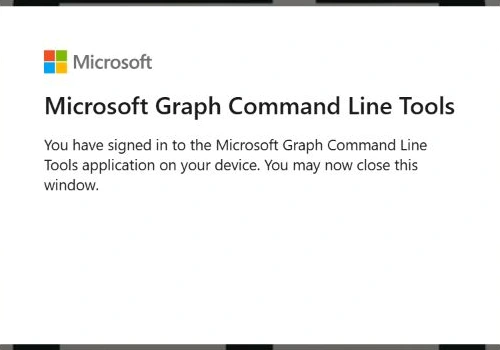
Open the Microsoft verification address displayed by your own command and enter that command's code. Verify the account and the application, Microsoft Graph Command Line Tools. Approve only the request you just initiated. An unsolicited code arriving in a message is a different situation: do not approve it.
Record the start and end time in UTC, module version, application, account, and whether the profile request succeeded. Keep device codes, tokens, account identifiers and full diagnostic exports out of public screenshots.
Inspect existing consent. -Scopes 'User.Read' specifies what this command requests; it is not proof that the resulting session has only that permission. In our tenant, the shared Graph application already had other consented scopes. We inspected Get-MgContext, kept token material private, and limited the functional test to /me. Do not approve broad new permissions just to run this exercise. For a separate least-privilege application design, use Microsoft's documented custom-app approach and your normal consent review.
A Microsoft completion page alone does not prove that the profile request succeeded. A local authentication-record error required a rerun before our baseline completed.
3. Build the Report-only policy
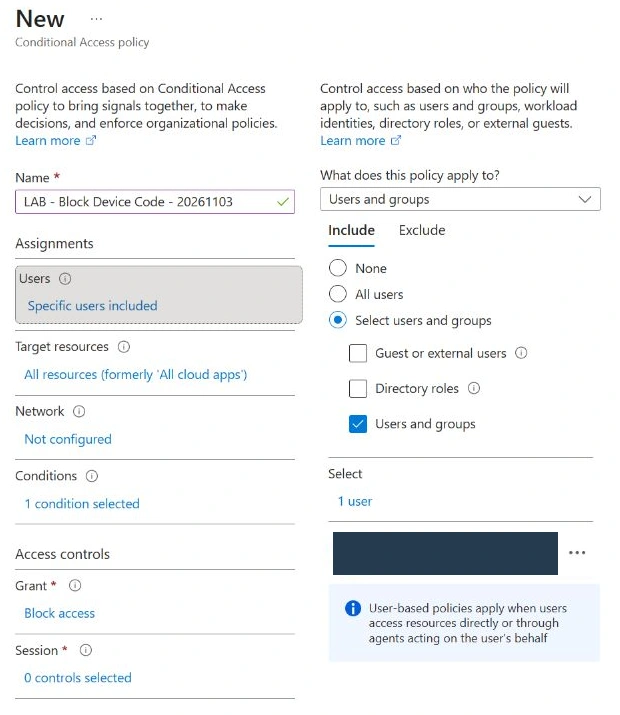
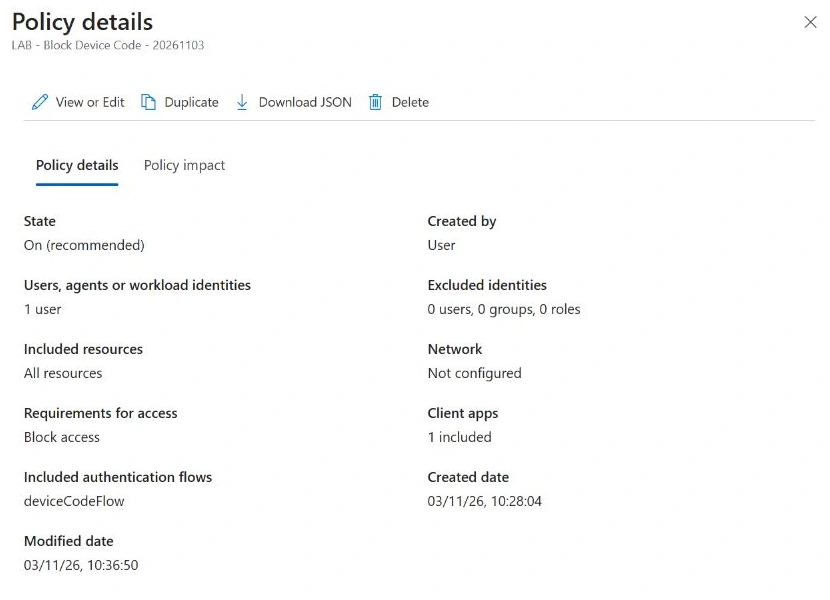
In Microsoft Entra admin center → Entra ID → Conditional Access → Policies, choose New policy. Use a name that identifies the purpose and pilot, such as LAB - Block Device Code - 20261103.
- Under Users → Include → Select users and groups → Users and groups, select only the approved pilot identity. Reopen the selection and verify the exact included account. Avoid All users for this initial lab.
- Under Target resources → Resources (formerly cloud apps) → Include, choose All resources (formerly 'All cloud apps').
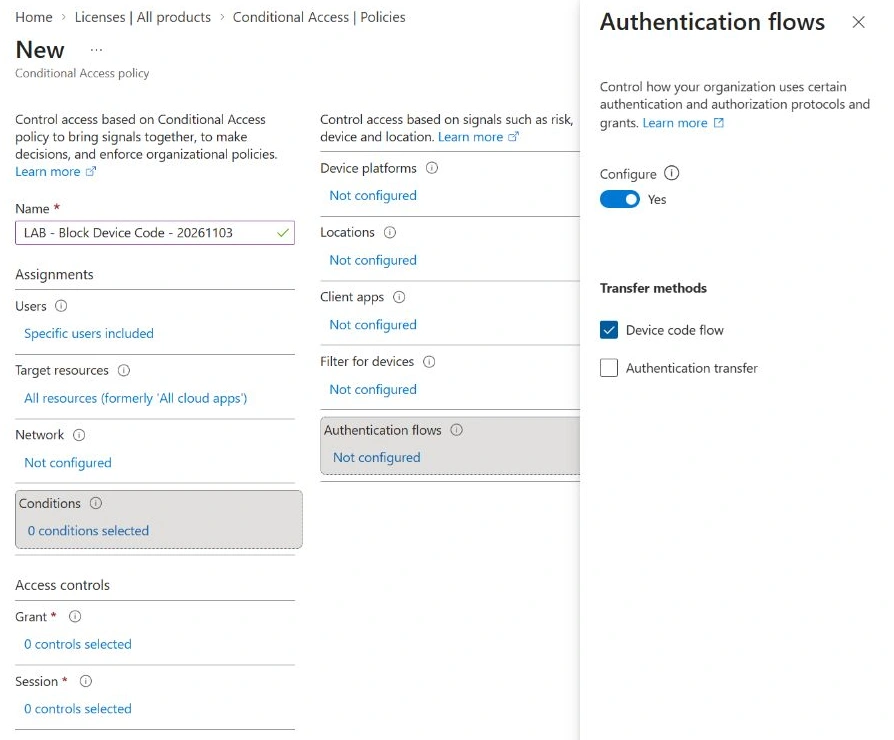
- Open Conditions → Authentication flows, set Configure to Yes, select Device code flow, and save that condition. Leave Authentication transfer unselected.
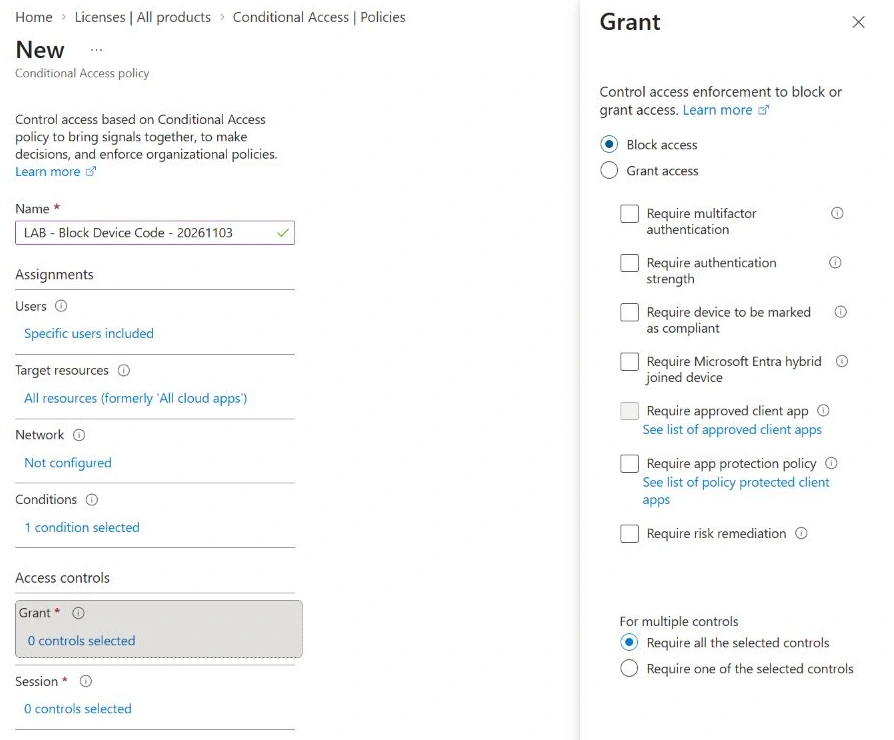
- Under Grant, choose Block access and select it. Leave the other conditions and session controls unconfigured for this focused test.
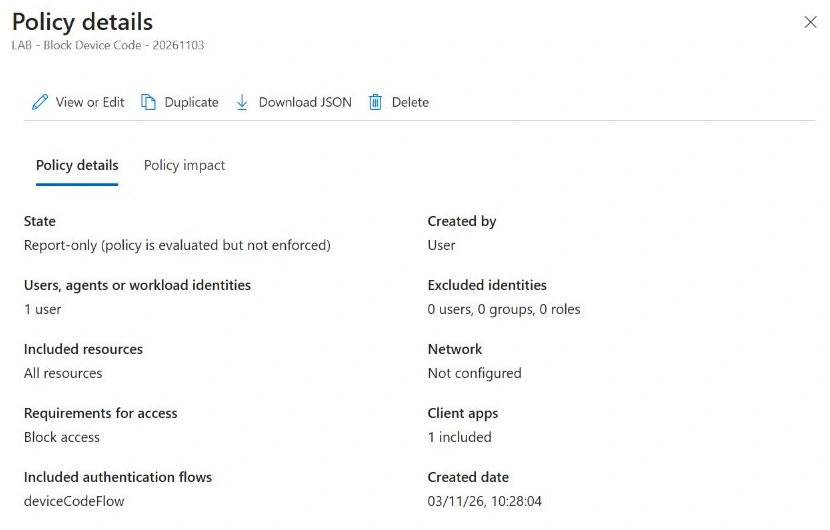
- Set Enable policy to Report-only, create the policy, then reopen its saved details.
4. Find and interpret the sign-in evidence
Repeat the baseline command in a fresh process with a newly generated code. Report-only does not enforce this block, although another existing policy may still deny the request. A successful sign-in and an evaluated report-only block can therefore coexist.
In Entra ID → Monitoring & health → Sign-in logs, or the Sign-in logs entry under Conditional Access:
- Select the test time window and use UTC for your comparison.
- Add Authentication Protocol → Device Code. Labels in the newer preview appear as Authentication protocol → Device code.
- Narrow to the pilot user and Microsoft Graph Command Line Tools. Match the application, resource and time window to the run record. When an error page provides a Request ID, use that value to locate the exact event; do not depend on an identical displayed timestamp alone.
- Open the event. Inspect Basic info, Conditional Access, and Report-only. Record the request or correlation ID privately.
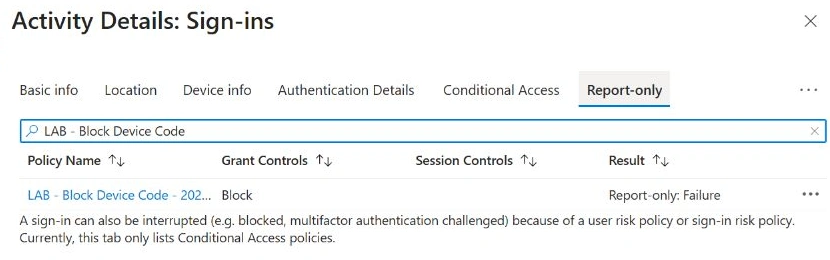
- Find your exact policy name. For this matching block rule, Report-only: Failure means the rule would deny the sign-in if enforced. It is the desired observation, not a broken test.
If nothing appears, check the tenant, time zone and account; inspect interactive and non-interactive events; allow for reporting delay. An empty result is not evidence that the flow is unused or that the policy worked. If the policy shows Not applied, investigate its scope and conditions before expanding it.
Do not stop at the protocol filter. A later request can originate from a device-code-authenticated session while showing a different immediate protocol. Inspect Original transfer method when investigating those sessions. This protocol tracking also explains why an exception for one resource does not automatically make subsequent access to other resources safe or exempt.
5. Test enforcement and a normal sign-in
For a wider rollout, finish the Report-only review and dependency assessment before enforcement. This lab kept enforcement restricted to one approved identity; the delayed log records were subsequently correlated and are included below.
Open the saved pilot policy, change Enable policy to On, save, and reopen the details to verify the saved state. Allow policy changes to propagate. Start a fresh process and a fresh device code; do not reuse an authenticated Graph session.
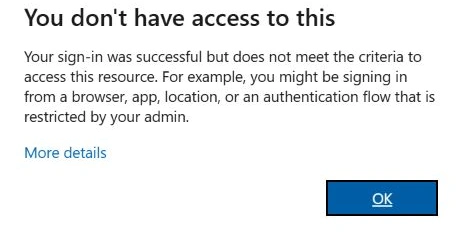
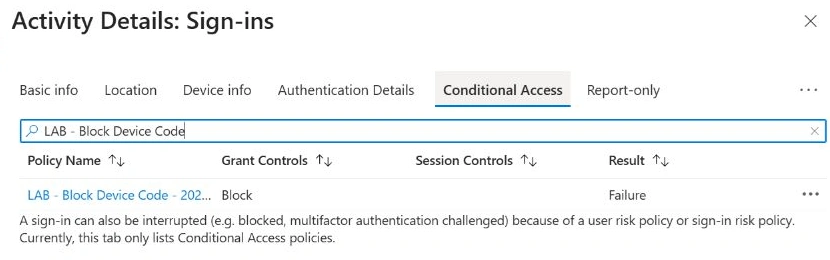
A useful finding from this tenant: the blocked record showed Authentication Protocol: None but Original transfer method: Device code flow. We located it using the error page's Request ID. Filtering only for Authentication Protocol = Device Code would miss this entry.
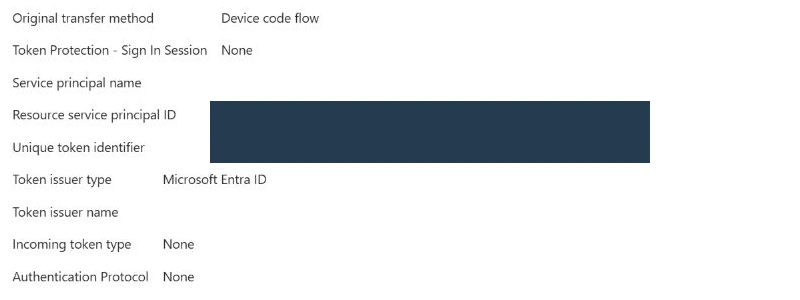
The intended result is a denied device code sign-in and a matching event identifying this policy as the blocker. An error such as AADSTS53003 alone only tells you that Conditional Access denied access; it does not identify which policy caused it. A client timeout or expired code is not a successful block test.
Verify the allowed path. Keep the pilot policy On. In another fresh, normal PowerShell console, run the same example without -UseDeviceAuthentication, or use the runner's -Mode Interactive command below. Check the selected account, read /me, and disconnect. A previously open browser tab is not a fresh sign-in control.
With current Graph PowerShell on Windows, the default application uses Web Account Manager (WAM). A missing parent-window-handle error in an embedded host is a local client problem; use a normal interactive console. Setting DisableLoginByWAM alone does not switch the default Graph application to browser authentication.
- Record the interactive run's UTC start and finish times and confirm that the profile read succeeded for the pilot account.
- Return to Entra ID → Monitoring & health → Sign-in logs. Remove the Authentication Protocol = Device Code filter used earlier. Filter by the same pilot account, Microsoft Graph Command Line Tools and the new test window.
- Open the matching event and check Basic info and Conditional Access. For a fresh normal sign-in that meets the tenant's other requirements, the expected result is Status: Success and the device-code blocking policy showing Not applied, because its authentication-flow condition does not match.
- Keep that event's identifiers with the local run record. If it fails or the block rule applies, inspect the exact decision and Original transfer method before changing anything. Do not weaken unrelated MFA or compliance rules to obtain a successful result.
These are the portal checks to perform when repeating the lab. Our normal interactive control is confirmed by its successful local profile-read record; a corresponding portal policy result was not captured for that control.
6. Handle dependencies before wider rollout
Teams phones and room devices, some provisioning flows, and older administrative tools can legitimately depend on device code authentication. Build an inventory with the application owner, identity, resource, location, business reason and review date. Migrate interactive tools to browser or broker-based sign-in where supported. For unattended automation, evaluate managed identities or workload identity federation rather than a human device-code session.
Microsoft's Teams device guidance calls for carefully scoped exceptions for the relevant resource accounts, including reauthentication needs. Removing an exception immediately after first enrolment can cause later failures. Device Registration Service may also need a resource exclusion when the organisation actually uses device code for registration. Confirm that dependency in the sign-in records instead of adding a blanket exception to every tenant.
Keep any necessary exception narrow, documented and reviewed. Excluding a user from this policy leaves that user's device code sessions outside its protection. Location restrictions can reduce exposure where appropriate, but they do not prove that a request is legitimate. Test each approved exception and a user who should remain blocked.
Roll out in small groups, review help-desk reports and sign-in outcomes, then expand. Establish a separate emergency-access design following Microsoft's guidance. This article's one-user pilot does not validate your emergency accounts, Teams estate, automation or every external access scenario.
7. Have a specific recovery procedure
If a legitimate dependency fails, identify the affected sign-in and the exact policy first. Use the separate administrator account outside the pilot to return this new policy to Report-only, or implement a reviewed narrow exception. Record the change and the residual exposure. Do not disable the tenant's existing baseline protections as a troubleshooting shortcut.
After propagation, start a genuinely fresh sign-in. Microsoft's protocol-tracking documentation describes AADSTS530036 when an existing refresh token is invalidated by authentication-flow checks; changing the policy does not make every old session usable again. Disconnecting the lab client is local cleanup, not tenant-wide revocation of previously issued sessions.
8. What this pilot actually established
| Check | Observed result | Evidence status |
|---|---|---|
| Baseline | Profile read completed at 10:26:20. The 10:26:16 sign-in succeeded. | Confirmed |
| Report-only | Profile read completed at 10:31:00. The 10:30:57 event records the lab rule as Report-only: Failure. | Confirmed in portal and Graph export |
| Enforced device code attempt | The 10:38:56 sign-in failed with 53003. Its Conditional Access result names the lab policy with Block / Failure. The error-page identifiers match that event. | Confirmed by Microsoft error details and the matching policy decision |
| Normal interactive control | The same account and Graph app completed normal interactive authentication and the profile read at 10:51:35, while the pilot policy was On. | Confirmed locally; portal policy result not captured |
| Recovery / exceptions | Procedure documented; policy reversal, Teams dependencies and production exceptions were not exercised. | Outside the completed lab |
The Graph polling client eventually timed out during the denied attempts. The rejection is established by the Microsoft error details and matching sign-in record, not by the client timeout.
Current tenant state: the new policy remains On for the single pilot user. No tenant-wide rollout was performed. Public screenshots omit personal identifiers; original evidence is retained separately.
The useful evidence is the combination: a known account and app, the saved policy scope, fresh test attempts, and the exact sign-in policy decision. Keep the evidence set together so another administrator can distinguish the intended block from a coincidental authentication failure.
Review the downloaded script, then open a fresh PowerShell console in the folder where you saved it. Replace the tenant and account placeholders. Use the first command for each device-code attempt: baseline, Report-only and enforced. Close that console between attempts. Run the second command in a new console for the allowed-path control while the policy remains On.
# Device-code attempt: run once at each policy stage in a fresh console.
.\Test-DeviceCodePilot.ps1 -TenantId 'YOUR-TENANT-ID' `
  -PilotAccount 'pilot@contoso.com' -Mode DeviceCode

# Normal interactive control: use a separate fresh console.
.\Test-DeviceCodePilot.ps1 -TenantId 'YOUR-TENANT-ID' `
  -PilotAccount 'pilot@contoso.com' -Mode Interactive
By default, the runner saves its JSON record in the current folder. ProfileReadSucceeded confirms the profile request completed for the expected identity. FailedOrDenied means you must inspect the error and matching Entra event; it does not distinguish a policy block from a local error or timeout. The runner checks access, not the policy decision. Follow your organisation's script-execution policy if Windows prevents the file from running.
Microsoft references
- Microsoft Security — Unmasking EvilTokens: getting to the root of device code phishing
- Block authentication flows with Conditional Access
- Authentication flows and protocol tracking
- Report-only evaluation and policy results
- Device code flow policies for Teams devices
- Conditional Access overview and licensing
- Security defaults
- Connect-MgGraph reference
- Microsoft Graph PowerShell authentication and custom applications
- View applied Conditional Access policies in sign-in logs
- Manage emergency access accounts