Build a controlled Microsoft Authenticator passkey pilot for one iPhone user. This guide connects the Entra configuration to the checks that matter: a fresh Outlook sign-in, a stronger-method requirement, an unaffected control account and a recovery rehearsal. The downloadable workbook keeps the steps, expected outcomes and evidence together.
1. Define the pilot and choose the credential
Use an existing standard internal account, an assigned security group named LAB-Passkeys-Pilot, and a separate administrator. The group must contain only the test account. Under Entra ID → Groups → All groups → New group, choose Security and Assigned, leave directory-role assignment disabled, add the approved member and create the group. Reopen Members and verify the membership before targeting a policy.
Prepare a separate standard control account outside LAB-Passkeys-Pilot, with approved access to its own Outlook mailbox. Record its existing access and policy result before changes. It will check that the new policy remains limited to the pilot; the separate administrator is not the control account. Keep both outside the pilot group.
This procedure uses a device-bound passkey in Microsoft Authenticator. It gives the pilot an explicit provider and an attested registration path. It also requires a replacement credential if the phone is lost. Synced passkeys and hardware security keys offer different operational trade-offs; Authenticator is not a universal requirement for every user. Microsoft's deployment guidance selects credentials by user persona and recommends a backup method.
For a concrete application test, this procedure uses Outlook on the web at https://outlook.office.com/mail/, with an existing licensed mailbox. First verify that the pilot can open it with its working method. Record the actual application, resource display name and resource ID from that sign-in. The intended protected resource is Exchange Online. If the mailbox or resource cannot be confirmed, resolve that prerequisite before creating Conditional Access.
The resource scope covers Exchange Online access for the targeted user; it is not limited to one browser tab or one mailbox operation. Do not substitute All resources or the Office 365 application group without reviewing the wider impact. Record browser, Windows, iOS and Authenticator versions in the workbook.
2. Record the baseline and check prerequisites
| Check | Where to look | What to record |
|---|---|---|
| Method availability | Entra ID → Authentication methods → Policies | Enabled state, targets, exclusions and applicable profiles. |
| Registered methods | Entra ID → Users → pilot → Authentication methods | Method types and an independent fallback. |
| Actual usage | Entra ID → Monitoring & health → Sign-in logs | Recent authentication steps and the Outlook resource. |
| Policy interaction | Conditional Access policies and Security Defaults | Requirements for registration, device compliance and application access. |
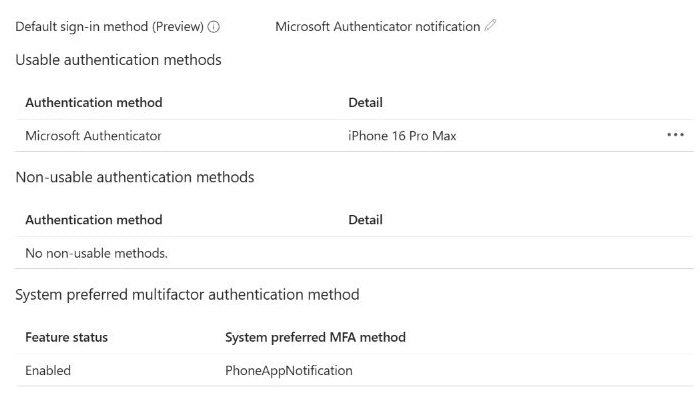
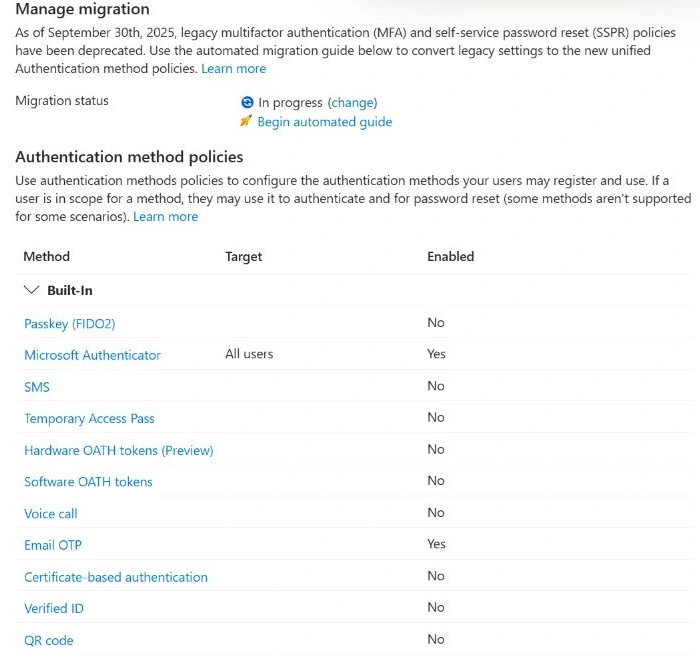
Baseline example: Authenticator was listed as usable, with notification as the default. No phone or passkey appeared. The unified policy list showed FIDO2, SMS, voice and Temporary Access Pass disabled, and method-policy migration In progress. Review remaining legacy settings before drawing conclusions about effective phone-method availability.
For an organisation-wide inventory, use Authentication methods → Activity → Registration / Usage with an appropriate reader role, such as Reports Reader. These reports require Entra ID P1 or P2 and are not immediate confirmation of a new credential: registration data commonly takes up to 36 hours to update, with occasional longer delays.
3. Choose the licensed path and prepare the devices
| Capability | Requirement | Pilot decision |
|---|---|---|
| Register and use a passkey | Available with Entra ID Free. | Complete registration and fresh sign-in before enforcement. |
| Require an authentication strength | Entra ID P1 entitlement for the users covered by Conditional Access. | Verify the pilot entitlement before section 7. |
| Read Activity reports | Entra ID P1/P2 and a reporting role. | Use the immediate method record and sign-in evidence for the individual test. |
Authentication Policy Administrator configures method policies. Conditional Access Administrator manages the pilot access policy. Authentication Administrator can issue a TAP to a standard member. An Exchange Online Plan 1 licence alone does not establish an Entra P1 entitlement. If that entitlement is unavailable, complete onboarding and label enforcement as outside the completed scope.
Use iOS 17 or later, a current Authenticator app and a screen lock. Record the exact versions tested, including the laptop OS and browser. Cross-device sign-in needs Bluetooth and internet on both devices. On filtered networks, verify access to the documented iOS endpoints, including cable.auth.com, app-site-association.cdn-apple.com and app-site-association.networking.apple. Attested iOS registration takes place directly in Authenticator.
For cross-device flows, Microsoft requires those endpoints to be reachable without interception. Review the specific proxy and traffic-inspection exceptions with the network owner; a successful web page load does not establish that the passkey connection works.
Choose the pilot scope before testing. Registration and sign-in form the onboarding stage. Conditional Access adds an enforcement stage that needs the required licence. Recovery adds a separate stage that needs a compatible spare device and an approved identity-verification route. If a prerequisite is missing, record the affected test as Blocked and retain the completed results from earlier stages.
Keep the current working sign-in method and administrator access. Check how existing policies affect the phone as well as the browser. If registration requires a compliant device, opening Authenticator does not prove that credential registration is permitted. Resolve that requirement through the approved device or registration process; do not disable the organisation's control to make the pilot pass.
4. Enable the method with a verified target
Open Entra ID → Authentication methods → Policies → Passkey (FIDO2). Capture the current settings, profiles, includes and exclusions. If profiles are not enabled, review that change first: opting in is irreversible. Verify the global Allow self-service set up setting. Set it to Yes for a permitted Security info registration route; changing it can also affect other users already enabled for passkeys.
Use Configure → Add profile for the proposed LAB-Authenticator-DeviceBound configuration:
| Setting | Pilot value |
|---|---|
| Passkey types | Device-bound |
| Enforce attestation | Yes |
| Target specific AAGUIDs | Allow → Microsoft Authenticator |
| Enable and target | Enable = On; Select targets = LAB-Passkeys-Pilot; assign the pilot profile |
Review the complete target list before Save. Reopen the policy afterwards and capture the saved group-to-profile assignment and exclusions. Record any remaining profile that also applies to the user. Passkey eligibility can come from any applicable profile; a method-level exclusion takes precedence. Attestation is checked at registration, whereas AAGUID restrictions also affect sign-in.
5. Register in Authenticator on the iPhone
- Open the pilot's existing work account in Authenticator and select Create a passkey. For an account not yet added, use Add account → Work or school account → Sign in.
- Authenticate and complete the required MFA. Registration requires recent verification; complete it when prompted rather than relying on an older browser session.
- Follow the Settings prompt to enable Authenticator as a passkey provider. On iOS 18, Microsoft documents Settings → General → AutoFill & Passwords; on iOS 17, Settings → Passwords → Password Options. Enable password/passkey AutoFill and select Authenticator. For other versions, follow the current device settings.
- Return to Authenticator and finish until it confirms Passkey added.
- Reopen the pilot's Authentication methods in Entra, or the user's Security info. Verify the new passkey record and provider details. Capture the completion screen and the method type, with identifiers concealed.
A push notification or an Authenticator account tile alone does not establish that a passkey was created.
6. Prove a fresh sign-in to Outlook
- Open a separate browser profile or private session without the pilot's existing session. Navigate to
https://outlook.office.com/mail/. - Enter the pilot account. If necessary, choose Other ways to sign in → Face, fingerprint, PIN or security key.
- Choose the phone option in the browser or operating-system dialog. Scan the displayed WebAuthn QR using the iPhone Camera app, not Authenticator's camera.
- Select the pilot's Authenticator passkey and verify locally with Face ID, Touch ID or the device PIN. Confirm that the correct mailbox opens.
The Windows prompt depends on the OS/browser version; Microsoft's documented Windows 11 23H2-or-later flow offers iPhone, iPad, or Android device. Keep the live QR and verification screens out of published evidence.
Give the credential a recognisable device-specific name where supported. Record the creation time and available method details privately so the replacement test can distinguish the original credential from the new one.
In Entra ID → Monitoring & health → Sign-in logs, filter by the pilot and test time. Inspect the related interactive events, Authentication details, target Resource and Conditional Access. Record the successful FIDO2/passkey step, resource ID, UTC time and relevant event references privately. An interrupted challenge may be part of a sequence; establish the completed outcome as well. An existing-token MFA claim is not fresh-passkey evidence.
7. Require phishing-resistant authentication for the pilot
Check Security Defaults first. In Entra ID → Overview → Properties → Manage security defaults, record its state. This section assumes an existing Conditional Access deployment. If Security Defaults is enabled, retain it and limit this exercise to onboarding until an approved tenant-wide transition provides replacement protections. A one-user Exchange policy is not a replacement for Security Defaults.
Complete this section only after confirming P1 entitlement, registration, working administrator access and a usable recovery route. Open Entra ID → Conditional Access → Policies → New policy. Use the following proposed configuration, checking the resource against the baseline event:
| Field | Value to review |
|---|---|
| Name | LAB-Passkeys-Exchange-PRMFA |
| Users | Include only LAB-Passkeys-Pilot. Verify the separate administrator is not included. |
| Target resources | Select the Exchange Online resource identified in the baseline sign-in. Confirm its service-principal/resource ID. If unavailable in the picker, stop and review the target. |
| Conditions / Session | No additional conditions or session controls in this new pilot policy. |
| Grant | Grant access → Require authentication strength → Phishing-resistant MFA |
| Enable policy | Report-only initially |
The built-in strength also permits other qualifying methods, such as Windows Hello for Business and multifactor certificate authentication. This test requires phishing-resistant access, not exclusive use of Authenticator. A provider-specific objective would need a separately reviewed custom strength.
Repeat the application sign-in, then inspect the policy's Report-only evaluation in the corresponding events. Confirm that the intended user and resource were evaluated and that no unresolved overlapping control blocks the scenario. Other policies remain effective, including device compliance.
After that review, set this pilot policy to On for the agreed test window and reopen it to confirm the saved state. Run two fresh sessions against the same mailbox: first use the existing password-plus-push method and stop at the stronger-method requirement; then use the passkey. If the operating system automatically offers Windows Hello or another qualifying credential during the first attempt, cancel it. The weaker method must not provide access on its own, while the passkey must allow access. Correlate both attempts with policy evaluation. If the first attempt already contains a strong token claim, or a different policy causes denial, repeat or investigate instead of marking success.
Check the control account (C04). While the pilot policy is On, start a separate fresh session for the control account and open its own mailbox. Compare the result with its baseline. In the matching sign-in, confirm that this specific pilot policy is Not applied because the user is outside its scope. Other policies may still apply. An unexpected inclusion or changed access outcome needs investigation before expanding the pilot.
8. Rehearse recovery without the original phone
Use a spare compatible device and keep the original phone secure and unused during the recovery attempt. This exercises a planned recovery route without destroying the working credential. Authenticator account backup does not transfer a device-bound passkey to a new phone; a replacement must be registered.
- Prepare the route. Review policies on Register security information, Authenticator and the target application. An All resources policy requiring a passkey can prevent a user without one from registering its replacement. The Exchange-only pilot is not a solution to every existing policy. If another control blocks recovery, stop and have its owner approve a specific onboarding design. Do not add TAP as an alternative to the protected application's phishing-resistant requirement.
- Enable TAP for the group. As Authentication Policy Administrator, open Authentication methods → Policies → Temporary Access Pass. Review existing assignments and configure the pilot group's eligibility. Record the lifetime and usage settings that the tenant permits.
- Verify identity and issue. Follow the organisation's documented help-desk identity check. Record the procedure reference, verifier and outcome; use its approved private delivery channel for the TAP. The check must remain possible without approval on the unavailable phone. As Authentication Administrator, open Users → pilot → Authentication methods → Add authentication method → Temporary Access Pass. For this controlled exercise, start with a single-use TAP valid for 60 minutes if permitted by policy. This is a lab choice, not a required Microsoft default. Deliver the code privately; it is displayed once.
- Register the replacement. On the spare iPhone, add the work account in Authenticator and sign in using the TAP. Complete the provider and passkey steps in section 5 within the documented 10-minute registration window after single-use TAP sign-in; the 60-minute TAP validity is a different limit. If the single-use TAP is consumed before completion or verification must be repeated, issue a new one after checking the failed attempt. Use a short-lived multi-use TAP only through an explicitly approved recovery design.
- Prove recovery. With the original phone still unused, start a fresh laptop session and access the same mailbox using the replacement passkey. Confirm the new credential's registration and the successful authentication/policy result. TAP issuance alone is not a completed recovery test.
- Close temporary access. Remove an unused or multi-use TAP once the replacement works. Check its final state and close the recovery sessions. TAP expiry alone does not prove that previously established sessions ended; review applicable session controls. For an actual planned phone replacement, remove the obsolete passkey after the new method succeeds. Keep the original credential during this rehearsal until the approved cleanup decision.
To rehearse phone loss, keep the original phone secure and unused throughout identity verification, registration and the replacement sign-in. Without a compatible replacement device, mark H01–H02 Blocked in your execution record; a desktop review of the procedure is not evidence that recovery worked.
Record the TAP's configuration and lifecycle, never its value. A suspected stolen-device incident needs separate containment actions; this rehearsal does not replace that incident procedure.
9. Diagnose common failures
| Symptom | Check next | Evidence before retrying |
|---|---|---|
| Create a passkey is absent | Correct work account, current app, saved FIDO2 state, effective group/profile and exclusions. | Account method list and effective assignment. |
| Authenticator says the passkey already exists, but Entra has no corresponding record | Compare the account and credential details in Authenticator and Security info. A failed registration can leave a local-only credential. | Confirm the incomplete credential before deleting it locally and retrying. Preserve any working credential. |
| Passkey is not offered on iPhone | Authenticator selected as provider, AutoFill enabled and passkey registered for this account. | Provider setting and credential record. |
| Attested registration fails from the laptop | Start directly in Authenticator on iOS; inspect app/service availability. | Registration route, version and error text. Keep attestation enabled. |
| Registration asks for a passkey the user does not have | Registration policies and any All resources authentication strength. | Failing sign-in's resource and applied policies. |
| Phone cannot complete the QR flow | System Camera, Bluetooth, proximity and required endpoints without proxy/interception interference on both devices. | OS/browser versions and error. Do not save the live QR. |
| Method succeeds but the app remains blocked | Other Conditional Access controls and mailbox/resource availability. | Authentication result and each applied policy. |
| Activity report does not show the new method | Check the individual method record first; reporting is delayed. | Registration timestamp and immediate method record. |
For a confirmed incomplete local credential, open the affected account in Authenticator and use Settings → Delete passkey, then retry the registration after addressing its original cause. If a matching server record exists, assess it before removal; never infer that a working credential is disposable from the error alone.
Use the Authenticator support guidance and report limitations when interpreting these checks. Record the observed error instead of assigning a cause solely from its wording.
10. Close the pilot and plan any SMS retirement
For a requested rollback, first restore the new pilot Conditional Access policy to its recorded prior state and verify the user's previous approved application access. Before changing method eligibility, confirm a working fallback. Restore only the pilot's method/profile assignments and TAP changes from the saved baseline, and test access again. Remove a pilot credential only after that check and an explicit cleanup decision. Profile opt-in itself cannot be reversed.
When removing a pilot passkey is part of the agreed cleanup, match its device and registration details first. On the accessible iPhone, open the account in Authenticator and select Settings → Delete passkey. Also remove the corresponding entry in the user's Security info, verify both views and test access with the retained method. Removing the whole Authenticator account could affect other methods and is unnecessary for this step.
Do not retire a phone method simply because a passkey exists. Review actual SMS/voice usage, MFA and SSPR dependencies, the replacement credential and an independent recovery path. If the pilot account has no phone method or telephony dependency, record retirement as Not applicable with the baseline evidence.
For broader planning, Microsoft lists passkey auto-enablement for eligible SMS/voice users from 1 September 2026, retirement of Microsoft-provided telephony for most users from 1 February 2027, and for Global Administrators and external users from 1 July 2027. Internal guest accounts follow the February date. Review the current scope, campaigns and applicable exceptions before applying those dates to your tenant.
11. Use acceptance criteria to assess your pilot
The following checks define the expected outcomes for an implementation. Their IDs match the downloadable workbook. Use a separate copy per run and policy version, recording Windows, browser, iOS and Authenticator versions, UTC timestamps and private event references.
| Workbook check | Expected outcome | Evidence to retain |
|---|---|---|
| B01 · Baseline | The pilot can open its mailbox with the existing approved method. | Registered methods, effective policies and the sign-in's application/resource ID; also record the control account's baseline. |
| L01 · Licensing | Required entitlements are verified for the selected enforcement and reporting scope. | Relevant licence/service-plan record. An absent licence is a blocked prerequisite, not a passed check. |
| P01 · Configuration | The saved group, profile and effective assignments match the intended scope. | One-member group, profile, complete target list, exclusions and any overlaps. |
| R01 · Registration | Authenticator completes registration and Entra records the corresponding passkey. | Completion screen and credential details, with identifying information concealed. |
| S01 · Fresh sign-in | The mailbox opens following use of the phone's passkey. | A successful passkey authentication step correlated to this attempt and resource. |
| C01 · Report-only | The new policy evaluates the intended user/resource without enforcing its grant. | Saved Report-only policy and matching evaluation. |
| C02 · Weaker method | With the policy On, password plus push cannot provide mailbox access on its own. | The stronger-method challenge and policy evaluation; exclude an existing strong claim or unrelated failure. |
| C03 · Strong method | A fresh passkey attempt satisfies the enabled policy and opens the mailbox. | Successful authentication and the policy's grant result for the same resource. |
| C04 · Control account | The outside-group account retains baseline access to its own mailbox. | The new policy is Not applied because of user scope; existing policies still apply. |
| H01 · Replacement registration | The approved recovery route registers a new passkey without using the original phone. | Identity-check reference, TAP lifecycle metadata and new credential record; no TAP value. |
| H02 · Recovered access | The replacement passkey opens the protected mailbox while the original phone remains unused. | Fresh authentication details and the enabled policy's result. |
| H03 · Temporary-access cleanup | Temporary access and recovery sessions are closed under the agreed procedure. | Final TAP state and cleanup record; expiration alone is not proof that sessions ended. |
| X01 · Rollback | Approved previous access works after restoring the pilot changes. | Before/after policy state, retained method and fresh sign-in result. |
| M01 · Phone-method retirement | Any retirement has an approved replacement and recovery path, or is explicitly out of scope. | MFA/SSPR dependency review and an access check, or a justified Not applicable decision. |
In the workbook, Passed requires an observed result and its evidence. Use Failed when an executed check misses its criterion, Blocked for a missing prerequisite, and Not applicable only for a documented scope decision. Leave unexecuted checks as Not run; reviewing the documented procedure does not change their operational result.
For the evidence set, capture the saved profile and complete target list, the iPhone completion and Entra credential record, the successful authentication details, the enforced policy result and the control-account evaluation. Add recovery evidence only when that stage is executed. Keep the original captures privately; public copies should conceal account identifiers, tenant details and mailbox content while retaining the method, policy state, test time and outcome. Do not capture TAP values, live QR codes, PINs or biometric data.
Download the Excel checklist to record preparation, test steps, expected outcomes and evidence. The workbook is a blank execution template: its 14 checks start as Not run.
Download the complete kit for the workbook and an optional participant message.
Microsoft references
Official Microsoft documentation used for this guide. Reviewed on 30 October 2026.
- Plan a phishing-resistant passwordless authentication deployment
- Conditional Access: Target resources
- Authentication methods activity and reporting
- Enable passkeys (FIDO2), profiles and group assignments
- Conditional Access authentication strengths
- Enable and support passkeys in Microsoft Authenticator
- Register and manage passkeys in Authenticator
- Sign in with passkeys in Authenticator
- Interpret sign-in log activity details
- Security Defaults and the transition to Conditional Access
- How Conditional Access authentication strengths work
- Evaluate Conditional Access policies in report-only mode
- Transfer Microsoft Authenticator to a new phone
- Configure and use a Temporary Access Pass
- Passkeys by default and retirement of Microsoft-provided SMS and voice