🔐 Stop Phishing Attacks with Passwordless Authentication
Remote phishing attacks are on the rise, but you can stop them. Deploy passwordless authentication with Microsoft Entra and eliminate the weakest link in your security chain—passwords. This practical guide shows SMEs how to achieve Zero Trust authentication using tools already included in Microsoft 365 Business Premium.
What You'll Learn:
- Why passwords are vulnerable to phishing and credential theft
- How passwordless authentication works (biometrics + device trust)
- Step-by-step deployment with Microsoft Authenticator app
- Pilot testing and full rollout strategies
- Microsoft's proven results: 14x faster, 99% success rate
Introduction
In the modern digital landscape, passwords are the weakest link in the security chain. They are frequently stolen, phished, and forgotten, creating a constant source of risk and frustration for both users and IT teams. For small and medium businesses (SMEs), where a single compromised account can be catastrophic, moving beyond passwords is not just a futuristic ideal—it is a present-day necessity. Remote phishing attacks are on the rise, targeting identity proofs such as passwords, SMS codes, and email one-time passcodes [1]. These attacks use social engineering and credential harvesting techniques that are becoming more sophisticated with AI-driven toolkits, making it essential to adopt stronger authentication methods.
This is where Microsoft Entra Passwordless Authentication comes in. By replacing passwords with stronger, more convenient methods like biometrics or PINs, you can eliminate the single largest attack vector targeting your organization. For SMEs with Microsoft 365 Business Premium, the tools to go passwordless are already included, providing a powerful, cost-effective way to achieve a Zero Trust security posture. This guide provides a practical, step-by-step approach to deploying passwordless authentication in your SME, focusing on the most accessible and impactful method: the Microsoft Authenticator app.
Prerequisites
Before you embark on your passwordless journey, ensure you have the following prerequisites in place:
| Requirement | Details |
|---|---|
| Licensing | Microsoft 365 Business Premium (includes Entra ID P1), Microsoft 365 E3, or a standalone Entra ID P1/P2 license. |
| Admin Role | You must have Authentication Policy Administrator or Global Administrator privileges. |
| MFA Registration | All users must have the Microsoft Authenticator app registered as an MFA method. |
| Combined Registration | Ensure the combined security information registration experience is enabled in Entra ID. |
Combined Registration is Key
The combined registration experience allows users to register for both MFA and SSPR in a single, streamlined process. This is enabled by default in newer tenants. You can verify this in **Microsoft Entra admin center** > **Identity** > **Protection** > **Authentication methods** > **Registration and reset**.
Understanding Passwordless Authentication
Passwordless authentication replaces the traditional password with something you are (biometrics like a fingerprint or face scan) or something you have (a physical device like your phone). Instead of typing a password, users approve a sign-in notification on their trusted device. This method is inherently more secure because there is no password to be phished, stolen, or guessed.
Passwordless Methods Available in Microsoft Entra:
- Microsoft Authenticator App: The most accessible and recommended method for SMEs. Users receive a notification on their phone and approve it with their device PIN or biometrics.
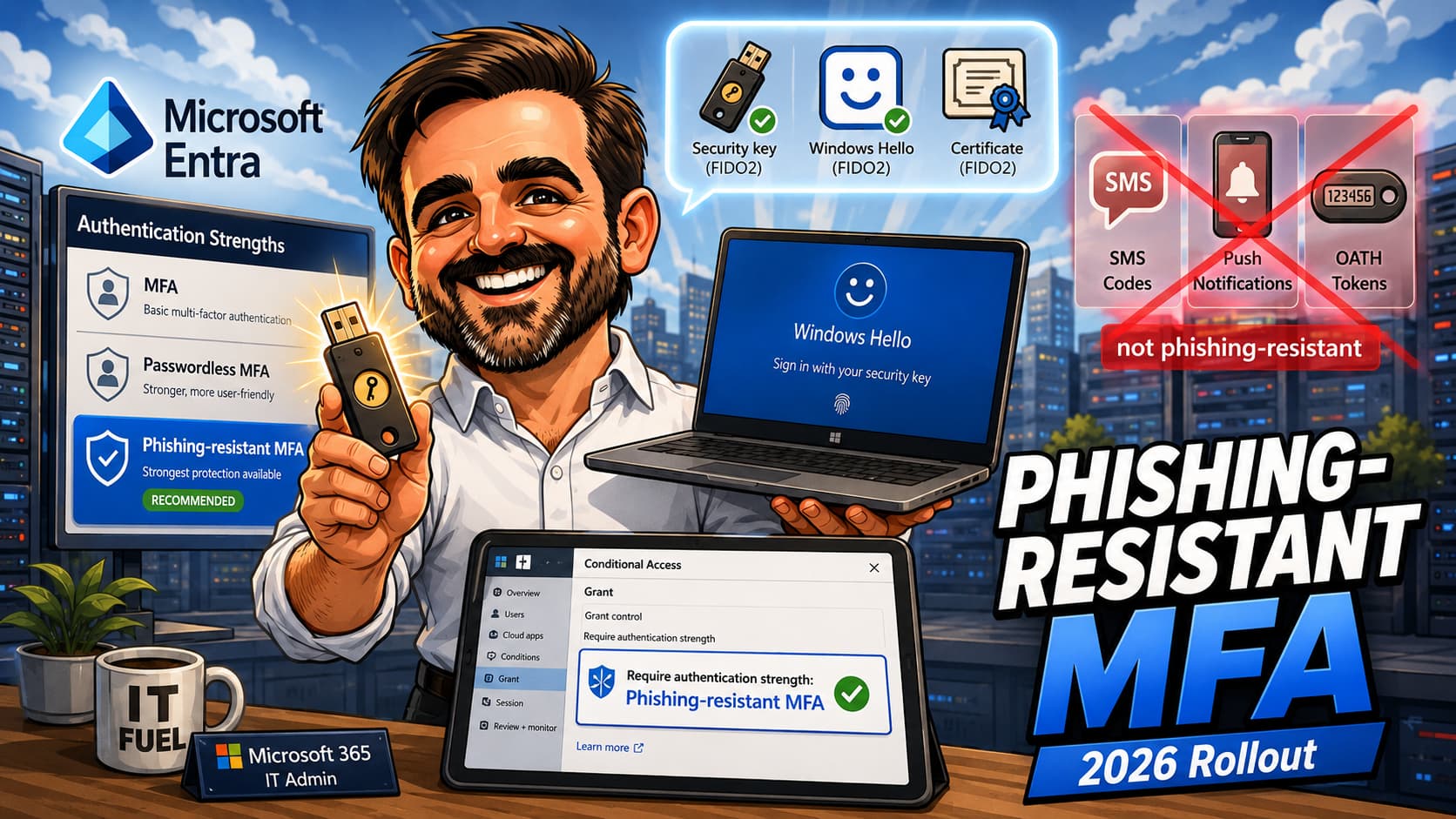
- Windows Hello for Business: Uses facial recognition or a PIN on a Windows device to sign in. Excellent for dedicated company devices.
- FIDO2 Security Keys: Physical USB keys that provide the highest level of security. Ideal for highly privileged accounts.
This guide will focus on deploying the Microsoft Authenticator app as it provides the best balance of security, usability, and cost-effectiveness for SMEs.
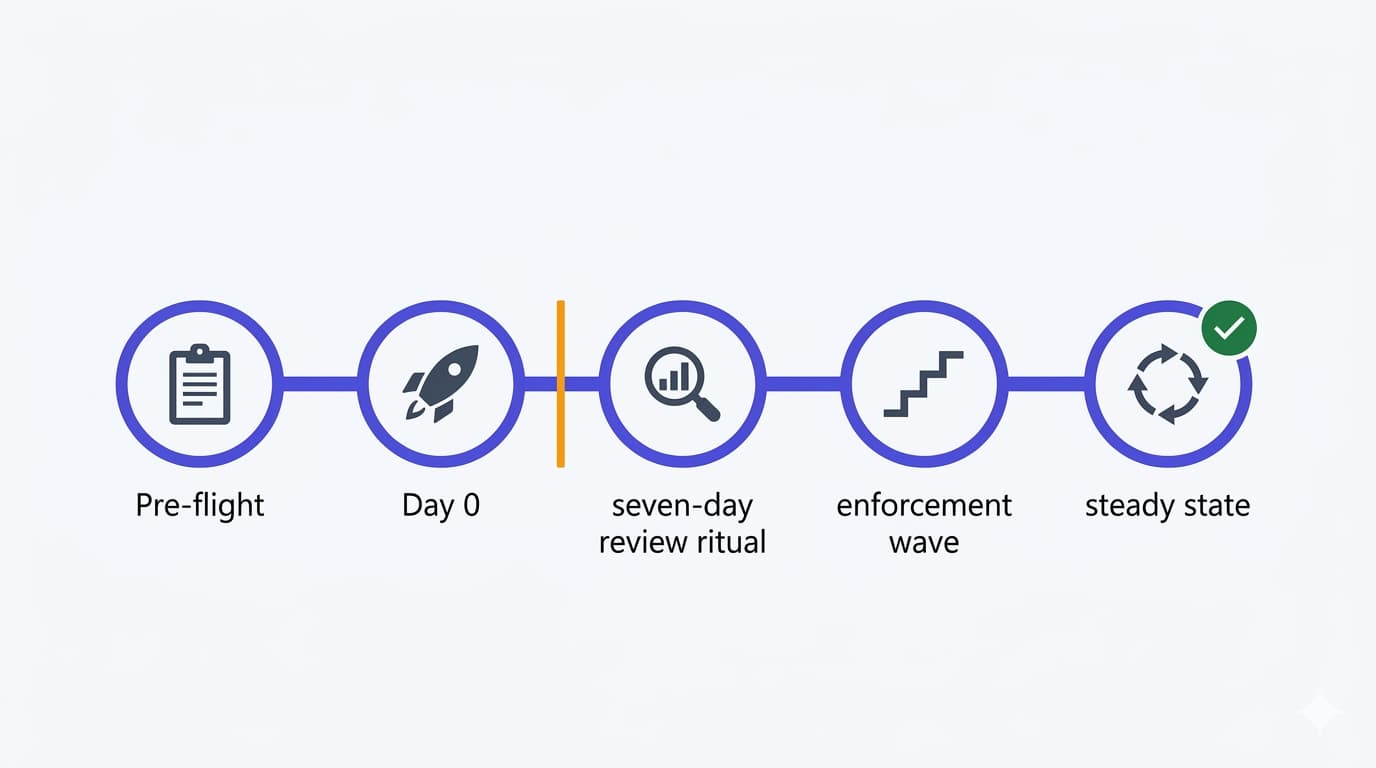
Phase 1: Planning and Preparation
A successful passwordless rollout is built on a solid foundation of planning and communication.
Step 1: Define Your Pilot Group
Start with a small, tech-savvy group of users who can provide valuable feedback. A mix of roles is ideal (e.g., IT staff, a manager, a frontline worker). This group will test the experience and help you identify any potential roadblocks before a full rollout.
Step 2: User Communication Plan
Prepare your users for the change. Your communication should explain: - Why you are moving to passwordless (improved security, better user experience). - What they need to do (install and register the Microsoft Authenticator app). - When the change will happen. - How to get help if they encounter issues.
Phase 2: Configuration in Microsoft Entra
Now, let's configure the policies in the Microsoft Entra admin center.
Step 1: Enable Microsoft Authenticator as an Authentication Method
- Navigate to the Microsoft Entra admin center (https://entra.microsoft.com).
- Go to Identity > Protection > Authentication methods.
- Select Microsoft Authenticator.
- On the Enable and Target tab:
- Set Enable to Yes.
- Set Target to your pilot group.
- On the Configure tab:
- Set Authentication mode to Passwordless.
- (Optional) Add context to notifications by enabling "Show application name" and "Show geographic location".
- Click Save.
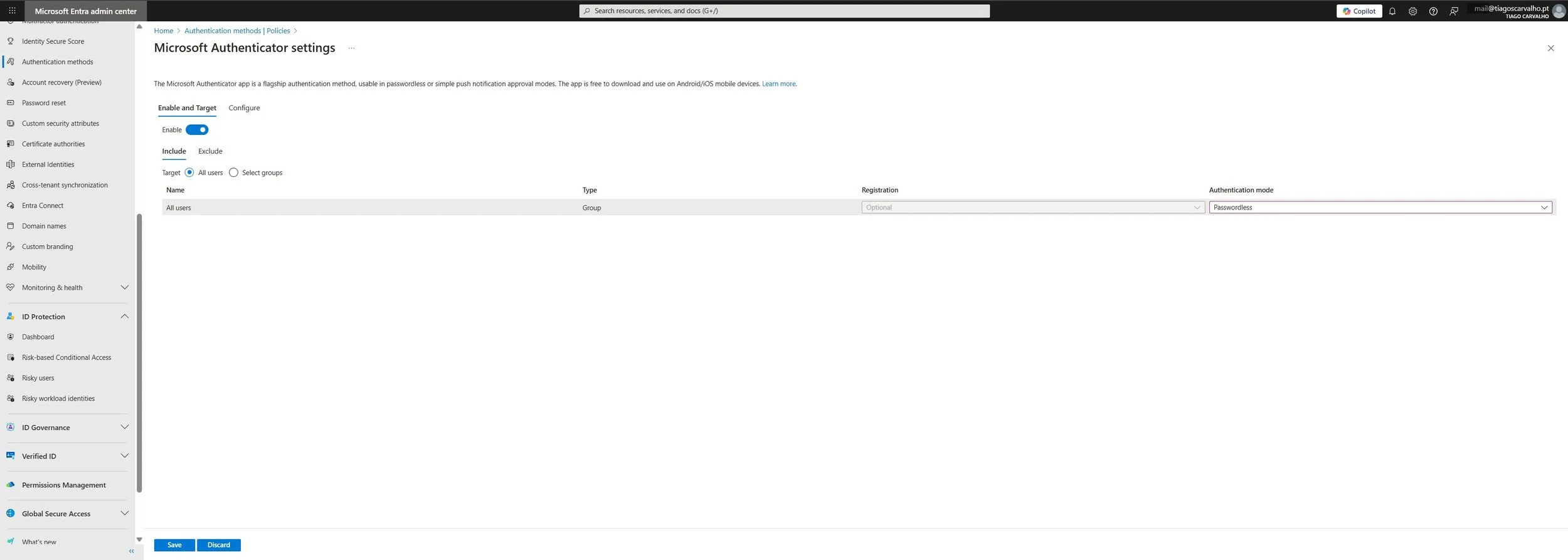
Screenshot 1: Enabling the Microsoft Authenticator method for your pilot group and setting the mode to Passwordless.
Step 2: Update Conditional Access Policies (If Necessary)
If you have existing Conditional Access policies that require MFA, they will work seamlessly with passwordless sign-in. The passwordless sign-in itself satisfies the MFA requirement. No changes are typically needed, but it's good practice to review your policies to ensure they align with your new passwordless strategy.
Phase 3: User Registration and Pilot Testing
Step 1: Guide Users Through Registration
Users in your pilot group need to register the Microsoft Authenticator app if they haven't already. They can do this by navigating to https://aka.ms/mysecurityinfo.
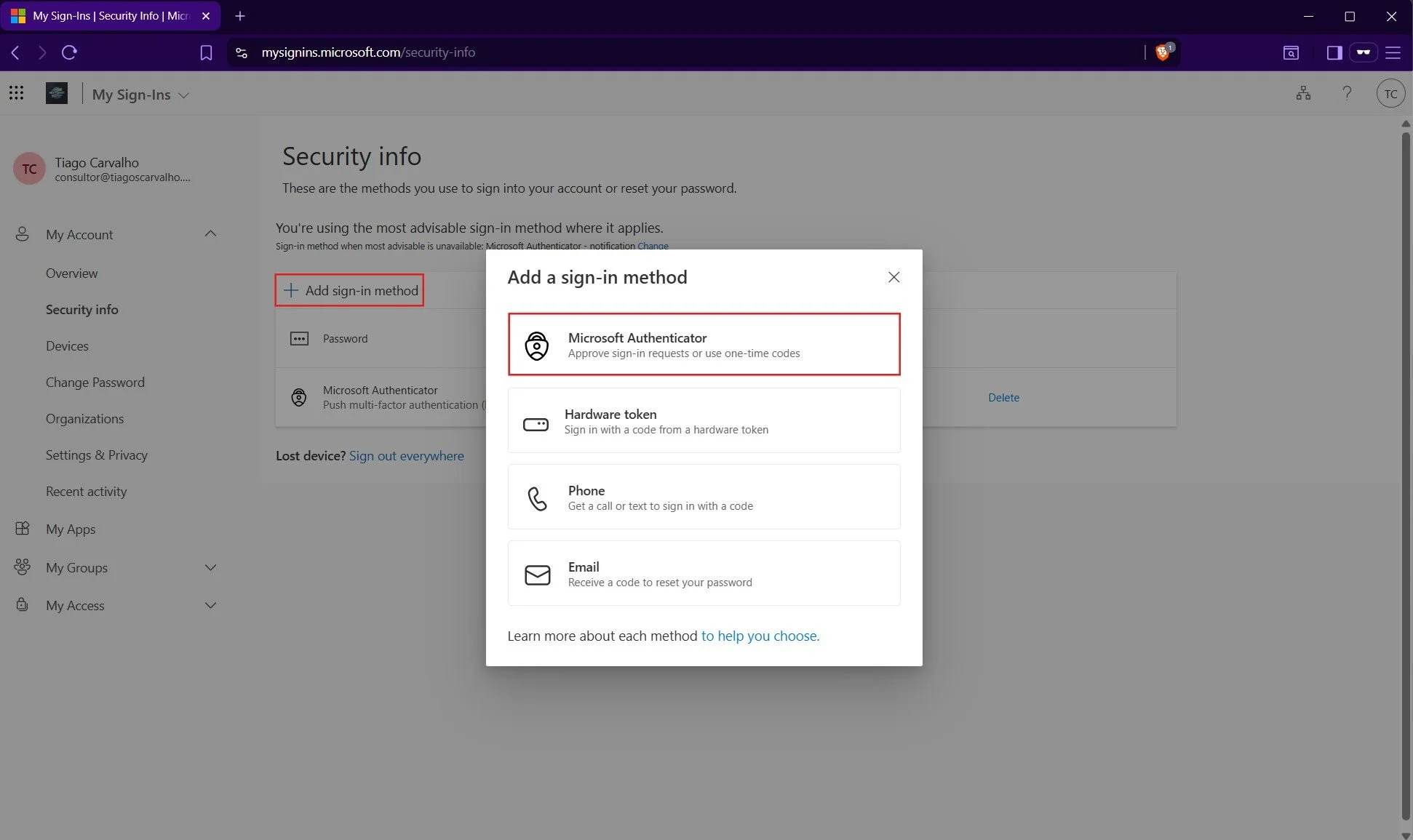
Screenshot 2: The My Security Info portal where users can add and manage their authentication methods.
Step 2: Test the Passwordless Sign-in Experience
Have your pilot users test the sign-in flow:
- Go to a Microsoft 365 sign-in page (e.g., portal.office.com).
- Enter their username and click Next.
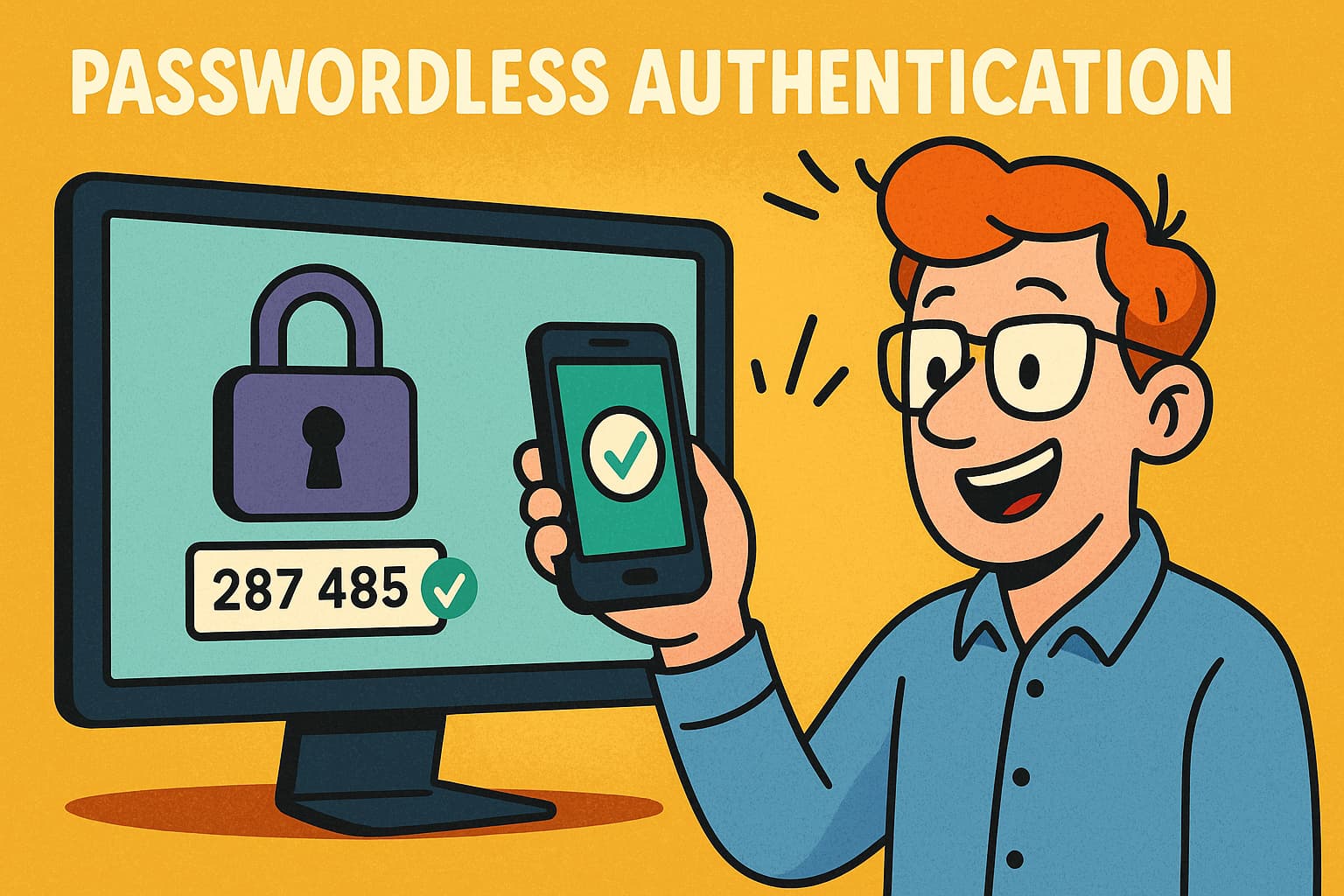
- Instead of a password prompt, they will see a number on the screen.
- A notification will appear on their phone via the Microsoft Authenticator app.
- They will be prompted to enter the number from the screen into the app and approve with their PIN or biometrics.
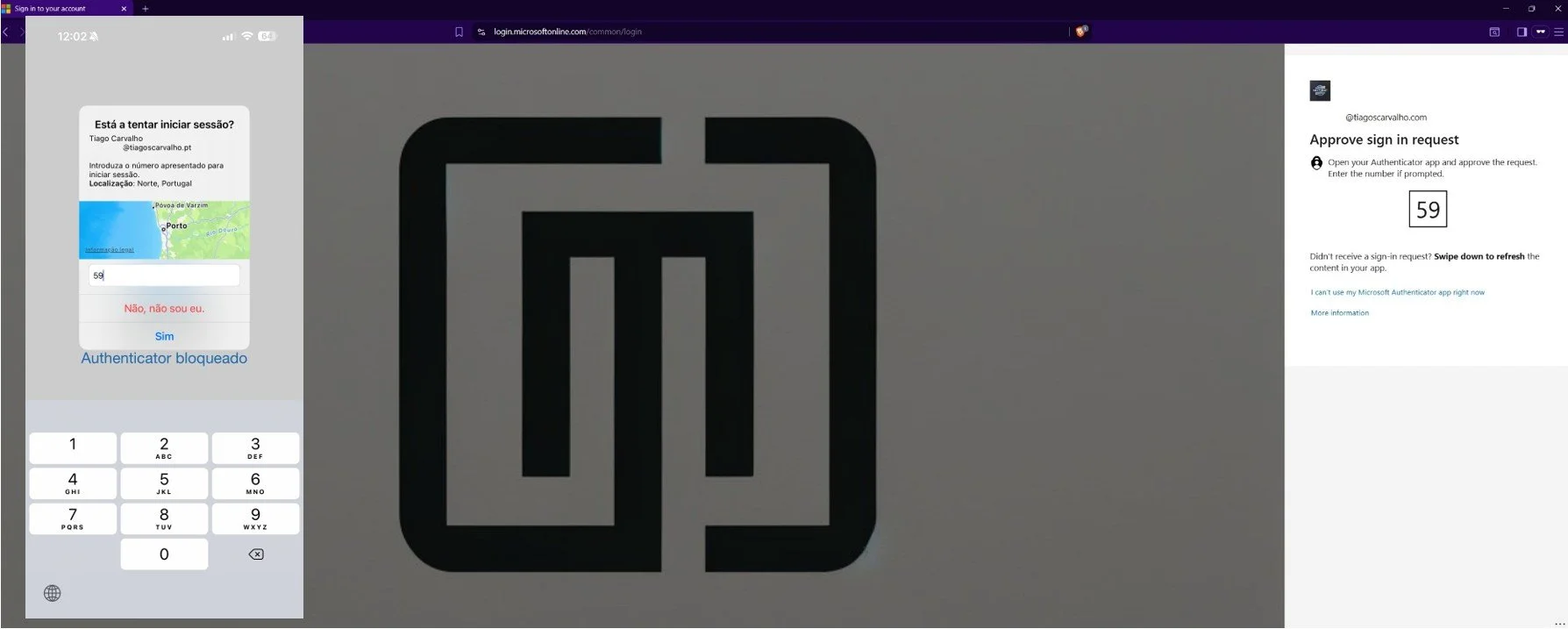
Screenshot 3: The passwordless sign-in experience showing number matching in the Microsoft Authenticator app.
Step 3: Gather Feedback
Collect feedback from your pilot group. Was the experience smooth? Did they encounter any issues? Use this feedback to refine your communication and rollout plan.
Phase 4: Full Rollout
Once you are confident with the results from your pilot, it's time to roll out passwordless authentication to the rest of the organization.
Step 1: Expand the Target Group
- Go back to the Microsoft Authenticator authentication method policy.
- Change the Target from your pilot group to All users.
- Click Save.
Step 2: Announce the Go-Live
Send out your planned user communication, announcing that passwordless sign-in is now the primary method. Provide links to your help documentation and support channels.
Step 3: Monitor Adoption and Sign-in Logs
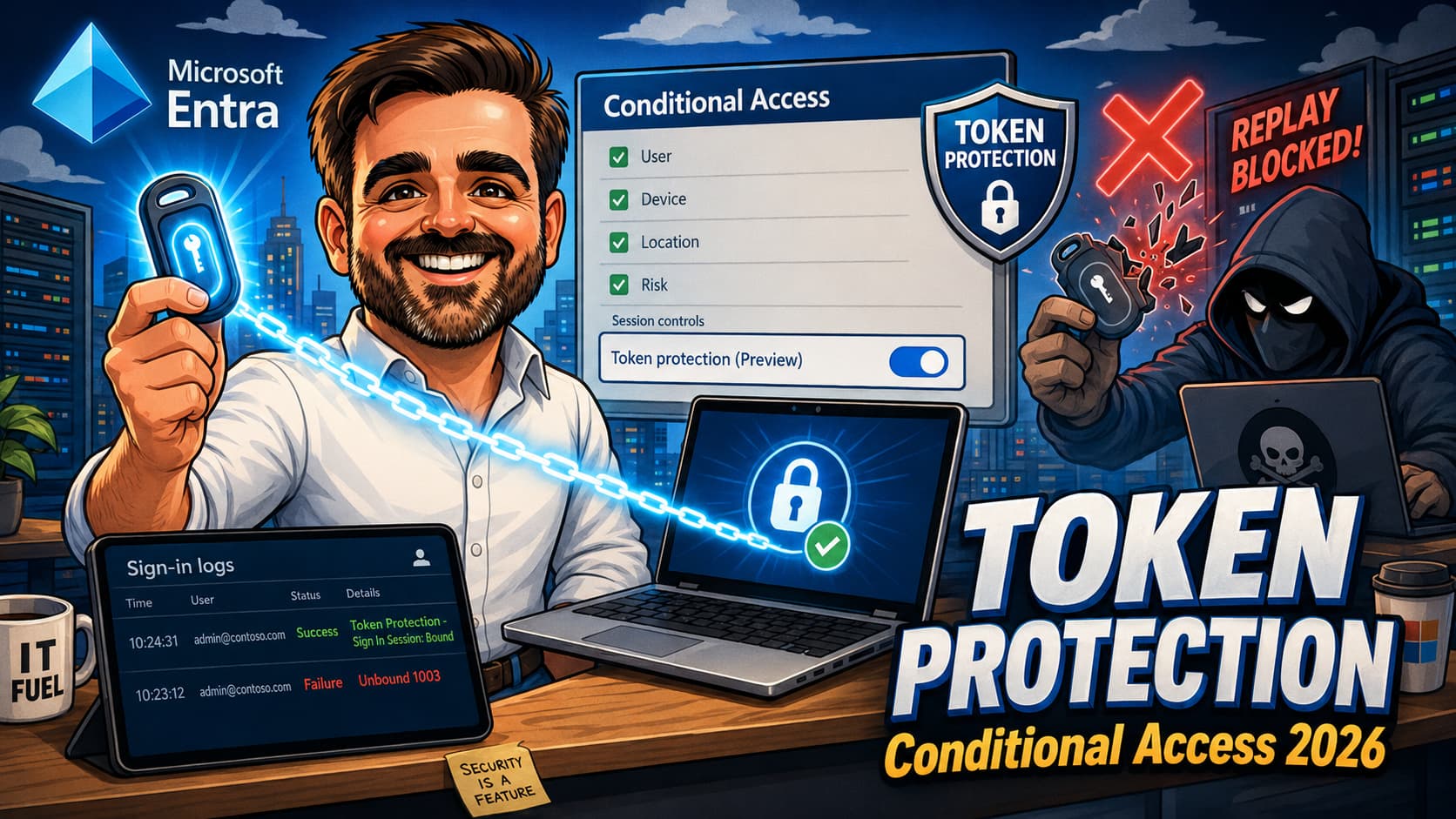
Monitor the sign-in logs in the Microsoft Entra admin center to track adoption and identify any users who are struggling. You can filter for sign-ins that used passwordless methods.
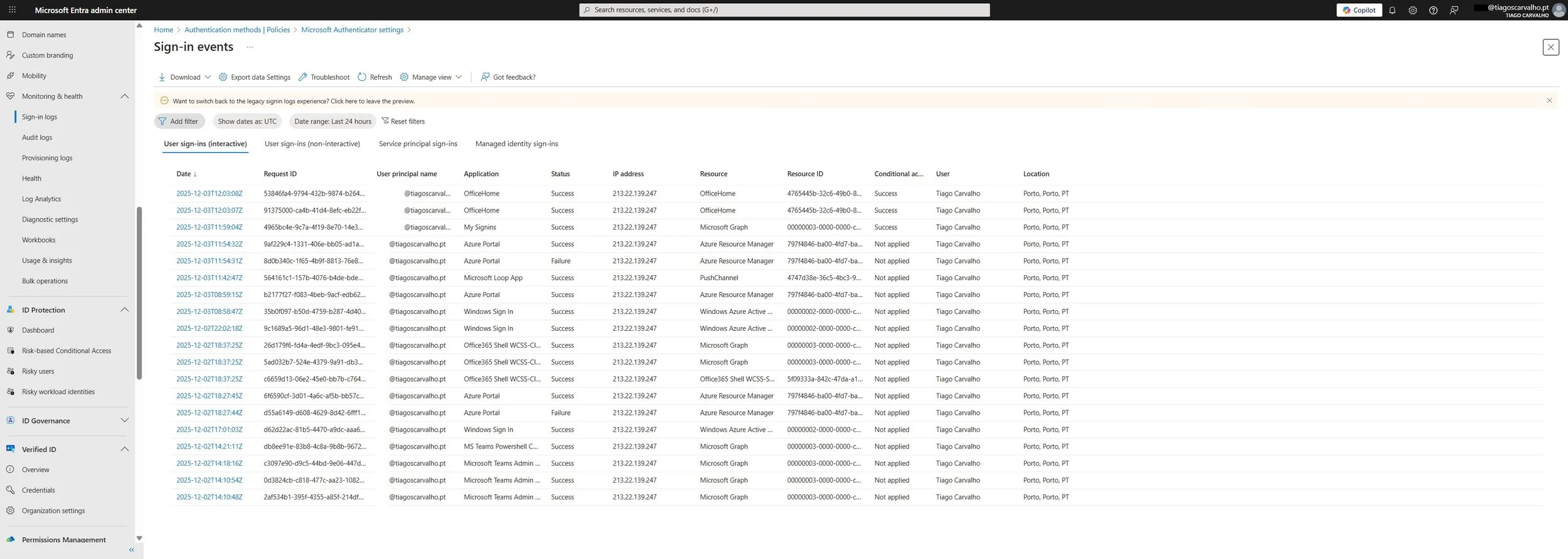
Screenshot 4: Monitoring sign-in logs in the Entra admin center to track passwordless adoption.
Best Practices for SMEs
- Start with the Authenticator App: It's the easiest and most cost-effective method to deploy.
- Don't Disable Passwords Immediately: Allow users to fall back to passwords initially. You can move to a fully passwordless state later by removing the password credential from user accounts.
- Combine with Conditional Access: Use Conditional Access to enforce passwordless sign-in from untrusted locations or for high-risk users.
- Keep Communication Clear and Simple: Focus on the benefits for the user (easier, faster, more secure).
Quick Troubleshooting
| Symptom | Possible Cause | Solution |
|---|---|---|
| User doesn't receive a notification | Notifications are disabled for the Authenticator app on the user's phone. | Guide the user to enable notifications for the Authenticator app in their phone settings. |
| Password prompt still appears | The user is not in the target group for the passwordless policy, or the policy has not yet propagated. | Verify the user is in the correct group and wait up to 15 minutes for policy replication. |
| "Approve sign-in?" instead of number matching | The policy is not configured for number matching. | In the Microsoft Authenticator settings, ensure "Show geographic location" and "Show application name" are enabled for added context and security. |
Conclusion
Moving to a passwordless environment is one of the most impactful security upgrades an SME can make. It drastically reduces the risk of phishing and credential theft while simultaneously improving the user experience. By leveraging the tools already included in Microsoft 365 Business Premium, you can deploy a modern, Zero Trust authentication solution that protects your business and empowers your users. Start your passwordless journey today and leave the vulnerabilities of passwords behind.
References
[1] Microsoft Learn. (2025). Authentication methods in Microsoft Entra ID - passkeys (FIDO2). Retrieved from https://learn.microsoft.com/en-us/entra/identity/authentication/concept-authentication-passkeys-fido2
[2] Microsoft Learn. (2025). Plan a passwordless authentication deployment in Microsoft Entra ID. Retrieved from https://learn.microsoft.com/en-us/entra/identity/authentication/howto-authentication-passwordless-deployment