A forwarding setting can look harmless until you follow one message all the way out of the tenant. This guide connects the mailbox, the rule, the controls and the delivery evidence so an administrator can explain exactly what happened.
1. Define the investigation and the test boundary
Choose this guide when you need to locate an external-forwarding configuration, determine which controls apply and verify the outcome for a specific message. Start with a named mailbox and a narrow time window. Record the external destination, the reason for investigating and the person who can approve a change.
To identify the account that created or changed a rule, use Microsoft's separate Identify who modified mailbox rules procedure in the references. Correlate the audit actor, operation, time and affected mailbox or rule. The mailbox owner and current rule configuration alone do not establish who made the change. Audit attribution is outside this lab's demonstrated scope. [14]
Use a laboratory mailbox and synthetic content for the experiment. Agree the sender, mailbox owner, destination, rule name, subject marker and cleanup time before creating the rule. A recognisable marker such as TSC-FWD-LAB-20261105-7C2F keeps your test messages distinguishable in the trace.
- Read the settings
- Use the relevant Exchange role assignments for mailbox properties, Inbox rules and mail-flow configuration. Reading outbound spam policy settings and running message trace have separate permission requirements.
- Check the actual cmdlet access
- Microsoft specifically documents that
Get-InboxRuledoes not work for Global Reader or View-Only Organization Management. Establish access before scheduling the exercise. [2] - Separate an incident from a lab
- An unexplained forward can be an account-compromise indicator. In an active incident, follow your incident process for containment, sign-ins, sessions, rules and audit evidence. Removing one forward is one part of that response. [1]
For the portal investigation, Microsoft lists Exchange Administrator access for message trace. Outbound policy readers can use the documented Security Reader or View-Only Organization Management roles, while policy changes require the appropriate management assignment. Confirm the scope of a custom role in your organization. [6, 11]
For the command examples, use ExchangeOnlineManagement 3.7.0 or later, which supports the V2 message-trace cmdlets. Follow Microsoft's module installation or update guidance if needed, then connect using your administration account and confirm the intended organization. The command check below must succeed before you continue. The PowerShell examples provide a read-only investigation path. The tenant evidence in this article was collected through the portals. [3, 11]
Import-Module ExchangeOnlineManagement -MinimumVersion 3.7.0 -ErrorAction Stop
Connect-ExchangeOnline -UserPrincipalName admin@contoso.com
Get-Command Get-MessageTraceV2,Get-MessageTraceDetailV2 -ErrorAction Stop |
    Select-Object Name

$Mailbox = 'forwarding-lab@contoso.com'
$ExternalRecipient = 'your-approved-test-address@external.example'
$RunId = '20261105-7C2F' # Replace with your own unique run ID.
$Marker = 'TSC-FWD-LAB-' + $RunId
Replace the sample accounts and run ID before starting a new experiment. Record that ID once and reuse it for A, B, C, D and both trace queries. When returning to an existing run, restore its recorded ID instead of creating a new one. The screenshots retain the ID of the published lab.
2. Find the configuration that creates the copy
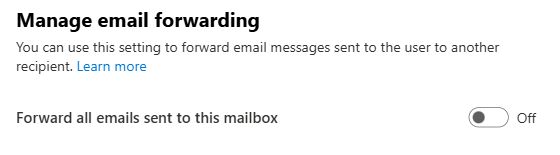
Inspect both mailbox-level forwarding properties and Inbox rules. Keep their identities and destinations in the investigation notes. In the Exchange admin center, open Recipients → Mailboxes → the mailbox → Email forwarding.
$MailboxState = Get-Mailbox -Identity $Mailbox
$MailboxState | Format-List PrimarySmtpAddress,
    ForwardingAddress,ForwardingSmtpAddress,
    DeliverToMailboxAndForward

if ($MailboxState.ForwardingAddress) {
    Get-Recipient -Identity $MailboxState.ForwardingAddress |
        Format-List Name,RecipientTypeDetails,
            PrimarySmtpAddress,ExternalEmailAddress
}

Get-InboxRule -Mailbox $Mailbox -IncludeHidden |
    Sort-Object Priority |
    Format-List Identity,Name,Enabled,Priority,
        ForwardTo,RedirectTo,ForwardAsAttachmentTo,
        StopProcessingRules,Description
ForwardingSmtpAddress holds an SMTP destination. ForwardingAddress identifies an Exchange recipient object, which may need to be resolved to understand the final route. When both properties are populated, Microsoft documents that ForwardingAddress takes precedence. DeliverToMailboxAndForward determines whether the mailbox also keeps a copy. [4]
For each Inbox rule, inspect the complete conditions, exceptions, actions, enabled state and priority. The Description helps expose the conditions that make a particular message match. Preserve the rule identity before any removal. [2]
Next review Mail flow → Rules for organization-level rules that add, copy or redirect recipients. Read the complete matching rule, including exceptions and mode, and associate it with the message you are investigating. Use a scoped command when you know its identity.
Get-TransportRule -Identity 'Rule name from your investigation' |
    Format-List Name,State,Mode,Priority,Description
This investigation covers Exchange mailbox forwarding, Inbox rules and transport rules. Power Automate, applications that read or send mail, journaling and downstream forwarding require their own investigation paths. Record that scope when presenting an inventory. [5]
3. Identify the effective forwarding controls
In Microsoft Defender, open Email & collaboration → Policies & rules → Threat policies → Anti-spam. Inspect the outbound policies and their assignments. Determine which enabled custom policy matches the forwarding mailbox, including exclusions and priority, before relying on the default policy. Microsoft documents separate read and management permissions for this page. [6]
Get-HostedOutboundSpamFilterRule |
    Sort-Object Priority |
    Format-List Name,State,Priority,HostedOutboundSpamFilterPolicy,
        From,FromMemberOf,SenderDomainIs,
        ExceptIfFrom,ExceptIfFromMemberOf,ExceptIfSenderDomainIs

Get-HostedOutboundSpamFilterPolicy |
    Format-Table Name,AutoForwardingMode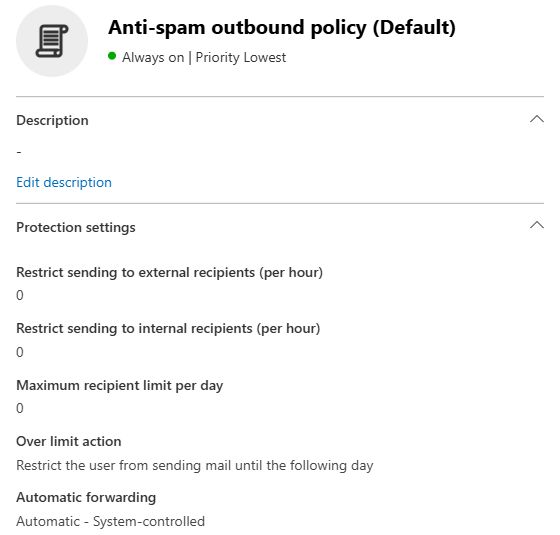
Check the meaning of Automatic. Microsoft's current documentation says its behaviour can differ between organizations. The documentation recommends an explicit On or Off value for a deterministic policy. In this lab, the existing value was one of the recorded conditions. The message-level test established that the external copy was blocked. [7]
Then open Exchange admin center → Mail flow → Remote domains. Identify the entry matching the external destination, including any more specific entry, and inspect its forwarding control. The wildcard Default entry is only part of that review. [8]
Get-RemoteDomain |
    Format-Table Name,DomainName,AutoForwardEnabled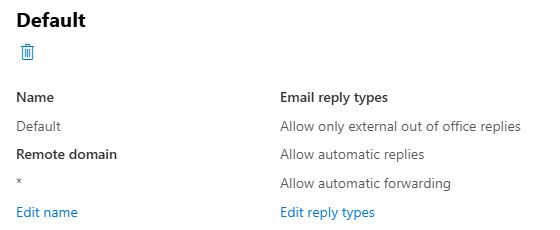
Match the controls to the mechanism that creates the copy. For this lab's Inbox rule, an allow at the remote-domain layer did not establish delivery. The external trace showed an outbound-policy rejection. [7]
| Forwarding mechanism | Control review | Evidence in this guide |
|---|---|---|
| Inbox rule | Check the forwarding mailbox's effective outbound spam policy, the matching remote domain and applicable mail-flow rules. | The selective rule and its blocked external copy were tested. |
| Mailbox properties | Resolve the forwarding destination and inspect the effective outbound spam policy. Verify other controls against the exact forwarding method. | The mailbox switch was inspected and was Off. Delivery through this method was not tested. |
| Mail-flow rule that adds, copies or redirects recipients | Inspect the rule's conditions, exceptions, actions, mode and priority, then trace the resulting recipient leg. An outbound forwarding setting alone does not validate this path. | An investigation path is provided. No transport-rule forwarding test was run. |
Remote-domain scope matters. The current Microsoft Learn page distinguishes user-configured forwarding from admin-configured mailbox forwarding and transport rules. The older Exchange Team comparison describes different coverage for admin-configured mailbox forwarding. These sources should not be combined into a universal blocking guarantee. This lab establishes the result for the tested Inbox rule. Validate the other mechanisms separately before relying on their protection. [5, 8]
4. Read the forwarding report in context
Open Reports → Mail flow → Auto forwarded messages report. Record the date range. Use the forwarding type, mailbox, recipient domain and count to select a case for investigation. An empty view describes that report query. It cannot settle whether a forwarding rule exists or how a new test message will be treated.
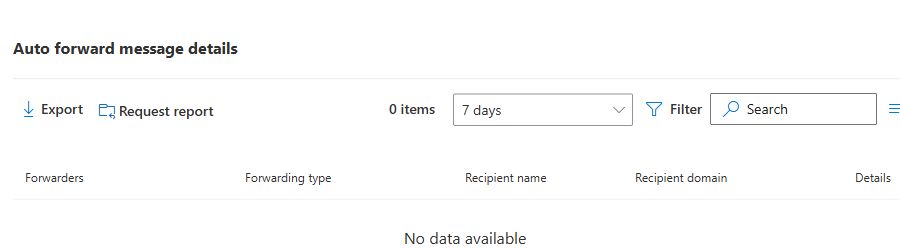
The report includes mailbox, Inbox-rule and mail-flow-rule forwarding types. Microsoft documents different reporting windows for Summary, New Activity and requested reports. Use the current portal options, then follow the individual test in message trace. [9]
5. Build a four-message experiment
We ran this four-message sequence on 5 November 2026. The sender, laboratory mailbox and external destination belonged to the author. The messages contained synthetic text. Keep a unique marker and UTC timestamps for your own run, then retain recipients and message identifiers in your private evidence record.
| Message | When | Subject | Purpose |
|---|---|---|---|
| A | Before the lab rule | [marker] A baseline | Establish delivery to the lab mailbox. |
| B | With the lab rule enabled | [marker] B forwarding | Trigger the exact rule and inspect the external leg. |
| C | With the lab rule enabled | TSC-FWD-CONTROL-[run] C boundary | Exercise the same sender and mailbox with a subject outside the lab rule. |
| D | After removal | [marker] D cleanup | Repeat the matching pattern after the lab rule has gone. |
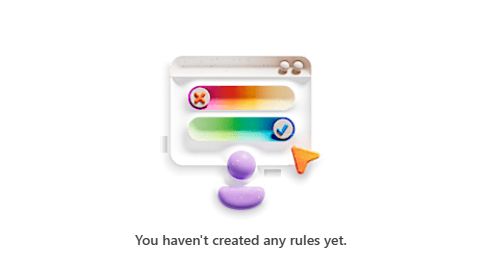
For the selective forward, sign in to Outlook on the web as the laboratory mailbox owner. Open Settings → Mail → Rules → Add new rule. Add a rule named with your unique marker, two conditions for the approved sender and subject marker, and one Forward to action for the approved external address. Review existing rule order and any stop-processing behaviour before saving. In this tenant, the visible Inbox rules list was initially empty. We left Stop processing more rules unselected and checked the resolved sender and external recipient before saving. [10]
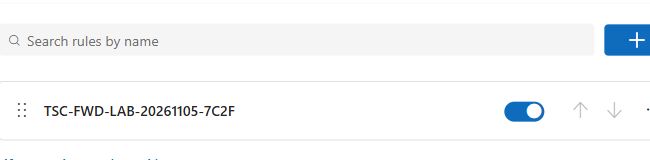
Use a distinct subject for C that does not contain the forwarding marker. This gives you a boundary check for the rule's conditions. If you need to inspect how another rule might act on C, record that separately rather than attributing all external activity to the new lab rule.
Keep the effective outbound controls as part of the test record. If B is blocked, investigate the actual rejection. A separate allow-versus-block demonstration would need an approved policy change and a new pair of test messages.
6. Follow the original and the external copy
Open Exchange admin center → Mail flow → Message trace → Start a trace. Use the lab mailbox as recipient for the inbound leg. Then run a second query for the approved external recipient. Limit both to the experiment window and choose a consistent time zone. [11]
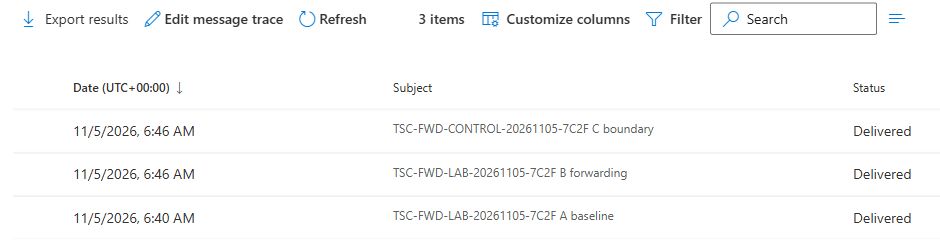
Correlate the subject marker, time and message identifiers for each leg. Open the relevant trace row and record the detailed events. Investigate the external recipient directly, because the forwarded message's sender representation and identifiers can differ from the original leg.
Set explicit UTC start and end times from your experiment record. Replace both sample dates below with a window that covers your A–D sequence, and record the time of each query separately. Reuse the same recorded window when investigating later. Each V2 query can span at most ten days within the service's 90-day retention window. [12]
$TraceQueryComplete = $false
$Inbound = $External = $null

# Replace these example UTC boundaries with your recorded test window.
$Start = [datetimeoffset]::Parse('2026-11-05T06:30:00Z').UtcDateTime
$End = [datetimeoffset]::Parse('2026-11-05T07:30:00Z').UtcDateTime

if ($End -le $Start -or ($End - $Start).TotalDays -gt 10) {
    throw 'Choose a positive query interval of no more than ten days.'
}
if ([string]::IsNullOrWhiteSpace($RunId)) {
    throw 'Set the recorded run ID before querying.'
}
$QueriedAtUtc = (Get-Date).ToUniversalTime()
$Limit = 5000

$InboundRaw = @(Get-MessageTraceV2 -StartDate $Start -EndDate $End `
    -RecipientAddress $Mailbox -ResultSize $Limit -ErrorAction Stop)
$ExternalRaw = @(Get-MessageTraceV2 -StartDate $Start -EndDate $End `
    -RecipientAddress $ExternalRecipient -ResultSize $Limit -ErrorAction Stop)

if ($InboundRaw.Count -ge $Limit -or $ExternalRaw.Count -ge $Limit) {
    throw 'Trace result limit reached. Narrow the interval or retrieve subsequent results before interpreting this search.'
}

$Inbound = @($InboundRaw | Where-Object { $_.Subject -like "*$RunId*" })
$External = @($ExternalRaw | Where-Object { $_.Subject -like "*$RunId*" })
$TraceQueryComplete = $true

[pscustomobject]@{
    QueriedAtUtc = $QueriedAtUtc
    StartUtc = $Start
    EndUtc = $End
    InboundRawCount = $InboundRaw.Count
    ExternalRawCount = $ExternalRaw.Count
} | Format-List

$Inbound | Format-Table Received,SenderAddress,RecipientAddress,
    Subject,Status,MessageTraceId
$External | Format-Table Received,SenderAddress,RecipientAddress,
    Subject,Status,MessageTraceId
The result-limit check runs on both raw result arrays before the subject filter. Reaching 5000 rows means the search may be truncated, even if no row matches your run ID. A query error also stops the example. Resolve either condition before interpreting an empty result. For a busy mailbox, narrow the interval or follow Microsoft's continuation method using the final raw row's RecipientAddress and Received values as StartingRecipientAddress and EndDate for the next query. [12]
After both queries succeed without reaching their limits, use the message trace ID together with the recipient address to inspect each matching external result. Keep the same time window. [13]
if (-not $TraceQueryComplete) {
    throw 'Complete both trace queries before inspecting the external results.'
}
foreach ($Message in $External) {
    Get-MessageTraceDetailV2 `
        -MessageTraceId $Message.MessageTraceId `
        -RecipientAddress $Message.RecipientAddress `
        -StartDate $Start -EndDate $End -ErrorAction Stop |
        Format-Table Date,Event,Detail -Wrap
}
Use the shared run ID to include C, whose subject deliberately omits the forwarding marker. Include related non-delivery reports in the review and classify them separately. Allow for trace availability before concluding that a leg is absent. A successful query only describes the results available for its recorded scope and observation time.
If the external trace reports delivery, have the destination owner confirm arrival, including Junk Email, and record the marker and time. In this run, the external copy was recorded as Failed. The portal also recorded a non-delivery report sent to the forwarding mailbox.


7. Interpret the result and choose the next action
| Evidence | Conclusion supported | Next check |
|---|---|---|
| Rule present and enabled | The configuration exists. | Check conditions, exceptions and priority against B. |
| Inbound message delivered | The original reached the lab mailbox. | Look for the external recipient leg. |
| External leg has a recorded failure | The service encountered the recorded failure. | Read the precise event and diagnostic, then match the responsible control. |
| External leg delivered | The trace records delivery for that recipient. | Confirm arrival in the external mailbox. |
| No external result yet | No matching result was returned by this query. | Check scope, delay, rule matching and the query window. |
A rejection containing 5.7.520 and AS(7555) is documented for automatic external forwarding blocked by the outbound policy. Preserve the diagnostic from your own message. Other controls can produce different evidence, including a trace event without a sender-visible rejection. [5, 7]
For a legitimate business forward, document its owner, scope and review date. For an unexplained forward, preserve the evidence and follow the account investigation process. Extend the review to transport rules and application access when the mailbox and Inbox-rule inventory does not explain the observed copy.
8. Remove the lab rule and verify the final state
In the laboratory owner's Outlook settings, locate the exact rule name and remove that rule. Reopen the rules list and verify its absence. In this run, the list returned to its initial empty state before D was sent at 06:55 UTC. A separate check of the mailbox's Forwarding page showed Enable forwarding still off.
Get-InboxRule -Mailbox $Mailbox -IncludeHidden |
    Where-Object Name -eq $Marker |
    Format-List Identity,Name,Enabled,Description
Send D to the lab mailbox with the original marker. Confirm internal delivery and inspect the external recipient over the recorded observation window. Record the query and external-owner checks even when no external copy is seen. Once the evidence is captured, end the administrative connection.
Disconnect-ExchangeOnline -Confirm:$false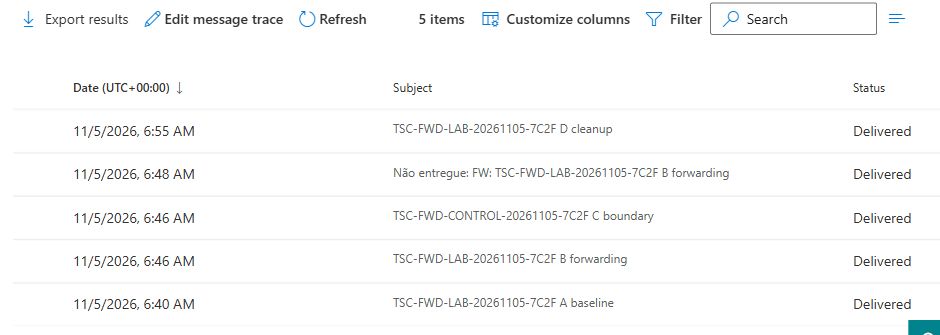
9. Review the evidence
| Check | Tenant observation | Status |
|---|---|---|
| Mailbox-level forwarding | The pilot mailbox's switch was Off. | Observed · Figure 1 |
| Outbound spam policy | The default policy was Automatic — System-controlled. No custom outbound policy appeared in the portal list. | Observed · Figure 2 |
| Remote domain | Default (*) allowed automatic forwarding. | Observed · Figure 3 |
| Report baseline | Seven-day Summary view returned zero items. | Observed · Figure 4 |
| A, B and C internal legs | Delivered to the laboratory mailbox. | Trace-confirmed · Figure 6 |
| B external leg | Failed with 550 5.7.520 / AS(7555). Failure events were recorded at 06:46 and 06:48 UTC. | Trace-confirmed · Figures 7–8 |
| Temporary rule | Removed before D was sent. | Portal-confirmed · Figure 9 |
| D internal leg | Delivered at 06:55 UTC. | Trace-confirmed · Figure 10 |
| External query after cleanup | At 07:06 UTC on 5 November, the query for the external recipient and run ID returned only B, with Failed. No matching external trace row for A, C or D was observed in that query. | Observed within the recorded window |
| PowerShell examples | Checked against Microsoft command references. Query guards were tested offline with synthetic results. Live tenant execution was through the portals. | Documentation and offline checks |
The completed investigation should let a colleague reconstruct the route from the recorded configuration and message evidence. Keep one record for the settings, one for the rule and one for the delivery outcome, all tied to the same mailbox and test window.
Microsoft references
- Respond to a compromised cloud email account
- Get-InboxRule, including permission limitations and IncludeHidden
- Connect to Exchange Online PowerShell
- Set-Mailbox reference, forwarding properties and precedence
- Exchange Team, automatic email forwarding and control coverage
- Configure outbound spam policies
- Control automatic external email forwarding and interpret 5.7.520
- Remote domains in Exchange Online
- Auto forwarded messages report
- Use rules to automatically forward messages
- Message trace in the Exchange admin center
- Get-MessageTraceV2
- Get-MessageTraceDetailV2
- Identify who modified mailbox rules