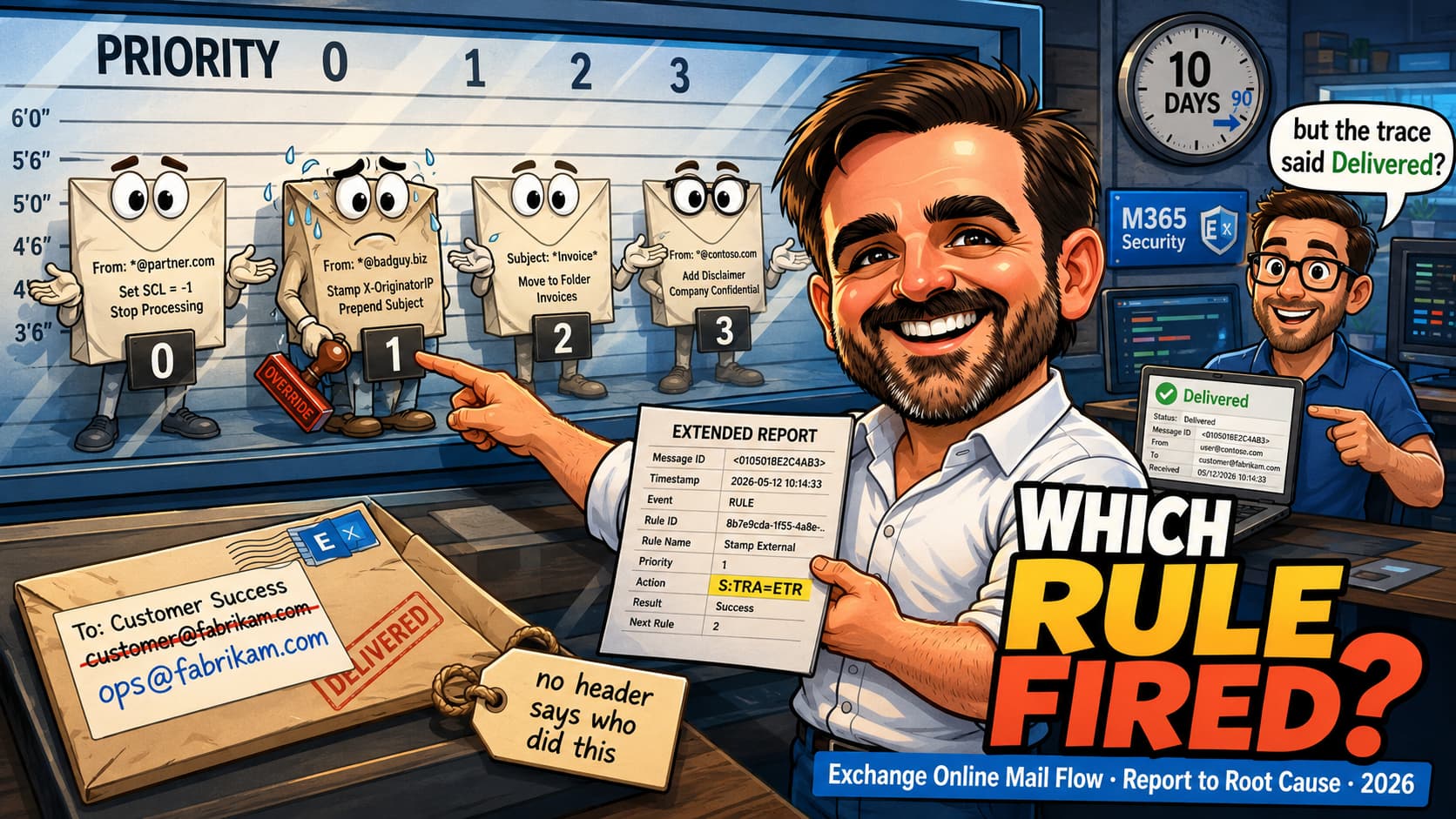
The report always arrives the same way. "My email to the client bounced." "Legal says the disclaimer stopped appearing." "Someone in finance got an invoice that should have been blocked." What you have is one message, one user's memory of it, and a rule set that somebody built over four years. What you need is evidence.
The instinct is to open the rule that looks guilty and change it. That is the wrong first move, and not only for the obvious reason. Change the rule and you destroy the only state that explains the symptom, you introduce a thirty-minute propagation delay before you can test anything, and Exchange Online keeps no version history to undo it with. This article is the workflow in the other order: symptom, then trace, then rule, then a controlled reproduction, then the fix.
S:TRA in AGENTINFO custom_data. Visual Mail Flow can also identify applied rules where the diagnostic is available. The Extended report is capped at 1,000 rows, uses archived data, and normally does not contain the latest 24 hours.X-MS-Exchange-Organization-Rules-Execution-History appears on forums and in half the troubleshooting posts on the internet. It has no Microsoft documentation. The only documented header of that kind, X-MS-Exchange-Forest-RulesExecuted, is Exchange Server 2013 and is stripped from outgoing messages by design.SetAuditSeverity DoNotAudit) and Microsoft states plainly that "rule matches don't appear in rule reports". Message trace still sees it. Check the severity before you conclude a rule is idle.CAT and DIR instead.The workflow, in one screen
- 1CaptureIDs, timestamp, expected result
- 2TraceSummary now, Extended ordered
- 3IdentifyruleId and mode from S:TRA
- 4ReadMode, priority, stop, logic
- 5ExplainWhat changed the match
- 6ReproduceAudit mode, one recipient
- 7CloseFix, negative control, record
Two rules govern the whole sequence. Do not change configuration before you have the evidence, because a rule change destroys the state that explains the symptom and starts a 30-minute clock before anything you do can be tested. And validate the negative case as well as the positive one: a fix that makes the intended message behave, while quietly changing the behaviour of every other message, is not a fix.
Phase 1 · Capture the symptom before it decays
Every hour you spend on a mail flow problem without a message identifier is an hour of guessing. The single most valuable thing you can do in the first five minutes is turn a description into a record you can query.
Ask for a forwarded copy of the message as an attachment, not a screenshot and not an inline forward. An inline forward rewrites the headers and you lose the evidence. In new Outlook the path is More actions › View › View message details; in classic Outlook it is File › Properties › Internet headers.
| Field | Why it matters | Where it comes from |
|---|---|---|
| Exact timestamp, with time zone | Message trace "defaults to the time zone set in the Exchange account settings of the logged-on admin", which is often not the user's. An hour of offset is an empty trace. | The user's sent items or the header Date: |
| Sender and recipient, exactly | A rule that matches the primary SMTP address will not match a proxy address: the condition "only matches messages that are sent to the recipient's primary email address". | Envelope and header, and they can differ |
| Message-ID | "This value is constant for the lifetime of the message." It survives every hop, including on-premises. | Message-ID: header |
| Network Message ID | The identifier that message trace calls MessageTraceId and the on-premises tracking log calls NetworkMsgId. The strongest correlation key across hops. Microsoft says to set it "when investigating a specific message or when a message is sent to many recipients (for example, over 1,000)", and it is for that high-recipient case that it "is required to obtain complete results". | X-MS-Exchange-Organization-Network-Message-Id, or X-MS-Office365-Filtering-Correlation-Id |
| Expected result, in the user's words | "It should have been blocked" and "it should have gone to the archive mailbox" are different investigations. Write the expectation down before you form a theory. | The person who reported it |
| Direction and client | Inbound, outbound and intra-organisation take different paths and hit different conditions. SetSCL, for one, "does not apply to intra-organizational (intra-org) messages". | The report, confirmed against DIR in the header |
MessageTraceId for messages sent to more than 1,000 recipients, but it is not mandatory for every trace.Write down what you have not been told
Two questions save more time than any tool. First: is this the first time, or the first time someone complained? A rule that has been quietly redirecting mail for six weeks has a very different fix from one that broke this morning, and the second question follows from it. Second: what changed? Not "what changed in the rules" — what changed anywhere. A new connector, a group membership, an accepted domain, a certificate renewal on a hybrid server. All of them can change rule behaviour without anyone touching a rule.
Phase 2 · Trace the message before you touch anything
Message trace lives in the Exchange admin center at admin.exchange.microsoft.com/#/messagetrace. The Defender portal entry under Email & collaboration › Exchange message trace is, in Microsoft's own words, "a really pass through" to the same page. It is one tool with two doors.
The 2026 version has saved query tabs — default queries, custom queries, and "the last 10 most recently run queries" — which is genuinely useful during an incident, because you will run variations of the same query fifteen times.
The four report types, and why the choice is the whole game
The number everyone misremembers is the ten. It is not a limit on how far back you can look interactively; it is a limit on how wide a single query can be. A Summary query can reach data up to 90 days old, but it can only span 10 days at a time. Ask for a wider window and the portal stops offering you a Summary at all: the results come back only as an Enhanced summary or an Extended report. Both of those can also be requested for a shorter range, which is exactly what you do during an incident.
| Report | Query window | Rows | Delay | Names the rule? |
|---|---|---|---|---|
| Summary, recent | A window of 10 days or less | 20,000 | Recent results almost immediately | Event says Transport rule, with the action. No GUID. |
| Summary, historical | Data up to 90 days old, still 10 days per query | 20,000 | Near real time | Same |
| Enhanced summary | Any range up to 90 days. Mandatory once the window exceeds 10 days | 100,000 | Downloadable, "several hours" | No |
| Extended | Any range up to 90 days. Mandatory once the window exceeds 10 days | 1,000 | Downloadable, "several hours" | Yes. GUID, action and mode. |
Read that last row twice. The report that tells you which rule fired is capped at a thousand rows, is built from archived data, and — the detail that catches everyone — "the last 24 hours of archived data isn't typically available". You can order it for a two-hour window if you want; that does not make the archive any fresher. The report you need for this morning's incident is often the one you cannot have this morning.
The events that matter, and the ones that mislead
An "uneventful, successfully delivered message generates multiple Event entries", so the presence of many rows means nothing on its own. What you are reading is the shape.
- Receive, Send, Deliver — the happy path. If the last event is Deliver and the user says it never arrived, you have an inbox rule or a client problem, not a transport problem.
- Fail — "The message failed to be delivered." Read the detail for the enhanced status code. A rule that rejects stamps
5.7.1by default, or a code in the range5.7.900through5.7.999if the author set one. - Expand — a distribution group was expanded. This is where per-recipient theories go wrong, because "when the message is sent to a distribution group, the group will be resolved to distinct users of that group before reaching Mail flow rules".
- Resolved — the recipient was rewritten by a directory lookup, and "the original recipient address is listed in a separate row". If you are chasing a redirect, check here before you blame a rule.
- Transfer — bifurcation. One message became several, "because of content conversion, message recipient limits, or agents". Each fork can meet a different rule outcome.
- Getting status — not an outcome. "Microsoft 365 recently received the message, but no other status data is yet available."
DROP deserves its own line, because it is the event behind the most frustrating class of report: mail that vanishes with no bounce. Microsoft defines it as "a message was dropped without a delivery status notification". Note that DROP and RESOLVE are documented on the on-premises event reference that the Exchange Online page links to, not on the cloud page itself, so do not be surprised when the cloud vocabulary and the on-premises vocabulary differ by a letter.
The PowerShell path, and what changed
Both Get-MessageTrace and Get-MessageTraceDetail now carry the notice that each "is replaced by the Get-MessageTraceV2 cmdlet and will eventually be deprecated". Microsoft has published no retirement date on Learn. You will find confident dates circulating; they trace back to search-engine summaries and forum posts rather than to a Microsoft page, so treat them as rumour and plan on the V2 cmdlets because they are better, not because of a deadline.
# Requires Exchange Online PowerShell V3 module 3.7.0 or later.
# The Network Message ID from the header is the -MessageTraceId value.
$id = '2bbad36aa4674c7ba82f4b307fff549f'

Get-MessageTraceV2 -MessageTraceId $id `
    -StartDate (Get-Date).AddDays(-3) -EndDate (Get-Date) |
  Format-Table Received, SenderAddress, RecipientAddress, Status, Subject -AutoSize

# Per-recipient detail. Both parameters below are mandatory.
Get-MessageTraceV2 -MessageTraceId $id -StartDate (Get-Date).AddDays(-3) -EndDate (Get-Date) |
  Get-MessageTraceDetailV2 |
  Format-Table Date, Event, Action, Detail -AutoSize
Three behaviours changed with V2 and each one bites during an incident. The lookback went from 10 days to 90, but "you can only return 10 days worth of data per query". Run it with no dates and you get 48 hours, silently. And pagination is gone: "Pagination isn't supported in this cmdlet", replaced by a continuation pattern where you feed the Recipient address and Received Time of the last row back in as -StartingRecipientAddress and -EndDate. Results are ordered by received time descending, then recipient address ascending, which is what makes that continuation deterministic.
There is also a throttle worth knowing before you write a loop: "a maximum of 100 query requests are accepted within a 5 minute running window".
Phase 3 · Finding the rule that actually fired
This is the part that most troubleshooting guides skip, because the honest answer is inconvenient. Two routes exist. The Extended report is the Microsoft-documented downloadable report that exposes the matched rule GUID, action and mode, and it is the standard documented Exchange Online fallback for administrators with the required message trace permissions. Visual Mail Flow is a diagnostic rather than a report, answers the same question in about thirty seconds, and is not available everywhere. Take the second when you have it and the first when you do not.
There is no header. Say it out loud.
Microsoft documents no message header in Exchange Online that names the mail flow rules that acted on a message. Not one. The header that circulates on forums, X-MS-Exchange-Organization-Rules-Execution-History, has zero Microsoft sources; if you build a diagnostic habit on it you are building on a rumour. The nearest documented thing is X-MS-Exchange-Forest-RulesExecuted, described as "transport rules that acted on the message" — on the Exchange Server 2013 header firewall page, with no equivalent for Exchange Online, and with the same page explaining that forest X-headers are removed from outgoing messages anyway.
One header in this family is real and is often misread. X-MS-Exchange-Transport-Rules-Loop exists, and Microsoft uses it "to determine the number of times transport rules redirected a message". It is a counter, not an identifier. When it trips you get an NDR reading 550 5.7.128 TRANSPORT.RULES.RejectMessage; Transport rules loop count exceeded and message rejected. That is a genuinely useful diagnostic, and it tells you nothing about which rule did the redirecting.
The Extended report, field by field
The rule identity lives in the custom_data column of the Extended report. Microsoft describes it as a field "used by various Exchange Online agents to log message-processing details", and the transport rule agent's entries are the ones prefixed S:TRA. Here is the documented shape:
S:TRA=ETR|ruleId=19a25eb2-3e43-4896-ad9e-47b6c359779d|st=7/17/2017 12:31:25 AM|action=ApplyHtmlDisclaimer|sev=1|mode=Enforce| Sub-field | What it gives you |
|---|---|
ruleId=<guid> | "The rule ID that was matched." This is the only place you get the GUID rather than a display name, which matters when two rules have similar names or one was renamed after the incident. |
st=<datetime> | "The date and time in UTC when the rule match occurred." UTC, not your admin time zone. |
action=<ActionDefinition> | The action applied, in cmdlet vocabulary (ApplyHtmlDisclaimer, RedirectMessageTo, SetSCL). Maps to the parameter names, not the portal labels. |
mode=<Mode> | Enforce, Test with Policy Tips or Test without Policy Tips. This is how you prove a rule was in audit mode at the time, rather than trusting what the portal shows you today. |
Neighbouring prefixes in the same column are worth recognising while you are in there: S:SFA is the spam filter agent and S:AMA is the malware filter agent. If your rule did nothing because a filter got there first, this column often shows you both.
S:TRA entry is not, by itself, proof that no rule matched. The absence is meaningful only after you have confirmed the correct message instance, a complete and non-truncated Extended report, the correct time range, and sufficient archival delay. If any of those checks is missing, absence is not proof that no mail flow rule matched. Concretely, before you conclude "no rule touched this message", verify all six:- The right instance. Bifurcation and group expansion turn one message into several. You may be reading a fork that no rule acted on while another fork was acted on.
- The right identifier. A Message-ID typed from a screenshot, or a Network Message ID taken from a different copy, returns a different message.
- The right window, in the right time zone. Message trace uses the admin's Exchange time zone, not the user's.
- Enough archival delay. The Extended report is built from archived data and "the last 24 hours of archived data isn't typically available". Too early, and there is nothing to be absent from.
- A report that was not truncated. The Extended report stops at 1,000 rows. If your query returned exactly 1,000, narrow it and run it again before you trust what is missing.
- Every
AGENTINFOevent for that message, not the first one. A single message generates multiple rows, and thecustom_datayou want may be on a later one.
Only when all six hold does an absent S:TRA become a finding, and it is a useful one: it points you at directory resolution, an inbox rule, a connector or a filtering verdict instead.
S:TRA with Not audit severity. These are two different systems and the confusion is easy to fall into. DoNotAudit hides matches from the Exchange transport rule report. It does not suppress the S:TRA entry in the Extended message trace, which is written by the transport rule agent regardless of severity. If a rule is missing from the report, check severity. If it is missing from the trace, check the six conditions above.Resolve the GUID with a single command:
# The Extended report gives you a GUID. Turn it into something a human can discuss.
$guid = '19a25eb2-3e43-4896-ad9e-47b6c359779d'

Get-TransportRule -Identity $guid |
  Format-List Name, Guid, State, Mode, Priority, StopRuleProcessing,
              SetAuditSeverity, Conditions, Exceptions, Actions, WhenChanged
No filtering needed: -Identity accepts a name, a distinguished name or a GUID, so the value from the Extended report goes straight in.
The report that is not the trace
The Exchange transport rule report in the EAC (#/reports/transportruledetails) is the other telemetry source, and it answers a different question: not "what happened to this message" but "what has this rule been doing". It gives date, rule name, subject, sender, recipient, severity and direction, with a default window of 7 days and a maximum of 90.
Two properties of it will mislead you if you do not know them.
Get-TransportRule | Where-Object { $_.SetAuditSeverity -eq 'DoNotAudit' } and see whether your suspect is on the list. Severity has "no impact on the priority that the rule is processed in" — it is a reporting filter and nothing else.And the latency is genuinely unclear. The report's own page says "it could take up to 24 hours to reflect the Transport Rule data in the Transport Rule report". Two other current Microsoft pages say "while most data is in the report within 24 hours, some data may take as long as 5 days to appear". Both are live. Plan for the pessimistic one and you will not be caught out.
The corresponding cmdlets, Get-MailDetailTransportRuleReport (10 days of data, "although you can enter a date up to 30 days old") and Get-MailTrafficPolicyReport (90 days, aggregated), both carry a pending change: the EventType parameter with TransportRuleHits or TransportRuleActionHits "will be updated to require" those values to return rule data. Microsoft points at a Message Center post for the detail, which is tenant-gated. Read it in your own tenant rather than trusting a date you found online.
Phase 4 · Reading the rule without changing it
Now, and only now, open the rule. Read it in PowerShell rather than the portal, because the portal renders conditions in prose that hides the parameter names you will need.
# The whole rule set, in the order it actually evaluates.
Get-TransportRule | Sort-Object Priority |
  Format-Table Priority, Name, State, Mode, StopRuleProcessing, SetAuditSeverity -AutoSize

# Back it up before you change anything. There is no version history to fall back on.
$export = Export-TransportRuleCollection
$path = Join-Path (Get-Location) "TransportRules-$(Get-Date -Format 'yyyyMMdd-HHmm').xml"

[System.IO.File]::WriteAllBytes($path, $export.FileData)
Export-TransportRuleCollection does not emit the XML itself: it returns an object whose FileData property holds the bytes, which is why the export is written with WriteAllBytes rather than piped into a file.
Six properties, in the order they cause problems
- State. New rules created in the EAC arrive disabled: "the status of mail flow rule is disabled when you create them using EAC … so that you can review the rule one more time before finally enabling it." A rule that "does nothing" is disabled more often than it is broken.
- Mode. Three vocabularies for three values, and Microsoft never maps them in a single sentence. In PowerShell:
Audit,AuditAndNotify,Enforce. In the EAC: Enforce, Test with Policy Tips, Test without Policy Tips. In message trace: the EAC words. Line them up yourself before you compare a trace to a portal screen. - Priority. "0 is the highest priority", and the default is by age, so older rules run first. Rules evaluate in the order shown on the Mail flow › Rules page.
- StopRuleProcessing. Presented as a property in the EAC, but it is an action. If it is set anywhere above your rule, your rule may never run.
- SetAuditSeverity.
DoNotAudit,Low,Medium,High. Reporting only, as above. - RuleErrorAction. "By default, the rule will be ignored" if processing cannot complete. A rule with an expensive regex that times out is a rule that silently does not apply.
The logic, stated once so you can stop rederiving it
Multiple conditions are AND: "a message must match all the conditions in the rule. If you need to match one condition or another, use separate rules for each condition." Multiple values inside one condition are OR. Multiple exceptions are OR: "if a message matches any one of the exceptions, the actions aren't applied to the message." Multiple actions are AND, with exceptions of their own — the delete action "prevent[s] subsequent rules from being applied", and forward "doesn't allow additional actions".
That asymmetry between conditions and exceptions is the single most common cause of a rule that fires too little or too much, and it has a diagnostic signature: an admin added an exception intending to narrow the rule, and broadened the exemption instead. Microsoft's own troubleshooting note for the AND case is blunt: "You need to create two rules, one for each condition."
The messages a rule can never touch
Set-IRMConfiguration.Phase 5 · What changed the match
When the rule looks correct and the message still went the wrong way, the message is usually not the message you think it is. Four things change what a rule sees.
1. Which sender address was evaluated
Rules read the header sender by default. SenderAddressLocation (the EAC calls it "Match sender address in message") has three values: Header, which examines "senders in the message headers (From field)" and is the default; Envelope, which reads "the MAIL FROM value that was used in the SMTP transmission, which is typically stored in the Return-Path field"; and HeaderOrEnvelope.
The limitation that catches people: envelope matching works for exactly five conditions and their exceptions — From, FromMemberOf, FromAddressContainsWords, FromAddressMatchesPatterns and SenderDomainIs. FromScope is not among them. If your rule distinguishes internal from external and the sender is spoofing the header, envelope matching cannot help you there.
2. Whether the message counted as internal
FromScope -eq Internal stops matching. Nothing in the rule changed. Nothing in the rule set will show you why.3. Group membership, cached
Conditions like SentToMemberOf and FromMemberOf do not read the directory in real time. "Transport Rules cache group membership. Cache refreshes occur approximately every 3 hours, but not all groups are refreshed in each cycle, so there is no SLA for when changes take effect." For dynamic distribution groups it is worse: up to 24 hours, "plus up to 3 additional hours".
So a user added to the exemption group this morning is not exempt this morning. Before you conclude a group condition is broken, check when the membership changed.
Two related traps in the same family. A rule that matches on the recipient will not match a distribution group, because "the group will be resolved to distinct users of that group before reaching Mail flow rules". And SentTo "matches messages where a recipient is a mailbox, mail-enabled user, or contact. It doesn't work with distribution groups" — you want SentToMemberOf.
4. Headers that were not there yet
Rules run early. In the Defender filtering stack, transport rules are the first item in phase 3, content filtering, ahead of antivirus, the common attachment filter and Safe Attachments; Safe Links is phase 4, after delivery. Anything stamped later than phase 3 does not exist at rule evaluation time.
Microsoft states one case of this outright, and it is the clearest sentence in the documentation about header availability: Advanced Spam Filter "adds X-CustomSpam: X-header fields to messages after mail flow rules process messages. You can't use mail flow rules to identify and act on messages filtered by ASF."
Two more encoding-level details decide matches that look like they should work. Header and subject searches happen "after the message has been decoded from the MIME content transfer encoding method", so you cannot match the raw Base64. And regular expressions in transport rules are, in Microsoft's capitals, "NOT case sensitive".
The SCL heuristic that stopped working in 2026
CAT and DIR values instead". The dedicated SCL page goes further: "even when a rule requests a bypass, the actual SCL value stamped on the message might not be -1 (for example, 0 or 1 to indicate it was evaluated and found not to be spam)". A decade of runbooks that say "look for SCL:-1 to confirm the bypass rule worked" are now wrong.What still works are the two SFV values in X-Forefront-Antispam-Report. SFV:SKN means "the message bypassed spam filtering due to an Exchange mail flow rule (transport rule)". SFV:SKS means the message was marked as spam by a rule that set the SCL — but read the qualifier: these "are inputs to filtering, not the final decision. Secure by default evaluates the request and might not honor it, so SFV:SKS is stamped only when the request to mark the message as spam is honored."
When the rule and the filter disagree
Microsoft publishes a precedence table for exactly this, and it is the fastest way to close out a whole class of tickets.
| Verdict | Rule tries to allow | Rule tries to block |
|---|---|---|
| Malware | Filter wins. Quarantined. | Filter wins. Quarantined. |
| High confidence phishing | Filter wins. Quarantined, "except in complex routing". | Filter wins. Quarantined. |
| Phishing | Organization wins. Delivered to mailbox. | Filter wins. Anti-spam policy's phishing action. |
| High confidence spam, spam, bulk | Organization wins. Delivered to mailbox. | Filter wins. Delivered to Junk Email. |
| Not spam | Organization wins. Delivered to mailbox. | Organization wins. Delivered to Junk Email. |
Read the first two rows as the answer to "my allow rule is not working". It is working. It is being overruled, by design, and no rule change will fix it. The same page adds that allowing a file type in the Tenant Allow/Block List or in a mail flow rule "doesn't override the verdict" when that type is in the common attachments filter.
One more ordering fact that resolves arguments: "in the transport pipeline, mail flow rules evaluate and act on message before DLP rules", and "once a message has been evaluated by mail flow rules, the message isn't evaluated or acted upon by mail flow rules again during delivery". So if a DLP rule adds a recipient, that new recipient never meets your mail flow rules.
The hybrid and gateway branch
Everything above assumes the message's whole life happened inside Microsoft 365. If there is an on-premises Exchange server or a third-party gateway in the path, take this branch first, because several of the symptoms above have a completely different cause here.
- 1Where is the MX?Microsoft 365, gateway, or on-premises
- 2Is Enhanced Filtering on?Check the inbound connector
- 3Centralized Mail Transport?Outbound via on-premises
- 4Correlate the logsNetwork Message ID both sides
What message trace cannot see
Microsoft never publishes a single sentence saying "message trace covers only the Microsoft 365 hop", so do not expect to find one. The scope is stated indirectly: message trace follows messages "as they travel through your Microsoft 365 organization", while the on-premises message tracking log records "all activity as mail flows through the transport pipeline on Mailbox servers and Edge Transport servers". Two logs, two scopes, and you need both.
There is a documented consequence that makes gateway investigations genuinely confusing: "messages returning from the non-Microsoft service are treated as entirely new messages by Microsoft 365", and so "messages are counted twice in most reporting tools … This behavior makes it difficult to properly correlate the message verdict and actions." If your trace shows what looks like two messages, it may be one message that went out to a gateway and came back.
Enhanced Filtering, and the rule you must retire when you enable it
Without Enhanced Filtering for Connectors, "the message adopts the source IP of the last hop that sits in front of Microsoft 365 … This behavior isn't a limitation of Microsoft 365; it's simply how SMTP works." Every internet sender looks like your gateway, so domain authentication degrades to implicit anti-spoof, and every IP-based rule condition is meaningless. Microsoft is unusually direct about this: failing to enable it "inevitably results in misclassification of inbound main into your organization" (the typo is theirs).
Two headers appear when it works: X-MS-Exchange-ExternalOriginalInternetSender, "stamped if skip listing was successful", which "contains information about the true source address"; and X-MS-Exchange-SkipListedInternetSender, stamped whenever skip listing is enabled on the connector, "used primarily for reporting purposes and to help understand WhatIf scenarios".
# Scope Enhanced Filtering to a pilot before the whole organisation.
Set-InboundConnector -Identity "Inbound from gateway" `
    -EFSkipLastIP $true `
    -EFUsers "pilot.user@contoso.example","pilot.user@contoso.mail.onmicrosoft.example"

# What the rule set looks like afterwards: find the SCL bypass rules you now have to retire.
Get-TransportRule | Where-Object { $_.SetSCL -eq -1 } |
Format-Table Name, Priority, State, SetSCL -AutoSizeEFUsers, and the mandatory cleanup step. It "is effective only on messages where all recipients are specified here. If a message contains any recipients that aren't specified here, normal filtering is applied to all recipients". Proxy addresses count — a mailbox with five addresses needs all five listed. In hybrid you must use the mail user's TargetAddress, the .mail.onmicrosoft.com one. And after you enable it, Microsoft says "you must disable any mail flow rules … that set the SCL to -1 for messages that flow through this connector". Leaving both on is how a tenant ends up with filtering that looks configured and is not.Do not go looking for a test mode. -EFTestMode and -EFSkipMailGateway both exist in the syntax and both are documented as "reserved for internal Microsoft use". Scoping with EFUsers is the pilot mechanism, and Microsoft recommends it as "an initial test of the feature".
Centralized Mail Transport, and the extra lap
With Centralized Mail Transport enabled, an internet message to a cloud mailbox arrives at Microsoft 365, gets routed to an on-premises server, and is then "sent from the receiving on-premises Exchange server back to the Exchange Online organization" before delivery. The message transits Exchange Online twice.
Whether your transport rules therefore evaluate twice is not documented anywhere I can find, and I am not going to assert it either way. What you can do is check: fire a test message with a rule in audit mode and count the S:TRA entries for that rule in the Extended report. That is a five-minute experiment that answers the question for your topology, which is the answer you actually need.
Two documented behaviours in this area are worth having ready. Hybrid mail is treated as internal — "these messages appear as 'internal' to Exchange components (for example, as transport rules, journaling, and anti-spam policies)" — which is exactly the ambiguity that makes FromScope conditions unpredictable in hybrid. And under Centralized Mail Transport there is a documented exception where the on-premises hop is skipped: when a message originates on-premises, is sent to a cloud distribution group and expands to an external recipient, "mail routing logic sees that this new message originated in the on-premises environment and therefore doesn't send the message back", routing it straight out. Microsoft classifies that as by design.
One combination is explicitly unsupported. Adding on-premises hybrid servers to Enhanced Filtering "isn't supported" in non-linear inbound routing under Centralized Mail Transport — the Internet → Microsoft 365 → On-premises → Microsoft 365 shape. It is supported for linear routing, Internet → On-premises → Microsoft 365. Get that backwards and you add a compauth value that can push your own mail into spam.
Joining the two logs
The identifier that spans both sides is the Network Message ID. Microsoft names the mapping directly: set "the MessageTraceId (also known as NetworkMsgId in the message tracking log)". On-premises it is defined as "a unique message ID value that persists across copies of the message that may be created due to bifurcation or distribution group expansion", which is word for word the cloud definition.
# On-premises. -NetworkMessageId applies to Exchange 2016, 2019 and SE, not 2010 or 2013.
Get-MessageTrackingLog -NetworkMessageId "2bbad36aa4674c7ba82f4b307fff549f" `
    -Start (Get-Date).AddDays(-2) -ResultSize Unlimited |
  Sort-Object Timestamp |
  Format-Table Timestamp, EventId, Source, Sender, Recipients, MessageSubject -AutoSize

# On 2010 or 2013, fall back to the Message-ID, which every hop preserves.
Get-MessageTrackingLog -MessageId "<abc123@contoso.example>" -ResultSize Unlimited
Two cautions. internal-message-id looks like an identifier and is useless for correlation: it "is different in the message tracking log of every Exchange server that's involved in the transmission". And the Exchange Online documentation contradicts itself on whether the Network Message ID persists across copies — the prose says it differs per copy, the field table on the same page says it persists. The on-premises definition and the CSV definition both say it persists. Treat it as persistent, and if a trace surprises you, fall back to Message-ID.
Phase 6 · Reproduce it safely
You now have a theory. Test it in a way that cannot make the incident worse.
Audit mode, and the two actions that still fire
Setting a rule to Audit means "the actions that the rule would have taken are written to the message tracking log, but no action that affects message delivery is taken on the message". That is the guarantee, and it is a good one. But two actions are not delivery actions and run anyway.
GenerateIncidentReport "is going to be executed even if the rule is in Audit or AuditAndNotify mode". GenerateNotification runs in AuditAndNotify but not in Audit. So a rule you put in audit mode to investigate quietly can still email a compliance mailbox on every match, or notify senders. If the rule has either action, strip it for the test or use Audit rather than AuditAndNotify.# A narrow reproduction rule. Every setting limits the diagnostic scope.
$ruleParams = @{
Name = 'TEMP diag CHG-1234 do not leave enabled'
Mode = 'Audit'
SetAuditSeverity = 'Low'
SentTo = 'mailflow.test@contoso.example'
SubjectContainsWords = 'CHG-1234-PROBE'
ExpiryDate = (Get-Date).AddDays(2)
Priority = 0
PrependSubject = '[DIAG] '
}
New-TransportRule @ruleParams
# Wait at least 30 minutes before sending the test messages.Splatting rather than line continuation, for a reason worth knowing: a backtick only continues a line when it is the last character on that line. Put a comment or even a trailing space after it and the command breaks, usually with an error that points somewhere else entirely. A hashtable has nowhere to hide that mistake.
PrependSubject is recorded as the action that would have run; it does not visibly change the delivered test message. Validate the match in message trace or the Extended report, not by looking for the prefix in the subject.Five containment choices in one hashtable, and each is deliberate. -Mode Audit removes the blast radius. A single test recipient and a unique subject token remove everyone else. -ExpiryDate means that if you are pulled onto something else, the rule dies on its own — the parameter "specifies the date range when the rule is active". -Priority 0 removes the possibility that a StopRuleProcessing higher up eats your test.
What Microsoft does not publish is a pilot-group pattern for mail flow rules. There is no equivalent of a Conditional Access report-only ring. The scoping levers you have are ordinary conditions, the activation and expiry dates, and the disabled state. Anyone who tells you -SenderAddressLocation scopes a rule has misread it; it selects header versus envelope.
What to test, from Microsoft's own list
The dedicated testing page is worth following literally, because the list is better than most people's instinct. Test "messages that you expect to match the rule" and "messages that you don't expect to match the rule"; internal and external in both directions; "replies to messages that match the rule"; and "messages that might cause interactions between multiple rules". The reply case catches disclaimer stacking. The negative case is the one people skip, and it is the one that catches an over-broad condition.
If the rule quarantined the message
Quarantine has three properties that surprise people, and all three matter during an incident.
First, it truncates the rule chain: "if this action is in a rule that's not the last rule in the list, rule evaluation stops after this rule is run. When the message is released from quarantine, the remaining rules in the list aren't evaluated." Releasing does not resume processing, so a disclaimer that should have been applied by a later rule never will be.
Second, the retention is 30 days and, uniquely among quarantine sources, it is not customizable. When it expires, "the messages are permanently deleted and can't be recovered".
Third, and this is the one that surprises experienced admins: quarantine policies do not apply to mail flow rule quarantine at all. Microsoft's support matrix marks that row "No" while every other feature has a quarantine tag parameter. There is no -QuarantineTag on New-TransportRule or Set-TransportRule; the only quarantine parameter is the Boolean -Quarantine. Admin-only access to rule-quarantined mail is structural, not a policy setting you can loosen. If you need end-user self-service, do not quarantine in the rule — use SetSCL and let the anti-spam policy quarantine it, where a quarantine policy does apply.
One more detail worth telling the user before they panic about timestamps: "releasing a message from quarantine re-delivers it to the recipient's mailbox rather than restoring it in place", so it appears with the re-delivery time. "The original send date is preserved in the message headers."
Three cases, and what the evidence actually said
Case 1 · The disclaimer that stopped appearing
Report. Legal noticed that outbound mail to one partner had no disclaimer. Everything else looked normal.
Evidence. Message trace showed delivery with no failure. The Extended report showed two S:TRA entries for the message: an encryption rule at priority 3 with mode=Enforce, and nothing from the disclaimer rule at priority 7. Before treating that absence as a finding, the report was checked against all six conditions above: single recipient so no bifurcation, the Network Message ID taken from the header, the window set in the admin time zone, the incident four days old so the archive was complete, 38 rows returned so no truncation, and every AGENTINFO row for that message read rather than the first.
Root cause. The encryption rule had StopRuleProcessing set, added a year earlier for an unrelated reason. Once it matched, the disclaimer rule never ran. The disclaimer rule was correct and had always been correct.
Fix and negative control. Moved the disclaimer rule above the encryption rule rather than removing the stop flag, because the stop flag was there for a reason nobody could reconstruct and removing it had a wider blast radius. Verified the intended case (partner mail now carries the disclaimer) and the negative control (internal mail still does not, and the encryption rule still fires). Both checks matter: fixing priority is exactly the change that can start applying a disclaimer to internal mail.
Case 2 · The unexpected redirect
Report. A user in finance said replies to a supplier were "going somewhere else". The supplier confirmed they never received them.
Evidence. The trace showed a Resolved event with the original recipient on a separate row, then delivery to an internal mailbox. The Extended report carried no S:TRA entry for a redirect, and the report was complete: 12 rows, the incident from the previous week, the identifier taken from the header. The Resolved event was positive evidence in its own right, which is what made the absence safe to rely on.
Root cause. Not a transport rule at all. A mail contact had been created with the supplier's external address as a proxy address on an internal mailbox, so the directory lookup resolved the external recipient to an internal one before rules were even reached. The Resolved event was the whole diagnosis, and it was visible in the first sixty seconds of the trace.
Why it is here. Because the instinct was to search the rule set for RedirectMessageTo, and there was nothing to find. When the trace shows Resolved or Expand, the recipient changed before rule evaluation, and the rule set is the wrong place to look.
Case 3 · The block that did not block
Report. An executable attachment reached a mailbox despite a rule that blocks executable extensions.
Evidence. The Extended report showed the block rule matched, with mode=Test without Policy Tips. The portal showed the rule as enforcing.
Root cause. The rule had been switched to audit mode during an unrelated investigation six weeks earlier and switched back to enforce two days after the incident, by someone else, with no change record. The portal was telling the truth about today. The Extended report was telling the truth about the day in question.
Why the mode field earns its keep. This is the single strongest argument for pulling the Extended report even when you think you already know the answer. Current configuration is not evidence about a past message. mode= is.
Corroboration. The unified audit log confirmed it: Search-UnifiedAuditLog -RecordType ExchangeAdmin returned the Set-TransportRule operations with the parameters and the previous values.
Phase 7 · Fix, roll back, record
Write the before and after down
A rule change is a change. Record it in the form you would want to read in six months, not in the form that is quickest to type.
| Property | Before | After | Expected outcome |
|---|---|---|---|
| Rule name and GUID | Unchanged. Record the GUID, because names get edited. | Traceable to the Extended report | |
| Priority | 7 | 2 | Runs before the encryption rule |
| Mode | Enforce | Enforce | No change; recorded because it is the field most often wrong |
| Conditions | Sender inside, recipient outside | Unchanged | Outbound only, still |
| Exceptions | None | Subject includes the disclaimer's first line | Stops stacking on replies |
| Scope of impact | All outbound mail from the organisation | Named in the change record, not implied | |
| Negative control | Internal message between two mailboxes | Must still have no disclaimer | |
Rollback, given that there is no undo
Import-TransportRuleCollection "will be deprecated from Exchange Online PowerShell", so an XML export is a record and a reference — do not assume it will stay a one-command restore.# The audit trail for who changed what. Exchange admin activity is RecordType ExchangeAdmin.
Search-UnifiedAuditLog -StartDate (Get-Date).AddDays(-30) -EndDate (Get-Date) `
-RecordType ExchangeAdmin -ResultSize 5000 |
Where-Object { $_.AuditData -match 'TransportRule' } |
ForEach-Object {
$d = $_.AuditData | ConvertFrom-Json
[pscustomobject]@{
When = $d.CreationTime
Who = $d.UserId
Cmdlet = $d.Operation
Parameters = ($d.Parameters | ForEach-Object { "$($_.Name)=$($_.Value)" }) -join '; '
External = $d.ExternalAccess
}
} | Sort-Object WhenThree caveats on that query. Microsoft never names Set-TransportRule on any audit page; coverage rests on the general statement that the log records admin cmdlets and "doesn't record cmdlets that begin with the verbs Get-, Search-, or Test-". The latency is documented inconsistently — one page says "up to 30 minutes", another says "typically 60 to 90 minutes" and adds that Microsoft "doesn't guarantee a specific time". And ExternalAccess is worth keeping in the output: "the value True indicates that the cmdlet was run by datacenter personnel, a datacenter service account, or a delegated administrator", which occasionally answers "nobody here changed it" honestly.
Retention is 180 days on Audit (Standard) and one year on Audit (Premium), which is where the retention policies that extend it are configured. One exception that catches smaller tenants: auditing "isn't enabled by default" for Business Basic, Business Standard and Business Premium.
Monitoring, so the next one starts sooner
Two things are worth having running before the next report arrives. The mail flow insights dashboard at #/insights has six insights in 2026, and one of them is Fix slow mail flow rules, which reports rules "that have an impact on your organization's mail flow" — the examples given are "conditions that use Is member of for large groups", complex regex, and content checking in attachments. Microsoft publishes no threshold for it, so treat it as a prompt rather than a metric.
The other is a standing inventory. Rules with StopRuleProcessing, rules in a non-enforce mode, and rules with DoNotAudit severity are the three states that make future incidents hard to diagnose, and all three are one command away.
# The three states that will confuse the next investigation.
Get-TransportRule | Sort-Object Priority | Select-Object Priority, Name, State, Mode,
    StopRuleProcessing, SetAuditSeverity |
  Where-Object { $_.StopRuleProcessing -or $_.Mode -ne 'Enforce' -or $_.SetAuditSeverity -eq 'DoNotAudit' } |
  Format-Table -AutoSize
Seven mistakes that cost the most time
- Changing the rule before tracing the message. You destroy the state that explains the symptom, and you add a 30-minute delay before you can test the change. Trace first, always.
- Testing within 30 minutes of a change. Microsoft's own guidance: "wait at least 30 minutes after creating a rule before you test it. If you test immediately after you create the rule, you might get inconsistent behavior." The same page elsewhere says 15 minutes; take the larger number.
- Reading current configuration as evidence about a past message. Rules get changed. The
mode=field in the Extended report is the only record of what the rule was doing at the time. - Assuming an empty transport rule report means the rule is idle. Severity Not audit hides it completely. So does a 24-hour reporting lag on an incident from this morning.
- Adding an exception to narrow a rule. Exceptions are OR. Every exception you add widens the exemption. If you need AND, you need to restructure into conditions or split the rule.
- Trusting SCL:-1 as proof the bypass rule worked. Since 2026 the stamped value "might not be -1", and SCL no longer determines the verdict in cloud organizations. Use
SFV:SKN,CATandDIR. - Debugging a rule when the trace already said Resolved or Expand. The recipient changed before rules ran. No rule change will fix it.
Questions that come up in every mail flow investigation
Is there really no way to see which rules fired, from the message itself?
Correct, in Exchange Online. No documented header carries it. The rule identity exists only in the Extended report's custom_data field, or through Visual Mail Flow where that is available. If you find a blog post naming a header, check whether it cites Microsoft, because the commonly quoted one has no Microsoft source at all.
The message trace is empty. Does that mean nothing happened?
No, and this is a useful finding rather than a dead end. Messages blocked by the IP Block List "aren't available in message trace". Check the time zone first — the trace uses the admin's Exchange time zone, not the user's — then the date range, then connection filtering.
How long do I actually have before the evidence is gone?
Ninety days for message trace data, and all ninety are searchable — the ten is a cap on how wide one query can be, not on how far back you can see. The transport rule report also reaches 90 days. The unified audit log holds 180 days on Standard. In practice the binding constraint is not the calendar at all: it is that the report which names the rule is built from archived data, so the freshest incidents are the ones with the least evidence available.
My rule works for most people and not for one mailbox.
Check proxy addresses first. Recipient conditions match "the recipient's primary email address" and not proxy addresses, and RecipientAddressType defaults to Resolved, which examines the primary SMTP address rather than what was typed in the To field. Then check group membership caching, then whether that mailbox is reached through a distribution group.
Can I use a rule to act on messages the spam filter flagged?
Not on ASF verdicts. Those headers are added after rules run, and Microsoft says so directly. More generally, in a fight between a rule and a verdict, malware and high confidence phishing always win, whichever way the rule points.
How many rules can I have, and does size matter?
Three hundred rules per organisation, 8 KB per rule, and 20 KB for the sum of all regular expressions and simple expressions across every rule. Journal rules have their own 300. Note that the limits page contradicts itself on attachment content scanning — the prose says 2 MB of extracted text, the table says 1 MB — so do not build a design around that particular number.
The evidence worksheet
One worksheet per incident: timestamps, identifiers, trace events, rule GUIDs, and the before-and-after of the change, with a gate at the end of each phase. Fill it in on screen or print it. Free, no email required.
Download the worksheet (PDF)- Message trace in the Exchange admin center — report types, limits, and the
S:TRAcustom_data reference - Get-MessageTraceV2 and Get-MessageTraceDetailV2
- Mail flow rules in Exchange Online — properties, logic, and what rules never process
- Test mail flow rules — the three-step procedure and the 30-minute wait
- Manage mail flow rules — modes, severity, and the reporting gate
- Mail flow rule actions and conditions and exceptions
- The protection stack and order of precedence — where rules sit, and who wins
- Anti-spam message headers —
SFV,CAT,DIR, and the SCL demotion - Enhanced Filtering for Connectors
- Message tracking on-premises — event types and the fields that correlate
- Quarantine in Microsoft 365 and quarantine policies
- Exchange Online limits — rule count, rule size, regex budget
- Diagnostics in the Microsoft 365 admin center — Visual Mail Flow, and the section it belongs to
- Search-UnifiedAuditLog, audit search and audit log retention policies — who changed the rule, and how long the record lives
- Export-TransportRuleCollection and Get-TransportRule — the backup and the identity lookup
- about_Parsing — why a backtick must be the last character on the line