1. Scope the test
“My laptop is enrolled in Intune. What will the compliant-device requirement do when I open Outlook?”
Start with two questions. Does Intune report this laptop as compliant? Which grant control does Entra select for this user, resource and client? On 10 November 2026 we checked the first in Intune and ran the second three times in the tenant’s What If tool. Mailbox access was outside the simulated runs.
To reproduce the lab, use an enrolled Windows test device and a pilot user licensed for Intune and Microsoft Entra ID P1 or P2. The user in our Outlook scenario also had an Exchange Online mailbox. Check Microsoft 365 admin center → Users → Active users → pilot user → Licenses and apps. The operator needs access to the device’s compliance report in Intune and to What If in Entra.
Record the four-part OS version from Intune in the worksheet. If you have the device to hand, run ver in Command Prompt to compare the installed build with the last reported one. Record the policy minimum separately. Use the Microsoft Entra device ID displayed in Intune to identify the device across portals.
2. Review the pilot setup
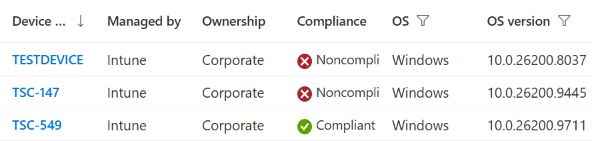
On 9 November the candidate device TSC-147 had checked in recently and was marked noncompliant. The existing baseline reported a BitLocker failure and an encryption error. The initially proposed user had only Exchange products. These findings led us to verify the device again and select the authorised pilot account with Business Premium and Entra ID P2.
See the three preflight captures from 9 November


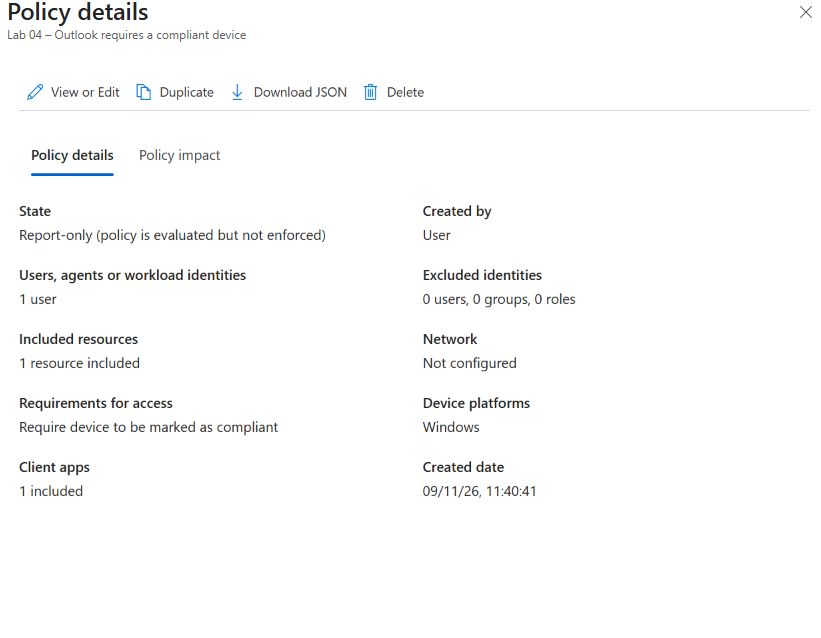
In Entra ID → Conditional Access → Policies, open the pilot policy. If creating it for your lab, select one pilot user, Office 365 Exchange Online as the target resource, Windows as the platform and Browser as the client. Under Grant, select Grant access → Require device to be marked as compliant as the sole control. Set Enable policy to Report-only before saving.
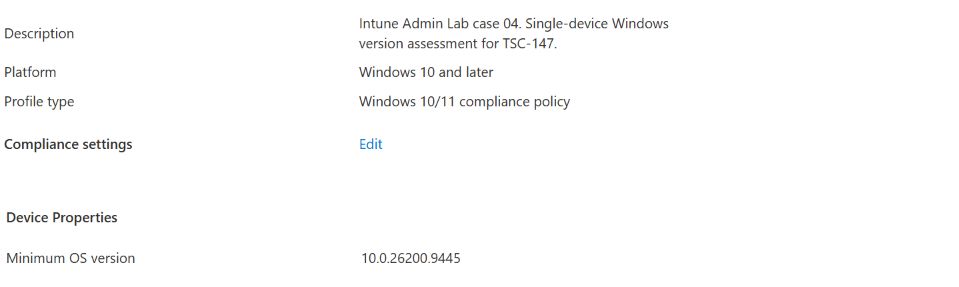
In Intune, review the Windows compliance policy’s minimum OS version, assignments and action for noncompliance. Our group contained one device and zero users. The minimum was 10.0.26200.9445, with immediate marking of noncompliance. For this simulation, use the values already reported for your pilot.
3. Confirm the device and the setting
Open Intune → Devices → Windows and select the pilot device. Record the overall compliance state, OS version and last check-in. Under Device compliance, open the lab policy and read its per-setting report.
When checked on 10 November, TSC-147 reported Compliant on build 10.0.26200.9711. Last check-in was 10 November at 00:37 as displayed. The lab policy’s device report showed Compliant at 17:22 on 9 November. Its Minimum OS version setting also showed Compliant. The original Windows baseline was compliant at the latest policy check. The change that cleared the earlier encryption finding was not established.


4. Run the baseline in Entra What If
- Open Microsoft Entra admin center → Entra ID → Conditional Access → Policies → What If. Select the authorised pilot user.
- Under Target resource choose Cloud apps → Office 365 Exchange Online. The Exchange Online application ID is
00000002-0000-0ff1-ce00-000000000000. Selecting this individual resource matters because the simulator expects an app ID. Select Windows for device platform and Browser for client app. - Under Filter for devices supply the pilot’s device identifier (id), its Intune-reported operatingSystemVersion and isCompliant = True. Run What if. Open Policies that will apply and record the policy name, grant control and mode.
The baseline run returned one policy for the supplied conditions. The pilot policy requires a compliant device and is in report-only mode.
If your policy is missing, open Policies that will not apply and read the first condition Entra lists for that policy. Compare it with your inputs. If the policy depends on location or sign-in risk, supply that detail and rerun the baseline. A policy set to Off is outside the evaluation.

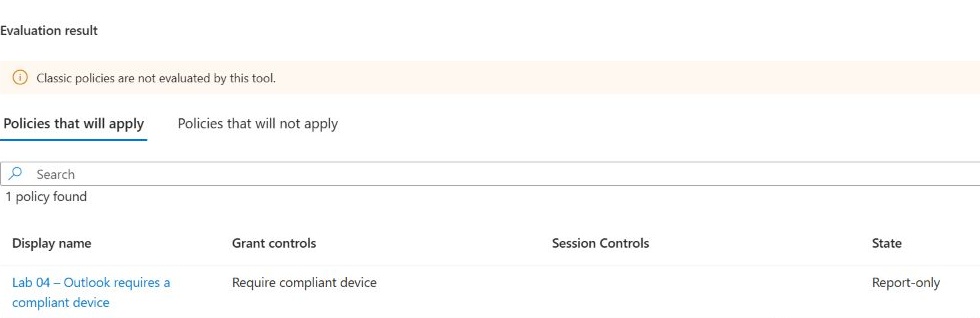
5. Simulate a noncompliant device
Change only isCompliant to False. Keep the same pilot user, Exchange resource, platform, client, device ID and OS version. Run What if again.
Before you run it, should the pilot policy disappear?
Look at the grant control in the first report. The user and resource are still in scope when you change the device input.
The same policy appeared. For this policy, the pilot user, Exchange resource, Windows platform and browser determine whether it applies. Compliance is checked as a grant requirement. With False, the modelled device would fail that requirement. Report-only records an evaluation during a real sign-in without enforcing this policy.

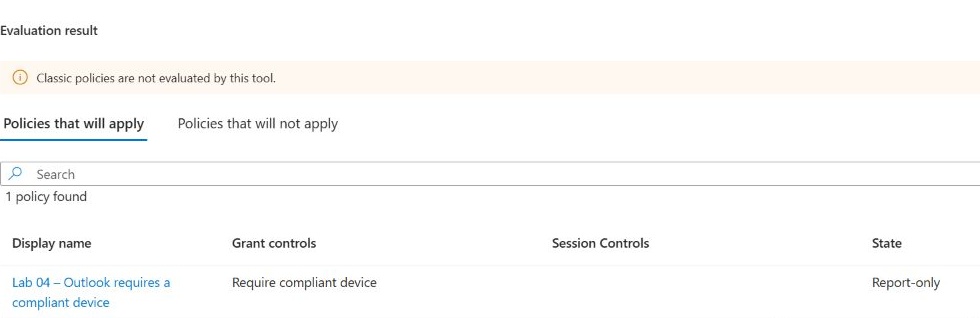
6. Repeat with compliance restored
Return isCompliant to True and run the evaluation a third time. Entra again listed the pilot policy. The restored input satisfies its compliant-device requirement. This is recovery of the simulated input. The physical device was already compliant when the three runs began.

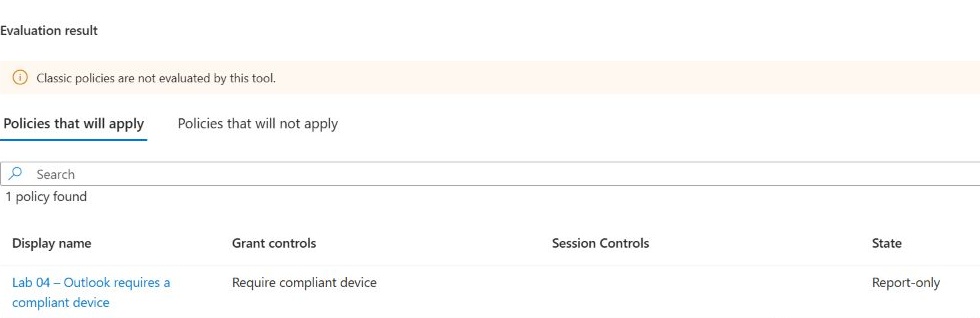
7. Compare the three results
All three reports returned Lab 04 – Outlook requires a compliant device under Policies that will apply, with the grant Require compliant device and the state Report-only.
| Run | Device input | Grant interpretation | Mailbox outcome |
|---|---|---|---|
| Baseline | True, consistent with the observed Intune state | Requirement met in the scenario | Not tested |
| Simulated failure | False, supplied in What If | Requirement unmet in the scenario | Not tested |
| Simulated recovery | True, restored in What If | Requirement met in the scenario | Not tested |
Help desk handover. “The laptop and the minimum-version setting are compliant. Entra selected the lab policy for all three simulated browser requests to Exchange Online. The grant depends on the device compliance claim. Mailbox access would need a separate interactive test.”
Optional live verification
Use a signed-in Edge work profile on the pilot Windows device with cookies enabled. Start a fresh interactive sign-in to Outlook on the web. Record the time and whether the mailbox opens. In Entra ID → Monitoring & health → Sign-in logs → User sign-ins (interactive), match the user, Exchange resource, time and Entra device ID. Read the pilot policy under Report-only. Check the event status and the enabled policies when diagnosing actual access. If a tab reopened an existing session, obtain a fresh interactive event before attributing an outcome to this attempt.
For a separate live version test, use a dedicated device, inspect all enforced policies in scope and record the current build, the original minimum and a valid higher test minimum. A real increase can affect access through another enabled policy. Capture a newer failing Intune evaluation before testing Outlook again. Restore the exact original minimum, wait for a fresh compliant evaluation, repeat the sign-in and retire temporary assignments after the live run.
The simulated request targets Exchange Online. To investigate a failure involving a dependent service, use the resource named in the actual sign-in logs. What If evaluates each resource separately.
Microsoft references
- What If evaluation and how to interpret the output
- Device properties used in What If
- Windows compliance settings and minimum OS version
- Noncompliance actions and grace periods
- Monitor per-setting and device compliance
- Require a compliant device using Conditional Access
- Interpret report-only results
- Troubleshoot Conditional Access sign-in events
- Supported browsers and device identity
- Conditional Access licensing