
At noon, two support tickets have the same 11:59 deadline. One is open. The other is closed. Count both and someone will chase a job that is already finished.
We gave Microsoft 365 Copilot Chat a queue of 20 fictional tickets. It identified three as overdue and suggested two Excel formulas. We entered the formulas ourselves, added a ticket, and watched the worksheet update to four. You can repeat the exercise with the same file and check every ID.
1. Open the queue and fix the clock
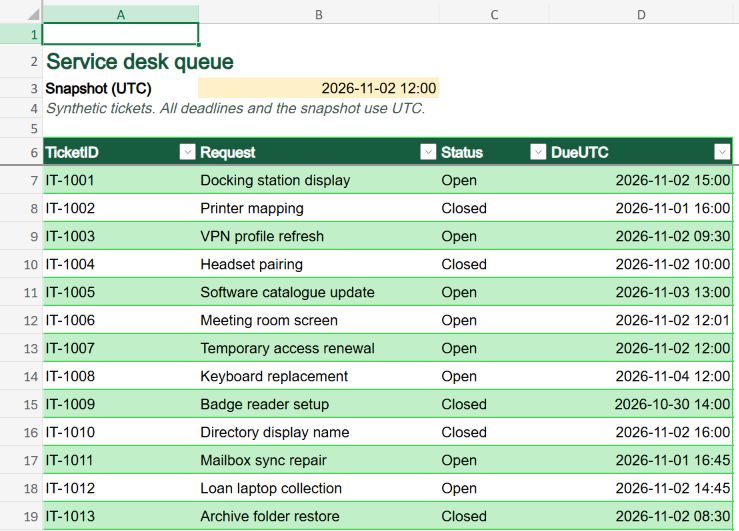
Sign in to Excel for the web with a work account that can save files to OneDrive for Business. Choose Upload a file, select the starter workbook and open it in editing view. Keep this tab for the worksheet steps. The Queue sheet contains a named Excel table, Tickets. Cell B3 holds the snapshot used throughout the lab, 2 November 2026 at 12:00 UTC.
Count a row when its status is Open and its numeric deadline is strictly earlier than the snapshot. A deadline of 12:00 is still on time at 12:00. Keep an open ticket with an empty deadline in a separate list. Using B3 lets someone repeat the lab on another day and get the same result.
If Excel opens but the workbook upload fails
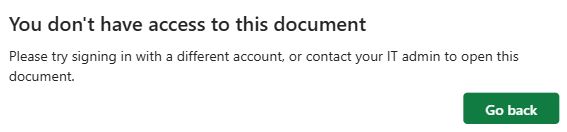
On 2 November 2026, we signed in with a work account and selected Upload a file on the Excel home page. After we chose the starter workbook, Excel displayed the message below. The workbook never opened, so the Copilot controls could not be assessed on this account.
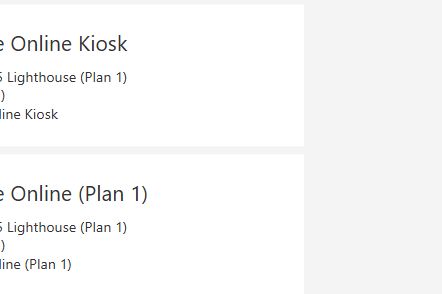
We then opened the Microsoft 365 account page and chose View subscriptions. It listed Exchange Online Kiosk and Exchange Online (Plan 1). OneDrive and SharePoint did not appear in the listed services. The Excel message alone does not identify which entitlement or policy caused an upload to fail.
If you see this message, ask your administrator to confirm access to a writable work OneDrive or SharePoint library and Excel for the web. Once the workbook opens and saves, check which Copilot modes are available.
2. Ask Copilot for the IDs behind the count
Open Microsoft 365 Copilot Chat with the same work account and start a new conversation. Select the + button (Add and manage sources), then choose Attach cloud files. Select service-desk-queue.xlsx from OneDrive and check that its name appears beside the prompt. Leave the answer key outside the chat.
Read the Tickets table on the Queue sheet in this workbook. Use Queue!B3 as the UTC snapshot. Return every TicketID whose Status is Open and whose numeric DueUTC is strictly earlier than the snapshot. Return the count and show the due time for each ID. List open tickets with no deadline separately. Explain how you handled a deadline equal to the snapshot. Do not change the workbook. Answer in English.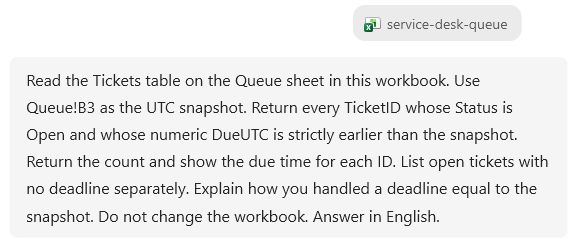
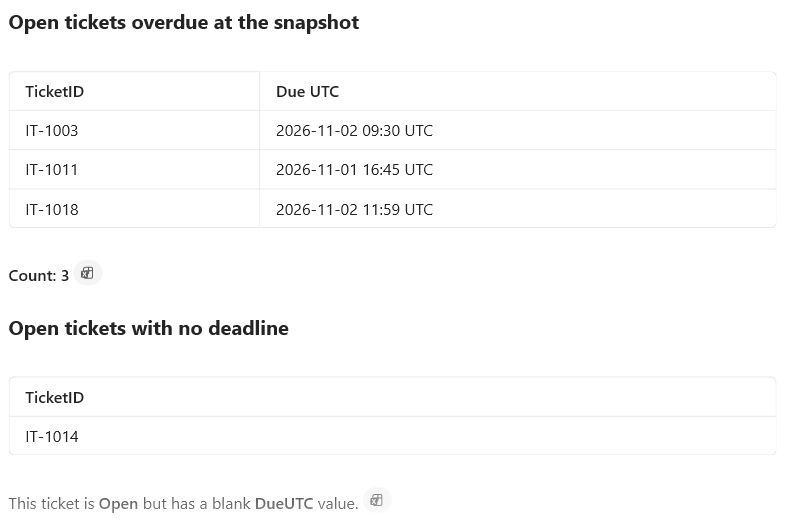
The response identified IT-1003 (2 November at 09:30), IT-1011 (1 November at 16:45) and IT-1018 (2 November at 11:59). It put IT-1014 in the missing-deadline group and explained why it excluded IT-1007, which was due at exactly noon. All times are UTC.
3. Turn the answer into a report that can change
A chat answer records the state of the file when you ask. The service desk also needs a report it can use after the next ticket arrives. We asked for formulas in the same conversation.
For the same workbook, give me two English Excel formulas that I can enter myself on a new Report sheet. B2 should count overdue tickets and A5 should spill their TicketIDs. Use the named Tickets table, Queue!$B$3, Status equal to Open, and a numeric DueUTC strictly earlier than the snapshot. Exclude missing deadlines. Both formulas must update automatically when I add a table row. Return the formulas and their target cells. Do not edit or create any file.In Excel, use the + beside the worksheet tabs and rename the new sheet Report. Type Overdue in A2 and TicketID in A4. Paste the formulas into the specified cells. Leave the cells below A5 empty for the list of IDs.
B2 · Count returned by Copilot
=SUMPRODUCT((Tickets[Status]="Open")*(ISNUMBER(Tickets[DueUTC]))*(Tickets[DueUTC]<Queue!$B$3))A5 · IDs returned by Copilot
=FILTER(Tickets[TicketID],(Tickets[Status]="Open")*(ISNUMBER(Tickets[DueUTC]))*(Tickets[DueUTC]<Queue!$B$3),"")The formulas use the same three conditions. ISNUMBER excludes the blank due date. The less-than comparison excludes the ticket due at noon. A reference such as Tickets[DueUTC] follows the table as it expands. The formulas above use English Excel syntax. If Excel rejects them on entry, check your local function names and argument separators.
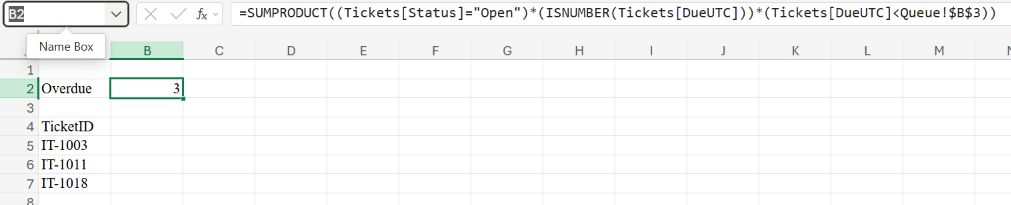 View full screenshot with the count formula
4. Add a ticket without asking Copilot again
Return to Queue, clear any active filters and enter the following record immediately below the table, in row 27. Confirm that the table expands to include it. In D27, enter 2 November 2026 at 11:30 using your Excel date format. All times in the workbook are UTC.
| TicketID | Request | Status | DueUTC |
|---|---|---|---|
| IT-1021 | Wi-Fi certificate renewal | Open | 2 Nov 2026, 11:30 UTC |
Give D27 the same date format as D26 and check that it reads 2026-11-02 11:30. A February deadline would also raise the count to four. If you are unsure how Excel interpreted your entry, enter =DATE(2026,11,2)+TIME(11,30,0) in D27 to set the exact date and time. This example uses English Excel syntax.

Go straight back to Report. B2 changed from 3 to 4. A5:A8 contained the original three IDs followed by IT-1021. We sent no further prompt between those two readings.
 View full screenshot with the ID formula
5. Verify the four IDs with Excel’s filters
On Queue, filter Status to Open. In DueUTC, choose Date Filters → Before. Use noon on 2 November 2026, the snapshot shown in B3 as 2026-11-02 12:00 UTC. Enter it in your Excel session’s date format. Apply the filter and check that blank deadlines are excluded.
Excel reported 4 of 21 records found. Rows 9, 17, 24 and 27 contained IT-1003, IT-1011, IT-1018 and IT-1021. Check each visible ID against Report. In particular, IT-1019 shares the 11:59 deadline with IT-1018, but its status is Closed. Including the wrong 11:59 ticket could still produce a plausible total.

Download the independent answer key and alternative count formula. For a check on the original 20 rows, open a fresh copy of the starter and apply the same two filters.
When your results differ
| What you see | What to check |
|---|---|
| The noon ticket appears. | Look for <= in the formula. The lab rule uses <. |
| A row with no deadline appears. | Check the numeric-date condition. A blank cell can behave like zero in comparisons. |
| The count stays at three. | Select the new row and confirm it belongs to Tickets. Check that D27 is a date value. Inspect the formula for a fixed range ending at row 26. |
The count changes but the list shows #SPILL!. | Move any content blocking the output below A5 and keep the spill formula outside an Excel table. |
This lab uses a fixed clock, two statuses and deadlines already calculated by the service desk. If your queue pauses timers for customer responses or excludes weekends, establish how those rules set DueUTC before reusing the report.
For the equivalent source check with written decisions, try the Copilot in Outlook action-list lab.