The difficult part of an email thread is rarely its length. It is knowing which deadline is current, which suggestion became a decision, and which task is still waiting for someone to act. Copilot can help extract that information. You still need a way to check it.
This practical lab turns four synthetic emails into an action list, traces the important claims back to the original messages, and produces a follow-up reply that stays in the chat. “Verified” means that a person checked the list against the emails.
What you will produce
- A list that separates open work, approval dependencies, completed tasks and cancelled tasks.
- A record of the original passage supporting each important change.
- A short reply draft that asks for missing information without inventing owners, dates or approval.
- 1Find the sourcesConfirm all four emails are available.
- 2Extract and verifyCheck decisions against the originals.
- 3Draft the next stepKeep human review before sending.
1. Check the account and the Outlook experience
Use an eligible Microsoft 365 work or school account with an Exchange Online mailbox and access to Copilot Chat in Outlook. Microsoft’s current Outlook-specific guidance describes email, calendar and meeting assistance both with and without the Microsoft 365 Copilot add-on. The add-on extends capabilities and organisational context; it is not a blanket prerequisite for this chat workflow. Availability still depends on subscription eligibility, tenant settings, client and rollout. Check the current Microsoft references below rather than inferring your entitlement from a screenshot.
Use ordinary, unencrypted messages for this exercise. You do not need an administrator role to read your own lab messages; an administrator may need to resolve an organisation's app or Copilot restrictions.
- Open Outlook on the web and confirm the intended work account.
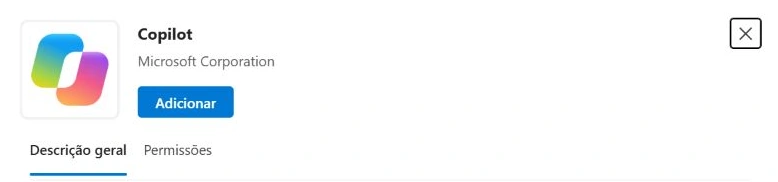
- Open Copilot or Copilot Chat. In this tenant, the Copilot account preference was already enabled, but the app was absent from the left navigation. We used the app launcher at the bottom of that navigation, selected Add apps, and added Copilot published by Microsoft Corporation, after reviewing its permissions.
- If the control is missing, check Settings → Copilot and your organisation's deployment guidance. Adding the official app does not purchase a licence or grant access to content your account cannot read.
The screenshots show the full-page Copilot Chat app opened from Outlook’s navigation. Other supported Outlook experiences can expose chat in a side pane; the layout and entry point may differ.
Microsoft also documents a Summary by Copilot or Summarize control on email conversations. That is a useful orientation step when available. The tested route here was the Copilot Chat app inside Outlook, with an exact-subject prompt. We did not validate that separate summary control in this run.
2. Build a small thread with a known answer
Get the four email texts, prompts and answer key
Seven plain-text files in one ZIP: four email files, README.txt, prompts.txt containing four prompts, and answer-key.txt. There is no configuration script and no real tenant address in the kit.
Use a dedicated lab mailbox or an account you are authorised to use. Open e1-email.txt and copy its contents into the body of a new email to yourself, with the subject [LAB] Cedar pilot — verified action list — 20261030. Reply within that conversation three times, copying the contents of e2-email.txt, e3-email.txt and e4-email.txt into each reply body, in that order. Do not attach the text files. Remove any automatically quoted earlier messages and automatic signature from the new reply body before pasting, while keeping the reply in the same conversation. Each body should contain only its corresponding fixture. Keep only your own account in the recipients. If you repeat the lab, replace the run identifier in the subject and in prompt P1. Do not feed the answer key to Copilot.
The fictional people are identified in the message bodies. They are not different senders in this experiment. The lab tests interpretation of content and changes; it does not test identity attribution across a real multi-person conversation.
| Message | Content | Trap to catch |
|---|---|---|
| E1 — baseline | Five tasks; launch on 17 November; 10 users. | An assignment is not a completion confirmation. |
| E2 — progress | Maya completes the review. A later guide deadline and 15-user pilot are proposed. | A request is not an approved change. |
| E3 — decisions | Riley approves Leo's new deadline and the later launch, rejects 15 users and cancels handouts. | Apply the explicit changes; preserve unchanged dependencies. |
| E4 — latest status | Nora's draft is ready, but approval and publication remain pending. Rollback ownership is unresolved. | Draft ready does not mean published or approved. |
Search Outlook for the unique subject and open the conversation. Confirm that E1–E4 are present. A sent copy and its received copy are not two scenario messages. In this run, Outlook displayed four messages in the grouped reading pane.
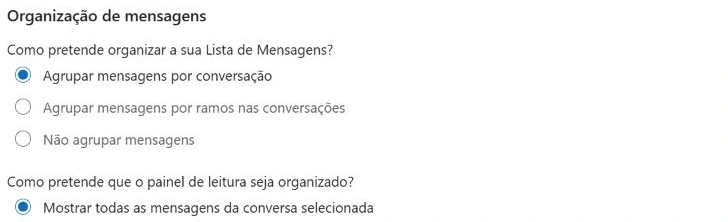
For easier inspection, you can temporarily use Settings → Mail → Message list → Group messages by conversation and Show all messages from the selected conversation. Record your original choices and restore them afterwards. Grouping helps human review; it does not itself enable Copilot or restrict its data access.
3. Confirm the source set before asking for actions
Start a new Copilot conversation inside Outlook. Use P1 below, substituting your subject if necessary. This avoids assuming that an open email automatically defines the chat's context.
Use only the email conversation with the subject '[LAB] Cedar pilot — verified action list — 20261030' in this mailbox. Identify the four scenario messages E1, E2, E3 and E4 by their labels in the message bodies. Give one short distinguishing fact from each and cite its email. If any message is unavailable, stop and say which one. Do not use other mailbox content or the web. Do not change, send or create anything. Answer in English.Pass condition: Copilot identifies E1, E2, E3 and E4 and gives a correct, distinguishing fact for each. In this run it identified the original launch, Maya's completed review, the approved launch change and Nora's pending approval. If a message is missing, stop: find it in Outlook, check the subject and repeat P1 with the correct conversation subject. Do not build a complete action list from a partial thread.
“Use only this conversation” is an instruction about the answer, not an access-control boundary. Copilot in Outlook can have access to other permitted work context. Keep this exercise synthetic and inspect the sources returned.
4. Extract actions with owners, dates and states
Continue in the same chat with P2. The explicit states and the instruction to preserve unknown values matter more than a polished table layout.
Using only E1–E4 in this Cedar conversation, produce a compact action table with Action, Owner, Due (including UTC), State and Evidence. Cover the five explicit tasks in E1-B. Use the fictional owners stated in the body, not the mailbox sender. Apply only explicitly approved changes. Keep completed and cancelled tasks separate from outstanding actions; preserve approval dependencies. Write 'Not assigned' or 'Not specified' where the source is silent. Cite each email and include its section label. After the table, state the current approved launch and pilot size, and list unresolved decisions. Do not create tasks or send a reply.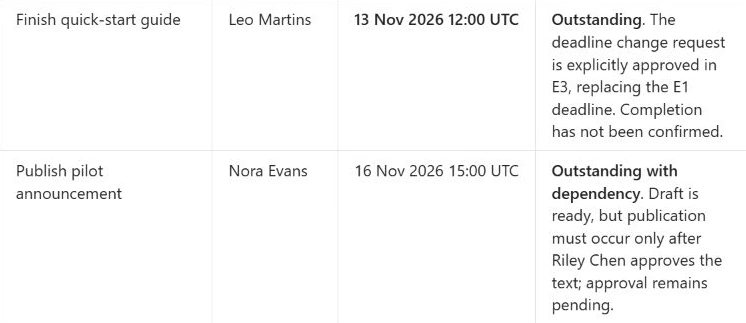
The five task outcomes matched the source messages. However, the output kept all five in one table, and its Evidence column contained section labels without clickable per-row citations. During review, we separated the open work from the historical completed and cancelled work. Treat both structure and traceability as things to inspect.
5. Open the original emails and verify the claims
Use P3 to make the reasoning easier to check. Its answer remains model output; it is not independent proof.
Audit your answer against the original Cedar emails. What exact passage replaces Leo's original deadline? Has Nora published the announcement, and has Riley approved its text? Is Tom's handout task still outstanding? Who is assigned to choose the rollback owner, and what is that action's calendar deadline? Give brief source quotations and email citations. Correct any unsupported claim in your earlier answer. Do not infer approval or completion from silence.The audit reproduced the relevant passages and retained the correct task states. The useful check was what happened when we opened a source: the citation beside the E3 launch-change statement in the initial response opened an E4 preview. That preview did not contain the E3 approval passage. This observation does not establish how every citation behaves; it shows why a source icon alone is insufficient.
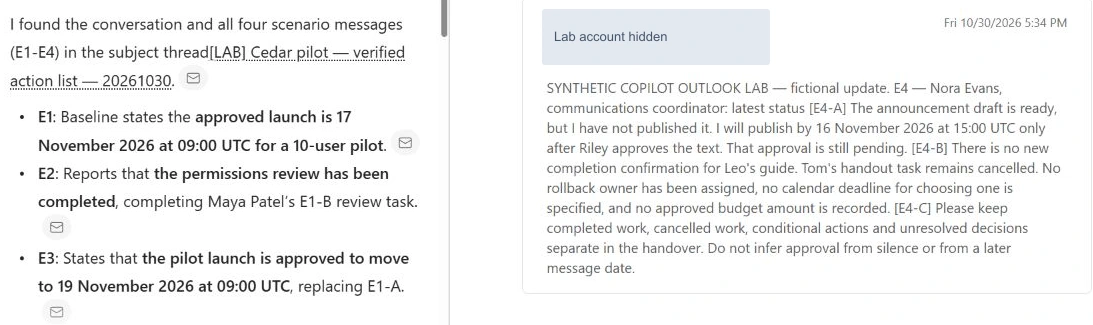
- Open a citation and check the actual email body, not just its subject. All four messages share a subject.
- If the preview is a different message, return to Mail, search the exact subject, open the full conversation and expand the message containing
E3 — Riley Chen. In an individual-message view, open the matching search result instead. - Read
E3-Aand compare it withE1-B: 13 November at 12:00 UTC explicitly replaces 12 November. CheckE3-Bseparately for the launch and pilot size. - Read
E2-Afor completion,E3-Cfor cancellation, andE3-D/E4-Afor the approval dependency. A later timestamp does not approve an action. - For an absent owner, deadline or budget, check all four messages. A single excerpt cannot prove that the rest of a thread contains no answer.
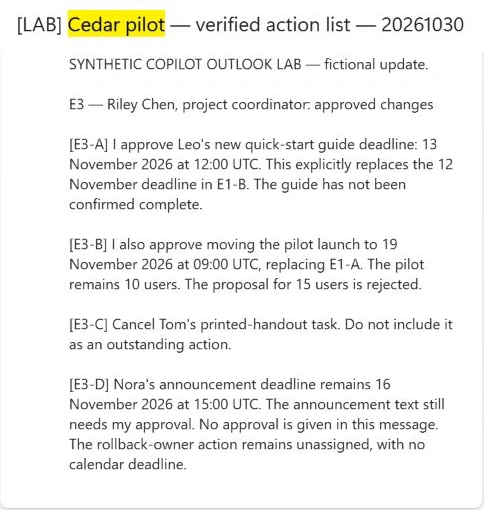
Keep a short verification record: claim, source message, section or quoted passage, and result. In a real thread without our artificial E1–E4 labels, record the sender, timestamp and a distinctive passage. Do not publish private message links or identifiers.
6. Compare with the manually verified list
The following is the reviewed result for this fixture, reformatted for use. It is not a replacement screenshot of Copilot's output.
| Action | Owner | Due | State and evidence |
|---|---|---|---|
| Finish the quick-start guide | Leo Martins | 13 Nov 2026, 12:00 UTC | Open. E3-A approves the replacement deadline; completion is not confirmed. |
| Publish the announcement | Nora Evans | 16 Nov 2026, 15:00 UTC | Conditional. Draft ready; Riley's text approval remains pending (E3-D, E4-A). |
| Choose a rollback owner | Not assigned | Not specified | Unresolved. No assignee or calendar deadline is recorded (E1-B, E3-D, E4-B). |
Completed: Maya Patel's permissions review, confirmed in E2-A. Its original deadline was 9 November at 16:00 UTC; that is not a completion timestamp or a new action.
Cancelled: Tom Silva's printed handouts, cancelled in E3-C. The old 13 November deadline does not keep the task open.
Current decision: launch on 19 November 2026 at 09:00 UTC for 10 users (E3-B). The 15-user proposal was rejected. No approved budget amount is recorded. Riley's pending approval is a dependency; the thread does not supply a separate calendar deadline for that approval.
7. Draft a follow-up that asks for what is missing
After the manual check, use P4. The goal is a concise text draft; this lab ends before sending it or creating tasks.
Write the text of a short follow-up reply for the Cedar conversation, using only the verified findings. Confirm Leo's approved deadline and Nora's pending approval dependency. Ask for an owner and calendar deadline for choosing the rollback owner. Do not reopen Maya's completed review or Tom's cancelled handouts. Do not invent a budget or an approval. Use at most 110 words. Return the reply text only; do not send an email, create a task, or schedule a meeting.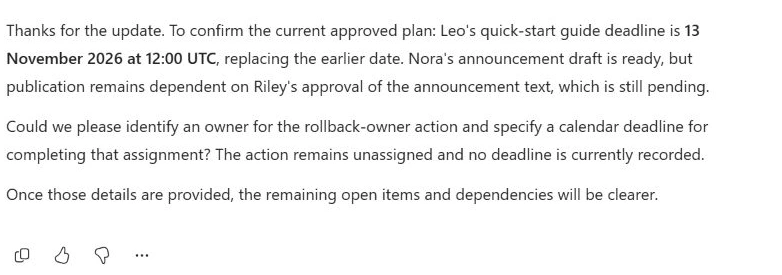
Read the draft as its recipient would. Does it retain the condition on publication? Does it accidentally assign the unresolved action to the person who happened to send the email? Does it revive a cancelled task? The observed draft passed these checks and stayed below 110 words. If you use it outside this exercise, check the recipients and the final wording yourself before sending.
8. What this run established
| Check | Observed result |
|---|---|
| Source coverage | E1–E4 identified with correct distinguishing facts. |
| Task extraction | All five outcomes agreed with the original messages. Completed and cancelled work needed a clearer separate presentation. |
| Decision handling | Approved deadline and launch changes applied; rejected pilot size excluded; missing owner, date and budget not invented. |
| Source navigation | Section labels helped review. Per-row links were absent; an E3-related citation preview opened E4. The original E3 was located in Outlook. |
| Follow-up | Text generated and checked; no reply, task or meeting created. |
| Account changes | Official app added for this account. Temporary conversation-view choices restored. |
This is one controlled thread, not an accuracy benchmark. It does not measure time saved, test malicious email instructions, or validate attachments, long multi-sender chains, encrypted content or shared mailboxes. The repeatable benefit is the review method and its answer key.
9. Fix the input or evidence before changing the prompt
| Symptom | Next check |
|---|---|
| Copilot is absent | Confirm the account, eligibility, Settings → Copilot, and the official app. Ask your administrator about deployment restrictions; do not buy an add-on solely because an icon is missing. |
| Only the newest message appears | Search for the exact run subject. Confirm all four messages in Outlook and repeat P1. Check any selected source chips; they may narrow the supplied context. |
| The list uses an old deadline | Compare the proposal with the explicit approval. Supply the missing original message or correct the identified source set before regenerating. |
| A citation opens the wrong passage | Open the full thread and locate the original message. Record the supporting passage yourself; do not treat a matching subject as verification. |
| An owner or date is invented | Mark it unknown, identify the unsupported claim, and regenerate with the missing-value rule. Recheck the revised output. |
Keep organisational information within approved tools. Microsoft documents enterprise data protection for work-account Copilot Chat, including that prompts and responses are not used to train foundation models. That does not mean chats leave no record: organisational retention, audit and discovery controls can apply. Do not treat a “use only” prompt, deletion or a temporary chat as a substitute for your organisation's data policy.
After your lab, restore any view preferences you changed and handle the synthetic messages and chat according to your retention policy. Deleting them from a visible folder or history is not a claim of permanent erasure.
Make verification part of the workflow
Start with a thread whose correct answer you already know. Once you can explain every row and find its supporting passage, try the same process on a suitable work conversation. Keep the source check, the distinction between proposals and decisions, and the human review before sending.
Start with the Microsoft 365 Copilot Chat practical lab →Microsoft references
Product guidance checked on 30 October 2026. Screens and availability can change.
- Chat with Copilot in Outlook
- Summarize an email thread with Copilot in Outlook
- Copilot Chat privacy and protections
- Frequently asked questions about Copilot in Outlook
- How Copilot Chat works with and without a Copilot license
- Pin Copilot Chat in Microsoft 365 apps
- Copilot toggle
- Overview of Copilot Chat: Outlook grounding and eligibility