Microsoft 365 Copilot Chat is an AI assistant you can use in a conversation to ask questions, summarise documents and draft content. In this first lab, you will turn three small project files into a service-desk handover, an action table and a comparison of approved changes—then check each answer against the original documents.
What you will learn
- Attach a document and turn a broad request into a useful handover.
- Extract actions without turning a suggestion into an approved decision.
- Compare conflicting versions and identify the source that actually supersedes the old plan.
- Check citations, dates, thresholds and missing information before using an answer.
1. Confirm the experience you are using
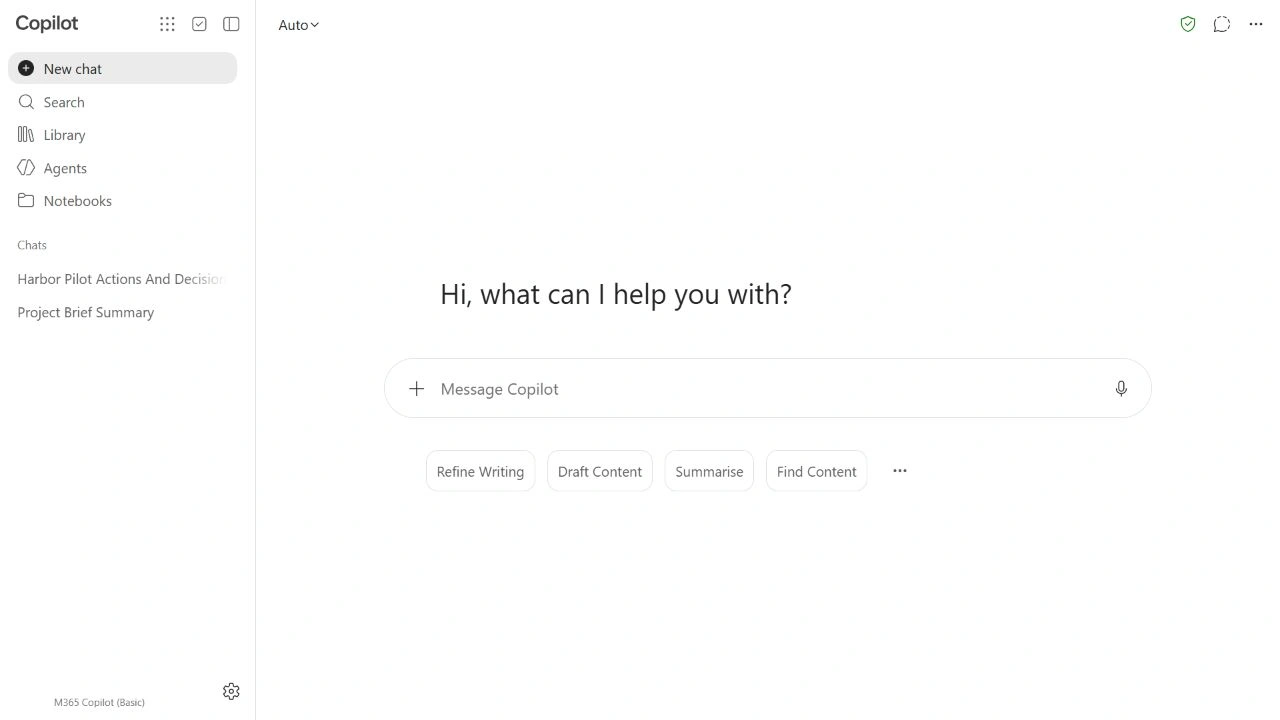
Open Copilot Chat in your browser and sign in with your organisation's work or school account. Check the account menu before attaching anything. Use a normal user account with OneDrive for Business available for uploads; these exercises do not require an administrator role or a change to tenant settings.
Our tenant displayed M365 Copilot (Basic) and the green data-protection shield. That is the experience recorded here, not a complete audit of the account's assigned licences. The browser chat is available with eligible Microsoft 365 subscriptions without requiring the paid Copilot add-on. App integrations, limits and access to work data depend on the licence, experience and tenant settings.
Microsoft is updating product names, so you may also see “Microsoft Copilot” or “Microsoft Copilot Chat”. Follow the work-account controls; labels can differ.
This lab uses documents attached to the conversation. Searching company email or SharePoint content is outside its scope.
2. Download and inspect the lab files
Get the three source files, five prompts and answer key
Extract the ZIP before uploading. The answer key is for your manual review: do not attach it to Copilot.
The project is Harbor, a fictional service-desk laptop refresh. Open each file in a text editor so you know what the evidence actually says. The section labels—B1, M1 and U1, for example—make individual claims easy to check.
| File | Purpose | When to attach |
|---|---|---|
01-harbor-brief.txt | Original approved scope, timing, checks and open decisions. | All three exercises. |
02-harbor-meeting-notes.txt | Actions and an explicitly unapproved proposal. | Exercises 2 and 3. |
03-harbor-approved-update.txt | Approved changes with an explicit statement of what they supersede. | Exercise 3 only. |
Keep the third file out of the earlier exercises. Otherwise the “current approved plan” question has a different answer. The TXT format keeps the sources easy to inspect; it is listed in Microsoft's supported document formats and was accepted in this tenant. If your organisation restricts uploads, resolve that with the service owner before continuing.
Choose the conversation mode
New chat starts a separate thread but can still use memory and personalisation. To avoid using or updating personalisation, choose Start a new temporary chat at the top right, if available. Use one conversation per exercise and keep its follow-up there. Save permitted evidence before leaving: temporary chats cannot be reopened from history, although organisational retention can still apply.
If temporary chat is unavailable, use ordinary chats and record that choice.
3. Exercise 1: from a summary to a usable handover
- Select New chat, or use the temporary-chat option described above.
- In the message box, select + → Upload images and files. The plus control is named Add and manage sources in this interface.
- Select only
01-harbor-brief.txt. Wait until its attachment card appears; check the filename before sending. - Submit the short prompt below.
Summarise the attached project brief.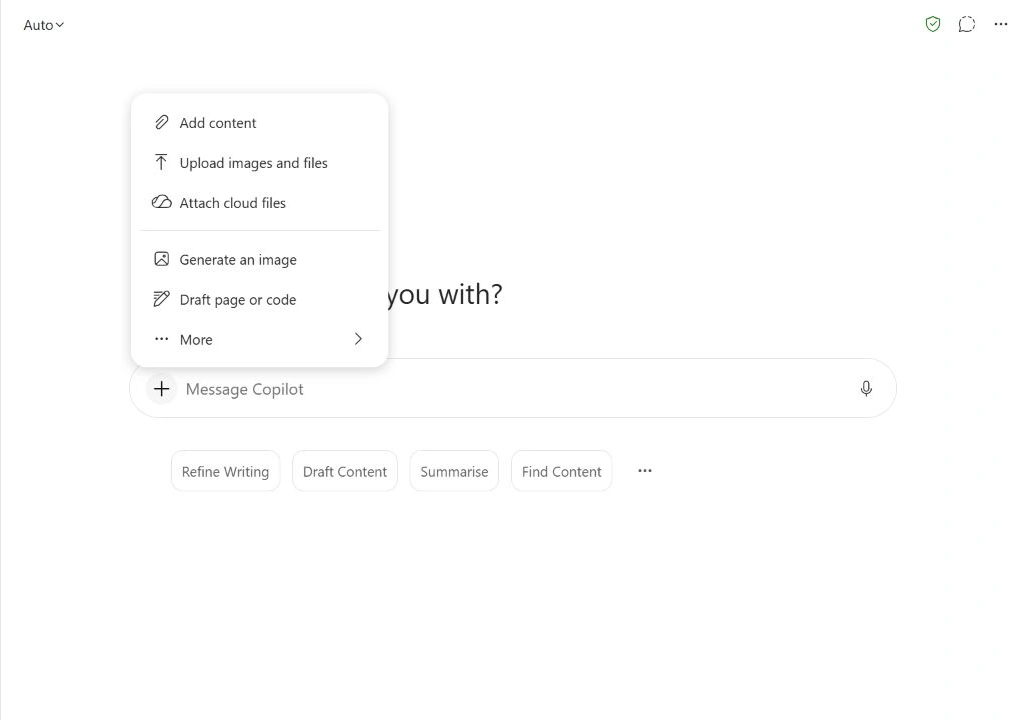
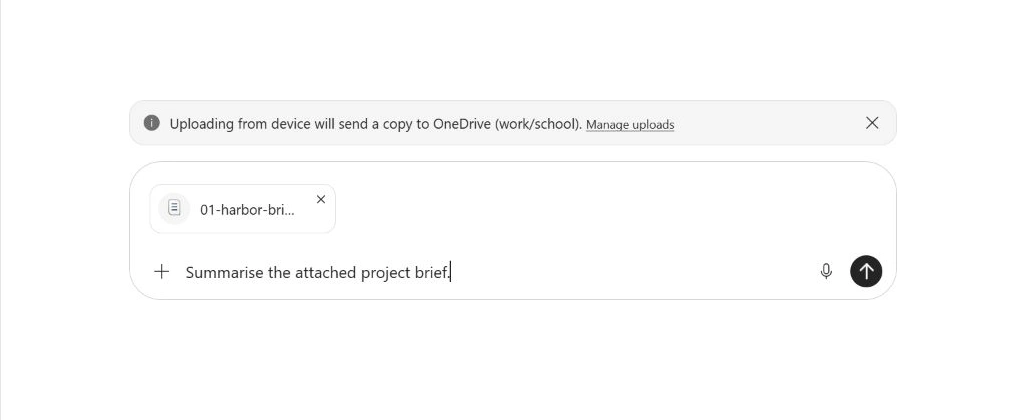
A broad request is a reasonable starting point. Evaluate what it produced before deciding that a longer prompt is necessary. Does it preserve the count, date, time zone and stop condition? Is it useful for the person who will read it?
Now stay in the same conversation and send this follow-up. You do not need to attach the file again.
Use only 01-harbor-brief.txt attached in this conversation. Write a service-desk handover in at most 120 words with three headings: Approved plan, Stop condition, Open decisions. Include the pilot count, date, time zone and checks required. Preserve the exact VPN stop threshold. Do not invent missing details. Cite the file and identify the supporting section IDs.The follow-up specifies the goal (a handover), context (the service desk), source (the attached brief), and expected output (three headings and a word limit). These are useful prompt ingredients, not a rigid formula that guarantees accuracy.
Observed result: the broad summary already preserved the core facts. The follow-up produced the requested three headings and remained below 120 words in a whitespace count, including headings and section references. The benefit here was a more focused handover, not a demonstrated increase in factual accuracy.
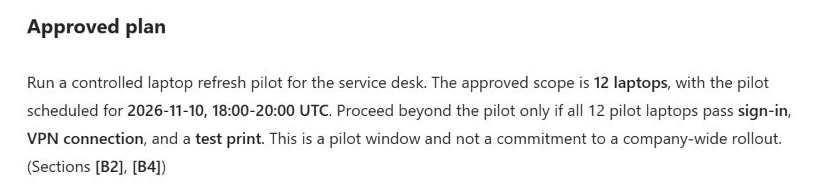
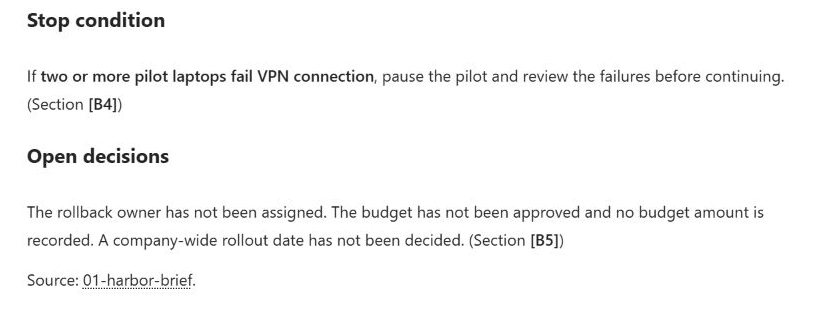
Check the details that could change an operational decision
- B2: 12 laptops; 10 November 2026, 18:00–20:00 UTC.
- B4: every pilot laptop must pass sign-in, VPN and a test print.
- B4: pause when two or more laptops fail VPN. “More than two” would change the threshold.
- B5: the rollback owner, budget amount and company-wide rollout date are unresolved.
Count a material omission or changed threshold as a failed check even if the prose reads well.
4. Open a source instead of trusting its label
Look for a citation beside a claim or Sources beneath the response. Open the referenced file or source pane, then find the relevant section in the document. For this lab, compare the VPN statement directly with B4. If the pane is unavailable in your experience, open your original local TXT file and check the same passage.
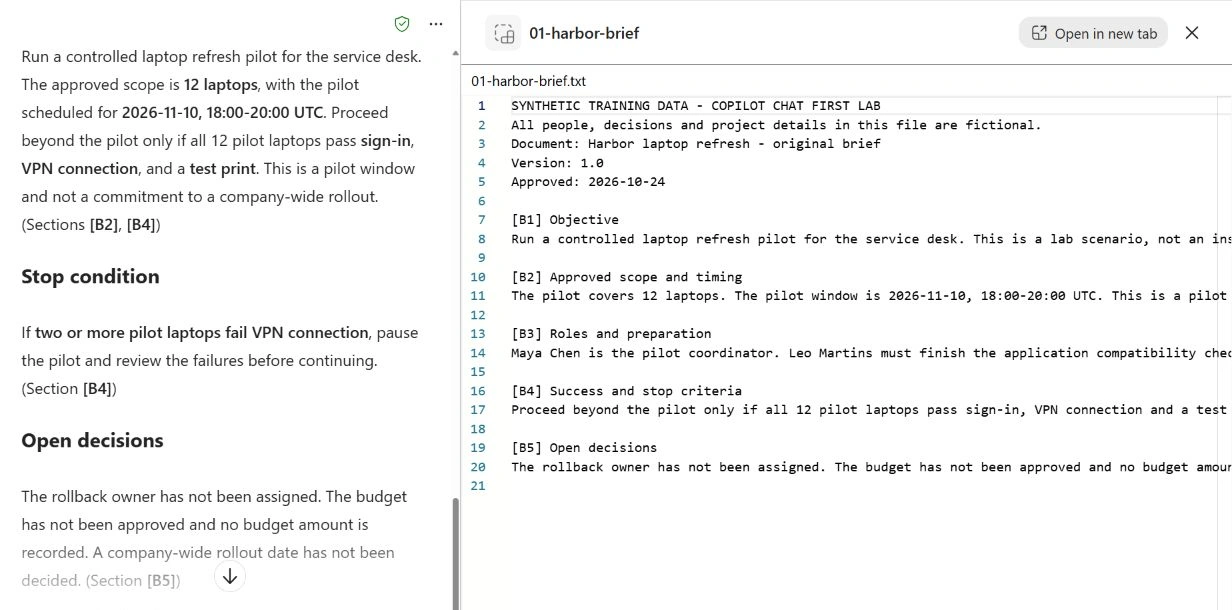
A citation is a route to evidence, not proof that every nearby sentence is correct. A file can be relevant while the answer misreads a number or combines an approved decision with a proposal. The section ID requested in the prompt makes checking easier, but that ID must also be checked.
Our prompts ask for the attached files only. That request is not a tenant security control and does not disable web search. Review the returned sources. Where source controls are available, inspect + → Change data sources; availability varies. Do not assume that “Turn off all” disables web search—Microsoft documents that this control excludes web search.
5. Exercise 2: extract actions without inventing ownership
Start a separate conversation using your chosen mode and attach files 01 and 02. Check both attachment cards before sending:
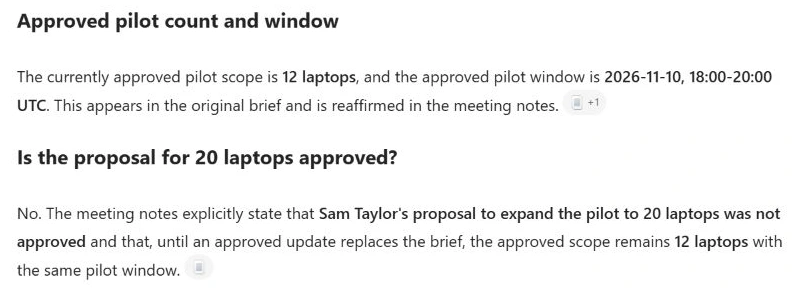
Use only the attached 01-harbor-brief.txt and 02-harbor-meeting-notes.txt. Create an action table with columns Action, Owner, Due date, Status and Source section. Include the unresolved action to choose a rollback owner. Use "Not assigned" for an absent owner and "Not specified" for an absent calendar date. Keep proposals separate from approved decisions. After the table, state the currently approved pilot count and window, and explain whether the proposal for 20 laptops is approved. Do not use web information.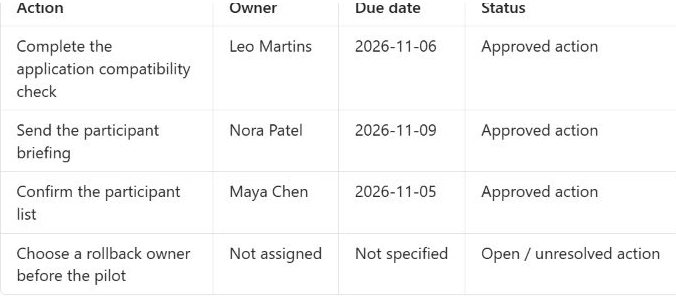
Check the table against this reference. The source records tasks, not proof that someone has completed them.
| Action | Expected owner | Calendar due date | Source |
|---|---|---|---|
| Application compatibility check | Leo Martins | 6 November 2026 | B3 / M1 |
| Participant briefing | Nora Patel | 9 November 2026 | B3 / M1 |
| Participant list | Maya Chen | 5 November 2026 | M1 |
| Choose a rollback owner | Not assigned | Not specified; must be before the pilot | M1 |
Sam Taylor proposed 20 laptops. M2 explicitly says that proposal was not approved. With only these two files, the approved plan remains 12 laptops on 10 November. Assigning the rollback action to Maya just because she coordinates the pilot would also add information the sources do not contain.
6. Exercise 3: resolve a change using explicit authority
Start another separate conversation using the same mode. Attach 01, 02 and 03, then submit:
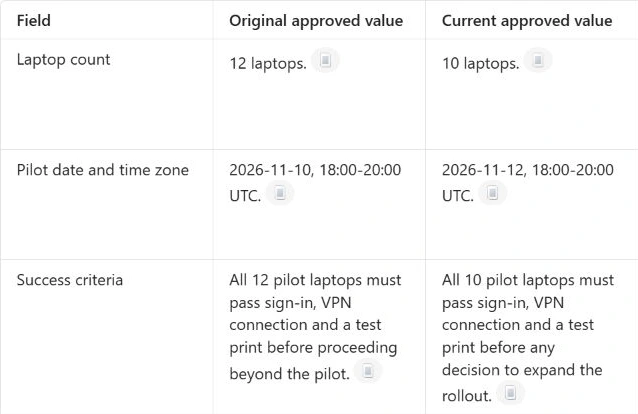
Use only the three attached Harbor files. Compare the original approved plan with 03-harbor-approved-update.txt. Build a table with Field, Original approved value, Current approved value and Evidence section. Cover laptop count, pilot date and time zone, success criteria, VPN stop threshold, preparation deadlines, rollback owner, budget and company-wide rollout date. Use the explicit supersession statement in U1; do not assume a newer date alone makes a document authoritative. Explain the status of the 20-laptop proposal. Do not fill missing values with estimates. Cite the supporting files.Values — left side of the response
Evidence — the same rows after scrolling right
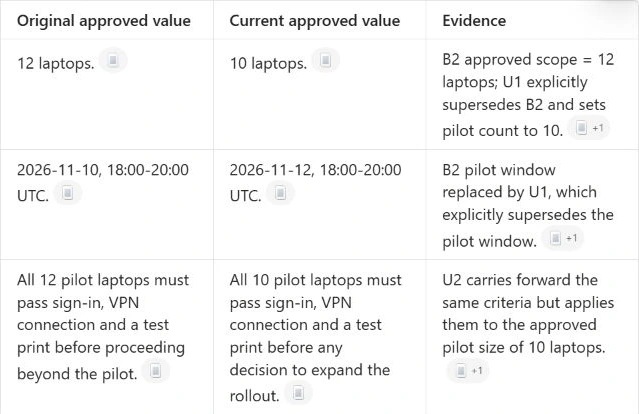
The approved update makes the pilot 10 laptops on 12 November 2026, 18:00–20:00 UTC. U1 explicitly replaces the count and window in B2 and rejects the 20-laptop proposal. U2 requires all 10 laptops to pass the three checks and retains the two-or-more VPN stop threshold. U3 leaves the preparation deadlines unchanged.
The point is not that the newest timestamp always wins. This file describes its approval status and the fields it supersedes. In real work, conflicting sources without that authority should remain an unresolved question for the document owner.
Finish with a question designed to expose unsupported detail:
Using only these attached files, what is the approved budget amount and who is the rollback owner? If the source does not give the answer, say so and identify the relevant section. Do not estimate or assign someone.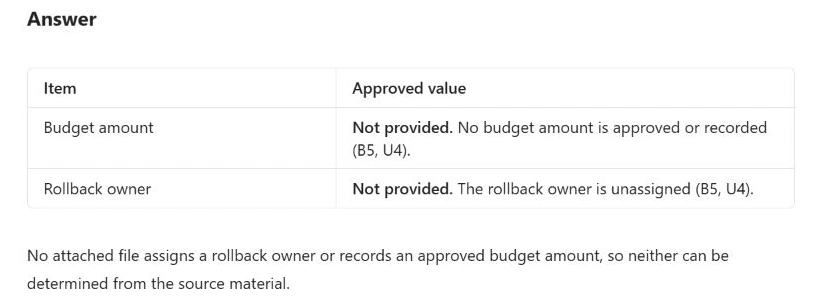
The expected answer is that no approved budget amount is recorded and no rollback owner is assigned, with U4 as the current source. An estimate, a plausible name or a suggested decision must not be presented as an established fact.
7. What the run established
Tested on 30 October 2026 in one work account, using the browser experience labelled M365 Copilot (Basic) with Auto selected. We used ordinary chats without auditing personalisation settings; temporary chat was not tested. A second account was used only to check upload availability. Every result below was checked against the answer key prepared before the run.
| Check | Observed result | Assessment |
|---|---|---|
| File upload | The work account accepted the three TXT files across the required conversations. | Verified in the tenant |
| Exercise 1: facts | 12 laptops; 10 November, 18:00–20:00 UTC; all three checks; pause at two or more VPN failures. | Matched B2 and B4 |
| Exercise 1: format | Three requested headings and fewer than 120 words; open decisions preserved. | Verified in the returned response |
| Source inspection | The referenced brief opened beside the response. | Verified in the tenant |
| Exercise 2: actions | Three named owners and deadlines; no invented rollback owner or calendar due date. | Matched B3, B5 and M1 |
| Exercise 2: proposal | 20 laptops stayed unapproved; current scope stayed at 12. | Matched M2 |
| Exercise 3: update | 10 laptops; 12 November, 18:00–20:00 UTC; checks, stop threshold and preparation deadlines preserved. | Matched U1–U3 |
| Missing information | No invented budget amount, rollback owner or company-wide rollout date. | Matched B5 and U4 |
This run covers three short TXT files. Results may differ on another run or with other formats, languages and document sizes. Use the answer key to check your own output.
8. Fix the context before repeating the prompt
| What you see | What to check |
|---|---|
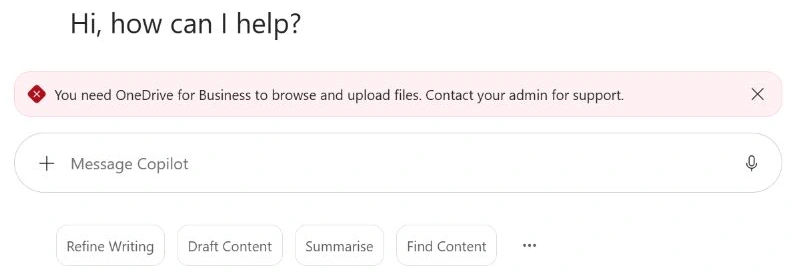
| “You need OneDrive for Business” | We observed this on a second work account in the tenant. Signing in alone was insufficient for file uploads. Have the service owner check the account’s OneDrive availability; the main lab used an existing account where uploads worked. |
| No upload option | Confirm the work account, browser experience and organisation's allowed features. Ask the service owner about restrictions; do not purchase an add-on just to follow a screenshot. |
| The response ignores a file | Confirm that the correct attachment card was present when you sent the prompt. If the context is unclear, repeat in a separate conversation using the mode described above and attach the required files again. |
| The answer uses 10 laptops in exercise 2 | Check whether file 03 was attached too early or already present in the conversation. Repeat using the conversation mode described above. |
| A task is marked “completed” | Ask for the supporting passage. The lab documents specify obligations but do not record completion. |
| The budget or rollback owner is invented | Point to B5 or U4, ask for a correction and mark the original check as failed. Keep the correction in your evidence. |
| A citation is missing or does not open | Ask for the filename and section, then check the original file yourself. Do not treat an unsupported claim as verified. |
| You reach a usage limit | Follow the service message and resume later. Limits and feature availability can vary. |
9. Turn the exercise into a useful work habit
For your next approved task, choose one document you are allowed to use and three facts you can independently verify. Record how much time the entire task takes, including correcting and checking the answer. Compare that with your usual workflow before claiming a productivity gain.
After practising, follow your organisation's retention process for the chat and uploaded copies. The upload notice provides a Manage uploads link to the work OneDrive location in this tenant. Removing a visible chat is not evidence that retained copies or compliance records have been erased. Keep only the lab evidence you actually need.
When you move from a personal exercise to a wider rollout, continue with Before You Deploy Copilot for Microsoft 365 and the Copilot readiness scorecard. A useful first answer is the start of learning how to evaluate the service.
Microsoft references
Official documentation reviewed on 30 October 2026. Product names, screens and entitlement details can change.
- Microsoft Copilot overview — experiences and eligibility.
- Copilot Chat privacy and protections — work data, uploads, web queries and logging.
- Add content to Copilot Chat prompts — attaching files.
- File formats supported by Microsoft Copilot — supported document types.
- Get started writing prompts — goal, context, source and expectations.
- Control and review sources — citations and source controls.
- Diagnose what is missing in Copilot output — reviewing gaps before using an answer.
- Personalise what Copilot remembers — memory, chat history and temporary conversations.