Security · SharePoint · Admin Readiness · 2026
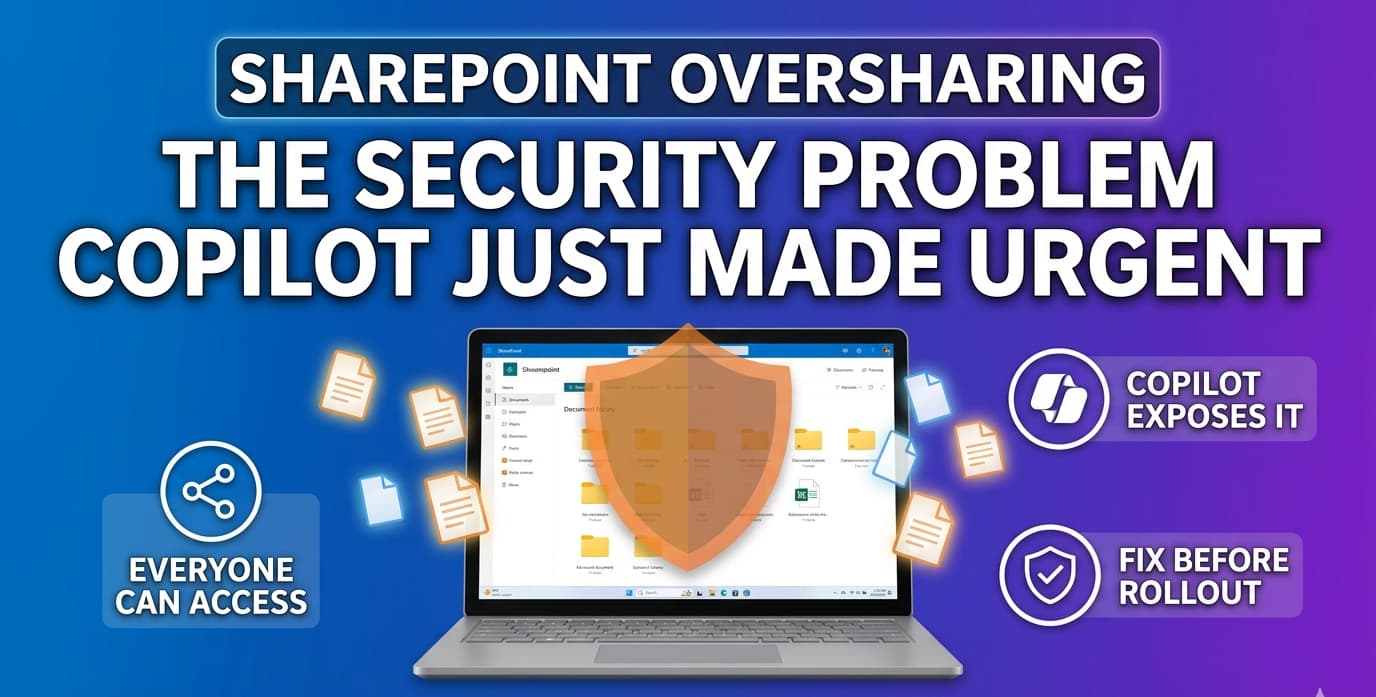
Copilot did not create your oversharing problem. It just made it impossible to ignore. Before Copilot, files shared with "Everyone except external users" sat quietly in SharePoint — technically accessible, but practically forgotten. After Copilot, those same files become candidates for AI-generated summaries, surfaced in responses to any user who asks the right question. The permissions haven't changed. The reach has.
This article explains how Copilot interacts with SharePoint permissions, where oversharing actually comes from in most SMB tenants, and what to fix — in order — before enabling Copilot for your organisation.
How Copilot uses SharePoint permissions
Microsoft 365 Copilot queries content through Microsoft Graph, which enforces the same permission model that governs direct file access. A user can only receive Copilot responses based on content they are already authorised to view. Copilot does not elevate permissions, does not access files on behalf of other users, and does not index content outside the querying user's access scope. This is documented in Microsoft's Copilot data protection architecture.
The practical implication is straightforward: if a file is overshared, every user who has access to it becomes a potential recipient of Copilot responses that include that file's content. The oversharing existed before Copilot — but only Copilot makes it operationally relevant at scale. A user who could theoretically browse to a sensitive HR policy buried in a SharePoint site would probably never find it manually. Copilot finds it in seconds when asked a relevant question.
The three oversharing patterns that appear in almost every SMB tenant
Most SharePoint oversharing in SMB environments comes from a small number of recurring patterns. Understanding these patterns tells you where to focus your audit before enabling Copilot.
Pattern 1 — "Everyone except external users" sharing
The "Everyone except external users" (EEEU) group includes every internal user in your Microsoft 365 tenant. It is the default recipient group used when someone clicks "Share with your organisation" in SharePoint or OneDrive. Files and sites shared this way are accessible to every user — including recently onboarded employees, contractors with guest accounts converted to member accounts, and users in departments that should have no business access to the content.
EEEU sharing accumulates silently over years. A team lead shares a salary band document "just internally" in 2021. That document is still accessible to every employee in 2026 — and Copilot will now surface it to anyone with a Copilot licence who asks about compensation. Identifying sites with EEEU exposure is the first priority in any oversharing audit.
Pattern 2 — "Anyone" links (anonymous access)
"Anyone" links allow access to a file or folder without requiring a Microsoft 365 account — they are effectively public links. In many SMB tenants this link type is enabled at the tenant level by default, and users send them routinely for convenience. The SharePoint sharing settings documentation describes how to review and restrict link defaults at both the organisation level and the site level.
While Copilot cannot directly surface content via anonymous links (it operates within the authenticated permission boundary), the presence of "Anyone" links is a strong signal that the organisation's content governance posture is weak broadly — and the sites generating those links are likely to have other oversharing patterns that Copilot will surface.
Pattern 3 — Legacy site permissions that were never reviewed
Sites created for a project, a team, or a specific initiative years ago often retain their original membership long after the project ended. Former employees may have had their accounts disabled but the site permissions remain. Department-wide sites may have been created with broader access than was actually needed. These sites accumulate content — some of it sensitive — and the permissions are never revisited because nothing went visibly wrong. Copilot changes that calculus: any licensed user with access to these sites now has AI-assisted access to everything stored in them.
Auditing with Data Access Governance reports
The SharePoint admin centre includes Data Access Governance (DAG) reports — a built-in set of reports that surface oversharing risk without requiring PowerShell or third-party tooling. These reports are the correct starting point for any Copilot readiness audit.
The four reports that matter most
| Report | What it shows | Where to find it |
|---|---|---|
| Sharing links — Anyone | Sites where users have created anonymous "Anyone" links in the past 28 days | SharePoint admin centre → Reports → Data access governance |
| Sharing links — People in the organisation | Sites where org-wide sharing links were created — content accessible to all internal users | SharePoint admin centre → Reports → Data access governance |
| Shared with "Everyone except external users" | Sites where content is explicitly shared with the EEEU group | SharePoint admin centre → Reports → Data access governance |
| Site permissions snapshot | Point-in-time view of permission levels across all sites — useful for identifying sites with unexpectedly broad access | SharePoint admin centre → Reports → Data access governance → Site permissions |
How to run a DAG report
Navigate to admin.microsoft.com → SharePoint admin centre, or go directly to your tenant's SharePoint admin URL. Sign in with a SharePoint Administrator or Global Administrator account.
In the left navigation, select Reports then Data access governance. You will see the available report types listed.
This is the highest-priority report for a Copilot readiness audit. Select it and click Run report. Reports are generated asynchronously and are typically ready within a few hours for large tenants.
The report lists sites ranked by oversharing exposure. Focus on sites with the highest number of EEEU-shared items. These are your remediation priorities before Copilot goes live.
For any site that appears in the report, you can initiate a Site Access Review directly from the DAG report. This notifies the site owner and asks them to confirm current membership and sharing links — delegating remediation to the people who know the content best.
The four-layer fix
Remediating oversharing is not a single action — it is a set of controls applied at different layers, each addressing a different type of risk. The right approach combines all four, applied in order from broadest to most targeted.
Layer 1 — Tighten organisation-level sharing defaults
The first control is the simplest: change the default sharing behaviour for your entire organisation so that new oversharing is harder to create accidentally. In the SharePoint admin centre sharing settings, review two settings in particular:
| Setting | Recommended for most SMBs | Why |
|---|---|---|
| Default link type for sharing | Specific people (not "Anyone" or "People in the organisation") | Forces users to think about who they are sharing with instead of sending org-wide links by default |
| External sharing level | New and existing guests (or more restrictive) | Prevents new anonymous "Anyone" links while still allowing controlled external sharing when needed |
| Default sharing link scope | Only people in your organisation | Limits the reach of "People in the organisation" links to your tenant rather than external |
These settings affect new sharing going forward. They do not retroactively remove existing oversharing — that requires the remediation steps in Layers 2 and 3. For a full reference on limiting sharing in Microsoft 365, Microsoft maintains a dedicated guidance page.
Layer 2 — Restricted Access Control for high-risk sites
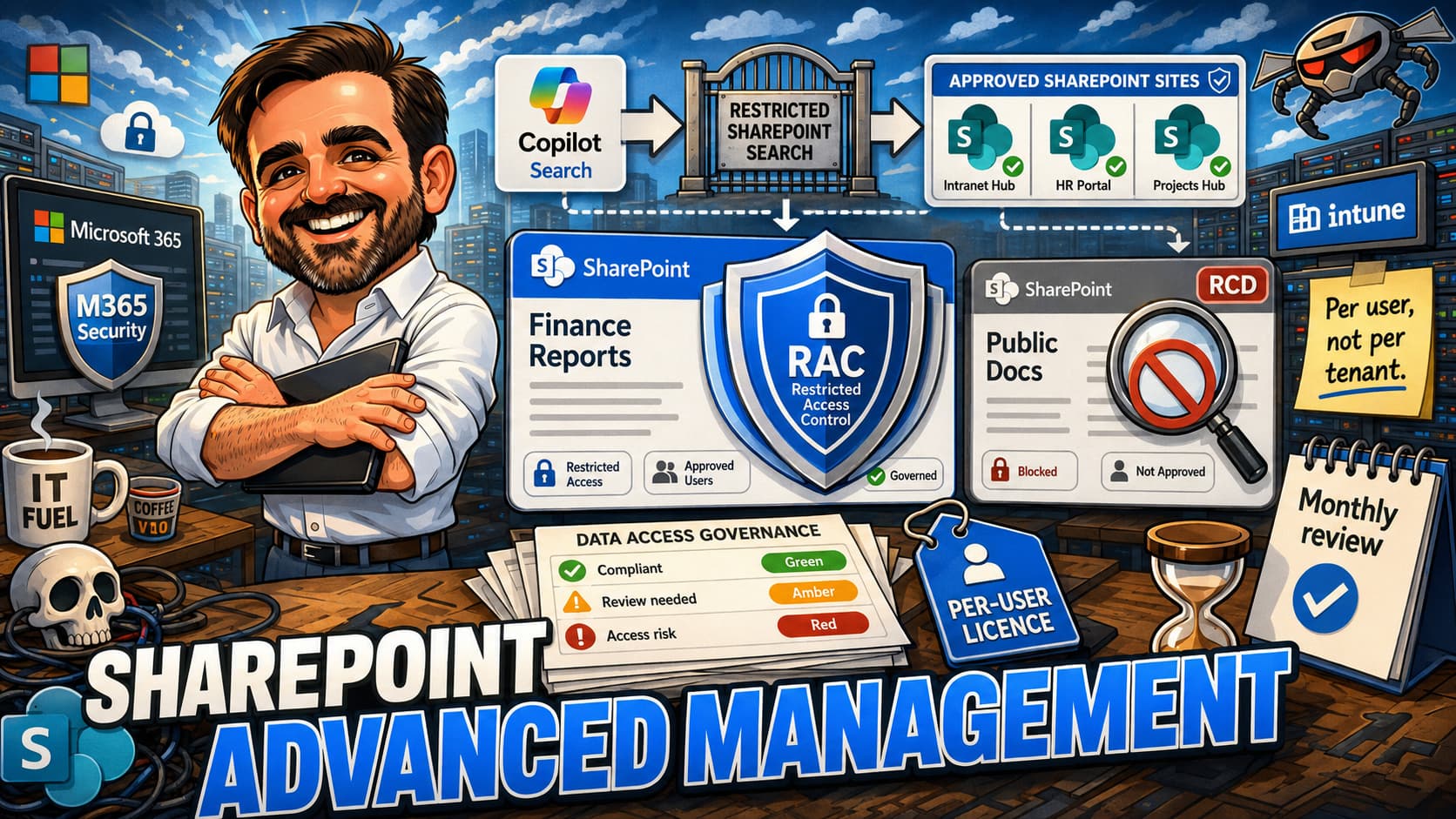
Restricted Access Control (RAC) is a SharePoint Advanced Management feature that allows admins to restrict a site's access to only a specified Microsoft 365 group or Entra ID security group — regardless of what the site's existing permission structure looks like. When RAC is applied:
- A user must satisfy two conditions to access the site: they must be in the RAC group and already have permissions on the site or its content — RAC does not replace the underlying permission model, it adds a group-membership gate on top of it
- Users who are not in the RAC group cannot access the site, even if they have existing site permissions
- Copilot can only surface content from that site for users who meet both conditions — RAC group membership and existing content permissions
RAC is the right control for sites that contain genuinely sensitive content — HR documents, financial records, executive communications, legal files — where the oversharing risk is high and waiting for site owners to manually clean up permissions is not an acceptable timeline. Apply it to your highest-risk sites first while longer-term remediation is in progress.
Layer 3 — Restricted Content Discovery for lower-risk sites
For sites where the content is not critically sensitive but you want to prevent it from appearing in Copilot results while permissions are being cleaned up, Restricted Content Discovery (RCD) is a lighter-touch option. Unlike RAC, RCD does not change who can access the site — it only prevents the site's content from being surfaced by Copilot or organisation-wide search. Users who know where to look can still access the content directly; it simply will not appear in AI-generated responses or search results.
RCD is useful as a temporary control applied to a broad set of sites while your team works through the DAG report results. It gives users the assurance that Copilot will not surface unexpected content, without requiring you to resolve every permission structure immediately.
Layer 4 — Sensitivity labels as the sustainable long-term control
Microsoft Purview sensitivity labels are the most durable control in this stack. When a label applies encryption to a document, Copilot checks the user's usage rights before including that document in a response — independently of SharePoint permissions. A user who has SharePoint read access to a library but does not have the EXTRACT usage right on an encrypted document will not receive Copilot responses based on that document's content.
Labels also travel with content when it leaves SharePoint — if a document is downloaded, emailed, or copied, the label and its protections remain. This makes sensitivity labels the control of choice for the most sensitive content categories: legal documents, HR records, financial statements, and any content that needs protection regardless of where it ends up.
For a full overview of how Purview protections interact with Copilot, Microsoft's Microsoft Purview data security for Microsoft 365 Copilot documentation covers the complete picture, including DLP policies that can be configured to restrict Copilot from processing specific labelled content categories.
Restricted SharePoint Search — the controlled rollout option
If your organisation wants to enable Copilot for a set of users before the oversharing remediation work is complete, Restricted SharePoint Search provides a controlled middle path. When enabled, Copilot and organisation-wide search primarily draw from an allowlist of sites that the admin has explicitly approved.
With that caveat in mind, this approach meaningfully narrows the surface area. Users will get a more limited Copilot experience — it will not draw from SharePoint broadly — but the primary risk of overshared content appearing in responses is contained to the sites on the allowlist, which the admin can vet in advance.
| Restricted SharePoint Search enabled | Restricted SharePoint Search disabled | |
|---|---|---|
| Copilot draws from | Admin-approved site allowlist only | All SharePoint content the user can access |
| Oversharing risk | Reduced — primarily limited to allowlisted sites (recently accessed content outside the list may still surface) | Full scope of existing permissions |
| Copilot response quality | Narrower — may miss relevant content outside the allowlist | Broader — surfaces all accessible content |
| Admin overhead | Ongoing — allowlist must be maintained | None — relies on permission model |
| Recommended use | Temporary — while remediation work is in progress | Long-term — after oversharing has been addressed |
Pre-Copilot oversharing checklist
Run through this checklist before enabling Copilot licences for your organisation. Each item either reduces the risk of sensitive content being surfaced inappropriately, or puts a control in place to contain that risk while longer-term remediation continues.
-
Run the Data Access Governance reports in the SharePoint admin centre Start with the "Shared with Everyone except external users" report and the "Sharing links — People in the organisation" report. These identify the sites with the broadest unintended exposure. Microsoft Learn: DAG reports →
-
Initiate Site Access Reviews for high-risk sites Use the DAG reports to trigger Site Access Reviews for the highest-risk sites identified. This delegates remediation to site owners, who confirm or remove existing members and sharing links. Microsoft Learn: Site Access Review →
-
Apply Restricted Access Control to sites with sensitive content For sites containing HR, legal, financial, or executive content, apply RAC to restrict access to an explicit group while broader permission cleanup is in progress. Microsoft Learn: Restricted Access Control →
-
Review and tighten organisation-level sharing defaults Change the default link type to "Specific people" and restrict the external sharing level to prevent new oversharing being created after the audit is complete. Microsoft Learn: SharePoint sharing settings →
-
Assess whether sensitivity labels are deployed for your most sensitive content If labels with encryption are not yet in place for your highest-sensitivity content categories, this is the right time to begin. Labels provide permission-independent protection that persists even when files leave SharePoint. Microsoft Learn: Sensitivity labels →
-
Decide whether Restricted SharePoint Search is needed for your rollout If remediation cannot be completed before the Copilot launch date, consider enabling Restricted SharePoint Search as a temporary control. Define the allowlist of sites you are confident are clean before enabling Copilot licences. Microsoft Learn: Restricted SharePoint Search →
-
Plan a recurring DAG report review cadence post-rollout Oversharing is not a one-time problem — it accumulates continuously as users create new sharing links and new sites. Schedule monthly or quarterly DAG report reviews to catch new oversharing before it compounds. Microsoft recommends a monthly cadence for sharing links reports and a quarterly cadence for site permissions snapshots.