Attack surface reduction rules are the cheapest serious hardening available on a Windows fleet. They ship inside Defender Antivirus, they need no extra licence to enforce, and each one closes a technique that shows up in real intrusions. And yet most tenants I look at have them half-configured, or configured in a way that quietly does nothing, for a reason that is entirely rational: the failure mode is public. Turn on the wrong rule on the wrong morning and the finance macro stops working, the ERP updater stops installing, and you are the person who broke it.
So the industry answer is "run them in audit first", and that answer is correct but incomplete. It leaves out the parts that decide whether the rollout works: that your starting baseline may not be as quiet as you assume, that seven of the nineteen rules ignore the kind of exclusion most admins reach for first, that Intune's own documentation tells you not to use the exclusion setting it puts at the top of the blade, and that on a device with a third-party antivirus in front, none of this runs at all while the policy still reports success. This is the rollout with those parts left in.
Your real starting point, which is probably not what you think
Every ASR guide starts at "create a policy in audit mode". Start one step earlier, because three conditions decide whether your audit data means anything, and all three are invisible from the Intune blade.
Condition one: Defender has to be the antivirus in front
ASR rules are a Defender Antivirus feature. If a third-party antivirus is installed and the device is onboarded to Defender for Endpoint, Defender Antivirus goes into passive mode automatically, and in passive mode the compatibility table is unambiguous: attack surface reduction rules are No. So is cloud-delivered protection, so is network protection, so is PUA protection.
Nothing tells you. The Intune policy still deploys, still reports success, and still shows up in the configuration report. You will collect thirty days of audit data that is thirty days of silence, conclude the rules are safe, switch to Block, and change nothing at all. The requirement, verbatim from the overview:
Condition two: the baseline may already be noisy
This is the finding that reframes the whole exercise, and it is a documentation contradiction rather than a feature. What does a rule set to Not configured actually do?
| Source | What it says about "Not configured" |
|---|---|
| ASR rules overview | "The ASR rule isn't explicitly enabled. This value is functionally equivalent to Disabled or Off, but without the potential for rule conflicts." |
| Policy CSP (Defender), the ADMX-derived text that reaches the device | "Not Configured: the rule is enabled with default values." And separately: "Unless the ASR rule is disabled, a subsample of audit events are collected for ASR rules with the value of not configured." |
| Intune legacy ASR profile reference | "Not configured (default) - The setting returns to the Windows default, which is off and persistence isn't blocked." |
Two of the three say off. The one that describes the CSP, which is the surface that actually delivers the setting, says the rule is enabled with defaults and emits sampled audit events. I cannot resolve this from the documentation, and I am not going to pretend otherwise. What I can tell you is the operational consequence: do not assume a device with no ASR policy is producing zero ASR events. Query your fleet for existing ASR events before you deploy anything, and treat that as your baseline rather than assuming zero. If your "day one" audit numbers arrive suspiciously fast, sampled events from previously not-configured rules may be one explanation worth testing.
Condition three: know which rules are already on, from anywhere
ASR can be set by Intune, by the Defender portal, by Group Policy, by Configuration Manager, by a local Set-MpPreference someone ran in 2022, and by a security baseline nobody remembers assigning. Before the pilot, Microsoft's deployment guidance has a step almost everyone skips:
"Before you begin the testing phase of your ASR rules deployment, disable any related ASR rules that are currently enabled in Block or Warn mode (if applicable)."
Two tools answer "what is actually set on this device, and who set it". On the device:
$p = Get-MpPreference
$ids     = @($p.AttackSurfaceReductionRules_Ids)
$actions = @($p.AttackSurfaceReductionRules_Actions)
$count   = [Math]::Min($ids.Count, $actions.Count)

if ($count -eq 0) {
    Write-Output 'No ASR rules configured.'
}
else {
    0..($count - 1) | ForEach-Object {
        [pscustomobject]@{
            Id     = $ids[$_]
            Action = $actions[$_]
        }
    } | Format-Table -AutoSize
}

# Global ASR exclusions currently in force
(Get-MpPreference).AttackSurfaceReductionOnlyExclusions
Read-only. The zero check matters: on a device with no ASR rules configured, a naive 0..($count - 1) becomes 0..-1, which PowerShell happily evaluates as a descending range and then indexes an empty array. Action values map to the modes table below: 0 Disabled, 1 Block, 2 Audit, 5 Not configured, 6 Warn.
And from the portal, the change that matters most for ASR troubleshooting in 2026: the Effective settings tab went generally available in February 2026, under the device page's Configuration management tab. Microsoft's description is exactly the problem it solves: "you can view the actual value and configuration source of each security setting on a device. This helps identify configuration attempts that didn't take effect and eliminates gaps where intended protections aren't enforced." If you have ever argued with a colleague about whether a rule is really on, that tab ends the argument.
And one that only bites servers
The nineteen rules, and which ones actually bite
Nineteen rules, in two documented groups: three "standard protection" rules and sixteen others. The columns that matter for a rollout are not the ones usually printed. Whether a rule honours path exclusions decides how you will fix a false positive. Whether it supports Warn decides whether users can unblock themselves at 4pm on a Friday. And the impact column is where the arguments happen.
| Rule (Intune name) | GUID | Path excl. | Warn | What it typically breaks |
|---|---|---|---|---|
| Standard protection rules | ||||
| Block abuse of exploited vulnerable signed drivers (Device) | 56a863a9-875e-4185-98a7-b882c64b5ce5 | Yes | Yes | Low. Blocks saving vulnerable drivers; explicitly "doesn't prevent loading existing drivers already on the computer". Watch legacy hardware installers. |
| Block credential stealing from the Windows local security authority subsystem | 9e6c4e1f-7d60-472f-ba1a-a39ef669e4b2 | No | No | Enormous audit noise, almost all ignorable. Microsoft says you may skip audit entirely. Documented conflict with Quest Dirsync Password Sync. |
| Block persistence through WMI event subscription | e6db77e5-3df2-4cf1-b95a-636979351e5b | No | Yes | The Configuration Manager one. "The Configuration Manager client relies heavily on WMI." Not supported via Intune on WS2012 R2 / WS2016. |
| Other ASR rules | ||||
| Block Adobe Reader from creating child processes | 7674ba52-37eb-4a4f-a9a1-f0f9a1619a2c | No | Yes | Low to medium. PDF workflows that shell out to helpers or plug-ins. |
| Block all Office applications from creating child processes | d4f940ab-401b-4efc-aadc-ad5f3c50688a | Yes | Yes | High. Line-of-business macros that spawn cmd or PowerShell. Enforced only if Office sits under %ProgramFiles%. |
| Block executable content from email client and webmail | be9ba2d9-53ea-4cdc-84e5-9b1eeee46550 | Yes | Yes | Medium. Blocks .exe, .dll, .scr, .ps1, .vbs, .js and .zip opened from Outlook and webmail. Three different display names across surfaces. |
| Block executable files from running unless they meet a prevalence, age, or trusted list criterion | 01443614-cd74-433a-b99e-2ecdc07bfc25 | Yes | Yes | Very high if you ship your own binaries. Criteria are not configurable. Freshly built or freshly updated in-house executables have no reputation yet. |
| Block execution of potentially obfuscated scripts | 5beb7efe-fd9a-4556-801d-275e5ffc04cc | Yes | Yes | Medium to high. Minified or packed vendor scripts and installer scripts. Explicitly covers PowerShell. Needs AMSI plus cloud protection. |
| Block JavaScript or VBScript from launching downloaded executable content | d3e037e1-3eb8-44c8-a917-57927947596d | Yes | Yes | Medium. Script-driven installers and updaters. Not supported via Intune on WS2012 R2 / WS2016. |
| Block Office applications from creating executable content | 3b576869-a4ec-4529-8536-b80a7769e899 | No | Yes | Medium to high. Macros that write helper executables to disk. Not gated on the Office install location. |
| Block Office applications from injecting code into other processes | 75668c1f-73b5-4cf0-bb93-3ecf5cb7cc84 | No | No | Documented incompatibilities with BeyondTrust Privilege Guard and Heimdal. Requires restarting Microsoft 365 Apps before it takes effect. |
| Block Office communication application from creating child processes | 26190899-1602-49e8-8b27-eb1d0a1ce869 | No | Yes | Medium. Outlook add-ins, COM helpers, "open with" handoffs. |
| Block process creations originating from PSExec and WMI commands | d1e49aac-8f56-4280-b9ba-993a6d77406c | No | Yes | High for ConfigMgr shops and remote-admin tooling. Microsoft: if you use Configuration Manager, "don't use other available deployment methods to enable this rule on managed devices". |
| Block rebooting machine in Safe Mode | 33ddedf1-c6e0-47cb-833e-de6133960387 | Yes | Yes (see note) | Low. Blocks bcdedit-style safe-mode reboots. Safe Mode is still reachable from WinRE. Documented as generating no user notification. |
| Block untrusted and unsigned processes that run from USB | b2b3f03d-6a65-4f7b-a9c7-1c7ef74a9ba4 | Yes | Yes | Low to medium. Field and OT laptops running tools from removable media. Blocks running, not copying. |
| Block use of copied or impersonated system tools | c0033c00-d16d-4114-a5a0-dc9b3a7d2ceb | Yes | Yes | Medium. Scripts and task sequences that copy or rename OS binaries into working folders. |
| Block Webshell creation for Servers | a8f5898e-1dc8-49a9-9878-85004b8a61e6 | Yes | Yes (see note) | Exchange servers only. No advanced hunting ActionType at all. Leave it Not configured in GPO if you manage ASR in Defender. |
| Block Win32 API calls from Office macros | 92e97fa1-2edf-4476-bdd6-9dd0b4dddc7b | Yes | Yes (see note) | Medium. Legacy VBA that calls into Win32. Windows client only. No user notification documented. |
| Use advanced protection against ransomware | c1db55ab-c21a-4637-bb3f-a12568109d35 | Yes | Yes | Medium. "Errs on the side of caution and also blocks files that don't yet have a positive reputation." Needs cloud protection. |
Exclusion and GUID columns verified directly against the ASR rules overview on 4 August 2026 (page ms.date 2026-07-08). Every rule honours global and per-rule ASR exclusions; the column above is specifically Defender Antivirus file and folder exclusions.
Set-MpPreference example on the configure page prints the WMI persistence GUID with the trailing b missing, and the legacy Intune settings reference prints the prevalence rule GUID one character too long. Copy either and you configure a rule that does not exist, silently. The GUIDs in the table above are the ones from the overview's canonical list.The standard three, and the asterisk on them
Microsoft's position, verbatim: "Standard protection rules offer significant security benefits, so Microsoft recommends enabling them in Block mode without the need for extensive testing. Typically, these rules have minimal or no noticeable effect on users, but there are exceptions."
The exceptions are two of the three. The LSASS rule is redundant if you already run LSA protection or Credential Guard, and it is the noisiest rule in the product. And the WMI persistence rule carries this, inside the same section that says no testing is needed:
"If you use Microsoft Configuration Manager to manage devices, don't use other available deployment methods (for example, Group Policy or PowerShell) to activate this rule in Block or Warn mode on the device without extensive testing in Audit mode."
If you or your clients run Configuration Manager, the honest reading is that the standard set is two rules you can deploy quickly and one that deserves more testing than anything else on the list. Say that out loud in the change record rather than inheriting the marketing line.
The LSASS rule deserves its own paragraph
It will generate more audit events than every other rule combined, and Microsoft's guidance is unusually direct about it: "This ASR rule produces a large volume of audit events, almost all of which are safe to ignore when the rule is enabled in Block mode. You can choose to skip the audit mode evaluation and proceed to block mode deployment."
The reason is that the rule blocks access to LSASS process memory, not process execution: "When this ASR rule blocks processes like svchost.exe, it means the process is blocked from accessing LSASS process memory." Microsoft's own example is Chrome updates, which touch LSASS unnecessarily and keep updating fine when blocked. The practical instruction that saves a week of investigation: "If you have an app that simply enumerates LSASS, but has no real effect in functionality, there's no need to add it to the exclusion list."
If you leave this rule in audit alongside the others, its noise will dominate every report and every chart, and you will spend your pilot triaging events that were never going to matter. Either deploy it separately to a small ring in Block, as Microsoft suggests, or filter it out of your analysis from day one.
Audit, Block, Warn, and the two that are not what they look like
| Mode | Value | Documented behaviour |
|---|---|---|
| Block | 1 | "The ASR rule is enabled in Block mode." |
| Audit | 2 | "The ASR rule is enabled as if in Block mode, but without taking action." |
| Warn | 6 | "Enabled as if in Block mode, but users can select Unblock in the warning notification pop-up to bypass the block for 24 hours. After 24 hours, the user needs to bypass the block again." |
| Disabled / Off | 0 | "Explicitly disabled. This value can cause conflicts when the same device is assigned the same ASR rule in different modes by different policies." |
| Not configured | 5 | "Functionally equivalent to Disabled or Off, but without the potential for rule conflicts." See the contradiction above. |
Note the distinction between 0 and 5, because it matters in a multi-policy tenant: explicitly disabling a rule is a value that can conflict with another policy setting the same rule to Block, while leaving it not configured is not.
Warn mode is quietly conditional
Warn is the most useful mode in a rollout, because it converts a hard block into a decision the user can make and you can measure. It is also the mode with the most fine print.
- Two rules do not support it at all: the LSASS rule and the Office code injection rule.
- On Windows older than 10 1809 it silently becomes Block. Verbatim: "ASR rules in Warn mode on unsupported versions of Windows are effectively in Block mode (bypass isn't available)."
- It does not exist in Configuration Manager. "Warn mode isn't available in Microsoft Configuration Manager."
- It needs a recent enough Defender: platform 4.18.2008.9 and engine 1.1.17400.5, both August 2020 or later.
- Three rules only produce the pop-up at raised cloud protection levels. For the Adobe Reader, email/webmail and JS/VBS rules, "user notification pop-ups are generated only when the cloud protection level on the device is High, High plus, or Zero tolerance". At the default level, Warn on those three has no visible warning.
AsrSafeModeRebootWarnBypassed hunting event, implying bypass happens somehow. I could not resolve this from the documentation. If Warn is load-bearing in your design, test those three specifically rather than assuming.The rollout: what to do, in what order
Microsoft documents four phases, and the sequence inside them is more prescriptive than most people realise.
- Plan. Identify rings, identify the applications that will collide, and be honest about code signing: "Some ASR rules don't work well if you frequently use unsigned, internally developed apps and scripts. It's more difficult to deploy ASR rules if you don't enforce code signing." If you are unsigned everywhere, the prevalence rule and the ransomware rule are going to hurt, and that is a decision to take deliberately rather than discover.
- Test. Disable any ASR rules already enabled in Block or Warn. Then, counter-intuitively, turn on everything at once: "Typically, enable all ASR rules in Audit mode at the same time so you can determine which rules are triggered by everyday business activities."
- Enable. Move rules from Audit to Block one at a time, and Microsoft is specific about the order: "Start with the rule with the fewest triggered events." Fewest events means fewest arguments, and it builds the track record you will need when a noisier rule comes up.
- Manage and monitor. Rules do not stay quiet. New applications, new vendors, new updaters. This becomes a standing review item, not a project that closes.
How long in audit? Thirty days, and it is hidden in the FAQ
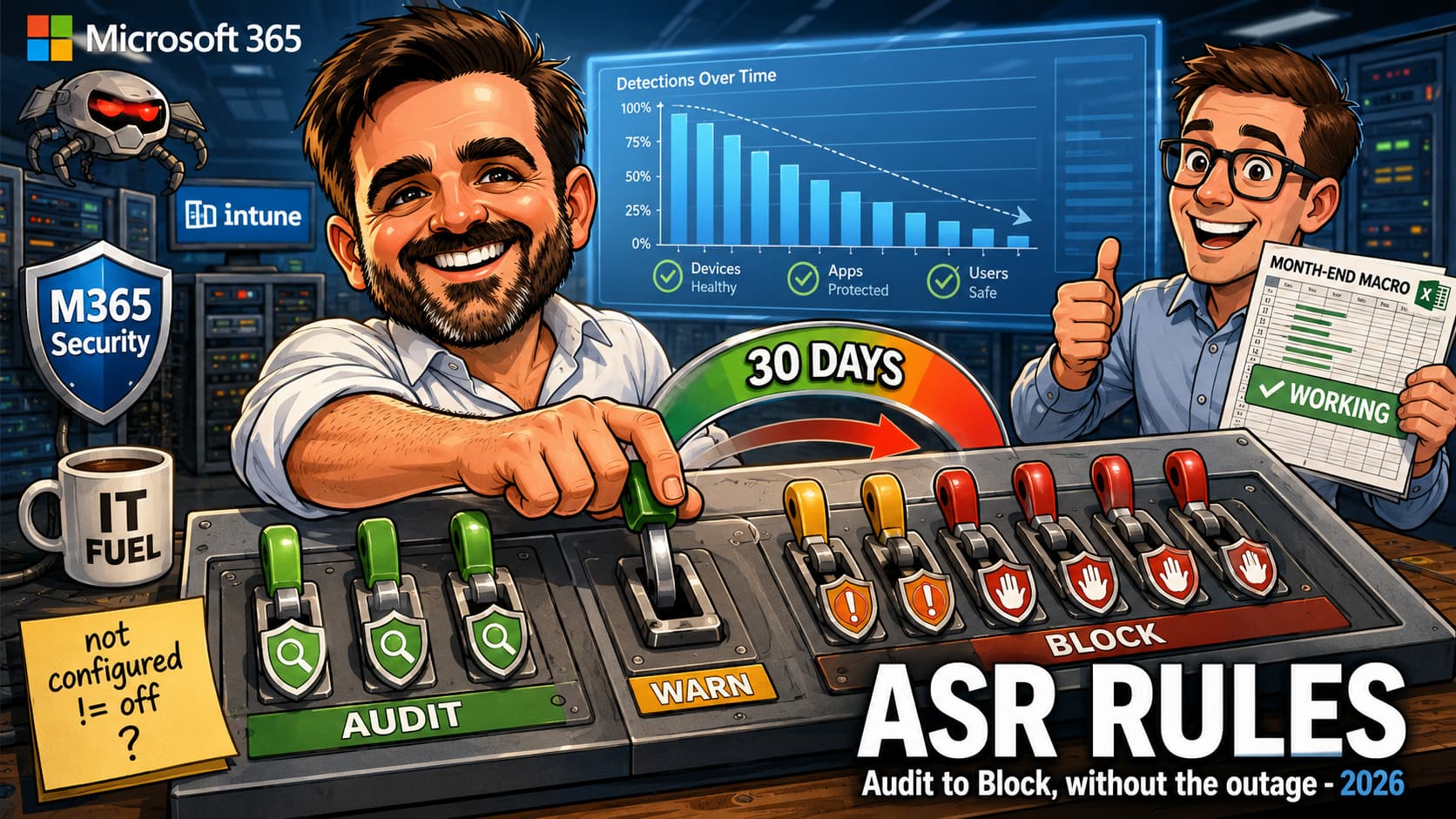
The four deployment pages do not give a number. The FAQ does: "A rule in Audit mode for about 30 days should provide a good baseline for how the rule operates. You can identify any line-of-business applications that require exclusions."
Thirty days is not arbitrary once you think about what it has to catch: month-end, payroll, the quarterly report, the vendor who only pushes updates on the first Tuesday. A two-week pilot will miss the month-end macro, and the month-end macro is exactly the thing that gets ASR rolled back.
The ring sequence, verbatim
For each ring after the first, Microsoft publishes an eight-step loop. It is worth following literally because step 8 is the one people forget to plan for:
| # | Step | What it means in practice |
|---|---|---|
| 1 | Enable ASR rules in Audit mode | All of them, at once, for this ring |
| 2 | Review ASR rule activity | The report, then advanced hunting for anything that looks like a pattern |
| 3 | Create exclusions as necessary | Per-rule ASR exclusions first. Path or process exclusions only if a per-rule exclusion cannot solve it |
| 4 | Review activity and refine exclusions | Exclusions bind at process start, so restart the affected service before you judge |
| 5 | Set rules to Block mode | Fewest events first |
| 6 | Review ASR rule activity | Now you are looking for blocks, not audits, and for helpdesk tickets |
| 7 | Create exclusions as necessary | Same order of preference: per-rule before anything broader |
| 8 | Disable problematic rules or switch them back to Audit mode | The rollback step. Decide in advance who can authorise it and how fast |
If you want an impact estimate before you start
With Defender for Endpoint Plan 2, Defender Vulnerability Management publishes an ASR security recommendation per rule with a User impact figure: the percentage of devices "that can accept a new policy enabling the rule in block mode without adversely affecting productivity". Exposure management › Recommendations, then the rule, then the Devices tab.
It is a useful sanity check and a terrible substitute for audit data, and Microsoft says so: "To accurately assess the potential effect of an ASR rule before enabling it in Block or Warn mode, you must review Audit mode data and detailed reporting."
Reading the evidence, and its documented blind spots
The report, and three defaults that mislead
security.microsoft.com/asrThree tabs: Detections (audit versus blocked, per detection, with source app and device), Configuration (per-device rule state, including a "Rules not applicable" column that is worth reading carefully) and Add exclusions, which is the interesting one: select files and it simulates the result, showing how many detections and how many affected devices would disappear, and exports the paths as AsrExclusionPaths.csv.
Three things about it that will cost you time if nobody warns you:
- The Rules filter defaults to Standard protection, not All. If your pilot enabled all nineteen and the report looks quiet, check the filter before you celebrate.
- The detections table is capped. "The number of individual detected items listed in the details table is limited to 200 rules. Use Export to save the full list of detections to a CSV file."
- GroupBy is wrong until you scroll. Verbatim: "to use GroupBy, you need to scroll to the last detection entry in the list to load the complete data set. Then you can use GroupBy. Otherwise, the results are incorrect for any result that has more than one viewable page of listed detections." A grouped chart that silently reflects only the first page is a good way to reach a confident wrong conclusion.
Note also that both Add exclusions and the Configuration tab's Add to policy action hand you off: they open the Intune admin center. The Defender portal will not write the exclusion for you.
Advanced hunting, and the throttle nobody mentions
Requires Defender for Endpoint Plan 2. Start with the shape of the problem:
// What is firing across the fleet, and how often
DeviceEvents
| where Timestamp > ago(30d)
| where ActionType startswith "Asr"
| summarize EventCount = count() by ActionType
| order by EventCount desc
Then pull the detail, parsing the fields that actually identify the rule and the mode. AdditionalFields carries both IsAudit and RuleId:
// The pattern Microsoft ships inside the report's "Go hunt" action
DeviceEvents
| where Timestamp >= ago(30d)
| where ActionType startswith "Asr"
| extend ParsedFields = parse_json(AdditionalFields)
| extend Audit = tostring(ParsedFields.IsAudit), ASRRuleId = tostring(ParsedFields.RuleId)
| summarize Devices = dcount(DeviceName), Events = count()
    by ActionType, Audit, InitiatingProcessFileName, FolderPath
| order by Devices desc, Events desc
Grouping by device count rather than event count is the version worth running: one noisy device inflates event counts, but a rule firing across many devices is a policy problem.
Two coverage gaps to plan around. Block Webshell creation for Servers has no advanced hunting ActionType at all (documented as n/a), so on that rule the Windows event log is your only evidence. And although seventeen rules support Warn, only two have a documented *WarnBypassed ActionType, so you cannot reliably hunt for user bypasses across the rest.
Event IDs, and the page that gets them wrong
If you are on Defender Antivirus without Plan 2, the Windows event log is your reporting. It is also the only per-attempt record, given the hunting throttle. Channel: Applications and Services Logs › Microsoft › Windows › Windows Defender › Operational.
| Event ID | Meaning |
|---|---|
1121 | Rule fired in Block mode |
1122 | Rule fired in Audit mode |
1129 | User overrode a block in Warn mode |
5007 | Settings were changed |
1123 / 1124 | Controlled folder access, not ASR |
1125 / 1126 | Network protection audit and block, not ASR |
The custom view that collects the right ones:
<QueryList>
  <Query Id="0" Path="Microsoft-Windows-Windows Defender/Operational">
    <Select Path="Microsoft-Windows-Windows Defender/Operational">
      *[System[(EventID=1121 or EventID=1122 or EventID=1129 or EventID=5007)]]
    </Select>
    <Select Path="Microsoft-Windows-Windows Defender/WHC">
      *[System[(EventID=1121 or EventID=1122 or EventID=1129 or EventID=5007)]]
    </Select>
  </Query>
</QueryList>
Event Viewer › Custom Views › Create Custom View › XML tab. The same query works as a Windows Event Forwarding subscription filter.
What you get for what you pay
| Surface | Requirement |
|---|---|
| ASR enforcement | Microsoft Defender Antivirus on a supported Windows edition. "ASR rules are a feature of Microsoft Defender Antivirus, so they work on all current editions of Windows." |
| ASR rules report | Defender for Business is explicitly supported. Microsoft's pages currently conflict over Plan 1: the report page lists Plan 1 and Plan 2, while the monitoring page lists Plan 2 or Defender for Business. Plan 2 is supported either way. |
| Device timeline | Defender for Endpoint Plan 2 or Defender for Business |
| Advanced hunting | Defender for Endpoint Plan 2 |
| Windows Event Viewer / Event Forwarding | Available independently of Defender portal reporting |
| Centralised configuration through Intune | Microsoft Intune Plan 1, a separate product from Defender for Endpoint |
The honest licensing summary is less tidy than the usual E3-versus-E5 answer. Microsoft 365 Business Premium includes Defender for Business, which provides the ASR report and device timeline in the Defender portal, although not ASR advanced hunting. Microsoft 365 E3 includes Defender for Endpoint Plan 1. Microsoft's current pages disagree on whether the ASR report is available with Plan 1: the report page lists Plan 1 and Plan 2, while the monitoring page lists Plan 2 or Defender for Business. Validate the entitlement in the tenant and current licensing terms rather than presenting either page as definitive. Event Viewer and Windows Event Forwarding remain the universal fallback when portal reporting is unavailable.
Worth quoting when someone insists ASR is an E5 feature: "Although ASR rules don't require Microsoft 365 E5", the advanced management capabilities do, and "you can develop your own monitoring and reporting tools on top of the ASR rule events that are generated in Windows Event Viewer on each device (for example, Windows Event Forwarding)."
Exclusions: the part that decides whether this works
Every ASR rollout eventually becomes an exclusions exercise. Getting the mechanism right on the first attempt is the difference between a narrow, defensible carve-out and a hole you will never notice again.
Five mechanisms, and they are not interchangeable
| Mechanism | Scope, narrowest first | Where |
|---|---|---|
| Per-rule ASR exclusions | One rule, on the devices that policy targets. The only mechanism whose blast radius matches the problem. Every rule supports them. | ASR profile, appears under a rule once you set it to Audit, Block or Warn |
| Indicators of compromise | One file or one certificate, tenant-wide. Most rules honour file and certificate IoCs; three honour neither. Useful for permitting one signed vendor binary without opening a path. | Defender portal, Indicators |
| Defender AV file and folder exclusions | A path, across Antivirus scanning and every ASR rule that honours path exclusions. Twelve of nineteen rules do; seven ignore them entirely. | Defender Antivirus policy |
| Defender AV process exclusions | Every ASR rule honours these, and that is the problem. The same exclusion also stops Antivirus scanning files opened by that process, and stops Network Protection inspecting or enforcing for it. Broad protection impact across three capabilities, not a narrow ASR carve-out. | Defender Antivirus policy |
| All ASR rules that target the device. Microsoft's Intune guidance is to avoid this. Exceptional, risk-accepted requirements only. | ASR profile, "Attack surface reduction only exclusions" |
A process exclusion looks like the universal answer because every ASR rule honours it. It is not, and the reason is in the Defender Antivirus documentation rather than the ASR pages: a process exclusion also tells Antivirus to skip files opened by that process, and stops Network Protection inspecting traffic or enforcing rules for it. You are not narrowing an ASR carve-out; you are widening a hole across three capabilities at once. Start with the per-rule exclusion, which is the only mechanism whose scope matches the problem.
The seven rules that ignore Defender Antivirus file and folder exclusions still matter, because six of them are the ones you are most likely to need to carve out: LSASS credential theft, WMI event subscription persistence, Adobe Reader child processes, Office applications creating executable content, Office code injection, Office communication app child processes and PSExec/WMI process creation. On those, a folder exclusion you have carefully tested in a change window will do precisely nothing.
Why Intune says not to use the global setting
Verbatim, from the Intune ASR page: "When a device is assigned at least one policy that configures Attack Surface Reduction Only Exclusions, the configured exclusions apply to all attack surface reduction rules that target that device. This behavior occurs because devices receive a superset of attack surface reduction rule settings from all applicable policies, and the settings exclusions can't be managed for individual settings. To avoid having exclusions applied to all settings on a device, don't use this setting. Instead, configure ASR Only Per Rule Exclusions for individual settings."
Read "all settings on a device" in context: it means every ASR rule setting applied to that device, not every unrelated Windows or Intune setting. That is still the whole point. You add C:\VendorApp\ because the prevalence rule keeps blocking a legitimate updater, and you have just exempted that folder from all nineteen ASR rules on every device the policy touches, including the rules that exist to stop something running from exactly that kind of location. Per-rule exclusions cost a few more clicks and stay proportionate.
Two syntax traps that produce silent no-ops
Environment variables resolve as SYSTEM, not as the user. Defender's engine runs as LocalSystem, so a well-meaning exclusion for a per-user path resolves somewhere nobody is running anything:
| Variable | Resolves to | Same as the user's location? |
|---|---|---|
%APPDATA% | C:\Windows\System32\config\systemprofile\AppData\Roaming | No |
%LOCALAPPDATA% | C:\Windows\System32\config\systemprofile\AppData\Local | No |
%TEMP% / %TMP% | C:\Windows\TEMP | No |
%USERPROFILE% | C:\Windows\System32\config\systemprofile | No |
%ProgramFiles%, %ProgramData%, %SystemRoot%, %windir%, %PUBLIC% | as expected | Yes |
Microsoft's own guidance is to avoid the problem rather than work around it: "Don't use user environment variables as wildcards in folder and process exclusions." Only system variables, and variables that apply to processes running as SYSTEM, behave.
Exclusions bind at process start. Verbatim: "Exclusions apply only when the application or service starts. For example, if you add an exclusion for an update service that's already running, the update service continues to trigger ASR rule detections until you restart the service." This is why so many exclusions look like they failed: they did not, the process just never restarted. Add the exclusion, restart the service, then judge it. Building this into your test protocol saves an afternoon per false positive.
Other syntax notes worth having to hand: a maximum of six wildcards per entry; wildcards cannot stand in for a drive letter; use repeated \*\ for nested folders; ? matches a single character, which is the tool for generated filenames. In Group Policy specifically, "quotation marks, leading spaces, trailing spaces, and extra characters aren't supported in any of the ASR rule-related values", and the per-rule exclusion setting needs Administrative Template files from 24H2 or later to appear in GPMC at all.
Where ASR sits in the queue
Defender evaluates a file through a documented ladder, stopping at the first condition that applies. Abbreviated, in order: Application Control and AppLocker block; then a Defender Antivirus exclusion allows; then a block or warn file indicator blocks; then SmartScreen blocks; then an allow file indicator allows; then, at position six, attack surface reduction rules, controlled folder access and antivirus protection block; otherwise the file is allowed.
Two consequences worth carrying into a design discussion. An antivirus exclusion beats an ASR rule, which is why an over-broad exclusion is more dangerous than it looks. And an allow indicator also beats an ASR block, for the rules that honour indicators, which makes a file or certificate indicator a genuine third option when you want to permit one signed vendor binary without opening a path.
Deploying from Intune without fighting yourself
Two facts about targeting before anything else. First, verbatim: "Microsoft Defender for Endpoint management supports device objects only. Targeting users isn't supported. Assign the policy to Microsoft Entra device groups, not user groups." Second, the per-rule exclusion field only appears after you set a rule to Audit, Block or Warn, which surprises people who go looking for it on a freshly created profile.
The same policies exist in the Defender portal under endpoint security policies, and they are the same objects, not a parallel copy. If your security team lives in security.microsoft.com and your endpoint team lives in Intune, agree which door you use, because two doors into one object is how you end up with two policies.
How ASR settings merge, which is unusually forgiving
ASR does not behave like most Intune settings, and this is genuinely good news:
"Attack surface reduction rules support a merger of settings from different policies, to create a superset of policy for each device. Settings that aren't in conflict are merged, while settings that are in conflict aren't added to the superset of rules... Only the configurations for conflicting settings are held back."
Three sources are evaluated together: the legacy Endpoint protection device configuration profile, the Endpoint security ASR policy, and the Defender for Endpoint security baseline. A conflict on one rule no longer poisons the whole profile, which was the old behaviour. But note what "conflict" means here: two policies setting the same rule to different modes. That rule then gets neither value, and the device is left with whatever "not configured" means, which brings us back to the contradiction at the top of this article.
Group Policy still wins by default
On a domain-joined or co-managed device, this is the first thing to check when a rule refuses to apply. Microsoft's wording: "When both Group Policy and a mobile device management (MDM) solution configure the same ASR rule, Group Policy takes precedence by default, unless MDMWinsOverGP is enabled." Local Set-MpPreference settings have the lowest precedence and are overwritten by any policy-based method at startup.
MDMWinsOverGP defaults to 0, and it can only be set through the Policy CSP. There is no Group Policy setting and no PowerShell cmdlet for it:
OMA-URI : ./Device/Vendor/MSFT/Policy/Config/ControlPolicyConflict/MDMWinsOverGP
Type    : Integer
Value   : 1
Intune custom profile. Configuration Manager applies ASR through the Policy CSP too, in both classic and tenant-attach modes, so it follows the same precedence.
Controlled Configuration, which changes the rules again
In preview and expanded in July 2026, controlled configuration makes cloud policy the single source of truth: "When controlled configuration is enabled, Intune and Microsoft Defender for Endpoint policies take precedence. The device ignores settings from Group Policy, scripts, Microsoft Configuration Manager, and local admin changes." Attack surface reduction policies are explicitly in scope.
For a fleet with historical GPO baggage this solves a real problem. Three cautions before you reach for it:
- The prerequisites are recent and the two pages disagree on them. The Defender page lists Defender Antivirus platform 4.18.26060.3004 (June 2026) or later, EDR sensor later than 10.8804, and says co-management and GCC High are not supported. The Intune page says controlled configuration "has the same prerequisites as tamper protection", which is a much lower bar. Verify against your own platform versions rather than trusting either sentence.
- It interacts with tamper protection in a way Microsoft admits is unfinished. Turning controlled configuration on turns tamper protection off unless another policy explicitly sets it on, which lowers your Secure Score. Their words: "We're working to address this gap."
- What it does to Settings Catalog policies is documented twice, contradictorily. On the Intune antivirus page, one paragraph says overlapping Settings Catalog settings report as Not applicable and the controlled configuration policy wins. Another on the same page says controlled configuration does not apply to policies authored outside the Endpoint Security experience, "such as Settings Catalog policies". Those cannot both be true.
The setting that silently voids your exclusions
true through Defender for Endpoint security settings management, Intune, the Defender CSP (DisableLocalAdminMerge) or Group Policy, then "adding ASR rules per-rule exclusions or local ASR rule exclusions don't apply". If your exclusions look correct in the policy and absent on the device, check this before you check anything else.The printable playbook (free PDF)
This article is the decision layer: which rules, in what order, and where the documentation will mislead you. The execution layer is a separate document, because a rollout that runs over six weeks across rings needs something you can tick, date and staple into the change record.
⬇️ Download the playbook (PDF, fillable)
Common mistakes
- Auditing on devices where Defender is passive.A third-party antivirus in front puts Defender in passive mode, and in passive mode ASR rules do not run at all. Thirty days of silence proves nothing. Confirm active mode before you confirm anything else.
- Assuming the documented Server applicability issue applies everywhere.Microsoft records it in the Configuration Manager section of the configuration page, not as a general Windows Server statement. Verify enforcement on your own servers rather than either dismissing the warning or generalising it.
- Assuming a device with no ASR policy generates no ASR events.The Policy CSP text says rules left "not configured" are "enabled with default values" and emit a subsample of audit events. Measure your baseline instead of assuming it.
- Fixing a false positive with a folder exclusion on a rule that ignores folder exclusions.Seven of the nineteen rules ignore Defender Antivirus file and folder exclusions, including most of the Office rules and both credential-theft rules. Use a per-rule ASR exclusion, which every rule supports.
- Reaching for a process exclusion because every rule honours it.It is honoured everywhere precisely because it is broad: the same entry stops Antivirus scanning files that process opens and stops Network Protection enforcing for it. Use it only when a per-rule exclusion cannot solve the problem, and record what you accepted.
- Reaching for the global exclusion field because it is the first one on the blade.Microsoft's Intune documentation says explicitly not to use it. One entry exempts that path from all nineteen rules on every targeted device.
- Judging an exclusion without restarting the process.Exclusions bind at process start. An update service that was already running keeps triggering detections until it restarts, which looks exactly like an exclusion that did not work.
- Letting the LSASS rule dominate your pilot.It produces more audit events than everything else combined, and Microsoft says most are safe to ignore and that you may skip audit for it entirely. Filter it out of your analysis or deploy it separately.
- Enabling the WMI persistence rule in a Configuration Manager estate without testing.It is in the standard protection set that Microsoft says needs no testing, and it also carries an explicit warning that the ConfigMgr client relies heavily on WMI. The two statements sit on the same page.
- Building an event subscription from the overview page's event IDs.1122, 1125, 1132 and 1134 is the wrong list. Use 1121, 1122, 1129 and 5007, and know that 1125 and 1126 are network protection.
- Quoting advanced hunting counts as user impact.Events are throttled to unique processes per hour. Two hundred blocked attempts appear as one. Hunt for what and where; count impact from the event log or the report.
FAQ
Do I need E5 to use ASR rules?
No. Enforcement is a Defender Antivirus feature: "ASR rules are a feature of Microsoft Defender Antivirus, so they work on all current editions of Windows." What the higher tiers buy is the reporting and hunting layer, and the boundaries are less tidy than E3-versus-E5 suggests. Business Premium includes Defender for Business, which does give you the ASR report and the device timeline, but not advanced hunting. E3 includes Defender for Endpoint Plan 1, and here Microsoft's own pages disagree: the report page lists Plan 1 as in scope while the monitoring page does not. Check what your tenant actually shows rather than trusting either page. Advanced hunting is unambiguously Plan 2. Event Viewer and Event Forwarding work regardless. And Intune is its own product, not included with Defender for Endpoint.
How long should I really leave rules in audit?
Microsoft publishes one number, in the FAQ rather than the deployment guide: about 30 days. Treat it as a floor set by your own business cycle rather than a countdown. If month-end, quarter-end or an annual process falls outside your window, you have not tested the thing most likely to break.
Audit mode is completely safe, right?
Audit mode does not block, and Microsoft's wording is that rules in audit "don't affect users". The caution is not about audit mode harming anything; it is about audit data being less complete than it looks. Hunting events are throttled to unique processes per hour, excluded files generate no events at all, and there is an unresolved question about whether "not configured" rules are already emitting sampled events. Audit tells you what to investigate, not how many times something happened.
Should I use Warn instead of Block?
Warn is excellent for the middle of a rollout, because a user who unblocks something tells you more than a silent audit event does. Just know the conditions: two rules do not support it, it silently becomes Block on Windows older than 10 1809 and in Configuration Manager, three rules only show the pop-up at raised cloud protection levels, and the bypass lasts 24 hours before the user has to decide again. It is not a permanent state for a rule you have decided matters.
A rule is deployed but nothing is happening. Where do I start?
In this order: is Defender Antivirus in active mode; if the device is a server managed through Configuration Manager, could it be affected by Microsoft's documented Server OS applicability issue; for other server management paths, have you validated enforcement locally; does Group Policy configure the same rule, since GPO wins by default; is Disable Local Admin Merge enabled, which prevents per-rule exclusions from applying; and finally, what does the Effective settings tab report as the actual value and configuration source? That tab went generally available in February 2026 and it answers the question the policy blade cannot.
Exclusion or back to Audit when something breaks?
Back to Audit during the incident, an exclusion afterwards. Reverting restores the business immediately and keeps the telemetry flowing, whereas an exclusion is a permanent blind spot with no events. Microsoft's pages argue both sides because they are answering different questions; the emergency answer and the steady-state answer are not the same answer.
Are there any new ASR rules in 2026?
Not that I could verify. The documented set is still nineteen rules, unchanged in the current documentation, with no new GUIDs and no retirement notices. What did change in 2026 is the surrounding machinery: the documentation set was rebuilt between May and July, Effective settings reached general availability in February, and controlled configuration went into preview covering ASR. If you read an ASR guide written before mid-2026, its links and screenshots describe pages that no longer exist in that shape.
- ASR rules overview: GUIDs, modes, exclusion matrix, requirements (Microsoft Learn)
- ASR rules reference: per-rule detail, ActionTypes, known incompatibilities (Microsoft Learn)
- Configure ASR rules and exclusions, incl. policy precedence (Microsoft Learn)
- ASR rules deployment guide: the four phases (Microsoft Learn)
- Plan your ASR rules deployment: rings and code signing (Microsoft Learn)
- Test your ASR rules deployment (Microsoft Learn)
- Enable your ASR rules deployment: the ring sequence (Microsoft Learn)
- Monitor ASR rule activity, incl. the hunting throttle (Microsoft Learn)
- ASR rules report: tabs, limits and the exclusion simulator (Microsoft Learn)
- ASR events in Windows Event Viewer: the correct event IDs (Microsoft Learn)
- Troubleshoot ASR rules (Microsoft Learn)
- ASR FAQ: the 30-day audit figure (Microsoft Learn)
- Exclusions in Microsoft Defender Antivirus: wildcards and the SYSTEM variable table (Microsoft Learn)
- Overview of exclusions and indicators: the evaluation order (Microsoft Learn)
- Defender Antivirus compatibility: what passive mode disables (Microsoft Learn)
- Controlled configuration in Defender for Endpoint, preview (Microsoft Learn)
- Manage ASR settings with Intune: merge behaviour and the global exclusion warning (Microsoft Learn)
- Intune antivirus policy, incl. controlled configuration preview (Microsoft Learn)
- Policy CSP, Defender: the "Not configured" and audit-sampling text (Microsoft Learn)
- Policy CSP, ControlPolicyConflict: MDMWinsOverGP (Microsoft Learn)
- What's new in Defender for Endpoint: Effective settings GA, February 2026 (Microsoft Learn)
- ASR in Microsoft Defender for Business (Microsoft Learn)
Stuck between "we should turn ASR on" and "we cannot risk it"?
That gap is usually a scoping problem rather than a technical one: nobody has separated the rules that are safe this month from the ones that need a real pilot. If you want the audit read properly and the rollout planned against your actual applications, talk to me. It is a few weeks of measured work rather than a leap.
Talk to me