A setting is not applying. The policy says Succeeded on 43 devices and Conflict on one. Or Error, with a code. Or, most maddening of all, the report says everything is fine and the device disagrees. At this point most people start clicking: open the policy, look at the assignment, sync the device, wait, look again, sync again, blame the device, reimage it. Two hours later the setting applies and nobody knows why.
The reason that flailing happens is not incompetence; it is that Intune's answer lives in five different blades with two overlapping vocabularies, and the actual precedence rules are documented in fragments across pages nobody reads together. So here is the article I wanted: the rules as Microsoft actually states them (including the ones where Microsoft states no rule at all, which matters), and a repeatable seven-step workflow that turns "it is not applying" into a named cause. Same order every time, whether the answer is a genuine setting conflict, a targeting mistake, a platform limitation, or a common outcome: nothing is wrong yet, and you are looking at a report that has not caught up.
The precedence rules, as Microsoft actually states them
Start here, because most troubleshooting sessions are really arguments about what should have happened. Microsoft's documented conflict behaviour operates at the individual setting level, not the policy level. Start with the three main collision patterns:
| Collision | Documented behaviour | What it means for you |
|---|---|---|
| Compliance policy vs configuration profile | The compliance policy setting takes precedence, even if the configuration setting is more secure | Deterministic. If a compliance policy touches the same setting, stop looking at the profile |
| Compliance policy vs compliance policy | The most restrictive setting applies (a second Microsoft page words it as "most secure") | Deterministic, and the device's overall status follows a documented severity ladder |
| Configuration profile vs configuration profile | The conflict is shown in Intune. Manually resolve these conflicts. | Not deterministic. Do not assume the stricter, newer or alphabetically-first policy wins. Neither may apply |
These are the standard Intune conflict rules, but they are not exception-free. Some CSP-backed settings support policy merge: Defender Antivirus exclusions (excluded paths, extensions and processes) are evaluated across all applicable policies and combined into a single superset rather than colliding. And where merge is not supported, endpoint security Antivirus policy documents its own resolution order that the general rule does not: the most secure policy applies; if two are equally secure, the last modified policy applies; and if that still cannot resolve it, no policy is delivered to the device.
The bigger exception arrived in preview this year. Controlled Configuration makes Intune the single authoritative source for Microsoft Defender settings on a device: when it is on, settings delivered through the supported endpoint security templates (Antivirus and attack surface reduction) take exclusive precedence, and settings for the same components from other channels, including Group Policy, Configuration Manager and local changes, are overridden. The reporting consequence is the one to remember when troubleshooting: overlapping settings in a Settings Catalog policy report as Not applicable on that device, not as Conflict. It does not cover EDR, firewall, Account Protection, or policies authored outside the endpoint security experience. Always check the workload-specific documentation before assuming a manual conflict.
That third row of the table is still the one worth tattooing on the inside of your eyelids for everything outside those exceptions. There is no published tie-breaker for two configuration profiles setting the same value differently, which means "the more restrictive one will win" is a guess, and guesses are how a security setting silently fails to apply for six months.
Two genuine tie-breakers do exist inside configuration, and almost nobody knows them:
- User scope beats device scope. Some Windows settings exist in both scopes; when a setting is assigned in both, user scope takes precedence over device scope. (User scope writes to HKCU, device scope to HKLM.)
- No applicability rule beats an applicability rule. If two profiles carry the exact same settings and one has an applicability rule (for example, "only Windows Enterprise"), the profile without the rule is the one that applies.
Outside the workload-specific exceptions above, Microsoft documents no general precedence between security baselines, endpoint security policies and Settings Catalog profiles. Treat them as the same configuration tier unless the workload-specific documentation states otherwise. Group Policy versus Intune also has no universal hierarchy unless an explicit override mechanism applies, and that one is worth its own warning.
One more rule that saves hours on Apple estates: for a custom OMA-URI policy or an Apple Configuration file, Intune does not evaluate the payload at all, it just delivers it. Microsoft's own words for what happens when custom payloads collide: "Apple randomly applies the settings". There is nothing to troubleshoot in the portal; the fix is not shipping colliding custom payloads.
The status vocabulary (two of them, unfortunately)
Intune uses overlapping words in different blades, which is a real source of confusion when a helpdesk operator and an admin are looking at two screens and describing the same device differently.
In the policy monitoring blade (Devices › Configuration › select a policy), the per-device statuses are: Succeeded (applied), Error (failed, usually with a code), Conflict ("two settings are applied to the same device, and Intune can't sort out the conflict"), Pending (the device has not checked in yet), and Not applicable (the device cannot receive the policy, for example a setting specific to a newer OS version).
In the per-device configuration blade (Devices › All devices › select a device › Device configuration), the vocabulary shifts: Conforms replaces Succeeded, and the troubleshooting documentation defines Conflict more usefully as "there's an existing setting on the device that Intune can't override. Or, you deployed two policies with the same setting using different values."
That second definition is the one to teach your team, because it names the cause everyone forgets: the device itself. A CSP that tattoos, a setting left behind by a policy you unassigned, a value set by GPO, or something configured locally can all produce Conflict without a second Intune policy existing anywhere.
Compliance has its own vocabulary and its own severity ladder. When a device has several compliance policies with different results, Intune assigns the highest severity: Unknown (1), NotApplicable (2), Compliant (3), InGracePeriod (4), NonCompliant (5), Error (6). And a documented behaviour that explains many "why is this device still compliant?" questions: when a compliance setting returns Error, the device's compliance state stays unchanged for up to seven days to let evaluation complete; after that it flips to Not compliant (or In grace period).
The seven-step diagnostic workflow
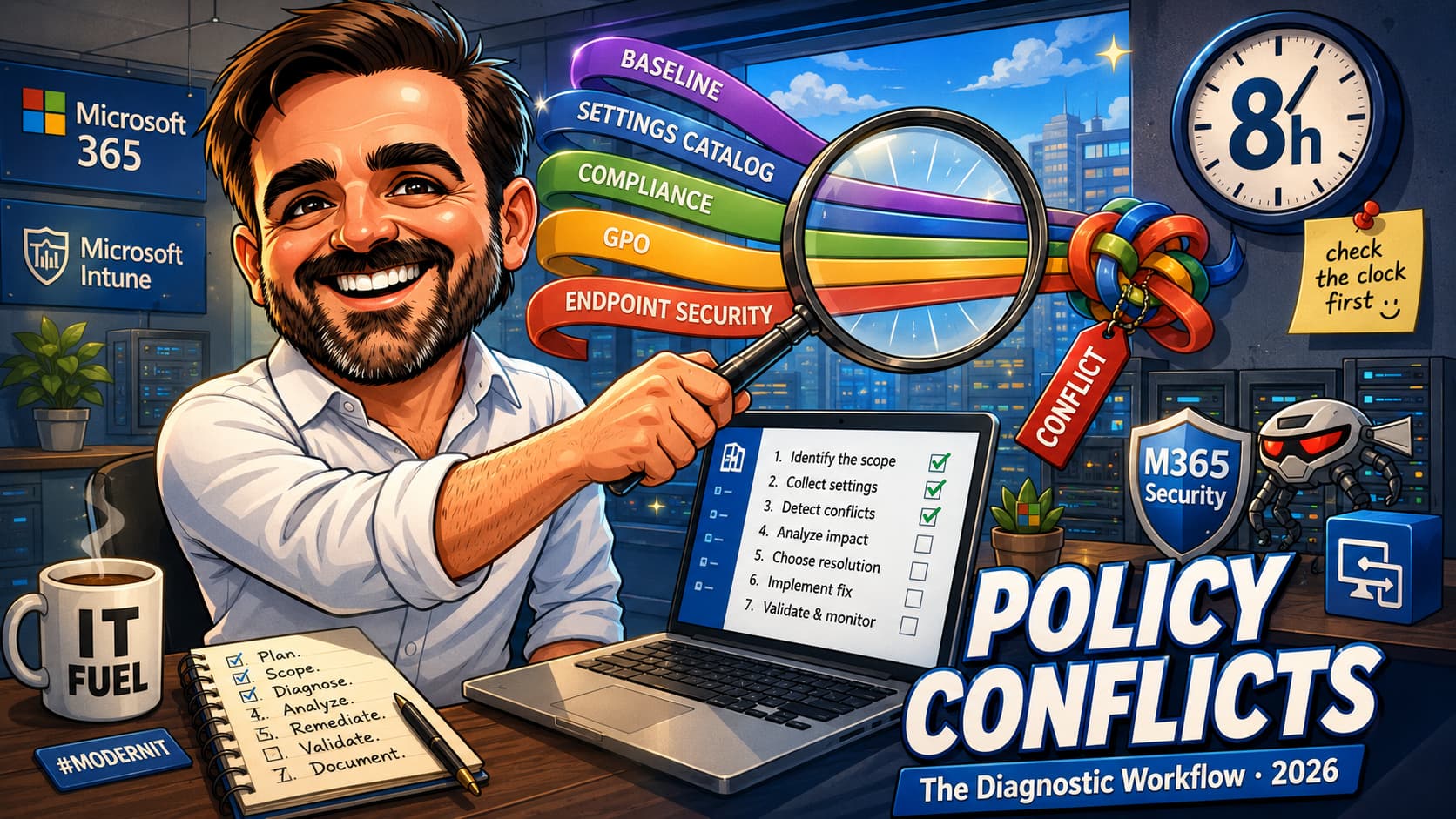
Same order, every time. The order matters: the cheap checks that explain most incidents come first, and the device-side forensics that cost real time come last. Steps 1 to 3 are the fastest checks and often resolve the incident.
Step 1: Establish what "should" means, in writing
Before opening a single blade, write down three things: the exact setting name (as it appears in the settings catalog, not as the user described it), the value you expect, and the identity you expect it on (this device, or this user on this device). Many policy investigations are really requirement disputes, and a device-targeted policy behaving perfectly looks like a bug to someone expecting user-targeted behaviour. Microsoft's rule of thumb: settings that belong to a device go to device groups and travel with the device; settings that belong to a user (mail, user certificates) go to user groups and follow the user across devices.
Step 2: Check the clock before you check anything else
Open the device in Intune and look at Last check-in. Devices check in roughly every 8 hours (Microsoft's own wording is "about every 8 hours", and separately caps maintenance syncs at one every 6.5 hours), so a policy assigned two hours ago may simply not have arrived. Newly enrolled devices are much chattier: Windows and Android check every 3 minutes for 15 minutes, then every 15 minutes for 2 hours, then settle into the 8-hour rhythm; iOS and macOS do every 15 minutes for an hour, then 8 hours.
If the last check-in is over 24 hours old, that is your problem and no amount of policy editing will fix it. If it is recent, force a sync from the portal (Devices › select device › Sync) or have the user sync from Company Portal, and then read the latency table below before concluding anything from a report.
Step 3: Confirm the device is actually manageable
In Tenant admin › Troubleshooting + support, look the user up and check four columns Microsoft calls out explicitly: Managed must show MDM or EAS/MDM (anything else means the device is not enrolled the way you think); Microsoft Entra join type must be Workplace or AzureAD, because "Not Registered" is an enrollment problem, not a policy problem; Intune license must show the green check; and Last check-in should be recent. Also glance at Tenant Status for an active incident before you spend an afternoon debugging Microsoft's bad morning.
Then check the obvious: does the policy even appear in the device's list? If the expected policy is not shown under Device configuration or Device compliance, it is not targeted correctly, and you are now on a targeting problem (step 4), not a conflict.
Step 4: Prove the targeting
Three tools, in order of speed. The Group membership report (per device) shows every Entra group the device belongs to and whether membership is Direct or Transitive, which settles nested-group arguments in seconds. The Filter evaluation report (Devices › All devices › select device › Filter evaluation) shows which filters were evaluated, with Match or No match and Include or Exclude mode. And the targeting matrix in the next section tells you whether the combination you built is supported at all, because several common ones are not.
Two traps to check here specifically. Filters have a precedence of their own: Exclude beats No filter, which beats Include, and multiple filters in the same mode are OR'd. And a filter result of "Not evaluated" is itself a clue: Microsoft documents that it can appear when a policy has a conflicting assignment on the device.
Step 5: Read the per-setting status, not the policy status
A policy summary that says Conflict tells you almost nothing. Open the policy › Device and user check-in status › Per setting status to see which individual setting is failing. Then get to the pane that actually names the culprit: Devices › All devices › the device › Device configuration › the policy › the setting in Conflict or Error. Microsoft's documentation for that view is the sentence the whole article builds towards: you see Source Profiles, "a list of each conflicting profile that configures the same setting but with a different value", and you can click straight through to the offending profile.
For a tenant-wide sweep rather than a single device, Devices › Monitor › Assignment failures (also called Configuration policy assignment failures) lists every configuration profile with devices in error or conflict, including security baselines and endpoint security policies, and exports to CSV.
Step 6: Check the places policies hide
Microsoft's own advice, and the step people skip: "there are a few places you can create configuration policies, including Group Policy analytics, endpoint security, security baselines, and more. If there's a conflict and you have multiple policies, then check all the places you configured policies." A settings-catalog profile, an endpoint security policy, a security baseline instance and an imported GPO can all touch the same setting while living in four different blades. Baselines are especially prone to this: in almost all scenarios, their defaults are the most restrictive available, and two different baseline types can ship different defaults for the same setting.
Step 7: Ask the device
When the portal has told you everything it knows and the answer still does not add up, generate the MDM Advanced Diagnostic Report on the device: Settings › Accounts › Access work or school › select the account › Info › Advanced Diagnostic Report › Create report, then Export. Microsoft's description of why it matters: the report "includes default values, current values, lists the policy, shows if it's deployed to the device or the user", and the sections to search first are Enrolled configuration sources and target resources and Unmanaged policies.
For the same data as files (and for sending to someone else), the documented command line is:
The zip contains the HTML summary, an XML with the detailed configuration view, a registry dump of common MDM locations, and the event log, which is the other place to look: Event Viewer › Applications and Services Logs › Microsoft › Windows › DeviceManagement-Enterprise-Diagnostics-Provider › Admin. Be honest about its limits, though: Microsoft documents event IDs in that channel for autoenrollment (75 success, 76 failure), but publishes no event ID list for per-setting policy application or conflicts. The community lists circulating for those are not documented, and I am not going to pretend otherwise.
If you cannot touch the device, Collect diagnostics (Devices › select device › Collect diagnostics) retrieves logs remotely for corporate-owned Windows devices without interrupting the user. Collections are retained for 28 days, with up to 10 collections stored per device. Android and iOS/iPadOS diagnostics use the separate app protection workflow, and the 50-diagnostics or 4 MB portal download limit applies to that app protection scenario. One limit that applies either way: diagnostics cannot be collected or downloaded through Graph, so the admin center is the tool.
The latency reference table
Print this. Many escalations happen because someone compared two reports that refresh at different speeds and concluded the tenant was broken.
| What you are looking at | Documented lag |
|---|---|
| Settings catalog policy device status | "Nearly in real time" |
| Filter evaluation results | Up to 30 minutes (stored 30 days) |
| Group Policy analytics readiness data | About 20 minutes |
| Security baseline changes | Up to 6 hours (up to 24 hours after first assignment) |
| Compliance policy device chart | Up to 24 hours when the device is online |
| Device assignment status report | 24 to 48 hours, especially on large tenants |
| Removing a user from an assigned group | Up to 7 hours or more for settings to be removed |
| Compliance setting returning Error | State unchanged for up to 7 days before flipping to Not compliant |
| Change-based push notification | "Immediately up to a few hours", varies by platform |
The targeting matrix that breaks deployments
Before blaming a conflict, confirm the assignment shape is one Microsoft supports. The short version of the documented matrix:
| Included | Excluded | Supported? |
|---|---|---|
| Device group (static or dynamic) | User group | Not supported. Intune does not evaluate user-to-device relationships, so those users' devices are not excluded |
| User group (static or dynamic) | Device group | Not supported |
| Device group | Static device group | Supported |
| Device group | Dynamic device group | Supported, but operationally risky during enrollment: dynamic membership latency can let the policy land before the exclusion exists |
| User group | User group | Supported |
Microsoft's warning about dynamic device groups in exclusions deserves quoting in change tickets: latency in dynamic device group calculation at enrollment "can cause undesirable results", with the worked example of a new device receiving the very policy it was supposed to be excluded from, because the group had not populated yet. The documented alternatives are user groups, assignment filters (which "evaluate directly at device check-in without depending on group membership processing"), and enrollment time grouping.
When the setting applies but does not go away
A special class of "conflict" that is not a conflict: you unassigned the policy and the setting is still there. Microsoft's explanation is CSP-level and blunt: the behaviour depends on the CSP, and "some CSPs remove the setting, and some CSPs keep the setting, also called tattooing".
The documented split: Wi-Fi, VPN, certificate and email profiles are removed from all supported enrolled devices. For other profile types, Android settings are not removed, iOS and iPadOS remove all but three roaming-related settings, and Windows behaviour depends on the underlying CSP. On Windows specifically, security policies may not revert when the policy is unassigned, and Microsoft's documented workaround is to leave the policy assigned and change the values back to defaults, rather than deleting it. In the worst cases the guidance is retire and re-enroll.
Compliance has its own version: an unassigned compliance policy "continues to be assigned and in effect until the device syncs with the Intune service. This behavior is by design."
Common mistakes
- Assuming the most restrictive configuration profile wins.It does for compliance policies. Under standard handling for two configuration profiles, Microsoft documents no winner: the conflict is surfaced for manual resolution. Workload-specific exceptions apply (policy merge, Antivirus conflict resolution, Controlled Configuration), so check the workload documentation, and design so the collision never happens rather than betting on an undocumented tie-break.
- Reading the policy status instead of the per-setting status.A policy in Conflict tells you nothing actionable. Per setting status, then the device's Device configuration blade, gives you the Source Profiles list that names the other policy.
- Troubleshooting a report that has not refreshed.Filter results lag 30 minutes, baseline changes 6 hours, assignment status up to 48. Check Last check-in and the latency table before changing anything.
- Excluding a user group from a device-targeted policy.Documented as not supported: Intune does not evaluate user-to-device group relationships. The exclusion silently does nothing, which looks exactly like a conflict.
- Forgetting the device can be the conflict.Tattooed CSPs, leftover GPO on domain-joined machines, locally set values. Microsoft's own definition of Conflict includes "an existing setting on the device that Intune can't override".
- Setting the same thing in GPO and Intune on a hybrid device.MDMWinsOverGP defaults to 0, and Microsoft calls the result a race condition with no guarantee which wins. Pick one management plane per setting.
- Only looking in Device configuration.Security baselines, endpoint security policies, imported GPOs and settings catalog profiles all write settings from different blades. Microsoft's advice is to check all the places you configured policies.
FAQ
Two configuration profiles set the same setting differently. Which one applies?
Outside workload-specific exceptions, possibly neither. The standard documented behaviour is that Intune surfaces the conflict for manual resolution. Published exceptions include user-versus-device scope, applicability rules, CSP-specific policy merge, Antivirus conflict resolution and Controlled Configuration. For other workloads, do not assume a winner unless the workload-specific documentation defines one.
Does a security baseline beat a settings catalog profile?
There is no documented precedence between them. A baseline is described as a template consisting of multiple device configuration profiles, which puts it on the same tier, so a baseline-versus-profile collision behaves like any other configuration conflict: surfaced, manual. Since in almost all scenarios baseline defaults are the most restrictive available, they collide often; the fix is to customise the baseline or scope it, not to hope.
Why does a device show Not applicable for a setting my other devices got?
Usually version or edition. Microsoft documents that a setting can be unsupported on that Windows version or on specific editions or SKUs, in which case the CSP reference is the place to check. On Windows there is also a documented false positive: if there is no user hive during the earliest check-ins, some user-scope settings show as not applicable simply because no user was present yet.
The compliance report says Error. Is the device non-compliant?
Not yet. When a compliance setting returns Error, the device's compliance state stays unchanged for up to seven days while evaluation completes. After seven days it becomes Not compliant, or In grace period if you configured one. That window explains a lot of "the report is lying" tickets.
Can I just read the winning value from the registry?
Carefully, and knowing what is supported. Microsoft references PolicyManager registry paths in its own tooling (Collect diagnostics harvests one such key) and documents a PolicyManager root for Windows Update policies, but it does not publish PolicyManager\current\device as a supported inspection surface for every setting. The supported equivalent, and the one to cite in a ticket, is the MDM Advanced Diagnostic Report, which shows default value, current value and the policy that set it.
How long should I wait before escalating?
For a device that checked in recently, give a change-based push "immediately up to a few hours" per Microsoft's wording, then force a sync. For reports, use the latency table: nothing in a 24-hour report should be treated as final at hour two. Escalate on facts you can name: this device last checked in at X, the per-setting status says Y, the Source Profiles list shows Z.
Does any of this differ on macOS, iOS or Android?
The precedence rules are platform-agnostic; the diagnostics are not. The Advanced Diagnostic Report and the event log are Windows-only, Collect diagnostics covers corporate-owned Windows (and Android/iOS via app protection), and removal behaviour differs by profile type: Wi-Fi, VPN, certificate and email profiles are removed from all supported enrolled devices, while for other profile types Android keeps the settings, iOS and iPadOS remove all but three roaming-related ones, and Windows depends on the CSP. For Apple custom payloads there is no evaluation at all: colliding payloads are applied randomly, so the answer is always in your policy design, not in a log.
- Common questions, answers and scenarios with policies and profiles, incl. conflict rules and refresh intervals (Microsoft Learn)
- Monitor device configuration profiles: statuses, per-setting status, View conflicts (Microsoft Learn)
- Troubleshoot policies and profiles in Intune: policy states and device checks (Microsoft Learn)
- Monitor compliance policies: conflict resolution and the seven-day Error rule (Microsoft Learn)
- Compliance status severity ladder (Microsoft Learn)
- Monitor security baselines: Source Profiles drill-in and MDM diagnostic report (Microsoft Learn)
- Assign profiles: the include/exclude support matrix (Microsoft Learn)
- Filter evaluation report and filter precedence (Microsoft Learn)
- Collect MDM logs: report location, command line, event log path (Microsoft Learn)
- Collect diagnostics remote action: scope and limits (Microsoft Learn)
- ControlPolicyConflict CSP: MDMWinsOverGP and the race condition (Microsoft Learn)
- Settings catalog: device scope vs user scope behaviour (Microsoft Learn)
- Endpoint security: how Intune resolves conflicts and how compliance differs from configuration (Microsoft Learn)
- Antivirus policy: policy merge and Controlled Configuration (preview) (Microsoft Learn)
- Security baselines overview: avoid conflicts (Microsoft Learn)
- Create a device profile: applicability rules tie-breaker (Microsoft Learn)
- Intune reports, incl. Assignment failures (Microsoft Learn)
Spending afternoons on policies that "should" apply?
Most estates I see do not have a conflict problem; they have a design problem that produces conflicts, usually overlapping baselines and profiles that grew a policy at a time. If you want a second pair of eyes on the policy estate before the next mystery, talk to me. A focused review can often identify recurring policy overlap.
Talk to me