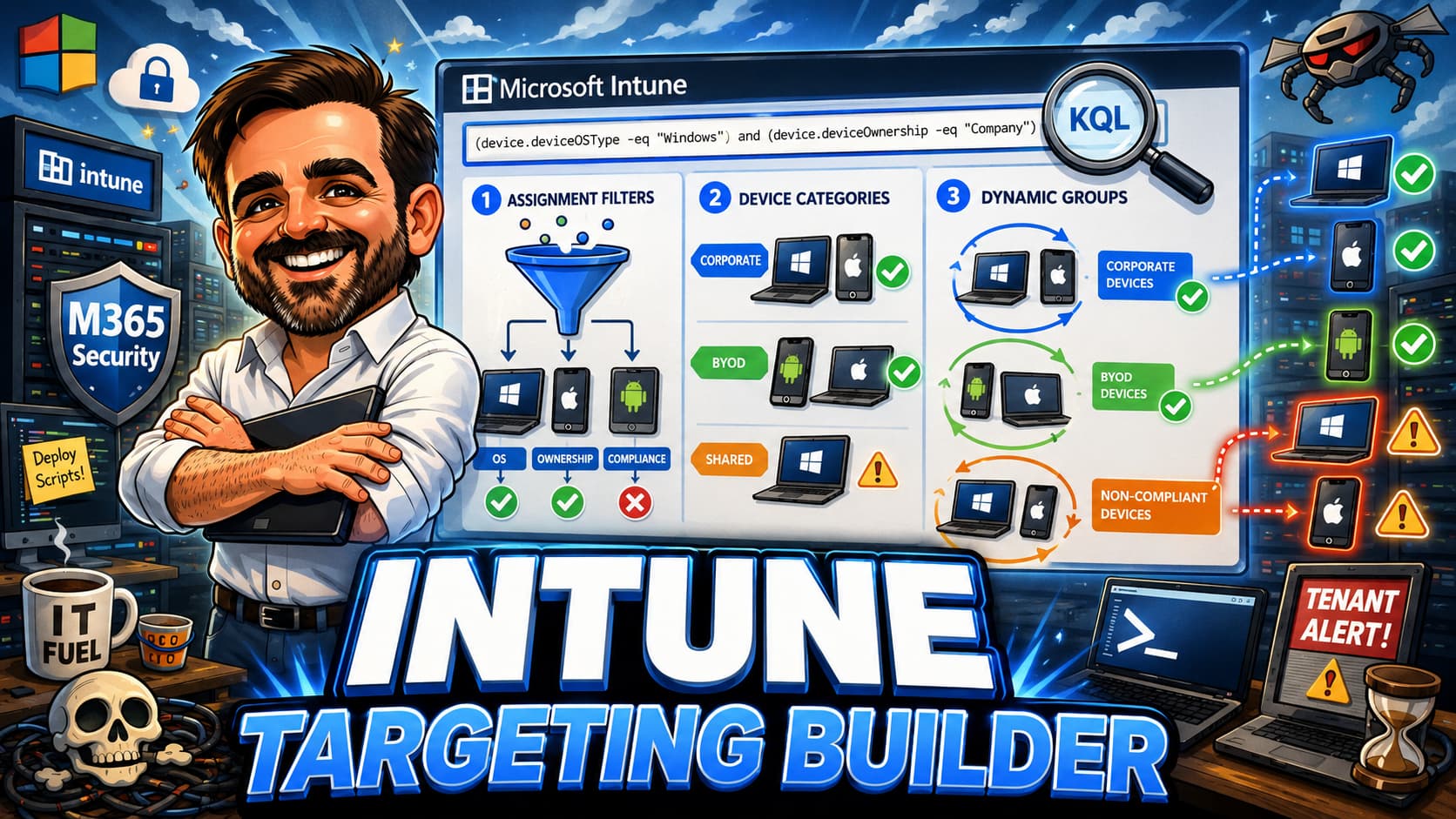
Intune targeting is architecture. Groups define broad scope, filters refine assignments, categories classify devices and dynamic groups should be used carefully when attributes are stable. This interactive guide helps Microsoft Intune admins, endpoint engineers and security architects design a targeting model that is scalable, predictable and easy to troubleshoot.
- Interactive Intune targeting model builder with 10 inputs and scoring across 6 pillars
- Assignment filters: syntax, operators, evaluation order and practical use cases
- Device categories: setup, limitations, user-driven assignment and auto-assignment options
- Dynamic groups in Entra ID: membership rules, performance, latency and when not to use them
- Static groups and when manual membership wins over automation
- Naming conventions for groups, filters and categories that scale
- Exclusion patterns that avoid conflicts and remain predictable
- Troubleshooting targeting issues with diagnostic tools and evaluation order
- Safe rollout phases and 15+ common targeting mistakes from real tenants
- Groups define broad scope.
- Filters refine assignments.
- Device categories classify purpose, but user selection is risky.
- Dynamic groups are useful, but not instant.
- Exclusions need ownership, documentation and review.
Table of contents
- Introduction
- Important Intune targeting disclaimer
- What this guide helps you decide
- Before you start
- Licensing and prerequisites
- Targeting decision framework
- Interactive Intune Targeting Model Builder
- Recommended baseline targeting models
- Assignment filters deep dive
- Device categories
- Dynamic groups
- Static groups and when they win
- Naming conventions
- Exclusions and override patterns
- Troubleshooting targeting issues
- Integration with Conditional Access and compliance
- Rollout order
- Common mistakes
- Field notes
- What to fix first
- Recommended first 3 actions
- What good looks like
- Save as PDF
- Microsoft references
- Related content
Introduction
Most Intune tenants start with a simple model: one group for all Windows devices, one group for all iOS devices, assign everything to "All devices" and hope for the best. This works when you have fifty devices and three policies. It collapses when you have five thousand devices, forty configuration profiles, multiple ownership types and a mix of standard users, frontline workers and shared kiosks.
The problem is not Intune. The problem is that targeting was treated as a detail instead of a design decision. Groups were created reactively. Filters were never considered. Device categories were either unused or assigned randomly by end users. Dynamic groups were used for everything, including scenarios where static membership would have been faster and more predictable.
The goal is not to create a group for every scenario. The goal is to design a targeting model that is scalable, predictable and easy to troubleshoot.
Intune provides four primary targeting mechanisms: Entra ID groups (static and dynamic), assignment filters, device categories and Autopilot group tags. Each mechanism has specific strengths, specific limitations and specific failure modes. The right model uses the right mechanism for the right purpose. Groups define broad scope. Filters refine assignments without multiplying groups. Categories classify devices for reporting and targeting. Dynamic groups automate membership when the source attribute is reliable and the latency is acceptable.
This guide walks through all four mechanisms, explains how they interact, and provides an interactive builder to help you design a targeting model that fits your tenant size, maturity and operational capacity.
Important Intune targeting disclaimer
Key points to keep in mind:
- Intune targeting capabilities depend on licensing (Microsoft Intune Plan 1, Plan 2, Intune Suite, Entra ID P1/P2). Validate your licence assignments before building targeting models.
- Microsoft updates Intune features regularly. Assignment filter capabilities, device category behaviour and dynamic group syntax may change. Verify current behaviour in the Intune admin centre before deploying changes.
- Assignment filters are evaluated when a device enrols, checks in with the Intune service, or when a policy is evaluated. They refine policy applicability and do not change Entra ID group membership.
- Dynamic group membership in Entra ID has processing latency that varies from minutes to hours depending on tenant size and rule complexity. Do not rely on dynamic groups for time-sensitive targeting.
- Always test targeting changes with a pilot group before broad deployment. A misconfigured filter or group membership change can unassign policies from production devices immediately.
What this guide helps you decide
This guide helps you answer specific questions that arise when designing Intune targeting models:
- Should I use assignment filters or create separate groups for targeting refinement?
- When should I use dynamic groups and when should I prefer static group membership?
- How do device categories work, what are their limitations, and when do they add value?
- What naming convention should I use for groups, filters and categories so the model scales?
- How do I handle exclusions without creating policy conflicts or unexpected gaps?
- What is the evaluation order when a device matches both an include group and an exclude group with a filter?
- How do I troubleshoot targeting issues when a device is not receiving the expected policy?
- How does Intune targeting interact with Conditional Access and compliance policies?
- What targeting model is appropriate for my tenant size, platform mix and operational maturity?
- How do I migrate from a flat "All devices" model to a structured targeting architecture?
Before you start
Before redesigning your Intune targeting model, you need visibility into your current state. Most tenants discover targeting debt during this audit: groups that no longer match their intended purpose, filters that were never applied, or dynamic groups with rules that reference attributes nobody populates.
Pre-flight checklist
- Export all Entra ID groups used in Intune assignments and document their type (static, dynamic, synced from on-premises)
- List all assignment filters currently configured in the Intune admin centre and which policies use them
- Review device categories and check if users are selecting them accurately during enrolment
- Check Autopilot group tags and whether they are being used for targeting or only for deployment profiles
- Audit policies assigned to "All devices" or "All users" and confirm whether broad targeting is intentional
- Identify dynamic groups with complex rules and check their last membership processing time
- Document your current platform mix: Windows, macOS, iOS/iPadOS, Android, and device counts per platform
- Confirm whether devices are primarily corporate-owned, BYOD, or a mix of both ownership types
- Review your current naming convention (if any) for groups, filters and categories
- Identify who creates groups and filters today: is it centralised or distributed across teams?
- Check for orphaned groups that are no longer used in any Intune assignment
- Document any regulatory or security requirements that mandate specific device targeting (for example, ring-based patching for NIST compliance)
Licensing and prerequisites
Intune targeting capabilities are spread across multiple licences. The core mechanisms are included in Intune Plan 1, but some features require additional licensing or Entra ID premium plans.
| Capability | Required licence | Notes |
|---|---|---|
| Static Entra ID groups | Entra ID Free (included with M365) | No additional licence needed. Manual membership management. |
| Dynamic Entra ID groups (device) | No per-device dynamic group licence requirement stated by Microsoft | Device-based dynamic groups can be used for device membership rules. Confirm current licensing requirements and Product Terms before production design. |
| Dynamic Entra ID groups (user) | Microsoft Entra ID P1 or higher | Required for each unique user that is a member of one or more dynamic membership groups. Included in M365 E3/E5. Validate licensing against Microsoft Product Terms. |
| Assignment filters | Intune Plan 1 | Included in M365 E3/E5. No additional licence needed for standard Intune customers. |
| Device categories | Intune Plan 1 | Included in base Intune. User-selected during enrolment or set via Graph API. |
| Autopilot group tags | Intune Plan 1 + Windows Autopilot | Group tags are set on Autopilot device identity. Used with dynamic group rules. |
| Scope tags | Intune Plan 1 | Used for RBAC delegation, not policy assignment targeting. Often confused with assignment filters. |
| Custom compliance scripts | Intune Plan 1 | Scripts themselves are targeted using groups and filters. Results feed into compliance state. |
| Endpoint Privilege Management | Intune Suite or Intune Plan 2 | EPM policies use standard Intune targeting (groups + filters). Additional licence required for the feature itself. |
| Advanced Analytics | Intune Suite or Intune Plan 2 | Provides deeper device reporting that helps validate targeting effectiveness. |
Targeting decision framework
This table is the core reference for choosing the right targeting mechanism. Each method has a specific purpose. Using the wrong method for the wrong scenario is the single most common source of targeting complexity in Intune tenants.
| Targeting method | What it does | When to use | When to avoid | Common mistake |
|---|---|---|---|---|
| Static Entra ID group | Manually maintained membership. Devices or users are added and removed explicitly. | Pilot groups, VIP devices, test rings, break-glass accounts, small targeted deployments | Large-scale targeting where membership changes frequently. Environments with thousands of devices that move between categories regularly. | Using static groups for platform-based targeting when a filter or dynamic group would eliminate manual work. |
| Dynamic Entra ID group (device) | Membership is automatically evaluated based on device attributes (OS, model, enrolment profile, extension attributes). | Platform-based groups (all Windows, all iOS). Ownership-based groups (corporate vs BYOD). Autopilot group tag targeting. Scenarios where the source attribute is reliably populated. | Time-sensitive targeting where minutes matter. Attributes that are populated late in the enrolment flow. Rules that reference attributes set by users (unreliable). | Creating dynamic groups with complex multi-condition rules that take hours to evaluate, then blaming Intune for slow policy delivery. |
| Dynamic Entra ID group (user) | Membership is automatically evaluated based on user attributes (department, job title, location, company name). | Department-based targeting (all Finance users get specific apps). Location-based targeting when the location attribute is reliably maintained in HR systems. | Scenarios where HR attributes are stale or inconsistent. Environments without a reliable attribute sync from HR to Entra ID. | Building user dynamic groups based on the "department" attribute when 30% of users have no department set, resulting in policy gaps. |
| Assignment filter (include) | Refines an existing group assignment. Filters which devices or users within the group actually receive the policy. Evaluated during Intune policy evaluation, device enrolment or device check-in. | Targeting a subset of a group without creating a new group. Platform refinement within an "All devices" assignment. Ownership filtering (corporate-only within a mixed group). Manufacturer or model targeting. | When you need the filter result to be a visible, reusable group for reporting or other assignment purposes. Filters are invisible in group membership views. | Creating a separate group for every combination of platform + ownership + department when two groups plus three filters would achieve the same result. |
| Assignment filter (exclude) | Excludes specific devices or users from receiving a policy that they would otherwise receive through group membership. | Excluding specific device models from a configuration profile (for example, Surface Hub from a standard Windows profile). Excluding shared devices from user-context policies. | When the exclusion logic is complex enough that it becomes the primary targeting mechanism. If you are excluding more than you include, invert the model. | Stacking multiple exclude filters without documenting why each one exists, creating a targeting model that nobody can troubleshoot. |
| Device category | A label assigned to a device, either by the user during enrolment or by an admin via the portal or Graph API. Used as a device attribute in dynamic group rules or filter expressions. | Classifying devices by business function (Kiosk, Shared, Standard, Executive). Useful when no better attribute exists to differentiate device purpose. | When users cannot be trusted to select the correct category. When the category can change after enrolment and the change is not reflected in targeting quickly enough. | Relying on user-selected device categories for security policy targeting. Users select "Standard" for everything because it is the first option in the list. |
| Autopilot group tag | A tag set on the Autopilot device identity (hardware hash record). Persisted and available before enrolment completes. | Targeting Autopilot deployment profiles, enrolment-time apps and initial configuration. Ring-based targeting for Autopilot devices. Differentiating device purpose before the user signs in. | Non-Autopilot devices (group tags only exist on Autopilot records). Environments that do not use Autopilot for provisioning. | Setting group tags inconsistently across vendors or purchasing workflows, creating gaps in Autopilot targeting. |
| Scope tags (RBAC) | Controls which admins can see and manage which objects in the Intune portal. Does not control which devices receive which policies. | Multi-team RBAC delegation. Restricting helpdesk visibility to only their region or department devices. Separating admin views in large tenants. | Policy assignment targeting. Scope tags do not filter policy delivery to devices. They filter admin visibility only. | Confusing scope tags with assignment filters. Setting scope tags on policies thinking it controls which devices get the policy. It does not. |
Interactive Intune Targeting Model Builder
Select your scenario parameters below. The builder will generate a targeting model recommendation based on your policy type, platform, ownership model, device persona, rollout stage, scale, attribute source, exclusion needs, troubleshooting maturity and tenant maturity. The scoring engine evaluates six pillars, capped at 100 points total.
Targeting Model Builder
This builder is a design aid. It does not replace validation in the Intune admin centre or Microsoft Learn.
Recommended baseline targeting models
These baseline models represent proven patterns from production tenants. Use them as starting points and adjust based on your builder results and specific requirements.
| Scenario | Group strategy | Filter usage | Dynamic vs static | Notes |
|---|---|---|---|---|
| Small tenant, single platform, corporate only | One group per platform, one pilot group | Minimal: ownership filter only if BYOD is added later | Static for pilot, dynamic for platform | Keep it simple. Do not over-engineer for 50 devices. |
| Mid-size tenant, Windows + iOS, corporate | Platform groups (Windows, iOS) + ring groups (Pilot, Ring 1, Ring 2, Production) | Ownership filter on compliance policies. Model filter for Surface-specific profiles. | Dynamic for platform. Static for rings (controlled rollout). | Ring groups provide controlled rollout velocity. |
| Enterprise, multi-platform, mixed ownership | Platform groups + ownership groups + persona groups (Frontline, Shared, Executive) | Ownership filter on all policies. Manufacturer filter for hardware-specific configs. Category filter for kiosk devices. | Dynamic for platform and ownership. Static for persona and pilot. | Filters reduce group count significantly at this scale. |
| BYOD-only tenant (iOS/Android) | Platform groups + enrolment type groups (Device admin, Personally-owned work profile, Fully managed) | Ownership filter set to Personal on all BYOD policies. | Dynamic for platform. Dynamic for enrolment type if reliable. | Never target BYOD policies to "All devices" without a filter. |
| Frontline workers with shared devices | Shared device group + frontline user group + standard user group | Shared device mode filter. Device category filter for kiosk vs shared tablet. | Static for shared device group (controlled membership). Dynamic for user groups. | Shared devices need device-context policies only. Do not assign user-context policies. |
| Autopilot-first deployment | Autopilot group tag groups (Tag: Standard, Tag: Kiosk, Tag: Executive) + ring groups | Dynamic group based on devicePhysicalIds group tag attribute for Autopilot profile assignment refinement. |
Dynamic for group tags. Static for rings. | Group tags must be set before device registration for dynamic group processing. |
| Multi-national with regional policies | Region groups (EMEA, APAC, Americas) + platform groups + ring groups | Region is managed through user group membership, not device filter. Filters for platform within regional assignments. | Dynamic for user region (based on usageLocation or country attribute). Static for ring membership. | Do not use device attributes for region. Devices do not have a country attribute. |
| Education tenant (students + staff) | Student device group + staff device group + lab device group + cart device group | Device category filter for labs vs carts. Enrolment profile filter for shared iPad. | Dynamic for student vs staff (based on user department). Static for lab and cart devices. | Students and staff need fundamentally different policies. Never merge. |
| Zero Trust device compliance model | Compliance ring groups + platform groups + exception groups | Ownership filter on compliance policies. Model filter for hardware-specific compliance. | Dynamic for platform. Static for compliance rings and exceptions. | Compliance policies must target all managed devices. Use rings for gradual enforcement only. |
| Migration from SCCM co-management | Co-managed device group + Intune-only device group + SCCM workload migration groups | Co-management authority filter where supported. Ownership filter. | Dynamic for co-management state. Static for workload migration phases. | Do not assign Intune policies to devices still managed by SCCM for that workload. |
Assignment filters deep dive
Assignment filters are the most powerful and most misunderstood targeting mechanism in Intune. A filter does not create a group. It refines an existing group assignment. Assignment filters are evaluated when the device enrols, checks in with the Intune service, or when a policy is evaluated. In practice, this means filters refine applicability during policy evaluation, not during Entra ID group membership calculation. When Intune evaluates a policy assignment, it first checks group membership, then applies the filter to decide whether the specific device or user within that group should actually receive the policy.
How filters work
When you assign a policy to a group and attach a filter, Intune follows this sequence:
- Evaluate group membership: Is this device (or its user) a member of the assigned group?
- If yes, evaluate the filter expression against the device properties.
- If the filter mode is "Include" and the device matches the expression, deliver the policy.
- If the filter mode is "Exclude" and the device matches the expression, skip the policy.
- If the device does not match an Include filter, the policy is not delivered even though the device is in the group.
Filter syntax and operators
Assignment filters use a property-based expression language. The syntax follows this pattern: (device.property -operator "value")
| Operator | Description | Example |
|---|---|---|
-eq | Equals | (device.deviceOwnership -eq "Corporate") |
-ne | Not equals | (device.manufacturer -ne "Apple") |
-contains | String contains | (device.deviceName -contains "KIOSK") |
-notContains | String does not contain | (device.model -notContains "Virtual") |
-startsWith | String starts with | (device.deviceName -startsWith "WS-") |
-notStartsWith | String does not start with | (device.deviceName -notStartsWith "TEST-") |
-in | Value is in a list | (device.manufacturer -in ["Microsoft","Dell","Lenovo"]) |
-notIn | Value is not in a list | (device.operatingSystemVersion -notIn ["10.0.19044","10.0.19045"]) |
Commonly used filter properties
| Property | Platform | Typical use case |
|---|---|---|
device.operatingSystemVersion | All | OS version targeting for update rings or feature deployments. Preferred over osVersion, which Microsoft has indicated is being deprecated. |
device.manufacturer | All | Hardware-specific configuration profiles (Surface, HP, Lenovo) |
device.model | All | Model-specific driver or firmware profiles |
device.deviceOwnership | All | Corporate vs Personal (BYOD) policy separation |
device.enrollmentProfileName | iOS/Android | Enrolment profile targeting for different device configurations |
device.deviceCategory | All | Device category targeting (Kiosk, Shared, Executive) |
device.isRooted | Android | Excluding rooted devices from corporate policies |
device.deviceName | All | Name-based targeting when naming conventions are enforced |
operatingSystemVersion where available and validate whether osVersion is still appropriate for your scenario. Not all Intune workloads support assignment filters. Check the Intune documentation for the current support matrix before relying on a filter-based design.
Practical filter examples
Example 1: Target corporate devices only
Use a Windows-specific policy assignment and refine it with an ownership filter: (device.deviceOwnership -eq "Corporate"). For platform-based targeting, use the supported platform selection in the Intune admin centre rather than a filter property. Validate supported filter properties before production use.
Example 2: Exclude Surface Hub from standard Windows profile
Assign the policy to "All Windows devices" group, attach exclude filter: (device.model -contains "Surface Hub")
Example 3: Target specific manufacturer for firmware policy
Assign to "All Windows Corporate" group, attach include filter: (device.manufacturer -eq "Dell Inc.")
Device categories
Device categories are labels that you define in the Intune admin centre and assign to devices. They serve as a classification attribute that can be used in dynamic group rules and assignment filter expressions. Categories are useful when no existing device attribute captures the business purpose of the device.
How device categories are assigned
- User selection during enrolment: When enabled, users are prompted to select a device category during the Company Portal enrolment flow. This is the default mechanism but it depends on users selecting the correct value.
- Admin assignment via Intune portal: Admins can change the device category at any time through the device properties page in the Intune admin centre.
- Graph API / PowerShell: Categories can be set programmatically using the Microsoft Graph API, enabling bulk assignment or automated categorisation based on other data sources.
- Autopilot group tag mapping: While not a direct mapping, you can use a Logic App or Power Automate flow to read the Autopilot group tag after enrolment and set the device category accordingly.
Limitations of device categories
- A device can have only one category at a time. You cannot tag a device as both "Kiosk" and "Shared".
- User-selected categories are unreliable. Users often select the first option or the wrong option, especially if category names are not clear and descriptive.
- Changing a device category does not trigger immediate re-evaluation of dynamic group membership. There is processing latency.
- Device categories are not available during the Autopilot pre-provisioning phase. They are assigned after enrolment completes.
- Categories cannot be set through Autopilot deployment profiles directly. You need a separate automation if you want automated category assignment.
- The category list is tenant-wide. You cannot restrict which categories are visible to specific users or groups during enrolment.
Recommended device categories
| Category | Purpose | Assignment method |
|---|---|---|
| Standard Desktop | General-purpose corporate workstation | Default category, admin-assigned or user-selected |
| Standard Laptop | General-purpose corporate laptop | Admin-assigned based on device model |
| Kiosk | Single-purpose kiosk device | Admin-assigned during deployment. Never user-selected. |
| Shared Device | Multi-user shared device (not kiosk) | Admin-assigned or automated via group tag |
| Executive | Executive device with enhanced security or features | Admin-assigned based on user role |
| Frontline | Frontline worker device (rugged, mobile) | Admin-assigned or automated via enrolment profile |
| Development | Developer workstation with relaxed security policies | Admin-assigned with approval workflow |
| Conference Room | Conference room display, Teams Room device | Admin-assigned during deployment |
Dynamic groups
Dynamic groups in Entra ID automatically calculate membership based on rules that evaluate device or user attributes. They are powerful but they come with processing latency, rule complexity limits and failure modes that you need to understand before building your targeting model around them.
How dynamic group processing works
When a device enrols in Intune or a device attribute changes, Entra ID adds the change to a processing queue. The dynamic membership rule engine evaluates all dynamic group rules against the changed object. Membership changes are written and synced to Intune. This process is not instant.
- Typical processing time: Often minutes to a few hours, depending on tenant size, group size, rule complexity and service load.
- Worst case: Microsoft documents that processing can take more than 24 hours depending on tenant size, number of changes, rule complexity and operators used.
- Rule complexity impact: Rules with multiple -or and -and conditions, nested expressions, or the -match operator take longer to evaluate per object.
- Tenant size impact: Tenants with more than 50,000 directory objects experience longer queue times because more objects need evaluation.
When to use dynamic groups
- The source attribute is reliably populated before the device needs to receive policies (for example, operatingSystem is always set at enrolment time).
- The attribute does not change frequently. Platform, ownership, and enrolment profile rarely change. Department changes are less frequent than daily.
- Processing latency is acceptable for the targeting scenario, and the policy does not need to apply immediately during enrolment.
- The rule is simple: one or two conditions with reliable attributes.
When NOT to use dynamic groups
- Time-sensitive rollouts: If a device needs a policy within minutes of enrolment, dynamic group latency may cause the device to sit unconfigured during the onboarding experience.
- User-set attributes: Device categories selected by users are unreliable. Building a dynamic group on
device.deviceCategorywhere users set the value means the group membership is only as good as user behaviour. - Complex compound rules: Rules with more than three conditions, especially those mixing -and and -or operators, are harder to troubleshoot and slower to process.
- Attributes populated late in the enrolment flow: Some attributes (like compliance state or certain extension attributes) are populated after the device has already been enrolled. Dynamic groups based on these attributes will not include the device during initial policy delivery.
- Frequent membership churn: If devices move in and out of the group multiple times per day due to attribute changes, the processing overhead and Intune sync delay make the group unreliable for targeting.
Example dynamic group rules
All corporate Windows devices:(device.deviceOSType -eq "Windows") -and (device.deviceOwnership -eq "Company")
All Autopilot devices with specific group tag:(device.devicePhysicalIds -any (_ -contains "[OrderID]:Standard"))
All iOS devices enrolled with specific profile:(device.enrollmentProfileName -eq "iOS Corporate DEP")
Static groups and when they win
Static groups (assigned membership) require manual management but they provide something dynamic groups cannot: predictability and immediate effect. When you add a device to a static group, it is a member immediately. There is no processing queue, no evaluation latency and no dependency on attribute population.
When static groups are the right choice
- Pilot and testing groups: You want explicit control over which devices are in the pilot. You add devices deliberately, test, validate, and only then expand.
- Ring-based deployments: Update rings, feature rollout rings and policy rollout rings benefit from manual membership because you control the pace of rollout.
- Exception groups: Devices that need to be excluded from a policy temporarily. You add the device, verify the exclusion works, and remove it when the exception is resolved.
- Break-glass and VIP devices: Executive devices, security team devices and break-glass accounts should be in groups where membership changes are deliberate and auditable.
- Small-scale deployments: For tenants with fewer than 100 devices, the overhead of dynamic group rules and maintenance exceeds the benefit of automation.
- Devices with unreliable attributes: If the attribute you would use for a dynamic group rule is not consistently populated, a static group with manual oversight is more reliable.
Static group management patterns
SG-Intune-Pilot-Windows or SG-Intune-Ring1-AllPlatforms. This makes it obvious in the portal that membership does not auto-update and someone is responsible for maintaining it.
- Assign an owner to every static group. The owner is responsible for adding and removing members.
- Review static group membership quarterly. Stale members create targeting drift.
- Document the purpose of each static group. Without documentation, nobody knows why a group exists six months later.
- Use access reviews in Entra ID Governance to automate periodic membership validation for critical static groups.
Naming conventions
A naming convention is not cosmetic. It is operational. When an admin sees a group name in the Intune assignment panel, they need to understand its purpose, type and scope immediately. Without a naming convention, your group list becomes a collection of guesses.
Recommended naming model
| Object type | Pattern | Example | Explanation |
|---|---|---|---|
| Static group (devices) | SG-Intune-{Purpose}-{Platform} |
SG-Intune-Pilot-Windows |
SG = Static Group. Purpose and platform are immediately visible. |
| Dynamic group (devices) | DG-Intune-{Attribute}-{Value} |
DG-Intune-OS-Windows |
DG = Dynamic Group. The attribute and value used in the rule are in the name. |
| Dynamic group (users) | DG-Users-{Attribute}-{Value} |
DG-Users-Dept-Finance |
Distinguishes user groups from device groups. |
| Assignment filter | Filter-{Mode}-{Property}-{Value} |
Filter-Include-Ownership-Corporate |
Mode (Include/Exclude) is critical for understanding intent at a glance. |
| Device category | {Purpose} (plain, no prefix) |
Standard Laptop |
Categories are user-facing during enrolment. Keep them clear and simple. |
| Autopilot group tag | {Purpose}-{Region} |
Standard-EMEA |
Group tags are set on hardware records. Keep them short. |
Exclusions and override patterns
Exclusions are necessary but dangerous. Every exclusion creates a gap in your targeting model that must be documented, reviewed and eventually resolved. The most common targeting troubleshooting issues in production tenants involve forgotten exclusions.
Intune exclusion evaluation order
Understanding how Intune processes exclusions is critical for predictable targeting:
- Group-based exclusion wins over group-based inclusion. If a device is in both an included group and an excluded group, the exclusion wins. The policy is not delivered.
- Filter-based exclusion is evaluated after group membership. The device must first be in the included group, then the exclude filter removes it from receiving the policy.
- Multiple assignments to the same policy: If a policy is assigned to Group A (include) and Group B (exclude), and a device is in both groups, the device does not receive the policy.
- Conflict resolution for multiple policies: When multiple policies of the same type target the same device, Intune applies conflict resolution rules (most restrictive wins for compliance, last write wins for some configuration settings).
Exclusion patterns
| Pattern | How it works | When to use | Risk |
|---|---|---|---|
| Group-based exclusion | Add a group to the "Exclude groups" list on the assignment | Excluding a specific set of devices (test devices, break-glass devices) from a policy | If the exclusion group is not maintained, devices that should be excluded are included again |
| Filter-based exclusion | Attach an exclude filter to the assignment that matches a device property | Excluding all devices of a specific model or manufacturer without creating a group | Filter logic errors can exclude more devices than intended |
| Override group pattern | Create a "Policy Override" static group. Exclude it from the standard policy. Include it in the override policy. | Executive devices that need a different WiFi profile or different compliance deadline | Two policies target the device: standard (excluded) and override (included). Both must be maintained. |
| Temporary exception | Add the device to a temporary exception group with a documented expiry date. Exclude this group from the policy. | A device that is non-compliant and needs a grace period while hardware is replaced or software is updated | Temporary exceptions that become permanent. Set calendar reminders to review and remove. |
Troubleshooting targeting issues
When a device is not receiving a policy it should, or is receiving a policy it should not, the troubleshooting process follows a specific order. Most targeting issues are group membership problems, not Intune bugs.
Troubleshooting decision tree
Common targeting issues and resolution
| Symptom | Likely cause | Resolution |
|---|---|---|
| Policy not delivered to any device | Assignment group is empty or wrong group selected | Verify group membership count. Check the group ID matches the intended group. |
| Policy delivered to wrong devices | Filter expression has a logic error or "All devices" was used without a filter | Review filter syntax. Test the filter in the Intune filter preview tool. |
| New device not getting policy after enrolment | Dynamic group has not processed yet. Device not in group. | Wait for dynamic group processing (up to 30 minutes). Check Entra group processing status. |
| Device receiving excluded policy | Device was removed from exclude group or exclude filter was modified | Verify exclusion group membership. Re-test the exclude filter expression. |
| Conflicting settings on device | Multiple policies of the same type targeting the device with different values | Use the Intune device configuration conflict report. Resolve by adjusting group targeting or merging policies. |
| Filter preview shows correct match but policy not applied | Device check-in has not occurred since the filter was applied | Trigger a manual device sync. Wait for the next scheduled check-in. |
Diagnostic tools
- Intune Troubleshooting + Support: Shows all policies assigned to a specific user or device, including assignment status and any errors.
- Entra ID group processing log: Shows the last time dynamic group membership was evaluated and whether there were processing errors.
- Assignment filter preview: In the Intune admin centre, you can preview which devices would match a filter expression before applying it to a policy.
- Microsoft Graph API: Query
/deviceManagement/managedDeviceswith filters to validate device properties match your expected filter expressions. - Intune device configuration report: Shows all configuration profiles assigned to a device, their status, and any conflicts between settings.
Integration with Conditional Access and compliance
Intune targeting and Conditional Access targeting operate in different systems but they must work together. Conditional Access policies in Entra ID evaluate at sign-in time. Intune policies evaluate at device check-in time. Compliance state is the bridge between them.
How targeting connects across systems
- Compliance policy targeting: Intune compliance policies are assigned to devices using groups and filters. The compliance evaluation result (compliant or not compliant) is written to the device object in Entra ID.
- Conditional Access reads compliance state: A Conditional Access policy can require a device to be marked as compliant. It reads the compliance state from Entra ID, which was set by the Intune compliance policy.
- Gap risk: If a device is not targeted by any compliance policy, its compliance state is "Not evaluated." Conditional Access policies that require compliance will block these devices because they are not compliant.
- Targeting alignment: Every managed device should be targeted by at least one compliance policy. If your compliance policies use narrow group targeting, you may have devices that fall through the gaps.
Targeting alignment checklist
- Every enrolled device platform has at least one compliance policy assigned to it
- Compliance policy groups cover all managed devices (use "All devices" with platform filters if needed)
- Conditional Access policies that require compliance are scoped to the same user population as Intune enrolment
- Devices excluded from compliance policies are documented with a business justification
- Configuration profiles and compliance policies target the same device populations (no mismatches)
- App protection policies (MAM) target user groups, not device groups (different targeting model)
Rollout order
Redesigning your targeting model should follow a phased approach. Changing group assignments and filters in production affects live devices. The rollout order below prioritises safety and reversibility.
- Phase 1: Audit and document current state Export all group assignments, filters and device categories. Document every policy assignment in a spreadsheet. Identify gaps, overlaps and orphaned groups. Duration: 1 week.
- Phase 2: Design naming convention and group taxonomy Define your naming convention, group types (static vs dynamic), filter strategy and category list. Get stakeholder agreement on the model before creating any objects. Duration: 1 week.
- Phase 3: Create new groups and filters (do not assign yet) Build the new groups and filters in Entra ID and Intune. Verify dynamic group membership is populating correctly. Test filter expressions using the preview tool. Duration: 1 week.
- Phase 4: Pilot validation Assign one non-critical policy (such as a device restriction profile) to the new targeting model for a pilot group of 10 to 20 devices. Validate that the correct devices receive the policy and no unexpected devices are affected. Duration: 1 to 2 weeks.
- Phase 5: Migrate compliance policies Move compliance policies to the new targeting model first. Compliance policies are the most critical because they gate Conditional Access. Test thoroughly before proceeding. Duration: 1 to 2 weeks.
- Phase 6: Migrate configuration profiles Move configuration profiles to the new targeting model. Start with profiles that have the least impact if misconfigured (display settings, branding) and progress to more critical profiles (VPN, WiFi, certificates). Duration: 2 to 3 weeks.
- Phase 7: Migrate app assignments and security baselines Move app deployments and security baselines to the new targeting model. App assignments are more visible to users so validate with a broader pilot before full migration. Duration: 2 weeks.
- Phase 8: Migrate update rings and scripts Move update rings and custom scripts to the new targeting model. Update rings control patching and have direct security impact. Validate ring membership carefully. Duration: 1 to 2 weeks.
- Phase 9: Clean up old groups and document final state Remove old groups that are no longer used in any assignment. Update documentation with the final targeting model. Train the operations team on the new naming convention and maintenance procedures. Duration: 1 week.
- Phase 10: Ongoing maintenance and review Establish a quarterly review cycle for group membership, filter accuracy and category usage. Monitor for group sprawl and naming convention drift. Automate stale group detection. Duration: Ongoing.
Common mistakes
These mistakes appear in real tenants. Each one creates targeting debt that compounds over time.
- Assigning everything to "All devices" without filters. Every policy targets every device. No refinement, no rollout control, no ability to exclude. This works for compliance baselines but fails for everything else.
- Creating a new group for every policy assignment. A 40-policy tenant ends up with 120 groups. Nobody knows which groups are used where. Group sprawl makes troubleshooting impossible.
- Using dynamic groups for time-sensitive targeting. A device enrols and needs its compliance policy immediately, but the dynamic group takes 25 minutes to process. The device sits non-compliant and Conditional Access blocks the user.
- Relying on user-selected device categories for security targeting. Users select "Standard" for every device because it is the first option. Your Kiosk category has zero members. Your security policy for kiosks targets nothing.
- Confusing scope tags with assignment filters. An admin sets a scope tag on a policy thinking it controls which devices receive the policy. Scope tags control admin visibility, not policy delivery.
- Building dynamic groups on attributes that are not populated at enrolment time. The dynamic group rule references an extension attribute that is set by a script that runs 30 minutes after enrolment. The device misses initial policies.
- Forgetting to check exclude groups when troubleshooting. A device is in the include group but also in an exclude group that was added months ago. The admin spends hours investigating before checking exclusions.
- Using -contains when -eq is needed. A filter for
(device.model -contains "Surface")matches "Surface Pro 9", "Surface Laptop 5" and "Surface Hub 2S". The admin only wanted Surface Pro devices. - No naming convention. Groups are named "Test Group", "New Policy Group", "IT Devices 2" and "Windows Compliance v3 FINAL". Six months later nobody knows what anything is.
- Mixing user-targeted and device-targeted assignments on the same policy. Some policies support both, but the behaviour is different. User-targeted compliance policies create a compliance state per user, not per device.
- Not testing filter expressions before applying to production policies. The filter preview tool exists. Use it. A filter with a syntax error excludes all devices instead of the intended subset.
- Creating dynamic groups with -match (regex) operator for simple string comparisons. The -match operator is slower to process and harder to maintain. Use -eq, -startsWith or -contains for simple matching.
- Assigning conflicting policies to overlapping groups. Two WiFi profiles with different SSIDs target the same device through different groups. The device gets a conflict error and neither profile applies.
- Excluding devices from compliance policies without understanding the Conditional Access impact. An excluded device has no compliance state. Conditional Access blocks it because "require compliant device" cannot be satisfied.
- Never reviewing group membership after initial setup. Devices are decommissioned but never removed from static groups. Dynamic group rules reference attributes that have changed meaning. The targeting model drifts from its intended design.
- Using "All users" for device configuration policies. Device configuration policies should target device groups. Targeting "All users" means the policy applies to every device every user signs into, which may not be the intent.
Field notes
The 80/20 rule of groups
In most tenants, 80% of policies can be targeted with 5 to 8 well-designed groups plus 3 to 5 assignment filters. The remaining 20% of policies need specialised groups. Start with the 80% model and add complexity only when a real requirement demands it.
Dynamic group latency is not a bug
Admins report dynamic group "delays" as incidents. In most cases, the processing time is within the documented SLA (minutes to hours). The real issue is using dynamic groups for scenarios that require immediate membership, such as Autopilot OOBE experience.
Device categories need admin ownership
Every tenant that relies on user-selected device categories eventually discovers the data is unreliable. The most successful category implementations use admin-assigned categories via Graph API or Power Automate, removing the user from the decision entirely.
Filters replaced 60% of our groups
In one enterprise tenant migration, introducing assignment filters allowed us to retire 47 groups. The policies still targeted the same devices, but through a combination of broader groups plus precise filters instead of narrow, single-purpose groups.
Group naming saves more time than automation
We measured time-to-resolution for targeting issues before and after implementing a naming convention. Average troubleshooting time dropped from 45 minutes to 12 minutes. The admin could identify the group purpose from the name instead of opening each group to inspect membership rules.
Exclusion debt is real
One tenant had 23 "temporary" exclusion groups. The oldest was 18 months old. Nobody knew why they existed. It took two weeks to audit, document and safely remove them. Set expiry dates on every exclusion group when you create it.
Do not over-architect for small tenants
A 200-device tenant does not need dynamic groups, assignment filters and device categories. Two static groups (Pilot and Production) with platform filters cover most scenarios. Save complexity for when scale demands it.
Co-management targeting is the hardest
Tenants migrating from SCCM with co-management have the most complex targeting requirements. The device needs to be in the right Intune group AND the right SCCM collection, and the workload slider determines which system wins. Map both targeting models side by side before migrating workloads.
What to fix first
If you are inheriting a tenant with targeting debt or starting a clean-up project, prioritise these items in order.
| Priority | Action | Why it matters | Effort | Impact |
|---|---|---|---|---|
| 1 | Ensure every device platform has a compliance policy assigned | Devices without compliance policies have no compliance state, breaking Conditional Access require-compliance policies | Low | Critical |
| 2 | Replace "All devices" assignments on non-baseline policies with targeted groups plus filters | Reduces blast radius of any policy misconfiguration and enables controlled rollout | Medium | High |
| 3 | Audit and document all exclusion groups across all policy assignments | Undocumented exclusions are the top cause of "why is this device not getting the policy" troubleshooting cycles | Medium | High |
| 4 | Implement a naming convention for all new groups and filters | Reduces troubleshooting time immediately for all new objects. Retrofit old names during phase 9 of the rollout. | Low | Medium |
| 5 | Replace dynamic groups with complex rules with simpler groups plus filters | Reduces dynamic group processing time and makes the targeting logic easier to understand | High | Medium |
| 6 | Remove orphaned groups that are not used in any Intune assignment | Reduces group clutter and eliminates confusion about which groups are active | Medium | Low |
Recommended first 3 actions
These three actions can be completed in the first week and provide immediate value.
| Action | What to do | Expected outcome |
|---|---|---|
| 1. Export and map all policy assignments | Use the Intune admin centre or Graph API to export every policy, its assigned groups, exclude groups and filters. Put this into a spreadsheet with columns for policy name, type, include group, exclude group, filter and platform. | Complete visibility into your current targeting model. Identifies gaps, overlaps and orphaned groups immediately. |
| 2. Create one ownership filter and apply it | Create a filter named Filter-Include-Ownership-Corporate with the expression (device.deviceOwnership -eq "Corporate"). Apply it to one configuration profile that should only target corporate devices. Validate the result. |
First practical experience with assignment filters. Demonstrates the value of filters over group proliferation. Builds confidence for broader adoption. |
| 3. Define and publish your naming convention | Write a one-page naming convention document covering groups (SG/DG prefix), filters (Filter prefix with mode) and categories. Share it with everyone who creates Intune objects. Apply the convention to all new objects from today. | Every new object follows the convention. Existing objects are renamed during the full migration. Troubleshooting time starts decreasing immediately for new objects. |
What good looks like
Use this checklist to assess whether your Intune targeting model is well-designed and maintainable.
- Every enrolled device is targeted by at least one compliance policy for its platform
- No more than 5 to 8 core groups handle 80% of policy assignments
- Assignment filters are used for ownership, platform and model refinement instead of creating separate groups
- Dynamic groups use simple rules with one or two conditions based on reliable attributes
- Static groups are used for pilot rings, exception devices and controlled rollout stages
- A documented naming convention is followed for all groups, filters and categories
- Every exclusion group has a documented justification and a review date
- Device categories are admin-assigned or automated, not reliant on user selection for security targeting
- No policy has more than two exclusion groups or one exclusion filter
- Group membership is reviewed quarterly and stale members are removed
- The targeting model is documented in a diagram or spreadsheet that is accessible to the operations team
- New team members can understand the targeting model within 30 minutes of reading the documentation
Save as PDF
Microsoft references
Official documentation
- Use filters when assigning policies in Microsoft Intune
- Device and app properties, operators and rule editing for filters in Intune
- Categorize devices into groups in Intune
- Dynamic membership rules for groups in Microsoft Entra ID
- Add groups to organize users and devices in Intune
- Assign device profiles in Microsoft Intune
- Role-based access control (RBAC) with Microsoft Intune
- Windows Autopilot overview
- Troubleshoot policies and profiles in Microsoft Intune
- Conditional Access: Grant controls (require compliant device)
Related content
Conditional Access Policy Builder 2026
Design Conditional Access policies for identity protection, device compliance, session controls and guest access.
Intune Compliance Policy Builder 2026
Build compliance policies across Windows, macOS, iOS and Android with scoring, rollout guidance and Conditional Access integration.
Microsoft 365 Tenant Health Scorecard 2026
Evaluate your tenant posture across identity, devices, data protection, email security and governance.
Microsoft 365 Licensing Decision Builder 2026
Navigate Microsoft 365 licensing decisions for E3, E5, add-ons and security features.
Intune Endpoint Privilege Management Rollout 2026
Plan and deploy Endpoint Privilege Management with elevation rules, approval workflows and monitoring.
Windows Autopilot Troubleshooting Map 2026
Diagnose and resolve Autopilot deployment failures across pre-provisioning, user-driven and self-deploying scenarios.
Zero Trust Security Blueprint for Microsoft 365 2026
Implement Zero Trust principles across identity, devices, data, apps and infrastructure in Microsoft 365.
This guide is part of the Microsoft Intune series at tiagoscarvalho.com