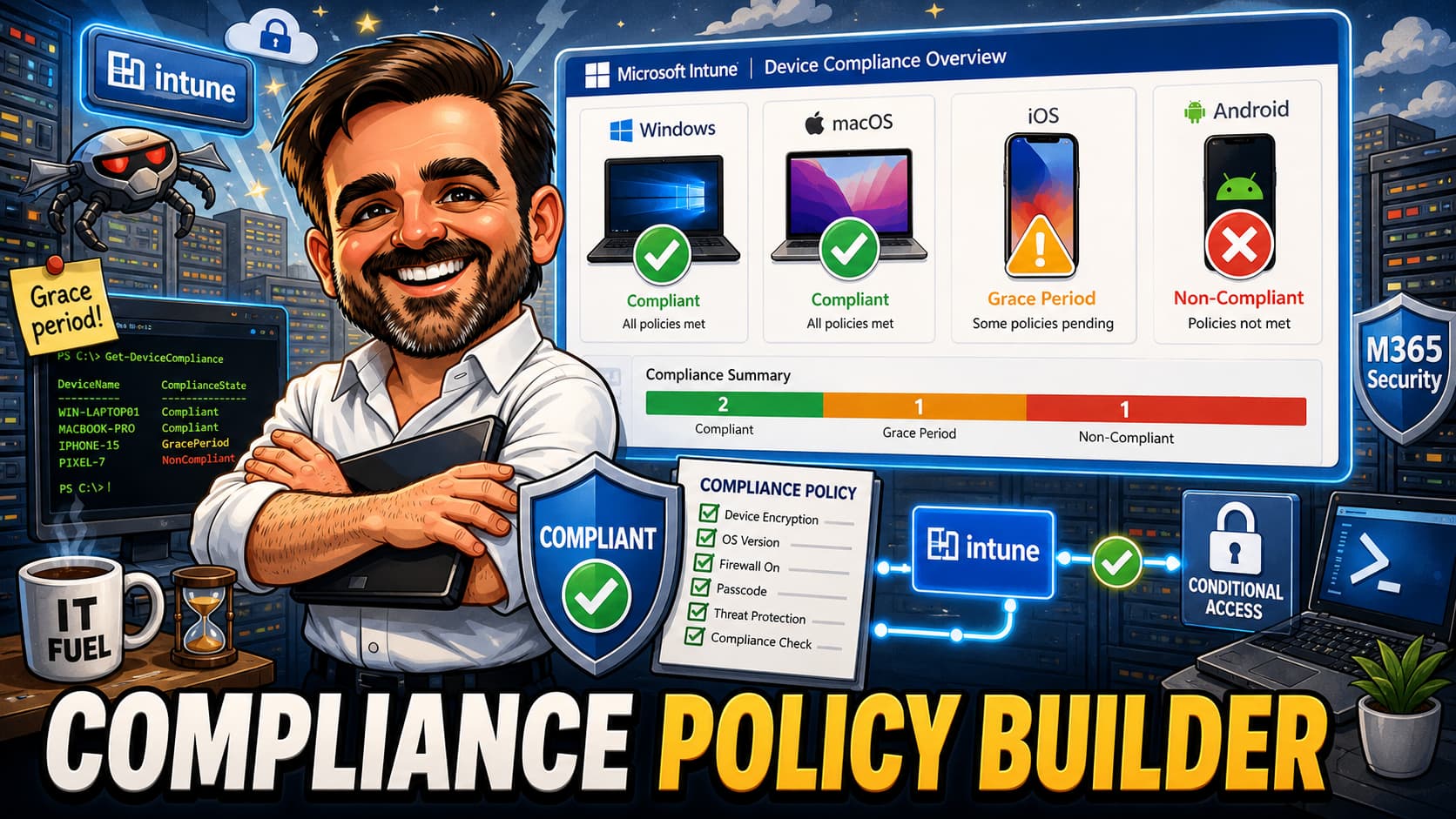
Conditional Access can ask for a compliant device. Microsoft Intune defines what compliant actually means. Many admins create CA policies that require device compliance but never properly define the compliance rules themselves. The result is either a false sense of security (everything passes because the bar is too low) or sudden lockouts (the bar is set without understanding who will fail). This guide separates the three layers: compliance policies define whether a device is healthy enough, configuration profiles and security baselines apply settings to devices, and Conditional Access uses the compliance state as an access decision. Understanding these distinctions is the foundation for a working device trust model.
1. Quick recommendation : jump to the interactive builder, select your scenario, get a compliance policy recommendation.
2. Baseline design : use the ten-policy table if you are building or reviewing a compliance model from scratch.
3. Working checklist : save as PDF for project documentation or change requests.
What this guide helps you decide
Device compliance policy design requires a series of interconnected decisions. Each platform has different available settings, each ownership model has different expectations, and each user persona has a different tolerance for friction. Getting one decision wrong either leaves a security gap or locks people out of their work.
This guide helps you think through each of these decisions systematically:
- Which policies to create and how many you actually need (fewer, well-targeted policies beat dozens of overlapping ones)
- Which platforms to cover (Windows, macOS, iOS/iPadOS, Android) and what settings matter on each
- Which settings actually matter for security versus which are noise (not every available setting deserves enforcement)
- When to block versus warn and how to use grace periods to avoid disruption during rollout
- How to handle all four ownership models (corporate, BYOD, shared, kiosk) with the right level of control for each
- When to use device compliance versus App Protection Policies and when to use both together
- How to connect compliance to Conditional Access so the compliance state actually controls access
- How to review non-compliance and build an operational process for ongoing monitoring
- How to document your compliance model so it survives staff turnover and audits
Who this is for
Before you start
Before creating or modifying compliance policies, verify that these prerequisites are in place. Deploying compliance policies without these foundations will result in unexpected non-compliance, helpdesk overload, or policies that evaluate correctly but have no effect on access.
-
Intune licensing confirmed. Microsoft Intune Plan 1 is included with Business Premium, E3, E5, and F1/F3 (limited). Verify all users who will have compliant devices are properly licensed.
-
Enrollment strategy defined. Compliance policies only evaluate enrolled devices. If users have not enrolled yet, compliance policies have nothing to evaluate. Define your enrollment method (Autopilot, user-driven, bulk enrollment) before designing compliance.
-
Ownership model decided. Determine which devices are corporate-owned, which are BYOD, which are shared, and which are kiosk/dedicated. Each ownership type needs a different compliance approach.
-
Platform scope defined. Identify which platforms exist in your environment (Windows, macOS, iOS/iPadOS, Android). You need separate compliance policies per platform since the available settings differ.
-
Conditional Access dependency understood. Compliance policies alone do not block access. They mark devices as compliant or not compliant. Conditional Access uses that mark to grant or deny access. Plan both together.
-
Grace periods planned. Decide on grace periods before deploying. A 24-hour grace period for existing devices and 72 hours for new enrollments is a reasonable starting point. Devices in grace period are marked "In grace period" not "Not compliant."
-
Helpdesk ready. Your helpdesk needs to know what compliance means, what users see when their device is non-compliant, and how to guide remediation. Prepare documentation before enforcement.
-
Pilot groups created. Create security groups (for example,
Compliance-Pilot-Users) for phased rollout. Start with IT staff who can tolerate temporary disruptions and provide feedback. -
Assignment filters considered. Intune assignment filters let you target compliance policies based on device properties (manufacturer, model, OS version, enrollment profile). Use them to avoid one-size-fits-all policies.
-
Monitoring ready. Set up Intune reports for non-compliant devices. Know where to look: Devices > Monitor > Noncompliant devices in the Intune admin center.
-
"Mark devices with no compliance policy assigned as Not compliant" understood. This tenant-wide setting in Intune > Devices > Compliance settings determines the default state for devices without any compliance policy. Changing it without preparation can immediately mark all unassigned devices as non-compliant.
Licensing at a glance
| Feature | Minimum Licence |
|---|---|
| Intune compliance policies (create, assign, evaluate) | Intune Plan 1 (Business Premium, E3, E5, F1/F3) |
| Conditional Access integration (require compliant device) | Entra ID P1 + Intune Plan 1 |
| App Protection Policies (MAM without enrollment) | Intune Plan 1 (Business Premium, E3, E5) |
| Microsoft Defender for Endpoint integration (risk score) | Defender for Endpoint P2 or Defender for Business (capabilities vary by licence; validate risk signal availability in your tenant) |
| Mobile Threat Defense (third-party MTD connectors) | Intune Plan 1 + MTD partner licence |
| Endpoint analytics (device health scoring) | Intune Plan 1 (some features require Intune add-ons) |
Interactive Compliance Policy Builder
Use this tool to get a recommended compliance approach for a specific scenario. Select the platform, ownership model, user type, data sensitivity, management state, and risk tolerance. The recommendation updates automatically as you change any input.
The builder evaluates your selections against a decision matrix that accounts for real-world deployment patterns. A BYOD iPhone with MAM-only management gets a fundamentally different recommendation than a corporate Windows laptop that is fully managed. The logic prioritises practical security without creating unnecessary friction.
This is the recommendation for the default scenario below. Change any input to see how it shifts.
Recommended Compliance Baselines
These ten policies form a practical compliance baseline covering the most common device scenarios. They are designed to work together and to connect to Conditional Access for enforcement. Deploy them in order, monitoring non-compliance rates before connecting each to CA.
| # | Policy Name | Platform | Target | Key Settings | Grace Period | CA Usage | Notes |
|---|---|---|---|---|---|---|---|
| 1 | CP-WIN-CORP-STD-Baseline-Enforced |
Windows | Corporate standard users | BitLocker, Secure Boot, TPM 2.0, Defender active + real-time protection, min OS (N-1), firewall enabled | 24 hours | Require compliant device | Foundation policy for corporate Windows fleet |
| 2 | CP-WIN-CORP-ADMIN-Privileged-Enforced |
Windows | Admin devices | All baseline settings + Defender for Endpoint risk score (Medium or below), stricter OS version (current), code integrity | Minimal (4–8 hours after pilot) | Require compliant device + phishing-resistant MFA | Combined with CA admin policy. Strict enforcement after pilot validation. |
| 3 | CP-WIN-SHARED-Kiosk-Baseline-Enforced |
Windows | Shared/kiosk devices | BitLocker, OS version (N-1), Defender active, firewall. No user password requirements. | 24 hours | Require compliant device (limited app access) | Simplified for shared scenarios. No user-specific checks. |
| 4 | CP-MAC-CORP-STD-Baseline-Enforced |
macOS | Corporate standard users | FileVault encryption, min OS (N-1), passcode required, system integrity protection | 24 hours | Require compliant device | Covers the core macOS security requirements |
| 5 | CP-IOS-CORP-STD-Baseline-Enforced |
iOS/iPadOS | Corporate standard users | Min OS (N-1), passcode 6+ digits, jailbreak detection, device threat level (if MTD integrated) | 24 hours | Require compliant device | Jailbreak detection is immediate, no grace period for that specific check |
| 6 | APP-IOS-BYOD-STD-DataProtection-Enforced |
iOS/iPadOS | BYOD users | App Protection Policy: app PIN, managed app data protection, jailbreak detection, min OS in managed apps | N/A (APP) | Require app protection policy | No device enrollment required. Protects data inside managed apps only. Use "Require approved client app OR Require app protection policy" only as a temporary migration pattern for existing policies (approved client app grant retires June 2026). |
| 7 | CP-ANDROID-CORP-FM-Baseline-Enforced |
Android | Corporate fully managed | Min OS, password complexity, encryption, rooted detection, Defender/MTD if available, security patch level | 24 hours | Require compliant device | Android fully managed gives full device control |
| 8 | CP-ANDROID-CORP-WP-Baseline-Enforced |
Android | Corporate work profile | Min OS, work profile password, rooted detection, security patch level | 24 hours | Require compliant device | Work profile separates corporate and personal data |
| 9 | CP-ANDROID-KIOSK-Shared-Baseline-Enforced |
Android | Dedicated/kiosk devices | OS version, encryption, security patch level (within 90 days), rooted detection | 48 hours | Require compliant device (limited access) | Longer grace for kiosk devices that may not check in frequently |
| 10 | CP-HIGH-PRIV-AllPlatforms-Strict-Enforced |
All platforms | High-privilege users | Strictest settings per platform + Defender for Endpoint risk integration (Low risk only) + current OS version | Minimal (4–8 hours after pilot) | Require compliant device + phishing-resistant MFA | Layered with the CA admin/executive policies. Strict enforcement after pilot validation. |
Immediate blockers vs grace period settings
Not every compliance setting deserves the same response time. Some indicate an immediate security compromise and should block access instantly. Others reflect a temporary state (device updating, encryption completing) and should allow a grace period before enforcement.
| Setting | Immediate Block | Grace Period | Rationale |
|---|---|---|---|
| Jailbreak / Root detected | Yes | Never | Compromised security model, no acceptable delay |
| Defender / AV disabled | Yes (mature environments) | Pilot first, then no grace period | Active threat protection missing |
| Firewall disabled | Yes (mature environments) | Pilot first, then no grace period | Basic network protection missing |
| Defender for Endpoint risk: High | Yes | Never | Known active threat on the device |
| BitLocker / FileVault off (existing device) | Yes (mature environments) | Pilot first, then no grace period | Encryption was removed or suspended |
| BitLocker / FileVault (new enrollment) | No | 24 to 48 hours | Encryption takes time to complete |
| OS version below minimum | No | 72 hours | Updates take time to download and install |
| Security patch older than threshold | No | 48 hours | Patches require user action or restart |
| Defender signatures outdated | No | 24 hours | Device may have been offline, will update on next sync |
| Password not set / too weak | No | 24 hours | User needs time to set compliant password |
Windows compliance recommendations
Windows offers the richest set of compliance settings in Intune. The challenge is not which settings are available, but which ones actually matter for your security posture and are worth enforcing.
Minimum OS version strategy
I recommend N-1 for standard users: require at least the previous feature update version. This gives users and IT time to test new releases while still ensuring devices are not running outdated, unsupported versions. For admin devices, target the current version (N) with a shorter grace period and tighter monitoring. When a new Windows feature update releases, update the policy after 30 days of availability to give the rollout time to reach devices.
BitLocker and encryption
BitLocker should be a compliance requirement for all corporate Windows devices. If a device is not encrypted, it is a data loss risk regardless of every other control. For new enrollments, allow a 24-hour grace period since BitLocker encryption takes time to complete on first setup. For existing enrolled devices, this should already be in place. During initial rollout, validate encryption reporting first and use a grace period for devices already in transition before enforcing as an immediate blocker.
Secure Boot and TPM
Require Secure Boot and TPM 2.0 for corporate devices. These are hardware-level protections against boot-time attacks. All modern corporate hardware supports both. If you have legacy devices that do not support TPM 2.0, create a separate compliance policy with an exception and a hardware refresh plan.
Microsoft Defender Antivirus status
Require Defender Antivirus to be active and real-time protection enabled. This is an immediate blocker for corporate devices. If Defender is disabled or a third-party AV has taken over, the device should not be considered compliant. Also require that the signature version is no more than 48 hours old.
Firewall
Require Windows Firewall to be enabled for all profiles (domain, private, public). This is a low-friction check that catches devices where the firewall was disabled for troubleshooting and never re-enabled.
Defender for Endpoint machine risk score
If you have Defender for Endpoint P2 or Defender for Business licensing that supports device risk integration, integrate the machine risk score into compliance. Recommend setting the threshold to "Medium or below" for standard users (devices with High risk are non-compliant) and "Low" for admin devices. Capabilities vary by licence tier, so validate which risk signals are available in your specific tenant before building compliance rules around them. This requires the Defender for Endpoint connector to be configured in Intune.
Password and local security
Windows compliance password checks are limited. You can require a password and set minimum length, but the real password security comes from Entra ID authentication policies and Windows Hello for Business, not from the compliance policy. Do not over-invest in compliance password settings for Windows.
Admin devices vs standard devices
| Setting | Standard Device | Admin Device |
|---|---|---|
| Minimum OS version | N-1 (previous feature update) | N (current feature update) |
| BitLocker | Required | Required |
| Secure Boot | Required | Required |
| TPM 2.0 | Required | Required |
| Defender active | Required | Required |
| Defender for Endpoint risk | Medium or below (if licensed) | Low only |
| Firewall | Required | Required |
| Code integrity | Not required | Required |
| Grace period | 24 hours | Minimal (4 to 8 hours, pilot first) |
Custom compliance scripts
For requirements not covered by built-in settings, Intune supports custom compliance scripts on Windows. You write a PowerShell script that evaluates device state (checks registry keys, file existence, installed software, or anything else you can query) and reports results to the compliance engine via a JSON output. The compliance policy then references the script and treats the result as a compliance condition. Use this for organisation-specific requirements like verifying a specific agent is running, a particular registry key is set, or a custom security tool is active.
macOS compliance recommendations
macOS compliance settings in Intune are more limited than Windows, but the core requirements remain the same: encryption, OS currency, and basic device security.
Minimum OS version
Recommend N-1 for standard users. Apple support patterns vary, but generally the current and two previous macOS versions receive security updates. Requiring N-1 keeps devices on a supported version while giving users time to upgrade after a new release. Update the policy 30 to 60 days after a new macOS version ships.
FileVault encryption
FileVault should be an immediate compliance requirement for all corporate macOS devices. It is the equivalent of BitLocker for Mac. Ensure the recovery key is escrowed to Intune (configured through a device configuration profile). For new enrollments, allow 24 hours since FileVault encryption takes time.
Passcode requirements
Require a device passcode with a minimum of 6 characters. macOS supports more complex passcode requirements, but keep in mind that most Mac users rely on Touch ID or Apple Watch unlock for daily use. The passcode is the fallback, not the primary authentication method.
System integrity
You can check that System Integrity Protection (SIP) is enabled. This is a reasonable check for corporate devices, though disabling SIP requires deliberate action and physical access (or MDM commands). It catches devices where a developer disabled SIP for testing and forgot to re-enable it.
Corporate vs BYOD
For corporate macOS devices, use full device compliance (FileVault, OS version, passcode, SIP). For BYOD macOS, consider whether App Protection Policies for Office apps provide sufficient protection without requiring device enrollment. If users only need web access to M365 services from personal Macs, browser-based access with CA session controls may be the right answer instead of full compliance.
Grace period
Use a 24-hour grace period for existing corporate devices and 48 hours for new enrollments. macOS devices sometimes take longer to report compliance status after enrollment, particularly for FileVault encryption completion.
iOS/iPadOS compliance recommendations
iOS compliance is straightforward in many ways because Apple controls the platform tightly, but the corporate versus BYOD distinction is critical. Most organizations have a mix of both.
Minimum OS version
Apple support patterns vary, but a practical compliance approach is to require current or current-minus-one (N-1) major version. Update the policy 30 days after a new major iOS release. Be aware that older devices may not support the latest iOS version, so your hardware refresh cycle affects this setting directly.
Passcode
Require a 6-digit (or longer) passcode. Most users rely on Face ID or Touch ID for daily use, but the passcode remains the device unlock fallback and the encryption key derivation input. Simple passcodes (1234, 0000) should be blocked.
Jailbreak detection
This should be an immediate blocker with no grace period. A jailbroken device has had its security model compromised. There is no acceptable scenario for a jailbroken device accessing corporate data. Mark as non-compliant immediately upon detection.
Device threat level
If you have integrated a Mobile Threat Defense (MTD) solution or Microsoft Defender for Endpoint on iOS, you can include device threat level in compliance. Set the threshold based on your risk tolerance: "Secured" (most strict) or "Low" (balanced).
Supervised vs unsupervised
Supervised iOS devices (enrolled through Apple Business Manager with a supervision profile) offer more management capabilities. If your corporate devices are supervised, you can apply stricter compliance settings knowing you have more control. Unsupervised corporate devices behave more like BYOD from a management perspective.
Corporate vs BYOD
| Setting | Corporate (enrolled) | BYOD (App Protection) |
|---|---|---|
| Compliance type | Device compliance policy | App Protection Policy |
| Enrollment required | Yes | No |
| OS version check | Compliance setting | APP conditional launch setting |
| Jailbreak detection | Compliance setting (immediate block) | APP conditional launch (wipe managed data) |
| Passcode | Required via compliance | App-level PIN required |
| CA integration | Require compliant device | Require app protection policy |
| User privacy | Full device visibility | Only managed app data visible |
When to use App Protection Policies instead
Use App Protection Policies (not device compliance) when: the device is personally owned and the user will not enroll it, when you only need to protect data inside specific apps (Outlook, Teams, OneDrive), or when privacy requirements prevent device-level management. APP works without enrollment, protects corporate data inside managed apps, and gives users a better experience on personal devices.
Android compliance recommendations
Android compliance is more complex than other platforms because of the multiple enrollment types. The compliance settings available differ between Android Enterprise fully managed, work profile, and dedicated devices. Getting this wrong means either applying settings that do not exist for your enrollment type or missing settings that are available.
Android Enterprise fully managed
Fully managed devices are corporate-owned and fully controlled by the organisation. You have full device-level compliance settings: OS version, password complexity, encryption, rooted detection, device threat level, security patch level. This is the equivalent of a corporate Windows device in terms of control.
Android Enterprise work profile (personally owned)
Work profile devices separate corporate and personal data. Compliance settings apply to the work profile portion. You can require a work profile password (separate from the device password), minimum OS version, rooted detection, and security patch level. You cannot control the personal side of the device.
Dedicated/kiosk devices
Dedicated devices (kiosks, shared tablets, digital signage) have simplified compliance needs. Focus on OS version, encryption, security patch level, and rooted detection. Do not require user passwords (there is no user). Set a longer grace period (48 hours) since these devices may not check in as frequently.
Minimum OS version and security patch level
Android fragmentation makes OS version requirements more complex than iOS. Set a minimum Android version based on what your device fleet actually supports. For security patch level, a practical starting point is 90 days, then tighten if your device fleet and vendors can sustain it. This is more realistic than requiring the absolute latest patch, given how wildly Android vendor update timelines vary.
Password requirements
For fully managed devices: require a device password with numeric complex or alphanumeric complexity. For work profile devices: require a work profile password separately. The work profile password protects corporate apps and data even if the user has a weak device password.
Rooted device detection
Like jailbreak on iOS, rooted Android devices have a compromised security model. This should be an immediate blocker with no grace period. Any rooted device should be marked non-compliant immediately.
Device threat level
If using Microsoft Defender for Endpoint or a third-party MTD on Android, integrate the threat level into compliance. This catches devices with known vulnerabilities, suspicious apps, or network-level threats.
Grace periods by scenario
| Scenario | Recommended Grace Period | Rationale |
|---|---|---|
| Corporate fully managed (existing) | 24 hours | Devices should already meet requirements |
| Corporate fully managed (new enrollment) | 48 hours | Encryption and policy application takes time |
| Work profile (existing) | 24 hours | Work profile should already be configured |
| Dedicated/kiosk | 48 hours | Less frequent check-in, slower update cycles |
| Rooted detection | None (immediate) | Compromised security model, no acceptable delay |
Compliance vs App Protection Policies
This is one of the most misunderstood areas in Intune. Device compliance and App Protection Policies are not interchangeable. They protect different things at different levels. Understanding when to use each (or both) is fundamental to a working security model.
| Scenario | Device Compliance | App Protection Policy | Both | Browser-Only |
|---|---|---|---|---|
| Corporate Windows laptop | ✓ | |||
| Corporate iPhone | ✓ | |||
| BYOD iPhone | ✓ | Optional | ||
| BYOD Android | ✓ | |||
| Shared/kiosk Android | ✓ | |||
| Admin workstation | ✓ | ✓ | ||
| Executive device | ✓ | ✓ | ||
| Frontline mobile (unmanaged) | ✓ | |||
| Frontline mobile (managed) | ✓ | |||
| Contractor/temporary (no enrollment) | ✓ |
The logic is straightforward: compliance owns the device, App Protection owns the app. If you manage the device (corporate-owned, fully enrolled), use device compliance to verify it is healthy. If you do not manage the device (BYOD, unmanaged, personal), use App Protection Policies to protect corporate data inside managed apps without touching the rest of the device. For high-security scenarios (admin workstations, executives), use both layers together.
The most common mistake I see is trying to force device compliance on BYOD devices. Users resist enrollment of personal devices (and rightly so). App Protection Policies give you data protection without device management. The user installs Outlook, signs in, the APP activates, corporate data is protected by PIN, encryption, and copy/paste restrictions. The rest of the device remains private and unmanaged.
Actions for non-compliance
Every compliance policy should define what happens when a device fails evaluation. Intune supports a sequence of actions triggered by non-compliance, each with a configurable delay. Design these actions deliberately rather than relying on the default (mark non-compliant immediately).
| Scenario | Mark Non-Compliant | Email User | Remote Lock | Retire Device |
|---|---|---|---|---|
| Standard device, first non-compliance | After 1 day | After 1 day | No | No |
| Standard device, persistent non-compliance | Immediate | Immediate + reminder at 3 days | After 14 days (optional) | After 30 days (with approval) |
| Admin device | Immediate | Immediate + notify security team | After 24 hours | After 7 days |
| Kiosk/shared device | After 1 day | No (no user to receive it) | No | After 14 days |
| Jailbreak/root detected | Immediate | Immediate | Immediate | After 24 hours |
Policy naming convention
A consistent naming convention makes compliance policies readable at a glance in the Intune admin center. Without one, you end up with "Test compliance", "Windows policy v2", and "DO NOT DELETE." I recommend this format:
CP-[Platform]-[Ownership]-[Persona]-[Purpose]-[Mode]
| Segment | Purpose | Examples |
|---|---|---|
CP |
Prefix identifying Compliance Policy | Always CP (or APP for App Protection) |
[Platform] |
Target operating system | WIN, MAC, IOS, ANDROID |
[Ownership] |
Device ownership model | CORP, BYOD, SHARED, KIOSK |
[Persona] |
Target user type | STD, ADMIN, EXEC, FRONTLINE |
[Purpose] |
What the policy does | Baseline, Privileged, Strict, AppProtection |
[Mode] |
Enforcement state | Enforced, Monitor, Pilot |
Examples
| Policy Name | What It Means |
|---|---|
CP-WIN-CORP-STD-Baseline-Enforced |
Windows, corporate device, standard users, baseline compliance, enforced |
CP-WIN-CORP-ADMIN-Privileged-Enforced |
Windows, corporate device, admin users, privileged/strict compliance, enforced |
APP-IOS-BYOD-STD-DataProtection-Enforced |
iOS, BYOD, standard users, App Protection Policy, enforced |
CP-ANDROID-CORP-FM-Baseline-Monitor |
Android, corporate, fully managed, baseline compliance, monitoring only |
CP-MAC-CORP-EXEC-Strict-Enforced |
macOS, corporate device, executives, strict compliance, enforced |
CP-WIN-SHARED-Kiosk-Baseline-Enforced |
Windows, shared device, kiosk scenario, baseline compliance, enforced |
APP-IOS-BYOD-STD-DataProtection-Enforced |
App Protection Policy, iOS, BYOD, standard users, data protection, enforced |
CP-HIGH-PRIV-AllPlatforms-Strict-Enforced |
All platforms, high-privilege users, strictest compliance, enforced |
Rollout order
Deploy compliance policies in phases. Each phase builds on the previous one. Do not jump to enforcement before you have visibility into what will fail. The phases below represent a practical sequence over 8 to 12 weeks for a typical organisation.
Phase 1: Inventory and Discovery
Audit enrolled devices. Identify platforms, ownership types, enrollment states. Check which devices already meet your planned requirements. Identify gaps before creating policies. Duration: 1 to 2 weeks.
Phase 2: Pilot Without CA Enforcement
Deploy compliance policies to a pilot group. Monitor compliance status in Intune reports. Do not connect to Conditional Access yet. Identify non-compliant devices and remediate. Duration: 2 weeks.
Phase 3: Windows Corporate Compliance
Expand Windows compliance policy to all corporate Windows devices. Monitor non-compliance rates. Target below 5% non-compliance before connecting to CA. Remediate common failures. Duration: 2 weeks.
Phase 4: Mobile Corporate Compliance
Deploy iOS and Android compliance policies to corporate mobile devices. Address platform-specific failures (OS version, encryption). Monitor and remediate. Duration: 2 weeks.
Phase 5: BYOD App Protection
Deploy App Protection Policies for BYOD scenarios. Communicate to users what will change (app PIN, restricted copy/paste). Monitor adoption and support tickets. Duration: 2 weeks.
Phase 6: Admin/Executive Compliance
Deploy strict compliance for admin and executive devices. White-glove onboarding for executives. Verify all admin devices meet requirements. No grace period for this group. Duration: 1 to 2 weeks.
Phase 7: CA Enforcement
Connect compliance policies to Conditional Access. Start with CA in report-only mode for 1 week, then enforce. This is where compliance gains teeth. Monitor sign-in logs for blocked access. Duration: 2 weeks.
Phase 8: Reporting and Operational Review
Establish ongoing monitoring. Set up weekly non-compliance reports. Define remediation processes. Create runbooks for common compliance failures. Review and tune policies quarterly. Ongoing.
Communication and monitoring by phase
| Phase | What to Monitor | What Can Go Wrong | When to Advance |
|---|---|---|---|
| Phase 1 | Device inventory completeness, enrollment gaps | Missing device groups, untracked platforms | When you have a complete picture of your device landscape |
| Phase 2 | Pilot group compliance rates, common failure reasons | Unexpected failures (old OS, disabled features) | When pilot compliance exceeds 90% after remediation |
| Phase 3 | Windows non-compliance count, failure reasons | Legacy hardware failing TPM/Secure Boot, outdated OS | When non-compliance is below 5% for Windows fleet |
| Phase 4 | Mobile compliance rates, OS update adoption | Old devices unable to update, fragmented Android versions | When mobile compliance exceeds 90% |
| Phase 5 | APP adoption, support tickets, user feedback | User confusion about app PIN, data restriction complaints | When support tickets drop to normal levels |
| Phase 6 | Admin device compliance, executive onboarding completion | Executives resisting, admin devices with issues | When all admin/exec devices pass compliance |
| Phase 7 | CA sign-in logs, blocked access events, helpdesk tickets | Unexpected lockouts, devices falling out of compliance | When blocked access events match expected non-compliant devices only |
| Phase 8 | Weekly compliance trends, new non-compliance patterns | Drift over time, new device types not covered | Ongoing. Review quarterly. |
User communication plan
| Phase | Communication | Channel | Timing |
|---|---|---|---|
| Phase 1-2 | None (monitoring only, no user impact) | Internal IT team only | N/A |
| Phase 3-4 | If monitoring only: no user communication. If remediating: targeted email to non-compliant device owners explaining what needs updating. | Targeted email, self-service portal link | After identifying non-compliant devices |
| Phase 5 | All BYOD users: "A new app protection policy will be applied. You will see a PIN prompt and some copy/paste restrictions in Outlook, Teams and OneDrive." | Company-wide email, Teams announcement | 1 week before deployment |
| Phase 6 | Admins and executives: white-glove onboarding, direct communication about stricter requirements | Direct email + scheduled session | 2 weeks before enforcement |
| Phase 7 | "Starting [date], devices that do not meet security requirements will be unable to access company email and files. Here is how to check if your device is compliant and what to do if it is not." | Company-wide email, intranet, Teams, helpdesk FAQ | 2 weeks before CA enforcement |
| Phase 8 | No regular user communication. Internal IT governance review only. | IT team meeting | Quarterly |
Common mistakes
These are the mistakes I see most frequently in real deployments. Each one has caused real outages, helpdesk overload, or security gaps. Avoid them.
- Treating compliance policies as security baselines. Compliance checks whether a setting is in place. It does not apply the setting. If you want BitLocker enabled, you need a configuration profile to turn it on AND a compliance policy to verify it is on. One without the other is incomplete.
- Requiring compliant devices before enrollment is complete. If CA requires a compliant device but the device has not finished enrollment and compliance evaluation, the user is locked out immediately. Ensure enrollment completes and compliance evaluates before enforcement kicks in. Use grace periods.
- No pilot group. Deploying compliance policies directly to "All devices" without piloting first is a recipe for mass non-compliance notifications and helpdesk meltdown. Always start with a small pilot group.
- No grace period on initial deployment. Devices need time to check in, evaluate compliance, and report status. Deploying with no grace period marks every device that has not yet reported as non-compliant. Use 24 to 48 hours for initial deployment.
- Marking devices with no policy as Not compliant without preparation. Enabling "Mark devices with no compliance policy assigned as Not compliant" before every device has a policy assigned will instantly mark unassigned devices as non-compliant. If CA is active, those users lose access immediately.
- Applying the same compliance policy to every platform. You cannot use a single compliance policy across Windows, macOS, iOS, and Android. Each platform has different settings. Create platform-specific policies with appropriate settings for each.
- Ignoring BYOD reality. Trying to force device enrollment and full compliance on personal devices creates user resistance and privacy complaints. BYOD should use App Protection Policies in most cases. Users will not (and should not have to) give you full device control over their personal phone.
- Forgetting Android work profile vs fully managed differences. Android work profile and fully managed are different enrollment types with different compliance settings available. A policy designed for fully managed devices will not apply correctly to work profile devices. Target appropriately.
- Using too strict OS version requirements. Requiring the absolute latest OS version means devices become non-compliant on patch day before users can update. Use N-1 with a grace period after new releases. Be realistic about update timelines.
- Not monitoring non-compliant devices. Deploying compliance without checking who fails is operating blind. Set up weekly reports. Review non-compliance reasons. Identify patterns. A compliance policy you never review is a policy you do not understand.
- No helpdesk process for compliance failures. When a user calls saying "I cannot access email," your helpdesk needs to know how to check compliance status, identify the failing setting, and guide remediation. Without this process, compliance creates frustration without security improvement.
- Confusing device compliance with App Protection Policies. Device compliance evaluates the device health. App Protection Policies protect data inside managed apps. They are different tools for different scenarios. Using the wrong one for your scenario either over-manages (compliance on BYOD) or under-protects (APP when you need device-level assurance).
Field notes
Compliance readiness checklist
Before connecting compliance to Conditional Access, verify these seven criteria. Each one reduces the risk of unexpected lockouts during enforcement.
| # | Criterion | Status |
|---|---|---|
| 1 | All managed devices have at least one compliance policy assigned | Yes / No |
| 2 | Non-compliance rate is below 5% for each platform | Yes / No |
| 3 | Grace periods are configured for all policies | Yes / No |
| 4 | "Mark devices with no policy assigned as Not compliant" is configured deliberately | Yes / No |
| 5 | Compliance is connected to at least one CA policy (report-only or enforced) | Yes / No |
| 6 | Helpdesk has a documented remediation process for non-compliance | Yes / No |
| 7 | Non-compliance reports are reviewed weekly | Yes / No |
What good looks like
A mature compliance model has these characteristics:
- Every managed device has at least one compliance policy assigned
- Compliance policies are platform-specific (separate policies for Windows, macOS, iOS, Android)
- Different ownership models have different policies (corporate is stricter than BYOD)
- Admin and executive devices have stricter compliance than standard user devices
- Grace periods are set appropriately (not too short, not too long)
- Compliance is connected to Conditional Access for enforcement
- BYOD uses App Protection Policies, not forced device compliance
- Non-compliance is monitored weekly and acted upon
- Helpdesk has documentation for guiding users through remediation
- Policies are documented with business justification for each setting
- New OS releases trigger a policy review (update version requirements after 30 days)
- The compliance model is reviewed quarterly and adjusted based on actual data
- "Mark devices with no compliance policy assigned" is set to "Not compliant" (after all devices are covered)
- Compliance and CA work together as a system, not as isolated configurations
What this guide does not cover
This guide focuses on compliance policy design and the decision framework for what to require and where. It does not cover: detailed configuration profiles and security baselines (the settings that apply configurations to devices), app deployment and management, Windows Autopilot enrollment configuration, compliance remediation actions and custom scripts, or Microsoft Defender for Endpoint onboarding procedures. Each of these topics deserves its own guide.
Putting it all together
Device compliance is the bridge between device management and access control. It answers the question that Conditional Access needs answered: is this device healthy enough to access corporate data? Without compliance, CA can only check identity (who you are) and context (where you are). With compliance, CA can also check device health (what you are connecting from).
If you have already built your Conditional Access model using the CA Policy Builder guide, compliance is the natural next step. Your CA policies that require compliant devices need well-designed compliance policies behind them. Without them, "require compliant device" either blocks everyone (if no compliance policy is assigned) or allows everyone (if the compliance bar is too low).
Together, these form the device trust layer of a Zero Trust architecture: verify the identity (Entra ID + MFA), verify the device (Intune compliance), then grant access based on both. No single component works alone. They are a system, and they need to be designed as one.
Save as PDF
This guide is designed to be saved as a PDF for offline reference, project documentation, or change request attachments. The print version hides the sidebar navigation and interactive elements, showing the content in a clean, documentation-ready format.
Ready to build your compliance model?
Use the interactive builder to design your policies, save as PDF for documentation, review your current compliance posture, and share with your team.
Start with the Builder- Intune device compliance overview
- Create device compliance policies in Intune
- Conditional Access and Intune compliance integration
- App Protection Policies overview
- Windows 10/11 compliance policy settings
- macOS compliance policy settings
- iOS/iPadOS compliance policy settings
- Android Enterprise compliance policy settings
- Microsoft Defender for Endpoint and Intune integration
- Actions for non-compliance in Intune
Related content
Conditional Access Policy Builder
Interactive CA policy decision tool with baseline policies, naming conventions, and rollout guidance.
M365 Tenant Health Scorecard
Interactive scorecard to evaluate your tenant security, compliance, and operational health.
Zero Trust: What It Actually Means
Cut through the marketing. Understand what Zero Trust is and is not in practical terms.
Zero Trust: Implementing with Intune
Device compliance, app protection, and endpoint management for Zero Trust architectures.
Zero Trust: SMB vs Enterprise
Practical differences in implementing Zero Trust at different organisation sizes and budgets.
App Protection Policy Guide (Coming Soon)
Deep dive into MAM policies, conditional launch settings, and data protection for managed apps.