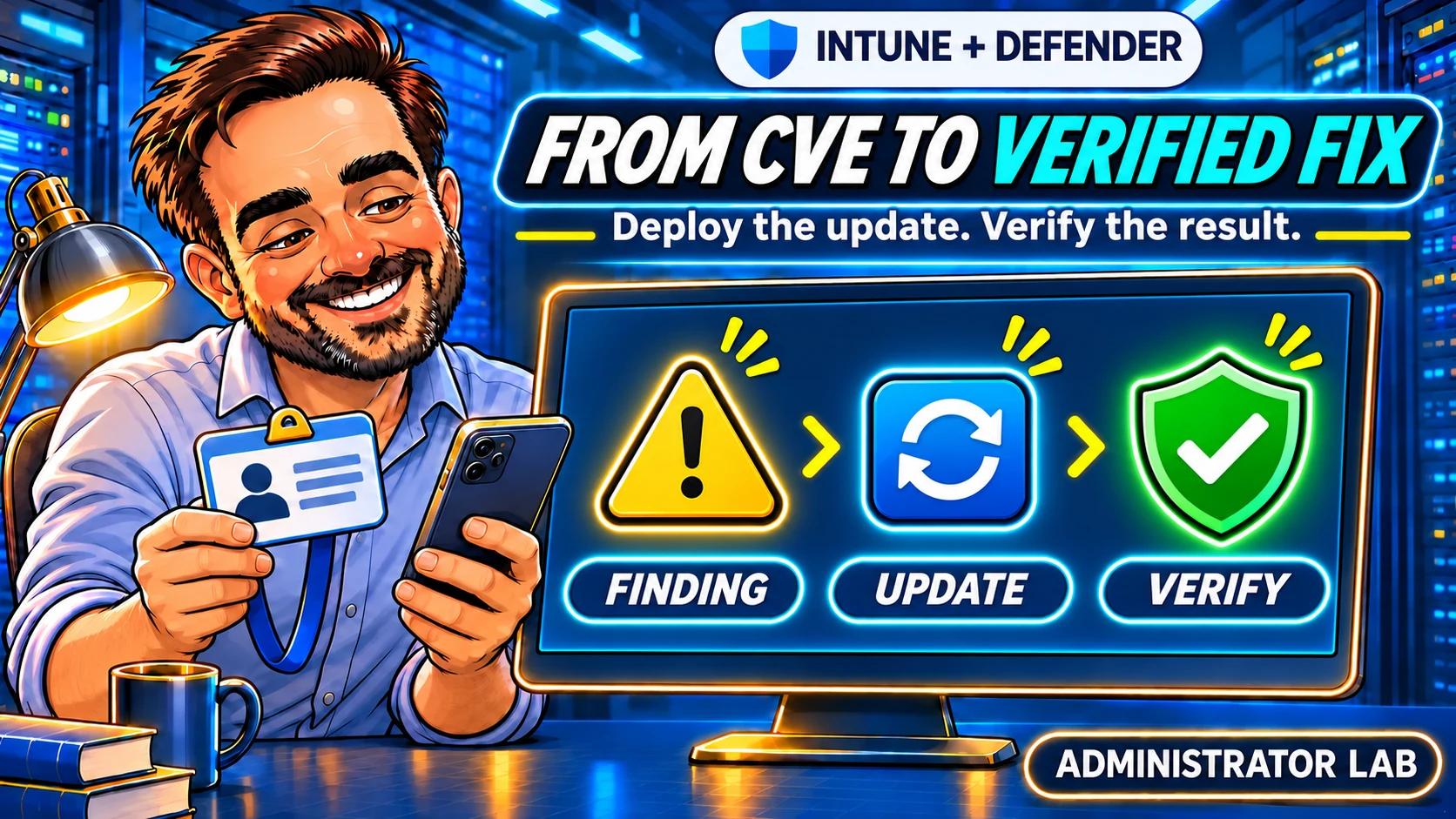
You have the vulnerability report. Someone has assigned the ticket to your team. Now comes the difficult part: deciding what to change and proving that it worked.
Our weekly Intune and Defender report identified findings on a compliant lab laptop. The first local check revealed something important: the relevant fix was already present, but its installation was pending. This follow-up follows that finding through the checks needed before a ticket can be closed. The reporting application stays read-only; remediation is a separate administrative action in Intune.
1. Confirm the finding and the device
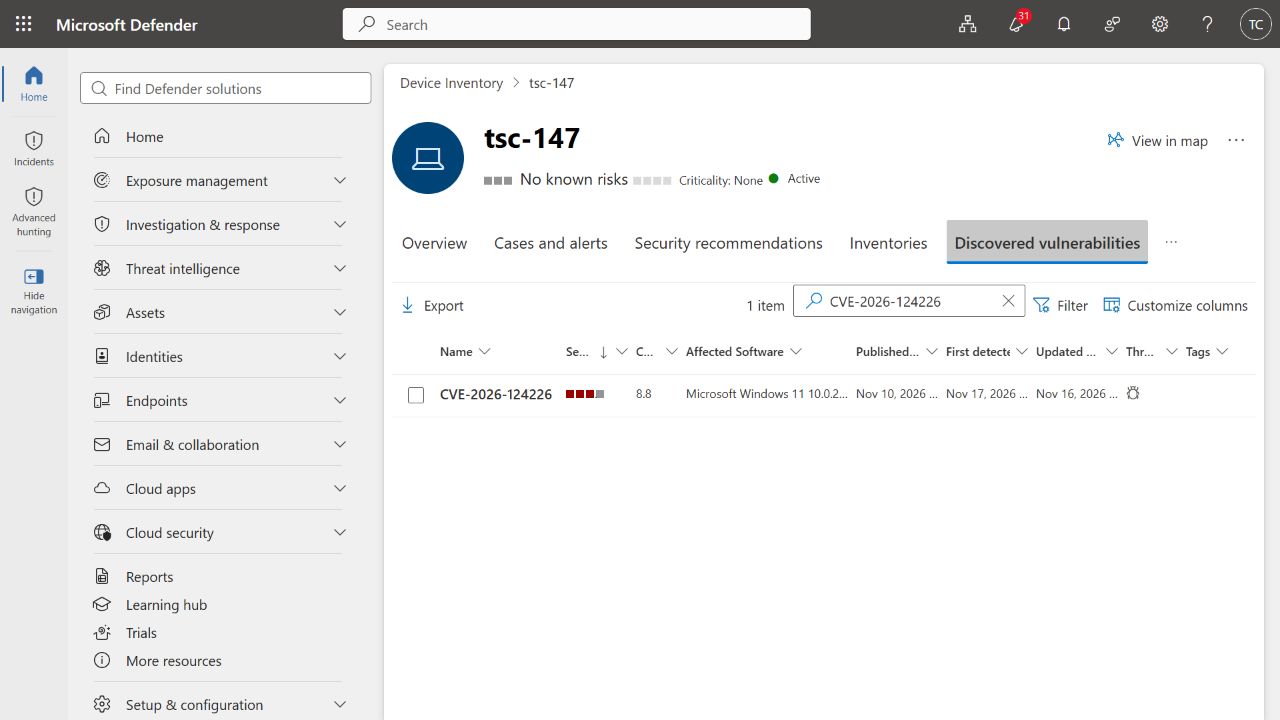
Open the device in Defender, then Discovered vulnerabilities. Search for the exact CVE and press Enter. Capture the device name, affected product, version and time. Compare the Entra device identity with Intune; a matching hostname alone is insufficient when old or duplicate records exist.
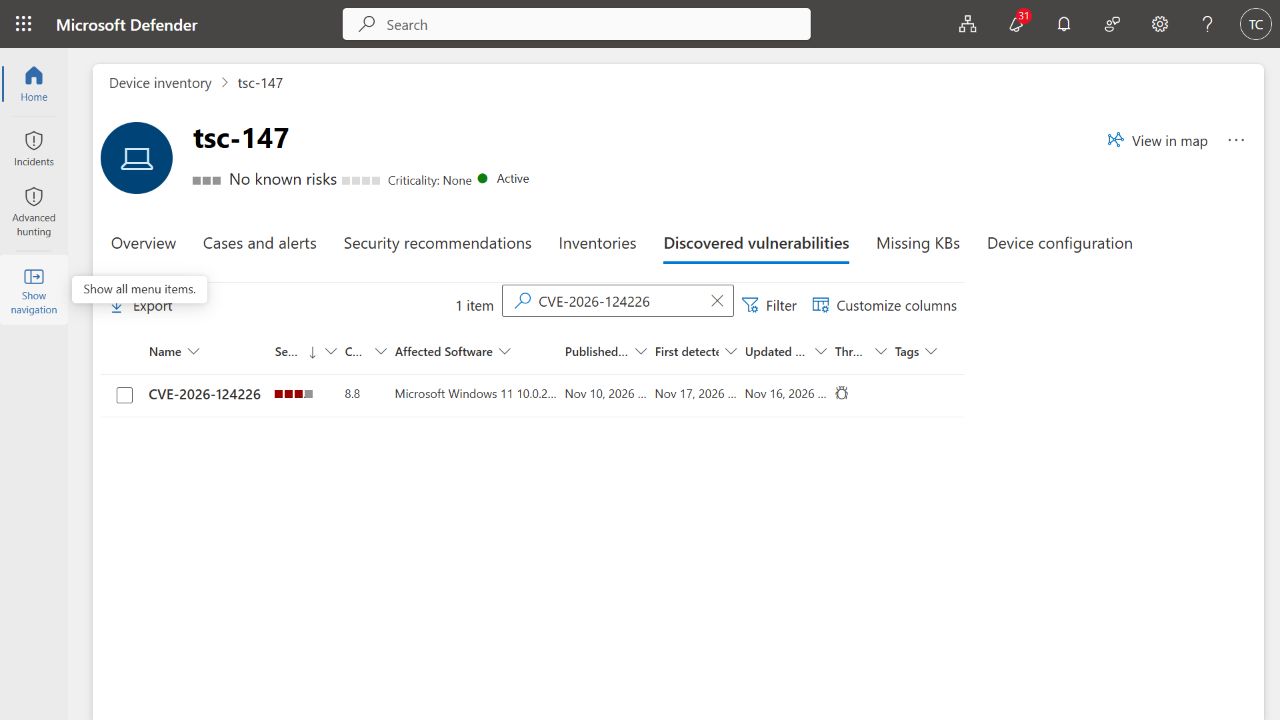
At the start of this lab, Defender showed TSC-147 as Active and onboarded, with Windows 11 25H2 build 26200.9911. Its last-seen time was 18 November at 03:21 UTC. The same device was Compliant in Intune. We selected CVE-2026-124226, reported as High with a CVSS score of 8.8.
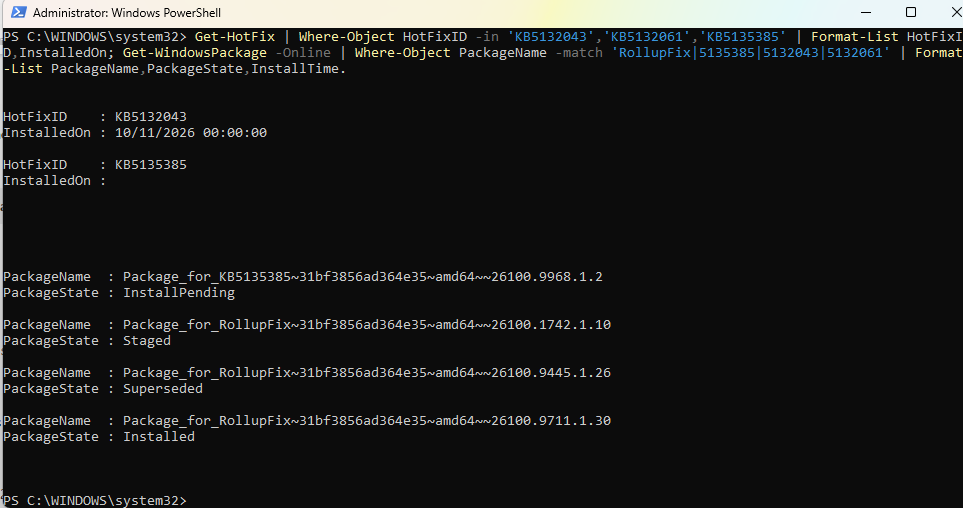
The administrator then confirmed the same version directly on TSC-147: Windows 11 25H2, build 26200.9911. Intune reports the Pro edition. The first combined PowerShell output did not display the requested hotfix rows. A second query with explicit formatting showed why an empty-looking screenshot must not be treated as proof that a KB is absent.

The second capture shows KB5132043 and KB5135385 in the hotfix inventory. More importantly, the servicing inventory shows Package_for_KB5135385~31bf3856ad364e35~amd64~~26100.9968.1.2 in InstallPending. The shared servicing package version starts with 26100; the reported operating-system build remains 26200. Treat the package identity and OS build as separate fields.
The No known risks device label is not a statement that no vulnerabilities exist. Likewise, an Intune compliance result reflects the configured compliance checks. Record the CVE finding itself instead of using either label as a patch verdict.
These are the read-only queries behind the local screenshots. Run Windows PowerShell as administrator on the approved pilot. Confirm the hostname first; adapt the KB filter to the update identified for your own device.
hostname
Get-CimInstance Win32_OperatingSystem | Select-Object LastBootUpTime | Format-List
Get-ItemProperty -LiteralPath 'HKLM:\SOFTWARE\Microsoft\Windows NT\CurrentVersion' | Select-Object DisplayVersion,CurrentBuild,UBR | Format-List
Get-HotFix | Where-Object HotFixID -in 'KB5132043','KB5135385' | Format-List HotFixID,InstalledOn
Get-WindowsPackage -Online | Where-Object PackageName -like '*KB5135385*' | Format-List PackageName,PackageState
For a structured record, the read-only evidence helper records Windows build, hotfixes, servicing packages and selected restart indicators. Save it locally, open its folder in elevated Windows PowerShell 5.1 and use a new local output directory. Replace TSC-147 with your approved pilot's actual name; the collector refuses a mismatch.
./Get-LocalPatchEvidence.ps1 -ExpectedComputer 'TSC-147' -Phase Before -OutputDirectory './Evidence/Before-01'Inspect patch-evidence.json. A PARTIAL result needs investigation. The helper's COMPLETE status means its listed queries completed; it does not mean the device is secure. The full After collection was validated on TSC-147; see the recorded result. The original Before evidence remains the manual captures above. Read the helper notes before use.
2. Match the finding to the right update
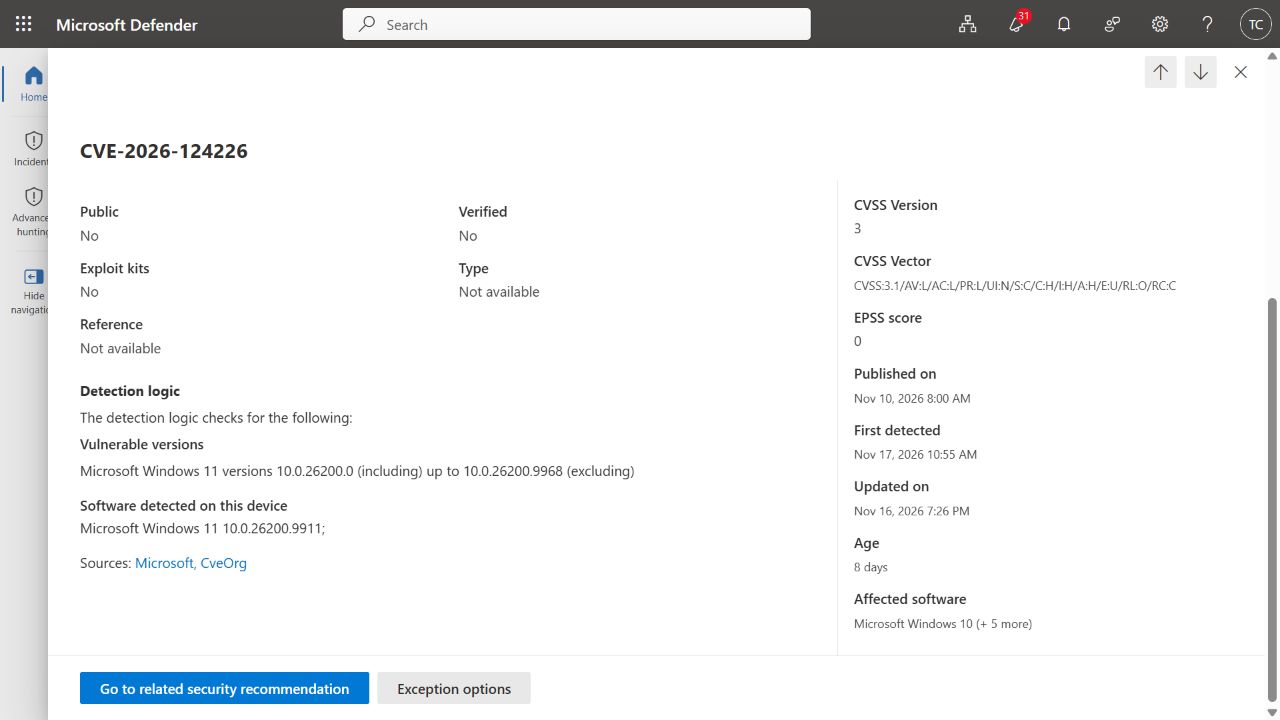
Open the vulnerability details and examine the detection logic. Follow its Microsoft reference to the Security Update Guide. Find the row for the exact Windows version and architecture, then read the associated support article, prerequisites and known issues. An AI-generated description in the portal is useful context, but the product-specific advisory should drive the change.
For our selected CVE, the Defender detail lists Windows 11 versions below 10.0.26200.9968 as affected and reports 10.0.26200.9911 on the device. Microsoft's Security Update Guide maps the Windows 11 25H2 x64 row to KB5135385 and build 26200.9968.
The KB5135385 support article describes an additional PowerShell update after the November Hotpatch update and notes that a restart can be necessary when affected files are in use. Its title retains the .9911 OS build, while the CVE product row lists .9968. Our local package check found the fix pending, so we performed a controlled restart. The package then reported Installed while the OS build remained 26200.9911. We have not established why the installation became pending, and we do not use the OS build alone as a pass/fail test.
KB5135385 is specific to eligible Hotpatch devices. Microsoft offers it only after the November 2026 Hotpatch security update. It downloads and installs through Windows Update; the support article lists Microsoft Update Catalog and WSUS as unavailable delivery channels. Do not try to deploy this KB to every Windows 11 device or assume it appears in the Intune expedite picker. For another servicing path, use the update applicable to that device's product row and prerequisites.
A blank Get-HotFix match is not conclusive: that command uses a limited Windows update inventory. Cross-check servicing packages with Get-WindowsPackage -Online, Windows Update history and the advisory's component information where needed. Superseded updates may require checking the replacement package.
Keep the target precise. This lab does not claim that one update will clear every Windows finding, nor that updating Windows will repair OpenSSL bundled inside another application.
3. Choose and scope the action
For the restart path used here, confirm the Windows device is managed by Intune and the operator can run the remote action. Microsoft lists roles such as Help Desk Operator, or a custom role with Remote tasks/Reboot now and the permissions needed to view the device. Global Administrator is not required.
If a new expedited deployment is needed instead, check its separate prerequisites: Intune Plan 1, a Windows license with the Autopatch entitlement, supported edition, Entra join, connectivity, required diagnostic data and the Microsoft Account Sign-In Assistant service. Do not confuse the permissions for restarting one device with the requirements for a new update policy.
Defender must be licensed and receiving current device telemetry. The tenant uses Business Premium and Entra ID P2, but a visible menu is not proof that every Defender Vulnerability Management feature is licensed or configured.
- Confirm the device identity, applicable fix and current package state. If the applicable package is InstallPending, follow the agreed restart path; if it is missing, determine its supported delivery method. If it is already Installed, investigate the remaining finding before making another change.
- Record the current application smoke test and agree any restart with the user. Check that the organization's recovery process is available without exposing recovery secrets in screenshots.
- For a direct restart, select only the verified device in Intune. No deployment group or new update policy is required.
- Only if deploying a new update policy, verify its licensing and device prerequisites, review update rings, quality policies and WSUS ownership, and check that the assignment group contains only the approved pilot.
- Record the chosen path, intended fix, maintenance window, recovery contact and success criteria in the verification checklist. Mark assignment checks Not applicable when using only the direct restart path.
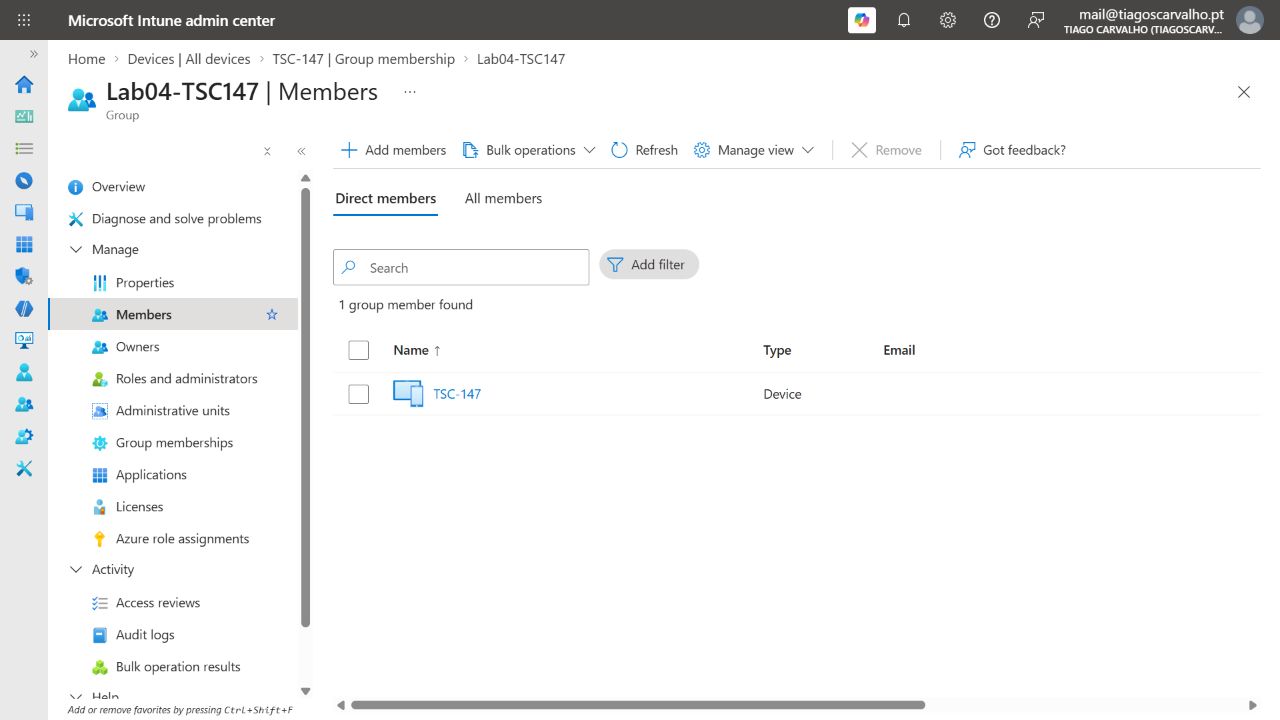
While initially preparing for a possible deployment, we verified that the existing Lab04-TSC147 group contains exactly one direct member: the TSC-147 device, with no nested groups. That group was not required for the restart and no update policy was assigned. If your chosen path needs an assignment, recheck membership immediately beforehand.
4. Resolve the pending installation through Intune
The local package evidence changed the plan. We do not need to create another deployment merely because the CVE is still visible: the relevant package is already present in InstallPending. The next step is to let servicing finish through a controlled restart, then check the result.
- Contact the pilot's user, agree the restart and have them save their work. Intune's restart notification is not guaranteed to be shown.
- Open Devices → All devices → TSC-147 and verify the device identity.
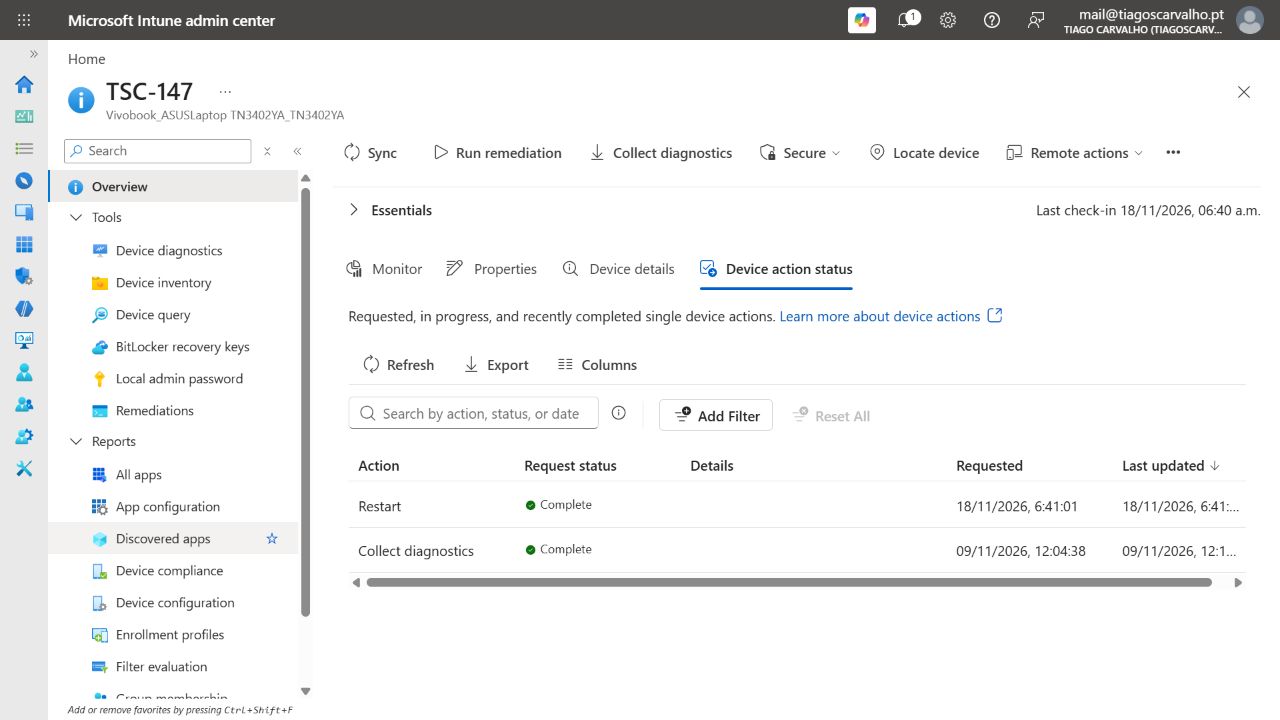
- Choose the device's Restart remote action and confirm only after the agreed handoff. Record the request time and action status.
- Wait for the laptop to return, sign in and check normal operation. A successful action request does not prove that servicing completed.
Actual lab status: after the administrator saved their work and confirmed readiness, the Restart action was sent at 06:41 UTC on 18 November. Intune reported Complete at 06:41:02. The later local capture records the boot at 06:46:47 and the package as Installed. Keep these timestamps separate: the early action status was not proof that Windows had already finished restarting. The reporting application was not used to restart or patch the device.
If the applicable fix is missing: expedited deployment
This is the documented alternative for an eligible release, not the action performed in this pilot.
- Go to Devices → Windows updates → Quality updates → Create → Expedite policy.
- Give the policy a clear pilot name and choose the applicable security release shown in the picker.
- Select a restart deadline appropriate for the agreed maintenance window. Avoid an immediate deadline for a first pilot.
- Assign only the verified one-device group, review the settings and create the policy.
Expediting applies to supported releases in that picker. It does not provide an arbitrary KB installer, and Windows Update may offer a newer applicable update. A separate component update must follow its documented delivery path if it is not covered. Keep a screenshot of the final assignment and the actual installation result.
Where do Defender remediation requests fit?
With the required integration and a compatible recommendation, Defender can create an Intune security task. Request remediation, review the scope and accept the task under Endpoint security → Security tasks. That handoff tracks the work; it does not install the patch. An administrator still deploys the appropriate update or application. In this tenant's recommendation pane, a Request remediation action was not visible during the initial check, so this handoff has not been demonstrated.
Keep the pilot online. An Intune Sync asks the device to check in; it is not proof of a Windows Update scan, installation or Defender reassessment. Do not record deployment success merely because a policy was created.
5. Verify the device and Defender separately
After installation and any required restart, repeat the same local collection:
./Get-LocalPatchEvidence.ps1 -ExpectedComputer 'TSC-147' -Phase After -OutputDirectory './Evidence/After-01'Compare the package state, relevant component version and timestamp with the Before record. You can also repeat the manual queries in step 1. Confirm the application smoke test still passes. The After parameter is only a label; it cannot turn an unsuccessful update into a passing result. A collection made now cannot recreate the historical Before state.
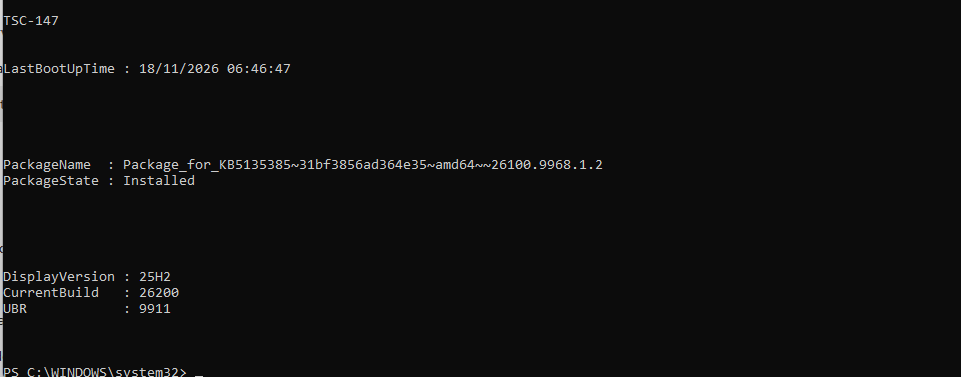
Verified local result on 18 November: the administrator supplied a new capture from TSC-147 showing LastBootUpTime: 18/11/2026 06:46:47 and the same KB5135385 package in Installed state. At that point, the OS still reported 25H2, build 26200.9911. These manual post-restart checks were subsequently corroborated by the full downloadable helper. The administrator also confirmed that sign-in and the applications used on the laptop worked normally after this restart.
The administrator ran the reviewed collector through Windows PowerShell on 18 November at 14:46:52 UTC. All four collection sections completed: 9 hotfix rows, 212 servicing-package rows and no incomplete sections. We checked the returned JSON, both CSV files and the DISM query log. Package identities, states and dates agreed after accounting for the CSV's local date format and time zone.
The script hash matches the downloadable copy. In that collection, the selected KB5135385 package was Installed, the recorded boot was 06:46:47 UTC and the OS remained 26200.9911, matching the earlier screenshot. This is the successful local collection from 18 November; it does not query Defender or represent the later Windows release shown in the portal. The original reports and log are retained privately.
Then reopen the same device in Defender. Confirm that the sensor has reported since the installation. Search for the same CVE with equivalent filters and review the affected software evidence. If the finding disappears, preserve that assessment together with the local installation evidence. Last-seen time alone does not prove the vulnerability inventory has refreshed.
Interim Defender follow-up, 18 November at approximately 06:59 UTC: the device last-seen value advanced to 06:47:08, after the local boot time. Searching for the same CVE still returned one finding against Windows version 10.0.26200.9911. This showed that the sensor had communicated again, but did not establish a refreshed vulnerability assessment. We kept the finding open without classifying it as a failed fix or a false positive. Further checks that day, including 20:28 UTC, still returned the CVE.
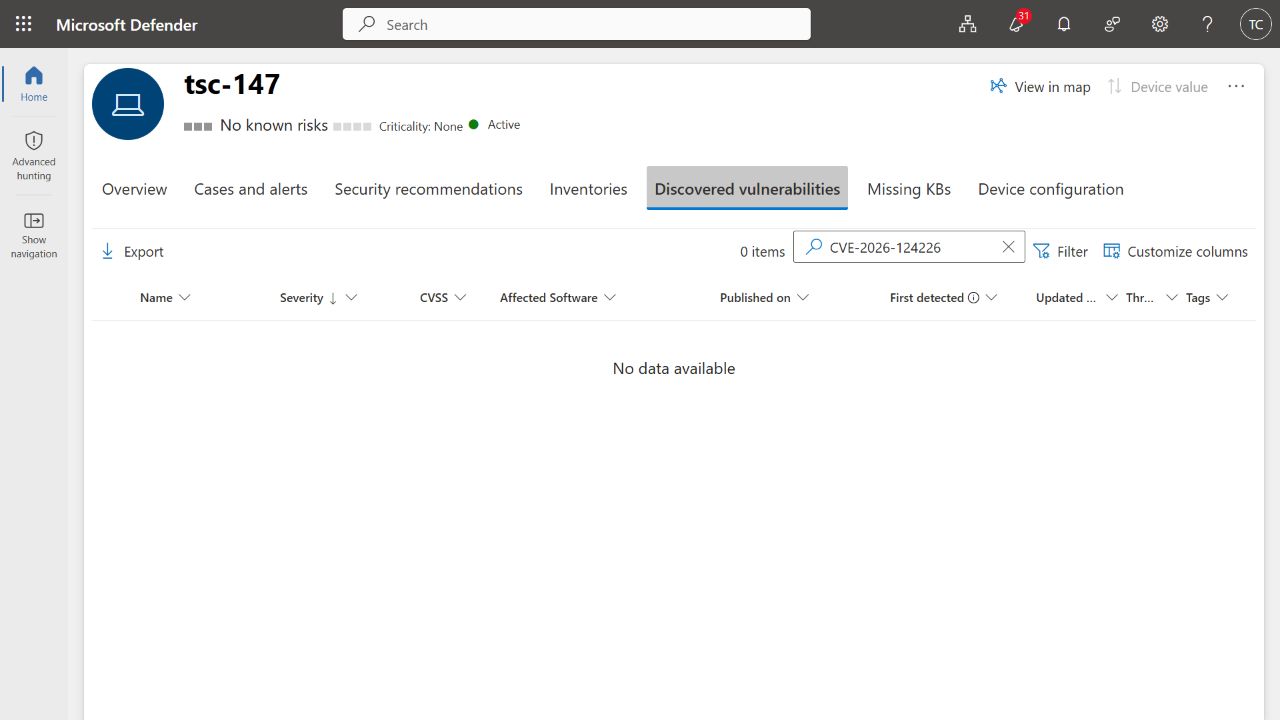
We reopened the same device record and confirmed the same Defender and Entra device identities. TSC-147 was Active and Onboarded, with a last-seen timestamp of 04:55:34 that morning. The unfiltered vulnerability list loaded with 42 findings; searching for exactly CVE-2026-124226 then returned 0 items and No data available. The selected finding was no longer listed in the current device assessment.
Account for the intervening OS change. Defender now reported Windows 11 26H2, build 26300.9974, rather than the 25H2 / 26200.9911 recorded locally on 18 November. We did not initiate or independently reconstruct that later OS change in this lab. The final observation supports recording the target finding as no longer reported on this device; it does not isolate the effect of KB5135385 or the earlier restart. The 42 remaining findings also mean this is not an all-clear for the laptop.
| Observation | What to record |
|---|---|
| Policy assigned; no installation evidence | Deployment requested. The fix is unverified. |
| Package installed; restart outstanding | Installation observed; activation may be incomplete. |
| Local fix confirmed; Defender still reports the CVE | Investigate assessment freshness, applicability, detection logic or another affected component. |
| CVE absent; local evidence missing | Do not attribute the change to the deployment without corroboration. |
| Local fix confirmed and fresh assessment clears the same finding | Evidence supports closure for this device and this CVE. |
Microsoft states that Defender Vulnerability Management typically reflects remediation within 24–48 hours after the fix is complete and the device reports updated software or version information. This is an expected window, not a guaranteed deadline measured from the restart. Keep the pilot online and record when you check it. A newer last-seen timestamp proves communication, not that the vulnerability inventory has refreshed.
If the CVE remains listed after that window, work through the evidence before repeating the installation:
- Check that the same device is online, onboarded and communicating. Investigate stale telemetry before judging the patch result.
- Recheck the advisory's exact product, architecture, prerequisites and any superseding update. Compare the actual package state and relevant component evidence with Defender's detection logic.
- If current evidence still contradicts the finding, retain the local outputs, device/CVE identity and timestamps for investigation. Use Defender's Report inaccuracy option or your Microsoft support route when appropriate. A support report or an exception does not establish that a vulnerability was fixed.
A change in the fleet's total CVE count can also reflect new disclosures, software inventory changes or device coverage, so the target device/CVE pair is the primary comparison.
6. Close the ticket with evidence
A useful closure note is short: what was affected, what was installed, when it was checked and which finding cleared. Attach the Before record, the deployment result and the reassessment. If the result is still pending, keep the ticket open and name the missing check.
For this lab, the evidence record reads: KB5135385 was confirmed Installed on TSC-147 after the 18 November restart. The local helper collection completed successfully. On 19 November at 07:04 UTC, Defender no longer listed CVE-2026-124226 on the same device. The portal then reported Windows 11 26H2 build 26300.9974; the later OS change prevents attributing the final result solely to the earlier action. Other findings remain in scope for separate remediation.
Only then complete any remediation task. Review temporary pilot assignments separately: removing a deployment assignment does not undo an update already installed. Keep successful security updates in place and use the documented rollback process only if the change causes a confirmed problem.
The weekly report can provide the next assessment snapshot when valid read-only authentication is available. Its application remains registered; no new permissions or patching functions are added to it.
Lab evidence and results
| Checkpoint | Observed result | Status |
|---|---|---|
| Same device in Intune and Defender | TSC-147 identity correlated across observations. Local build on 18 November: 26200.9911; Defender on 19 November: 26H2 / 26300.9974. | Verified |
| Initial CVE | CVE-2026-124226 visible in Defender on 18 November. | Verified |
| Microsoft mapping | Windows 11 25H2 x64 → KB5135385; the corresponding package is present locally. | Reviewed |
| Local package baseline | KB5132043 is listed; KB5135385 servicing package was InstallPending. | Verified |
| Remediation action | Intune Restart requested at 06:41 UTC; action reported Complete at 06:41:02. Subsequent local boot: 06:46:47. | Verified |
| Installed package | The same KB5135385 package now reports Installed in the administrator's post-restart capture. | Verified |
| Normal operation | The administrator confirmed normal sign-in and application operation after the 18 November restart; this is not a new smoke test of the later OS release. | User-confirmed |
| Full evidence helper | After run on TSC-147 at 14:46:52 UTC: four sections complete, 9 hotfixes and 212 packages. JSON/CSV and DISM log checked; script hash matches. | Verified |
| Final Defender result | 19 November, 07:04 UTC: exact CVE search returned 0 items; unfiltered list loaded with 42 findings. Same device identities; last seen 04:55:34. | Target absent |
| Intervening OS change | Defender now reports 26H2 / 26300.9974. The later change was not reconstructed in this lab; the final outcome cannot be attributed exclusively to the earlier restart or KB. | Recorded limitation |
Evidence retained: the original Before captures, local installation checks, validated helper run, interim Defender result and final assessment are recorded above. The later OS release/build change limits attribution to the earlier restart. The cover is an editorial illustration; the tenant and local screenshots are real captures.
Continue the workflow: use the weekly Intune and Defender report to identify your next finding, or open Scripts & Automation for the other administrator audit tools.
Microsoft references
Reviewed on 19 November 2026. Product interfaces and eligibility can change; check the current page before running your own change.
- Security Update Guide: CVE-2026-124226
- KB5135385: additional PowerShell security update for eligible Hotpatch devices
- Expedite policies for Windows quality updates
- Manage Windows quality updates: licensing, roles and prerequisites
- Defender vulnerability remediation requests and tracking
- Use Intune security tasks to remediate Defender findings
- Get-HotFix and its inventory limitations
- Get-WindowsPackage: query installed servicing packages
- Restart a device from Intune: permissions and user experience