You added the user to an exclusion group. The laptop still received the policy. Another sync did not help. Before rebuilding the profile, check what the assignment actually targets: the person, the device, or both through different paths.
This guide follows one small configuration change on a dedicated Windows laptop. The marker is the Home button in Microsoft Edge. It gives us something harmless to inspect while we investigate group exclusions and assignment filters.
1. Check that this is your ticket
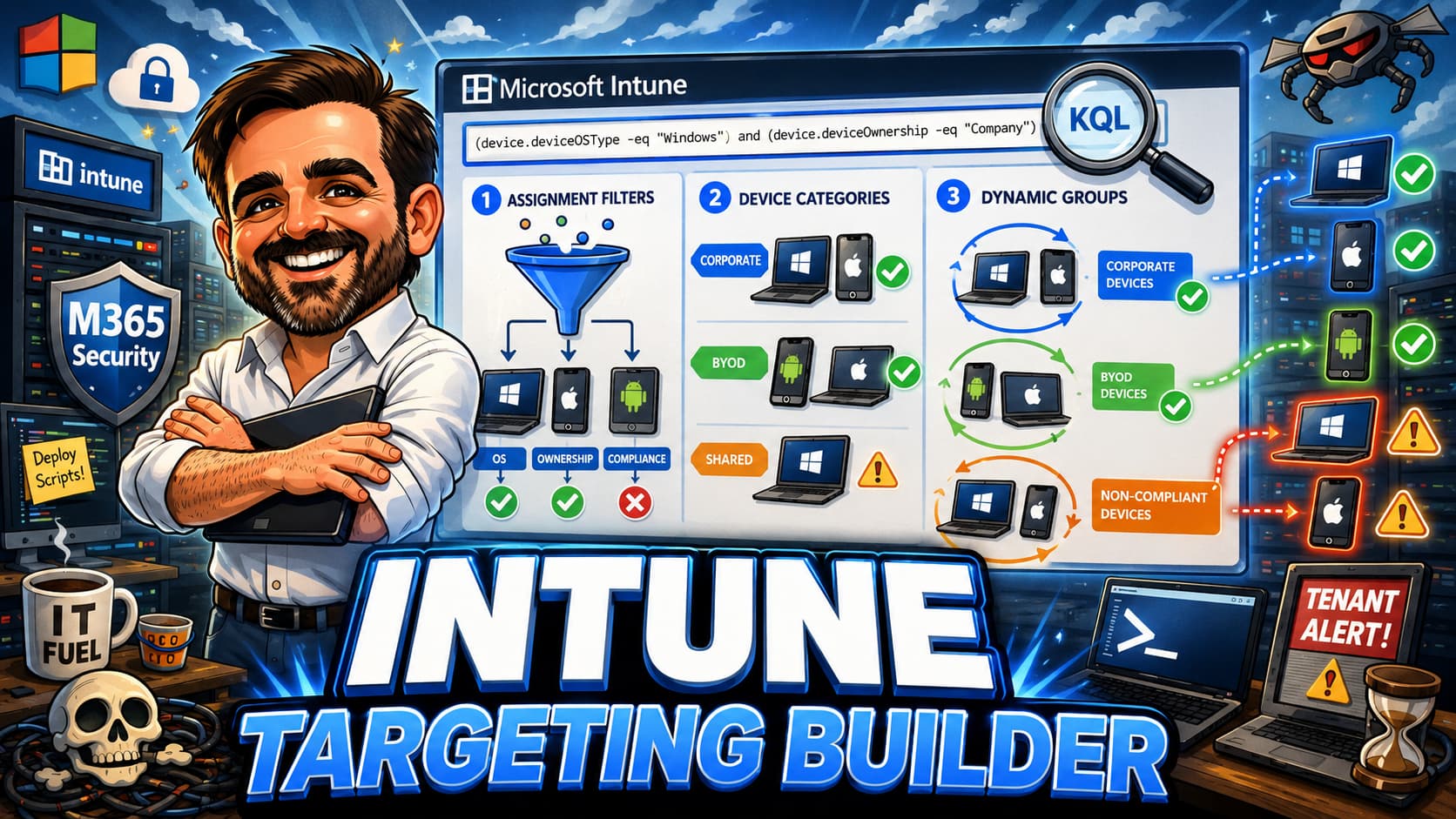
Use this guide when a configuration profile appears to reach a Windows device despite an exclusion. Start with the targeting guide if you are still deciding how to structure groups and filters. If the report says Not evaluated and there are overlapping app assignments, use Intune Admin Lab case 05.
| What you see | What to inspect next |
|---|---|
| A device assignment, with the device's user excluded | Compare the member types of the included and excluded groups. |
| A filter matched, but the device received the policy | Read the filter mode. Match with Include and Match with Exclude have opposite outcomes. |
| The assignment has stopped, but the setting remains | Inspect the effective setting, another policy source and removal behaviour. |
| The result is unchanged immediately after saving | Compare the save time, device check-in and report time before drawing a conclusion. |
You need an Intune-managed Windows device, access to configuration profiles and assignment filters, and permission to create the two lab groups. Microsoft's profile procedure lists the Policy and Profile Manager role; group management is a separate permission. Use a dedicated test device and your organisation's delegated roles.
2. Separate group membership from setting scope
A user group and a device group are different targeting sets. Intune does not infer a user-to-device relationship to turn an excluded user into an excluded device. The primary-user field is useful context; it is not an exclusion rule.
The supported correction depends on the intent: use compatible group exclusions, or use a managed-device assignment filter to refine the target. The filter is attached to an assignment; a filter by itself does not deploy anything.
| Included target | Exclusion | Interpretation |
|---|---|---|
| Device group | User group | The excluded users do not automatically exclude their devices. |
| Device group | Another device group | A same-type group exclusion can remove the device from the target. |
| User group | Device group | The excluded devices are not inferred from the included users. |
| User or device group | Exclude-mode device filter | A matching device is excluded from that filtered assignment, subject to workload support and assignment conflict resolution. |
Do not confuse this with the setting's User or Device scope. Those labels describe enforcement. For example, a machine-level Edge policy can affect the browser on the device even when the target was a user group. The assignment and the setting scope are two separate checks.
3. Record the baseline before creating the profile
Open Devices → All devices → TSC-147. Record its Intune and Entra device identities, primary user and latest check-in. Use the identities to distinguish the current record from an old registration with the same name.
On that laptop, open edge://policy and search for ShowHomeButton. If the setting is already managed, choose a different harmless marker rather than overriding an existing configuration. Also check the device's current Intune configuration profiles.
Use the Edge work profile throughout the test. Microsoft documents that ShowHomeButton does not apply to a profile signed in with a personal Microsoft account. Check the profile avatar and use the same work profile for the baseline, delivery and cleanup checks.
The optional read-only local check reports whether ShowHomeButton exists in the machine and current-user policy locations, including the recommended-policy locations. It does not write to the registry, install modules or contact the tenant. A failed read is reported as a failure, not as an absent policy.
Helper validation: its syntax and wrong-device guard have been checked, but this helper has not been run on TSC-147. The completed lab used the Intune portal and edge://policy. Read the helper README for usage and limitations; the helper is optional.
.\Read-EdgeHomePolicy.ps1 -ExpectedComputerName 'TSC-147' | Format-ListWhen repeating the lab, replace TSC-147 with your approved test device name. The helper stops if the name does not match the computer running it.
HKCU refers to the account running the PowerShell window. Inspect edge://policy in the intended Edge profile as well; a registry value alone does not establish which management service supplied it.
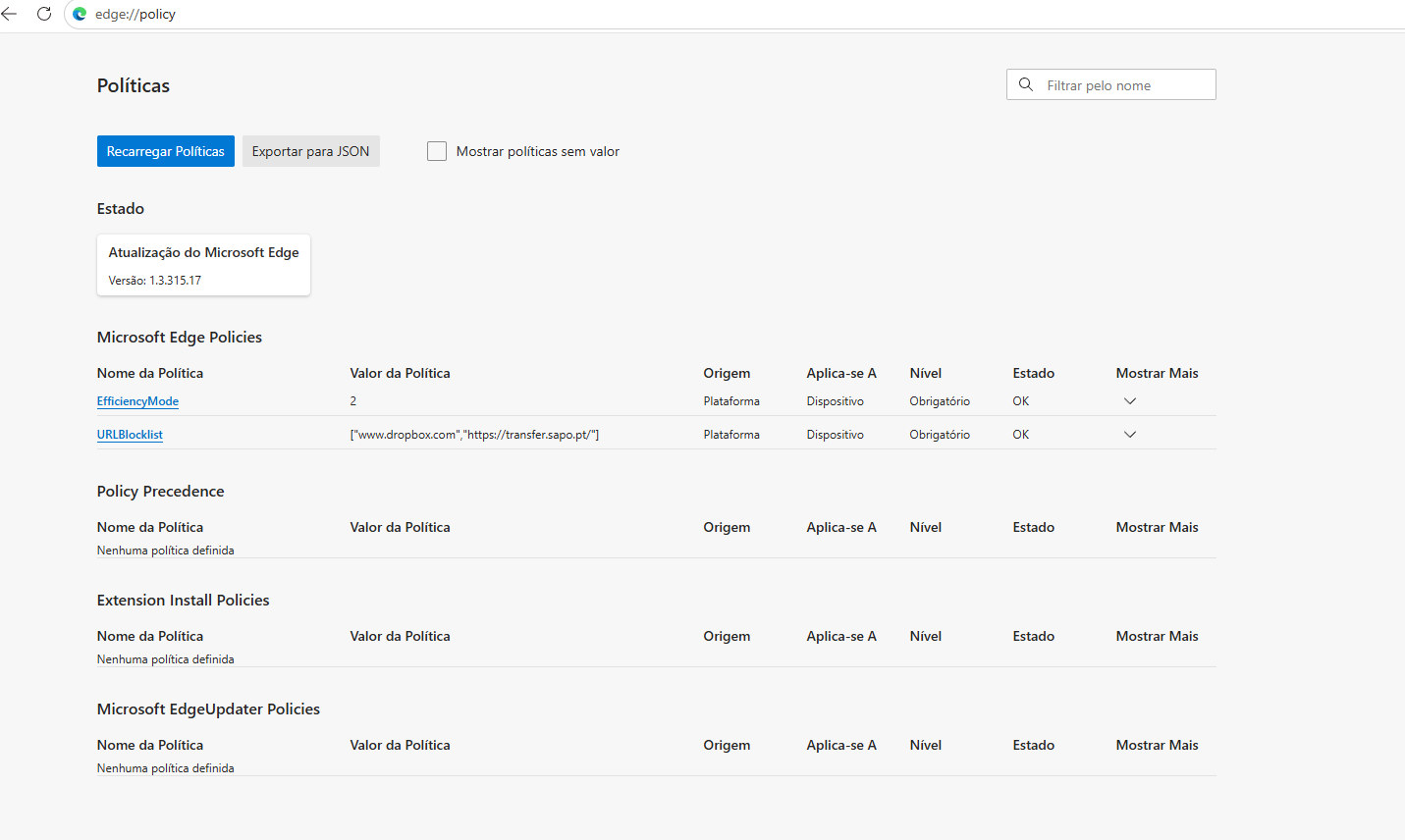
The current Intune record identifies TSC-147 as a Windows Pro device on build 10.0.26300.9974, with a check-in at 09:22 on 19 November. We matched its Entra identity before selecting the group member. The existing configuration report showed five succeeded rows across three policies; no existing policy was edited for this test.
4. Limit the test to one device
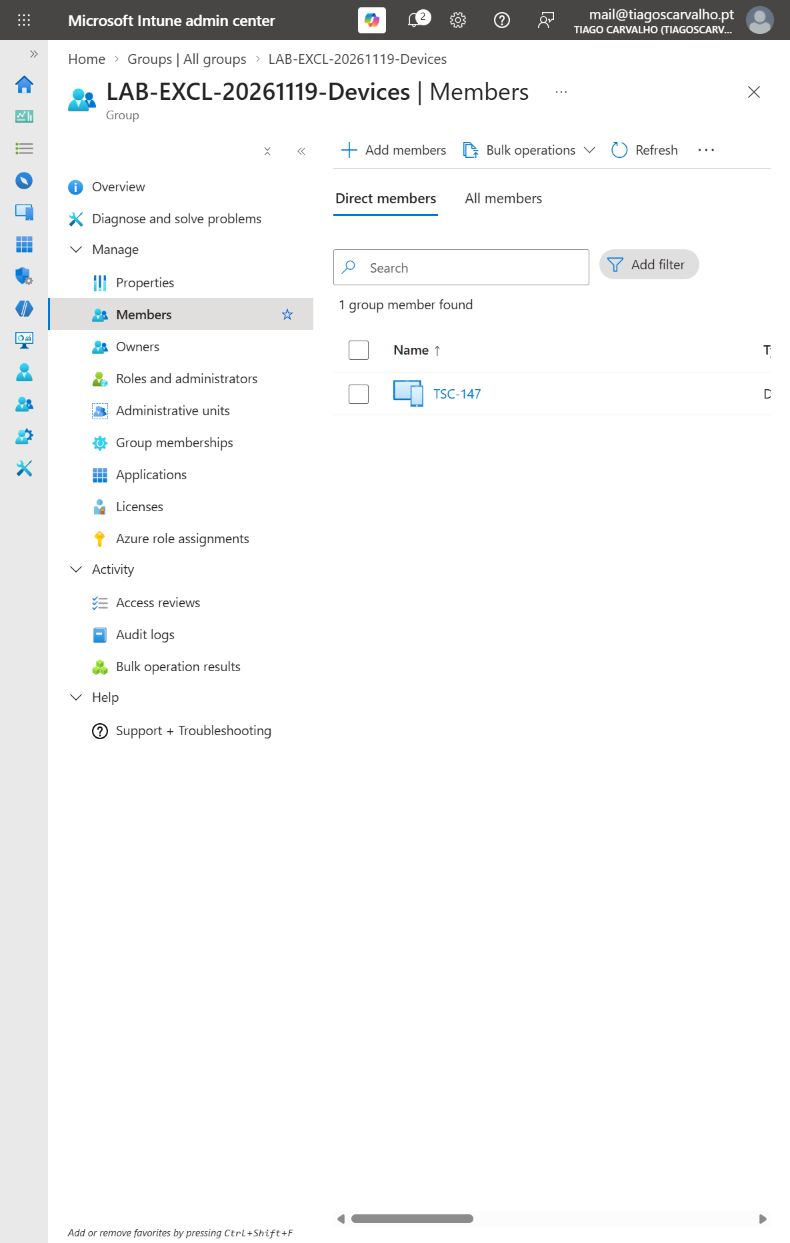
For this lab, prepare an Assigned security group named LAB-EXCL-20261119-Devices with exactly one direct member: the Entra device object matching TSC-147. Prepare a second Assigned group, LAB-EXCL-20261119-Users, containing only the verified lab user associated with that laptop. Give neither group a directory role or access to an application.
The device group is the included target throughout the test. The user group is used only as the original exclusion. This keeps the deployment limited to the one laptop while demonstrating the mixed group types.
Create a Windows 10 and later → Settings catalog profile named LAB-EXCL-20261119-EdgeHomeButton. Find Microsoft Edge → Startup, home page and new tab page → Show Home button on toolbar. Select the machine/device version of the setting and enable it. Leave the home-page URL and all other settings unchanged.
Microsoft documents this setting as a visual control: enabled shows the button, disabled hides it, and an unconfigured policy leaves the choice to the user. It supports dynamic policy refresh. A Home button appearing is a useful marker, but the effective policy and its source are the stronger evidence.
5. Observe the original exclusion
- Include
LAB-EXCL-20261119-Devices, without a filter. - Exclude
LAB-EXCL-20261119-Users. - Review and save. Reopen the saved properties and capture both group names and modes.
- Synchronise the TSC-147. Record when it next checks in.
- Open the profile's Device and user check-in status and inspect its per-setting result for the laptop. Compare the timestamp with the assignment change.
- Inspect
ShowHomeButtonin the same Edge profile and retain the local result.
What to look for: the user exclusion does not remove this laptop from the device-group assignment. Check both the device report and the local policy before changing the targeting.
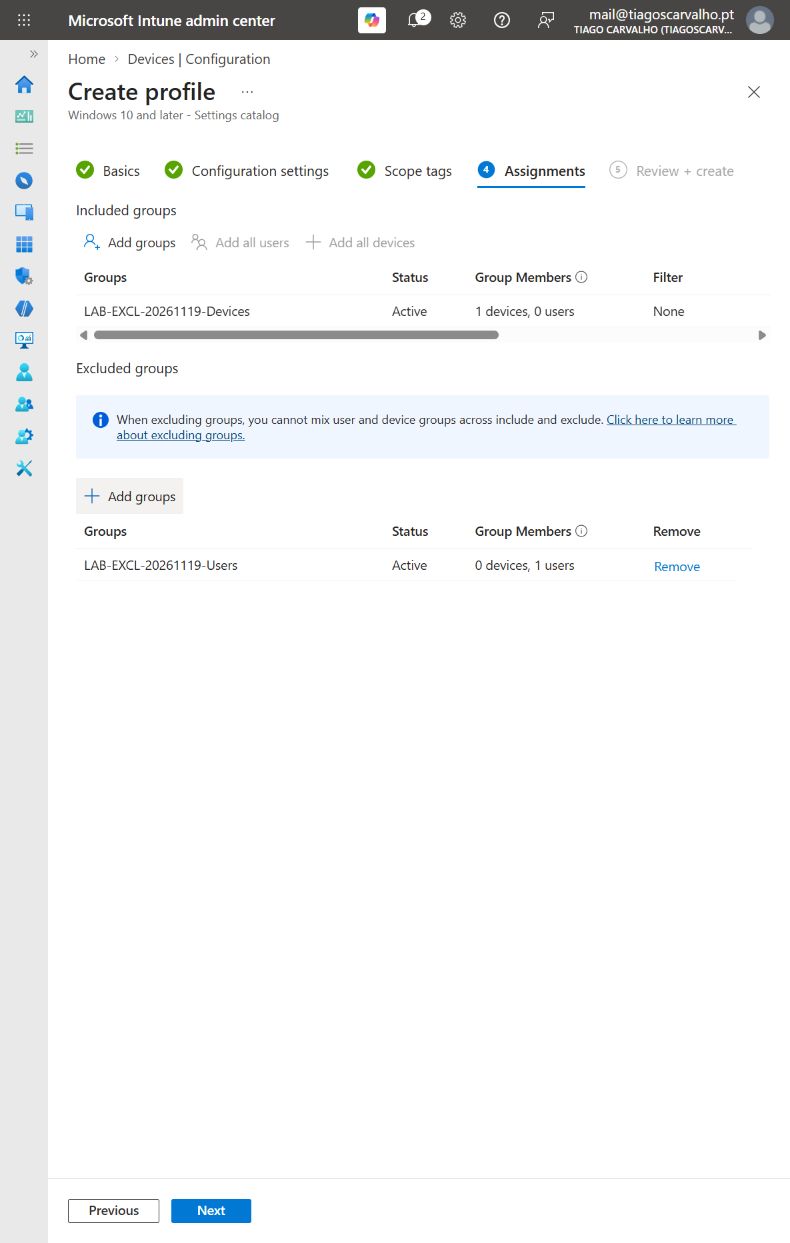
In this tenant, Intune allowed us to save this configuration at 09:41 on 19 November. We reopened the saved profile and confirmed the two groups, no filter and the enabled Home-button setting. A successful save therefore does not validate the intended exclusion.
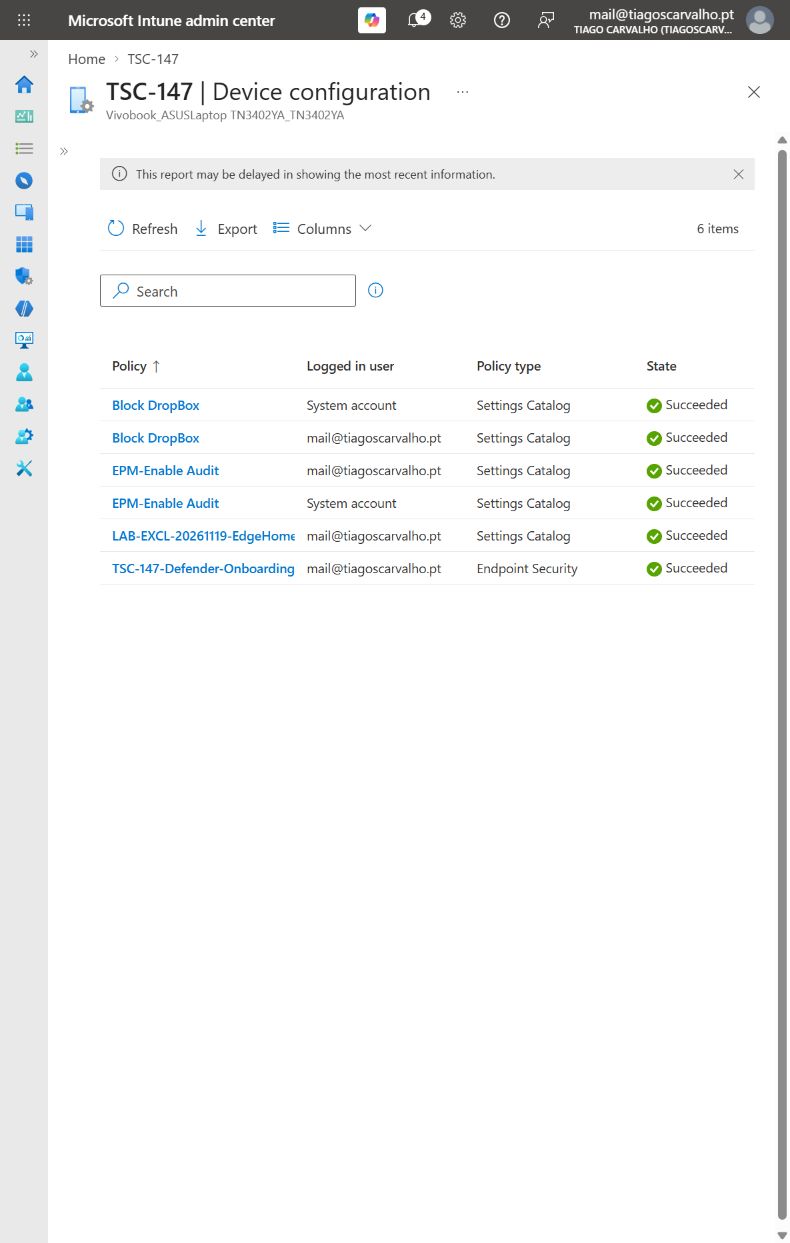
Observed: the original assignment reached TSC-147. After synchronising and refreshing edge://policy, the administrator also confirmed that ShowHomeButton appeared locally. The next stage keeps the same included device and changes only the exclusion method.
6. Correct the targeting and read a fresh evaluation
Use a same-type device exclusion when the exception is maintained as device membership. Use an assignment filter when a supported device property describes the exception. Here we use the filter path, which provides an evaluation record to inspect.
- Create a managed-device filter for Windows, named
LAB-EXCL-20261119-TSC147. - Use the exact lab rule shown below. Preview the matching devices and verify the intended laptop.
- Edit the profile assignments. Remove the user-group exclusion.
- Keep the same included device group, then attach the new filter in Exclude filtered devices in assignment mode.
- Save, capture the saved properties and synchronise TSC-147 again.
- Inspect a filter evaluation generated after the correction. Preserve its timestamp, mode and result.
(device.deviceName -eq "TSC-147")The name is a lab selection rule, not a permanent device identifier. The single-member included group provides the deployment boundary. In a larger environment, choose properties that remain reliable through the device lifecycle and check workload support before using the filter.
Allow for reporting delay: Microsoft states that filter results can take up to 30 minutes after evaluation to appear in the portal. The filter name and rule displayed in the details reflect the current configuration, so compare the evaluation time with the last modification time as well.
| Mode | Result | Meaning for the assignment |
|---|---|---|
| Include | Match | Keep the device in scope |
| Include | No match | Leave it out |
| Exclude | Match | Leave it out |
| Exclude | No match | Keep it in scope |
Read all assignments on the profile before diagnosing a surprising result. Filter-mode precedence and overlapping paths can change which filter is evaluated. A Not evaluated result needs that investigation; it is not evidence that the device matched an exclusion.
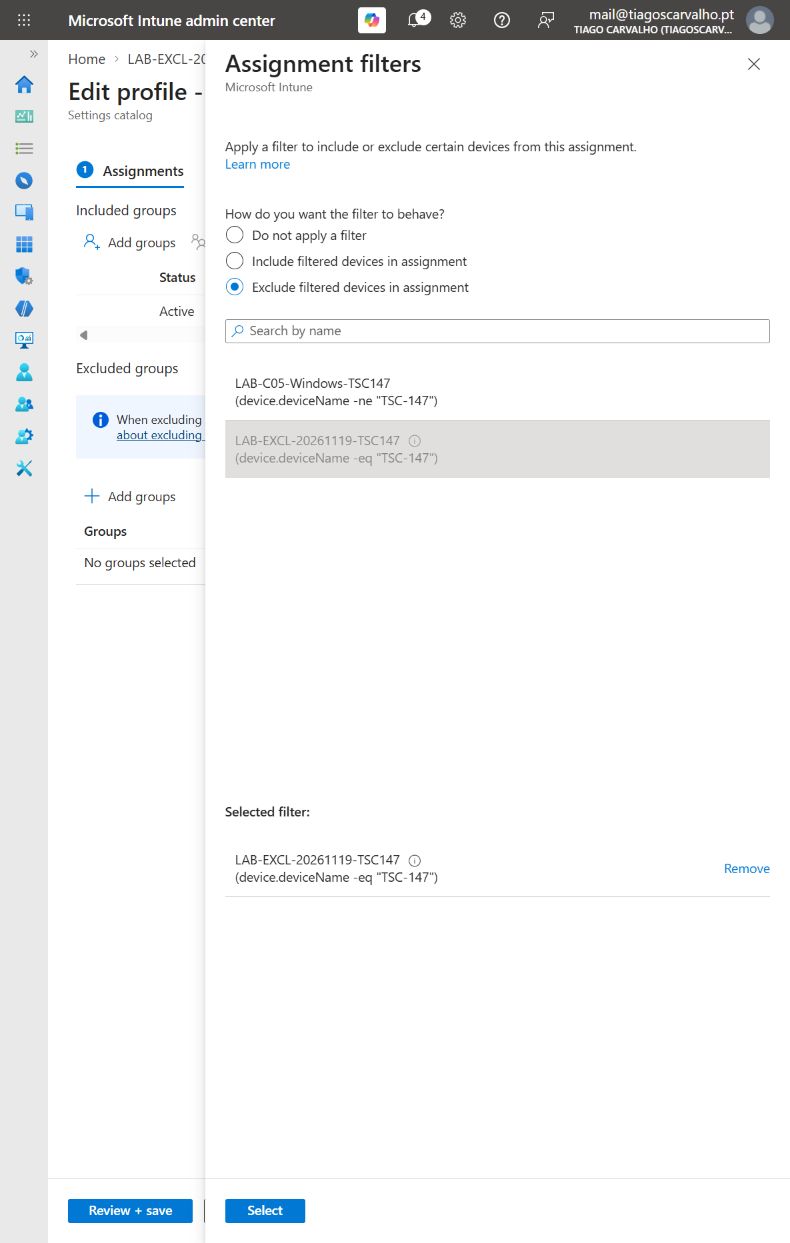
The corrected assignment was saved at approximately 09:52 on 19 November. It retains the same one-device include group, removes the excluded user group and attaches LAB-EXCL-20261119-TSC147 in Exclude mode.
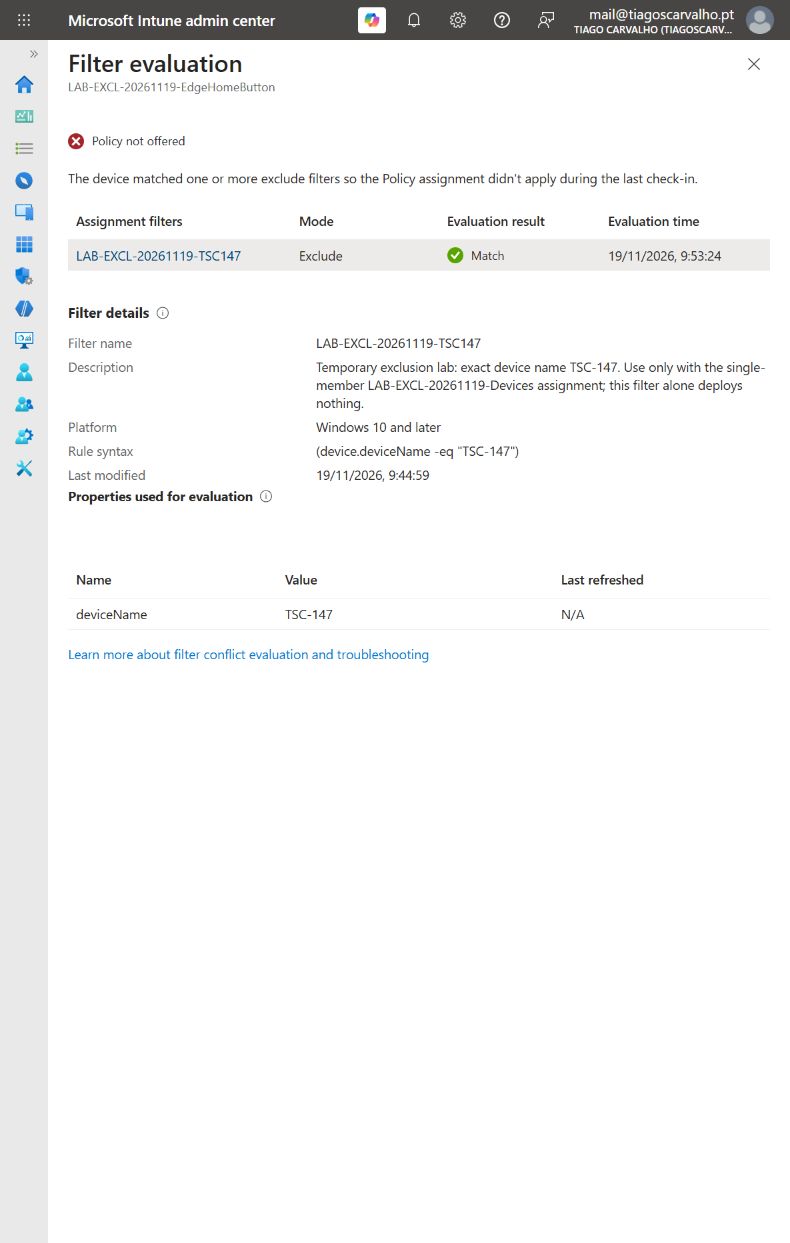
Observed: at 09:53:24 on 19 November, the filter matched deviceName = TSC-147 and the portal displayed Policy not offered. This is the targeting result we needed. The red icon beside that message represents the policy being excluded; in this test, it is the intended outcome.
7. Close the ticket with evidence, not just a saved change
Use three records: the saved assignment, the device's subsequent evaluation and the effective local policy. Each answers a different question. A historical Succeeded row can describe an earlier delivery; it does not establish what the corrected assignment does now.
An exclusion also does not mean an installed app is uninstalled, nor that every Windows setting immediately returns to its previous value. Removal behaviour depends on the policy and workload. If the local value remains, check other profiles and management sources before changing the registry.
For cleanup, remove the pilot assignment, let the device check in and compare the effective Edge policy with the recorded baseline. Preserve a record of any unassigned lab objects retained for review. Do not mark cleanup complete until the evidence supports it.
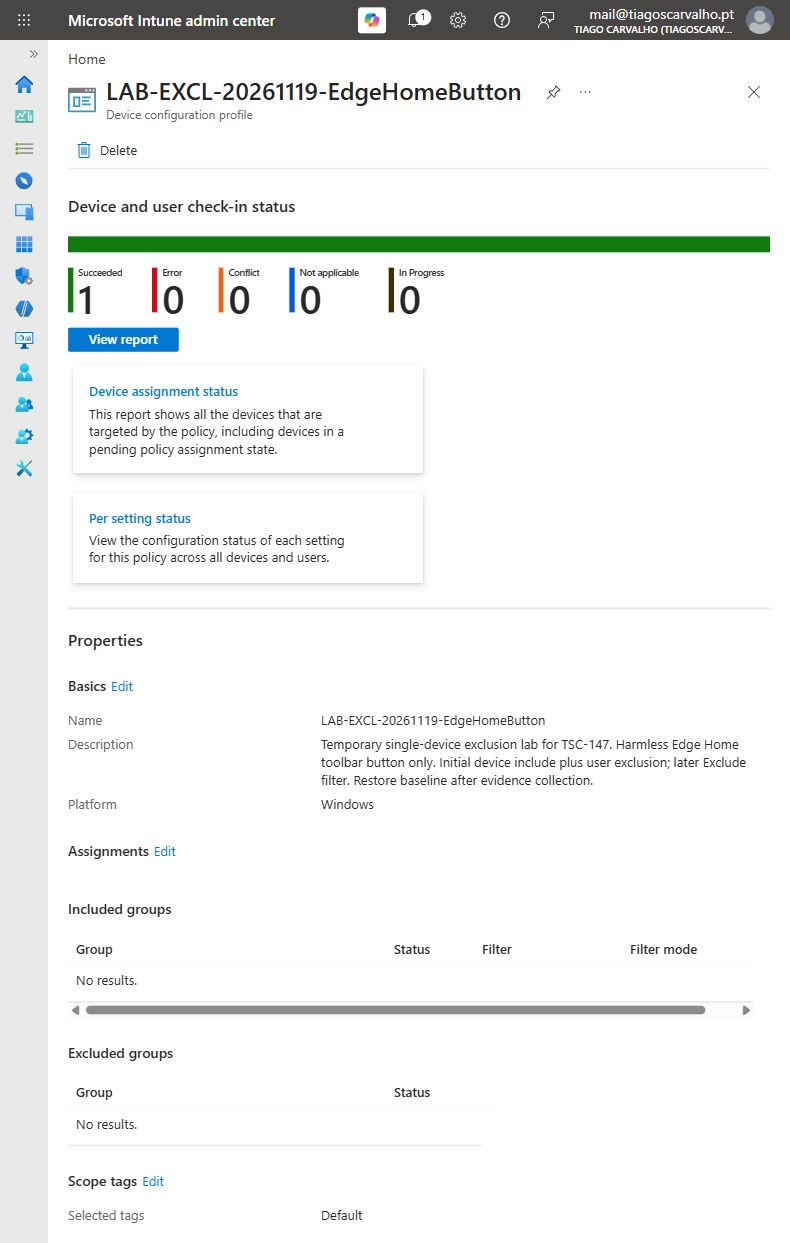
Lab cleanup: we removed the remaining included assignment and reopened the saved profile. Both the included and excluded group lists are empty. The unassigned profile, the two groups and the filter are retained for review. None of these objects now deploys the test setting.
Local result: after synchronising the laptop and refreshing edge://policy, the administrator confirmed that ShowHomeButton disappeared. This confirmation was provided in text; Figure 6 is the independently captured Intune result. The local marker is back to its unmanaged baseline, and the profile has no remaining assignment.
Download the investigation worksheet to record group types, assignment changes and the two evaluation times. The useful outcome is a repeatable explanation of why that one laptop received the profile and what changed its targeting.
Microsoft references
Checked on 19 November 2026. Portal labels and supported workloads can change; use the linked documentation when applying this procedure elsewhere.