1. Trace the ticket
“I put an Include filter on the app. Why did Intune still offer this app to the laptop?”
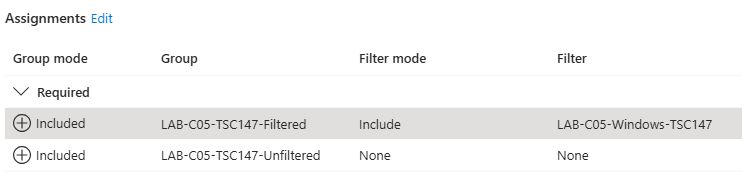
Start with the app, the device and the time of the last check-in. An app can reach the same laptop through two groups. The filter you remember editing may belong to only one of those assignments.
In this lab, the app is a Windows web link to Microsoft Learn. Windows can place this shortcut on Start without running an installer. Choose the Windows-specific app type, which supports assignment filters. The generic Web link type does not. The pilot uses TSC-147, an Intune-managed Windows device. Both groups contain that device as a direct, assigned member. The group names are distinct, and both app assignments use Required.
Recreate the pilot in your own tenant
- Create two assigned security groups in Entra. Add the same test device directly to both and verify each group has exactly one member.
- In Intune, go to Devices → Assignment filters → Create → Managed devices. Select Windows 10 and later. Use the property
deviceName, operatorNotEqualsand the exact name of your pilot laptop. - Open Apps → Windows → Create → Windows web link. Give it a distinctive name, use a Microsoft Learn URL and enter a publisher. At Assignments, add both groups to Required. On the first group, change Filter mode to Include filtered devices in assignment and select the filter. Leave the second row at None. Save and reopen Properties.
To follow along, use a dedicated, connected Windows device, two assigned security groups containing only that device, and an Intune operator with access to apps, filters and device reports. Use an operator with group-management permissions to set up the groups. Download the case worksheet to track the two check-ins.
2. Find both paths to the laptop
Open Apps → Windows → select the lab app → Properties → Assignments. Expand Required. Read across each row. “Included” in the Group mode column means the group is targeted. The separate Filter mode column tells you whether the device still needs to match a rule.
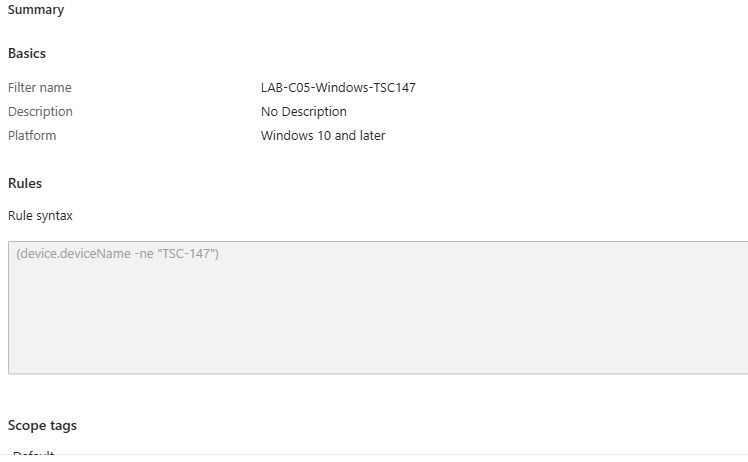
In Devices → All devices → TSC-147 → Group membership, check for both names. We verified a direct membership in each. Under Devices → Assignment filters, open LAB-C05-Windows-TSC147 and read its Windows rule:
(device.deviceName -ne "TSC-147")We deliberately used “not equal” so this device cannot match the filtered path. On its own, an Include assignment with this rule would skip TSC-147. Only the test groups are targeted. A filter can match devices elsewhere in the tenant without assigning the app to them.
See the filter configured in the tenant
3. Read the evaluation on the device
Use Devices → All devices → TSC-147 → Sync, then reopen Filter evaluation. Look for the lab app, open its row and record the time, filter name, result and assignment outcome. Also check Apps → Windows → lab app → Device install status. Record the install status separately. On the laptop, search Start for the exact shortcut name, Intune Admin Lab 05 - Learn shortcut.
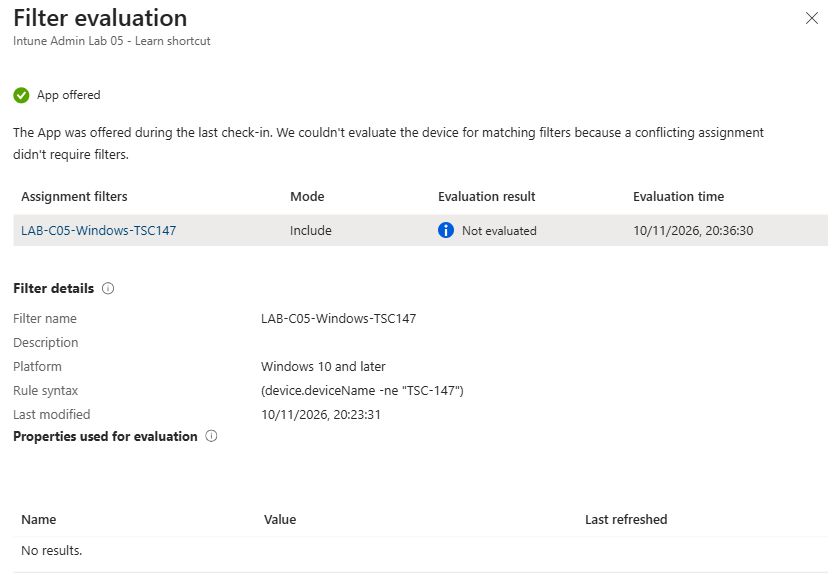
For this pair of Required assignments, the unfiltered assignment takes precedence over the Include assignment. Intune can display Not evaluated for the competing filter. A No match result means the rule actually ran and the device failed it. An empty report means you still lack a recorded result. Microsoft allows up to 30 minutes after evaluation for filter results to appear. A sync request alone only establishes that a check-in was requested.
Intune recorded App offered and Not evaluated at 20:36:30 on 10 November 2026, Lisbon time. The service explained that a competing assignment did not require a filter. This identifies the unfiltered path in our two-row configuration.
We then checked Devices → All devices → TSC-147 → All apps → Managed apps. This tenant has the newer All apps report alongside the earlier Managed apps page. The shortcut showed Required install and Installed.

The operator later reported that the shortcut was absent from Start. That observation arrived after the assignment edit. Our evidence for the overlap therefore establishes the service-side offer, filter decision and reported installation. Direct observation of the shortcut during the overlap was not captured.
4. Remove one assignment and test again
Capture the first result before editing. In App properties → Assignments → Edit, remove only LAB-C05-TSC147-Unfiltered from Required. Keep the filtered group, Include mode, rule and both group memberships unchanged. Save, reopen Properties and verify the single remaining row.

Sync the same laptop again. Look for a new evaluation later than the saved edit, on the same device and app. With the filtered path alone, the expected result for TSC-147 is No match and the remaining Required assignment should no longer apply. Record the wording the portal actually shows. A previously delivered shortcut may still be visible. Removing an assignment is a change of scope, and the presence of an existing shortcut is a separate observation.
The retest recorded No match and App not offered at 21:04:07 on 10 November 2026, Lisbon time. The report shows deviceName = TSC-147 as the evaluated property. The filter rule and its last-modified time, 20:23:31, are unchanged from the baseline.
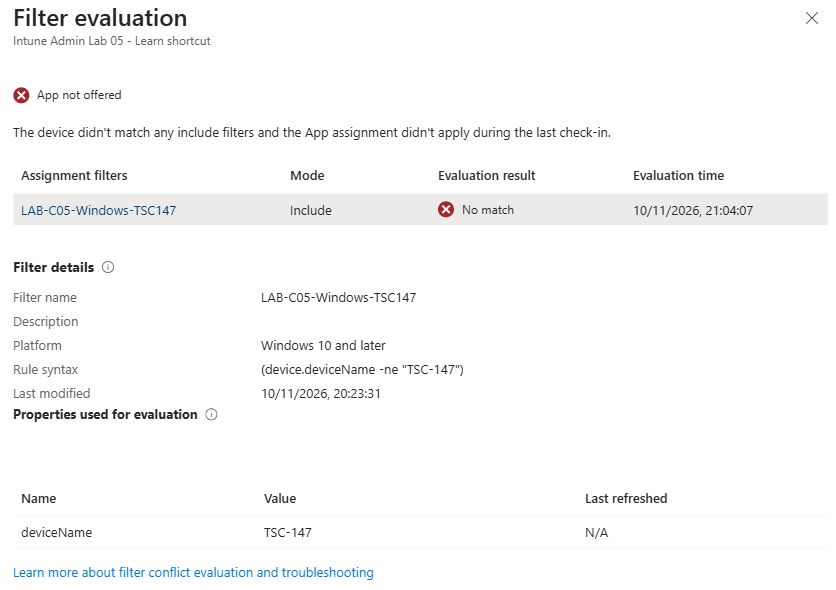
The device overview later showed a check-in at 21:33. The filter report retained its own evaluation time of 21:04:07. Record both independently. A newer check-in does not change the timestamp of an earlier report.
| Configuration | Evaluation time | Filter result | App outcome |
|---|---|---|---|
| Both Required assignments | 20:36:30 | Not evaluated | App offered |
| Filtered Required assignment only | 21:04:07 | No match | App not offered |
The comparison answers the ticket. In this two-assignment configuration, the unfiltered Required path caused the offer. After that path was removed, the unchanged Include rule ran and did not match the laptop. This validates the assignment decision. It does not prove when a shortcut appeared or disappeared on Start.
What if the report disagrees with the prediction?
Confirm the Intune device name from the device record. Check all assignments, their intent, Include or Exclude mode, and whether the device or its user belongs to another targeted group. Compare the evaluation time with the filter’s last-modified time. The portal can show today’s filter definition beside an older evaluation. For an app assigned as Available, open the app list in Company Portal to trigger evaluation and use the per-device report.
5. Close the ticket with evidence
A useful handover names the device, the app, both groups, their common intent, and the one thing you changed. Attach the before-and-after reports with their times. Say whether the app was offered, the service reported installation, or someone saw the shortcut on the device. Each answers a different part of the ticket.
For cleanup, record any remaining shortcut before removing the test deployment. If the shortcut was delivered, remove the remaining Required assignment. Add an Uninstall assignment for LAB-C05-TSC147-Filtered, after confirming that it still contains only TSC-147, and set Filter mode = None. Keep the app name unchanged. Save and reopen Assignments to verify the group, intent and filter mode, then sync the laptop.
Reusing the lab’s Include filter would prevent the Uninstall assignment from applying to TSC-147. Check Start and the uninstall status before removing the Uninstall assignment and the lab app. Delete the dedicated filter and groups only after verifying they have no other assignments.
Lab state after the retest. We retained the app, the two single-device groups and the unchanged filter for review. Only the filtered Required assignment remains. The observed result is App not offered for TSC-147. Cleanup and shortcut removal have not been tested.
6. Microsoft references
- Add a Windows web link in Intune
- Assignment filter reports, conflicts and precedence
- App types and workloads that support assignment filters
- Uninstall an app and remove its assignments
For the broader targeting design, see the blog’s Intune targeting guide.