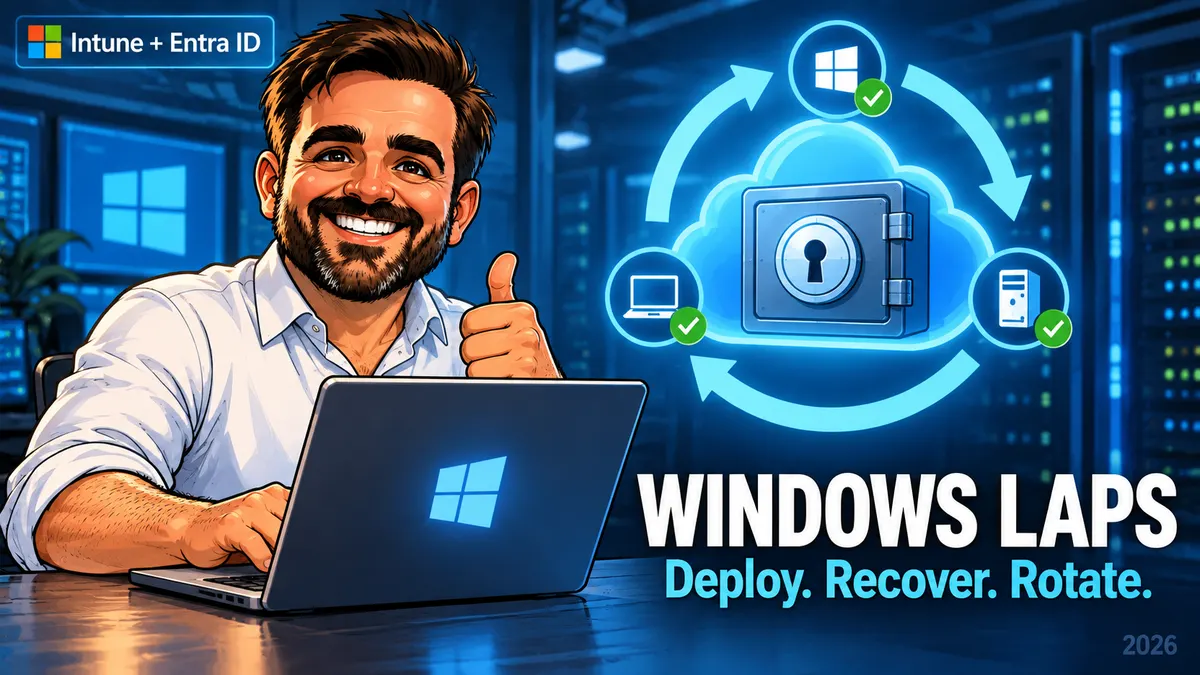
The local administrator account is most valuable when the normal support path has already failed. That is a poor moment to discover that the password was never backed up, the helpdesk cannot retrieve it, or the account exists but cannot sign in.
Windows LAPS can give each managed device its own rotating local administrator password. The useful outcome, though, is a recovery process: a named operator can recover the right device, complete the work, rotate the credential and leave evidence that the incident is closed. This guide builds towards that outcome with Intune and Microsoft Entra ID.
Key takeaways
- Define success as recovery plus evidence. Assignment, directory backup, local use and rotation each need their own check.
- Choose the account strategy before the profile. Automatic account management and the older manual approach have different responsibilities.
- Design the operator path. Policy administration, password retrieval and remote rotation are different jobs.
- Make the pilot prove the failure cases. Include an unauthorised operator, an offline device and a deliberately out-of-scope device.
- Keep credentials out of evidence packs. Device identifiers, timestamps, event IDs and outcomes are enough for the rollout record.
Download the metadata-only PowerShell report · Download the pilot and recovery checklist
The script contains no password retrieval or rotation operation. Review it before connecting it to your tenant.
1. Start with the recovery contract
Before opening the policy editor, write down the scenario you intend to solve. A laptop with a broken management agent is different from a stolen laptop, and both differ from a user who needs to install one approved application. Give the support team one clear route for each.
My suggested contract is simple: the device remains associated with a known owner and identity; an authorised operator can obtain its current recovery credential; the operator can use the intended local account through the approved support channel; and the credential is replaced after the work. The ticket records those outcomes, never the password.
LAPS governs the password of a managed local account. Endpoint Privilege Management addresses a different operational need: allowing standard users to perform selected elevated tasks through policy. Using LAPS credentials for everyday application installation turns an emergency recovery mechanism into a routine distribution channel for administrator access. For that use case, evaluate Intune Endpoint Privilege Management and the local administrator rights guide.
- 1ConfigurePolicy reaches the intended device.
- 2Back upThe directory holds recovery data.
- 3RecoverThe authorised operator completes the task.
- 4RotateThe used credential is replaced.
- 5VerifyThe evidence closes the change.
This sequence also gives you a practical incident triage order. If the password is missing, investigate backup. If it exists but the operator cannot see it, investigate authorisation. If the password is visible but cannot be used, investigate the device, account and sign-in path. Recreating the Intune profile at every stage obscures which part actually failed.
2. Check the device and licensing boundary
For this Intune-managed design, Microsoft lists Intune Plan 1 and Microsoft Entra ID Free as the base requirements. Custom Entra roles, administrative units and Conditional Access have separate licensing requirements. Do not turn that into an E5 requirement for LAPS itself. See the Intune prerequisites and Entra requirements.
| Device state | Decision for this guide | Pilot check |
|---|---|---|
| Microsoft Entra joined | Use Microsoft Entra ID backup. | Verify the matching Entra device identity and tenant setting. |
| Microsoft Entra hybrid joined | Choose Entra or AD backup deliberately; one device does not back up to both simultaneously. | Record the directory selected for this device. |
| Microsoft Entra registered only | Not supported for Windows LAPS cloud backup. | Resolve the management design before including the device. |
| AD-only or unmanaged client | Outside this Intune + Entra walkthrough. | Use an appropriate deployment and recovery design. |
Use a currently supported Windows release and servicing level. Automatic account management and the newer password options require Windows 11 24H2 or later; that feature floor is not a statement that every edition of 24H2 remains in support. Separate operating-system lifecycle decisions from LAPS capability checks.
For each pilot device, record the edition, version, build, join type, Entra device ID and current management source. A display name alone is a weak identifier: re-enrolment and naming conventions can leave more than one object looking like the same laptop. Keep the identifier alongside the test result so another engineer can reproduce the lookup.
3. Choose manual or automatic account management
In manual mode, the administrator owns account creation and configuration; LAPS owns its password. Leaving AdministratorAccountName empty targets the built-in Administrator by its well-known identifier, including when it has been renamed. Supplying a custom name does not create that account.
Automatic mode can create and manage a custom account, control its enabled state and randomise its name. Microsoft recommends this mode where its account configuration fits the requirement, preferably with a custom account and the built-in Administrator left unused and disabled. The capability starts with Windows 11 24H2 and Windows Server 2025; this walkthrough remains scoped to Windows clients. See account management modes.
For a new deployment, my starting choice is a dedicated automatically managed account. For an existing estate, first find out whether provisioning scripts, recovery tooling or support procedures depend on the current account. A cleaner account name is not a good reason to interrupt an established recovery route without testing its replacement.
Decide explicitly whether the recovery account should remain enabled. A disabled account adds protection but also requires an enablement path before it can be used. If the recovery scenario is an offline laptop, a design that depends on delivering a fresh cloud policy at that moment needs another route. Write down that trade-off and test the chosen route with the support team.
With automatic management, do not layer an account-management script on top that renames, deletes or otherwise modifies the same account. Windows protects the automatically managed account against those changes. Make the LAPS policy the owner of that account configuration and review any existing local-group enforcement policies as part of the pilot.
4. Separate policy, recovery and rotation permissions
Test with the identity that will actually perform support work. A successful demonstration using a highly privileged administrator proves little about the helpdesk experience.
| Task | Permission boundary | What to verify |
|---|---|---|
| Create or manage the policy | Intune Security baselines permissions; Endpoint Security Manager is a documented built-in option. | The policy administrator can manage the intended scope. |
| Read the password | Entra microsoft.directory/deviceLocalCredentials/password/read. The standard/read action exposes metadata only. | The recovery operator can reveal the intended device's credential, and cannot retrieve an out-of-scope device's credential. |
| Request remote rotation | Intune: Managed devices / Read; Organization / Read; Remote tasks / Rotate Local Admin Password. | A custom Intune role supplies the rotation permission and has the right assignment scope. |
The rotation permission is not included in Intune's built-in roles. An Entra Intune Administrator can have password-recovery rights without automatically having that Intune remote-task permission. The Intune password pane can also be unavailable because of its access requirements. Check the LAPS RBAC requirements rather than adding a broad role to make a button appear.
For delegated Graph retrieval, application consent and the signed-in user's directory role are both relevant. Actual credentials require DeviceLocalCredential.Read.All and an authorised role; basic metadata uses the less privileged read permission. Microsoft documents those requirements on Get deviceLocalCredentialInfo. The downloadable report deliberately does not use the password-reading permission.
My suggested operating model is to keep the policy owner, recovery operator and routine reporting identity separate where the team size permits it. Then test the boundaries directly: one authorised recovery, one denied recovery, and one device outside the operator's intended scope. Document the actual result, including any unexpected access, before expansion.
5. Build one small pilot policy
For the Entra-joined path used here, enable Local Administrator Password Solution (LAPS) under Entra ID → Devices → Overview → Device settings with an appropriately authorised administrator. Then configure the client policy to use Entra backup. The tenant setting alone is not a device deployment. Microsoft's Entra getting-started guide explains the two parts.
In Intune, open Endpoint security → Account protection → Create Policy. Select the Windows platform and Local admin password solution (Windows LAPS) profile. Use a descriptive name such as LAPS | Windows | Entra | Pilot, record the purpose in the description and assign it to a small device group. Microsoft recommends device targeting and one intended LAPS policy per device to avoid conflicting settings and changes driven by different users signing in. See policy deployment.
| Setting | Example choice | Design reason |
|---|---|---|
| Backup Directory | Microsoft Entra ID (1) | Use the cloud recovery path covered in this guide. |
| Automatic Account Management Enabled | Enabled | Give one policy responsibility for the account lifecycle. |
| Automatic Account Management Target | New custom account (1) | Keep recovery separate from the built-in account. |
| Name or Prefix | LapsAdmin | A recognisable prefix for the support runbook. |
| Randomize Name | Enabled | Require the operator to read the actual current account name. |
| Enable Account | Enabled | This pilot tests recovery when new policy delivery is unavailable. |
| Password Age Days | 7 | A short scheduled interval for the pilot. |
| Password Complexity / Length | Improved readability (5) / 20 characters | Balance console entry with a long generated password. |
| Post Authentication Reset Delay | 1 hour | Give the controlled support test time to finish. |
| Post Authentication Actions | Reset password and log off (3) | Test the end of the managed account's interactive session. |
These are example engineering choices, not a Microsoft security baseline. Approve them against your recovery requirement. Automatic-mode fields require compatible clients. Leave the manual AdministratorAccountName setting unconfigured for this automatic-mode design. The LAPS CSP reference defines the settings and numeric values.
If you need a manual-mode exception, build a separate, non-overlapping assignment with a verified existing account and supported password settings. Give the exception an owner and review date. Do not make the whole estate inherit the oldest client's constraints without deciding that consciously.
Password and post-authentication choices that need care
Complexity 5 uses a more readable character set. Values 6–8 generate passphrases and use PassphraseLength, measured in words, rather than PasswordLength. Those newer options require Windows 11 24H2 or later. Choose one approach and test real console entry with the keyboard layouts your operators use. Microsoft's password and passphrase reference covers the supported sets.
For Entra backup, the minimum scheduled password age is seven days. That does not prevent an authorised manual rotation or a configured post-authentication reset. Also, changing the age setting does not immediately rotate the existing password or rewrite its existing expiry. Verify a subsequent rotation instead of assuming that saving the profile applied the new credential characteristics. See policy-setting behaviour.
PostAuthenticationResetDelay of 0 disables post-authentication actions. Logoff and reboot actions can interrupt work and lose unsaved data. Rehearse the selected action in a maintenance window; do not discover it during a user's recovery session. CSP action and delay definitions.6. Prove backup on both sides
Intune reports are the first check. Under Endpoint security → Account protection, select the policy and inspect View report, Device assignment status and Per setting status. These show assignment and configuration results, including conflicts and pending reports. They are not a substitute for checking a credential backup and performing a recovery test. Microsoft's LAPS reporting guide describes these views.
On the pilot device, inspect Applications and Services Logs → Microsoft → Windows → LAPS → Operational. This read-only query shows recent events; it does not retrieve a password or request a rotation.
Get-WinEvent -FilterHashtable @{
    LogName   = 'Microsoft-Windows-LAPS/Operational'
    StartTime = (Get-Date).AddDays(-2)
} -MaxEvents 100 |
Select-Object TimeCreated, Id, LevelDisplayName, Message| Event | Meaning | Use in the test record |
|---|---|---|
10003 / 10004 / 10005 | Processing started / succeeded / failed. | Identify the cycle and investigate intervening errors. |
10022 | Configuration for Entra backup. | Compare the effective configuration with the intended policy. |
10029 | Password backed up to Entra. | Find the backup associated with this test. |
10020 | Managed local account updated. | Correlate the endpoint update with the backup. |
10041 / 10042 | Authentication detected / grace period expired. | Follow the post-authentication timer. |
10044 / 10043 | Post-authentication reset succeeded / failed. | Confirm the action completed or investigate failure. |
These meanings come from the Windows LAPS event reference. Read the events together, including their timestamps and details. A success from last month is not evidence for today's profile change.
Windows processes LAPS policy periodically. If an authorised engineer needs to initiate processing on a pilot device, Invoke-LapsPolicyProcessing starts a cycle using the current policy. It can therefore cause policy actions, including a due password change; it is not a passive diagnostic command. See its PowerShell reference.
For the evidence pack, keep the device ID, profile version, UTC test time and a reference to the relevant events. Store the raw diagnostic material in your restricted operational workspace when required. Screenshots intended for training or a public article should show an illustrative workflow or redacted metadata, never a revealed recovery credential.
7. Rehearse recovery, rotation and audit
- Identify the device. Match the physical or remotely supported device to the recorded Entra device ID. Use the current account name, especially when randomisation is enabled.
- Use the recovery operator's identity. In Intune, open Devices → All devices → the device → Local admin password. Verify the account and backup information before revealing the credential.
- Perform one approved recovery task. Use the approved local sign-in or support path. Record whether it worked. Do not place the credential in the ticket, chat or test worksheet.
- Close the support session. Confirm the work is saved and tell anyone using the managed account that the credential will be replaced.
- Rotate on an online pilot device. Use the device action Rotate local admin password, confirm it and observe the result. Investigate Pending or Failed instead of treating the click as success.
- Correlate new evidence. Check the new backup/update timestamps and endpoint events. Then verify the recovery and update audit entries and close the ticket with references.
Microsoft documents manual rotation as a single-device action. An Entra-joined device must be online when the request is made; the action also requires a previous successful backup. After a successful manual rotation, the scheduled interval starts again. See the rotation workflow and limitations.
In Entra device audit logs, look for Recover device local administrator password and Update device local administrator password. Password retrieval is itself an auditable action. Use the documented audit activities to connect the operator's action to the change record.
Test the post-authentication behaviour separately from the manual-rotation test. Otherwise, you can accidentally attribute a manual reset to the configured timer. Record the authentication time, wait for the configured grace period in your test window, and inspect the resulting events and session behaviour. A good test changes one variable and can explain which mechanism produced the result.
There is also a local Reset-LapsPassword cmdlet for immediate rotation. It changes the credential regardless of its current expiry and does not return detailed outcome information; inspect the events afterwards. Microsoft recommends it for exceptional immediate-reset needs, not repeated polling or a routine fleet loop. See Reset-LapsPassword.
8. Review coverage without exporting passwords
Routine monitoring should answer which devices have backup records and which records deserve investigation. It does not need a spreadsheet of usable local administrator credentials.
The Graph collection /directory/deviceLocalCredentials returns metadata without the credentials property. Its least-privileged read permission is DeviceLocalCredential.ReadBasic.All; delegated access also requires a supported Entra role. See List deviceLocalCredentialInfo.
The downloadable script uses an existing delegated connection in the Global cloud, follows pagination, and selects only identifiers and timestamps. It accumulates the results before returning them, so a failed later page does not silently become a successful-looking partial report. It refuses unexpected pagination destinations and does not request passwords, change policies or rotate credentials.
# Prerequisite: Microsoft.Graph.Authentication installed through
# your approved module deployment process. Consent and a supported
# Entra role are required for the metadata-only permission.
Connect-MgGraph -TenantId 'your-tenant-id' `
    -Scopes 'DeviceLocalCredential.ReadBasic.All' `
    -ContextScope Process

$report = @(.\Get-LapsBackupMetadata.ps1 -ReviewAfterDays 14)
$report | Format-Table DeviceName, LastBackupUtc, BackupAgeDays, ReviewFlag

# Optional: save metadata in an approved internal location.
$report | ConvertTo-Json -Depth 3 |
    Set-Content -LiteralPath '.\laps-metadata.json' -Encoding UTF8

Disconnect-MgGraph
The report's 14-day threshold is a triage choice, not a compliance definition. Adjust it to the policy cadence, device usage and investigation process. A device that is intentionally offline will need a different next action from an actively used device that stopped backing up. Neither should disappear into a single green percentage.
The resource's id corresponds to the Entra device's deviceId, not its directory object id. lastBackupDateTime describes a backup; refreshDateTime describes the scheduled refresh. A future refresh timestamp does not prove that the device is online or that its next backup will succeed. See the resource definition.
This collection is not your coverage denominator. Compare the returned IDs with a separately defined inventory of devices that should be protected. A missing record is a finding to investigate. Counting only devices that already have records cannot tell you how many intended devices never established a backup.
For example, if your approved rollout inventory has 100 eligible devices and the collection returns 90 matching IDs, review the ten unmatched devices before reporting coverage. That arithmetic says nothing yet about whether the 90 credentials are current, retrievable or operationally useful. Keep those checks as separate columns.
The implementation uses Invoke-MgGraphRequest and follows Graph's returned pagination links. Validation for this download covers syntax and offline scenarios with synthetic responses. It has not been executed against a live tenant as part of this article.
9. Troubleshoot the broken stage
| Observation | Investigate first | Next useful evidence |
|---|---|---|
| Profile reports success; recovery data is missing | Join type, selected directory, account strategy and effective policy. | A current endpoint processing cycle and backup result. |
| Metadata is visible; the password is not | Recovery rights, scope and active operator identity. | The same lookup using the approved recovery role. |
| Remote rotation is unavailable or fails | Intune role, device connectivity and prior backup. | Device-action status correlated with endpoint events. |
| Unexpected account name or old credentials | Device identity, randomisation and account-target changes. | The current backed-up account and local account state. |
| New complexity or age appears not to apply | Supported OS, conflicting policy and the last actual rotation. | Effective settings followed by a controlled new rotation. |
| Post-authentication reset is not observed | The actual account used, delay/action values and event sequence. | Authentication and post-authentication events from the same test. |
| The report contains no records | Connection, tenant selection, permissions and intended inventory. | A known pilot device checked through the portal. |
Use this table as an investigation sequence, not an automatic diagnosis. Capture the error code and the exact stage before changing anything. After one corrective change, repeat the failed test with a new timestamp. If several settings change together, you lose the ability to explain the fix.
For mixed GPO and MDM estates, policy-source precedence matters. Windows LAPS selects an applicable policy root; settings are not assembled into a convenient union of every management source. CSP configuration takes precedence over GPO. Review the supported policy roots and the site's Intune conflict workflow before adding another profile.
10. Expand by evidence, and plan the way back
I would promote the pilot only when another operator can follow the runbook without the author of the policy present. That tests whether recovery depends on undocumented knowledge. Include representative remote devices, keyboard layouts and support routes, and keep one deliberately ineligible device out of scope to verify the targeting boundary.
- Every intended pilot device has an explained assignment result and a verified backup.
- The recovery operator has completed a controlled local recovery test.
- A user without recovery authority is denied, and scope boundaries have been tested.
- Manual rotation and post-authentication behaviour have been checked independently.
- The evidence pack contains timestamps and results without passwords.
- Every exception has an owner, reason, next action and review date.
For each subsequent ring, keep the same acceptance criteria. Expand only after resolving material exceptions in the current ring; a larger deployment should not redefine success to make an inconvenient report look healthy. A simple weekly review of unexplained missing backups is more useful than a polished dashboard with an undefined denominator.
Rollback is a management decision, not a promise to restore an old password. Record the previous profile, assignments, account target and management source before the pilot. If you need to pause, stop expansion and restore the intended configuration for the affected cohort. Then prove which configuration is active and repeat backup and recovery validation. Do not assume that removing an Intune assignment leaves an unmanaged device: another policy source may become relevant.
If migrating from legacy LAPS, Microsoft's side-by-side scenario requires the two solutions to target different accounts. Follow the migration guidance, and plan the retirement of the old account and access path after the new one is proven. Temporary coexistence needs an owner and an end condition.
Do not use Entra device deletion as a troubleshooting step. Deleting the device also loses the LAPS credential associated with it. Changing the managed account likewise leaves the former account outside LAPS management. Before re-enrolment, account-target changes or retirement, close the recovery requirements for the old identity and review the old account. These lifecycle effects are documented in the LAPS FAQ.
Also be cautious with virtual-machine snapshots in a recovery lab. Restoring an old OS image can leave the local password out of step with the directory. Microsoft's documented rollback detection applies to AD backup, with additional prerequisites; it does not cover Entra backup. A restored VM is therefore a new validation event, not a reliable shortcut back to a known credential. See Windows LAPS architecture.
Make the next recovery boring
Choose a small cohort, run the checklist with the actual support identity, and retain evidence for each stage. The deliverable is a recovery path that still works when the person who configured it is unavailable.
Get the pilot checklistReferences and related field guides
Microsoft documentation was checked on 16 October 2026. Product facts are linked at the relevant step; pilot values, acceptance criteria and the investigation sequence are recommendations for adaptation.
- Microsoft Intune support for Windows LAPS
- Windows LAPS account management modes
- LAPS configuration service provider
- Windows LAPS in Microsoft Entra ID
- Windows LAPS event log reference
- Microsoft Graph: list LAPS metadata
- Restrict local administrator rights with Intune and Autopilot
- Troubleshoot Intune policy conflicts
- ASR rules: audit-to-block rollout with Intune