Windows LAPS can create a local administrator account, add it to Administrators and back up its password to Microsoft Entra ID. On Windows 11 24H2 or later, automatic account management handles that provisioning without a separate script.
This guide follows one Intune pilot from policy creation to a verified first backup. The results include all eleven settings reporting success, the enabled local account and matching cloud and endpoint evidence.
What you will configure and verify
- A Windows LAPS profile assigned to one designated device.
- An automatically created and enabled local administrator account.
- Successful policy delivery in Intune and processing on the endpoint.
- A first Entra backup with matching account and event records.
For broader recovery design, see the Windows LAPS deployment and recovery field guide.
1. Check prerequisites and record the pilot
The tested device was TSC-549, Windows 11 Pro, build 10.0.26200.9106. Before using this configuration, confirm:
- Windows 11 24H2 or later for automatic account management and the selected improved-readability password format.
- Intune enrolment and a supported Microsoft Entra joined or hybrid joined device for Entra backup. A device that is only Microsoft Entra registered (workplace joined) is not supported for this Intune LAPS scenario.
- Intune Plan 1 and Microsoft Entra ID Free for the basic design. Additional identity controls can have separate licensing requirements.
Record the Entra device ID and Intune managed-device ID internally and match them throughout the pilot. Check for existing LAPS policies and other management sources, keep another recovery route available, and use a device whose owner has agreed to the test. See the Intune prerequisites.
| Activity | Required check |
|---|---|
| Configure the profile | The policy administrator has the appropriate Intune Security baselines rights and scope. |
| Open recovery in Intune | The operator has the required Intune access, including Rotate Local Admin Password for the password pane. |
| Reveal a password | Entra password-read authority is present. Metadata-read authority does not reveal a credential. |
| Rotate remotely | Check Managed devices / Read, Organization / Read and Remote tasks / Rotate Local Admin Password. |
Use a custom Intune role for rotation. Microsoft documents that Remote tasks → Rotate Local Admin Password is absent from all built-in Intune roles and from the Entra Intune Administrator role. Include it with the two read permissions above and scope the assignment to the intended support population. Password disclosure separately requires Entra password-read authority. See the RBAC requirements. Test with the intended helpdesk identity.
2. Check the Entra prerequisite
For Microsoft Entra joined devices, open Entra ID → Devices → Device settings, set Enable Microsoft Entra Local Administrator Password Solution (LAPS) to Yes and save the authorised change. Figure 1 shows the saved state after reopening Device settings. Enabling this tenant prerequisite does not itself configure a client.
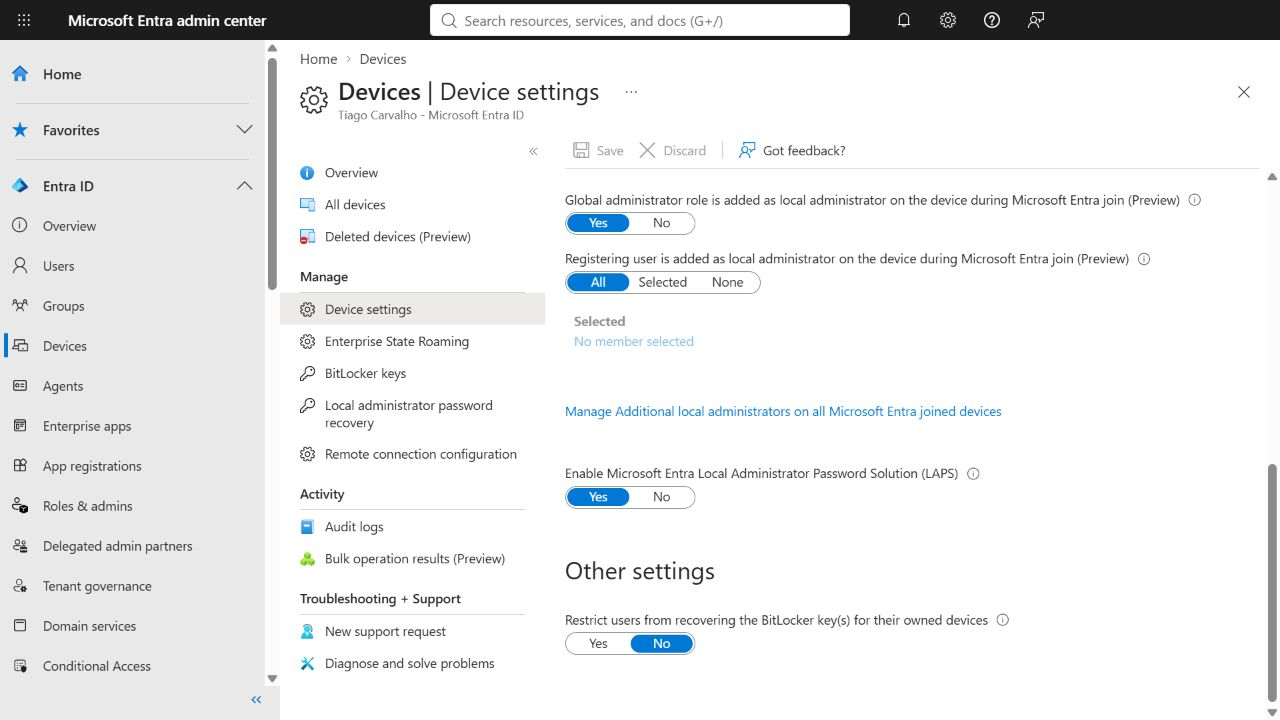
After an authorised change, reopen the page and verify the saved state. Keep that verification distinct from client policy and backup evidence. Follow Microsoft's Entra LAPS guidance for the selected join scenario.
3. Select the Windows LAPS profile
In Intune, open Endpoint security → Account protection → Create Policy. Select the Windows platform and the Windows LAPS profile shown below. The initial Create button opens the configuration wizard; saving the finished policy is a later action.
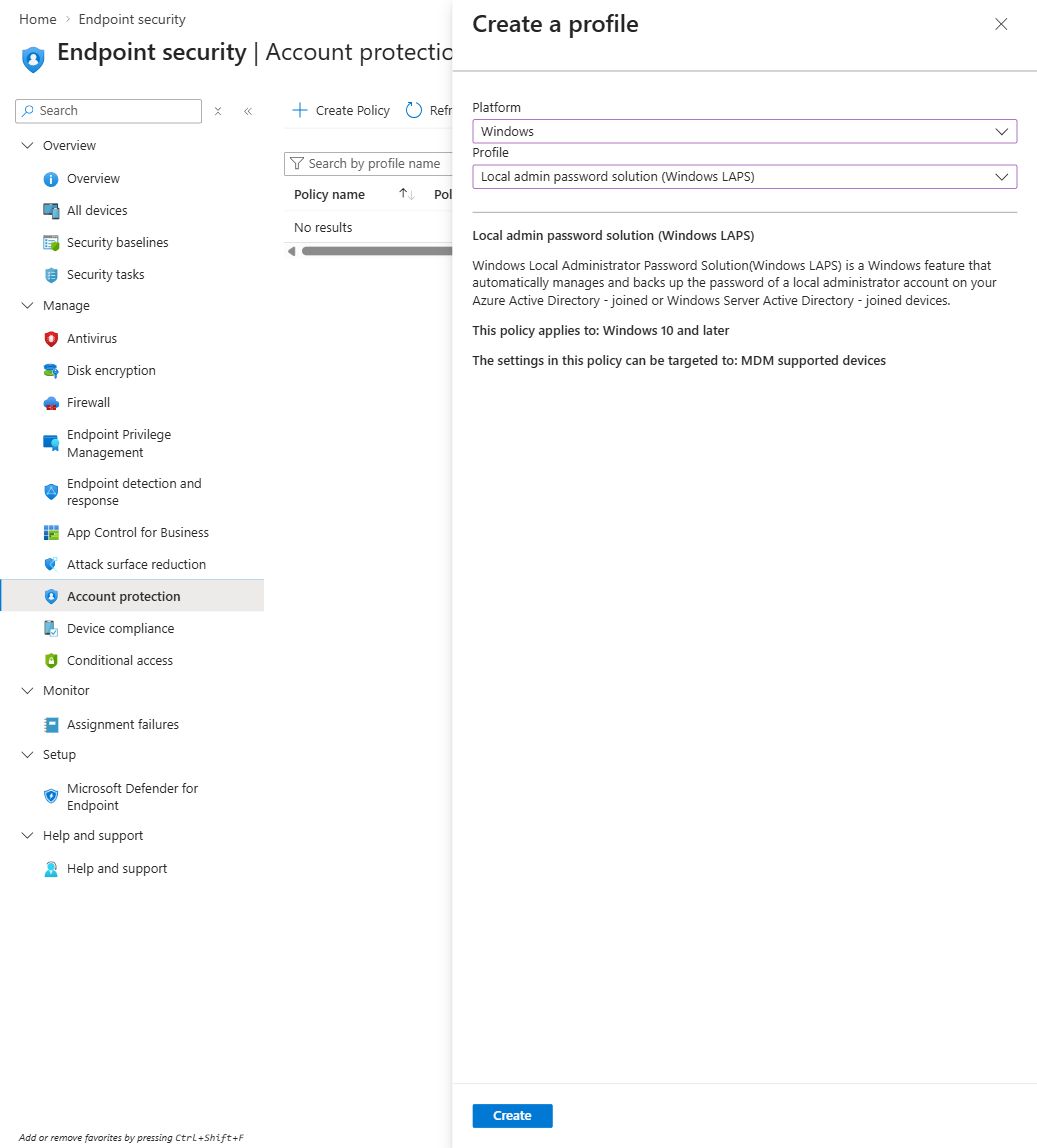
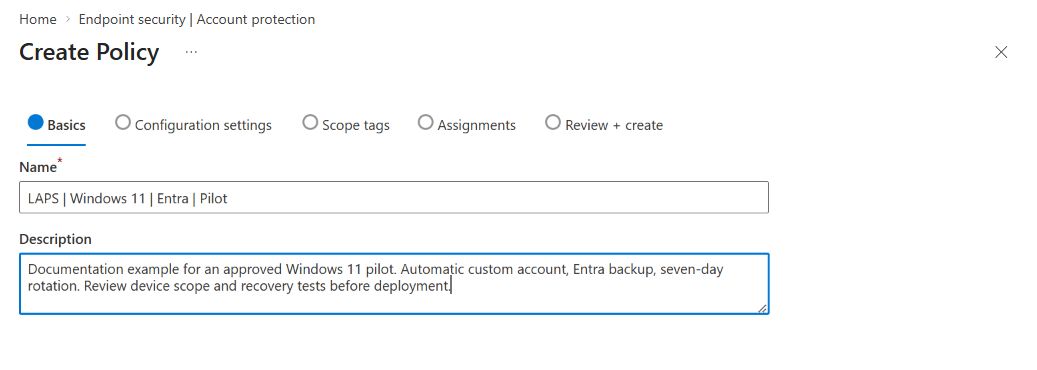
Use a name that explains the platform, backup destination and rollout stage. In this example the name is LAPS | Windows 11 | Entra | Pilot. Add the purpose and the expected validation work in the description.
4. Set backup, password and post-authentication behaviour
The pilot used the values below. Choose values that meet your support and security requirements; this configuration is a lab example, not a Microsoft baseline.
| Setting | Example | Test to perform later |
|---|---|---|
| Backup destination | Microsoft Entra ID | Find a new directory backup for the intended device. |
| Password age | 7 days | Check the resulting scheduled refresh after a successful rotation. |
| Password format | Improved readability; 20 characters | Verify compatibility with the device's local password rules. |
| Post-authentication delay | 1 hour | Record the actual timer and resulting action in a controlled test. |
| Post-authentication action | Reset password and log off | Save all work before testing session termination. |
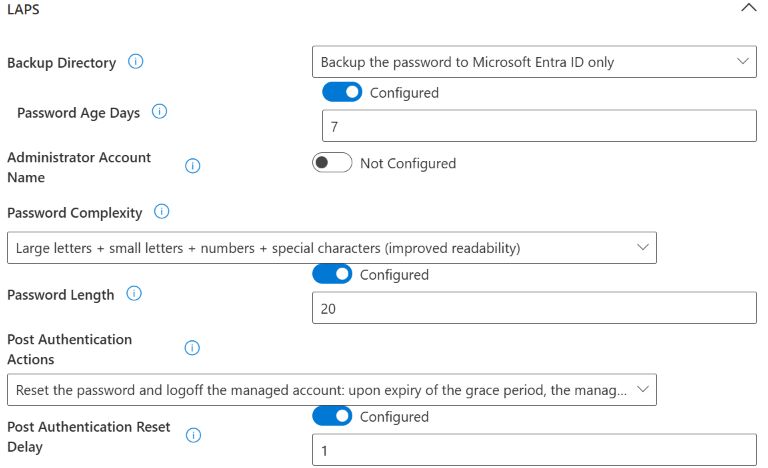
The numeric values behind this example are backup directory 1, complexity 5 and post-authentication action 3. A delay of zero disables post-authentication actions; it does not request an immediate reset. Verify definitions in the LAPS CSP reference.
Seven days is the minimum supported PasswordAgeDays value when backing up to Entra ID. It is also the interval chosen for this pilot. Changing that setting does not immediately alter the current password's expiry or trigger rotation. Check the schedule after the next rotation. Reconcile length and complexity with the endpoint's password rules; event 10027 helps diagnose an incompatible generated password. See policy-setting behaviour.
5. Configure the automatically managed account
Enable automatic account management, target a new custom account, enter LapsAdmin as the prefix, enable the account and enable name randomisation. With randomisation active, LAPS appends a new random six-digit suffix each time the password rotates. Reopen the recovery pane and read both the current account name and password before each use. A previously recorded username can be stale. See AutomaticAccountManagementRandomizeName.
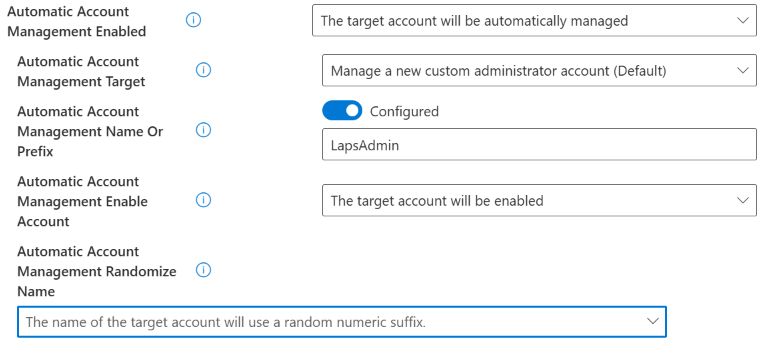
The enabled-account choice is deliberate: this recovery scenario should not depend on receiving a new cloud policy before the local account can be used. If your requirement favours a disabled account, test how it will be enabled when needed. In automatic mode that enablement is managed through policy, and external account modifications are protected. Review account management modes before combining this with account-creation or local-group scripts.
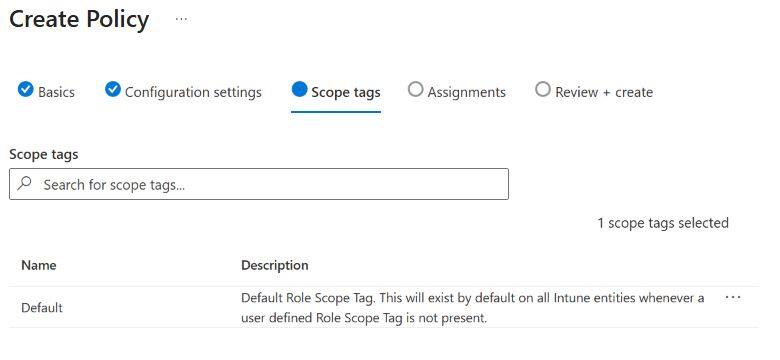
6. Review scope tags and assignments separately
The screenshot retains the wizard's Default scope tag. Use the scope tags required by your administration model; they do not select the devices that receive the policy.
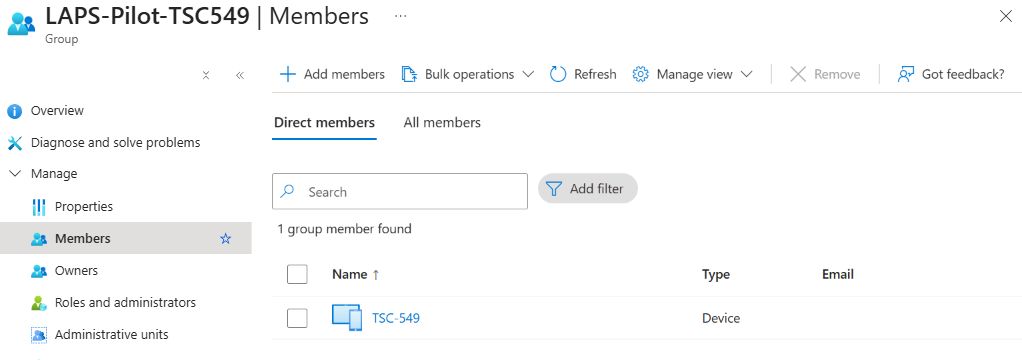
For this deployment, LAPS-Pilot-TSC549 is an assigned security group containing exactly one device: TSC-549. Its Entra device ID was matched to the Intune record before assignment. Use the same identity check for your own pilot.
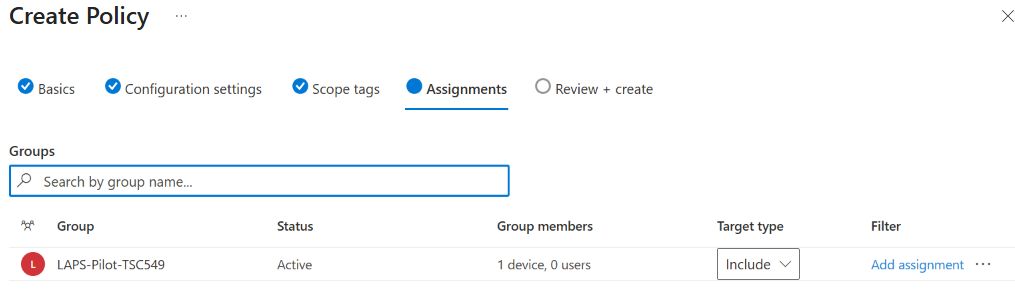
At Review + create, compare the settings and assignment with the pilot worksheet. After saving, reopen the policy and inspect Properties → Assignments. The included group should match the approved pilot scope.
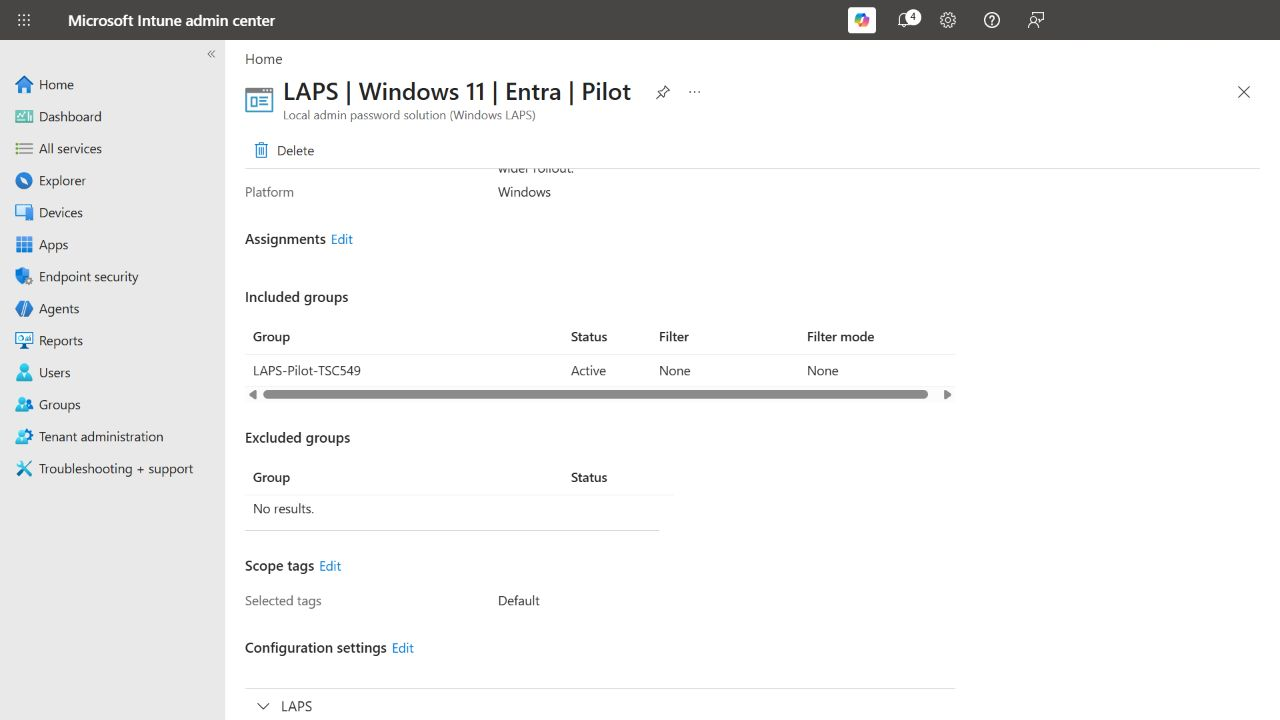
The profile was created at approximately 19:37 UTC and a device sync requested. The saved settings matched the eleven configured values above. Follow the deployment workflow and retain that configuration record alongside the results.
7. Validate assignment, backup and the endpoint
Record the test start in UTC and use the same Entra and Intune device identities for every check. Treat policy delivery, account creation and directory backup as separate results.
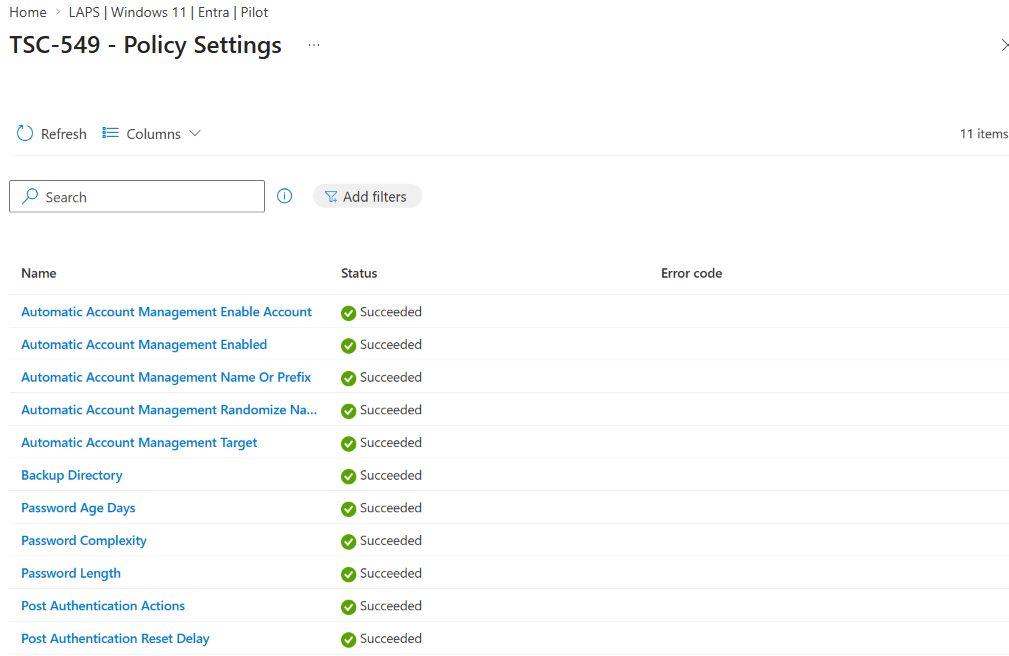
- Check assignment: open Intune → Endpoint security → Account protection → LAPS | Windows 11 | Entra | Pilot → View report. Select the pilot row to inspect its settings. The policy overview also provides Device assignment status and Per setting status reports. Record the report time and capture the pilot row. Pass when the current device result is successful and the intended settings have no unresolved errors or conflicts. Pending requires another check-in, not a pass. See the report reference.
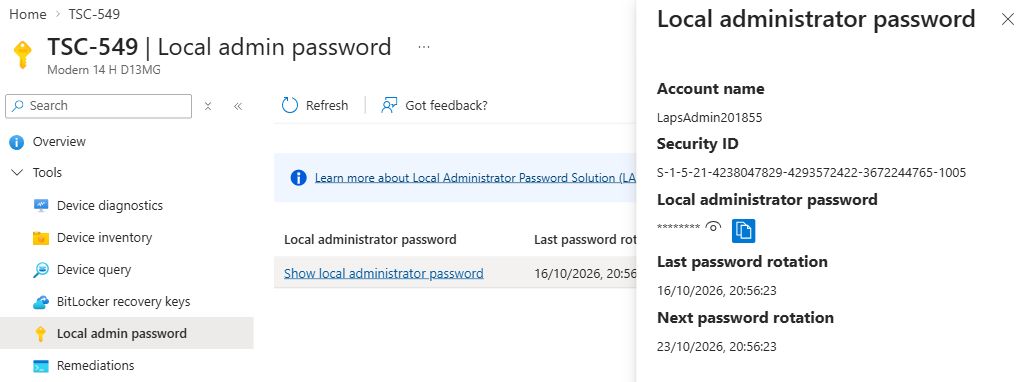
- Check cloud backup: open Intune → Devices → All devices → [pilot] → Tools → Local admin password. In older device-page layouts, the same item appears under Monitor. Match the device identity; record account name, account SID, last rotation and next rotation in UTC. Keep the password masked in captures. Pass when the first backup belongs to this device, is newer than the test start and agrees with the endpoint evidence below.
- Check the endpoint: open Event Viewer → Applications and Services Logs → Microsoft → Windows → LAPS → Operational on that laptop. Inspect the processing cycle containing the new backup. Record the event timestamps and record IDs so another operator can locate it.
The assignment report generated at 20:00 UTC listed TSC-549 as Success, with no pending, error or conflict rows. Opening that device showed all eleven settings as Succeeded. An earlier report had contained no rows; the later report and endpoint evidence resolved that reporting delay.
In this pilot, a local read of HKLM\Software\Microsoft\Policies\LAPS confirmed all eleven values, including Entra backup, automatic account creation and the one-hour delay. The owner then ran Invoke-LapsPolicyProcessing in an elevated session. The resulting cycle created the account and backed up its password; the cmdlet return alone would not establish those results. See policy processing.
Run this read-only query on the pilot to inspect its LAPS events. Enter the actual test start, including its UTC offset:
$pilotStart = [DateTimeOffset]::Parse(
    (Read-Host 'Pilot start, ISO 8601 including offset')
)
Get-WinEvent -FilterHashtable @{
    LogName   = 'Microsoft-Windows-LAPS/Operational'
    StartTime = $pilotStart.LocalDateTime
} | Sort-Object TimeCreated, RecordId |
    Select-Object @{Name='TimeUtc';Expression={$_.TimeCreated.ToUniversalTime().ToString('o')}},
        RecordId, Id, LevelDisplayName, Message
For the first backup, correlate 10029 (Entra backup), 10020 (local account update) and 10004 (successful processing) within the relevant cycle. Investigate 10005 failures. Match the account name and RID in event 10020 to the portal account and the final component of its SID, alongside the timestamps. Keep full messages internally and crop private identifiers before publication. See the event reference. An Intune success alone cannot prove local authentication.
Observed result: first Entra backup
On TSC-549, processing began at 19:56:22 UTC on 16 October 2026. The enabled account LapsAdmin201855 appeared in the local Administrators group without a provisioning script. Its SID matched the masked Intune recovery record; the final SID component 1005 matches event 10020's hexadecimal RID 0x3ED.
| Time | Event / record ID | Observed result |
|---|---|---|
| 19:56:22.168 | 10022 / 8456 | CSP policy includes Entra backup and the configured automatic account settings. |
| 19:56:23.638 | 10029 / 8462 | New password successfully backed up to Entra. |
| 19:56:23.725 | 10020 / 8463 | Local account updated: LapsAdmin201855, RID 0x3ED. |
| 19:56:23.737 | 10004 / 8464 | Policy processing succeeded. |
The account and group-membership read was collected at 19:56:43 UTC. These observations establish account provisioning and the first backup. They do not establish successful credential use or a completed later rotation.
8. Additional checks before operational use
8.1 Test authentication without switching your desktop session
In Intune → Devices → All devices → [pilot] → Tools → Local admin password, read the current account name and use Show privately to retrieve its password. Name randomisation means the name in an earlier screenshot may no longer be current.
From a normal Command Prompt or PowerShell window, substitute the current computer and account names in this example:
runas /user:YOUR-PC\CURRENT-LAPS-ACCOUNT "cmd.exe /d /k whoami"Enter the password only at the prompt. A new window displaying the expected local identity demonstrates authentication and process creation under that account; close it with exit. Your normal desktop session stays open. Do not use /netonly for this local test or /savecred to retain the credential. See Microsoft's runas reference.
Check elevation separately. Running as another user does not guarantee an elevated administrator token. In a PowerShell window elevated through UAC under the LAPS identity, run:
whoami
([Security.Principal.WindowsPrincipal][Security.Principal.WindowsIdentity]::GetCurrent()).IsInRole(
    [Security.Principal.WindowsBuiltInRole]::Administrator
)
The identity must match the current LAPS account and the second result must be True. A successful check under your usual administrator account does not validate the LAPS credential. See UAC elevation.
8.2 Observe post-authentication behaviour
Successful authentication can start the configured one-hour timer. Record event 10041 and its deadline, then look for 10042 followed by success 10044 or failure 10043. Verify a newer Entra backup and corresponding endpoint update.
This profile uses action 3: reset the password and sign out interactive sessions belonging to the managed account, including removal of its SMB sessions. It does not request a device restart. Testing an actual interactive sign-out requires a separate LAPS desktop session with no unsaved work; a runas-only test does not demonstrate that behaviour. Keep manual rotation out of this observation window so its trigger remains distinguishable. See the action definitions and LAPS event reference.
8.3 Check manual rotation and operator access
When no post-authentication test is pending, use Intune → Devices → All devices → [pilot] → Overview → Secure → Rotate local admin password. Record the request time. In Device action status, check for Complete, then verify a later masked backup, the refreshed account name and matching local events 10029 and 10020. A notification alone is insufficient.
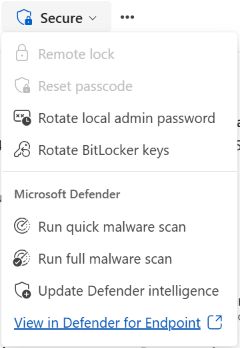
Test access with the intended helpdesk identity as well as a restricted identity. Confirm that a user without password-read authority cannot retrieve the credential. A hidden button demonstrates a UI restriction; a 401 or missing record is not a conclusive permission test. For API-level validation, distinguish the application's consent from the user's Entra role using the Graph permission reference. Record any device-scope test separately.
9. What this pilot established
| Check | Observed result |
|---|---|
| Tenant prerequisite | LAPS enabled in Entra; saved state rechecked. Figure 1. |
| Assignment and settings | One device in the pilot group. TSC-549 reports Success and all eleven settings Succeeded. Figures 7–10. |
| Automatic account | LapsAdmin201855 created, enabled and present in Administrators; local read at 19:56:43 UTC. No provisioning script. |
| First Entra backup | 16 October, 19:56:23 UTC; matching name/SID and events 10029, 10020 and 10004. Next rotation scheduled for 23 October, 19:56:23 UTC. Figure 11. |
| Credential use and operator access | Authentication, UAC elevation, access-denial and device-scope tests have not been run. |
| Subsequent rotation | Manual and post-authentication rotation, including interactive sign-out, have not been tested. The displayed next-rotation date is a schedule, not proof of a completed rotation. |
Keep full device identifiers, event records and operator audit references in an internal worksheet. The companion metadata-only report can support monitoring; compare its records with the intended rollout population because it is not a complete device inventory.
Build from a verified deployment
This pilot established automatic account provisioning and a first Entra backup on one device. Use that evidence as the starting point for the additional recovery and rotation checks, then decide whether to extend the assignment to a wider group.