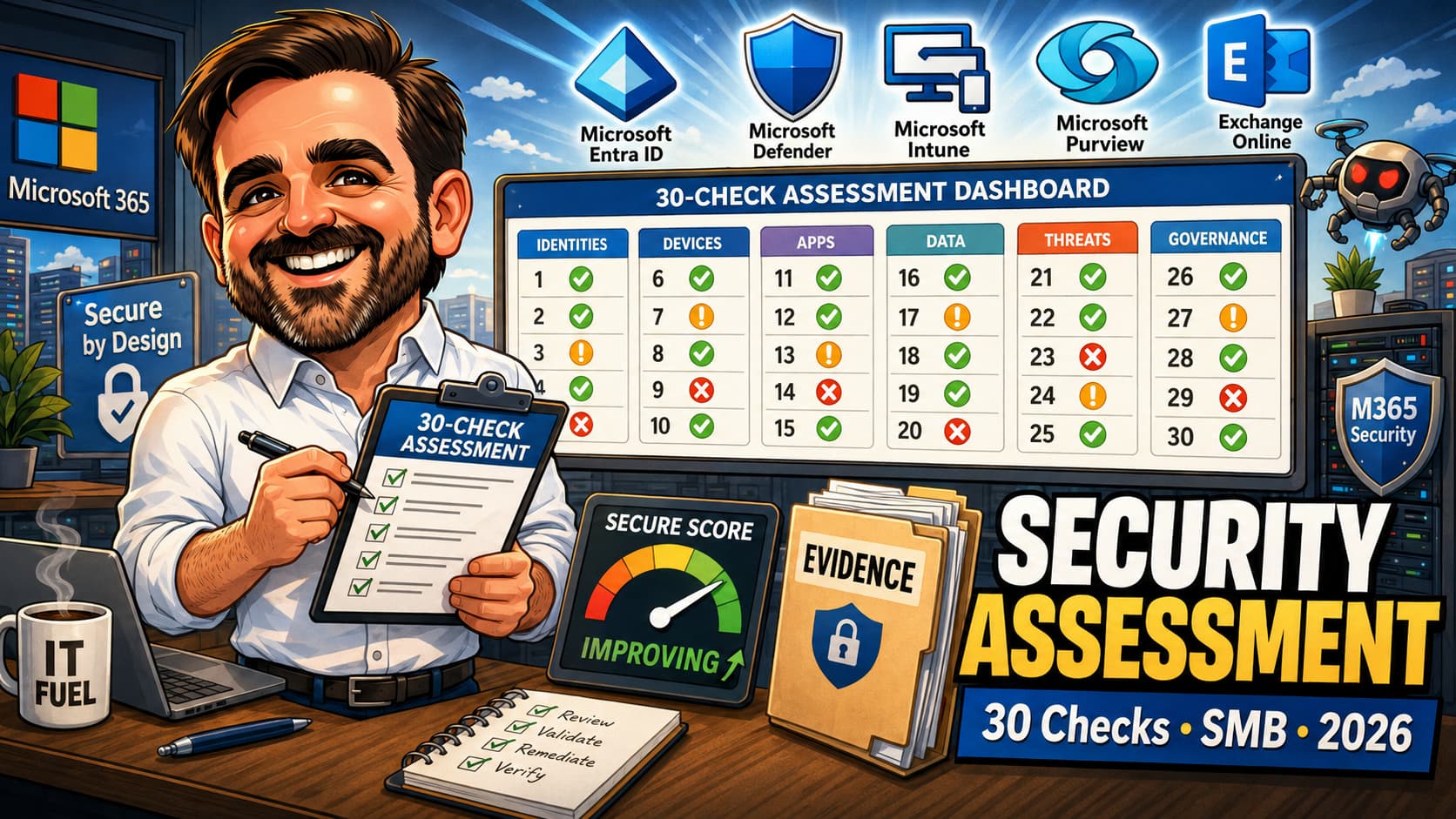
Most SMB Microsoft 365 tenants are not insecure because the platform is bad. They are insecure because nobody has ever run an end-to-end review of how identity, email, devices, data and monitoring actually sit together. A tenant accumulates settings, conditional access policies, half-finished Defender configuration, forgotten guest accounts, ungoverned enterprise apps and inherited Intune profiles — and one day a phishing email lands and the gap shows. This article gives you the 32-check Microsoft 365 security assessment I run on every SMB tenant before declaring a baseline fit for purpose: what to check, where to check it in the Microsoft 365 admin centres, what good looks like, what bad looks like and what to capture as evidence. Use it as an operational runbook, not as a replacement for Microsoft Learn. Before production-critical changes, validate prerequisites, licensing, supported scenarios and platform behaviour against current Microsoft documentation.
1. New SMB tenant baseline: read top to bottom. The 32 checks are ordered by leverage, not by Microsoft product.
2. Inheriting a tenant from another admin or MSP: jump to the categories that most concern you (almost always Identity and Email) and use the evidence pack section to capture state before changing anything.
3. Preparing for an audit, NIS2 / ISO / SOC 2 readiness or insurance questionnaire: work the checks in order, capture evidence per check, and align the result against the references in the right column.
Why a Microsoft 365 security assessment matters in 2026
The 2026 Microsoft 365 platform is more capable than it has ever been, and also more configurable. Conditional Access has more signals; Defender XDR correlates more telemetry; Purview consolidated DLP and Information Protection; Intune absorbed more of Configuration Manager's mental model; Entra ID Governance moved access reviews and entitlement management into the price list of many SMB plans. The good news is that the tools to build a defensible posture exist. The bad news is that the default tenant does not produce that posture on its own, and most SMB tenants have inherited settings, half-applied baselines and undocumented Conditional Access exclusions that nobody wants to touch.
Three things changed in 2026 that make a structured Microsoft 365 security assessment more important, not less:
- Phishing-resistant authentication strengths moved from "best practice" to operational table-stakes. Tenants that still depend on push-based MFA for admin roles have measurable exposure that token-protection and FIDO2 paths close.
- Microsoft Purview consolidated several DLP and Information Protection surfaces. Endpoint DLP alerting and investigation now live primarily inside Purview. Tenants that did not migrate or did not validate after the migration may have policies that look configured but do not actually fire.
- NIS2 transposition across the EU pushed the documentation expectation higher. Where an SMB used to get away with "we have MFA on", a regulator or insurer will now ask for evidence of scope, exceptions, monitoring and incident response. The audit trail matters as much as the control.
The practical implication for an admin: a Microsoft 365 tenant security review is not a one-off exercise that ends with a Secure Score number. It is a discipline tied to change control, repeated on a quarterly cadence, and documented in an evidence pack that survives staff turnover. The 32 checks below are the operational core of that discipline.
How to use the 32 checks
Three operating decisions before you start:
- Scope. Are you assessing the production tenant only, or also a sandbox / test tenant? Document this upfront. A finding in a sandbox without a remediation path in production is not a finding worth reporting.
- Time budget. A first-pass run on an SMB tenant takes roughly two to three working days if you have admin access and documentation; longer if you are inheriting a tenant from an MSP and need to ask questions. A quarterly re-run, once a baseline is established, takes hours rather than days.
- Capture posture. Decide before you start which artefacts you will capture per check (screenshot, exported JSON, Compliance Manager evidence, Secure Score snapshot). Inconsistent capture during the first run is worse than slightly fewer checks consistently captured.
Identity & Access — Checks 1 to 9
Identity is the leverage point in every SMB Microsoft 365 tenant. Get it wrong and the rest of the assessment is theatre. Get it right and most of the remaining controls become enforceable rather than aspirational. The first nine checks are deliberately identity-heavy: the eighth and ninth (app consent and service accounts) are the two patterns that most often turn an otherwise hardened tenant into one with a quiet bypass route.
| Check | What to verify | Where to check | What good looks like |
|---|---|---|---|
| 01Break-glass accounts | Two cloud-only emergency access accounts exist, are excluded from MFA-blocking Conditional Access policies and are documented with credentials in a recovery-vault process. Last test login recorded. | Microsoft Entra admin centre → Identity → Users; Conditional Access policy exclusions. | Two accounts; cloud-only domain; long randomised passwords; authentication method and recovery process documented, tested and stored securely; account functionality validated at least every 90 days. |
| 02MFA coverage | Every active user has registered an MFA method and is enforced by Conditional Access. No "registered but not enforced" gaps. | Microsoft Entra admin centre → Protection → Authentication methods → Activity; Conditional Access policy report-only / enforced. | 100% of active users covered by Conditional Access MFA; privileged roles require phishing-resistant MFA; SMS / voice removed or documented as transitional fallback; service accounts either blocked for interactive sign-in or documented with compensating controls. |
| 03Phishing-resistant strength for admins | All privileged role holders authenticate with a phishing-resistant method (FIDO2, Windows Hello for Business, certificate-based) via authentication strengths in Conditional Access. | Microsoft Entra admin centre → Protection → Conditional Access → policies; Authentication strengths. | Named CA policy targets all directory roles and applies "phishing-resistant MFA" strength; no fallback to SMS or voice; documented break-glass exclusion. |
| 04Conditional Access baseline | Conditional Access enforces a baseline: legacy auth blocked, MFA for all users, compliant or hybrid-joined device for sensitive apps, location-aware controls where relevant. | Microsoft Entra admin centre → Protection → Conditional Access → policies; What If tool for sample users. | Documented baseline with named policies; every exclusion has a written justification; report-only telemetry reviewed; CA What If tool used during change control. |
| 05Legacy authentication blocked | Legacy authentication and non-modern-auth client access patterns are blocked or explicitly justified. Review POP, IMAP, SMTP AUTH, EWS and older client sign-ins separately, because the risk depends on whether the workload uses modern authentication, Basic Auth, OAuth, connector-based relay or a migration path. | Conditional Access → policies (legacy auth client apps); Exchange admin centre → Settings → Mail flow / Authentication policies; sign-in logs filtered for legacy clients. | Conditional Access blocks legacy client authentication patterns in enforced mode; no successful legacy / basic sign-ins in the last 30 days; SMTP AUTH is disabled tenant-wide unless there is a documented modern-auth or connector-based sending requirement. If SMTP AUTH is still required, document the mailbox, application owner, authentication method, sending volume and migration path. |
| 06Privileged roles via Entra PIM | Permanent role assignments minimised; just-in-time elevation via Privileged Identity Management where licensed; assignments reviewed at least quarterly. | Microsoft Entra admin centre → Identity governance → Privileged Identity Management. | Global Administrator count in single digits; PIM-eligible rather than active for most roles; activation requires MFA + justification; access reviews configured. |
| 07Guest access governance | Guest invitations restricted to approved roles; guest user inventory reviewed; expired or unused guests removed via Entra ID Governance access reviews. | Microsoft Entra admin centre → External Identities → External collaboration settings; Identity governance → Access reviews. | Documented external collaboration policy; access reviews running; guest sign-in monitoring; orphan guest cleanup last 90 days. |
| 08App consent & enterprise apps governance | Verify admin consent workflow, user consent restrictions, high-privilege app permissions, unused enterprise applications, publisher verification and review cadence. | Microsoft Entra admin centre → Applications → Enterprise applications / App registrations / Consent and permissions. | User consent restricted to verified publishers and low-risk delegated permissions; admin consent workflow enabled with named reviewers; high-risk application permissions reviewed quarterly; unused enterprise apps removed; publisher verification checked for retained apps. |
| 09Service accounts & shared mailbox access | Every service account, shared mailbox and non-human identity has an owner, a documented purpose, a sign-in policy, an MFA or block-interactive-sign-in decision and a review date. | Microsoft Entra admin centre → Users; Exchange admin centre → Recipients → Mailboxes; PowerShell: Get-Mailbox -RecipientTypeDetails SharedMailbox, Get-MailboxPermission. |
No unmanaged service accounts; shared mailbox access inventoried and reviewed; direct interactive sign-in blocked where possible; mailbox permissions and delegations reviewed quarterly; owner and purpose recorded in the evidence pack. |
Email Security — Checks 10 to 15
Email remains the dominant SMB attack surface. The six checks below cover the controls that produce the largest reduction in successful phishing and account-takeover incidents.
| Check | What to verify | Where to check | What good looks like |
|---|---|---|---|
| 10SPF, DKIM, DMARC | SPF record present and accurate; DKIM signing enabled for each sending domain; DMARC policy at p=quarantine or p=reject with aggregate reports flowing to an inbox you actually read. |
Exchange admin centre → Mail flow → Accepted domains; DNS records; DMARC aggregate reports. | SPF aligned to all sending services; DKIM enabled on every accepted domain; DMARC at quarantine or reject; reports parsed monthly. |
| 11Anti-phishing policies | Defender for Office 365 anti-phishing policy with mailbox intelligence and impersonation protection covers all users; protected senders and protected domains list maintained. | Microsoft Defender portal → Email & collaboration → Policies & rules → Anti-phishing. | Standard preset security policy applied broadly; Strict preset policy applied to admins, executives and high-risk users where appropriate; custom policy only where there is a documented reason; impersonation protection on key executives; safety tips visible to users. |
| 12Safe Links & Safe Attachments | Safe Links policy enabled for Exchange Online, Teams and Office apps; Safe Attachments action set appropriately for production. | Microsoft Defender portal → Email & collaboration → Policies & rules → Safe Attachments / Safe Links. | Safe Attachments in Block or Dynamic Delivery for production users; Monitor allowed only during a documented pilot phase with a target date to move to enforcement; Safe Links rewrites URLs; Teams + Office app protection on; no permanent exceptions without justification. |
| 13External sender warnings | External sender mail tip / external email banner enabled. Users see a visual signal on inbound mail from outside the organisation. | Exchange Online PowerShell: Get-ExternalInOutlook; or Mail flow rule that adds an external banner. |
Banner visible in Outlook and OWA; behaviour validated across Outlook desktop, Outlook on the web and Outlook mobile; limitations documented; user awareness baseline recorded. |
| 14Mailbox audit logging | Mailbox auditing on by default tenant-wide; Microsoft Purview Audit search returns mailbox activity records; audited operations cover the operations the security team needs. | Exchange Online PowerShell: Get-OrganizationConfig | fl AuditDisabled; Microsoft Purview → Audit. |
AuditDisabled is False; sample search returns expected mailbox audit operations; default audited operations reviewed; per-mailbox AuditBypassEnabled exceptions inventoried. |
| 15Auto-forward to external | Outbound spam policy blocks automatic forwarding to external addresses unless explicitly allowed; transport rule and inbox rules reviewed for forwarding patterns. | Microsoft Defender portal → Email & collaboration → Anti-spam outbound policy; PowerShell: Get-InboxRule; Exchange admin centre → Mail flow rules. |
Automatic external forwarding blocked at policy level; any exceptions inventoried; mailbox-level forwarding rules reviewed quarterly. |
Device Management — Checks 16 to 21
Device management is where identity and email controls land on the endpoint. The six checks below focus on the controls that survive an audit: compliance, encryption, endpoint detection, patching, mobile data protection and a defensible provisioning baseline.
| Check | What to verify | Where to check | What good looks like |
|---|---|---|---|
| 16Intune compliance policies | Compliance policies define a minimum bar (OS version, BitLocker, Defender, password) per platform; non-compliant devices are blocked from sensitive apps via Conditional Access. | Microsoft Intune admin centre → Devices → Compliance. | Policies for every platform in use; CA policy "Require compliant device" for Microsoft 365 apps; quarantined non-compliant devices have a documented remediation path. |
| 17BitLocker enforcement | BitLocker enabled and silently enforced via Intune; recovery keys escrowed in Entra ID; key rotation policy defined. | Intune admin centre → Devices → Configuration → Endpoint security → Disk encryption; Entra admin centre → Devices → BitLocker keys. | 100% of Windows devices encrypted; recovery keys present in Entra for every device; key rotation enforced after recovery use. |
| 18Defender for Endpoint onboarding | Microsoft Defender for Endpoint deployed to every managed device; onboarding state healthy in the Defender portal; tamper protection enabled. | Microsoft Defender portal → Assets → Devices; Intune endpoint security → Antivirus / EDR. | Every managed device onboarded; tamper protection on; ASR rules deployed in Audit first, reviewed for impact, then moved to Block for high-confidence rules using pilot / broad rings; Web Content Filtering configured. |
| 19Windows Update for Business / update rings | Update rings deployed via Intune; quality and feature updates managed against documented deadlines; expedited path for critical CVEs. | Intune admin centre → Devices → Windows Updates. | Defined pilot / broad ring strategy; quality updates deployed using pilot / broad rings with defined deadlines; critical CVEs have an expedited path; compliance target measured and reported; feature update version pinned and managed. |
| 20App protection policies (MAM) | Mobile Application Management policies on iOS and Android applied to managed apps; data protection (no copy/paste outside, no save to personal cloud) enforced. | Intune admin centre → Apps → App protection policies. | Policies cover Outlook, Teams, Word, Excel, OneDrive; PIN required; data transfer to other apps restricted; selective wipe path tested. |
| 21Autopilot / provisioning baseline | Windows Autopilot or Autopilot Device Preparation configured for new device provisioning; baseline policies enforced from first boot; no manual "golden image" required. | Intune admin centre → Devices → Enrolment → Windows Autopilot. | Autopilot profiles documented; enrolment status page configured; provisioning produces a compliant device end-to-end without manual steps. |
Data Protection — Checks 22 to 26
Data protection in Microsoft 365 is the labelling + DLP + sharing-control + backup stack. Five checks here, because the SMB versions of these controls rarely need to be as deep as enterprise but should always exist.
| Check | What to verify | Where to check | What good looks like |
|---|---|---|---|
| 22Sensitivity labels | Microsoft Purview Information Protection labels published; default label and auto-labelling configured where appropriate. | Microsoft Purview portal → Information Protection → Labels and label policies. | Small clear label set (3-5 labels); published to all users; default label on new documents; auto-labelling for the SITs that matter. |
| 23DLP policies | Microsoft Purview DLP policies cover Exchange Online, SharePoint, OneDrive, Teams and Endpoint; validated through simulation before enforcement. | Microsoft Purview portal → Data loss prevention → Policies. | Policies for core SITs (financial, identity, regulated data); endpoint coverage validated through a documented test matrix; simulation-to-enforce rollout used. |
| 24External sharing controls | SharePoint and OneDrive external sharing aligned to organisational policy; sharing links default to most restrictive; anonymous links time-limited or disabled. | SharePoint admin centre → Policies → Sharing; OneDrive admin centre. | Tenant-wide default at "New and existing guests" or stricter; anonymous links disabled or 30-day expiry; sensitive sites at "Only people in your organisation". |
| 25Microsoft 365 Backup / data resilience | Microsoft 365 Backup or an approved third-party backup strategy configured for supported Exchange Online, SharePoint Online and OneDrive workloads; broader collaboration / data gaps (Teams chats, Planner, Loop, Power Platform) documented with a resilience plan. | Microsoft 365 admin centre → Setup → Microsoft 365 Backup; third-party backup admin console. | Backup configured for the supported workloads; retention aligned to RPO / RTO; restore tested at least annually; out-of-scope workloads handled by an approved third-party or documented risk acceptance. |
| 26Information barriers / Communication Compliance | Where licensed and legally appropriate, and where the organisation operates in regulated industries (finance, legal, healthcare), information barriers and Communication Compliance configured. | Microsoft Purview portal → Information barriers; Communication Compliance. | Where applicable: policies defined, segments documented, supervisory review configured. Where not applicable: a documented decision that it is not needed, including the legal and licensing rationale. |
Monitoring & Response — Checks 27 to 30
Monitoring is what turns a configured tenant into a defensible one. Without it, you have hope. With it, you have telemetry, alerts, audit trails and a runbook to follow when something goes wrong.
| Check | What to verify | Where to check | What good looks like |
|---|---|---|---|
| 27Microsoft Secure Score | Secure Score tracked monthly; trend reviewed; gaps prioritised. Score is a starting point, not an objective in itself. | Microsoft Defender portal → Microsoft Secure Score. | Monthly snapshot captured; trend recorded; top 5 improvement actions tracked with owner and target date; understood that Secure Score does not see everything. |
| 28Defender XDR alerts triaged & tuned | Microsoft Defender XDR incidents triaged on a defined cadence; alert tuning reduces noise; high-fidelity alerts route to an inbox or SOC ticket the team actually watches. | Microsoft Defender portal → Incidents & alerts. | Median triage time documented; alert volume sustainable; recurring false positives tuned out; high-severity incidents acted on within hours. |
| 29Purview Audit retention | Microsoft Purview Audit is enabled tenant-wide; standard retention is understood and documented; longer retention is configured where licensing, regulation or risk requires it. | Microsoft Purview portal → Audit → Audit retention policies. | Audit is enabled; standard retention understood and documented; Audit Premium / longer retention configured where licensing, regulation or risk requires it; rationale for the chosen retention recorded. |
| 30Incident response runbook | Documented incident response runbook covering identity compromise, mailbox compromise, ransomware and data exfiltration; tested at least annually via tabletop. | Organisational documentation; Microsoft 365 admin centre → Setup; Defender for Cloud Apps where licensed. | Runbook owned by a named person; aligned with the NIS2 24h / 72h / 1-month reporting if applicable; tabletop exercise in last 12 months; lessons captured. |
Governance & Documentation — Checks 31 to 32
Governance is the connective tissue. Without it, the previous 30 checks decay between assessments. With it, the assessment becomes a programme rather than an exercise.
| Check | What to verify | Where to check | What good looks like |
|---|---|---|---|
| 31Tenant change control | Changes to Conditional Access, Defender policies, Intune configuration profiles, DLP policies and Exchange transport rules go through documented change control with rollback notes. | Organisational documentation; change ticket history; PIM activation logs; Conditional Access "What If" use. | Change requests record the before / after; rollback documented; production changes follow a pilot → broad pattern; emergency-change path defined. |
| 32Quarterly assessment cadence | The 32 checks are re-run at least quarterly, tied to platform updates, licence changes and incident response lessons. Owner and date documented. | Organisational documentation; this runbook. | Named owner; calendarised cadence; results compared to previous run; remediation plan tracked through to closure. |
Reading the results: Secure Score, Compliance Manager, gap list and risk rating
Three lenses on the same tenant give three different stories. Use them together:
Microsoft Secure Score
Secure Score scores the technical configuration against Microsoft's recommendation set. It is fast to read, easy to trend and useful for identifying low-effort improvements. It does not score your break-glass discipline, your incident response runbook quality, your documentation, your evidence trail or the appropriateness of your Conditional Access exclusions. Treat Secure Score as a starting point and a trend indicator, not an outcome.
Microsoft Purview Compliance Manager
Where licensed, Compliance Manager maps controls to regulatory frameworks (NIST, ISO 27001, CIS, NIS2 templates, sector-specific assessments). For SMBs running NIS2 readiness, the Compliance Manager NIS2 template is a useful structure but should not be treated as a turnkey compliance package. The framework is the scaffolding; the evidence remains your responsibility.
The gap list
The most important output is the gap list. For each of the 32 checks, the result is one of:
- Pass — control is configured, evidence captured, no remediation needed.
- Partial — control is configured but with documented gaps (e.g. MFA enforced for all users but two service accounts are excluded with a written justification).
- Fail — control missing or misconfigured; remediation plan needed.
- Not applicable — control does not apply (e.g. information barriers in a non-regulated organisation); justification documented.
The gap list, with owners and target dates, is what the leadership sees. The evidence pack is what the auditor or incoming admin sees.
Risk rating matrix
Use the matrix below as a starting point for the Risk rating field on each Fail or Partial check in the evidence pack. Adjust the rating based on tenant context, regulatory exposure, business sensitivity and any compensating controls already in place. The matrix is calibrated for SMB tenants; high-regulation environments will typically rate one band higher.
| Severity | Patterns that should attract this rating |
|---|---|
| Critical | No working break-glass account; no MFA for admins; successful legacy authentication observed in sign-in logs; external auto-forwarding allowed globally with no exception process. |
| High | No Privileged Identity Management or access reviews on privileged roles; ungoverned enterprise apps and ungoverned consented permissions; Defender for Endpoint not onboarded on managed devices; no documented audit log retention position. |
| Medium | DMARC stuck at p=none; unmanaged guest population; Safe Links or Safe Attachments configured below recommended action; mailbox audit retention not aligned with risk. |
| Low | Documentation gaps; evidence pack incomplete from previous runs; quarterly cadence not formalised; minor naming or process inconsistencies. |
What to capture in the evidence pack
The evidence pack is the documented output of the assessment. Capture the same fields for every check so the pack is comparable across runs and reviewable by audit, security and incoming staff.
| Field | What to capture |
|---|---|
| Check ID | The identifier from the 32-check matrix (e.g. 04 — Conditional Access baseline). |
| Date and reviewer | Assessment date and the person who ran the check. |
| Source portal | Which Microsoft portal the evidence came from (Entra, Defender, Intune, Purview, Exchange). |
| State observed | A one-line description of what the configuration actually is. |
| Evidence artefact | Screenshot, exported policy JSON, PowerShell output, Compliance Manager evidence file or Secure Score snapshot. |
| Result | Pass, Partial, Fail or Not applicable, with a one-line rationale. |
| Gap description | If Partial or Fail, a description of the gap in plain English. |
| Remediation owner | The person accountable for closing the gap. |
| Target date | Date by which the gap should be closed; should map to a change ticket. |
| Risk rating | Practical risk rating: Critical / High / Medium / Low, anchored on the risk rating matrix above. |
| Reference | Microsoft Learn reference or internal policy reference the check is anchored on. |
Building this into a quarterly cadence
A one-off assessment is better than no assessment. A repeatable quarterly cadence is what separates a tenant security programme from a tenant security exercise.
- Quarterly full re-run. All 32 checks. Compare to the previous quarter's evidence pack. Document trend per check (improved / stable / regressed).
- Monthly spot checks. The five highest-leverage checks (break-glass, MFA coverage, Conditional Access baseline, Defender XDR triage, Secure Score). Quick, recorded, time-boxed.
- Post-change re-validation. Any meaningful tenant change triggers a re-run of the checks affected. Conditional Access edit → rerun checks 1-9. Mailbox audit change → rerun check 14. DLP edit → rerun check 23. Enterprise app consent change → rerun check 8.
- Post-incident re-validation. After any incident, the relevant checks are re-run and the runbook updated with the lesson learned.
- Named owner. One person is accountable for the cadence. The cadence does not survive "everybody owns it".
Pre-assessment checklist (12 items)
Before running the 32 checks, work through the 12 preparation items below. They are the difference between an assessment that produces a defensible evidence pack and one that produces a list of screenshots nobody can compare next quarter.
- Admin access confirmed.Global Reader minimum; ideally a dedicated assessment account with read access across Entra, Defender, Intune, Purview and Exchange.
- Licensing inventory documented.Which Microsoft 365 plans, which add-ons (Defender for Office 365, Defender for Endpoint, Purview, Entra ID Governance, PIM, Audit Premium). Capabilities depend on licensing.
- Tenant naming and key identifiers captured.Tenant ID, primary domain, default sign-in domain, region, data residency.
- Evidence template prepared.Either a structured spreadsheet, a documentation system or a controlled folder structure. Decided before run, not during run.
- Stakeholder communication done.Leadership and any MSP knows the assessment is happening, when, and that no changes will be made during the run.
- Previous assessment located.If a prior assessment exists, locate it. Compare trend rather than treat every quarter as a clean slate.
- Secure Score baseline captured at start.Snapshot before assessment begins so trend is measured from a clean point.
- Compliance Manager state captured at start.Where licensed; same logic as Secure Score — snapshot first.
- PowerShell session prepared.Microsoft Graph PowerShell or Exchange Online Management module signed in; check that read-only operations work before the assessment run.
- Conditional Access export at start.Export current Conditional Access policies as JSON before running the assessment. Use for diff comparison and rollback reference.
- Change control window confirmed.Confirm no production changes are scheduled during the assessment window. A change midway invalidates the evidence pack for the affected checks.
- Outcome format agreed with stakeholder.Executive summary + gap list + risk rating + evidence pack. Agreed format before, so the deliverable is not a surprise.
Common mistakes
- Treating Microsoft Secure Score as the answer.Secure Score is useful and worth tracking, but it does not see your break-glass discipline, your incident response runbook, your evidence trail, your Conditional Access exclusion justifications or the operational maturity behind your configuration. A high Secure Score on a poorly-documented tenant is not a secure tenant.
- Changing settings during the assessment.The assessment captures current state. Mixing review with remediation produces an evidence pack you cannot reproduce, and a baseline that drifts mid-run. Run the assessment; then remediate as a separate phase with change control.
- Skipping the break-glass test.The most common SMB tenant finding is a documented break-glass account that, when tested, does not actually work because a Conditional Access policy edit excluded it incorrectly, a device requirement now blocks it, or the recovery method is no longer accessible. Test it. Capture the result.
- MFA "enabled" but not "enforced".A user registered for MFA but not enforced by Conditional Access can still sign in with password alone in some flows. Verify the enforcement, not just the registration.
- Forgetting service accounts, shared mailboxes and enterprise app consents.Service accounts, shared mailboxes and consented enterprise apps are how attackers persist after an initial compromise. Inventory them; document the MFA / blocking / consent strategy for each; review at every cadence.
- Reviewing devices without first reviewing identity.A tidy Intune compliance posture on top of a tenant where MFA has holes is a tidy MDM, not a secure tenant. Identity first; devices second.
- Not capturing evidence at all.An assessment without an evidence pack is a conversation. The pack is the deliverable. Without it, next quarter you cannot tell what improved, what regressed and what you need to explain to an auditor.
- Running the assessment once and stopping.The platform changes, licensing changes, users move, policies drift. A tenant that scored well in March may not score well in September. Build the cadence. Without it, the work decays.
Microsoft 365 security assessment FAQ
How long does the 32-check assessment take to run on an SMB tenant?
A first-pass run on an SMB tenant typically takes two to three working days when you have direct admin access and reasonable documentation. Longer if you are inheriting a tenant from an MSP and need to discover the licensing and configuration as you go. A quarterly re-run on an established baseline takes hours: most of the work is comparing to the previous evidence pack and capturing the deltas.
Do I need every Microsoft 365 add-on to run this assessment?
No. The assessment is structured so that every check has a fallback when a feature is not licensed. For example: where Entra ID PIM is not licensed, check 06 documents the permanent assignments and the rationale; where Microsoft Purview Information Protection is not licensed, check 22 documents the absence with a remediation path; where Audit Premium is not licensed, check 29 documents the standard retention position. Capabilities depend on licensing, tenant configuration, region and Microsoft Purview / Defender portal access. The assessment value comes from running it consistently, not from buying every SKU.
What is the difference between Microsoft Secure Score and this assessment?
Microsoft Secure Score scores the technical configuration of your tenant against Microsoft's recommendation set. It is fast, automated and useful as a trend indicator. This assessment is broader: it covers documentation, change control, evidence trail, break-glass discipline, incident response readiness, app consent governance, service-account hygiene and the appropriateness of exclusions — the things Secure Score does not see. Use both together. Secure Score is a starting point; the 32 checks are the runbook.
Does this assessment cover NIS2 or ISO 27001 readiness?
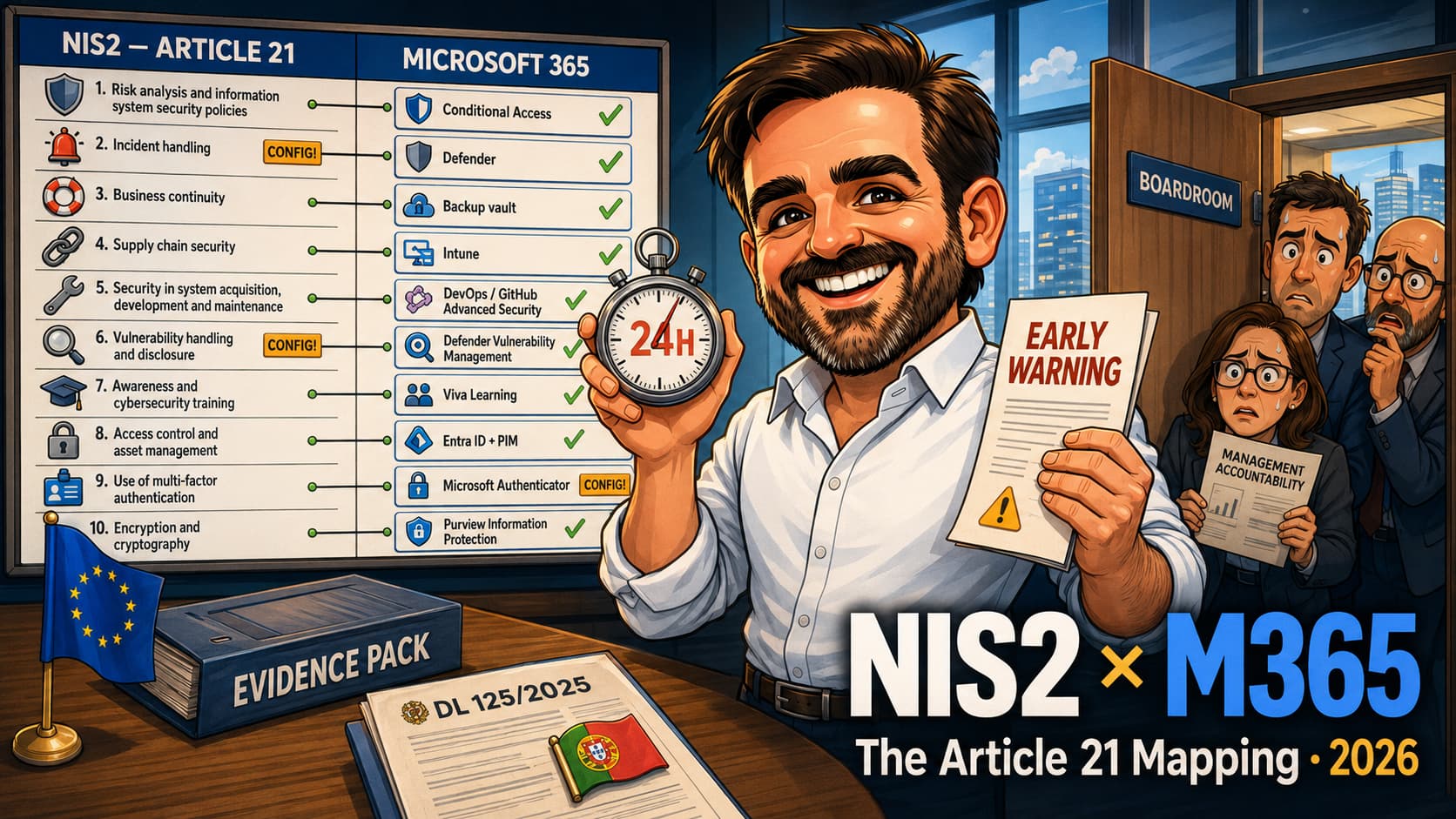
Partially. The 32 checks cover most of the Microsoft 365 technical surface that a NIS2 Article 21 control mapping or ISO 27001 Annex A control review would land on. They do not replace the organisational programme that NIS2, ISO 27001 or SOC 2 require: documented policies, supply chain risk management, business continuity beyond data backup, management body training and audit-grade evidence collection. Use this assessment as the Microsoft 365 technical layer of the broader compliance programme; pair it with the regulatory framework guidance — see the NIS2 + Microsoft 365 checklist for the regulatory side.
What evidence should I keep after a Microsoft 365 security assessment?
Capture a consistent evidence pack per check: check ID, date and reviewer; source portal; state observed; evidence artefact (screenshot, exported policy JSON, PowerShell output, Secure Score snapshot, Compliance Manager evidence); result (Pass / Partial / Fail / Not applicable) with a one-line rationale; gap description; remediation owner and target date; risk rating anchored on the matrix; and the Microsoft Learn reference or internal policy reference the check anchors on. See the evidence pack table earlier in this article for the full field list.
Should I run this assessment internally or use an external consultant?
Either works. Run internally if you have admin coverage, time and the discipline to capture evidence honestly — including for the controls that fail. Use an external Microsoft 365 tenant security review when you want an independent perspective, when you are inheriting a tenant from another team, when leadership requires an external sign-off, or when you want pattern-based context on what other comparable tenants do. The 32 checks below are the same in both cases; the evidence pack, the risk rating and the gap list are the deliverable in both cases.
References & further reading
- Manage emergency access accounts in Microsoft Entra ID
- How Microsoft Entra multifactor authentication works
- Conditional Access authentication strength
- Conditional Access overview
- Block legacy authentication with Conditional Access
- Microsoft Entra Privileged Identity Management
- Configure external collaboration settings
- Configure how users consent to applications
- Configure the admin consent workflow
- Anti-phishing protection in Microsoft Defender for Office 365
- Safe Links in Microsoft Defender for Office 365
- Safe Attachments in Microsoft Defender for Office 365
- Preset security policies in EOP and Defender for Office 365
- Manage mailbox auditing
- Control automatic external email forwarding
- Use compliance policies to set rules for devices in Microsoft Intune
- Use Intune to configure BitLocker Drive Encryption
- Onboard to Microsoft Defender for Endpoint
- Attack surface reduction rules deployment overview
- Manage Windows software updates in Intune
- App protection policies overview
- Windows Autopilot overview
- Learn about sensitivity labels
- Learn about data loss prevention
- External sharing overview for SharePoint and OneDrive
- Microsoft 365 Backup overview
- Learn about information barriers
Running this assessment on your own tenant?
If you are working through these 32 checks on an SMB or mid-sized Microsoft 365 tenant and want to compare notes — what is hardest to evidence in practice, what trips up most tenants, how other operators have built the cadence — I am always happy to swap patterns. No sales pitch, just a conversation between people doing the work.
Get in touch