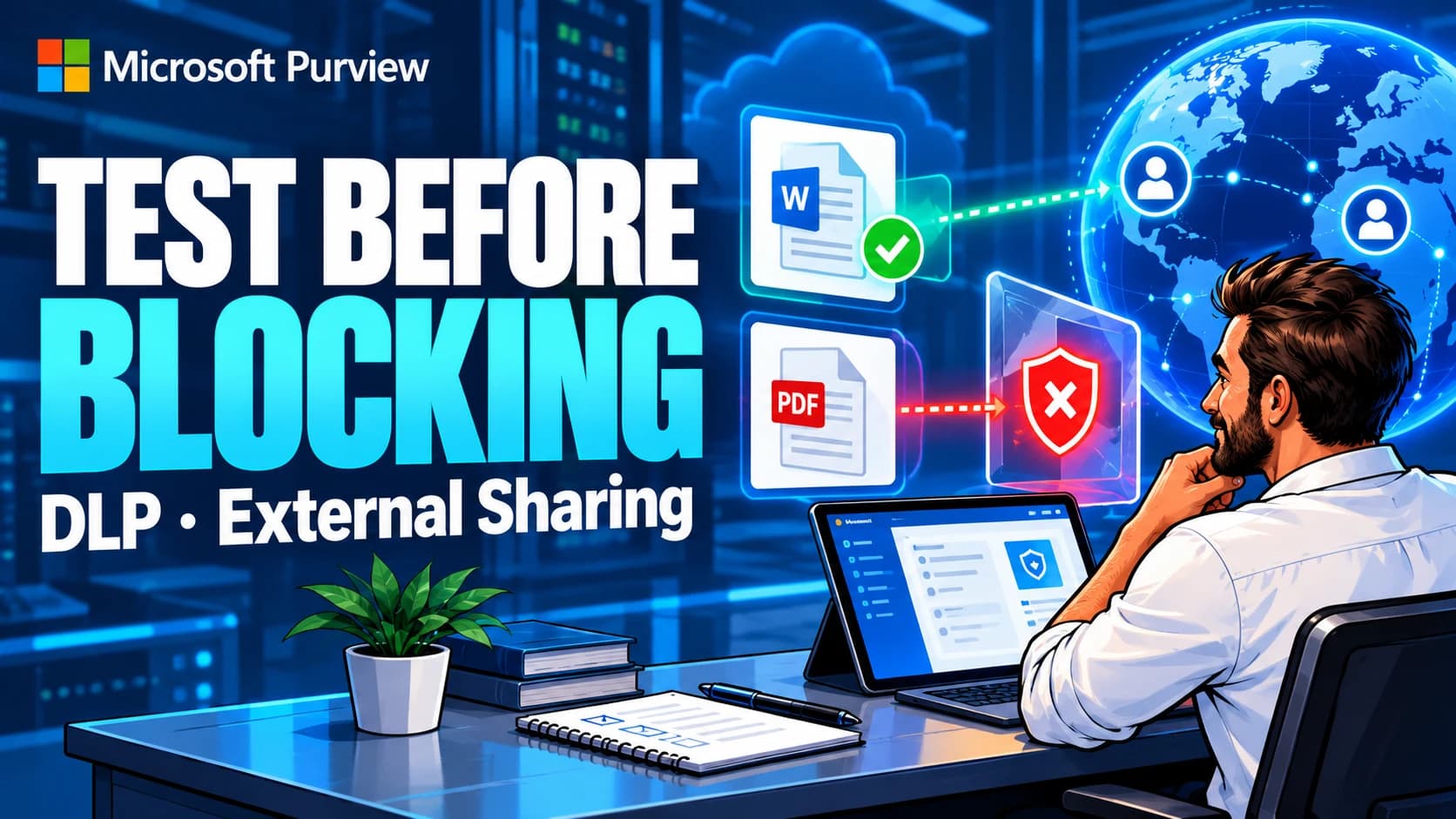
Test a DLP policy on a small SharePoint site before applying it to business content. This walkthrough demonstrates a successful changed-content test: a pre-shared file became inaccessible to an external recipient after a synthetic sensitive marker was added, while a clean control remained readable.
- A custom classifier with a positive sample and two negative controls.
- A DLP policy scoped to one SharePoint lab site, starting in simulation.
- A pre-shared document that changes from clean content to a sensitive match.
- An external denial, a matching SharePoint policy tip and a readable clean control.
1. Define a small, measurable pilot
Use one dedicated SharePoint site containing only synthetic documents. This pilot uses DLP-Lab, created as a team site without a Microsoft 365 group. Exchange, OneDrive, Teams and other DLP locations are outside the experiment. Record the actual approved site URL in the policy and evidence sheet.
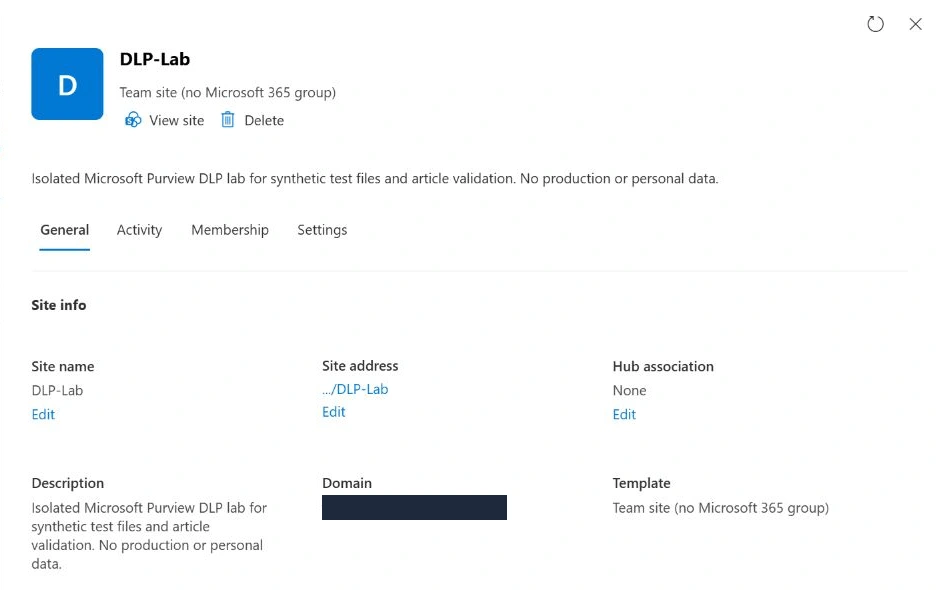
Create the isolated site
- Open SharePoint admin center → Active sites → Create. In the creation choices, select Browse more sites (or Other options in the earlier interface) and Team site without a Microsoft 365 group. This avoids creating a group mailbox or a Team for the experiment.
- Enter
DLP-Lab, an approved site owner, an English site language and the appropriate time zone. Add a description stating that the site is for synthetic DLP tests. Check the final URL before creating: if the name is already used, SharePoint can suggest a different address. - Reopen the site in Active sites, record its URL and current external-sharing setting, then open its Documents library. Keep business content out of this site.
The exact template picker changes over time; verify the resulting site type and URL. Microsoft: create a SharePoint site.
Prepare three identities and prove access first
Use an administrator to configure the pilot and a named external account you control to test access. Keep their browser profiles separate. For the extended rollout checks, also prepare a standard internal member who is not a site owner or administrator.
Verify the test identity. In Microsoft Entra admin center → Entra ID → Users → test user → Overview, confirm the external account has User type: Guest. Check its roles and the file's Manage access panel for additional access paths. In the recipient browser, confirm the signed-in account before making a fresh request.
Before testing DLP, confirm that the external identity can open a clean file through an authenticated, specific-people sharing link. SharePoint applies both organisation and site sharing controls; the more restrictive setting wins. If the clean-file baseline fails, resolve the approved sharing path first. Do not relax organisation-wide sharing settings just to make the demonstration work. Microsoft: external sharing overview.
For this lab, SharePoint admin center → Active sites → DLP-Lab → Settings → External file sharing was set to New and existing guests. The test files received specific-people links with Can view permission for one external account. The operator confirmed a successful clean-file read in a private session. Record the starting site-sharing value so it can be restored during cleanup; this lab originally had sharing set to Off.
For an internal-access check before broader rollout, prepare a standard internal account with permission to the target file and verify its baseline read. It must not be a site owner, site administrator or privileged operator. This is an additional acceptance check beyond the external changed-file result demonstrated here.
For the external recipient, use the same named-recipient Can view sharing flow on both files. Copy each link and open it in the recipient's authenticated browser profile. Confirm File: clean control in the clean file and the exact marker in the positive file. Store addresses and full sharing links in the private run sheet, not in public screenshots. If the tenant prohibits guest access, stop and use an approved lab environment.
Check Link settings before Copy link. Explicitly select People you choose and Can view, apply the settings, then verify the confirmation says People you specify can view. The organisation-wide default can otherwise create a broader link even when a recipient is entered. In Manage access → Links, confirm that only the intended test link remains.
2. Check licensing, permissions and existing policies
Check these capabilities before creating the policy. A working portal page is not a licence audit, and SharePoint DLP entitlement does not automatically include every investigation interface.
| Operation | Requirement | Where to verify |
|---|---|---|
| Create the lab and manage site sharing | SharePoint Administrator for the admin-center steps; approved owner permissions inside the lab | Microsoft 365 admin center → Users → Active users → operator → Manage roles; SharePoint → Active sites → lab → Membership |
| Protect SharePoint content with DLP | A qualifying subscription for users benefiting from the service. Examples include Microsoft 365 E3/E5 and Business Premium; verify the current service description and enabled plans | Microsoft 365 admin center → Users → Active users → user → Licences and apps. Check the assigned product and its SharePoint service, including the internal participant |
| Create the SIT and policy; use simulation | Information Protection Admin role, for example through Information Protection Admins. The SIT Test feature also requires at least one Exchange Online licence in the tenant | Purview → Settings → Roles and scopes → Role groups. Have the role-management administrator verify the operator's active membership and scope |
| Investigate with Activity Explorer | Separate qualifying entitlement for that interface (for example the E5/A5/G5 plans listed by Microsoft) and explicit supported investigation permissions, such as Information Protection Analyst | Verify licence coverage against the service description, then confirm the role and open Data Loss Prevention → Explorers → Activity explorer before relying on it |
Only a role-management administrator can inspect or change some role-group settings. Ask that administrator to verify access rather than granting Global Administrator just to follow the guide. Microsoft: Purview permissions · User licence assignment · Site creation permissions.
Choose the evidence route in advance. This walkthrough uses saved policy settings, simulation matching-item details, the SharePoint policy tip and recipient access checks. Activity Explorer can add an event trail when licensed and accessible. Check entitlement and permissions before relying on it. Microsoft: Purview licensing · Activity Explorer permissions · Simulation prerequisites.
Inventory policies and access controls that affect the site, including DLP, sensitivity labels, restricted site access and Conditional Access. Use a new policy with its own name. Keep other controls unchanged; if another control explains a denial, record the test as inconclusive for this rule.
3. Use synthetic files with a predictable marker
The pilot uses a custom sensitive information type (SIT) called TSC DLP Lab Marker. Its only primary element is a keyword list containing this exact string:
TSC-DLP-LAB-RESTRICTEDThis marker is deliberately artificial. It makes the configuration and access experiment reproducible without introducing real financial or personal data. It does not measure the accuracy of a production classifier.
| Fixture | Content characteristic | Expected SIT result |
|---|---|---|
01-positive.txt | One exact marker | One high-confidence match |
02-clean.txt | Ordinary project text, no marker | No match |
03-near-miss.txt | TSC-DLP-LAB-RESTRICTE — missing the last letter | No match |
A common testing trap is using familiar dummy credit-card numbers. Microsoft's built-in credit-card classifier excludes reserved financial test numbers, so an arbitrary test card is not a reliable positive control. The custom marker avoids that particular ambiguity. Microsoft: credit-card SIT definition.
Synthetic files, test matrix and run sheet (.zip). The kit contains no deployment script and makes no tenant changes. Record actual results in the matrix; its expected results are acceptance criteria.
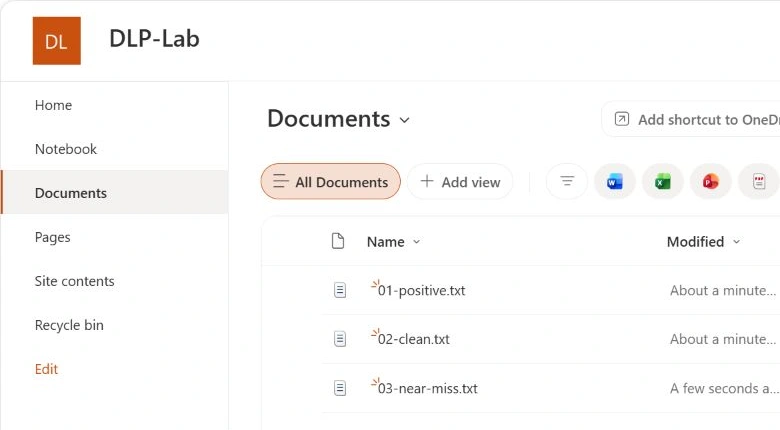
Also prepare 04-change-control.txt from the kit while it contains no marker. Share it with the same external recipient and verify its initial clean read before switching to enforcement. Later, E04 adds the marker to this same file; keep its link and permissions unchanged.
4. Create and test the lab classifier
In the portal used for this run, the path was Data Loss Prevention → Classifiers → Sensitive info types (classic). Create a custom type using the name above and a description identifying it as a synthetic lab marker. Microsoft also documents the classifier workflow under Information Protection; navigation can differ as portal experiences change.
- Add one pattern with high confidence.
- Choose a keyword list as the primary element. Enter only the exact marker in the Case sensitive box, leave Case insensitive empty, and select String match. Leave supporting elements empty.
- Keep the recommended confidence at high, review the pattern and save the type.
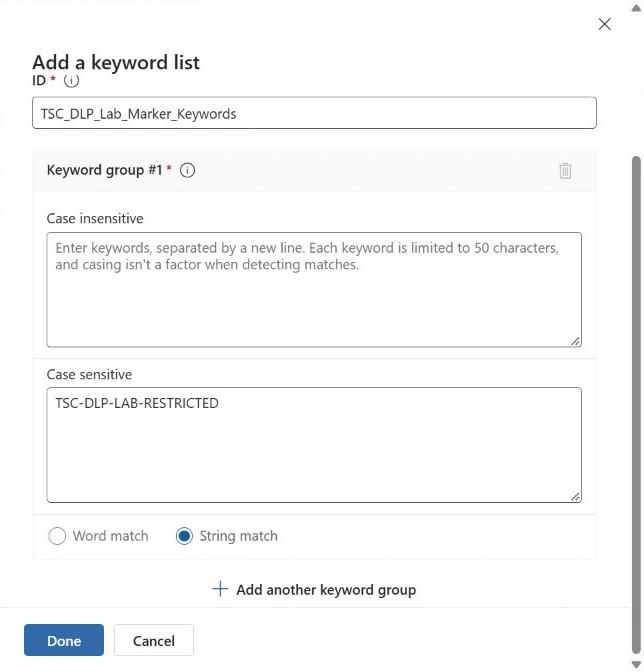
With no supporting elements, proximity is not the discriminator in this pattern. Microsoft recommends string matching for keyword lists and documents how custom patterns are assembled. Microsoft: create a custom SIT.
Select the saved type and use its Test action to upload each fixture separately. Record the match count and confidence. A correct local text comparison is not a substitute for these Purview test results. If the test action is unavailable, Microsoft's SIT guidance notes that the tenant needs at least one Exchange Online licence for this capability. Microsoft: testing sensitive information types.
Do not proceed with a positive sample that does not match, or a clean sample that does. Correct the classifier first; otherwise the later access test cannot answer the intended question.
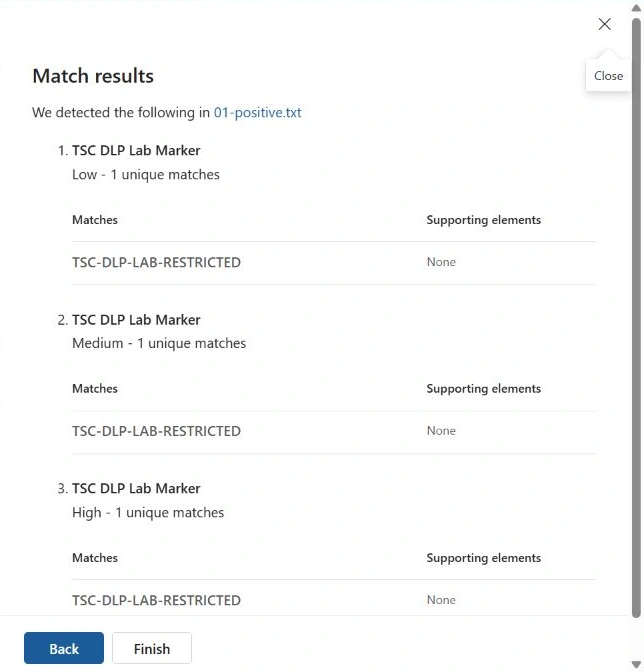
Observed classifier results: the positive fixture returned one match at high confidence. Both controls returned no sensitive information detected. The positive result also appears under the lower confidence thresholds; these are views of the same matching marker, not three separate occurrences.


5. Build a policy scoped to one SharePoint site
Open Data Loss Prevention → Policies → Create policy. Choose the enterprise applications and devices policy path, then a custom template. Name it TSC-LAB-DLP-SharePoint-External-v1.
- At Admin units, keep Full directory with no administrative unit selected. This is the outer administrative scope; the next step limits content coverage. An AU scoped to SharePoint sites changes the available location controls and can prevent further inclusion/exclusion of individual sites.
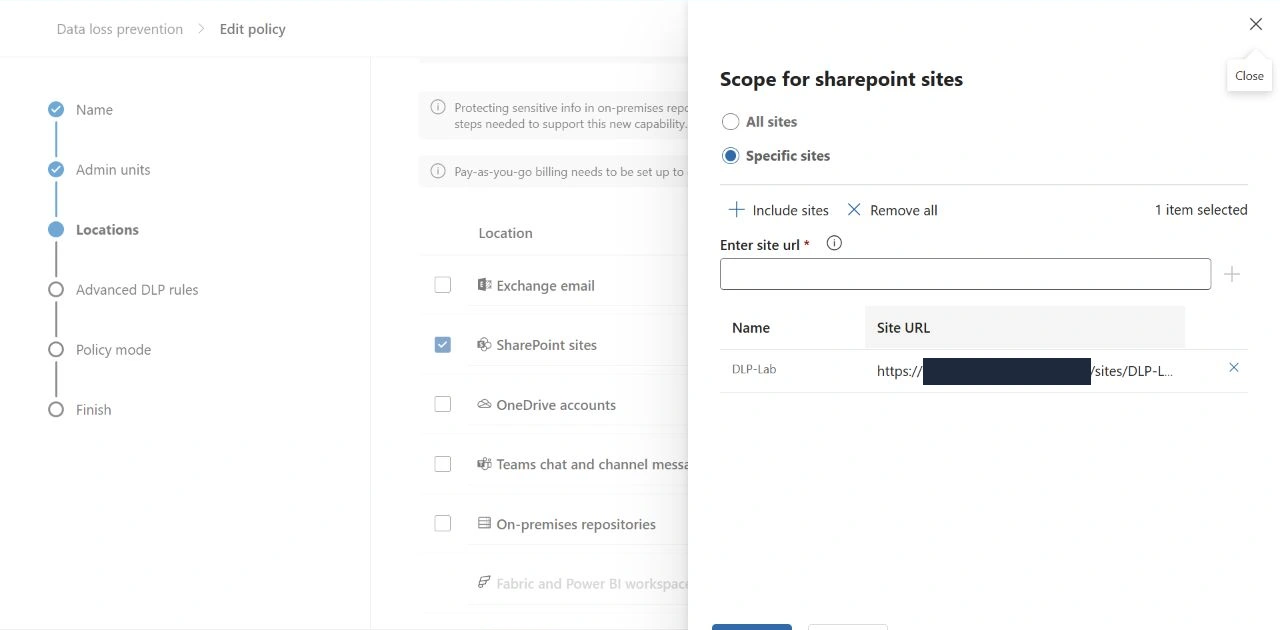
- At Locations, clear every location except SharePoint sites. Select its Edit scope action, choose Specific sites, add the approved lab URL and save. Confirm 1 site and reopen the list to check the actual URL.
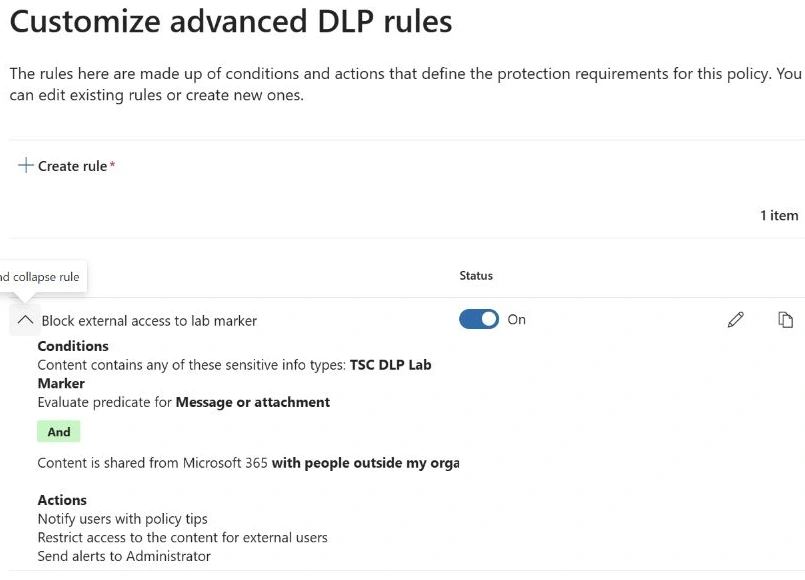
- At Advanced DLP rules, choose Create rule and name it
Block external access to lab marker. - Add Content contains → Sensitive info types and select
TSC DLP Lab Marker. Set High confidence, minimum 1, maximum Any. With only this SIT, the content group's Any of these setting has one candidate. - Add Content is shared from Microsoft 365 → with people outside my organization. The connector between the two conditions must be AND.
- Add Restrict access or encrypt the content in Microsoft 365 locations. Select the option to block users receiving/accessing the content, then Block only people outside your organization. Do not select Block everyone.
- Set notifications, overrides and alerts as below. Save the rule, then expand its summary to compare both conditions and the external-only action.
| Setting | Pilot value |
|---|---|
| Location | SharePoint sites only; include the approved lab URL explicitly |
| Other locations | Off |
| Rule | Block external access to lab marker |
| Content condition | Custom SIT above; high confidence; at least one occurrence |
| Sharing condition | Content is shared outside the organisation |
| Condition relationship | Both conditions must apply (AND) |
| Action | Restrict access to Microsoft 365 content; block only people outside the organisation |
| Overrides | Disabled |
| Rule user notifications | On; Policy tips selected; Email notifications cleared |
| Admin alerts | On; Low severity; no email recipients added |
| Simulation notifications | Show policy tips while in simulation mode cleared |
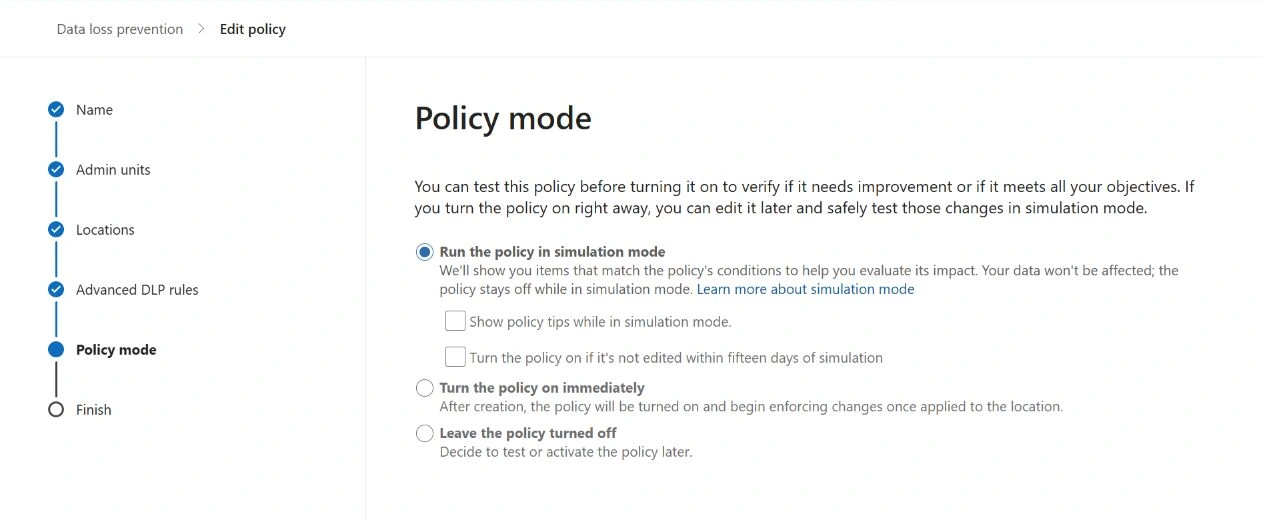
Keep rule notifications separate from simulation settings. Enable policy tips in the rule and leave email notifications and overrides off. At the policy-mode step, leave simulation policy tips off for the first pass. This follows the notification settings used in Microsoft's external-sharing walkthrough.
Review the saved location selection carefully: a location enabled without a narrower include list can cover every instance. Keep a screenshot of the complete site scope and the rule summary. The configuration follows Microsoft's external-sharing scenario, with a synthetic classifier and a single-site boundary. Microsoft: external-sharing DLP policy.
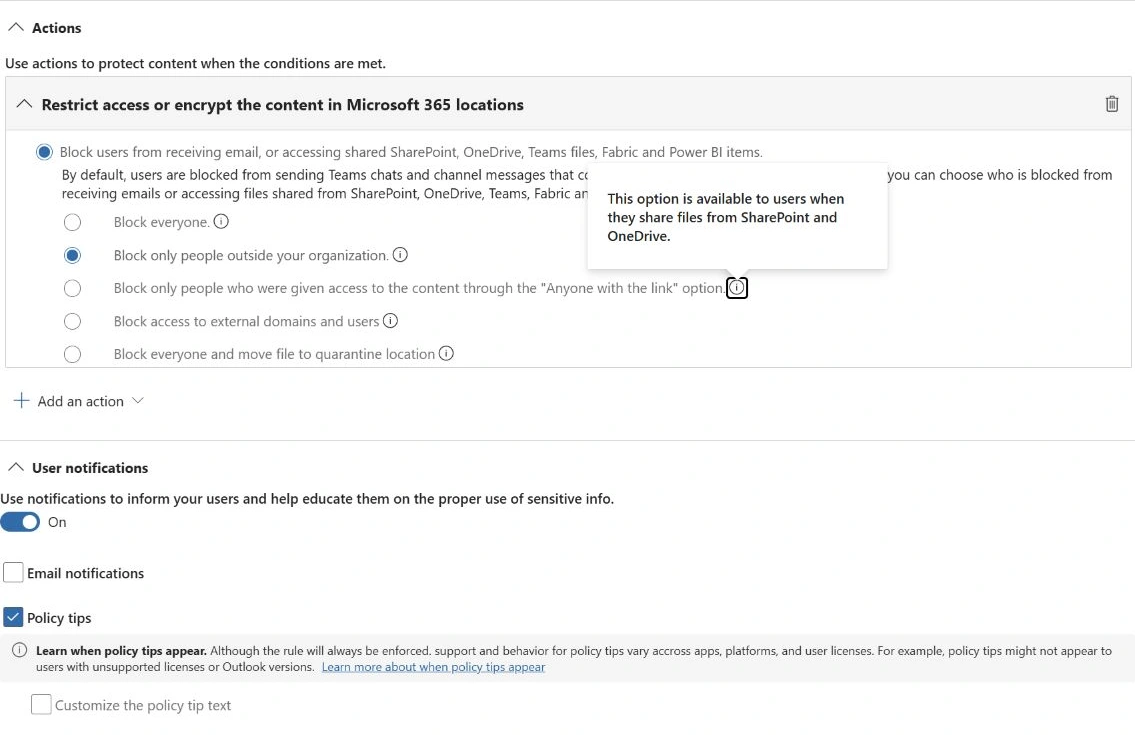
The external-only action preserves access for internal users who already have permission. It does not grant them new permissions. SharePoint can also apply proactive protection after detecting matching sensitive content, before an external sharing attempt. The Share dialog alone is therefore an incomplete test of the protection. Microsoft: DLP policy reference.
6. Start in simulation with automatic activation disabled
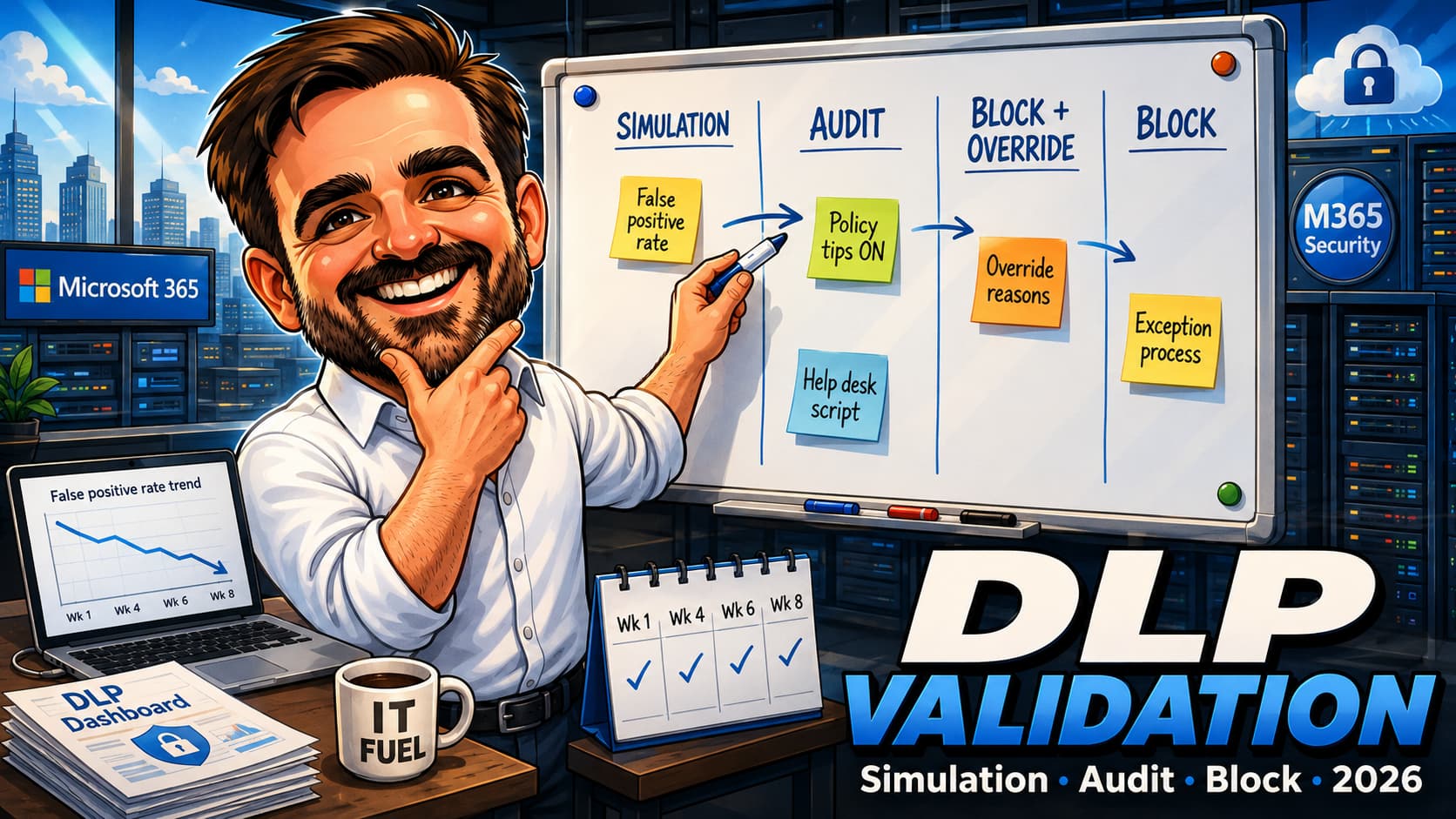
At the final policy stage, choose simulation and leave policy tips off for the first pass. Clear the option that turns the policy on automatically if it is not edited within 15 days. This keeps the change to enforcement as an explicit review decision.
Save the policy and retain the named-recipient links prepared in sections 1–3. Record file paths, versions, sharing times and the policy save time. Use 01-positive.txt for the simulation match; keep 04-change-control.txt clean until the changed-content test in section 7.
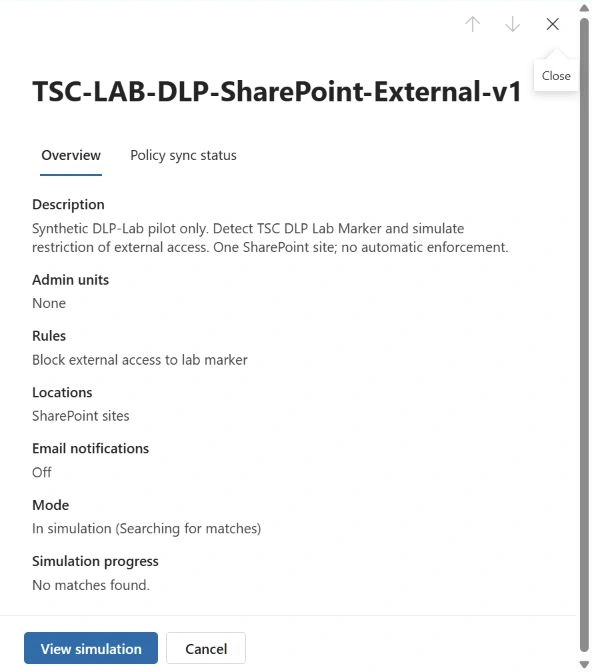
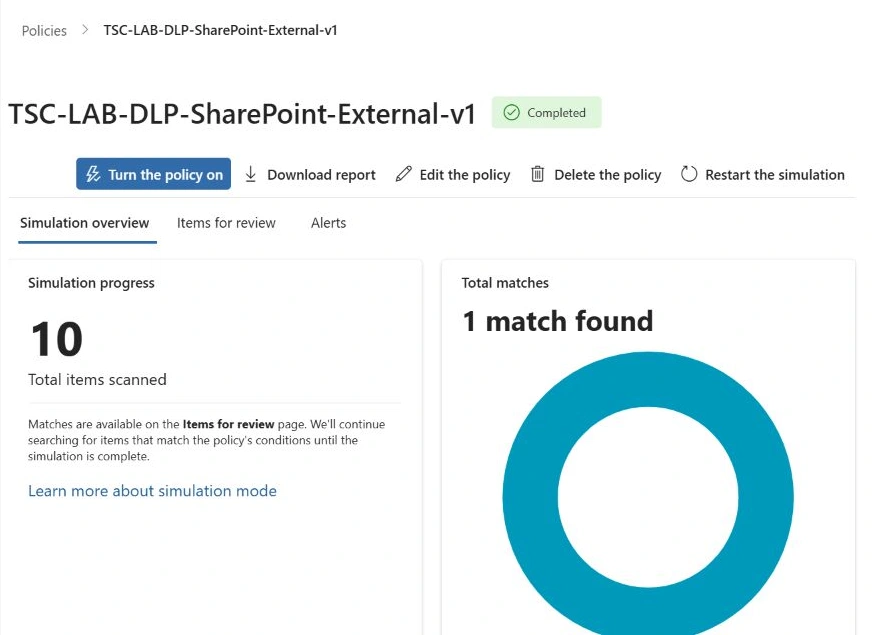
For the review, open Data Loss Prevention → Policies → your policy → View simulation. Inspect Overview and Items for review, correlating entries to the fixture paths. SharePoint simulation covers existing content as well as new or changed items. A completed scan and the actual matching item are more informative than an empty dashboard immediately after saving. Simulation workflow · Simulation behaviour.
Open the positive file using the external profile. The expected result during simulation is that this policy does not enforce the block. If access fails, investigate existing permissions or other controls. Save the successful clean-file baseline alongside the simulation match so the test has a useful control.
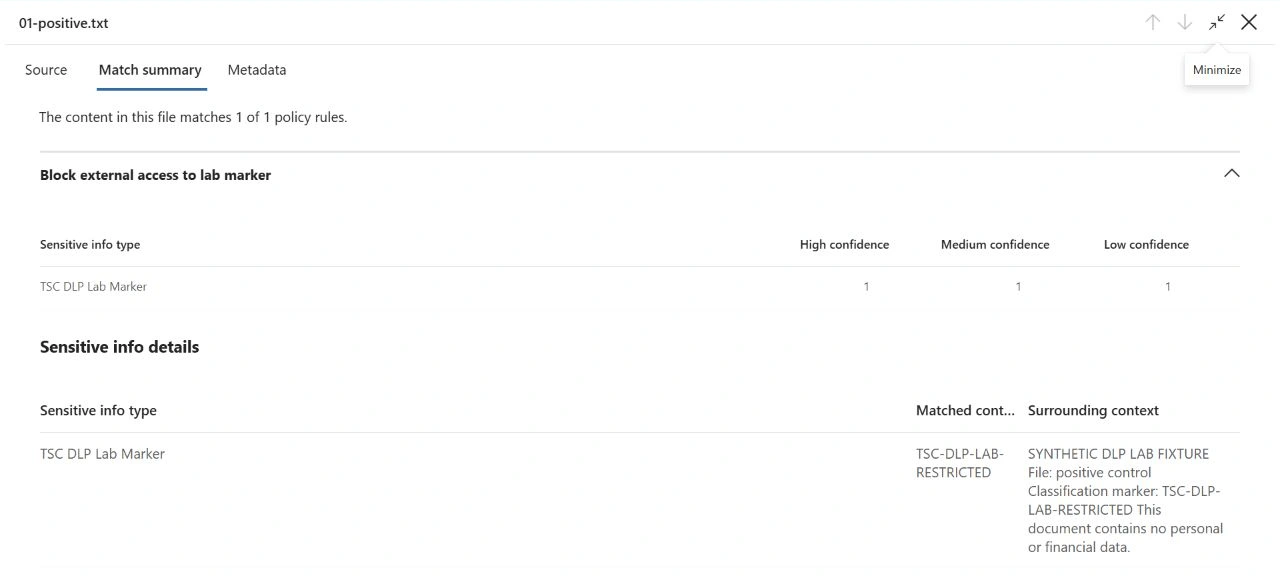
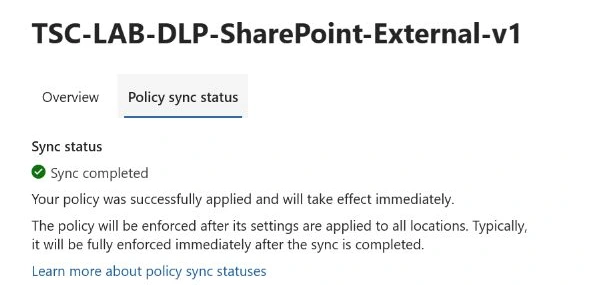
Observed simulation result: the scan reported Completed, 10 items scanned, one site and one match. Items for review identified 01-positive.txt, the intended rule and the exact lab marker at high confidence. The external operator then opened the live file and confirmed that the marker remained visible. Policy distribution also reached Sync completed before enforcement. Scan completion, distribution and recipient access are separate checks.
Use separate readiness gates
| Gate | Evidence to record | What it cannot prove |
|---|---|---|
| Policy distribution | Policies → lab policy → Policy sync status. Record the SharePoint result and investigate errors or a persistent pending state | A saved mode is not confirmation that the workload received the latest version |
| Content evaluation | View simulation → Items for review → positive item → Match summary. Match filename/path, rule, SIT and current version | Completed refers to the existing-content scan; it is not an enforced access result |
| Reporting | Correct reporting date window and policy mode; allow matching details and events to arrive | An empty report immediately after a change is not proof of no match |
| Recipient behaviour | Fresh authenticated requests for the positive and clean files, with identity role and time recorded | An administrator's preview or downloaded copy is not the external recipient's access test |
Move forward when distribution is healthy, the intended item is matched and the access baselines pass. If a check is incomplete, inspect its workload details, scope and fixture version before changing mode. Use Microsoft 365 service health for relevant service issues. Record observed results and times instead of treating a fixed wait as proof of readiness.
7. Turn on the pilot and change a pre-shared file
The demonstration uses 04-change-control.txt, which the external recipient already opened while it was clean. That successful baseline lets the later access test measure a content-related restriction using the same file and sharing link.
- Open Data Loss Prevention → Policies → lab policy → Edit policy. Keep the approved site, conditions and external-only action.
- At Policy mode, select Turn the policy on immediately, review and submit. The simulation page also provides Turn the policy on.
- Reopen the policy and confirm On. Inspect Policy sync status for the SharePoint workload and record when completed distribution is observed.
- Keep the file links and permissions unchanged throughout the content-change and access checks.
Observed activation: the pilot was turned on at 06:10 UTC on 19 October 2026. On and Sync completed were observed at 08:59 UTC. These are the recorded save and observation times, not a deployment-time guarantee.

Add the marker to the same file
- In the SharePoint Documents library, select
04-change-control.txtand choose Open → Open in Text Editor. - Append the line below to the existing clean content. Save the file in place; keep its filename, sharing link and permissions.
- Reopen the file and confirm the new line is present. Open Version history and record the version and save time.
- Check Manage access → Links to confirm the original named-recipient view link remains.
Classification marker: TSC-DLP-LAB-RESTRICTEDObserved content change: version 3.0 was saved at 09:34:41 UTC on 19 October 2026. It contained one exact marker. Reopening confirmed the saved content, and the original named-recipient link and permissions were verified unchanged.
Allow SharePoint to evaluate the changed content. DLP distributes policy changes to workloads and processes matching evidence asynchronously; a fixed number of minutes is not an acceptance criterion. Microsoft: how DLP works.
8. Verify the restriction and the clean control
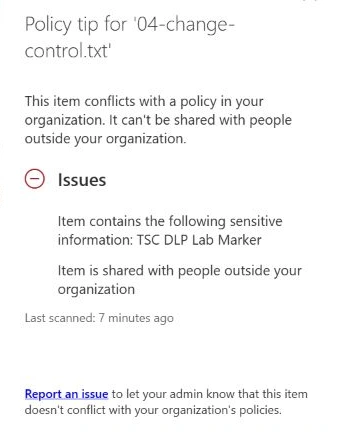
In the library, select the changed file and open Details → View policy tip. Record the identified sensitive information type and restriction. This run identified TSC DLP Lab Marker and stated that the item could not be shared outside the organisation. Microsoft: policy tips in SharePoint.
- In the authenticated external browser profile, open the original link to
04-change-control.txtin a fresh tab. Record the live response. - In the same session, open the original link to
02-clean.txt. Confirm that its clean-control content remains readable. - Save both results with the file version, policy state and SharePoint restriction evidence. Keep account identities and full sharing links in the private run sheet.
Observed result: passed. The changed-file link returned 403 FORBIDDEN. The clean control remained readable. Together with the SharePoint policy tip, the earlier successful read and unchanged permissions, this demonstrates the external restriction for the changed-content case.


A 403 on its own can have several causes. The clean control and file-level DLP evidence make this result useful. Use fresh requests to SharePoint throughout; access restrictions cannot retrieve a copy downloaded earlier.
Where licensed, Data Loss Prevention → Explorers → Activity explorer provides a complementary investigation trail. Filter to the test window, SharePoint, DLP rule matched and the pilot policy. Compare the file, rule and policy mode. Audit reporting is asynchronous, so the evidence above uses the observed SharePoint restriction and recipient responses. Microsoft: Activity Explorer.
9. Results of the demonstrated scenario
| Check | Evidence | Result |
|---|---|---|
| Positive classifier control | One unique high-confidence marker match in Purview (Figure 4) | Passed |
| Clean and near-miss classifier controls | No sensitive information detected by the lab SIT (Figures 5–6) | Passed |
| Isolated policy scope | DLP-Lab only, other locations off and external-only action (Figures 7–9) | Passed |
| Simulation detection and access | 01-positive.txt matched; external live read confirmed after the match (Figures 12–13 and operator confirmation) | Passed |
| Clean baseline for the changed file | External operator opened 04-change-control.txt before the marker was added | Passed — operator-confirmed |
| External restriction after content change | Version 3.0, unchanged view link, SharePoint marker/restriction and external 403 (Figures 16–17) | Passed |
| Clean external control during blocking | 02-clean.txt remained readable in the same test phase (Figure 18) | Passed |
Validation scope: these results establish classification, simulation and the external restriction after changing a pre-shared file. Enforcement of unchanged existing content, internal access to the newly blocked file, recovery and cleanup require separate validation before a broader rollout.
10. Complete your rollout and recovery checks
Use the additional cases in the downloadable matrix before expanding the pilot. Test unchanged existing sensitive files as well as changed content. Verify that an ordinary internal member with permission can read the same restricted version. The successful changed-file result above does not replace these checks.
Rehearse rollback with the sharing links intact
- Save the policy, file and recipient evidence. Open Data Loss Prevention → Policies → lab policy → Edit policy → Policy mode, choose Leave the policy turned off, review and submit.
- Confirm Off and inspect distribution. With the same external identity and unchanged link, request the file that was actually blocked. Confirm it becomes readable and that the clean control still opens.
- After verifying recovery, remove the temporary named-recipient links under each file's Manage access → Links. Review People, direct access and inherited permissions for other paths. Remove only grants introduced for the pilot.
- Use the external profile to request the old links again and verify that test access has been removed.
- Restore the site's original sharing setting through SharePoint admin center → Active sites → lab → Settings → External file sharing. Retain the synthetic fixtures and private evidence for the agreed period.
The recovery and cleanup steps are a checklist for your own pilot; they are not included in the completed results above. Before production, replace the synthetic marker with an appropriate classifier or label, test representative authorised documents and agree exception handling with business owners.
Common questions
Does simulation block external access?
No. It evaluates the policy without enforcing its protective action. Keep a live recipient check because other access controls can still affect the file.
Does a match or policy tip prove the recipient is blocked?
It identifies relevant policy behaviour. Confirm the actual recipient response and compare it with a clean file shared through equivalent permissions.
Can I apply this to OneDrive?
Use a separate scoped pilot with explicit file ownership and test identities. Validate its access results before expanding coverage.
Microsoft sources
Documentation reviewed on 18–19 October 2026. Public references are limited to official Microsoft documentation.
- Learn about DLP simulation mode
- Get started with DLP simulation mode
- Create and deploy DLP policies
- Create an external-sharing policy for SharePoint and OneDrive
- DLP policy reference
- Create a custom sensitive information type
- Sensitive information types and testing
- Credit-card sensitive information type
- Create a SharePoint site
- Permissions in Microsoft Purview
- User licence assignments
- SharePoint external sharing overview
- Learn about data loss prevention
- Get started with Activity Explorer
- Microsoft Purview service description
- DLP notifications and policy tips in SharePoint