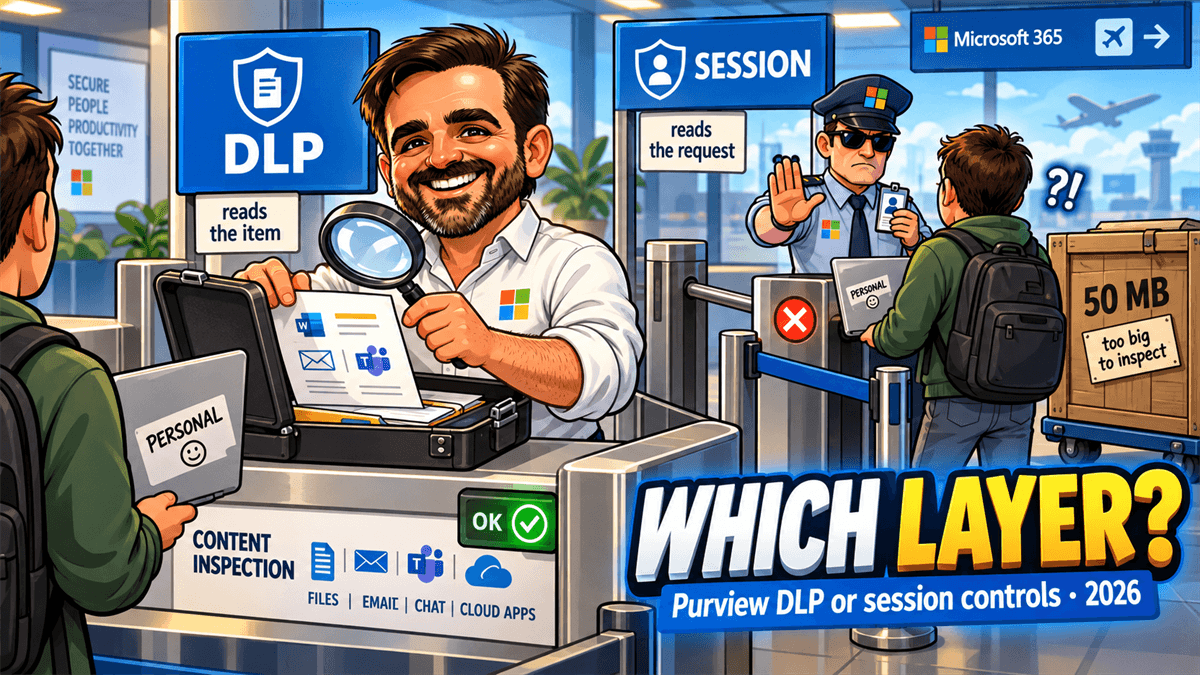
The question arrives as a procurement question and it is not one. Somebody has been told that Defender for Cloud Apps can stop downloads to unmanaged devices, somebody else has a Purview DLP programme already running, and the meeting is about which one to buy. On a Microsoft 365 E5 tenant you already own both, and the real question is which layer each of them can reach.
They are not alternatives, and as of 2026 they are not cleanly separated either. Purview DLP is content-aware and lives inside the services, the endpoints and the browser — and it now reaches the browser download that used to belong to session controls alone. Session controls are session-aware and live in the access path, between the identity provider and the app. Each one can still see things the other cannot, and each has documented ceilings. Where they overlap, the Purview managed-app browser policy might not apply. If you choose the Purview path, Microsoft instructs you to exclude those users from overlapping Defender session policies and Endpoint DLP policies for the same managed apps. This article is about all three of those sentences, with the limits printed.
The short answer, before the detail
If you take nothing else from this article, take the three sentences below. They answer the question in the meeting.
Use session controls when the requirement is about the session. "Not from a personal laptop", "not into that SaaS app", "not printed from the browser", "not downloadable by a partner". Session controls read the request.
Use both across different enforcement paths or workloads when the requirement needs broader coverage. Do not assume that overlapping Purview managed-app DLP, endpoint DLP and Defender session policies can enforce the same browser event simultaneously — on that one event Microsoft tells you to pick one and exclude the users from the others.
Almost every architecture argument I have watched about these two products was really an argument about that third sentence, conducted by people who each had half the requirement in their head.
The two control layers
Both products describe themselves in a line, and the two lines say plainly that they are doing different jobs.
Microsoft Purview DLP "can help protect your organization against unintentional or accidental sharing of sensitive information", and it does so by reading content: "DLP uses deep content analysis—not a simple text scan."
Conditional Access App Control, the feature inside Defender for Cloud Apps that most of this article is about, "enables user app access and sessions to be monitored and controlled in real time based on access and session policies". It reaches that position architecturally: it "uses a reverse proxy architecture and is uniquely integrated with Microsoft Entra Conditional Access".
Where each one intervenes
Three interception points, and the path only runs one way. A file downloaded from a third-party SaaS app to a personal laptop passes layer 2 and nothing else. A file copied from a labelled document onto a USB stick on a corporate laptop passes layer 1 and nothing else. Layer 3 reaches third-party SaaS only through a Defender for Cloud Apps connector, and at rest only in preview.
What the reverse proxy does to the request
It is worth being concrete here, because the mechanism explains most of the limitations later on. When a session is routed through Conditional Access App Control, the app's URL is rewritten — "if the app URL is myapp.com, the app URL is updated to myapp.com.mcas.ms" — and the service "modifies underlying application code". It then "uses patented heuristics to identify and control user activities in the target app".
Two consequences follow directly, and they are the two that surprise people.
First, nothing is installed anywhere: "Conditional Access app control doesn't require you to install anything on the device, so it's ideal when you're monitoring or controlling sessions from unmanaged devices or partner users." That is the whole reason the control exists, and the reason it answers the unmanaged-device question rather than DLP.
Second, it is rewriting somebody else's application. Heuristics against a third party's markup is a fragile place to stand, and Microsoft documents where it breaks: named apps lose deep links, drag-and-drop uploads over-block, and built-in client apps fall outside session control. Those are not teething problems. They are properties of the approach, and they are the reason the limitations section below is the longest in this article.
.mcas.ms suffix doesn't appear in the browser address bar", and Microsoft says protected users get their apps "without latency or app compatibility issues". The same session policies apply. What changes is that the proxy is out of the path — for the users and scenarios where it applies, which is a shorter list than most people assume. Eight documented conditions send a session back to the proxy, and they are listed below.Three entry conditions decide whether you get it at all: "To use in-browser protection, users must be in their browser's work profile", it needs "The last two stable versions" of Edge for Business, and it is "only available to Microsoft Defender for Cloud Apps commercial tenants". And one capability gap that matters for the first example policy later in this article: "Sensitive files identified by built-in DLP scanning aren't supported for Microsoft Edge in-browser protection".
The same machinery is what Purview's browser path runs on, which is why that path has the longer prerequisite list of the two: onboard the app to Conditional Access App Control, create a Conditional Access policy with Custom policy in the session controls and Browser under client apps, turn in-browser protection on with Allow access only from Edge, and block access to the app outside the Edge work profile. "The DLP policy won't be applied in Edge until all requirements are met." Policy Sync Status can display
N/A for this delivery path, while activation and configuration failures are surfaced in the Purview portal — so check there before assuming the policy is live.Which apps each one reaches
The most persistent myth about session controls is that they only work with apps in Microsoft's catalogue. Eligibility is a protocol test, not a catalogue lookup: controls apply to "any interactive single sign-on that uses the SAML 2.0 authentication protocol", to "any interactive single sign-on that uses the OpenID Connect authentication protocol", and to apps published through Entra application proxy. Entra ID apps "are also automatically onboarded".
The catalogue decides something narrower and still important: "only catalog apps have out-of-the-box session controls." For anything else you onboard the app yourself and register its domains, and until you do, "file downloads by the app from domains not associated with the app won't be blocked and the action won't be audited in the activity log". A half-onboarded app is not a half-protected app. On any domain you have not registered it is unprotected, and it still looks protected in the portal.
Purview DLP's reach is a published list of locations rather than a protocol: Exchange Online email, SharePoint sites, OneDrive accounts, Teams chat and channel messages, Devices, on-premises repositories, Fabric and Power BI, Microsoft 365 Copilot in preview, and — the row that matters here — Instances: Microsoft Defender for Cloud Apps. The two products are already wired together at that point, and the wiring is about to change direction.
The comparison that matters
Capability tables of the "feature | product A | product B" shape are not much use here, because the two products do not have overlapping feature lists. What they have is different answers to five questions. These are the five.
| Purview DLP | Session controls | |
|---|---|---|
| Layer | The data plane. Inside the service, on onboarded endpoints, in Edge for Business, and inline at the network layer. Network DLP and the underlying MDCA in-browser protection layer are currently in preview; Purview DLP for cloud apps in Edge carries no general preview label. | The access path. Between the identity provider and the app, for the duration of a browser session. |
| Signal | Content. Sensitive information types, trainable classifiers, sensitivity labels, document properties, and the activity being performed. "All locations support the Content contains condition." | Session attributes: activity type, app, device tag, IP address, location, ISP, user, user agent string and user agent tag. Plus file filters: sensitivity label, file name, extension, size. Content on downloads through the Data Classification Service, and on uploads through the older Built-in DLP engine. |
| Actions | Dozens, and location-specific: block, block with override, encrypt, quarantine, redirect, add recipients, apply a disclaimer, restrict USB and print and clipboard, restrict apps. On devices: "Allow, Audit only, Block with override, or Block". | Three. Audit, Block, Protect. Plus two modifiers: step-up authentication in preview, and always apply even if the data cannot be scanned. |
| Enforcement point | Policy is "synced to the various content sources" and evaluated there. Nothing sits in the network path except the Global Secure Access network DLP integration, in preview. | The proxy, or the browser. "Session controls apply only to web browser–based access and are enforced during interactive browser sessions." |
| Evidence | What was in the item. Matched condition, matched value, source, and "the text that surrounds the matched content". | What happened in the session. "the time, IP, user agent, URLs visited, and the number of bytes uploaded and downloaded". |
Three actions, and what each one actually does
The action list is the fact that reframes the whole comparison, so it is worth quoting in full rather than summarising. A session policy can do exactly three things:
- Audit — "Monitors all activities. Select to explicitly allow download according to the policy filters you set."
- Block — "Blocks file downloads and monitors all activities."
- Protect — "Applies a sensitivity label to the download and monitors all activities. Available only if you'd selected Control file download (with inspection)."
Protect is the interesting one and the one people over-promise. It works on a fixed file-type list — the Office formats and PDF — "PDF files must be labeled with unified labels", it "doesn't support overwriting files with an existing label in session policies", and crucially "the original file remains as it was in the cloud app while the downloaded file is protected". The same control can also "apply custom permissions to the user downloading files, or block the download of specific files". So Protect is protection applied to a copy on the way out. It does not touch the source.
Both use the same classification engine, and that surprises people
A session policy set to Control file download (with inspection) can inspect the file, and it does so with Purview's engine, not a separate one. Microsoft is explicit: you "choose inspection type by selecting the Sensitive information types", you "can also reuse any of your Microsoft 365 custom sensitive information types", and you "can configure your policy to use advanced classification types such as Fingerprints, Exact Data Match, and trainable classifiers". The framing sentence is: "Microsoft Data Classification Service provides a unified information protection experience across Microsoft 365, Microsoft Information Protection, and Microsoft Defender for Cloud Apps."
Two operational notes that do not appear in the marketing. The Data Classification Service inspection method "is only available for the Control file download (with inspection) option" — so uploads get the older Built-in DLP engine. And the integration is regional: "currently available in the US, Europe, Australia, India, Canada, Japan, and APAC", with the instruction that "if the feature isn't available in your region, use the Built-in DLP inspection method".
Which means the honest version of "they use the same SITs" is: on downloads, in supported regions, yes. Anywhere else, no.
When both could act on the same event
There is one documented precedence rule and it is easy to miss, because it lives on a Defender page rather than a Purview one: "Endpoint DLP policies are prioritized and applied if the same context and action are configured for the Endpoint policy and either a Defender for Cloud Apps session policy", and "the Endpoint DLP policy takes priority and is applied".
Between two session policies, "the more restrictive policy wins".
And there is a place where Microsoft's own navigation sends you to two different products for the same job. The Entra Conditional Access session page offers to "Enforce this control with Microsoft Defender for Cloud Apps" and, in the next breath, "For Microsoft Edge for Business, enforce this control with Microsoft Purview Data Loss Prevention". Same screen, same intent, two products. The tiebreaker is the endpoint-DLP precedence sentence above, and it is buried on a third page.
Licensing, which is where the architecture question becomes a procurement one
Only in one direction, and only below E5.
| Capability | Tier | Note |
|---|---|---|
| DLP for Exchange, SharePoint, OneDrive | E3-tier | Also covered by the workload plans: Exchange Online Plan 2, SharePoint Plan 2, OneDrive Plan 2, Business Premium. |
| DLP for Teams chat and channel messages | E5 | "Support for DLP protection in Teams Chat requires an E5 license", and the Microsoft Communications DLP service must be enabled on the licence. |
| Endpoint DLP | E5 | And the device has to be onboarded, which is the constraint that matters more than the licence. |
| Advanced Outlook policy tips | E5 | Per scoped user. |
| Browser DLP for managed apps, including the download block | Microsoft 365 E5 | "Scenarios where data in Microsoft Entra-registered (managed) apps is protected while using Edge for Business are included in a Microsoft 365 E5 or equivalent license." Not pay-as-you-go, which is the row below and a different scenario. |
| Browser DLP for unmanaged apps | Pay-as-you-go | "The ability to detect and protect sensitive data shared to unmanaged apps from managed devices in Edge for Business is a pay-as-you-go capability." Note the direction: managed device, unmanaged app. |
| Network DLP | Pay-as-you-go | A separate statement, same model: "These features are pay-as-you-go capabilities." |
| Defender for Cloud Apps | Microsoft 365 E5, EMS E5, the Defender or Purview suites, E5 Information Protection and Governance, or standalone | Not Office 365 E5. Once entitled, "By default, Microsoft Defender for Cloud Apps is enabled at the tenant level for all users within the tenant." |
| Conditional Access App Control | Plus Entra ID P1 | The sentence people miss: "To benefit from the Conditional Access App Control capabilities in Defender for Cloud Apps, users must also be licensed for Microsoft Entra ID P1". I have found no Entra ID P2 requirement documented anywhere. |
I have not found a Microsoft sentence saying you need both products, and on a Microsoft 365 E5 seat the question dissolves: DLP including endpoint, Defender for Cloud Apps and Entra ID P1 all arrive together. Office 365 E5 is not the same tier here — it carries neither Defender for Cloud Apps nor Entra ID P1, and the Teams chat DLP entitlement column is blank for it. Below Microsoft 365 E5 the two things that bite are the Entra ID P1 requirement for every user in scope of a session policy, and the fact that the two most useful DLP surfaces, endpoint and Teams chat, sit at the higher tier.
One dependency is worth tracing because it crosses the boundary. The Protect session action applies a Purview sensitivity label, and "Sensitivity labels are configured in Microsoft Purview and must be configured to apply encryption for it to appear as an option". So the Defender action depends on Purview configuration, and automatic client-side labelling carries its own entitlement on top. A session policy that labels downloads is three products deep before it does anything.
Five scenarios, and which control answers each
This is the table I actually use in a workshop. The column that earns its place is the last one, because in one row both products answer and interfere with each other, and in another neither answers cleanly.
| Scenario | Control | Why, and what the other one cannot do |
|---|---|---|
| A payroll file is emailed to a personal address | Purview DLP, Exchange location | Content test at send time, and the richest action set in the product: block, block with override with a captured justification, encrypt, redirect, or quarantine. Session controls have no documented action on the send path, and this is not a browser session against a proxied app in the first place. |
| A SharePoint file is shared with an external domain | Purview DLP, SharePoint location | DLP can "Block only people from outside your organization", and can now block specific external domains or users in public preview. Note the documented asymmetry: "Internal users and domains can't be blocked with this sub-option; continue to use Block everyone for internal users." Session controls act on the download, not the share. |
| A sensitive file is downloaded from OneDrive to a personal laptop | Either, and they collide | Both products answer this now, and that is the problem. Session controls have always done it: "Block downloads of sensitive files from OneDrive to unmanaged devices." Purview DLP does it too, through the Managed cloud apps location and Restrict browser and network activities > File download > Block, documented step by step — in the Edge for Business work profile, with Conditional Access App Control and in-browser protection as prerequisites, and no device onboarding: "You don't need to onboard the device into Microsoft Purview." Choose one path per user. See the overlap warning below. |
| A user uploads client data into a non-Microsoft SaaS app | Depends on the device, and both answers are partial | On a managed device: endpoint DLP, or browser DLP for unmanaged cloud apps in Edge for Business. On an unmanaged device: a session policy with Control file upload (with inspection) — but note that upload inspection does not get the Data Classification Service method, and that drag-and-drop of a mixed selection blocks the whole selection. |
| Restrict what a partner can do inside a browser session | Session controls, no contest | Print, copy, cut, paste and download can each be blocked or monitored per activity, with no agent on a device you do not own. But check the B2B exclusion first: "Session policies don't protect external business-to-business (B2B) collaboration users in Microsoft Teams applications." |
And where the same context and action are configured in both, "Endpoint DLP policies are prioritized and applied". Note the asymmetry: the documented effect is on the Purview managed-app browser policy, not a mutual stand-off. The Defender session policy or the endpoint policy carries on. What you lose is the one you most recently built, and the portal will still show it as on.
What the user sees, which decides whether the control survives contact
| Situation | What the user gets |
|---|---|
| Session is being monitored | A banner, on by default: "By default, users are notified when their sessions are being monitored." The setting is Notify users that their activity is being monitored, and the text is customisable. |
| Download blocked by a session policy | "a Download restricted message appears for the user, and the downloaded file is replaced with a text file." The replacement file is the part nobody expects, and the part the helpdesk gets called about. |
| Access blocked by an access policy | A block page reading "This website is blocked by your organization". |
| Session served by the proxy | The address bar shows an *.mcas.ms suffix. Under in-browser protection it does not, and users instead "select the 'lock' icon in the browser's address bar and look for the 'suitcase' symbol". |
| DLP block in Outlook | A policy tip: "This message has been flagged. What can I do?" — with an override and a justification box if you configured one. |
| DLP block in Teams | "Your message has been blocked", and for a blocked file preview, "a Preview Unavailable message is shown instead of the blocked preview". No email notification: "DLP for Microsoft Teams does not send user notification emails like DLP for Exchange, SharePoint, and OneDrive." |
| DLP block on an endpoint | A templated tip. Microsoft's own worked example: "pasting from the clipboard File Name: Contoso doc 1 via WINWORD.EXE isn't allowed by your organization". Title 120 characters, body 250, justification 250. |
One user-experience difference is worth calling out because it decides your helpdesk load. DLP has a documented middle gear — block with override, with a captured justification — in Exchange and on devices. Not in Teams, where the documented action list has one entry and "No policy tips are shown for files". Session controls do not. The three actions are audit, block and protect; there is no "block but let them proceed and tell me why". If your rollout method depends on that middle gear, and the validation approach I use for DLP does, then the session-control equivalent has to be built out of audit mode and patience instead.
Where they join, and where the gaps stay open
Two things are true at once: the products are converging at the data plane, and the gap between them at the session plane is not closing.
The convergence: file policies retire on 6 January 2027
Read alongside the August 2026 Purview preview that lets you "create DLP policies that protect sensitive data at rest in non-Microsoft connected applications, such as Box and Google Workspace" — using, pointedly, "the existing Microsoft Defender for Cloud Apps connectors" — the direction is unambiguous. Purview takes data at rest, including in third-party SaaS. Defender for Cloud Apps keeps the connectors and keeps real-time session control.
If you have documentation that says third-party cloud app DLP is delivered "via Defender for Cloud Apps integration", that sentence is now pointing the wrong way. I have such a sentence in an earlier piece of my own and it needs correcting: the connector is still Defender's, but the policy is becoming Purview's.
What the retirement does not touch is session policies. They are a different object doing a different job, and nothing in the 2026 release notes suggests otherwise. Which brings us to the more awkward observation.
That is my inference, not Microsoft's statement, and I would not build a five-year plan on it. But if you are choosing where to invest engineering time, the two products are not receiving equal attention.
The ceilings, and the switch that decides what happens above them
This is the part of session controls that most deployments discover in production. There are two size limits and they are different numbers.
| Ceiling | Value | What happens above it |
|---|---|---|
| Session policy applies to a file | 50 MB | "For files larger than 50 MB, use the tenant settings to determine whether the file is allowed or blocked, regardless of any matching policies." One documented exception: with Edge in-browser protection and the always-apply setting on, "any file larger than 50 MB is blocked". |
| Session policy content inspection | 30 MB and 1,000,000 characters, both | "files that are larger than 30 MB or have more than 1 million characters aren't scanned", and then fall to the Always apply the selected action even if the data cannot be scanned setting. |
| Files with encrypted sensitivity labels | — | If co-authoring is on for encrypted labels, "those files can't be read during content inspection", so "any file that has an encrypted sensitivity label is blocked, no matter what it contains" when the always-apply setting is on. |
| DLP text extraction, all locations | 2 million characters, 3 nested levels | The genuinely platform-wide figures, from the DLP platform considerations section: "The first 2 million characters (~2 MB) of extractable text" and "The first three levels", after which a Document didn't complete scanning signal is emitted. |
| DLP file size, endpoint conditions only | 64 MB uncompressed, 256 MB compressed | "DLP only supports content inspection for files less than 64 MB" is published inside the endpoint conditions list, not as a platform limit. Microsoft does not publish a managed-cloud-app file-size limit in this policy reference, which is not the same as there being none. |
| Exchange attachment scan | 2 MB of extracted content | Listed as a platform limitation for conditions: incomplete scan of email attachment content above two million characters. |
Microsoft publishes a worked matrix for the inspection ceiling that is worth reproducing mentally: a 1 MB text file with a million characters is scanned; a 2 MB text file with two million is not; a 4 MB Word file with 400,000 characters is scanned; the same 4 MB file with two million characters is not; and a 40 MB Word file with 400,000 characters is not. Three of those five are refused for a reason that has nothing to do with how much sensitive data is in them.
The consequence is that your policy has a fail-open or fail-closed decision in it, whether or not you made it deliberately. Turn on Always apply the selected action even if the data cannot be scanned and every oversized file and every encrypted-label file is blocked. Leave it off and they pass. There are two switches, not one: the per-policy setting decides files between 30 and 50 MB, and the tenant-wide Default behavior under Settings > Conditional Access App Control decides everything above 50 MB — except under Edge in-browser protection with the always-apply setting on, where anything over 50 MB is blocked outright. Three behaviours from two switches and a browser.
The limitations that decide whether this works in your tenant
I would read the known-issues page before designing anything, not after. The ones that change designs:
- Non-interactive tokens punch a hole between related apps. "the Teams client can get a non-interactive token for SharePoint and start a session in SharePoint Online" and "The user isn't asked to sign in again, so session controls can't intercept or enforce policies." The fix is to onboard the whole suite: "onboard all related apps, such as Teams, alongside SPO."
- The Teams desktop client is not covered. "Session controls, such as Block download (preview), don't apply to the Microsoft Teams desktop application", and "If desktop access is allowed, users might be able to download content through the Microsoft Teams desktop application, even when browser session controls are configured." Microsoft's own remedy is blunt: block native clients and allow only browsers.
- B2B guests in Teams are excluded outright. "Session policies don't protect external business-to-business (B2B) collaboration users in Microsoft Teams applications." That is precisely the population most people buy the control for.
- IPv6 silently disables IP rules. "Access and session policies support IPv4 only. If a request is made over IPv6, IP-based policy rules aren't applied." Both paths, proxy and in-browser.
- Drag-and-drop over-blocks. Microsoft's example: "A user tries to upload a selection of 200 nonsensitive files by using a drag-and-drop operation. | Files are blocked." Through the upload dialog instead, "Nonsensitive files are uploaded. Sensitive files are blocked." Same policy, opposite outcome, decided by how the user picked the files.
- Deep links are lost in named apps. Under the proxy, "browsing to a link might result in loss of the link's full path. Typically, the user lands on the home page of the app" — documented for ArcGIS, GitHub, Power Automate, Power Apps, Workplace from Meta, ServiceNow, Workday, Box and Smartsheet. Under in-browser protection, a user switching from another browser gets the same outcome: "the user is directed to the application's homepage in Microsoft Edge."
- Enforcement can outlive the policy. "When a session policy is enforced using Microsoft Edge in-browser protection and the user is later removed from the corresponding Conditional Access (CA) policy, the original session enforcement may still persist" — "due to cached policy data". The documented remedy is to delete
mda_store.1.txtfrom the user's Edge profile, or the work profile itself. Per machine. - Policies are application-scoped, not file-scoped. "Conditional Access policies are applied at the application level, not at the individual file level. As a result, you can't exclude specific files from the policy settings." This is the sharpest structural contrast with DLP, which is file-scoped by design.
- Google Workspace is out under in-browser protection. "Google Workspace isn't supported with in-browser protection in the Enterprise Microsoft Edge browser", and in Google Workspace "real time DLP files scans aren't supported" with upload, download, cut and copy unsupported.
- Built-in apps and browser extensions get access control, not session control. "It doesn't currently support built-in apps or browser extensions" — "You can choose to either allow access or totally block it." Access controls do reach them: "Built-in apps can be detected heuristically and you can use access policies to monitor or block them." This limitation applies only to reverse-proxy sessions.
And the eight conditions that send a session back to the reverse proxy even when you have deployed in-browser protection: Chrome users; Edge users scoped to a protect-file-download policy; Edge on Android; apps authenticated through OKTA; Edge InPrivate; older Edge versions; B2B guests; and sessions scoped to a Conditional Access policy defined in the Entra portal. Plus the catch-all: "Users that are served by multiple policies, including at least one policy that's not supported … their sessions are always served by the reverse proxy."
Two things Microsoft says that contradict each other
Worth knowing so you do not design around the wrong one.
End-user block emails. The session policy page still says "Block policies also allow you to select to notify users by email", and offers a customisable block message. The release-note archive says: "Effective October 1, 2024, we'll discontinue the feature that notifies end users via email when their action is blocked by session policies." Design for the block page and the replacement file, not for an email.
Preview status, which is genuinely hard to pin down. Several of the capabilities in this article are labelled inconsistently across pages, and the labels move. Here is what the pages said when I checked them, which is the most I would claim:
| Capability | Label on its own page | Note |
|---|---|---|
| MDCA in-browser protection | Preview | The Microsoft Learn page currently identifies the capability as "In-browser protection with Microsoft Edge for Business (Preview)". Session policies, the proxy overview and the troubleshooting guide all link to it the same way. |
| Purview DLP for cloud apps in Edge for Business | No general preview label | Neither the concept page nor the walkthrough carries a preview banner, and the policy reference marks other locations as preview while leaving the cloud app locations unmarked. Individual activities inside it are marked separately, as below. |
| Protected Clipboard, screen capture | Preview | Marked per activity in the browser DLP activities table. |
| Windows Recall restrictions | Preview | Under the device app-access restrictions. |
| Network DLP | Preview | The inline network path, delivered through Entra Global Secure Access. Not the same thing as the browser path above, which is why the two need separating. |
| Non-Microsoft connected apps, Microsoft 365 Copilot as DLP locations | Preview | Both marked in the locations table. |
The distinction that matters most: the Defender in-browser protection layer is in preview, while the Purview DLP policies that ride on it are not labelled as such. Two different objects, two different statuses, one browser. Read the label on the page that documents the feature, not the label on the page that links to it.
The decision tree
Six questions, per requirement rather than per tenant. Question 2 is the one that saves the most time, because it eliminates the product people usually start with.
| Question | If yes | If no | |
|---|---|---|---|
| 1 | Does the requirement name a specific type of content — a number format, a classifier, a label? | DLP is in the answer. Continue, because it might not be the whole answer. | You are describing an access requirement. Go to question 3, and consider whether Conditional Access alone is enough before adding a session control. |
| 2 | Is the content in a Microsoft 365 workload, or on a device you have onboarded? | Purview DLP. Service-side or endpoint, depending on where the action happens. | DLP reaches it only through the Defender for Cloud Apps instances location, the managed and unmanaged cloud app locations, or Edge for Business — all narrower than in-workload DLP. Otherwise: session controls, or the at-rest preview for connected third-party apps. |
| 3 | Is the action a download from a browser session against a business app federated with Entra ID? | Both can. Purview DLP through Managed cloud apps in the Edge work profile; session controls through the proxy or in-browser protection in any supported browser. Pick one per user and go to question 4. | Print, copy, paste and save are endpoint DLP's ground where the device is onboarded; send and share are service-side DLP's. |
| 4 | Does it have to work outside the Edge for Business work profile — Chrome, Firefox, Safari, or a user who will not sign into a work profile? | Session controls. Purview's browser path applies "only in Edge work profile". Session controls work with "the latest versions" of Edge, Chrome, Firefox and Safari, and install nothing on the device. | Purview DLP is the better fit when you want content-based Audit or Block decisions in the Edge work profile, using the same SIT definitions and DLP investigation workflow as the rest of the estate. Choose session controls when you need other supported browsers, sensitivity-label filters, Protect on download, step-up authentication or broader session attributes. If the device is also onboarded, endpoint DLP is more precise than either. |
| 5 | Will the users be in a desktop or mobile client rather than a browser? | Session controls will not see it. Either block native access and force the browser, or solve it at the data plane instead. | Continue. |
| 6 | Do you have Entra ID P1 for every user in scope? | You can proceed. On Microsoft 365 E5 this is usually moot, because DLP, Defender for Cloud Apps and Entra ID P1 arrive together. Office 365 E5 carries neither Defender for Cloud Apps nor Entra ID P1. | Session controls are not available to those users: "users must also be licensed for Microsoft Entra ID P1". |
Question 6 is the one that turns an architecture discussion back into a procurement discussion, and it is the only place where it belongs. On Microsoft 365 E5 the answer is yes, which is why the "which product" framing is usually the wrong question. On Office 365 E5 it is not, and that catches people who assume the two are the same tier.
A phased pattern that limits the blast radius
Four phases. The order matters because the failure modes are different: a DLP mistake generates tickets, a session-control mistake generates lockouts.
- 1ScopeOne app, one group
- 2RouteAccess policy, audit only
- 3InspectSession policy, audit
- 4EnforceBlock, one activity at a time
Phase 1 — scope, and exclude the session controls app. Pick one application and one pilot group. Before anything else, check every existing block-all Conditional Access policy for the session controls application and exclude it. Confirm the pilot users have Entra ID P1. Confirm the app appears on the Conditional Access App Control apps page, remembering that "Entra ID apps only appear on the Conditional Access App Control apps page after they're configured in at least one policy".
Phase 2 — route the traffic with an access policy set to Audit, and change nothing else. The point of this phase is to find out whether the app survives being proxied. Watch for the failure signatures: an App is not recognized page, an Unrecognized domain prompt, lost deep links, a broken certificate chain. If the app is in the catalogue this phase is usually uneventful. If it is not, this is where you find out what you signed up for.
Phase 3 — add a session policy in Audit, and accept that you are not monitoring much. Remember the Monitor-only trap: to see activities beyond sign-in you need at least one block-per-activity policy alongside your monitoring policy. Decide the always apply switch deliberately in this phase, with a real oversized file and a real encrypted-label file, so the fail-open or fail-closed behaviour is a decision and not a discovery.
Phase 4 — enforce one activity at a time. Downloads first, because that is the scenario with a clear user story and a clear message. Print and copy afterwards. Uploads last, because the drag-and-drop over-blocking is the behaviour most likely to look like a bug to a user who is doing nothing wrong.
Three policies, and what the user actually experiences
Concrete configurations rather than patterns, because the user experience is the part that gets missed in a design document.
| Policy | Configuration | What the user gets |
|---|---|---|
| 1. Block download of labelled files to unmanaged devices Session policy |
Session control type: Control file download (with inspection). Filter on device tag = unmanaged, plus a file filter on the sensitivity label. Action: Block. Decide the always apply switch explicitly. The Purview alternative for the same event: Managed cloud apps location, Content contains a sensitive information type, action Restrict browser and network activities > File download > Block. Do not run both against the same users. |
The monitoring banner on entering the app. On download, a Download restricted message, and a text file where the document should be. No override, no justification box. If the file is over 30 MB it was never inspected, and the always apply setting decided the outcome. |
| 2. Block external email containing payment card data, with an override Purview DLP |
Exchange location, Content contains the credit card SIT, recipient outside the organisation. Action: restrict access, block only people outside the organisation. User notification and policy tip on, override with a mandatory justification. | A policy tip in Outlook while composing: "This message has been flagged. What can I do?" The user can send anyway and must type a reason, which lands in the alert. This middle gear is the one session controls do not have. |
| 3. Label anything downloaded from the partner portal Session policy, Protect |
Control file download (with inspection), action Protect, applying an encrypting sensitivity label. Only works on Office formats and PDF, and "PDF files must be labeled with unified labels". | The download completes and the copy is labelled and encrypted. The source file in the app is untouched: "The original file remains as it was in the cloud app while the downloaded file is protected." Users who already have a label on the file get nothing new, because Protect "doesn't support overwriting files with an existing label". |
Policy 1 and policy 3 are the same session control type with a different action, and they behave completely differently under load. Policy 3 falls back to the reverse proxy even for Edge users, because a protect-file-download policy is one of the eight documented fallbacks. If your reason for deploying in-browser protection was to get rid of the proxy, a Protect policy quietly puts it back.
Validating it, and knowing where to look afterwards
Test both controls with the same four outcomes, because a matrix that only records blocks tells you nothing about the false positives you are creating.
| Outcome | Purview DLP test | Session control test |
|---|---|---|
| Allowed | A clean file through the same path. Confirm no tip fires and nothing lands in Activity explorer. | A clean file downloaded by a pilot user. Confirm the monitoring banner appears and the download completes. |
| Warned | Block with override. Confirm the tip text, that the justification box appears, and that the justification reaches the alert. | No equivalent exists. The three actions are audit, block and protect. Record this as a gap rather than a test. |
| Blocked | A matching file through the same path. Confirm the action, the tip, and the alert in the Defender portal. | A matching download. Confirm the Download restricted message and that the replacement text file is what the user actually receives. |
| Audited | Activity explorer within its 30-day window, and the alert dashboard within 30 days. | The activity log, and the traffic log with time, IP, user agent, URLs and byte counts. |
| Unscannable | Name the workload before you pick the file. On an endpoint, a 70 MB uncompressed file exceeds the documented endpoint condition limit. In any location, a file with more than two million characters of extractable text is only partly scanned. For managed cloud apps Microsoft publishes no file-size limit in the policy reference, so measure rather than assume either way. | A 40 MB file with two million characters, to exercise the per-policy always apply switch, and a 60 MB file, which is above the 50 MB ceiling and is therefore decided by the tenant Default behavior setting instead. Two different switches, and you need to know which one you just tested. |
The last row is the one people skip and the one that produces the incident. Both products behave differently on content they cannot read, and in both products the behaviour is a setting rather than a default you can assume.
Where the evidence lands, and for how long
| Store | Retention | What it is good for |
|---|---|---|
| Defender portal incidents | 6 months | Correlation across products: "intelligent inter-solution (DLP-MDE, DLP-MDO) and intra-solution (DLP-DLP) correlated alerts under a single incident". |
| Purview DLP alert dashboard | 30 days | Triage. But note the actual driver: "Your organization's audit log retention policy configuration controls how long an alert remains visible in the console." |
| Activity explorer | 30 days | What happened to classified content. Two fidelity caveats: filters are "generated based on the first 500 records", and "For endpoint events, only the most restrictive DLP rule appears." |
| Defender for Cloud Apps | up to 180 days | The longest window for raw session data, and the only place you get it. "Select View raw data to see the actual data that was received from the app". |
| MDCA session recordings | 48 hours | Troubleshooting a proxied session. Short enough that you have to ask for it the same day. |
Two latency figures worth writing into the runbook. DLP policies "take effect about an hour after being turned on", and alerts have their own clock: "It may take up to 3 hours to generate alerts after you configure or modify existing alerts in a DLP policy." For the MDCA activity log there is no published ingestion SLA at all — the documentation says only that it is updated constantly. Do not put a number on it in a runbook you will be held to.
One asymmetry to design around: MDCA records "activity names and types exactly as received" and "doesn't define or modify them", which makes its log excellent for reconstructing a session and poor for aggregating across apps. DLP records the matched condition, the matched value and the surrounding text, which is the opposite trade. If your requirement is "show me what left", start with DLP. If it is "show me what this user did in that app for the last hour", start with the activity log.
Frequently asked questions
Can Purview DLP block a download to an unmanaged device?
Yes, on one path. The Managed cloud apps location with Restrict browser and network activities > File download > Block does exactly that, and Microsoft publishes the walkthrough. The conditions are the point: it runs in the Edge for Business work profile only, it needs Conditional Access App Control and in-browser protection configured first, and "The DLP policy won't be applied in Edge until all requirements are met." It does not need the device onboarded. Outside Edge, or outside the work profile, the answer is still a session policy or SharePoint's own app-enforced restrictions.
Do session controls work with any SaaS app?
Eligibility is a protocol test: interactive SSO over SAML 2.0 or OpenID Connect, plus apps published through Entra application proxy. But only catalogue apps get out-of-the-box controls; anything else you onboard yourself, and until the app's domains are registered, downloads from unregistered domains are neither blocked nor audited.
Does the proxy slow things down?
Microsoft's own statement is "In general, any proxy adds latency", with no figure published anywhere. In-browser protection is described as delivering apps "without latency or app compatibility issues". If you see a specific millisecond number quoted, it is not first-party.
Does a session policy use the same sensitive information types as DLP?
On the download path, in supported regions, yes — including custom SITs, fingerprints, exact data match and trainable classifiers, through the Data Classification Service. Uploads use the older Built-in DLP inspection method, and so does any region where the Data Classification Service integration is not available.
If both could act on the same event, which wins?
Endpoint DLP. "the Endpoint DLP policy takes priority and is applied" when the same context and action are configured in both. Between two session policies, "the more restrictive policy wins".
Is monitor-only a safe way to pilot session controls?
It is safe and it is nearly blind. "The Monitor only session control type monitors only the Login activity." To see anything else you need at least one block-per-activity policy running alongside it, which is a different risk profile from the one people think they are choosing.
What happens to files that are too big to scan?
Session controls: above 50 MB the tenant default decides, regardless of your policy — unless in-browser protection and the always-apply setting are both on, in which case it is blocked. Between 30 and 50 MB the file is not inspected and the always-apply setting decides. Purview DLP is per-location: two million characters of extractable text and three nested levels apply everywhere, the 64 MB figure is published in the endpoint conditions, and Microsoft does not publish a managed-cloud-app file-size limit in that reference — which is not a guarantee that none applies. Both products need you to decide, explicitly, whether unscannable means allowed or blocked.
Are Defender for Cloud Apps file policies going away?
Yes, on 6 January 2027, with file-based protection moving to Purview. Session policies are a different object and are not part of that retirement. If your design uses MDCA file policies to protect data at rest in a third-party app, that is the part to migrate.
Do I need both licences?
I have not found such a sentence, and on Microsoft 365 E5 the question does not arise — Purview DLP, Defender for Cloud Apps and Entra ID P1 all arrive together. Office 365 E5 is a different answer: no Defender for Cloud Apps, no Entra ID P1. Below that tier the constraint people trip on is the Entra ID P1 requirement for every user in scope, and that endpoint DLP and Teams chat DLP sit at the higher tier.
Before you buy another control
Take one real data-loss scenario from your own risk register, run it through the six questions, and write down which layer it lands on. If it lands on two, check the documented overlap and select one enforcement path per user and browser event.
Which Purview control solves which problem- Learn about data loss prevention — locations, deep content analysis, where policy is synced
- Protect apps with Conditional Access App Control — the reverse proxy, protocol eligibility, the unmanaged-device scenarios
- Create session policies — the three actions, the filters, the monitor-only trap, the session controls app
- Known issues with Conditional Access App Control — the 50 MB and 30 MB ceilings and every documented failure mode
- In-browser protection with Microsoft Edge for Business — what changes, and the eight fallbacks to the proxy
- Create access policies — the two access actions and the Entra ID P1 prerequisite
- Troubleshooting Conditional Access App Control — recognition failures, the tenant default behaviour, session recordings
- Data Classification Service integration — the shared classification engine and its regional availability
- DLP policy reference — every action by location, the device condition, the inspection ceilings
- Policy tips reference — what users see, and where tips are not supported
- Learn about endpoint DLP — onboarding requirement and what it cannot see
- DLP for cloud apps in Edge for Business — the activity matrix, the licensing split, and the overlap warning
- Prevent sharing with cloud apps in Edge for Business — the step-by-step for the download block, and every prerequisite
- DLP and Microsoft Teams — the E5 requirement and the missing notification email
- Defender for Cloud Apps release notes — the 6 January 2027 file policy retirement
- What's new in Microsoft Purview — at-rest DLP for connected third-party apps, network DLP
- Conditional Access session controls — the screen that offers two different products for one job
- Microsoft Defender service description — the Entra ID P1 requirement for Conditional Access App Control
- Microsoft Purview service description — DLP licensing by location
- DLP alert investigation — where alerts land, retention, correlation
- Activity explorer — the 30-day window and its fidelity caveats
- Defender for Cloud Apps data retention — the 180-day figure
- Activity filters and queries — raw data, and activities recorded exactly as received