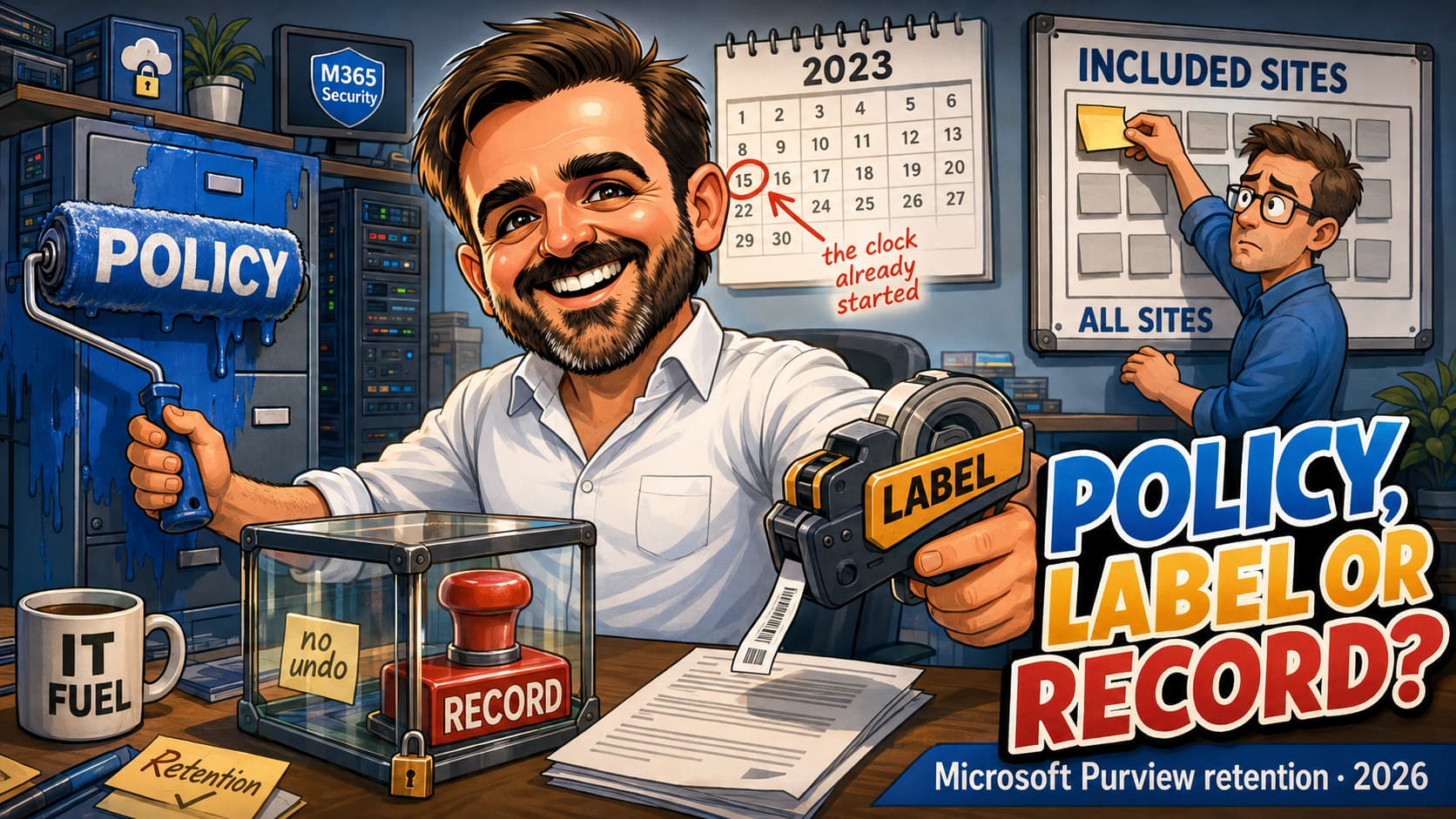
The conversation always starts in the same place. Someone from legal says "we have to keep these for seven years", and somebody in the room opens Purview and starts looking for the seven-year setting. Ninety minutes later there is a retention policy, a retention label, an adaptive scope that has not populated yet, and nobody can say which of the three is going to act on the document that started the discussion.
The three objects are not interchangeable and they are not a hierarchy. A retention policy is a container instruction. A retention label is an item-level property. A record is a flag on a label that changes what users are allowed to do. This article is about picking the right one, and about the specific things I have watched go wrong when the wrong one gets picked — most of which are not obvious until the timer job has already run.
Three objects, and one of them is not an object
Start with the definitions, because almost every design argument I have sat through was really a vocabulary problem. Everything in this section comes from Microsoft's own retention overview.
A retention policy assigns settings to a location. Microsoft describes it as "assigning the same retention settings at the container level to be automatically inherited by content in that container". The item does not know it is being retained. Nothing is stamped on it. Move it out of the container and, in Microsoft's words, "the retention settings don't travel with the content in its new location".
A retention label is a property of the item. It travels: "retention settings from retention labels travel with the content if it's moved to a different location within your Microsoft 365 tenant". Note the boundary in that sentence. Inside the tenant, yes. Outside it, no — "Retention labels, unlike sensitivity labels, don't persist if the content is moved outside Microsoft 365." That is the single most useful sentence to have ready when somebody asks why the retention label did not follow the file into their personal Dropbox. Microsoft draws the contrast with sensitivity labels in that same sentence, which is the cleanest way to explain to a user why the two behave differently once a file leaves the tenant.
A record is where the vocabulary breaks down, because there is no record object. There is a retention label with a setting turned on. Microsoft never defines it as a noun; it defines it by consequence: "When an item is declared a record by using a retention label: Restrictions are placed on the item in terms of what actions are allowed or blocked", additional activities are logged, and you get proof of disposition. Everything a record is comes from that one checkbox on a label.
What each one can do, and where the table stops being symmetrical
Microsoft publishes a capability comparison. The rows that actually decide designs are these:
| Capability | Retention policy | Retention label |
|---|---|---|
| Teams, Viva Engage, Copilot and AI apps, Skype | Yes | No |
| Exchange public folders | Yes | No |
| Applied manually by a user | No | Yes |
| Applied on conditions: SITs, keywords, trainable classifiers, cloud attachments | No | Yes |
| Persists when content moves | No | Yes, within the tenant |
| Declare item as a record | No | Yes |
| Start the period on an event rather than a date | No | Yes |
| Disposition review | No | Yes |
| Proof of disposition, seven years | No | Yes, with disposition review or a record |
| Change retention settings at the end of the period | No | Yes |
| Find the affected items with Content Search or content explorer | No | Yes |
| Audit the retention actions themselves | No | Yes, limited |
One row is missing from that table because Microsoft states it elsewhere on the same page: more than one retention policy can apply to the same item, and only one label can. Read that alongside the last two rows above, because that is the pairing that catches people out. You can stack retention policies — "Unlike retention labels, you can apply more than one retention policy to the same content" — and an item can carry exactly one label, with no priority mechanism: "Unlike sensitivity labels, you can't configure priorities for retention labels." So a tenant with a dozen overlapping policies is normal and survivable. A tenant with two auto-apply label policies that both match the same document is a case where the administrator cannot control which matching auto-apply policy supplies the label, and Microsoft says so: "you can't control which retention label will be selected", and "in some cases, the retention label for the oldest auto-apply retention label policy (by date created) is selected".
That is not a rule you can design against. It is a warning to make your auto-apply conditions mutually exclusive, and to check whether they are by testing rather than by reading them.
The portal split, and why nobody knows where the labels live
Retention labels appear in two places in the Purview portal, and which one you use changes what you can do with them.
| Object | Where it lives |
|---|---|
| Retention policy | Data Lifecycle Management > Policies > Retention policies |
| Retention label, ordinary | Data Lifecycle Management > Retention labels |
| Retention label, in a file plan | Records Management > File plan |
| Label policy, publish or auto-apply | Either solution > Policies > Label policies |
| Disposition | Records Management > Disposition |
| Adaptive scopes | Settings > Roles and scopes > Adaptive scopes |
Labels created in file plan also show up in Data Lifecycle Management, with one exception that matters: "if you now create retention labels in file plan, they're also available from Data lifecycle management if the labels aren't configured to mark content as a record". So a record label is invisible from the DLM node. I have watched an admin conclude a label had been deleted because they were looking in the wrong solution.
Microsoft's own routing rule is worth quoting to whoever owns the requirement: "If you need to manage high-value items for business, legal, or regulatory record-keeping requirements: Use retention labels with records management rather than data lifecycle management."
The PowerShell naming trap
If you inventory a tenant with PowerShell — and you should, because a list of a dozen policies is easier to read as a table than as portal pages — there is one thing to know before you write the script.
# Security & Compliance PowerShell.
Get-ComplianceTag                 # retention LABELS
Get-RetentionCompliancePolicy     # retention policies AND retention label policies
Get-RetentionComplianceRule       # the rule inside either of the above
Get-AppRetentionCompliancePolicy  # retention policies for the newer locations only
Get-AppRetentionComplianceRule    # and their rules
New-RetentionCompliancePolicy creates both retention policies and retention label policies. What separates them is the rule you attach afterwards. A script that assumes RetentionCompliancePolicy means "retention policy" will over-report a tenant's retention coverage, because it counts label publications as retention. I have had to redo an inventory because of exactly that.
The AppRetentionCompliancePolicy split is the other half of the confusion. The newer locations — Teams chats, Teams call logs, Viva Engage, Copilot experiences, Enterprise AI apps — live under that noun instead. Query only the first noun and Teams retention will appear not to exist.
Container or item, and the scope decision underneath it
Once you know which object you need, the next decision is how it reaches the content. This is where the real damage happens, and it is almost never in the retention settings themselves.
The static-scope landmine
A static scope has three shapes, which Microsoft's own text refers to as "org-wide", "includes" and "excludes". They look like three options in a wizard. They are not equally safe, and the common settings page has the example that proves it.
Do not defend against this by parking an extra site in the include list: that site is genuinely subject to the destructive policy, which trades one risk for another. The documented safe sequence is to turn the location off before you remove the last inclusion, or to configure deliberate exclusions. Better still, use an adaptive scope, where the question does not arise.
The same asymmetry shows up when you release a policy. Deleting or disabling a SharePoint or OneDrive retention policy gives you a grace period: "any content that's subject to retention from the policy continues to be retained for 30 days to prevent inadvertent data loss", and re-enabling within those 30 days resumes "without any permanent data loss". But excluding a site from a policy does not get that safety net — "An exception to this 30-day grace period is when you update the policy to exclude one or more sites for SharePoint or accounts for OneDrive". Excluding a SharePoint site or OneDrive account does not receive the 30-day policy-release grace period. Treat the change as potentially destructive and validate the remaining retention settings and recycle-bin recovery path before proceeding — content still follows the Preservation Hold library and Recycle Bin mechanics, so "no grace period" is not the same as "gone immediately".
The clock that was already running
This is the one I would put on a poster in the room where retention gets designed.
In practice: point a delete after three years, based on when items were created policy at a mailbox that has been in use since 2019, and you have not scheduled a deletion for 2029. Everything created more than three years ago is eligible at the next timer job.
The same applies to editing a policy that is already live: "your updated settings will be automatically applied to these items in addition to items that are newly identified". Shortening a retention period on a running policy is retroactive. I have not found an "applies to new content only" option, and the timer job does not ask.
Static or adaptive, decided on constraints rather than elegance
Adaptive scopes are the better answer most of the time, and Microsoft nudges that way without a blanket recommendation: "Consider using adaptive scopes rather than creating and maintaining multiple policies with includes and excludes." The nudge exists because of the limits table, which is where static scoping falls over.
| Static scope, items per policy | Limit |
|---|---|
| SharePoint sites | 100 |
| OneDrive accounts | 100 |
| Microsoft 365 Groups | 500 |
| Teams channel messages | 500 |
| Exchange mailboxes | 1,000 |
| Policies per mailbox | 25 recommended, 50 supported |
| SharePoint and OneDrive policies including all sites automatically | 13 |
| Retention labels per tenant | 1,000 |
One hundred sites per policy, from the published limits, is the number that ends the conversation in most enterprises. And note that these caps are shared: "These maximum numbers for Exchange and SharePoint are not exclusive to retention but are shared with other types of hold policies that include eDiscovery holds and In-Place Holds." A tenant with an active legal matter has fewer retention slots than the table suggests.
Against that, adaptive scopes have "No limits on the number of items per policy", can target inactive mailboxes in a way static scopes cannot, and can carry Teams and Viva Engage locations in a single policy where static scoping needs one policy each.
Two constraints send you back to static, and both are absolute:
- Preservation Lock. "Currently, adaptive scopes don't support Preservation Lock to restrict changes to retention policies and retention label policies." If your legal team reads the obligation as requiring a policy that cannot be turned off — SEC 17a-4 is the case Microsoft names — then the scope decision is made for you.
- Trainable classifiers. "Currently, trainable classifiers for auto-labeling can't be used with adaptive scopes. Use a static scope instead."
Also: Skype for Business and Exchange public folders do not support adaptive scopes at all.
Get-Recipient -RecipientTypeDetails UserMailbox,MailUser -Filter {Department -eq "Marketing"} -ResultSize UnlimitedAnd allow the time: a new adaptive scope takes "up to five days" to populate, refreshes daily, and the guidance for piloting is explicit — "wait and confirm their membership before you start simulation".
Getting a label onto an item, which is four different problems
Publishing a label does not put it on anything. It makes it selectable. That distinction is worth being pedantic about in a design review, because the four routes have different licences, different workloads, different timings and different override behaviour.
| Route | What it needs | Reaches | How long |
|---|---|---|---|
| Published for manual use | A publish label policy. E3-tier. | Outlook, OneDrive, SharePoint, group-connected Teams sites, Loop and Copilot Pages. It is the only route that supports regulatory records, although in Loop only labels that do not mark items as records can be applied manually. | SharePoint and OneDrive "typically appear for users to select within one day. However, allow up to seven days". Exchange: up to seven days, because "retention labels are made available to end users by a process that runs every seven days". |
| Auto-applied | An auto-apply policy with SITs, keywords or a searchable property, a trainable classifier, or cloud attachments. E5. | Exchange, SharePoint, OneDrive, Microsoft 365 Groups — except cloud attachments, which are SharePoint, OneDrive and Groups only. Not regulatory records. Not default labels. | "it can take up to seven days" |
| Default label on a library or folder | The label published to that location first, then a site or library owner sets it in SharePoint, or the user sets it on their own Outlook folder. E5 for SharePoint libraries, folders and document sets; an Outlook default folder policy is E3-tier. | SharePoint libraries, folders, document sets; Outlook folders. | Applies to new unlabelled items in the container; existing items only if you tick the box. |
| Everything else | Syntex model, Outlook rule, Power Automate, Graph API. Adaptive Protection and priority cleanup, both in preview at the time of writing, apply labels without asking you. | Varies. Outlook rules are E3-tier. A Syntex model is E5-tier and needs Syntex licences on top. | Varies. |
Two Exchange details in that table are the reason "the label has not appeared yet" tickets exist. The publication process runs on a seven-day cycle, so a label published on a Tuesday can genuinely be absent the following Monday and nothing is wrong. And the mailbox needs content: "As with all retention settings for Exchange, the mailbox must contain at least 10 MB of data." A freshly created test mailbox with three messages in it will not receive the label until it has enough data in it, and you can lose an afternoon to that.
# Exchange Online PowerShell. The log comes back as XML inside the MailboxLog property,
# so it has to be parsed before it tells you anything.
$logProps = Export-MailboxDiagnosticLogs user@contoso.example -ExtendedProperties
$xmlProps = [xml]$logProps.MailboxLog
$xmlProps.Properties.MailboxTable.Property |
    Where-Object Name -like 'ELC*'

# Read ELCLastSuccessTimeStamp. Only run the assistant if that timestamp predates
# the moment the label policy was published.
Start-ManagedFolderAssistant -Identity user@contoso.example
The value to read is ELCLastSuccessTimeStamp: it tells you when the mailbox was last processed. If it predates the publication of the label policy, running the assistant is the right next step. If it does not, the assistant has already run and the answer is somewhere else — so after seven days, check the label policy status and any distribution errors before you touch the mailbox again. This is the difference between "wait another week and see" and having something to look at now.
Auto-apply reaches less existing content than people assume
The auto-apply wizard offers the same conditions for Exchange and SharePoint, which creates the impression they behave the same. They do not, and the gaps are all on existing content.
| Condition | Exchange, in transit | Exchange, at rest | SharePoint and OneDrive, existing items |
|---|---|---|---|
| Sensitive information types | Yes | No | Yes, "only content that's already classified" |
| Keywords or searchable properties | Yes | Yes | Yes |
| Trainable classifiers | Yes | Yes, "last six months only" | Yes, "last six months only" |
Three consequences worth carrying into a design conversation:
- SITs cannot label the mail you already have. If the requirement is "find every existing email containing a policy number and retain it", a sensitive information type will not do it. Keywords will.
- The six-month ceiling is not universal. It applies to trainable classifiers, which reach existing items only for the "last six months only", in Exchange at rest and in SharePoint and OneDrive alike. Keywords and searchable properties have no such ceiling and do reach older existing content, and sensitive information types reach existing SharePoint and OneDrive items that are "only content that's already classified". Read the condition you chose, not the feature as a whole.
- Custom SITs do not work on existing files. "If you use custom sensitive information types, these can't auto-label existing items in SharePoint and OneDrive." Most organisations' most useful SITs are custom ones, so this is the limitation that most often sends a design towards keywords or a default library label.
And a behaviour that is a feature until it is a problem: "An auto-apply retention label policy will never replace an existing retention label that's applied to content." Once anything has put a label on an item — a user, a default library label, an earlier policy — auto-apply steps over it silently. If you are fixing a mislabelled corpus, auto-apply is not the tool.
Default labels: sticky in SharePoint, not sticky in Outlook
This one is worth checking in your own design document, because I have written it down wrong myself. The two default-label implementations behave in opposite ways when content moves.
| Situation | SharePoint library or folder | Outlook folder |
|---|---|---|
| Item moved to a location with a different default label | "The item keeps its existing default retention label" | "The item gets the new default retention label" |
| Item moved to a location with no default label | Keeps the label | "The old default retention label is removed" — except the Deleted Items folder, where since mid-2023 the label stays |
| Default label removed from the location | "Items retain their labels" | Label is removed from items |
| Existing items when the default is first set | Only if you select "apply to existing items" | — |
| Files migrated in later | Not covered. "this does not apply to subsequently migrated files" — re-apply the default and tick existing items again | — |
An architect who writes "default labels follow the folder" is right for Outlook and wrong for SharePoint, and the SharePoint half is the half that usually carries the compliance requirement. The migration line is the one that bites in practice: a tenant-to-tenant migration lands files into a library with a default label and none of them inherit it, because the default only applies to new unlabelled items and migrated files are not treated as new. The fix is to re-apply the default label and tick "apply to existing items" again, after the migration finishes.
Folder inheritance is worth knowing too: "For folders, the inheritance flows to any child folders and items inherit the label from their nearest folder." Nearest, not outermost. A subfolder with its own default overrides the library.
What actually changes when it becomes a record
This is the part of the design that reaches users, and it is the part most likely to be described inaccurately in the document that gets signed off. Microsoft publishes the behaviour as a matrix on the records management page, and it is worth reproducing rather than summarising, because the summary everyone reaches for — "records cannot be changed" — is wrong in four of these rows.
| Action | Retention label | Record, locked | Record, unlocked | Regulatory record |
|---|---|---|---|---|
| Edit contents | Allowed | Blocked | Allowed | Blocked |
| Edit properties, including rename | Allowed | Allowed* | Allowed | Blocked |
| Delete | Allowed ‡ | Blocked | Blocked | Blocked |
| Copy | Allowed | Allowed | Allowed | Allowed |
| Move within the container | Allowed | Allowed | Allowed | Allowed |
| Move across containers | Allowed | Allowed if never unlocked | Blocked | Blocked |
| Open and read | Allowed | Allowed | Allowed | Allowed |
| Change the label | Allowed | Container admin only | Blocked | Blocked |
| Remove the label | Allowed | Container admin only | Blocked | Blocked |
| Override with priority cleanup | Allowed | Blocked | Blocked | Blocked |
* Editing record properties can be blocked tenant-wide at Settings > Solutions settings > Records Management > Retention Labels > Allow editing of record properties. Microsoft names that setting differently on two pages, so search for both wordings if you cannot find it.
‡ Deleting labelled items in SharePoint and OneDrive can also be blocked tenant-wide, through the separate Deletion of items setting — which means an ordinary label can block deletion without declaring anything a record. That is worth knowing before you reach question 5 of the decision tree.
"Containers include SharePoint sites, OneDrive accounts, and Exchange mailboxes", and labels "can be removed from items even if the labels are no longer published".
Three things fall out of that matrix that consistently surprise the people signing the design.
An unlocked record is editable. Not by an administrator — by anyone with edit rights: "While the document is unlocked, any user with standard edit permissions can edit the file. However, users can't delete the file, because it's still a record." And unlocking is not a privileged action: "any user with Contribute permissions or a narrower permission level can unlock a record or lock an unlocked record." If your requirement is "nobody may alter this", a record does not deliver it. A regulatory record does.
A locked record can still have its label removed, by a container admin. That is not a bug; it is the documented escape hatch that makes ordinary records recoverable from a mistake. It is also the reason a record is not an answer to "prove nobody could have interfered".
Exchange has no unlocked state at all. "for all Exchange items that are marked as a record, the behavior maps to the Record - locked column", because lock and unlock rely on record versioning, which "isn't supported for Exchange items". Mail records are locked, full stop.
Record versioning, which is the strangest mechanic in the product
Unlocking a record in SharePoint does not just flip a flag. It performs a copy, and the sequence is worth knowing because it explains a lot of confused questions about the Preservation Hold library:
- If the site has no Preservation Hold library, one is created.
- If that library has no Records folder, one is created.
- "A Copy to action copies the latest version of the document to the Records folder. The Copy to action includes only the latest version and no prior versions."
- The copy is added to the original's version history, showing the word Record in the comments field.
- "The original document is a new version that can be edited, but not deleted."
The copies are named [Title GUID Version#], and here is the part that differs from everything else in retention: "Versions that are from a record continue to be copied to the Preservation Hold library as separate files, which means that they can expire independently from each other and the current version." Non-record content has behaved the opposite way since July 2022 — all versions in a single file, expiring together. So record versions have their own clocks, and "each version undergoes its own disposition review".
One more versioning consequence that shows up as a storage question rather than a compliance one: for items under a retention policy, "the versioning limits for the document library are ignored until the retention period of the document is reached", and "old versions aren't automatically purged and users are prevented from deleting versions". A library retaining a minimum of 500 major versions, under a seven-year retention policy, will grow in a way nobody budgeted for.
The list of things you cannot undo
I keep this list open when configuring a label, because half of it is checkboxes that look reversible.
| What | Why it matters |
|---|---|
| "Mark items as a record" on a label | Cannot be changed after the label is saved. Getting this wrong means a new label and a relabelling exercise, not an edit. |
| A regulatory record label, once applied | "nobody, not even a global administrator, can remove the label". The retention period can only ever be extended. It cannot be auto-applied, so somebody has to choose it deliberately — which is the only safeguard. |
| Preservation Lock | "Administrators won't be able to disable or delete these policies after the preservation lock is applied." PowerShell only, and you have to type Y to an acknowledgement. |
| Priority cleanup, once approvals complete | "items are permanently deleted and cannot be restored by users, by admins, or by Microsoft". Deleting the policy afterwards may not stop it: items "might still be permanently deleted" once the approval process has completed. |
| Label name, policy name, scope type | None can be changed after saving. Adaptive to static, or the reverse, means a new policy. |
| A label used as a replacement label, or an event-based label | Becomes undeletable while it holds that role. |
Preservation Lock deserves its own sentence, because it is the only control here that protects the policy rather than the content: it "locks a retention policy or retention label policy so that no one—including a global admin—can turn off the policy, delete the policy, or make it less restrictive". Locations can be added, never removed. Retention can be extended, never shortened. And to lock a label policy, "it must contain only labels that mark items as regulatory records".
Overlap, deletion, and what you can actually prove afterwards
The four principles of retention decide what happens when settings collide, and I have written about them elsewhere — including the fact that the third one is misquoted almost everywhere, because the published wording is "Explicit wins over implicit for deletions" and the qualifier is load-bearing. If you have not read that, the labels, DLP and retention comparison covers the principles properly and I will not repeat them here.
What that article does not cover, and what matters once you are building rather than choosing, is the framing sentence above the principles: "The outcome isn't which single retention policy or single retention label wins, but how long an item is retained (if applicable) and when an item is deleted (if applicable). These two actions are calculated independently from each other, from all the retention settings applied to an item."
Two calculations, not one winner. In a design review that means you cannot answer "which policy applies to this document" with a single name, and you should stop trying. The answerable questions are how long, and when deleted. Ask those instead and the conversation gets shorter.
What retention is not
Three boundaries, each of which I have had to draw for somebody who assumed otherwise.
Retention is not an eDiscovery hold, and the hold wins. "If content is subject to both retention settings and an eDiscovery hold, preserving content for the eDiscovery hold always takes precedence." But the reverse substitution is explicitly discouraged: "don't use eDiscovery holds for long-term data lifecycle management." Microsoft's own comparison puts it plainly — retention is compliance, long-term, broad and content-based, with low administrative overhead; holds are legal, short-term, specific and user-based, with high overhead.
Retention is not backup. These are two independent planes and Microsoft says so from the backup side: "Retention and deletion policies (for example, from Purview) don't affect the backup recovery window, which remains fully isolated from those policies." A retention policy will not restore a file somebody corrupted, and a backup restore point is unlikely to be accepted as satisfying an immutability requirement. If a requirements document uses "retention" to mean both, separate them before you design anything.
Retention does not replace two MRM features. Archive policies for archive mailboxes, and folder-scoped retention within a mailbox, have no equivalent: "A Microsoft 365 retention policy applies to all folders in the mailbox." Tenants still running MRM for a specific folder cannot simply migrate that rule.
And one boundary that is about the interface rather than the technology: "Messages visible in the Teams app are not an accurate reflection of whether they're retained or permanently deleted for compliance requirements." Do not let anyone validate a Teams retention policy by scrolling a chat.
The auditing asymmetry, which is the real argument for labels
If you only take one operational fact from this article, take this one:
With a retention policy you can prove the configuration existed and who changed it. You cannot produce an audit event showing that a specific item was retained or deleted because of it. Content Search and content explorer can find labelled items; the capability table says both are "No" for policies.
But do not read that as "labels are audited and policies are not". Retention labels provide item-level visibility, and audit coverage depends on the workload and on the label configuration. Ordinary labels generate item-level label events in SharePoint and OneDrive, not in Exchange. In Exchange the documented events are the ones tied to records, regulatory records, Adaptive Protection and certain disposition processes. And proof of disposition requires either disposition review or an item marked as a record.
That asymmetry is why "retain everything in Exchange for seven years" is a policy question, and "prove to the regulator that this contract was retained and then disposed of with sign-off" is a label question — and, for the proof half, a disposition review or a record rather than any label. It is not about strength. It is about evidence, and about which workload the content lives in.
The evidence that does exist is worth knowing precisely:
| Tool | Answers | What it will not tell you |
|---|---|---|
| Policy lookup | What applies to this user, site or group | Needs exact values: "You can't use wildcards, or partial matches" |
| Content explorer | Where labelled items are, right now | Labels only, never policies. Lags 7 days, 14 for SharePoint files. Needs two extra role groups. |
| Activity explorer | What happened to labelled content, 30-day window | "Activity explorer doesn't monitor retention activities for Exchange." That is a large hole in the middle of most retention designs. |
| Content Search | All items carrying a given retention label | Nothing about policy-based retention |
| Disposition page | Items deleted after review, and records disposed automatically | Only what you have permission to see: "each person that accesses the Disposition page sees only items that they're assigned to review" |
| SharePoint library columns | The Labels and Item is a Record columns per item | "you can't filter the view by the Item is a Record column" |
| Unified audit log | Changed retention label, changed record status, labelled message as a record, deleted file marked as a record, and the disposition review actions | Retention actions from policies |
One prerequisite that is easy to miss and impossible to fix retrospectively: proof of disposition "uses information from the unified audit log and therefore requires auditing to be enabled and searchable", and "Make sure that auditing is enabled at least one day before the first disposition action". If auditing was off, there is no audit record to build that evidence from, and it cannot be backfilled.
Disposition review, in the detail that decides whether it works
Disposition review is label-only — "Disposition review isn't available for a retention policy" — and it is the mechanism most often specified in a requirement and least often configured properly.
- Reviewers get one email per label, then a weekly reminder. Not one per item. In a corpus of any size, the review queue is the interface, not the inbox.
- Auto-approval is a timer, not a nudge. You can set 7 to 365 days, default 14, and if nobody acts "the item automatically passes to the next review stage". It "always starts from when the item is ready for disposition review and not from when you configure the option", and "There's no new auditing event for auto-approval". A silent auto-approval with no audit event is not what most people picture when they specify sign-off before deletion.
- Approval at the final stage is not instant. The item "is marked as eligible for permanent deletion, which happens within 15 days".
- Extending restarts the process. Review is "effectively suspended until the end of the extended period and then disposition review is triggered again from the first stage" — from the first stage, not from where it was.
- Adding a reviewer does not give them access. "This action doesn't automatically grant the required permissions to the users who are added." They get the notification, and without the role they have nothing to open.
- Global admins are not reviewers. "By default, a global admin isn't granted the Disposition Management role." Every disposition pilot I have seen has stalled on this for at least a day.
- Maximum five stages, ten reviewers per stage, 200 per tenant. Enough for most file plans, not enough for one reviewer per department in a large one.
Three requirements, worked through
The same three shapes come up over and over. Here they are with the control that fits and the reason.
1. "Keep all email for seven years, then delete it"
Retention policy, Exchange mailboxes location, retain for seven years then delete. No labels involved.
Why not labels: the requirement has no classification in it. Every item is treated the same, so an item-level property buys nothing and costs a great deal — you would need auto-apply, which is E5, and it would not reach existing mail with SIT conditions anyway.
What to get right:
- Scope. An org-wide static scope is architecturally appropriate here, because the requirement genuinely is every mailbox and the action is retain-then-delete rather than delete-only. It is not a safe answer on its own: it still needs the age analysis in the next bullet before anyone enables it.
- The clock. Seven years based on when items were created against a mailbox estate with a decade of history will delete everything older than seven years at the first timer job. If that is genuinely what legal wants, say it out loud in the change record. If it is not, the requirement is actually "keep the last seven years going forward", which is a different configuration and probably a different conversation.
- What happens after the period. Exchange permanently deletes within 14 days of expiry by default, configurable up to 30. Nothing is instant.
- What it does not cover. Teams messages are not in an Exchange mailbox policy for compliance purposes; they are their own location. Neither are public folders unless you add them, and they need a static scope.
2. "Keep these particular contracts for seven years, with sign-off before anything is deleted"
Retention label with disposition review, published to SharePoint, applied as a default label on the contracts library. E5 for both the default label and the review.
Why not a policy: disposition review does not exist on policies, and "these particular" is a classification statement. A policy cannot classify.
What to get right:
- Check the auto-apply condition against the back catalogue before choosing it. A keyword or searchable-property condition does reach older existing documents. A trainable classifier reaches only the last six months. A custom sensitive information type cannot touch existing SharePoint or OneDrive items at all. If the condition you need falls into one of the last two, a default label with "apply to existing items" is the route that reaches the whole library.
- Re-apply after any migration. Migrated files are not new files as far as the default label is concerned.
- Name reviewers who have the role, and check they can see the queue. Adding them to the label does not grant permission.
- Decide about auto-approval deliberately. Auto-approval is opt-in rather than on by default, but if you switch it on, the default 14 days quietly converts genuine sign-off into "sign-off, or fourteen days of silence", with no audit event for the automatic approval.
- Turn auditing on first, and at least a day before anything can dispose.
3. "These are regulated records. Nobody may alter or remove them, including us"
Retention label configured to mark items as a regulatory record, published for manual application. E5, and unusually deliberate. Preservation Lock is a separate decision, and only if the requirement also says the policy itself cannot be turned off.
Why the deliberateness is structural rather than cultural: a regulatory record cannot be auto-applied, so a human has to choose it every time. The option does not even appear in the portal until somebody runs Set-RegulatoryComplianceUI -Enabled $true. Both of those are Microsoft making it hard on purpose.
What to get right:
- Be sure the requirement really is irreversible. "nobody, not even a global administrator, can remove the label", and the retention period can only ever be extended. A normal record covers "nobody may delete this". Only a regulatory record covers "nobody may undo this", and it is a one-way door for both the item and, in practice, for you.
- The label already does the item-level work. A regulatory record blocks editing, deleting, renaming, moving across containers, and removing or changing the label. You do not need Preservation Lock to achieve any of that.
- Preservation Lock answers a different question. It protects the policy, not the item: nobody can turn it off, delete it, or make it less restrictive. Add it only when the obligation says so — SEC 17a-4 is the case Microsoft names, "after a policy for retention is turned on, it cannot be turned off or made less restrictive". If you do add it, adaptive scopes are out and the 100-sites-per-policy static limit becomes part of your architecture.
- If you lock a label policy, it can contain only regulatory-record labels. Mixing an ordinary label into that policy blocks the lock. A plain retention policy can be locked with any settings.
- Exchange records are always locked. There is no unlocked state for mail, so the user experience differs from SharePoint whether you planned it or not.
- Get it approved by the person who owns the obligation. Not the person who owns the tenant. This is the one design in this article where the technical decision and the legal one have to be made by the same signature.
The decision tree
Seven questions, in this order, per requirement rather than per tenant. The order matters: question 2 eliminates more designs than any other, and asking it late wastes a workshop.
| Question | If yes | If no | |
|---|---|---|---|
| 1 | Is the content in Teams messages, Teams call logs, Viva Engage, Skype, Copilot or AI interactions, or Exchange public folders? | Retention policy. Stop. These locations do not support retention labels, so they cannot be labelled, classified or made records. For Copilot and AI-app locations you also need pay-as-you-go billing set up before the policy can be created. Teams call logs are a special case: since late April 2026 they have their own location, the policy is created in PowerShell and is read-only in the portal, and it applies only to logs created after it is active. | Continue. |
| 2 | Does the requirement distinguish between items in the same location — these contracts, not those drafts? | Continue to question 3. You need a label. | Retention policy. A static policy is E3-tier when all content in the selected container needs the same treatment. If the design requires an adaptive scope, E5 or an equivalent eligible licence is still required. |
| 3 | Do you have E5 or an equivalent for the affected users? | Continue. | Manual labelling only, which is E3-tier, or reconsider whether a policy plus a tighter container will satisfy the requirement. Per the Purview service description, auto-apply, default library labels, adaptive scopes, disposition review, event-based retention and records are all E5. |
| 4 | Must you be able to produce evidence about an individual item, not just about the configuration? | Continue. A label is the only object with per-item audit, Content Search and content explorer coverage. | An ordinary label may still be required, because question 2 identified item-level differences. Reconsider whether a narrower container-based policy can satisfy the requirement; otherwise keep the label. |
| 5 | Must users be blocked from deleting the item? And is the content in SharePoint or OneDrive, where the tenant-wide Deletion of items setting can block deletion for any labelled item? | In SharePoint or OneDrive, try the tenant setting first: an ordinary label plus Deletion of items blocks deletion without declaring anything a record. If that is not enough, or the content is elsewhere, mark items as a record and continue to question 6. | Ordinary retention label. Add disposition review if sign-off is required. |
| 6 | Must the item be unalterable by everyone, including a global administrator, with no route back? | Regulatory record. Enable it in PowerShell, publish for manual application only, and get the obligation owner to sign. | Ordinary record. A container admin retains a way out, which is usually what you want. |
| 7 | Must the policy itself be un-turn-off-able — SEC 17a-4 or similar? | Preservation Lock, which means a static scope and PowerShell — and, if what you are locking is a label policy, only regulatory-record labels in it. A plain retention policy can be locked with any settings. | Leave it unlocked. For SharePoint and OneDrive you keep the 30-day grace period on release, which is a genuine safety net. |
Question 5 is the one worth dwelling on, and it has a cheaper answer than most designs use. In SharePoint and OneDrive, blocking deletion does not require a record at all — the tenant-wide Deletion of items setting blocks it for any labelled item. Declaring a record brings a great deal else with it, including behaviour you cannot reverse. "Nobody may delete this" is satisfied by a record, and often by less. "Nobody may change this" is not — an unlocked record is editable by anyone with edit rights, and any user with Contribute can unlock one. If the requirement is about alteration rather than deletion, question 6 is not optional.
Rollout, and how to know it worked
The rollout sequence I use has four stages, and the first two produce no retention at all.
- 1InventoryWhat is already on, in a file
- 2ScopeBuild and validate, attach nothing
- 3PilotOne requirement, narrow, evidenced
- 4WidenOnly after the evidence exists
Stage 1 — Inventory, because tenants are never empty
Every tenant I have opened for a retention project already had retention in it: an MRM policy from 2016, a label somebody published during an E5 trial, an eDiscovery hold nobody closed. eDiscovery and In-Place Holds share the per-location Exchange and SharePoint caps with your retention policies. MRM policies and litigation holds are excluded from the tenant policy cap, but they still change the outcome for the content they touch.
# Security & Compliance PowerShell. Connect with your own account.
$stamp = Get-Date -Format 'yyyy-MM-dd'
$out   = ".\retention-inventory-$stamp"
New-Item -ItemType Directory -Path $out -Force | Out-Null

# Labels. These are the columns Microsoft's own example for this cmdlet uses.
Get-ComplianceTag |
    Select-Object Name, Priority, RetentionAction, RetentionDuration, Workload |
    Export-Csv "$out\labels.csv" -NoTypeInformation -Encoding UTF8

# Policies and label policies together, because the cmdlet returns both.
# -DistributionDetail populates DistributionResults and makes DistributionStatus accurate.
# -RetentionRuleTypes returns which rule types each policy carries.
# Export the whole object: the summary columns hide what you need.
$policies = Get-RetentionCompliancePolicy -DistributionDetail -RetentionRuleTypes
$policies | Select-Object * | Export-Csv "$out\policies-full.csv" -NoTypeInformation -Encoding UTF8
$policies | ForEach-Object {
    [pscustomobject]@{
        Name               = $_.Name
        Enabled            = $_.Enabled
        Mode               = $_.Mode
        DistributionStatus = $_.DistributionStatus
        RetentionRuleTypes = ($_.RetentionRuleTypes -join '; ')
        DistributionResults= ($_.DistributionResults | Out-String).Trim()
    }
} | Export-Csv "$out\policies-distribution.csv" -NoTypeInformation -Encoding UTF8

# The newer locations live under a different noun, and have their own rules cmdlet.
Get-AppRetentionCompliancePolicy -DistributionDetail -RetentionRuleTypes |
    Select-Object * | Export-Csv "$out\app-policies-full.csv" -NoTypeInformation -Encoding UTF8

# The rules carry the duration, the action, any query and the label being applied.
# Export everything rather than a summary; the interesting properties are not the default ones.
Get-RetentionComplianceRule    | Select-Object * | Export-Csv "$out\rules-full.csv"     -NoTypeInformation -Encoding UTF8
Get-AppRetentionComplianceRule | Select-Object * | Export-Csv "$out\app-rules-full.csv" -NoTypeInformation -Encoding UTF8
Four things this block gets right that a summary export does not. -DistributionDetail is mandatory or DistributionStatus is documented as inaccurate, and it is what populates DistributionResults, which tells you where distribution stalled rather than only that it did. -RetentionRuleTypes tells you what kind of rule each policy carries. The rules are exported whole, because the duration, the action, any KQL query and the label being applied are not among the default columns. And Get-AppRetentionComplianceRule is a separate cmdlet — miss it and the Teams and AI-app rules are absent from your inventory.
Two readings to be careful with. Workload on a policy, in Microsoft's own words, "shows all workloads … It doesn't show the actual workload on which the policy is applied", so do not use it as evidence of coverage; read the location properties instead. And a Pending distribution status means distribution has not finished across every location, not that nothing is being retained — treat it as incomplete rather than as off. Preservation Lock is set through Set-RetentionCompliancePolicy -RestrictiveRetention $true, but it is not a documented output property of the Get- cmdlet, so confirm it in the portal or in the full export before relying on a column name.
Stage 2 — Build the scope and leave it alone for a week
If you are using adaptive scopes, build them and let them populate before you attach a policy. Five days is the documented figure, the query runs daily, and Microsoft's own guidance for piloting is to "wait and confirm their membership before you start simulation". Validate the query with Get-Recipient first, because a mistyped attribute value produces an empty scope rather than an error.
This stage feels like doing nothing. It is the cheapest week in the project, and it is where you find out that the department attribute you were promised is populated for only part of the directory.
Stage 3 — Pilot one requirement, and collect the evidence as you go
One requirement. One library or one small mailbox group. And a decision, up front, about what evidence will prove it worked — which is the same discipline I use for proving a DLP policy works before enforcing it, and for the same reason: retention that has not been evidenced is retention that will be argued about later.
Simulation exists, but know its shape before you rely on it. It covers auto-apply label policies with SIT or keyword conditions, and priority cleanup. It does not cover retention policies, published label policies, trainable-classifier auto-labelling, or cloud attachments. And it distorts in two documented ways: it "counts all items matching the policy criteria at time of simulation" even though already-labelled items will be skipped when the policy runs, and for Exchange it "runs against emails stored in mailboxes" while the live policy acts on mail in transit. Treat the count as an upper bound, not a forecast.
For everything with no simulation mode, the pilot is a narrow static include list. Note that you do not later convert that policy: the scope type cannot be changed on an existing object. You build an adaptive policy alongside it, validate the scope, and only then disable the static one — which is Microsoft's own migration advice: "leave your existing policies in place while you create new policies that use adaptive scopes with the same retention settings. Validate these new policies are targeting the correct users".
Stage 4 — The validation checklist
Ten checks. If you cannot answer all ten for the pilot, widening the scope only widens the uncertainty.
| Check | How, and what a bad answer looks like | |
|---|---|---|
| 1 | The policy reached its locations | Status is On (Success), not On (Pending). DistributionStatus in PowerShell says the same thing without waiting for the portal. |
| 2 | The scope contains who you think | Policy lookup for three named users, three sites. Exact addresses only; wildcards are not supported. |
| 3 | The label is visible to a real user | In Outlook, not in the portal. If it is missing after a week, check the 10 MB minimum before anything else. |
| 4 | Labelled items appear where you expect | Content explorer, allowing 7 days and 14 for SharePoint files. Also the Labels column on the library. |
| 5 | The age of existing content was considered | Write down what the oldest in-scope item is and what will happen to it at the first timer job. This is the check that prevents the accident. |
| 6 | Nothing else is already retaining the same content | Policy lookup returns every applicable policy, not just yours. An old MRM policy or an open eDiscovery hold changes the outcome. |
| 7 | Auditing is on, and was on a day earlier | Without it there is no proof of disposition, and it cannot be backfilled. |
| 8 | Reviewers can actually see the disposition queue | Have one of them open it. Membership of the label is not permission. |
| 9 | The record behaviour matches what was signed off | Try to edit, rename, move and delete a test record as a normal user. Do this before the requirement owner does. |
| 10 | You know how to reverse it | For each object: can it be disabled, released, relabelled? If any answer is no, that was a deliberate decision and it should be in the change record with a name against it. |
Frequently asked questions
Can a retention policy and a retention label apply to the same item?
Yes, and more than one policy can too. Only the label is limited to one per item, with no priority setting to break a tie. The outcome is not decided by which one wins but by two independent calculations, how long the item is retained and when it is deleted.
We applied a delete policy and content disappeared immediately. Why?
Almost certainly because the retention period is calculated from the item's own date, not from when the policy was applied. Everything already older than the period became eligible at once. This is documented behaviour. Whether you can recover depends on the workload and on how fast you catch it: disabling a SharePoint or OneDrive policy within 30 days loses nothing, and Exchange items pass through Recoverable Items first. Once permanent deletion completes there is nothing to restore, which is the reason to write down the age of the oldest in-scope item before enabling anything destructive.
Can I make Teams messages records?
No. Teams messages do not support retention labels, and a record is a label setting. Use a retention policy for the messages. Files shared in Teams live in SharePoint or OneDrive and can be labelled and made records there, which is often what the requirement actually meant.
Is a record immutable?
Not in the sense most people mean. A locked record cannot be edited or deleted, but a container admin can still change or remove its label, and any user with Contribute permissions can unlock it — after which anyone with edit rights can edit the contents. Only a regulatory record is immutable, and it cannot be applied automatically or removed by anyone.
Why has the label not appeared for users after five days?
For Exchange, the publication process runs every seven days, so five days is normal. Check the mailbox has at least 10 MB of content, then check the diagnostic log rather than waiting again.
Do I need E5 for retention?
Not for a static-scope retention policy, and not for creating, publishing or manually applying ordinary retention labels — all of that is E3-tier. E5 or an equivalent eligible licence is needed for auto-apply, default labels on SharePoint libraries, adaptive scopes on either object, disposition review, event-based retention, records, file plan and priority cleanup. E3 covers more than people assume: you can create ordinary retention labels, publish them, and have users apply them by hand. What moves the design to E5 is automation and the record-grade features, not classification in itself.
Can I switch a policy from a static scope to an adaptive one?
Not in place — the scope type cannot be changed after the policy is created. Microsoft's own advice is to build the new policy alongside the old, validate its targeting, and only then retire the original.
If I delete a retention policy, is the content released?
For SharePoint and OneDrive there is a 30-day grace period during which re-enabling the policy loses nothing. Excluding a site from a policy does not get that grace period. And any retention labels that were applied stay applied, with their settings, regardless of what happens to the policy that published them.
How do I prove an item was deleted correctly?
Proof of disposition, which is kept for up to seven years, and which is available only with disposition review or when the item is marked as a record. It requires auditing to have been enabled at least a day before the first disposition action. A retention policy cannot produce this evidence at all.
Pick one requirement and prove it
Take the narrowest retention requirement you have, run it through the seven questions, pilot it on one library or one small group, and collect the ten pieces of evidence before anyone asks for them. Tenant-wide comes after that, not instead of it.
Choosing between the three Purview controls- Learn about retention policies and retention labels — the definitions, the capability comparison, the four principles, precedence
- Create and apply retention labels — publishing, timings, default labels, the SharePoint and Outlook difference
- Learn about records management — the record behaviour matrix, and what is blocked where
- Declare records by using retention labels — who can apply them, and enabling regulatory records
- Use record versioning — the unlock sequence, and the setting that traps users
- Automatically apply a retention label — what auto-apply can and cannot reach, and simulation's distortions
- Common settings for retention policies and labels — scopes, the retention clock, editing a live policy
- Adaptive scopes — query limits, the five-day population window, validation commands
- Limits for retention policies and label policies — every cap in this article
- Disposition of content — review stages, auto-approval, permissions, proof of disposition
- Preservation Lock — what it prevents and how it is applied
- Retention for SharePoint and OneDrive — the Preservation Hold library, versioning, the grace period
- Retention for Exchange — timer jobs and the deletion window
- Retention for Teams — why the app is not evidence
- File plan manager — where record labels live, and what cannot be edited later
- PowerShell cmdlets for retention — the noun mapping
- Content explorer — what it shows, and its lag
- Activity explorer — including the Exchange gap
- Microsoft Purview service description — every licensing statement here
- Microsoft 365 Backup overview — why retention is not backup