You may already have restricted app registrations in your tenant. Agent blueprint creation has its own control, and it was enabled in our lab. This guide walks through who can create a blueprint, how to change the setting and what to verify afterwards.
This walkthrough focuses on agent identity blueprint creation in Microsoft Entra, using controlled accounts and real portal evidence. It complements the agent governance guide with a smaller, testable administrative change.
1. Understand what this setting controls
An agent identity blueprint is a template for agent identities. Its corresponding blueprint principal represents it in a tenant. An agent identity is a separate child object. Creating the template is therefore different from running an agent, sharing a Copilot agent, or granting it permission to read business data.
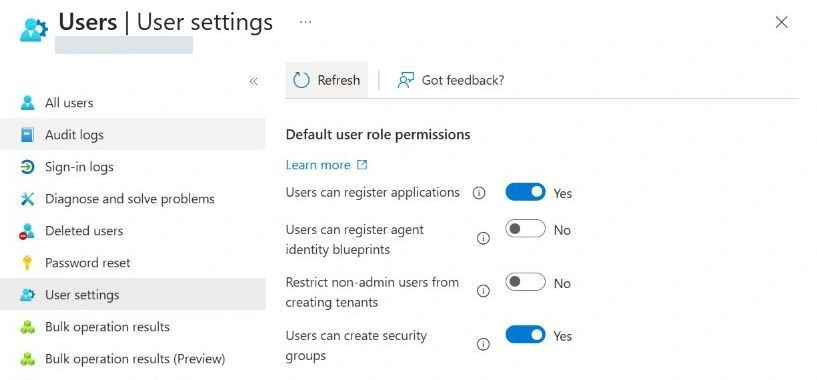
Microsoft documents the setting as Users can create agent blueprints. In our tenant on 11 November 2026, its label was Users can register agent identity blueprints, under Entra ID → Users → User settings → Default user role permissions. Follow the meaning and location as well as the label.
Check both creation settings separately. Setting Users can register applications to No does not replace the blueprint-creation restriction. If app registration is already restricted, still inspect Users can register agent identity blueprints and set its value deliberately. User-consent policies are another separate control.
| Question | Control to investigate |
|---|---|
| May a default user register an application? | Users can register applications, together with the user's effective roles. Review blueprint creation separately. |
| May a default user create a new blueprint? | The Entra default-user blueprint setting, together with the user's effective roles. |
| May an existing blueprint principal create child identities? | The existing principal and its permissions/state. The new-creation setting is not a replacement for this review. |
| May an agent read a mailbox or a SharePoint file? | Resource permissions, consent and the agent's authentication model. |
| May a user build, share or use a Copilot agent? | The relevant Microsoft 365, Agent Builder or Copilot Studio controls and entitlements. |
These boundaries matter when writing a change ticket. “Restrict default-user blueprint creation” is an accurate objective. “Block all AI agents” describes a much broader outcome that this change does not establish.
2. Prepare a test you can interpret
Use an approved laboratory tenant or an agreed change window. This switch is tenant-wide. It has no report-only mode or pilot-group scope in the workflow shown here. Review existing creators and dependencies before saving a change.
- Administrative session: Microsoft documents Cloud Application Administrator as the minimum role for the user-setting procedure. Use a separate session for testing the default-user experience.
- Test identity: an internal member account with no active agent-creation role. Check direct and group-based assignments and any activated PIM role. Record the actual role state.
- Disposable objects: unique names, an accountable sponsor and recorded object IDs. Keep credentials and business-data grants out of this test.
- Cleanup: agree who will remove the objects, confirm their ownership or applicable role and client permissions, and record which final value the tenant should retain. Section 9 separates these requirements from changing the user setting.
The platform for creating and managing Entra agent identities and blueprints is available to Entra customers. That is separate from Agent 365 licensing and from Copilot Agent Builder usage requirements. This lab does not establish entitlement to paid agent security, governance or Copilot features.
The lab used an initial account with Global Reader, followed by an account with Global Administrator for the administrative comparison. No directory role was changed.
3. Record the initial setting and inventory
- Open Entra ID → Users → User settings.
- Wait for the fields to finish loading. Record the blueprint setting, account context and observation time. Do not interpret temporary loading values as the saved policy.
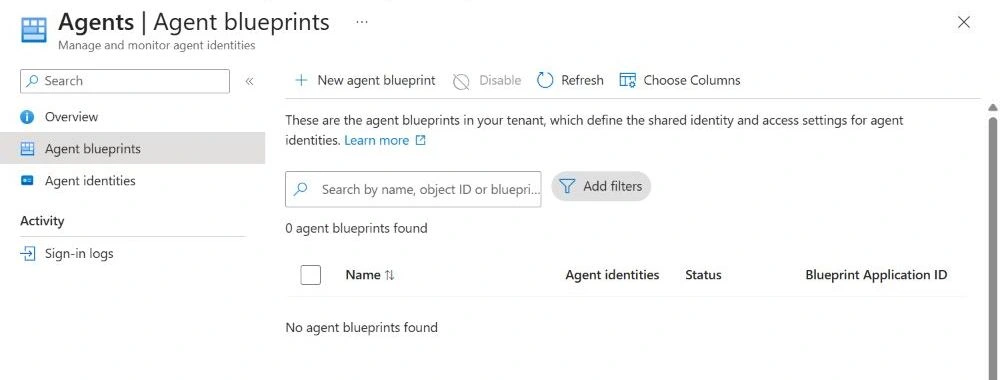
- Open Entra ID → Agents → Agent blueprints. Record any existing objects and their owners before creating a test object.
- Keep the neighbouring application-registration and guest-access settings unchanged.
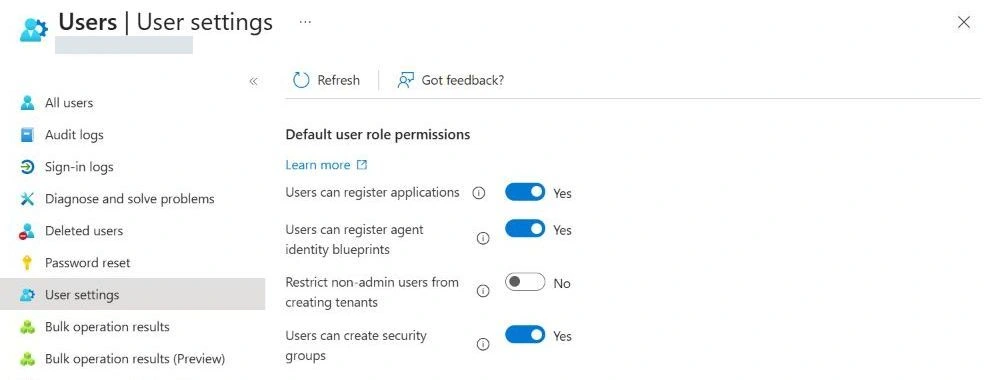
Our settled initial value was Yes. The initial blueprint inventory was empty. An empty Entra blueprint list is not proof that an organization has no Copilot agents, integrations or externally hosted AI tools.
4. Test the initial creation path
Sign in as the test user and verify the account and tenant in the portal. Open Entra ID → Agents → Agent blueprints. Record whether New agent blueprint is available before attempting creation.
Observed: New agent blueprint was disabled for the account with Global Reader while the setting was Yes. The portal reported insufficient permissions, so no creation request was submitted with that account.
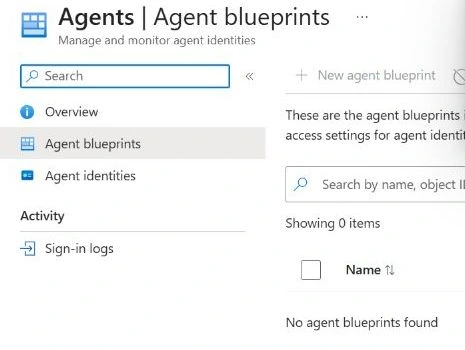
If the button is unavailable with Yes, investigate the effective roles, tenant, fresh-session behaviour and feature availability before comparing results. An announcement's rollout date alone does not confirm readiness in your tenant. Refreshing the list did not change our initial result.
The following workflow was completed using the account with Global Administrator:
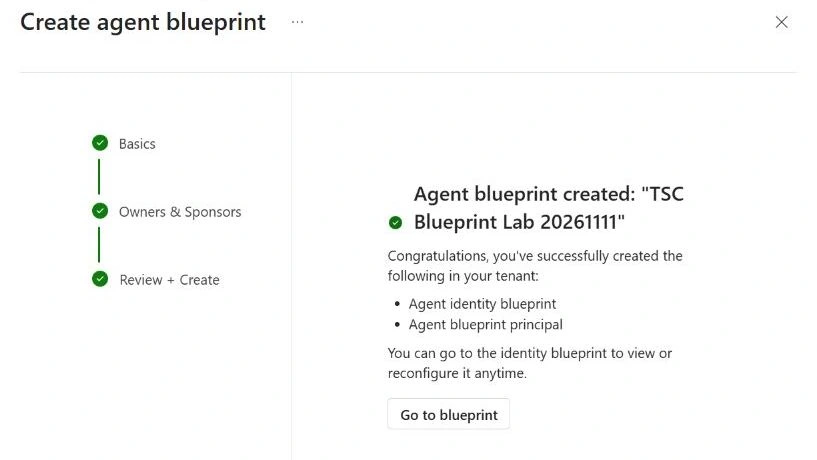
- Select New agent blueprint and use a unique name such as
TSC Blueprint Lab 20261111. - On Owners & Sponsors, confirm the accountable sponsor, which is required. An owner, who can manage the object, is recommended. Review any prefilled identities and record both relationships; being the sponsor alone does not make someone the owner.
- Review the creation summary. For this lab, do not configure a secret, certificate, federated credential or resource permission.
- After creating it, verify the object in the inventory. Record the application/client ID, application object ID and principal object ID separately.
Record the right identifier for each object
In Agent blueprints → Choose columns, show Blueprint Application ID and Object ID. Microsoft documents this list as a list of blueprint principals: its Object ID belongs to the principal.
| Identifier | Where to read it | What it identifies |
|---|---|---|
Application/client ID (appId) | Blueprint Application ID in the list; also appId in the blueprint manifest. | The blueprint's client identifier, useful for matching the application and its principal. |
Application object ID (id) | Open the blueprint → Developer settings → Manifest. Read id from the blueprint application manifest, matching its name and appId. | The application object targeted by an /applications/{object-id} operation. |
| Blueprint principal object ID | Object ID in the Agent blueprints list. | The tenant principal targeted by a /servicePrincipals/{object-id} operation. |
| Child agent identity object ID | Linked agent identities → select the child → record its Object ID. | That child identity, separately from the blueprint and its principal. |
If the application ID is unclear in the portal, an already authorised Microsoft Graph client can read GET /applications(appId='{client-id}')?$select=id,appId,displayName. Replace {client-id} with the recorded application/client ID and match the returned name and appId before recording id. Microsoft documents Application.Read.All for this read operation. Keep the manifest unchanged; this lookup does not require write permission. The official lookup reference is included below.
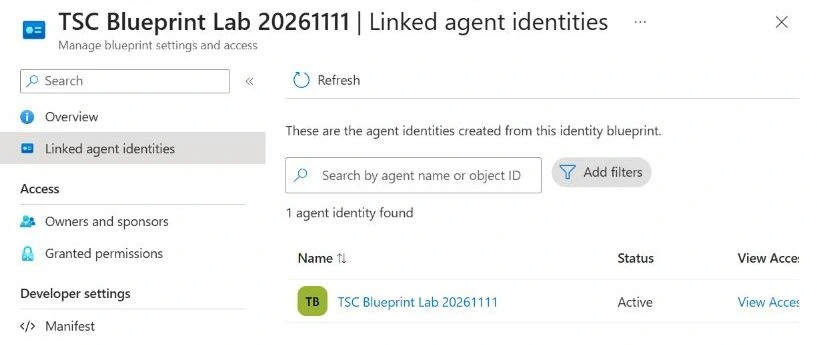
Microsoft describes the portal workflow as creating the blueprint and its principal. In our tenant, it also created one linked agent identity with the same name. Inspect Linked agent identities after creation and include any children in your cleanup plan. The principal has platform capability to manage child identities even when you have granted no access to business data.
5. Restrict default-user creation and repeat
In the administrative session, return to Entra ID → Users → User settings. Set only the blueprint-creation option to No, save it and verify the saved value.
To extend this lab into a default-user enforcement test, use a fresh session for the original test user after saving No. Return to the same path and attempt a new blueprint. Compare with that user's successful baseline, if one was obtained. Reopening an existing owned object is a different test.
Record what happened: an unavailable button is a portal observation; a rejected submitted request provides request-level evidence. Attribute the outcome to the policy only after checking the account, role and error.
Observed: we changed only blueprint registration to No, saved the setting and used Refresh to confirm it. The first blueprint remained Active after that change; it was subsequently removed as part of lab cleanup.
If the original tenant value was already No, start with that condition. Do not enable broad creation merely to manufacture a successful baseline screenshot.
6. Check the authorized-creator path
With the tenant setting still No, repeat the creation workflow using an approved creator. Microsoft's creation documentation identifies Agent ID Developer and Agent ID Administrator as roles that can create blueprints when default-user creation is disabled.
If evaluating an Agent ID Developer exception, grant it only through your normal approval process, keep the assignment short-lived and remove it afterwards. Avoid granting a broader role merely to make the test pass. Record the role that was actually active.
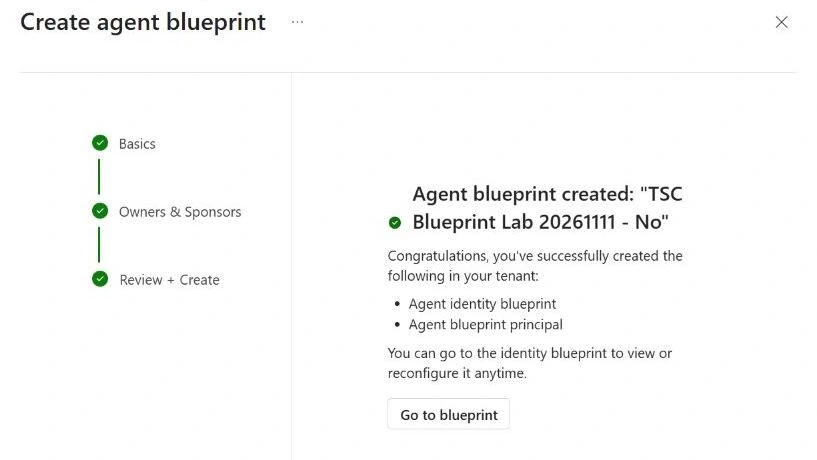
Observed: with No saved, the same administrative account created TSC Blueprint Lab 20261111 - No through a new wizard. Both creations succeeded. We configured no credentials or data-access permissions.
7. Correlate the result with the audit trail
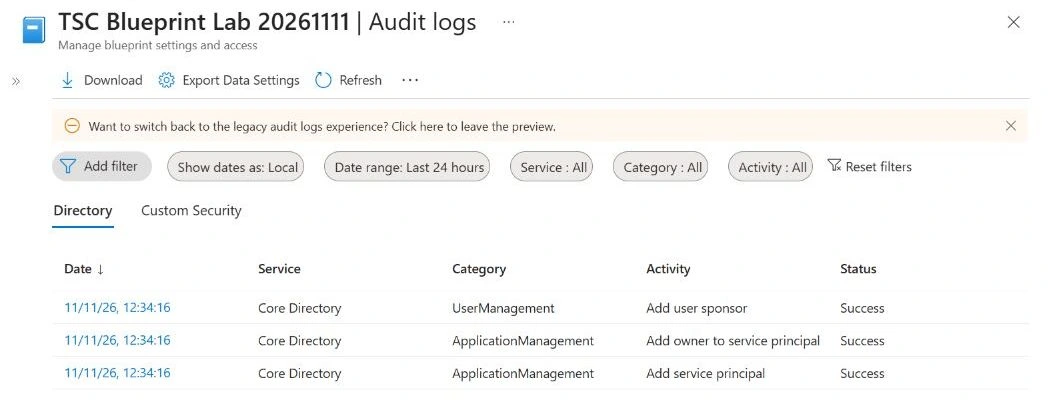
Use the blueprint's management page to inspect Agent blueprint activity → Audit logs and, separately, Agent blueprint principal activity → Audit logs. For the tenant setting, inspect the directory audit log around the time the administrator saved it.
Match the actor, time, target object and result to your test record. A blueprint and its principal are distinct objects, so a single event or a single name search is not always the complete creation trail. Preserve the exact activity names the tenant reports instead of assuming every operation uses an “agent” label.
For any failed attempt, capture the error and correlation ID if shown. Missing audit data is not proof that no attempt occurred: confirm the selected directory, time range, actor and log availability before drawing a conclusion.
Observed: the first principal recorded Add service principal at 12:34:16 UTC on 11 November, with Success. We matched the actor and target to the lab record. Related owner and sponsor updates also succeeded; the screenshot shows this principal’s trail.
8. Understand what remains after No
Existing principals need their own review. Microsoft documents that blueprint principals can create and manage their child agent identities. It also documents a path for an existing owner to create children without an Agent ID directory role. Restricting new templates is therefore only one part of the lifecycle.
For existing objects, inspect Linked agent identities, Owners and sponsors and Granted permissions. Confirm the business purpose and dependency before disabling anything. Review incoming third-party consent separately; the consent phishing lab explains the wider app-access problem.
Microsoft product integrations and programmatic clients are additional creation channels. Their product settings and Microsoft Graph grants need review. This Entra switch is not a substitute for Microsoft 365 agent administration controls. The relevant Microsoft procedures are collected at the end of this guide.
9. Close the change and clean up the lab
Check cleanup authority before removing anything. The minimum role for changing the tenant setting is not a complete cleanup permission checklist. Microsoft's deletion procedure identifies Agent ID Administrator for managing agent identity objects and Cloud Application Administrator for deleting the blueprint application and principal. It also allows blueprint owners to delete associated agent identity objects without those roles. Confirm the scope of the role or ownership for the exact target.
For the documented Microsoft Graph or Entra PowerShell blueprint-deletion path, the client also needs Application.ReadWrite.All; an administrator's role does not by itself grant that client permission. Use the approved deletion procedure linked in the references if you need this fallback. This lab used portal soft deletion and required no new Graph permission grant.
List the exact test objects and check for linked child identities. In our tenant, the blueprint overview offered Delete. Its confirmation explicitly covered the blueprint, its principal and all child identities, using soft deletion with background cleanup. Review that scope before confirming; do not assume removal has finished when the parent disappears.
The Microsoft deletion page checked for this article still describes Graph or Entra PowerShell and says portal deletion is unavailable. Our screenshot records the portal experience observed on the test date. Deleting the blueprint application also removes its principal and can cascade to children; deleting only the principal leaves the application behind. Before an API deletion, match the target to the identifier table in section 4. Do not substitute the list's principal Object ID or assume that the client ID is the application's object ID.
Standard deletion is soft deletion with a documented 30-day restore window. Restoring the parent does not automatically reverse child deletions after cascade cleanup has run. This is why the laboratory should remain small and clearly named.
Remove temporary role assignments, verify the final inventory and record the final tenant setting. Retain No if that is the approved policy. Restoring Yes reopens default-user creation and should be an intentional decision, not an automatic cleanup step.
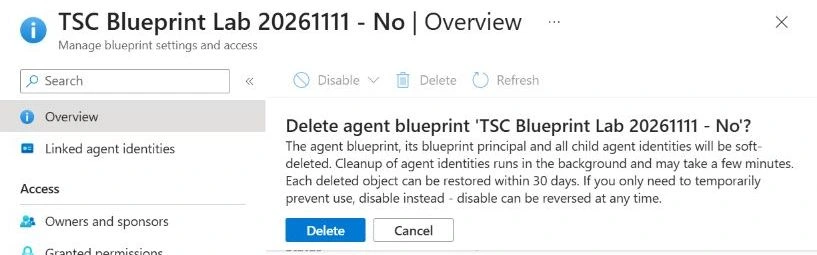
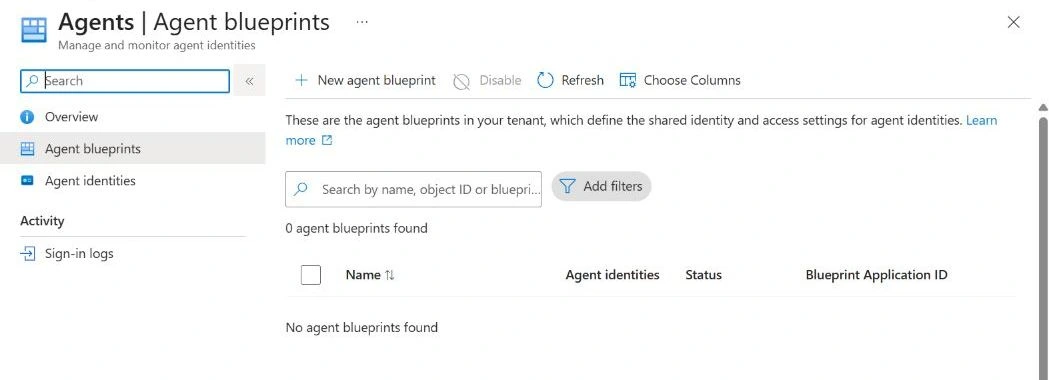
Observed cleanup: both blueprints disappeared from the active inventory first. Two known child identities remained listed on a later reload, so we matched their IDs to the lab record and explicitly soft-deleted each through Entra ID → Agents → Agent identities → the test identity → Delete. We then verified zero blueprints and zero agent identities.
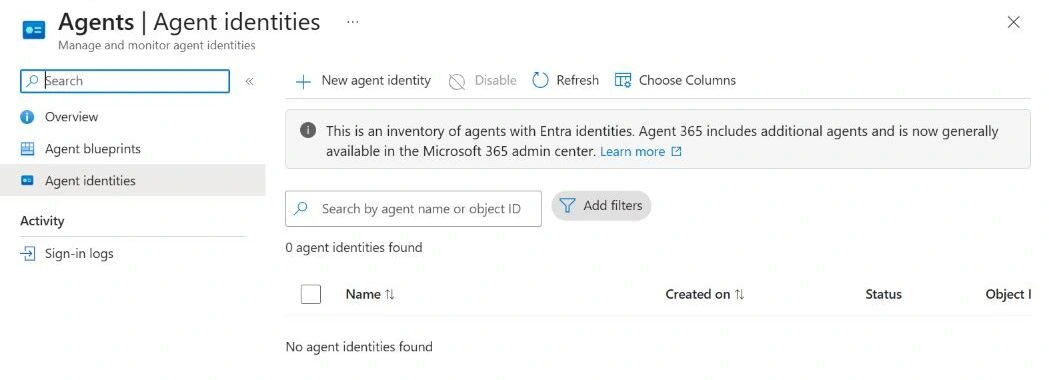
The final saved value was No, confirmed by reopening User settings. We left the first account’s Global Reader role unchanged.
10. What this tenant test established
| Check | Result | Evidence or boundary |
|---|---|---|
| Initial setting and inventory | Observed | Yes; zero blueprints and zero agent identities at the start. |
| First account, setting Yes | Unexpected baseline | Creation disabled with Global Reader; cause not established and role left unchanged. |
| Administrative creation, Yes | Succeeded | First blueprint, principal and one linked identity observed. |
| Saved configuration | Verified | No remained visible after refreshing; neighbouring settings were unchanged. |
| Administrative creation, No | Succeeded | Second new blueprint, principal and one linked identity observed. |
| Default-user enforcement / delegated role exception | Not demonstrated | No ordinary-user successful baseline; Agent ID Developer was not assigned or tested. |
| Other creation paths | Not tested | Application-only clients and product integrations were outside this portal test. |
| Creation audit | Correlated | First principal creation: successful event, matching actor and target. |
| Cleanup | Verified after explicit child removal | Both blueprint deletions completed; the two still-listed lab identities were separately soft-deleted. Final active lists: zero blueprints, zero identities. |
| Final setting | Verified No | Reopened User settings after cleanup. Other settings and the first account’s role were unchanged. |
| Automatic cascade completion / restoration | Not demonstrated | We intervened to remove the remaining children; no restoration test was performed. |
Use this matrix to plan any additional checks in your tenant. Keep the same account and creation path when comparing the default-user experience before and after a change.
Download the administrator test worksheet — planning fields and a completed example from this lab, covering the initial state, attempts, audit evidence and cleanup. It does not configure the tenant.
Microsoft references
- Restrict application and agent creation
- Create an agent identity blueprint
- Blueprints, principals and permissions
- Manage blueprints and inspect their activity
- Read an application or blueprint by object ID or client ID
- Agent identity creation channels
- Delete and restore agent identity objects
- Microsoft Entra licensing
- Microsoft 365 agents admin guide
Documentation checked on 11 November 2026. Portal labels and feature availability can change; verify the control in your own tenant before adapting this procedure.