You have clicked Revoke sessions. The portal says it worked. The user can still see their inbox. Has containment failed?
It is a reasonable question, especially when you need to know whether an account still has access. I wanted to see what happens beyond the success notification, so I tested the sequence in our tenant with a lab account and an unsent Outlook draft. This guide follows that test from the first saved draft to revocation, blocked sign-in and recovery, with the Entra records alongside each result.
1. Choose the right containment action
Revocation ends the usefulness of existing refresh credentials; it does not disable the user. Microsoft Graph describes revokeSignInSessions as invalidating refresh tokens and browser session cookies by advancing signInSessionsValidFromDateTime. There can be a delay of a few minutes. An enabled user can authenticate again if the current sign-in requirements are satisfied. [1]
| Objective | Action to consider | Verification |
|---|---|---|
| Require an enabled user to establish fresh sessions | Revoke sessions | Record the administrative action, then test the existing client and a subsequent authenticated request. |
| Prevent an account from authenticating again during containment | Block sign-in, then revoke sessions | Check the disabled account state, client behaviour and a new sign-in attempt. |
| Remove an application's previously granted access | Review and remove the relevant consent or application permission | Test that specific application. User-session revocation is not consent removal. |
| Secure a compromised account | Follow the incident response process, including identity and workload investigation | Check credentials, authentication methods, permissions, mailbox persistence and affected devices as appropriate. |
Microsoft's containment procedure combines disabling the account with revocation. Without applicable continuous evaluation, an already-issued access token can remain usable until it expires. Entra also cannot directly terminate every session cookie issued by an independent application. App-specific session termination or deprovisioning may be necessary. [2]
Continuous Access Evaluation (CAE) can make supported services respond to critical events before an access token expires. Account disablement and explicit refresh-token revocation are among those events. Microsoft documents near-real-time evaluation with propagation delays of up to 15 minutes; support depends on the client and resource combination. Outlook Web with Exchange Online is supported. This is not a universal fifteen-minute logout guarantee. [3]
Use the lab below to understand the controls. During a real compromise, do not deliberately leave an account enabled just to reproduce the comparison.
2. Prepare the account and the evidence
Choose a designated test account whose other sessions may be interrupted. Keep a separate administrator session available throughout. Do not use your only administrator, an emergency access account or an identity running important unattended tasks.
- Identity: record the tenant, exact user principal name and object ID. Check whether the account is a member or guest and whether it is synchronized from on-premises AD.
- Starting state: record whether the account is enabled, its role assignments and its usable services. The account in this lab was a cloud-only member with an active Exchange Online Plan 1 assignment; the portal also listed Exchange Online Kiosk. Both subscriptions are not a requirement for this exercise.
- Administration: use an existing, appropriately scoped administrative role. For an ordinary non-admin test user, User Administrator can support this lab; privileged targets, role-assignable groups and restricted administrative units have additional restrictions. Check Microsoft's action-by-target-role matrices before acting. For log review, Reports Reader is the least-privileged role listed by Microsoft. Basic audit and sign-in logs are available with Entra ID Free; this portal lab does not require deploying Conditional Access. [4] [5]
- Client: use Outlook on the web directly as the test user. An administrator opening a delegated mailbox is a different identity path and is not a valid substitute.
- Evidence: record UTC timestamps, the client operation attempted and its result. Keep original logs privately; redact names, addresses, identifiers and IP addresses in public screenshots.
This exercise uses a synthetic draft with no recipients. It does not require sending email, changing passwords, removing MFA methods, disabling devices or changing tenant-wide Conditional Access policies.
For a guest, do not assume your tenant can revoke the home tenant's authentication sessions: Microsoft explicitly excludes external users from this API's session-revocation behaviour. A hybrid account also needs the relevant on-premises response procedure. [1] [2]
3. Establish a working Outlook session
- Open Outlook on the web in the test user's browser profile and confirm the mailbox identity. Leave the administrator in a different profile or clearly identified session.
- Create a draft with a unique subject, for example
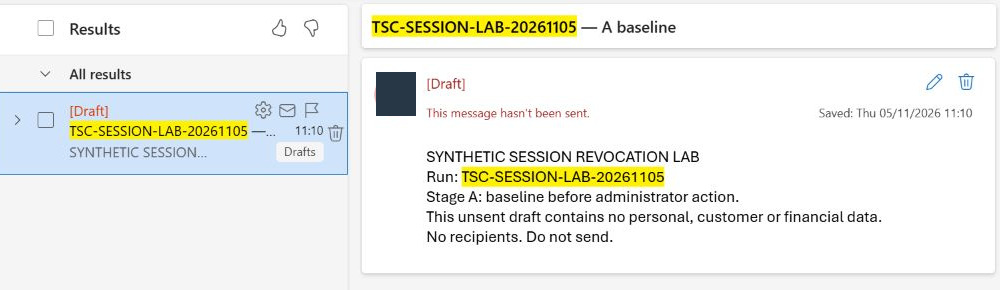
SESSION-LAB-20261105 — baseline. Leave To empty and write a harmless marker in the body. - Wait for the draft to save. Close the editor, reload Outlook, search for the unique subject and reopen the draft. Record the saved time and the visible marker.
- Keep this client open for the next step. Do not sign out or clear cookies: those actions would introduce another reason for losing the session.
Our baseline draft was saved at 11:10 UTC and reopened after a reload. Searching for the unique subject also kept unrelated mailbox content out of the screenshots.
4. Revoke sessions and observe the client
In the Microsoft Entra admin center, open Entra ID → Users → All users → the test user → Overview. Confirm the UPN and object ID. Select Revoke sessions; on a narrow view it is inside the toolbar's … menu. Confirm the action for that user and record the time.
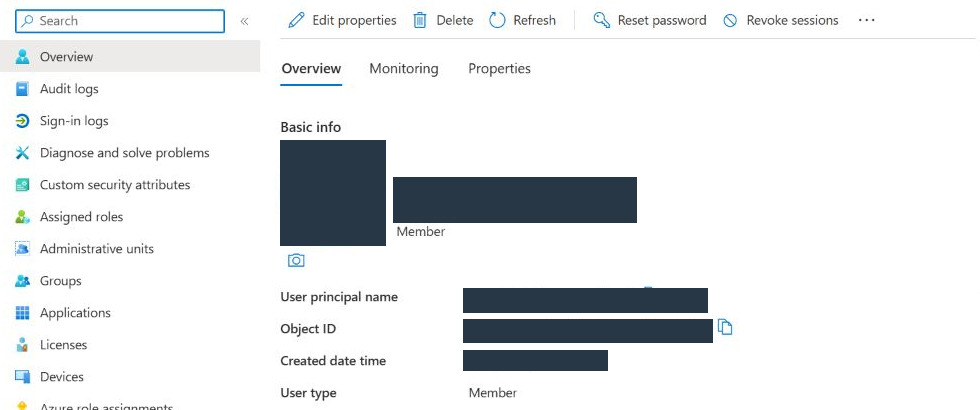
In our run, the administrator confirmed revocation at 11:12:07 UTC. The portal reported success. That was the starting point for client verification, not the end of the test.
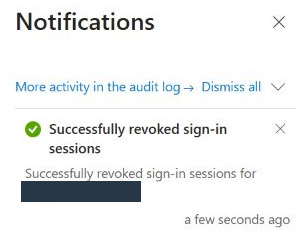
Return to the existing Outlook session. Attempt a harmless change to the lab draft, then check whether it actually saves. Reload and reopen the same item. Record any error or authentication prompt. If an old message remains visible, record that separately from a confirmed new operation.
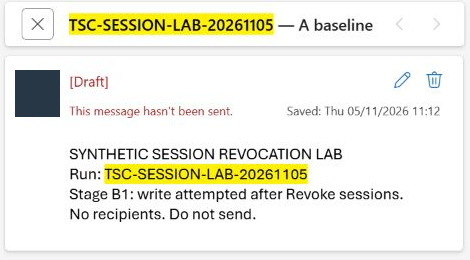
The first attempted change after revocation used the marker Stage B1: write attempted after Revoke sessions. After reauthentication, a fresh search and reopening showed that marker with a displayed saved time of 11:12 UTC. This confirms that the marker was recovered later. We did not isolate when the server accepted the change or which session completed it. B1 therefore does not establish that the old session could still write after revocation, or measure its cutoff time.
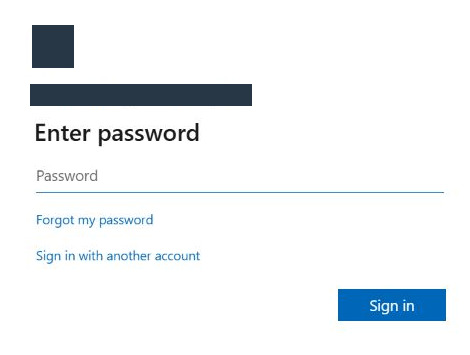
At 11:14:35 UTC, our reload had reached the Microsoft Enter password page for the test account, without a manual sign-out. That is 2 minutes 28 seconds after the administrative action, measured to the observation. It is not a measurement of the exact instant the service stopped accepting the old session.
The next control is to authenticate again while the account remains enabled and verify the draft. A successful return demonstrates why revocation alone is not the same as blocking further sign-in. The exact prompt can vary with the authentication method, device and existing sign-in context; a password or MFA challenge is not guaranteed on every client.
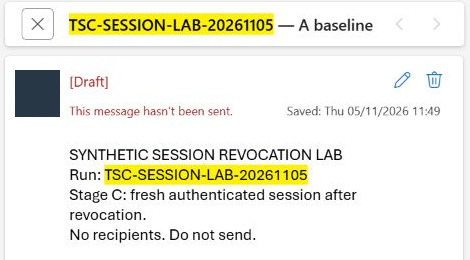
Observed control: the operator completed a new sign-in as the same user in another Outlook tab. We confirmed that identity, found the original draft, changed its marker to Stage C: fresh authenticated session after revocation. and verified the saved content after reloading and searching again. The saved time was 11:49 UTC. An enabled account could establish a working session again.
5. Correlate the audit and sign-in records
From the user's menu, open Audit logs. Set a short time window around the test and confirm the displayed time zone. Inspect the actor, target, status and changed properties. These fields document what the administrator changed. [6]
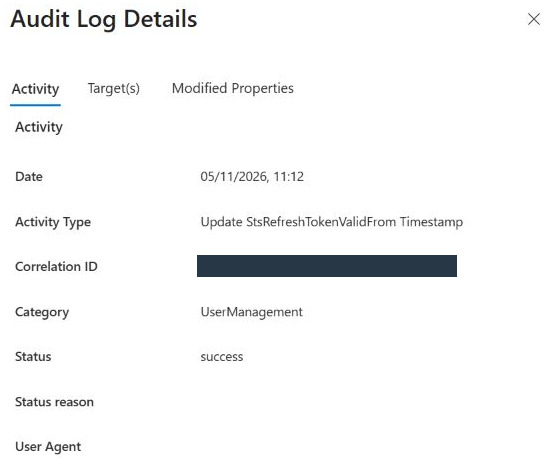
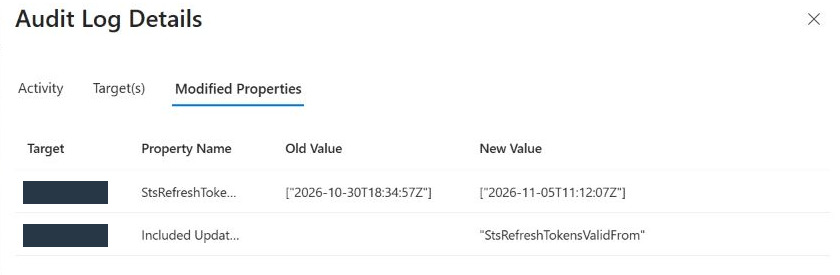
Our audit contained Update StsRefreshTokenValidFrom Timestamp with status Success at 11:12:07. Its modified properties showed StsRefreshTokensValidFrom moving from 2026-10-30T18:34:57Z to 2026-11-05T11:12:07Z. The portal's audit-property label and the Graph user-property name are different labels; keep each name in its original context.
Then open Sign-in logs for the same user. Review both User sign-ins (interactive) and User sign-ins (non-interactive). Filter the time window and distinguish the client application from the target resource; here the relevant combination is One Outlook Web and Office 365 Exchange Online. Expand aggregated rows before using their timestamps.
For each relevant event, record the status, failure reason/error code, request or correlation ID, authentication details and CAE field. Entra sign-in records describe authentication activity, not every mailbox request. A successful event before revocation does not prove continued access afterward. Microsoft also notes that CAE can appear on only one of several related interactive or non-interactive requests. [7]
Do not infer that CAE caused a result solely from a fast password prompt. Correlate the records and state the evidence you actually have. Allow for log ingestion delay before declaring an expected record absent.
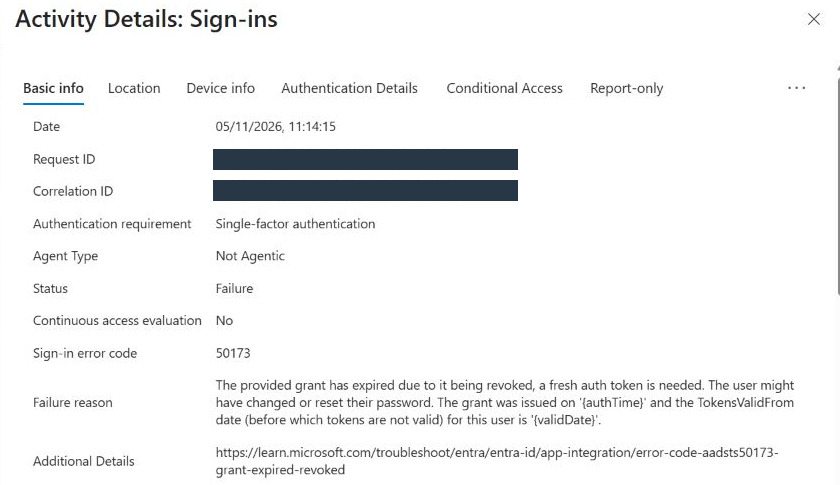
Observed sign-in evidence: the non-interactive log for One Outlook Web → Office 365 Exchange Online recorded a failure at 11:14:15 UTC, with error 50173 and a revoked-grant failure reason. Microsoft documents administrator revocation as one cause of this error. In this lab, the preceding audit event and client timeline support that explanation. This request reported Continuous access evaluation: No; we do not attribute the observed cutoff to CAE. [9]
6. Compare with blocking sign-in
Once the enabled account has authenticated again, repeat the exercise with a different containment state. Microsoft's portal procedure is Overview → Account status → Edit, clear Account enabled in Properties, and select Save. Return to Overview and revoke sessions again. Record these as two distinct actions. [2]
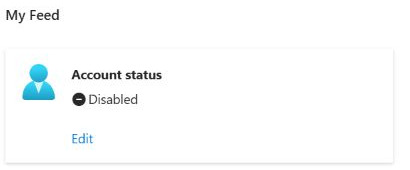
- Confirm that the test user's Overview shows Disabled.
- Use the previously authenticated Outlook client to attempt the lab operation again.
- Separately attempt a new sign-in as the same user. A different tab alone does not provide a clean authentication session; use a separate browser profile/private session or document the actual authentication flow used.
- Record the visible result and find the corresponding sign-in failure. The reason must support account disablement; an unrelated password error or Conditional Access block is not sufficient evidence.
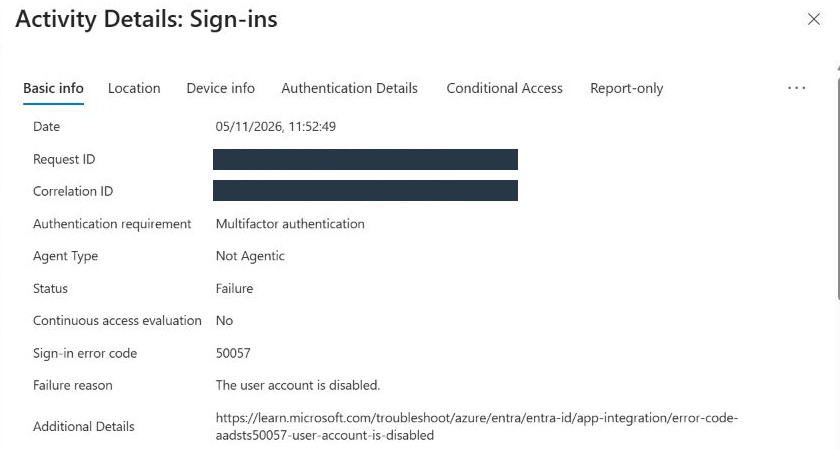
For a disabled account, AADSTS50057 identifies UserDisabled. Use the actual failure details instead of assuming every access-denied message has that cause. [8]
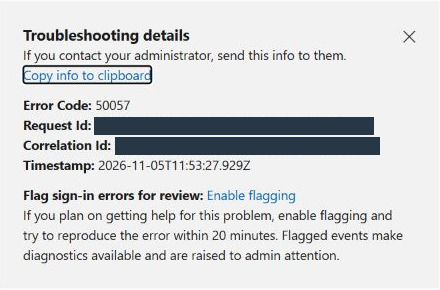
Observed control: we submitted Account enabled = false at 11:52:12 UTC, confirmed Disabled, and revoked sessions at 11:52:45 UTC. Reloading the authenticated Outlook client reached a Microsoft account picker with a locked-account message. Selecting the test user again was refused; troubleshooting details showed Error Code: 50057 at 11:53:27.929 UTC.
This was a renewed authentication attempt from the existing browser context, not a separately isolated private-browser test. The diagnostic code supports account disablement; the word “locked” alone would not establish the cause.
The interactive sign-in log also recorded a 50057 failure at 11:52:49 UTC with the reason The user account is disabled. Its correlation ID matched the subsequent Microsoft troubleshooting panel, while the request IDs and event times differed. Preserve both observations instead of combining them into a single timestamp.
7. Restore and verify the lab account
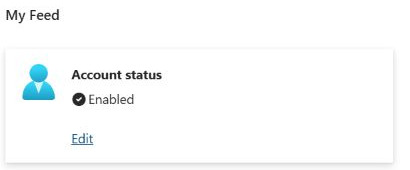
This is cleanup for an authorized lab, not an instruction to re-enable a compromised identity. For the lab user that started enabled, return to Account status → Edit, select Account enabled and save. Verify the resulting state, then complete a fresh sign-in and reopen the synthetic draft.
If Outlook returns a startup 401 during recovery: reopen Outlook on the web, select the exact test account on the Microsoft sign-in page and complete authentication, including MFA if requested. If the same error persists in that browser context, try a separate private window or browser profile and record this as a separate recovery attempt. Then repeat the save-and-reopen check below. If access still fails, retain the error time and check the corresponding Entra sign-in details before changing anything else. This recovery procedure belongs after the revocation and blocking observations have been recorded; do not clear the original session during those earlier tests.
Make a new harmless marker, wait for it to save and verify it after reopening. Record the restored operation separately from the account-property update. Remove only the disposable lab draft when it is no longer needed; leave unrelated messages and existing settings untouched. In an incident, restoration requires the response owner's approval and completed remediation.
Observed cleanup and recovery: we restored Account enabled = true at 11:54:44 UTC and confirmed Enabled. Outlook initially returned a startup 401; after a new account-selection sign-in, it loaded successfully. We saved Stage E: account restored; fresh authenticated write. at 12:07 UTC, reloaded, searched again and reopened the draft to confirm the marker. An enabled property alone would have missed that client recovery check.
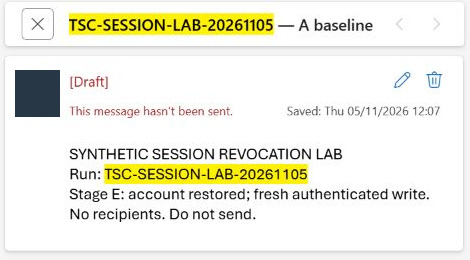
After recording that result, we discarded only the lab draft and confirmed it appeared in Deleted Items. No message was sent and no items were purged.
8. Troubleshoot an apparently surviving session
| What you see | What to check next |
|---|---|
| The inbox is still visible | Attempt a new online operation against the test item. Cached or already-rendered content does not prove current server access. |
| The account gets back in after revocation | Was it left enabled, and was a new authentication completed? Separate a newly authenticated session from continued use of the old one. |
| The portal says success but no log is visible | Check tenant, target object ID, time zone, filters, refresh and ingestion delay. Preserve the operation time and success notification. |
| One sign-in row says CAE: No | Check the related requests in both sign-in categories and the app/resource pair before concluding that CAE was absent from the flow. |
| Conditional Access says Success, but the sign-in failed | Read the overall status and failure reason. In our disabled-account test, Conditional Access showed Success while the overall result was failure 50057. |
| A third-party application keeps working | Determine whether it owns its own session or authenticates independently. Investigate that application's termination/deprovisioning controls. |
| A mobile or desktop app appears unaffected | Test it independently. Our browser result does not establish the behaviour of another client, cached data or offline access. |
Do not repeatedly click Revoke sessions while changing several other controls. That creates several possible causes and an ambiguous timeline. Keep one target and one observation sequence, then escalate with the captured identifiers if the expected behaviour is not explained.
9. Review the evidence and its limits
Success criteria for your own run. Start with a saved draft that survives reload and reopening, then verify these checkpoints:
- Revocation: the audit records the action against the intended user, and the existing client reaches reauthentication or a request fails because its grant was revoked. Correlate the client observation with the available sign-in records; a success notification alone is insufficient.
- Enabled-account control: the same user authenticates again and a new marker survives saving, reload and reopening.
- Block + revoke: the account is disabled and the authentication failure details support account disablement. Record the existing client's behaviour separately.
- Recovery: the original enabled state is restored and the user completes a new sign-in and the save-and-reopen check before cleanup.
Use your own timestamps and failure details. Our 2 minutes 28 seconds and error 50173 are observations, not required outcomes for every client. Record a checkpoint as inconclusive if the evidence does not establish its result. The B1 observation below is not a success criterion or proof of continued access by the old session.
| Check | Recorded result | Conclusion |
|---|---|---|
| Baseline | Unsent draft saved at 11:10 UTC; found and reopened after reload. | Working Outlook baseline established. |
| Revocation | 11:12:07 UTC; success notification and audit timestamp change. | Administrative action verified. |
| Intermediate marker (B1) | Marker recovered after reauthentication; displayed saved time 11:12 UTC. | Server acceptance time and completing session not isolated; old-session access not established. |
| Existing browser session | By 11:14:35 UTC, reload reached the password prompt without manual sign-out. | Reauthentication observed for this Outlook client. |
| Authentication log | One Outlook Web → Exchange Online: 50173 at 11:14:15 UTC, CAE No. | Revoked-grant failure correlates with the first revocation and client prompt. |
| Enabled-account reauthentication | Same user returned; Stage C saved at 11:49 UTC and verified after reload. | New working session confirmed. |
| Block + revoke | Disabled, then revoked; Microsoft error 50057 at 11:53:27.929 UTC. | Authentication refused for the disabled account in this flow. |
| Restore and verify | Enabled restored at 11:54:44 UTC; Stage E saved at 12:07 UTC and verified after reload. | Administrative restoration and working client verified. |
What I would take into the next lab is this simple habit: record the action, check what the client can actually do, and verify recovery before calling the test complete. You do not need to reproduce our exact timings. You need enough evidence to explain what happened to your account, in the application you tested.
For the surrounding response, continue with auditing and revoking suspicious application consent, finding and testing external mailbox forwarding, and blocking device-code phishing. A renewed password prompt is a useful containment observation; it does not establish that an account has been fully remediated.
Microsoft references
- Microsoft Graph: user — revokeSignInSessions.
- Revoke user access in Microsoft Entra ID.
- Continuous access evaluation: critical events and supported clients.
- Role restrictions for invalidating refresh tokens and sensitive user actions.
- Access activity logs.
- Microsoft Entra audit logs.
- Understand sign-in log activity details.
- Microsoft identity platform authentication and authorization error codes.
- Resolve AADSTS50173: the provided grant was revoked.