“Who is forwarding company email outside the organisation?” It sounds like a quick question. Then you find a mailbox setting, an Inbox rule, a mail contact and a policy called Automatic—and the answer becomes less obvious.
I wanted a report I could hand to another administrator without losing that context. This guide introduces a read-only PowerShell tool that collects forwarding configuration, records which queries worked and produces local HTML and CSV reports. The screenshots below come from its execution in my Microsoft 365 tenant.
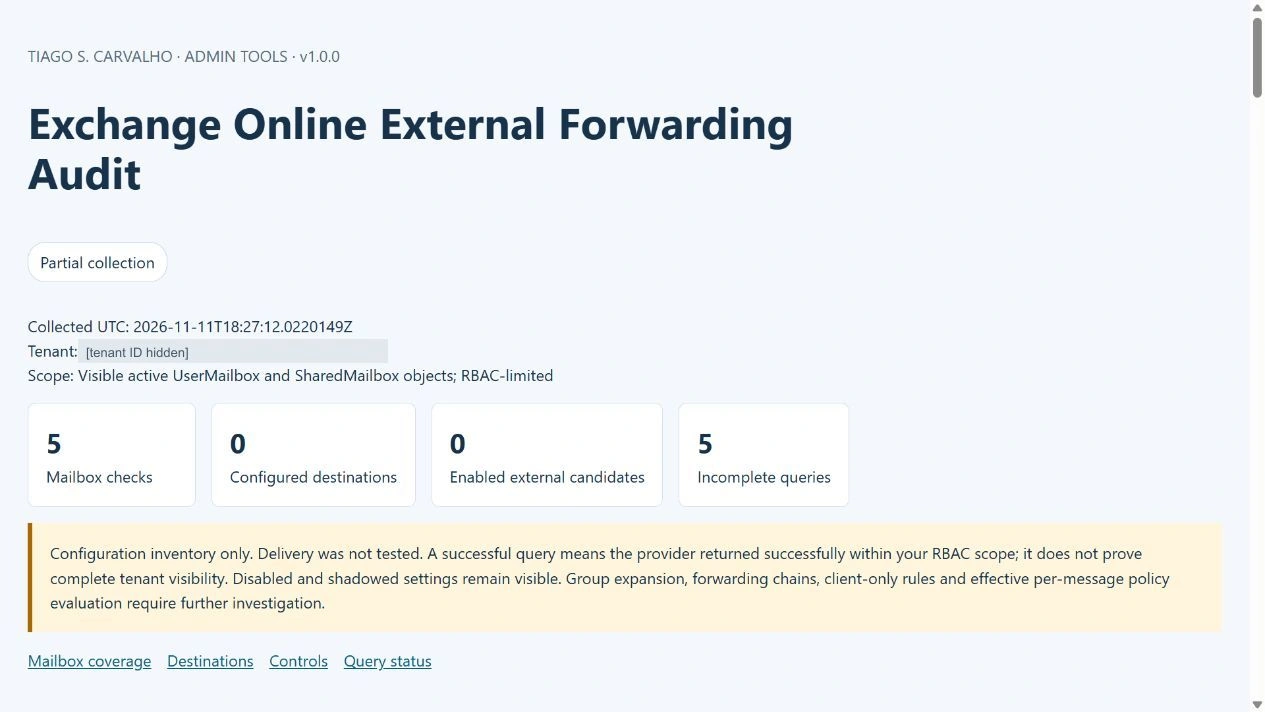
What this lab establishes: the tool queried five user/shared mailboxes and returned 105 Inbox rule objects. It found no forwarding destinations in the interpretable data, but five hidden rules were not fully supported by the command. The report preserves that limitation. This was a configuration audit; it did not test message delivery or change the tenant.
1. Download the tool and choose the scope
Download External Forwarding Audit v1.0.1 — PowerShell, README and checksums
You can also review the v1.0.1 source code and offline tests on GitHub, or open the v1.0.1 release notes. All three links refer to the version covered by this guide.
Choose exchange-forwarding-audit-v1.0.1.zip under the release’s Assets. GitHub’s separate Source code (zip) contains the repository, including tests; it is not the ready-to-run package used below. Save the ready-to-run ZIP and release-sha256.txt in the same local folder.
Verify the download before extraction
Replace the two example folders with approved local paths. The download folder must contain both files; use a new, empty destination for the tool. This check stops before extraction if the ZIP does not match the published checksum.
$ErrorActionPreference = 'Stop'
Set-Location 'C:\AdminDownloads\ForwardingAudit'
$zip = 'exchange-forwarding-audit-v1.0.1.zip'
$expected = (Get-Content -LiteralPath '.\release-sha256.txt' -Raw).Trim() -split '\s+', 2
if ($expected.Count -ne 2 -or $expected[0] -notmatch '^[a-fA-F0-9]{64}$' -or $expected[1] -ne $zip) {
    throw 'Unexpected ZIP checksum file. Check the release assets.'
}
if ((Get-FileHash -LiteralPath $zip -Algorithm SHA256).Hash -ne $expected[0]) {
    throw 'ZIP checksum mismatch. Do not extract or run this copy.'
}
$destination = 'C:\AdminTools\ForwardingAudit'
if (Test-Path -LiteralPath $destination) { throw 'Choose a new destination folder.' }
Expand-Archive -LiteralPath $zip -DestinationPath $destination
Set-Location -LiteralPath $destination
release-sha256.txt checks the ZIP. The extracted SHA256SUMS.txt checks its four source/documentation files. Run the next check from the extracted folder; expect four rows with Match = True.
Get-Content -LiteralPath '.\SHA256SUMS.txt' | ForEach-Object {
    $expectedHash, $file = $_ -split '\s+', 2
    $actualHash = (Get-FileHash -LiteralPath $file -Algorithm SHA256).Hash
    if ($actualHash -ne $expectedHash) { throw "Checksum mismatch: $file" }
    [pscustomobject]@{ File = $file; Match = $true }
} | Format-Table -AutoSize
Keep Get-ExternalForwardingAudit.ps1 beside ExternalForwardingAudit.psm1 and review both before execution. A matching SHA-256 confirms matching bytes; it is not a digital signature or a security assessment.
If PowerShell says “not digitally signed”
Both PowerShell files are unsigned. The Tiago Carvalho / tiagoscarvalho.com header is attribution only. On Windows, check Get-ExecutionPolicy -List. With AllSigned, use your organisation’s review and signing process. With RemoteSigned, downloaded files may be blocked by their Internet marking; after reviewing the files, follow your organisation’s approved unblocking process if it permits unsigned scripts. Do not switch to Bypass or Unrestricted to run this tool.
Start with one or two exact primary SMTP addresses. After checking the report, -AllMailboxes expands the audit to active user and shared mailboxes visible to your account. It does not include room, equipment, inactive or soft-deleted mailboxes, and it cannot prove that your administrative scope covers the entire organisation.
Scope: this inventories Exchange mailbox forwarding, Inbox rules and mail-flow configuration. It does not enumerate Power Automate flows or applications that read, copy or send email through Microsoft Graph or other APIs. Investigate those through their respective administration and audit tools; a clear Exchange inventory does not rule them out.
| Question | Collected by this tool |
|---|---|
| Is mailbox forwarding configured? | ForwardingAddress, ForwardingSmtpAddress and DeliverToMailboxAndForward. |
| Does an Inbox rule forward or redirect? | ForwardTo, RedirectTo and ForwardAsAttachmentTo, including disabled rules and hidden rules returned by Exchange. |
| Where does the destination lead? | Accepted-domain comparison and recipient lookup where needed. Mail contacts/users can reveal an external next hop. |
| Which controls need checking? | Outbound spam policies and assignments, remote domains, and transport-rule context. |
| What did the collector miss? | Coverage status, warnings, unresolved destinations, unsupported rule objects and queries not attempted after throttling. |
2. Prepare PowerShell and the right access
This release requires PowerShell 7.4 or later and a loaded ExchangeOnlineManagement module version 3.9.2 or later. I tested it on Windows with PowerShell 7.6.9 and module 3.9.2. Those are the package’s support boundaries; they are not a claim about the minimum versions supported by Microsoft.
Use a fresh PowerShell window and your approved Exchange administrative identity. The collector expects one direct Exchange Online connection, without a command prefix. Delegated partner connections, EOP-only sessions and unattended execution are outside this release’s validation.
Read-only code still needs permission to read the requested objects. Microsoft explicitly states that Get-InboxRule does not work for Global Reader or View-Only Organization Management. Ask your Exchange role administrator to review the required commands and mailbox scope; do not grant Global Administrator simply to run this audit.
Commands to include in the permissions review
Get-EXOMailbox, Get-InboxRule, Get-EXORecipient, Get-AcceptedDomain, Get-HostedOutboundSpamFilterPolicy, Get-HostedOutboundSpamFilterRule, Get-RemoteDomain and Get-TransportRule. The connection check uses Get-ConnectionInformation. Microsoft’s permissions-discovery procedure is linked at the end.
Install the official Exchange module through your organisation’s approved process if it is missing. Then connect:
Import-Module ExchangeOnlineManagement -MinimumVersion 3.9.2
Connect-ExchangeOnline -UserPrincipalName 'admin@contoso.com'

Get-ConnectionInformation |
    Select-Object UserPrincipalName, TenantID, State
Complete authentication only in the Microsoft prompt. Get the expected tenant ID independently from Entra admin center → Entra ID → Overview. The tool compares it with the active connection before reading configuration. In my integrated-terminal test, the documented -DisableWAM connection option was needed; this is an authentication troubleshooting option, not a way around MFA or Conditional Access.
3. Run a small pilot and cross-check the portal
Replace the example values below, including the GUID placeholder. The output folder is local and should be an approved private administration location.
Set-Location 'C:\AdminTools\ForwardingAudit'

.\Get-ExternalForwardingAudit.ps1 `
    -ExpectedTenantId 'YOUR-TENANT-GUID' `
    -Mailbox 'pilot@contoso.com' `
    -OutputDirectory 'C:\AdminReports\Forwarding'
Open the new run folder and its report.html. Each execution creates a separate timestamped folder. To cross-check mailbox forwarding in the portal, open Exchange admin center → Recipients → Mailboxes → select the pilot mailbox → Email forwarding. Read the current state and close the panel without saving.
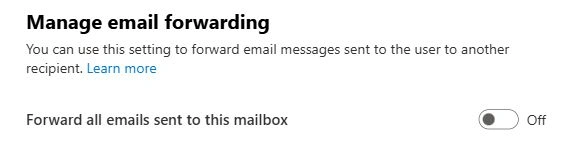
The pilot mailbox’s forwarding toggle was Off. That confirms this particular setting; Inbox rules are a separate part of the audit. The script explicitly requests the extra mailbox properties instead of assuming that the minimum property set contains forwarding configuration.
Once the selected-mailbox result and coverage make sense, run the wider inventory:
.\Get-ExternalForwardingAudit.ps1 `
    -ExpectedTenantId 'YOUR-TENANT-GUID' `
    -AllMailboxes `
    -OutputDirectory 'C:\AdminReports\Forwarding'
4. Read coverage before counting findings
The first number to investigate is the incomplete-section count. A failed query must not become a comforting zero. In the tenant run below, the collection returned data but could not fully interpret one hidden rule in each mailbox.
| Report state | What to do |
|---|---|
ReadSucceeded | The command returned successfully within the account’s scope. Check that scope before describing the result as organisation-wide. |
Incomplete / UnsupportedRule | Open rule-review.csv. Preserve the rule identity and inspect the limitation separately. |
Failed or Unavailable | Review the error category, permissions, connection and command availability. The affected result is unknown. |
ReadWithWarnings | Investigate the provider warning before relying on absence of results. |
NotAttempted | A throttling error stopped subsequent network reads, including recipient lookups and policy queries. Wait and rerun the affected scope; do not repeatedly force the entire audit. |
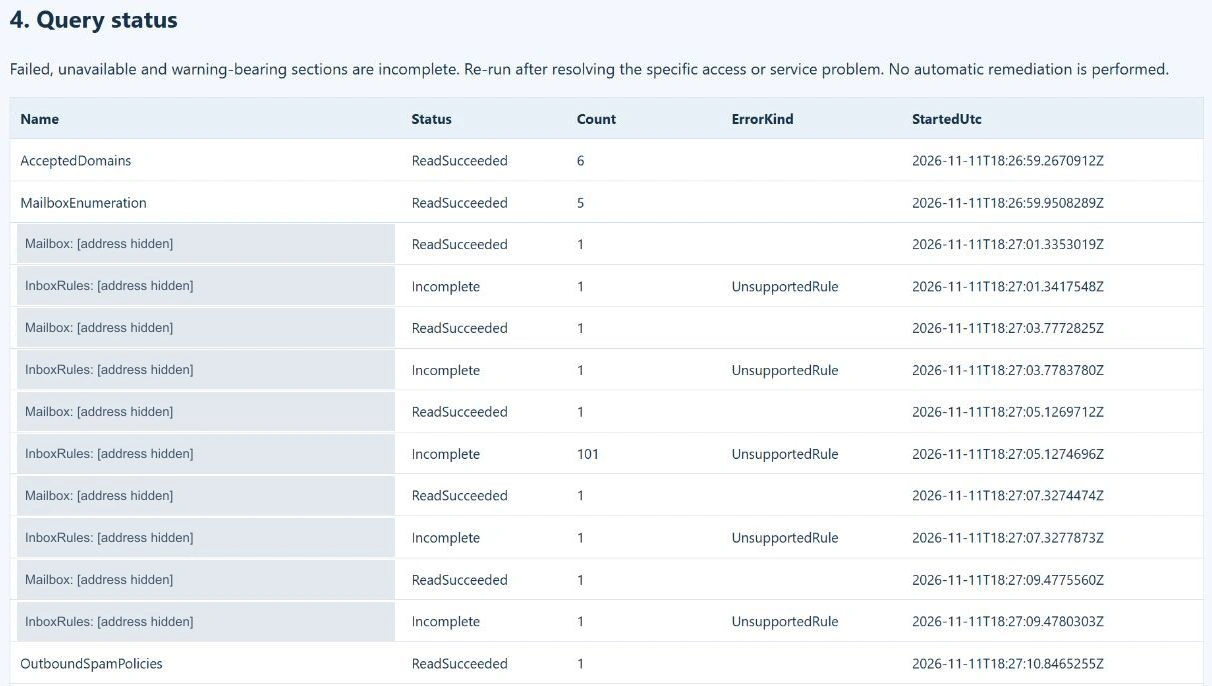
Version 1.0.1 also records each unique recipient lookup as Recipient:… in coverage.csv. Failed or warning-bearing lookups increase the incomplete count. Repeated destinations reuse the recorded lookup within that run. After a throttling error, the collector can still describe data already returned, but skips further network reads. The tenant report screenshots in this guide record the original v1.0.0 run; the v1.0.1 retest is recorded in the validation table.
A compatibility detail from the real test: the service rejected -ResultSize Unlimited for Get-InboxRule. This release uses an explicit numeric limit of 10,000 and marks a result at that limit as incomplete. It also requests -IncludeHidden. The documentation defines the parameters; the actual tenant test determined the working invocation for this package.
5. Follow the destination, not just the address
Each row in forwarding.csv describes one configured destination. Keep Source, ConfiguredState, Action, NextHop and Resolution together when reviewing it.
- Enabled is a configuration state. An Inbox rule still needs a matching message and may be affected by earlier rules.
- Disabled remains visible, but does not enter the enabled-external counter.
- Shadowed means
ForwardingSmtpAddressis present whileForwardingAddresstakes precedence. Both values are retained. - ExternalDomain identifies a next-hop SMTP domain outside the returned accepted-domain inventory. It says nothing about whether that destination is approved.
- MailboxNextHop, AcceptedDomainRoute and GroupNotExpanded need further routing review. An internal-looking address can lead elsewhere.
The tool resolves mail contacts and mail users when required. It does not expand distribution groups, follow mailbox-forwarding chains or inspect client-only rules. Unknown destinations stay unknown.
Worked example: an internal-looking contact with an external destination
Simulated example, verified by an offline test. This is not a finding from my tenant. A rule named Supplier copy forwards matching messages to a mail contact. The contact has an address in the organisation, but its external address points elsewhere:
| Report field | Example value |
|---|---|
Source / ConfiguredState / Action | InboxRule / Enabled / ForwardTo |
Destination | contact@contoso.com |
NextHop | contact@external.example |
Classification / Resolution | ExternalDomain / Resolved |
DeliveryEvidence | NotTested |
This row contributes one enabled external candidate. As the administrator, first confirm the rule conditions, exceptions and priority. Then verify the contact’s external address and ask the mailbox owner whether that route is approved. Review the applicable outbound policy and remote domain; use message trace for a specific message before saying it was delivered. If the route is unexpected, preserve the rule identity and evidence for your incident process.
The useful ticket conclusion is: “An enabled rule is configured to forward matching messages through a contact to an external address. Approval and delivery still need verification.” An enabled configuration alone establishes neither successful delivery nor compromise.
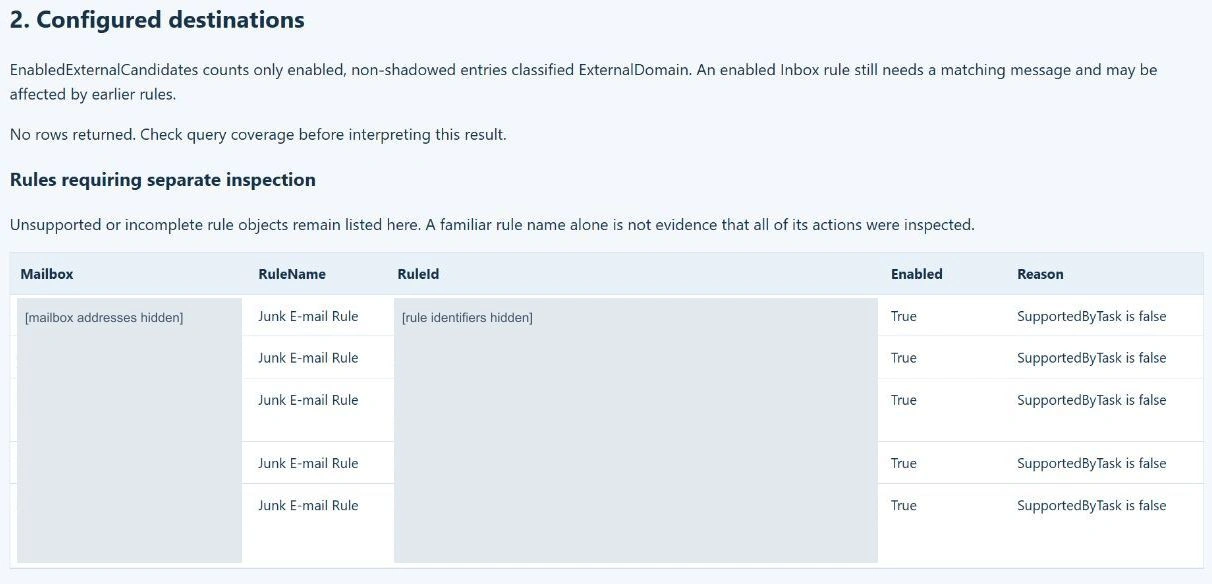
All five objects in this review list were named Junk E-mail Rule and returned SupportedByTask = false. The name is not a maliciousness verdict, and the tool does not delete these rules. It records the boundary of what was inspected. That is why a zero-destination result in this run is not presented as an unrestricted “no forwarding anywhere” conclusion.
For an unsupported object, use its exact RuleId from the private CSV to inspect the returned properties in a normal PowerShell window:
Get-InboxRule -Identity 'EXACT-RULE-ID-FROM-THE-REPORT' -IncludeHidden |
    Select-Object Name, Identity, Enabled, SupportedByTask,
        ForwardTo, RedirectTo, ForwardAsAttachmentTo, Description
This focused follow-up does not make an unsupported rule fully readable. If the command still cannot interpret it, retain the limitation and investigate through your Exchange support process. For a provider warning or access failure, rerun only the affected read command privately to obtain its diagnostic message.
6. Review outbound policies and remote domains
Open controls.csv or the report’s Controls section. Review the outbound policy and its assignment conditions, exceptions and priority. Then inspect remote domains and transport rules. The script collects those inputs; it does not calculate an effective policy for each message.
In this tenant, the default outbound policy returned Automatic. The default remote domain returned AutoForwardEnabled = True. Microsoft documents that the behaviour of Automatic can differ between organisations, so this tool preserves the literal value instead of converting it to Off. Another control can also block a route that one setting allows.
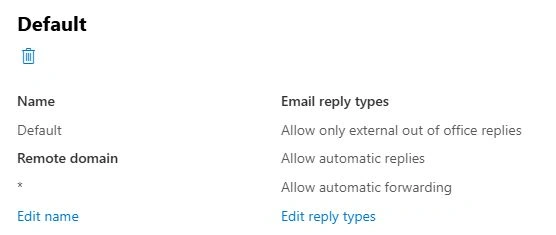
For the second cross-check, open Exchange admin center → Mail flow → Remote domains → Default. The captured setting allows automatic forwarding at that layer. It does not settle the delivery question.
Transport rules can also redirect or add recipients. Their collected actions appear in the controls report, outside the mailbox/Inbox destination counter. Conditions, rule mode, priority and exceptions still need administrator review.
7. Use the exports in a support ticket
| File | Use |
|---|---|
report.html | Readable local overview with no external scripts or assets. |
forwarding.csv | Filter configured destination rows by mailbox, action, state and resolution. |
mailboxes.csv | See which mailboxes were checked and how many rules were returned. |
coverage.csv | Preserve query status, counts, error categories and UTC start times. |
rule-review.csv | Track unsupported or incomplete rule objects separately. |
controls.csv | Review policy, assignment, remote-domain and transport-rule context. |
audit.json | Keep the structured selected values for your own processing. |
The CSV files retain their column headers even with no rows. HTML values are escaped, and formula-leading CSV values receive an apostrophe to prevent them being treated as spreadsheet formulas. JSON preserves the selected original strings.
Reports can contain addresses, rule descriptions and policy conditions. Keep the originals private and share only the necessary redacted evidence in a ticket. The download contains the tool, not my tenant’s raw reports.
A useful handover records the tenant and scope, collection time, query limitations, route to investigate, business owner and next check. If a route looks unexpected, preserve the evidence and use your incident process; this tool performs no automatic remediation.
8. What I verified in the tenant
| Check | Observed result — 11 November 2026 |
|---|---|
| Collection scope | Five active user/shared mailboxes returned to the administrative account. |
| Inbox-rule inventory | 105 objects returned, including five hidden rules flagged SupportedByTask = false. |
| Forwarding findings | Zero destination rows in interpretable data. Five rule-query sections remained incomplete. |
| Configuration context | Six accepted domains; one outbound policy; no custom outbound assignment rules; one remote domain; two disabled transport rules. |
| Portal cross-checks | Pilot mailbox forwarding Off; default remote domain allows automatic forwarding. |
| Exports | HTML, five CSV files and structured JSON produced locally. |
| Independent selected-mailbox run | A separate administrator-run test at 18:56 UTC checked one mailbox, returned one unsupported hidden rule and zero destination rows. Its five CSV files matched the JSON values and HTML summary. This was a different scope from the five-mailbox run. |
| Live regression run — v1.0.1 | At 19:37 UTC, the revised tool again returned five mailboxes, 105 Inbox rule objects, zero destination rows and five unsupported hidden rules. No main query failed. The real tenant result remained consistent; recipient-error handling was exercised separately with offline fixtures. |
| Positive and failure paths — v1.0.1 | 25 offline fixture tests passed. These cover synthetic forwarding, disabled rules, contacts, groups, precedence, incomplete reads, limits, tenant guards and output escaping, plus recipient-failure coverage, cached lookups and stopping subsequent reads after throttling. |
| Not established by this run | Delivery, effective-policy decisions, group expansion, downstream forwarding chains or positive forwarding discovery against a live configured rule. |
The tenant was left unchanged. When you finish your own session, disconnect:
Disconnect-ExchangeOnline -Confirm:$falseFor a specific message, continue with Exchange admin center → Mail flow → Message trace and, where relevant, Reports → Mail flow → Auto forwarded messages. The external-forwarding delivery walkthrough shows that separate investigation. A configuration inventory gives you a route to investigate; message evidence tells you what happened.
Microsoft references
Documentation reviewed on 12 November 2026. The package and tenant results are my own implementation and observations; Microsoft has not certified this tool.
- Get-FileHash — verifying file integrity
- PowerShell signing — unsigned downloads and execution policies
- Get-InboxRule — hidden rules, result size and role limitation
- Exchange Online cmdlet property sets
- Get-EXORecipient — resolving recipient objects
- Mailbox forwarding property precedence
- External forwarding controls and Automatic behaviour
- Find permissions for an Exchange cmdlet
- Connect to Exchange Online PowerShell
- Connect-ExchangeOnline — DisableWAM
- Auto forwarded messages report
- Exchange Team — forwarding mechanisms, including Power Automate