The installer may not be the first thing to investigate
An application is assigned to a laptop, yet nothing appears to install. Before rebuilding the package, check whether Intune is waiting for another application. A missing dependency can stop the parent application before its installer gets a chance to run.
This lab makes that distinction visible with two small applications on TSC-147. Each creates one text file. We can therefore examine the dependency decision without introducing a real product, a restart or an unrelated update.
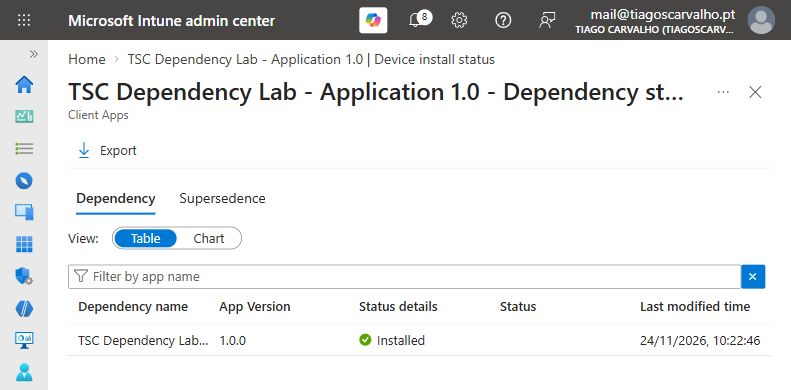
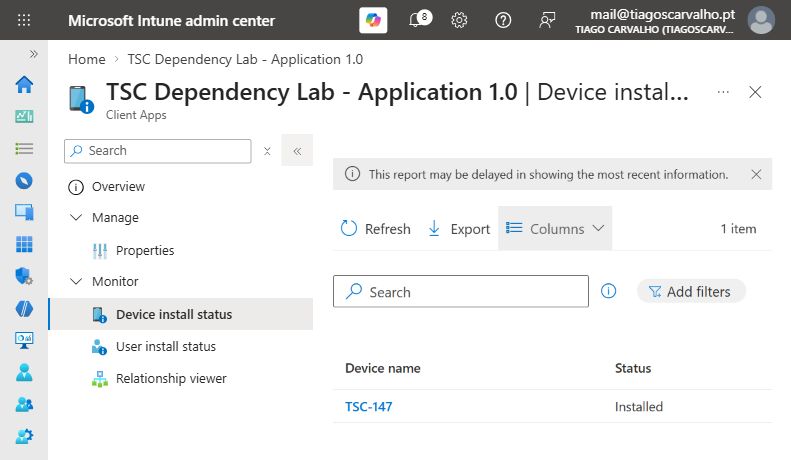
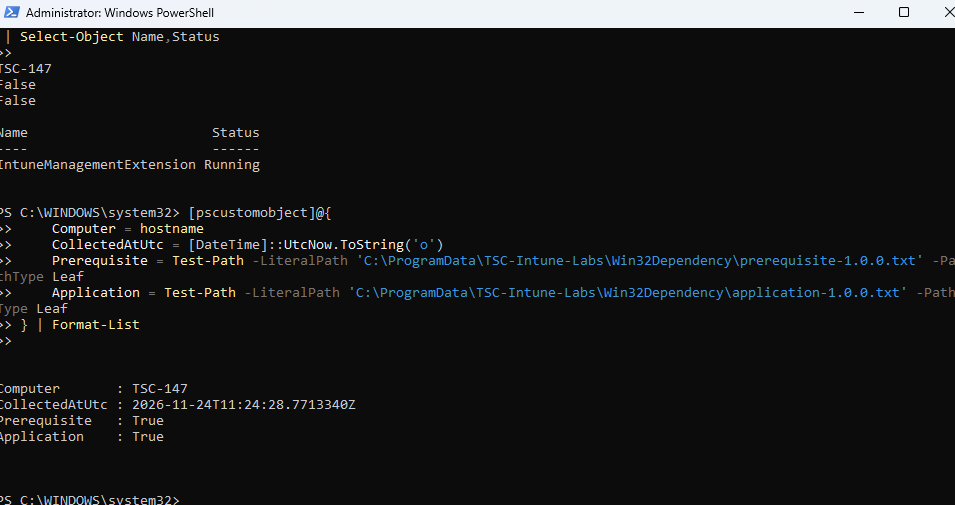
On TSC-147, the initial deployment reported Not installed while the dependency's Automatically install option was No. After changing only that option to Yes, Intune reported both apps as Installed on 24 November 2026 at 10:22:46. Local checks then confirmed both files present at 11:24:28 UTC and both absent at 11:50:12 UTC after their separate Uninstall assignments. Both Uninstall assignments have now been removed. The two app records remain unassigned for review.
Download the lab kit (.zip) Open the diagnostic worksheet
The kit contains source installers, uninstallers, a read-only evidence helper and a blank worksheet. It does not configure your tenant automatically. Read the included README before using the packages on your own approved test device.
1. Check that this is the right investigation
| What you see | Start here |
|---|---|
| No evidence that the assignment reaches this device | Check group membership, filters and assignment intent before investigating installation. |
| A dependency is missing or failed | Follow this lab. Identify the parent and prerequisite by their app IDs. |
| The installer ran, but detection says the app is absent | Compare the actual installation with the configured detection rule and execution context. |
| The result predates your change | Obtain a fresh client evaluation before treating that result as a failed correction. |
The assignment filters guide helps with targeting. This walkthrough begins once the intended Win32 application reaches the intended device.
2. Prepare a contained test
Use an enrolled Windows test device, an Intune license and an administrator with permission to manage applications and assignments. Check Microsoft's current supported Windows and Intune Management Extension requirements. Confirm that the IME service is present and functioning; this is the component that evaluates these Win32 apps.
Our pilot is TSC-147. Before deployment, verify the device identity and the direct membership of its dedicated group. The intended scope is one device, no users and no nested groups. Avoid All devices and All users.
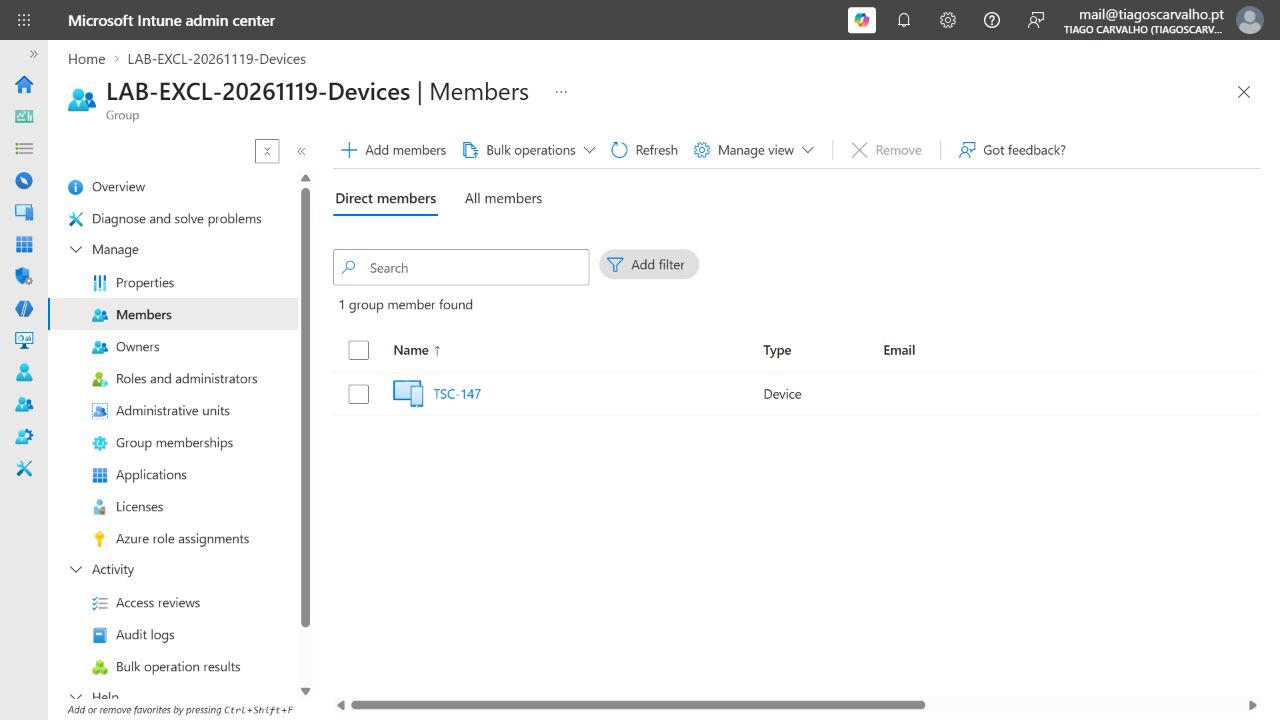
The installers accept an expected hostname and return exit code 87 if it does not match. This catches an accidental command or target mismatch; it is an additional check, not a security boundary. The scripts touch only their own files under %ProgramData%\TSC-Intune-Labs\Win32Dependency.
Using your own test device? Run hostname on it first. Replace TSC-147 with that exact name in both applications' install and uninstall commands, and in every -ExpectedComputer example. Check the group's membership separately. Do not replace the expected name with an environment variable: that would make the hostname check accept whichever computer runs the command.
As of 24 November 2026, Microsoft lists IME 1.58.103.0 or later as a prerequisite. Record the installed version in the worksheet; a Running service alone does not establish its version. Our baseline screenshot below confirms the service state, not this version check.
On the pilot, run the evidence helper from the extracted kit:
.\Read-DependencyLabState.ps1 -ExpectedComputer TSC-147 -Phase BeforeCheck that both markers are absent. The helper writes a small local JSON report with the hostname, collection time, marker state and IME service status. Its phase is a label supplied by you; it does not automatically certify a successful test. Keep completed reports private.
The two packages passed 22 isolated checks. The helper passed 14 isolated execution checks on each of Windows PowerShell 5.1 and PowerShell 7, covering marker states, timestamps, service states, the device-name check and report preservation. Endpoint evidence for this pilot used direct PowerShell queries; the packaged helper was tested with local fixtures, not executed on TSC-147.
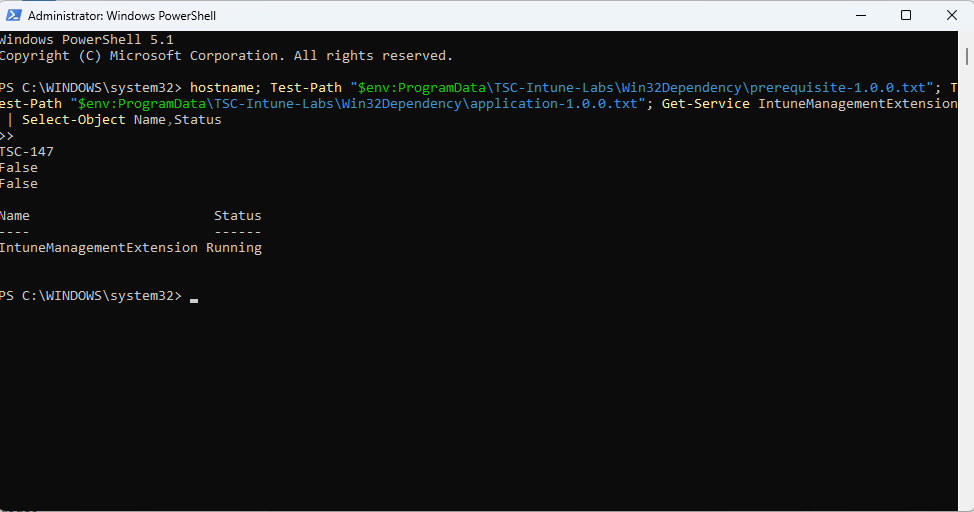
3. Create the two applications
Package each source folder separately with Microsoft's Win32 Content Prep Tool, as shown in the README. Both outputs are named Install.intunewin, so keep the prerequisite and application folders separate when selecting the uploads.
Create two Windows app (Win32) records in Intune. Use the following lab configuration:
| Field | Prerequisite | Application |
|---|---|---|
| Name | TSC Dependency Lab - Prerequisite 1.0 | TSC Dependency Lab - Application 1.0 |
| Install command | Install.cmd TSC-147 | Install.cmd TSC-147 |
| Uninstall command | Uninstall.cmd TSC-147 | Uninstall.cmd TSC-147 |
| Install behavior / restart | System / No specific action | System / No specific action |
| Requirements | x64; Windows 11 24H2 minimum | The same |
| File detection path | %ProgramData%\TSC-Intune-Labs\Win32Dependency | The same |
| File detection name | prerequisite-1.0.0.txt | application-1.0.0.txt |
| Detection method / 32-bit association | File exists / No | File exists / No |
| Initial assignment | None | Required, to the verified one-device group |
Keep both app records unassigned until you finish reviewing their configuration. Add the prerequisite under the application's Dependencies, initially with Automatically install = No. Record both app IDs in the worksheet, then assign only the parent application.
Do not add a separate Required assignment to the prerequisite. That would introduce another installation route and invalidate this comparison.
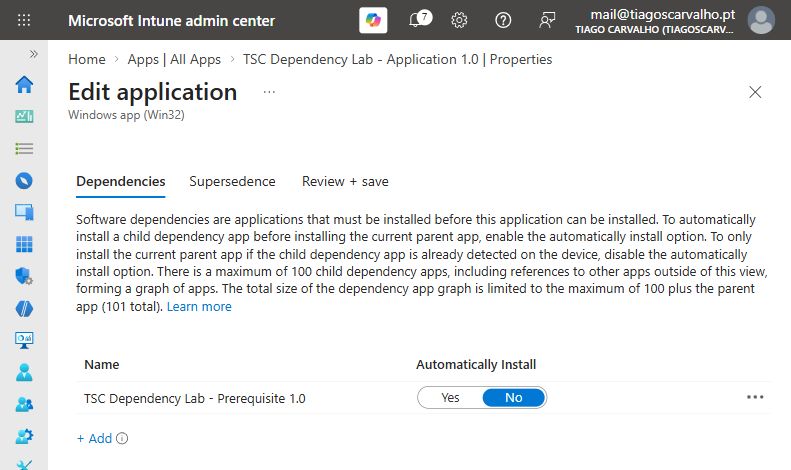
4. Capture the dependency decision
Request a device sync and inspect the parent's device installation status. Open the detailed result and record the exact status, explanation, app ID and report time. Keep the dependency configuration alongside that observation.
Microsoft documents that a missing dependency with automatic installation disabled prevents the parent from installing and produces a failure reason. In this tenant, the parent status was Not installed, with the explanation 1 or more dependent apps are configured to not automatically install.
The prerequisite detail also showed Not Installed at 09:46:42 on 24 November 2026. Preserve the actual wording from your report; do not replace it with a generic Failed label or an assumed error code.
Run the helper again with -Phase Blocked. An absent marker alone cannot explain why installation did not happen. Correlate it with the deployment result and the client logs.
The logs are under C:\ProgramData\Microsoft\IntuneManagementExtension\Logs. Start with AppWorkload.log for app processing, then AppActionProcessor.log for applicability and detection. Use IntuneManagementExtension.log to investigate check-in and policy processing. Search for the two app IDs and the relevant time window; preserve the surrounding sequence.
The parent installer also has a local guard that returns 1603 when its marker prerequisite is missing. Running it manually would test that guard, not Intune's dependency evaluation. Leave the installation to Intune for this exercise.
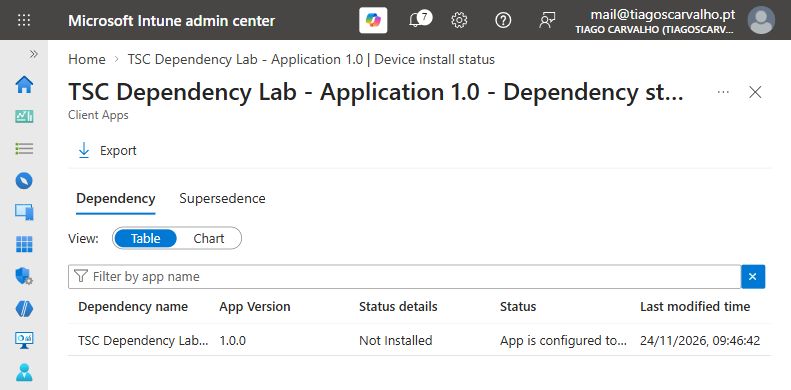
Prerequisite explanation — exact portal text
App is configured to not automatically install.
Transcribed from the saved portal result accompanying this screenshot. This is text evidence, not a replacement screenshot.
5. Change one thing and verify the result
In the parent's Dependencies, change only Automatically install to Yes. Keep the package, detection, requirements and assignment unchanged. Save the configuration and record its time.
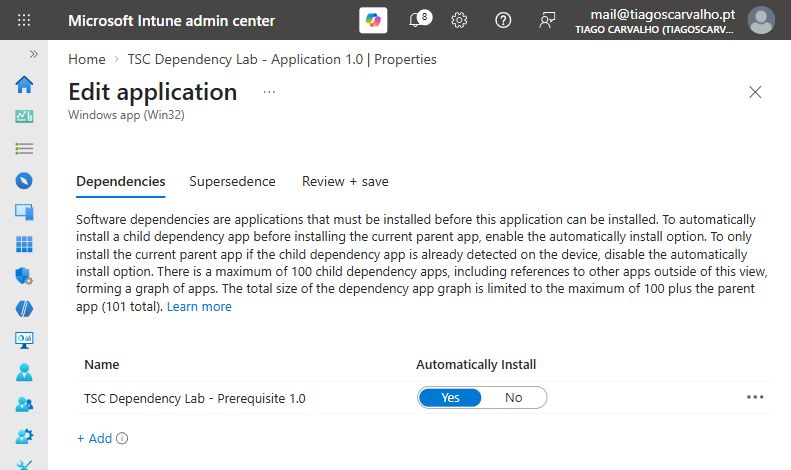
A prerequisite can be installed through this dependency relationship without its own assignment. If it has no independent installation-status row, use the parent details, local markers and logs; do not add another assignment just to populate a report.
Request another sync, wait for a fresh evaluation and run the helper with -Phase Recovered. Check both marker files and the parent application's installed status. A useful recovery record connects the changed dependency option to the later client action, rather than showing only a green summary.
A sync request is not a promise of immediate installation. Microsoft's current IME guidance describes sync through Company Portal, Windows Settings and the Intune device action. Retry eligibility and reporting can still delay the visible result. Record the named report and its time; do not repeatedly rebuild or reassign the package while looking at an old result.
In this pilot, a later evaluation reported the prerequisite and the parent as Installed, with a report time of 24 November 2026, 10:22:46. The parent briefly appeared as Install Pending while the report updated. Both final records have the same timestamp, so these portal records do not establish the precise order of the installer processes; use client logs when that timing matters.
The matching client log sequence was not collected for this pilot. The saved dependency setting, later Intune results and local file checks support the comparison; they do not establish process-level timing.
6. Remove the test files explicitly
Removing a Required assignment does not run our uninstall commands. Keep the recovery evidence before starting this sequence:
- Check the two app IDs and the one-device group's membership again. Remove the parent's Required assignment and its dependency relationship.
- Assign Uninstall for the parent to that same group. Obtain a fresh evaluation and confirm that
application-1.0.0.txtis absent. - Assign Uninstall for the prerequisite to the same group. Confirm that
prerequisite-1.0.0.txtis absent too. - Collect the final local evidence, then remove both Uninstall assignments. Record any unassigned app objects that you retain.
Run the helper with -Phase Cleaned. The uninstallers remove only their own named files; they leave the empty lab directory and any unrelated files intact. Remove the two Uninstall assignments once removal is verified.
Retain the unassigned app records while reviewing the evidence, or delete the disposable records after checking their relationships and assignments. Dependencies must be removed before deleting related app records.
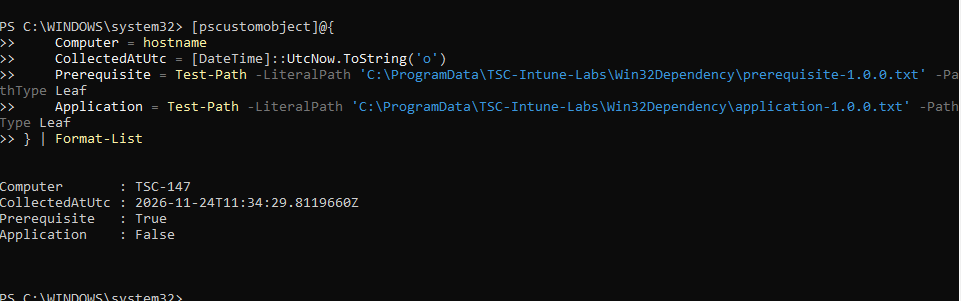
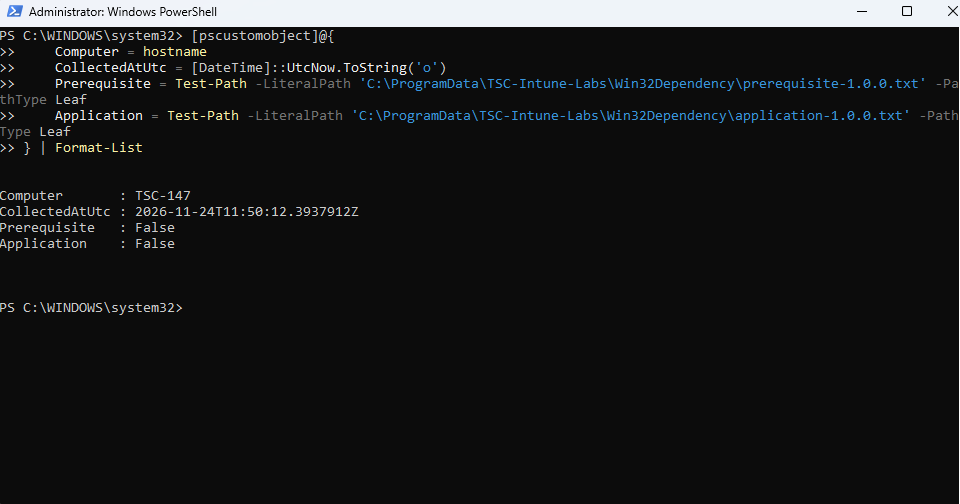
The parent's refreshed Intune report also showed Not installed at 11:30. The prerequisite's independent report had no device row at the last check, so the final removal evidence is the timestamped local query above. An empty report is not proof of removal. These checks cover the two named lab files, not every file on the device.
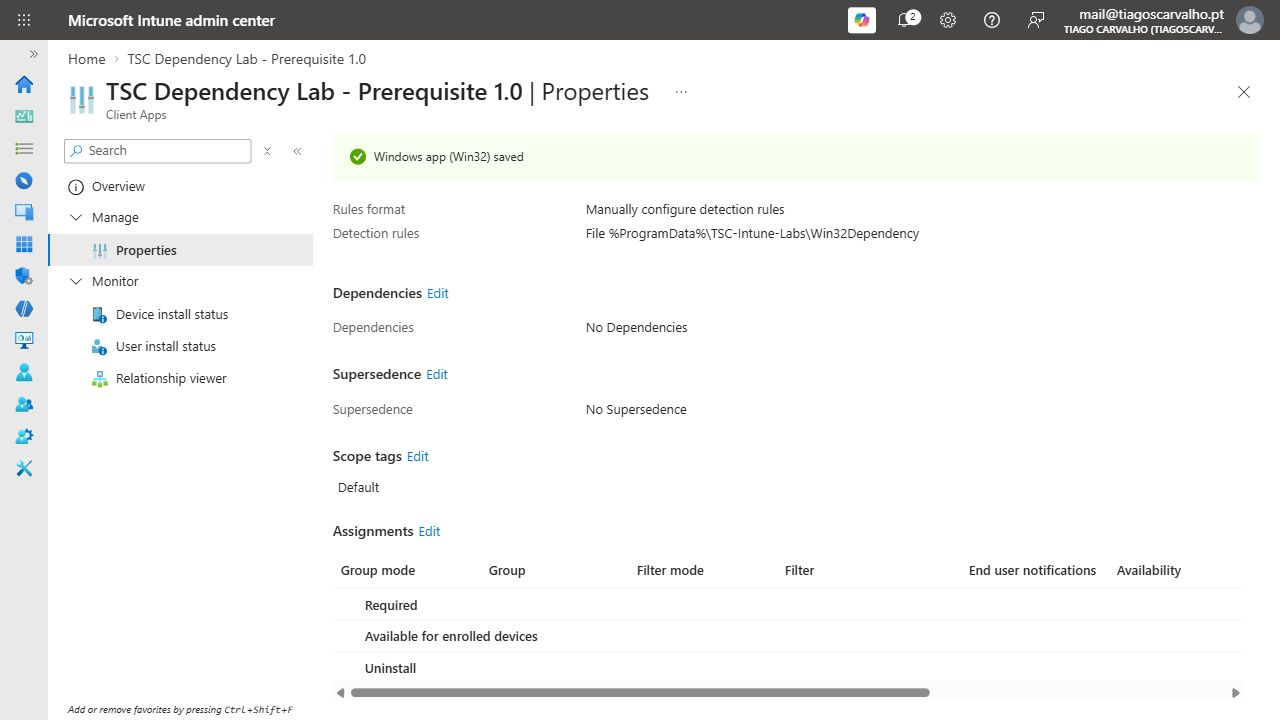
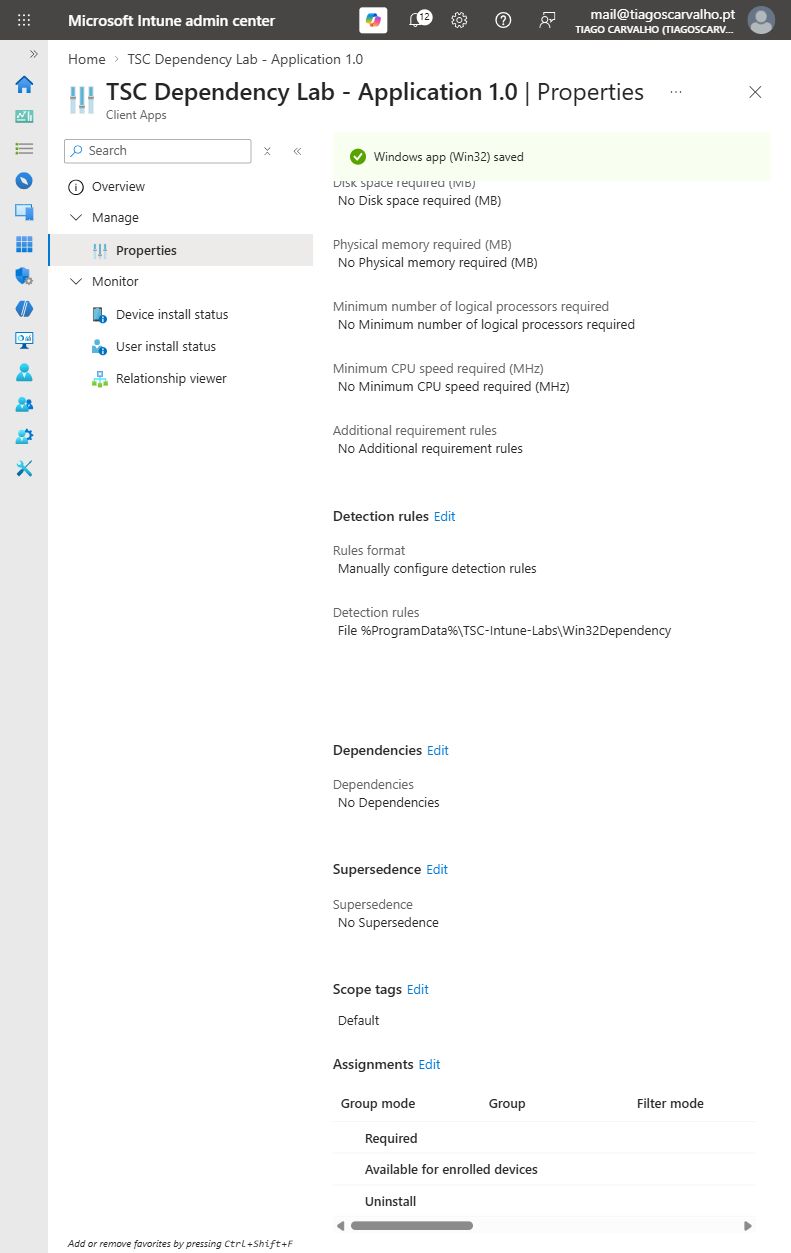
View the final Intune configuration for both apps
7. Leave a diagnosis another administrator can use
“Recreated the app and it worked” leaves the next person with very little. A better closure note identifies the missing prerequisite, the parent and dependency IDs, the original option, the specific change and the later evidence.
On [device], application [ID] was blocked by [dependency ID]. At [time], the detailed result showed [observed reason]. We changed [specific option] at [time]. The later client evaluation showed [result], and local evidence confirmed [state]. Cleanup completed at [time], with [remaining items, if any].
The worksheet separates configured intent, client observations and portal results. It also leaves space for an inconclusive result. These two marker apps teach the investigation method; they do not validate the detection rules or installation behavior of a production product.
Microsoft references
Checked 24 November 2026. The documented behavior is separate from the tenant observations stated in this guide.