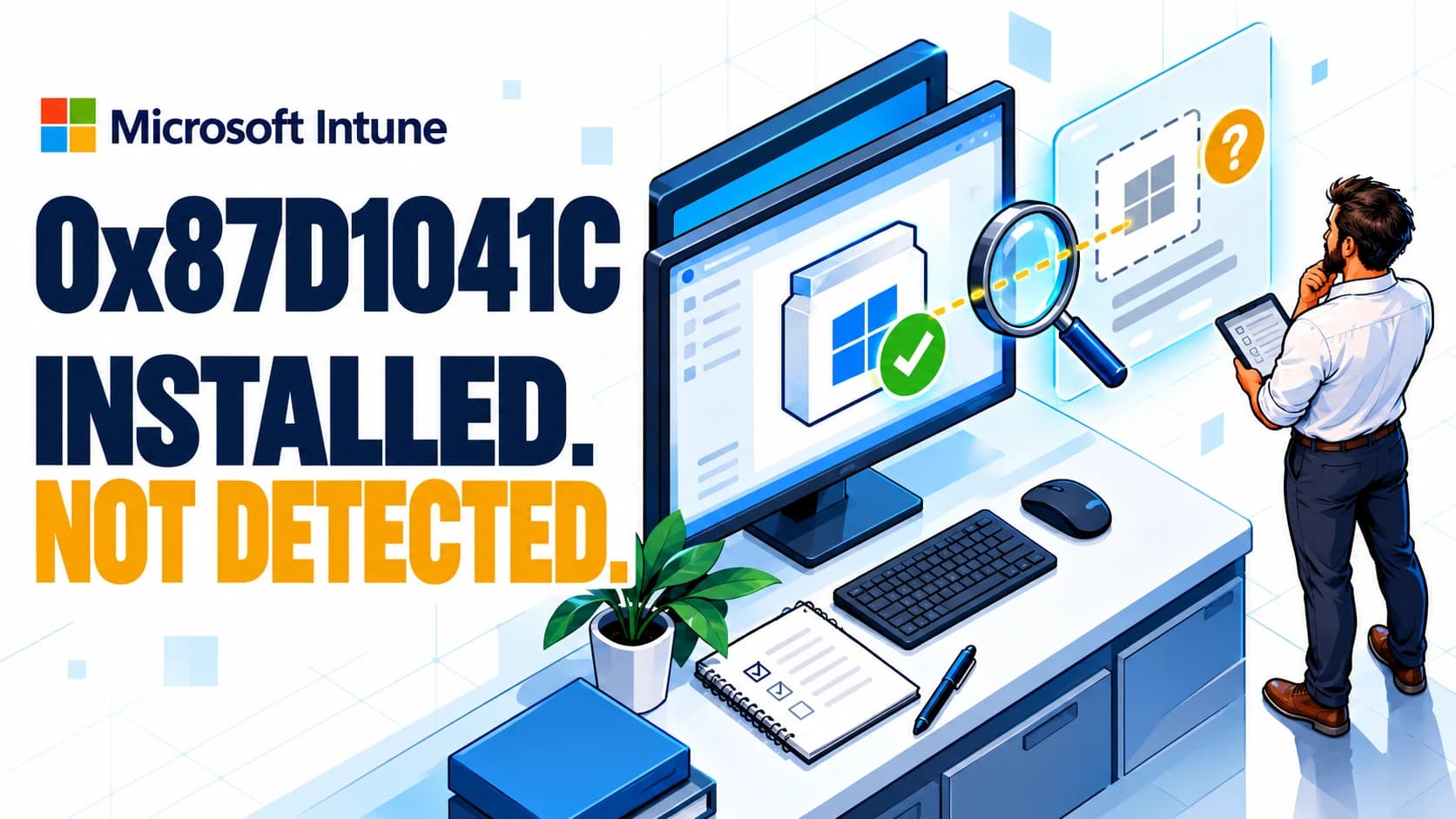
The application opens on the laptop. Intune still reports 0x87D1041C: “The application was not detected after installation completed successfully.” Reinstalling it may leave you with exactly the same result.
For a Win32 deployment, investigate the gap between the installer's reported outcome and the evidence your detection rule expects. Start by confirming the app type: the same code can appear in other deployment paths. Microsoft's error reference includes scenarios beyond an incorrectly configured Win32 rule.
The quickest useful check
Open the affected app's Properties → Detection rules. Compare the configured condition with the actual device: exact file or MSI identity, version, registry view and execution context. Then correlate that comparison with a fresh IME processing cycle.
A successful installer return code and a positive detection result are separate observations. Record both before calling the deployment healthy.
1. Identify the deployment before changing it
In the Intune admin center, open Apps → All apps → [application]. Record the app type and app ID. Under Device install status, locate the affected device and record the status timestamp. Check Properties for the install command, install behavior, detection rules and assignments. Portal labels can vary as Microsoft updates the interface.
| App type or observation | Start here |
|---|---|
Windows app (Win32), uploaded as .intunewin | Follow the detection and IME workflow below. |
| Microsoft Store app, including Company Portal | Check the Store deployment path and package registration. Do not assume that an editable Win32 detection rule exists. |
| Windows MSI line-of-business app | Investigate that deployment type and its MSI identity; do not transplant the Win32 script procedure. |
| Only an old failure remains in the portal | Compare its timestamp with the latest local evaluation before making another change. |
If the app format itself is unclear, start with the Intune app packaging decision guide. For the troubleshooting entry points, see Microsoft's app installation workflow.
Keep one case record: app ID, device ID, intended version, assignment intent, install behavior, detection configuration and time of the attempt. A screenshot saying “Failed” without those details is difficult to compare with a later result.
2. Build a timeline from the endpoint
For an applicable Win32 deployment, Intune evaluates detection before deciding whether installation is needed and checks the result after installation. Requirements answer whether the app is eligible for the device; detection answers whether its configured installed state is present. Microsoft's Win32 processing walkthrough explains these stages.
- PolicyCorrect app and device
- DetectionExisting state
- InstallationCommand and return code
- DetectionState after installation
- ReportingResult and timestamp
Open C:\ProgramData\Microsoft\IntuneManagementExtension\Logs on the affected device. Start with the same app ID and time window across the files below, including rolled-over logs when necessary.
| File | Use it to investigate |
|---|---|
AppWorkload.log | Application processing, installation and detection. |
AppActionProcessor.log | Applicability and detection decisions. |
IntuneManagementExtension.log | Agent check-in, policy processing and reporting. |
AgentExecutor.log | PowerShell execution details when relevant entries are present. |
Microsoft documents these roles in its Win32 troubleshooting reference. Log layout and wording change between agent versions; a missing literal phrase is not proof that a stage never ran.
The following read-only search narrows the evidence. Replace the placeholder with the real app ID; it does not determine the cause automatically.
$appId = 'REPLACE-WITH-INTUNE-APP-ID'
$logRoot = 'C:\ProgramData\Microsoft\IntuneManagementExtension\Logs'
Get-ChildItem -LiteralPath $logRoot -Filter '*.log' -File |
    Select-String -SimpleMatch -Pattern $appId -Context 3,6
Write down the command that actually ran, its return code, the following detection result and the reporting time. If these do not belong to the same attempt, keep investigating. For remote collection, open the failed installation's details and use Collect diagnostics, then download the resulting bundle. See Microsoft's collection procedure and limits.
3. Compare the rule with a durable installation marker
Choose evidence that represents the installation you intend to manage. An application's own executable or installer registration is usually a better starting point than a shared prerequisite, an empty folder or a shortcut.
| Rule | What to compare | Typical mismatch to investigate |
|---|---|---|
| MSI | Installed ProductCode and any version condition | Detection still refers to another release or product. |
| File | Exact path, filename and selected property | The executable exists in a different directory, or its file version differs from the marketing version. |
| Registry | Hive, logical view, key, value and comparison | The expected value is present in a different view or user profile. |
| Custom script | Inputs, output streams and exit code | The script's “success” does not satisfy the detection contract. |
| Multiple manual rules | Every condition individually | One stale condition prevents detection even when the others pass. |
Microsoft specifies that every configured detection rule must match. Check each condition separately before changing the installer. See the official detection rules reference for the supported comparisons and architecture settings.
For software that updates itself, decide whether you manage a precise approved release or a minimum acceptable version. An equality check can reject a later version. A minimum-version check can accept releases you have not approved. Make that an explicit application-management decision, then test both sides of the boundary.
4. Verify identity and architecture
A test in your own administrator console proves what that console can see. It does not establish what the Intune evaluation sees. In a controlled test, record the effective identity, process architecture and resolved paths. Keep this diagnostic output separate from the production detection script.
[pscustomobject]@{
    Identity     = [Security.Principal.WindowsIdentity]::GetCurrent().Name
    Is64Bit      = [Environment]::Is64BitProcess
    UserProfile  = $env:USERPROFILE
    LocalAppData = $env:LOCALAPPDATA
    ProgramFiles = $env:ProgramFiles
}
Pay particular attention to applications installed under a user's profile. Review the app's Install behavior setting and compare the resolved paths in the actual test context. Microsoft documents the User and System installation options. A device-group assignment alone does not establish execution identity, and an elevated interactive shell is not LocalSystem.
On 64-bit Windows, parts of the registry have separate 32-bit and 64-bit views. Compare the logical view used by the app with the view selected by detection. Prefer the supported view selector over combining it with a guessed WOW6432Node path. See Microsoft's registry redirector explanation.
Installer architecture and custom detection-script architecture are separate settings. Microsoft documents a 32-bit PowerShell launch when powershell.exe is called from the Win32 install/uninstall command fields; it documents %SystemRoot%\Sysnative\WindowsPowerShell\v1.0\powershell.exe for that 64-bit launch scenario. This is specific to that invocation path, not a universal replacement for every PowerShell command. Program settings reference.
5. Make custom detection unambiguous
For a custom Win32 detection script, Microsoft requires an exit code of 0 and output on STDOUT for a positive result. Output on STDERR prevents detection. Detection script contract.
| Exit code | STDOUT | STDERR | Detected? |
|---|---|---|---|
| 0 | Non-empty | Empty | Yes |
| 0 | Empty | Empty | No |
| Non-zero | Any | Any | No |
| 0 | Non-empty | Non-empty | No |
Keep output for the positive branch. A message such as “Starting detection” followed by an accidental successful exit could misrepresent an absent app. Detection should observe installation state; leave installation and repair work to their own commands.
This original example checks a machine-wide executable with numeric Windows file-version metadata. Replace the fictional Contoso path and minimum version before using it. It deliberately returns a negative result when it cannot read or validate the marker.
# Example for Intune Win32 custom detection. Adapt the defaults before upload.
# Reads only; does not install, repair, or change the device.
# Numeric Windows file-version metadata is required.
param(
    [string]$FilePath = 'C:\Program Files\Contoso\InventoryAgent\InventoryAgent.exe',
    [version]$MinimumVersion = '2.4.0.0'
)

$ErrorActionPreference = 'Stop'
try {
    if (-not (Test-Path -LiteralPath $FilePath -PathType Leaf)) {
        exit 1
    }
    $item = Get-Item -LiteralPath $FilePath
    $info = $item.VersionInfo
    if ([string]::IsNullOrWhiteSpace($info.FileVersion)) {
        exit 1
    }
    $detectedVersion = [version]::new(
        $info.FileMajorPart, $info.FileMinorPart,
        $info.FileBuildPart, $info.FilePrivatePart
    )
    if ($detectedVersion -lt $MinimumVersion) {
        exit 1
    }
    Write-Output "Detected file version $detectedVersion"
    exit 0
}
catch {
    # Fail closed. Investigate the underlying read error separately.
    exit 1
}
The download uses UTF-8 with BOM, as Microsoft recommends. For a 64-bit application, select the matching 64-bit detection-script setting. Intune does not supply the example's test parameters: change the defaults for the target app before upload. Preserve your organisation's script-signing requirements.
A file-version check alone does not prove application identity, health or trust. Use a more suitable marker if the vendor does not populate numeric file-version fields, if several products share the binary, or if a major-version boundary matters. This example deliberately accepts versions newer than the minimum.
PowerShell detection example · Validation worksheet
The script reads file metadata. Adapt it and validate it against the intended application before assigning it.
6. Check whether the wrapper finishes too early
A wrapper that launches an installer and immediately returns success can create a timing mismatch. Inspect its handling of child processes and the vendor's silent-install instructions. Establish which process actually owns installation completion.
For a suitable installer, Start-Process -Wait -PassThru lets a PowerShell wrapper wait for the process tree and inspect the resulting process object. Propagate the relevant exit code instead of replacing every outcome with zero. Microsoft's Start-Process reference explains these options.
That is not a universal bootstrapper fix. If setup delegates work to an existing service, validate the vendor's completion signal. An arbitrary sleep can conceal the race on one laptop and fail on another. Reboot requirements also belong in the deployment design; they should not be “fixed” by weakening detection.
7. Worked example: a newer version fails detection
Illustrative case: Contoso Inventory Agent is installed at C:\Program Files\Contoso\InventoryAgent\InventoryAgent.exe. The intended baseline is version 2.4.0.0 or later. The existing rule requires the file version to equal 2.4.0.0, while the executable now reports 2.4.1.0.
The mismatch is sufficient to explain why that rule evaluates false. It does not establish how the newer file arrived. Check the installer and update history before changing the rule.
- Capture the actual file-version metadata and the equality rule.
- Confirm that 2.4.1.0 is acceptable under the application's update policy.
- In the pilot, change only detection to the intended minimum-version comparison. Use a built-in version rule where it expresses the requirement clearly; a script is optional.
- Retest: an absent file and version 2.3.9.0 should fail detection; 2.4.0.0 and 2.4.1.0 should pass.
- Observe a new IME evaluation and a corresponding portal result before expanding the change.
If the requirement is exactly 2.4.0.0, accepting any newer version is the wrong correction. Address the unexpected update or revise the application policy through the normal change process.
8. If the affected app is Company Portal, take a different branch
Check whether the affected record uses Microsoft Store app (new). Microsoft's Store UWP documentation describes a specific 0x87D1041C scenario: an app already exists on the device and Intune assigns it again in System context. Microsoft states that installation can still succeed in that scenario and recommends avoiding mixed installation contexts.
For Company Portal deployed through Windows Autopilot, Microsoft's deployment procedure uses System install behavior and a Required assignment to the chosen device group. Compare your configuration with that procedure, including the app type, assignment and whether the app was already installed.
Record the Windows build, deployment phase, package identifier and error timestamp. Verify that the intended user can open Company Portal, then compare that result with the current deployment report. Treat the documented Store scenario as a hypothesis to check against those facts. A Win32 detection-script change will not correct a different Store deployment path.
9. Verify the correction at three levels
After saving one targeted correction, request a fresh check-in and watch the logs. On the device, Company Portal → Settings → Sync is a documented route for an MDM and IME check-in. The current Microsoft documentation also describes IME processing from the Windows Settings and Intune admin center Sync actions. A sync request is not proof that installation or reporting has finished. IME check-in reference.
| Level | Pass condition | Record |
|---|---|---|
| Application | The intended version exists and the required user can launch the application. | Marker, version and a functional check. |
| Detection | A new evaluation passes for the valid installation and rejects the defined invalid states. | Rule revision, identity, architecture and local results. |
| Management | Fresh client processing and the portal agree for the same app and device. | App ID, device ID, timestamps and updated status. |
Use a separate test device or disposable environment for absent-app and uninstall cases. Preserve a known-good rule so the pilot change is reversible. Do not uninstall a working application on a production laptop solely to produce a screenshot.
If the local result is fresh and correct but the portal still shows an older failure, investigate reporting. Keep the successful local evidence and the stale portal timestamp together. Repeatedly reinstalling the app would add new attempts without explaining that discrepancy.
Frequently asked questions
Do I need to rebuild the .intunewin package?
Only when the installer content or packaged wrapper needs to change. First determine whether the defect is in the separate detection configuration. Rebuilding unchanged content will not explain a wrong comparison.
Why is exit 0 not enough?
The custom detection result includes output streams as well as the exit code. Use the contract in section 5 and test a negative case, too. A script that always returns “Detected” hides the problem.
Can I ignore the error if the app opens?
Opening the app is one useful check. It does not establish that Intune can reliably recognise its installed state. Resolve or explain the management discrepancy so future deployment decisions have trustworthy evidence.
Should I clear IME state or reinstall its agent?
Start with the evidence and the specific faulty rule. Broad resets remove useful context and can affect unrelated workloads. Escalate with the case record and diagnostics when the client itself appears unhealthy.
Make the next deployment easier to support
Store the detection rationale alongside the package: what identifies this product, which versions are acceptable, and which negative cases were tested. That small record gives the next administrator a reason for the rule, rather than another value to guess.
For the wider packaging decision, continue with the Win32, LOB, MSIX and Store guide.
Official Microsoft sources
Microsoft Learn references reviewed on 17 October 2026.
- Microsoft Learn: App installation error codes; Add and assign Win32 apps; Win32 troubleshooting and logs.
- Microsoft Learn: App troubleshooting workflow; Win32 processing flow; Diagnostic collection; Intune Management Extension.
- Microsoft Learn: Registry redirector; Start-Process.
- Microsoft Learn: Microsoft Store app deployment; Company Portal deployment with Windows Autopilot.