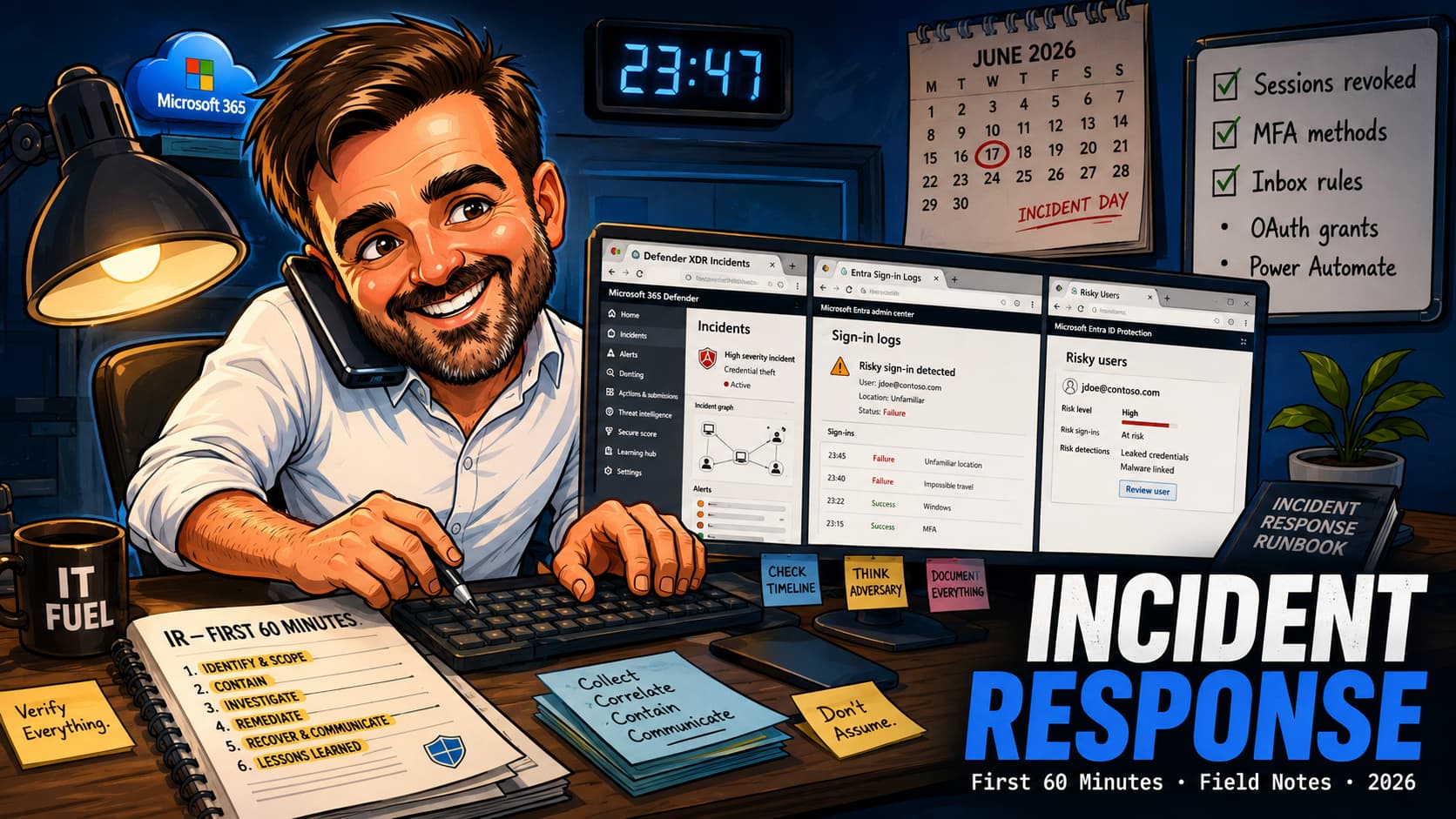
The Friday night ones are always the worst. A Defender alert fires at 19:43 with a medium severity rating, sits in the queue while everyone goes home, and surfaces again at 23:47 when a user finally calls because they are not receiving replies to an email they sent earlier that evening. By the time you are reading the alert, the inbox rule has been live for four hours, the attacker has read approximately sixty messages in the Sent Items folder, and one OAuth consent grant has been quietly issued to an application named "Microsoft Outlook for Business" that does not exist.
The first sixty minutes after a compromised account is detected are the minutes that decide whether the incident is contained or whether it becomes Monday morning's escalation. This article is the runbook I run in my head when the phone rings, written down honestly: what I do first, what order I do it in, the commands I actually type, the mistakes I have made, and the signals I have learned to take seriously. It is not a Microsoft architecture document; it is the conversation I have with myself when I am the one on call.
I have written this article in the first person because incident response is a deeply personal activity. Every IR engineer has a slightly different order, slightly different commands, slightly different patterns they look for first. The structure here is mine. If yours is different, that is fine — what matters is that you have a structure, that it is written down somewhere you can reach, and that you have run it at least once on a tabletop exercise before the live one happens. Reading this on Monday morning after the Friday night incident is too late.
How a compromise usually surfaces
The textbook diagram says a compromise is detected, an alert is raised, an analyst triages, containment begins. The reality is messier. Of the compromises I have responded to in the last eighteen months, the surface pattern was almost never "alert fires, immediate response". The pattern that I see most often is some version of this: a Defender XDR or Identity Protection signal fires somewhere between mid-afternoon and late evening, with a medium-severity rating that does not page anyone. The alert sits in the incidents queue. The attacker, who has already harvested the token, sets up persistence within the first ten to thirty minutes — an inbox rule that hides reply messages, an OAuth consent to a malicious application, sometimes a forwarding rule, occasionally a Power Automate flow. They then go quiet for a few hours, watching the user's normal patterns.
The actual escalation usually comes from one of three places. A user calls because they cannot find a reply they were expecting. A finance person calls because they received an "urgent payment" email that does not feel right. A vendor calls because they received an email from your domain that they suspect is not legitimate. By the time the call reaches you, the alert has already been in the queue for two to six hours.
I mention this because it changes the mental frame for the first sixty minutes. The instinct is to react to the call as if the compromise just happened. It did not. You are arriving at the scene hours after the attacker did. The first job is to stop assuming the attacker is still working in real time and start mapping what they have already done.
The other pattern that surprised me the first few times: in roughly half the incidents I have seen, the entry was not the compromised user. It was a service account, a shared mailbox, or a frontline worker with weak MFA, and the compromised user was the second hop — the account the attacker pivoted to because they had higher-value mailbox access. If the alert tells you "user X was risky-signed-in", check the chain. The story rarely starts where the alert fires.
When the call comes in, my first assumption is no longer "the attacker is working now". The assumption is "the attacker was working four hours ago. What persistence have they left behind, and what evidence will I destroy if I rush the remediation?"
The 60-minute timeline
I divide the first sixty minutes into five twelve-minute windows. The math is approximate — some windows take ten minutes, some take twenty, and the order shifts depending on what the triage reveals. But the windows are the right level of granularity to think in, and they have stopped me from spending forty minutes on containment before I have written down a single piece of evidence.
0–12 min Triage and confirmation
Three tabs open in this order. Microsoft Defender XDR Incidents queue, filtered to the user. Microsoft Entra ID Protection — Risky users blade, the user's detail page. Microsoft Entra sign-in logs, filtered to the user, last 24 hours. The question I am answering is not "is this a compromise"; it is "what kind of compromise". An anonymous IP plus an atypical-travel detection plus a successful MFA satisfied via push usually means token theft after MFA fatigue or AiTM phishing. A series of failed sign-ins from a single IP range followed by one success is password spray. A sudden burst of legitimate-looking sign-ins from a new ASN at an unusual hour is the AiTM pattern almost without exception. I write the kind of compromise down on a notepad before doing anything else — that note shapes the next forty-eight minutes.
Surprise that caught me out the first time. The Identity Protection risk score is not always elevated for a clear compromise. I have seen real compromises where Identity Protection had the user at low risk because the attacker was using a clean IP and a previously seen user-agent string. Trust the Defender XDR incident detail and the sign-in log pattern more than the risk score in isolation.
12–24 min Containment
This is the action window. The order matters because the wrong order leaks. My order is: revoke sessions first (so any stolen refresh token is invalidated), then disable the user account in Entra (this blocks new sign-ins and helps close the window for CAE-capable applications, but do not assume every existing access token dies instantly — existing access tokens can remain valid until expiry unless the workload and client support Continuous Access Evaluation), then reset the password, then audit authentication methods and remove anything the attacker added (phone numbers, authenticator app registrations, app passwords if they exist), then audit and remove inbox rules and forwarding settings, then revoke OAuth grants the user has consented to. Doing the password reset before the session revocation gives the attacker a brief window to use the access token to add a recovery email or phone number. I have watched this happen on a screenshare. The commands are in the next section.
Mistake I have made. I once disabled the account before exporting the sign-in logs. The export still worked, but I lost about forty minutes trying to figure out whether the disabled state had affected log visibility. It had not, but the panic cost time I did not have. Now I export the sign-in log before any state change — it is one of the first things in the containment window, not after.
24–36 min Blast radius mapping
This is the window everyone underrates. The compromise is not the user; the compromise is everything the user could touch. The fifteen-item list is in the dedicated section below. The artefacts I look for first, in order: new inbox rules, new forwarding addresses, OAuth consent grants in the last 30 days, mailbox audit log entries (especially MailItemsAccessed), SharePoint and OneDrive recent activity, Teams chat exfil, Power Automate flows the user owns, service principal credentials the user could have edited, group memberships changed, distribution list memberships added. The list is long. I work through it without skipping items, even when I think I have found the smoking gun. The reason: in three separate incidents I have found a second persistence mechanism after I thought I had cleaned the first one. The discipline is to finish the list.
36–48 min Evidence preservation
This is the window I forced myself to learn. Early in my career I would race through containment and then realise, twenty-four hours later, that I had deleted the inbox rule without screenshotting its contents and the legal team was asking for the exact regex the attacker used. Now I export before I delete. The exports I always pull are listed in the evidence section below. The folder goes into the incident ticket and survives the rest of the investigation.
48–60 min Communication and handover
Containment is done, mapping is done, evidence is preserved. The last twelve minutes are about people. The user needs to know — through a channel that is not compromised. The manager needs to know. The security stakeholders need a one-paragraph status. If there are signs of data exfiltration involving personal data, the DPO or privacy lead needs a heads-up because the GDPR Article 33 obligations may apply. If this is an EU essential or important entity under NIS2, there is a similar significant-incident notification expectation. None of this is the IR engineer's decision alone — the role of the IR engineer in this window is to surface the facts to the people who decide. Get them the facts; let them decide whether the clock starts.
The containment commands I actually use
These are PowerShell commands. They assume you have Microsoft Graph PowerShell SDK installed and the Exchange Online module available, that you have signed in with sufficient scopes, and that you have read the surrounding sections so you understand the order. The order is not arbitrary.
User.RevokeSessions.All, User.ReadWrite.All, UserAuthenticationMethod.ReadWrite.All, DelegatedPermissionGrant.ReadWrite.All, Directory.Read.All or Directory.ReadWrite.All, plus the appropriate Microsoft Entra roles — commonly some combination of User Administrator, Authentication Administrator, Privileged Authentication Administrator, Application Administrator or Cloud Application Administrator. A runbook that bats against "insufficient privileges" at minute fifteen of a live incident is worse than no runbook.
Revoke sessions first
This invalidates the user's refresh tokens. Existing access tokens remain valid until their expiry (default lifetime is around an hour, sometimes less) — Continuous Access Evaluation can shorten that window further on supported clients, which is one of the reasons CAE is worth having on. Either way, refresh-token invalidation is the priority.
Connect-MgGraph -Scopes `
  "User.RevokeSessions.All", `
  "User.ReadWrite.All", `
  "UserAuthenticationMethod.ReadWrite.All", `
  "DelegatedPermissionGrant.ReadWrite.All", `
  "Directory.Read.All", `
  "AuditLog.Read.All"

# Revoke refresh tokens
Revoke-MgUserSignInSession -UserId user@tenant.com
Disable the account
I disable, I do not delete. Deleting destroys evidence and complicates the audit trail. Disabling is reversible; deletion is not without effort.
Update-MgUser -UserId user@tenant.com -AccountEnabled:$falseReset the password
I generate the new password as a string the user will never see — they will set their own when the account is re-enabled and reset through a controlled process. The temporary password exists only to break the attacker's hold; it should not be the one the user types tomorrow. Use your organisation's approved password-generation process to produce a strong temporary password; the example below shows the shape of the update, not the recommended generator.
# Use your approved password-generation process to produce $tempPwd.
# The line below is illustrative; do not rely on System.Web in PowerShell 7
# without explicitly loading the assembly via Add-Type -AssemblyName System.Web.

$passwordProfile = @{
  ForceChangePasswordNextSignIn = $true
  Password = $tempPwd
}
Update-MgUser -UserId user@tenant.com -PasswordProfile $passwordProfile
Audit and remove authentication methods
This is the step most people skip. If the attacker added their own phone number, authenticator app or FIDO2 key during their working window, leaving those in place hands the account back as soon as the password is reset. I list everything and review what should not be there.
# List authentication methods
Get-MgUserAuthenticationMethod -UserId user@tenant.com |
  Select-Object Id, AdditionalProperties

# Remove a specific phone method (replace <id>)
Remove-MgUserAuthenticationPhoneMethod -UserId user@tenant.com -PhoneAuthenticationMethodId <id>
The phone method is only one example. Review all authentication method types supported in the tenant, including Microsoft Authenticator, FIDO2 / passkeys, Temporary Access Pass, software OATH and Windows Hello for Business. Each method type has its own removal cmdlet (Remove-MgUserAuthenticationMicrosoftAuthenticatorMethod, Remove-MgUserAuthenticationFido2Method, Remove-MgUserAuthenticationTemporaryAccessPassMethod, and so on). Some methods cannot be removed if they are set as the default authentication method — in that case change the default first, then remove. Validate the current cmdlet surface against the Microsoft Graph PowerShell SDK release in your tenant before relying on the exact command names.
Audit inbox rules and forwarding
The inbox rule is the single most common persistence artefact in the cases I have responded to. Sometimes named something obvious like "Rule" or a single letter; sometimes named to look legitimate. The forwarding settings on the mailbox itself are a different surface and need to be checked separately.
Connect-ExchangeOnline -UserPrincipalName admin@tenant.com

# Inbox rules
Get-InboxRule -Mailbox user@tenant.com | Format-List Name, Description, Enabled, RedirectTo, MoveToFolder, DeleteMessage

# Mailbox-level forwarding
Get-Mailbox user@tenant.com |
  Select-Object Identity, ForwardingAddress, ForwardingSmtpAddress, DeliverToMailboxAndForward

# Delegates
Get-MailboxPermission -Identity user@tenant.com |
  Where-Object { $_.User -notlike "NT AUTHORITY\SELF" -and $_.IsInherited -eq $false }
Revoke OAuth grants
The OAuth consent phishing pattern is the silent one. The user clicked a link to what they thought was a Microsoft service, granted Mail.ReadWrite or Files.Read.All, and the attacker now holds a token that does not need the password to be valid. Revoking sessions does not always invalidate the application's grant; the grant has to be revoked explicitly.
# List grants for the user
$userId = (Get-MgUser -Filter "userPrincipalName eq 'user@tenant.com'").Id
Get-MgUserOAuth2PermissionGrant -UserId $userId |
  Select-Object Id, ClientId, Scope, ResourceId

# Revoke a specific grant
Remove-MgOauth2PermissionGrant -OAuth2PermissionGrantId <grantId>oAuth2PermissionGrant prevents new access tokens being issued under that grant, but access tokens already issued can remain valid until they expire.
Blast radius mapping — the fifteen things I check
This is the section that has saved me more than once. Containment without mapping is not containment; it is a false sense of security. I work through this list every time, in roughly this order, even when I am confident I have found the persistence mechanism on the first item.
| # | What to check | Where to check it | What I look for |
|---|---|---|---|
| 1 | Sign-in logs (interactive) | Microsoft Entra › Sign-in logs › Interactive | Atypical-travel detections, anonymous IPs, sign-ins outside business hours, new user-agents. Pattern of failures followed by one success. |
| 2 | Sign-in logs (non-interactive and service principal) | Microsoft Entra › Sign-in logs › Non-interactive / Service principal sign-ins | Tokens used by applications the user consented to. Service principal activity tied to the user. |
| 3 | Risky users / risky sign-ins | Microsoft Entra ID Protection | Risk detections in the last 30 days, including ones below the auto-block threshold. The medium-severity ones are the easiest to miss. |
| 4 | Inbox rules | Exchange Online PowerShell or Outlook | Anything created in the incident window. Look especially for rules that redirect, move to Deleted Items, mark-as-read or forward externally. |
| 5 | Mailbox forwarding | Exchange Online: Get-Mailbox | ForwardingAddress and ForwardingSmtpAddress fields. The SMTP field can point externally even when the address field is empty. |
| 6 | Mailbox audit log — MailItemsAccessed | Microsoft Purview Audit — Unified Audit Log | Bulk read patterns, message IDs accessed in tight time windows. This is the activity that suggests exfiltration of mailbox content. |
| 7 | SharePoint and OneDrive activity | Microsoft Purview Audit — activities filtered to FileDownloaded, FileSyncDownloadedFull, FileAccessedExtended | Sites the user did not normally touch. Files downloaded in volume. Sync operations from unusual devices. |
| 8 | Teams activity | Microsoft Purview Audit — Teams activities | Chats started with external tenants, files shared in 1:1 chats, channel posts created by the user during the compromise window. |
| 9 | OAuth consent grants | Microsoft Entra › Enterprise applications › User consent (or Get-MgUserOAuth2PermissionGrant) | Recently consented applications. Pay attention to the requested scopes — Mail.ReadWrite, Files.ReadWrite.All and offline_access are the patterns of OAuth phishing. |
| 10 | Power Automate flows | Microsoft Power Platform admin centre › Environments › Flows by owner | Flows owned by the user. The most overlooked exfiltration channel I have encountered. Look for flows that send mail externally or write to SharePoint. |
| 11 | Power Apps owned | Power Platform admin centre › Environments › Apps by owner | Less common than Power Automate as an exfil vector but worth a quick sweep when investigating any account that has touched Power Platform. |
| 12 | Group memberships changes | Microsoft Entra › Audit logs filtered to "Member Added" | Privileged groups (Microsoft 365 admin roles, distribution lists with mailbox access, Teams of sensitive scope) that the user was added to or that the user added someone to. |
| 13 | Service principals the user could edit | Microsoft Entra › Audit logs › Service principal actions | New credentials added to an existing service principal during the compromise window. This is the persistence mechanism for admin-level compromises. |
| 14 | New user creation | Microsoft Entra › Audit logs › "Add user" | Did this account create any new users? Only relevant if the compromised account had user-create privileges — but when it did, this is where the second account is hiding. |
| 15 | Conditional Access policy edits | Microsoft Entra › Audit logs › "Update conditional access policy" | If the account had Security Administrator or Conditional Access Administrator rights, check whether a policy was edited or disabled. I have seen this in two incidents where the attacker disabled the MFA-required policy for a service account. |
The discipline is to finish the list. In three separate incidents I have found a second persistence mechanism — usually a Power Automate flow or an OAuth grant — after I thought I had cleaned the first one. The list is the protection against my own confidence.
The evidence I always preserve before remediating
The remediation destroys evidence. That is the nature of remediation — you delete the inbox rule, you remove the OAuth grant, you reset the password, and the artefact is gone. The exports are what survive. The folder I build during this window is the artefact that the forensics team, the auditors and (if it gets that far) the regulators will work from.
- Sign-in log export, within the tenant's available Microsoft Entra retention window.From Microsoft Entra — Sign-in logs, filtered to the user, downloaded as JSON. JSON preserves the full event detail; the CSV format truncates fields. Native Entra sign-in log retention is licence-dependent (broadly 7 days on Free, 30 days on P1/P2, with risky sign-ins retained longer with P2) — if the organisation needs longer windows, the logs need to be archived to Log Analytics, an Azure Storage account or a SIEM. I always pull JSON for evidence.
- Unified Audit Log search, within the available Purview Audit retention window.From Microsoft Purview Audit, filtered to the user. Start with the incident window and expand as needed across the retained period. Save both the CSV export and the audit log search ID for later reproducibility. Audit Standard, Audit Premium and custom retention policies determine how far back you can go.
- Defender XDR incident evidence capture.Export the incident data where the portal supports it, capture the incident timeline and evidence, and use the Microsoft Defender XDR incidents API where JSON-level incident detail is required. The timeline of detections, alert detail and entity graph is what you want preserved.
- Identity Protection risk detection detail.From Microsoft Entra ID Protection — Risk detections. Each event has a JSON payload with the location, device, application and risk reason. Pull the relevant events.
- Inbox rule body screenshot.Before deleting an inbox rule, screenshot the rule's body. The Description field in PowerShell does not always preserve the exact conditions in a readable form.
- OAuth grant detail.Application ID, application display name, scopes requested, consent timestamp, consent type (user vs admin). I screenshot the enterprise application page in addition to the PowerShell output, because the display name in the portal is sometimes more informative than the API response.
- Dedicated MailItemsAccessed query.Run a MailItemsAccessed query as part of the Unified Audit Log / mailbox auditing evidence set. Treat it as its own evidence export because it answers a specific forensic question: which mail items or folders the attacker accessed, and whether access was a bind operation (specific message) or a sync operation (bulk).
- Communication log.A simple text file with timestamped lines noting who I notified, when, via what channel and what they were told. This is the document that becomes the timeline if anyone asks "when did the user know" or "when was leadership informed".
The communication pattern
I have made every communication mistake I am about to describe. The pattern I follow now exists because of those mistakes.
The user. Notify through a channel that is not the compromised one. If their mailbox is potentially compromised, do not email them. If their Teams may be compromised, do not send a Teams message. Phone is best. In-person if they are in the office. A pre-agreed out-of-band channel (SMS to a known mobile number) works if the phone is not available. The message is short: there has been suspicious activity on your account, your access is temporarily restricted, please call me back on this number to reset, do not respond to any email or message claiming to be from IT in the meantime. Twenty seconds, not a paragraph.
The manager. The manager needs to know, partly because they need to support the user, and partly because they need to make decisions if the user is in a customer meeting or on stage at a conference at that exact moment. The manager call is also where I get context I do not otherwise have — "she was in a meeting with a vendor last Tuesday where she shared her screen" is the kind of detail that changes the investigation.
The security stakeholders. The CISO or security lead gets a one-paragraph status: one user compromised, suspected vector, containment in progress, blast radius mapping under way, evidence preserved, regulatory implications pending assessment. I do not embellish; I do not soften. The one paragraph is calibrated for someone who has thirty seconds.
The data protection officer or privacy lead. If there is any sign of personal data exfiltration — mail accessed in bulk, files downloaded, customer data within scope — the privacy lead gets a heads-up immediately. Under GDPR Article 33, where the breach is notifiable, the personal data breach must be notified to the supervisory authority without undue delay and, where feasible, not later than 72 hours after becoming aware of it. The IR engineer does not decide notification. The IR engineer escalates facts early enough for the DPO, legal or compliance owner to decide whether GDPR, NIS2 or sector-specific notification thresholds are met.
NIS2 essential and important entities have their own significant-incident notification expectations, with early warning typically within twenty-four hours of becoming aware. The trigger criteria and timelines vary by member state — the implementing legislation for the jurisdiction is the source of truth. The same principle applies: the IR engineer surfaces the facts, the legal and compliance owners decide.
Leadership. This depends on the organisation. In some tenants leadership is informed immediately for any suspected account compromise; in others, only if there is material business impact. I follow whatever the standing communication protocol is. The mistake I have made here is improvising the leadership call — saying more than the facts support, or less than the situation deserves. A pre-agreed protocol removes that risk.
The five compromise patterns I see most often
Five patterns. Different surfaces, different remediations, different prevention controls. The first sixty minutes look similar across all five, but the longer-term posture work that prevents recurrence is different in each case.
Pattern A — MFA fatigue / push bombing
Attacker has the password (often from a credential dump on the dark web). They trigger a sign-in, the user gets a push prompt, they decline, the attacker tries again. And again. And again. Eventually the user, mid-meeting, taps approve to make it stop. Token issued. Compromise achieved. The remediation is the standard sixty minutes; the prevention is number matching on Microsoft Authenticator (now default in many tenants, but verify), the user-friendly "this is suspicious" message in the app, and user education that "if you did not start a sign-in, never approve it". The number-matching default has reduced this pattern significantly over the last two years in the tenants I work in, but it still appears.
Pattern B — AiTM (Adversary in the Middle) phishing
The user clicks a link, lands on a proxy site that looks exactly like the Microsoft sign-in page, types their password, completes MFA. The proxy captures both the password and the session cookie. The session cookie is the prize. The attacker now has a valid authenticated session without having to satisfy MFA again. This is the most common compromise pattern I have responded to in 2025 and 2026. The remediation is unchanged. The prevention is phishing-resistant MFA (FIDO2 keys, Windows Hello for Business, certificate-based authentication via Authentication Strengths), Token Protection in Conditional Access where available, and (newer) device-bound credentials and continuous access evaluation that revokes tokens on token-binding mismatches. None of these are universal yet. Most tenants I see have phishing-resistant methods for the highest-risk roles and password-plus-MFA for the rest. That gap is where AiTM lands.
Pattern C — OAuth consent phishing
The user clicks a link to grant access to what they believe is a Microsoft application. The application is malicious. The scopes requested are Mail.ReadWrite, Files.ReadWrite.All, offline_access. The user clicks accept. The attacker now holds a refresh token to a custom application that does not need the password at all. No alert fires — the user consented. The remediation requires identifying and revoking the OAuth grant in addition to the standard sixty minutes. The prevention is the user consent settings in Microsoft Entra (restrict user consent to verified publishers and low-risk permissions, or disable user consent entirely and require admin consent), the admin consent workflow for legitimate apps, and the publisher verification check. I have started recommending disabling user consent entirely in tenants where users have no operational need to grant app access. It is friction; it is the right friction.
Pattern D — Service account with no MFA
The compromise is on a service account — the account that runs the scheduled task, the script that uploads the report, the mailbox the marketing automation tool sends from. Service accounts often have no MFA because "we cannot put MFA on a service account". This is incorrect in most modern scenarios (managed identities, service principal authentication with certificates, federated identity with workload identity federation), but it remains common in tenants that have not modernised the integrations. The remediation for a compromised service account is harder because disabling it can break business processes. The prevention is moving service accounts to managed identities or service principals with certificate-based auth, and (where the account must remain a user) protecting it with a phishing-resistant credential and a tight Conditional Access scope — named locations, specific applications, no interactive sign-in.
Pattern E — Shared mailbox or frontline worker abuse
Shared mailboxes do not have credentials of their own; access is delegated to users. The compromise here is not the shared mailbox itself but the user accessing it — and the shared mailbox becomes the visible exfiltration channel. Frontline worker accounts (Microsoft 365 F1/F3 line) often have weaker controls because the operational context is shift work, kiosk devices, shared logins. The remediation is the standard sixty minutes for the underlying user account, plus a sweep of all shared mailboxes that user had access to. The prevention is treating frontline worker identities with the same posture rigour as knowledge workers — phishing-resistant MFA where possible, Conditional Access policies that account for the shared-device context, and shared-mailbox access reviews that prune delegations.
The pre-incident posture that makes this runbook executable
The runbook is the easy bit. The hard bit is the posture that makes the runbook actually executable when the call comes in at 23:47 on a Friday. The list below is the minimum. If any of these are missing, the runbook stops working at the point the gap occurs — usually about ten minutes into the incident, when I realise I cannot run the command I need to run.
- Microsoft Defender XDR licensed and tuned.Incidents and alerts surfacing in a single queue, with severity that pages an on-call when it should. Untuned Defender XDR is the noise that hides the real signal.
- Microsoft Entra ID Protection enabled.Risk detections flowing into Defender XDR. Risk-based Conditional Access policies that block high-risk sign-ins and require MFA on medium-risk, configured against the current Entra ID Protection feature surface.
- Unified Audit Log enabled.It is on by default for new tenants now, but I still check. Without the audit log, the blast radius mapping is guesswork.
- Audit and sign-in retention assessed.Know what is retained in Microsoft Entra (sign-in and audit logs), what is retained in Microsoft Purview Audit (Unified Audit Log under Audit Standard or Audit Premium), and what is archived externally. Native retention windows are rarely enough for a serious investigation unless logs are routed to a SIEM or storage account.
- Microsoft Graph PowerShell SDK installed on a reachable machine.Installed on the on-call laptop. Roles assigned to the break-glass identity, not the daily admin. Tested at least once a quarter so the cmdlets do not throw "module not found" at midnight.
- Exchange Online PowerShell available.The inbox rule check needs Exchange Online PowerShell. Make sure the on-call has the module installed and the connection works without an MFA prompt that times out the session.
- Conditional Access policies that support containment.A "disabled user" policy that blocks access for accounts in a specific group, so the disable action propagates fast. A high-risk-user policy that blocks new sign-ins. Both tested.
- Runbook printed.Yes, printed. The first time I needed the runbook I was on a phone call and my laptop was in the bag. A laminated single page on the wall has saved me twice. The full version lives in the wiki; the printed page is the muscle memory.
- On-call rotation defined.Who answers the phone at 23:47 on a Friday? If the answer is "whoever is awake", the runbook is not executable.
- Communication tree pre-built.Phone numbers, escalation order, decision authority. Not in the compromised mailbox.
- Out-of-band communication channel.SMS, Signal, an alternative collaboration tool. Tested. Used at least once a quarter.
- Tabletop exercise within the last twelve months.One walkthrough of the runbook with the team, in a meeting room, with no live tooling. The mistakes that surface in a tabletop are the mistakes you do not want to discover live.
The eight mistakes I have made or watched others make
- Resetting the password before revoking sessions.Gives the attacker an access-token window to add a recovery method and walk straight back in through the password-reset flow. Revoke sessions first, then password reset.
- Forgetting to check authentication methods.The attacker's phone number stays on the account after the password reset. Eight hours later they self-service-reset back in. I have watched this happen.
- Deleting the inbox rule without screenshotting it.The forensics team or legal counsel asks for the exact regex two days later. The PowerShell Description field does not preserve everything the rule actually did.
- Skipping the OAuth grant check.The persistence is in the application token, not the password or the session. Closing the incident without revoking the grant means the attacker still has access.
- Communicating with the user through the compromised channel.Emailing the compromised mailbox to tell the user not to use their account. I have done this. Once.
- Closing the incident before the blast radius mapping is finished.The second persistence mechanism — a Power Automate flow, a service principal credential, a new group membership — is the one I find on the third pass through the list. Finish the list.
- Promising a forensic timeline that the audit log retention cannot deliver.The user has been Audit Standard throughout. Standard retention applies (currently 180 days for records generated after 17 October 2023). The investigation wants further back than that. The data does not exist. Validate what is retained before promising what can be reconstructed.
- Re-enabling the account too quickly.The user is annoyed. The manager is asking for restoration. Containment was at minute thirty; the account is re-enabled at minute eighty-five. The blast radius mapping was still under way. Two days later, the second persistence mechanism activates. Take the time. The user can wait two more hours.
FAQ
Should I disable the account or just reset the password?
For a confirmed compromise, disablement is usually required, but I still revoke sessions first in this runbook. The disabled state is reversible and blocks new sign-ins, which helps enforce revocation in CAE-capable workloads. Do not assume every existing access token dies instantly — that is why the runbook combines refresh-token revocation, account disablement, password reset, authentication-method review and OAuth grant review rather than relying on any single one of them. Revoke sessions, disable the account, reset the password, audit methods and grants, then re-enable only when containment is verified.
How long are tokens valid after I revoke sessions?
Refresh tokens are invalidated by the revoke action. Existing access tokens remain valid until their expiry — the default is around an hour but the lifetime varies and can be shorter. Continuous Access Evaluation, where enabled and supported by the client, can reduce that window further by allowing services to revoke tokens in near-real-time based on critical events. Without CAE, the access-token window is the gap. The implication is that revoking sessions is not instantaneous protection across all clients; the disable action is what closes the gap for the access-token lifetime.
What if the user is in the middle of a presentation or customer call?
The containment proceeds. The user will lose access during their presentation. That is the trade-off, and it is the right one. The cost of an extra fifteen minutes of compromise is much higher than the cost of an interrupted call. The manager call (minute fifty-two in my timeline) is where the operational consequences get coordinated. The IR engineer does not delay containment to accommodate a user's calendar.
Should I notify the user immediately?
Yes, but not via the compromised channel. Phone the user. If the user cannot be reached, brief the manager and have the manager reach them. The notification is short: there is suspicious activity, your access is restricted, I will call you back in thirty minutes to reset your access through a controlled process, do not respond to any IT-looking emails or messages in the meantime. The reason for the speed is partly to reassure the user (their account being disabled with no notification is alarming) and partly to interrupt any social-engineering follow-up the attacker may attempt to make.
When do I notify the data protection officer?
The moment there is reasonable suspicion of personal data exposure. Mailbox audit log showing bulk MailItemsAccessed. SharePoint or OneDrive downloads of files containing personal data. Teams chats with personal data shared externally. The IR engineer is not the one who decides whether GDPR or other notification thresholds are met — that is for the DPO, legal or compliance owner. The IR engineer's job is to surface the facts quickly enough that the decision can be made in time. If you are unsure, surface it.
What is the relationship between this runbook and a forensics investigation?
The first sixty minutes are about containment and preservation. The forensics investigation is a separate workflow that starts once containment is verified. The IR engineer's job in the first sixty minutes is to stop the bleeding and preserve the evidence; the forensics investigation reconstructs the chain. Some organisations run both in parallel with separate teams; others run them sequentially with the same team. Either way, the evidence preservation step in minute thirty-six to forty-eight is the bridge — if you skip it, the forensics investigation has nothing to work from.
References & further reading
- Microsoft Incident Response overview
- Respond to a compromised email account
- Microsoft Defender XDR documentation
- Microsoft Entra ID Protection
- Continuous Access Evaluation in Microsoft Entra
- Configure user consent to applications
Writing your incident response runbook?
This article is one version of a sixty-minute runbook for a compromised Microsoft 365 account. Yours will be shaped by your tooling, your team and the patterns you see in your tenant. If a tabletop exercise on the IR runbook would be useful — with the actual commands, the actual blast radius list and the communication tree calibrated to your organisation — I run those workshops with admin teams who want to rehearse before the live incident.
Plan the IR workshop