1. Define the recovery question
“Intune lists two BitLocker recovery keys for this laptop. Which record matches the recovery protector on its OS drive now?”
That is a better ticket than “BitLocker is green”. A service report, a stored recovery record and the current protector on a drive answer different questions. This case follows the operating-system volume of one dedicated laptop, TSC-147. Record its Intune device ID, Microsoft Entra device ID and last check-in before comparing anything.
In the tenant, Devices → All devices → TSC-147 → Overview → Device details → Conditional access reports Encrypted: Yes and Compliant. The initial portal capture showed a last check-in of 11 November 2026, 05:28, Lisbon time. A later read-only Graph inventory, collected at 09:48 UTC, reported a check-in at 09:19:47 UTC, still Compliant and encrypted. These are service-reported observations; local Windows evidence is recorded separately below.
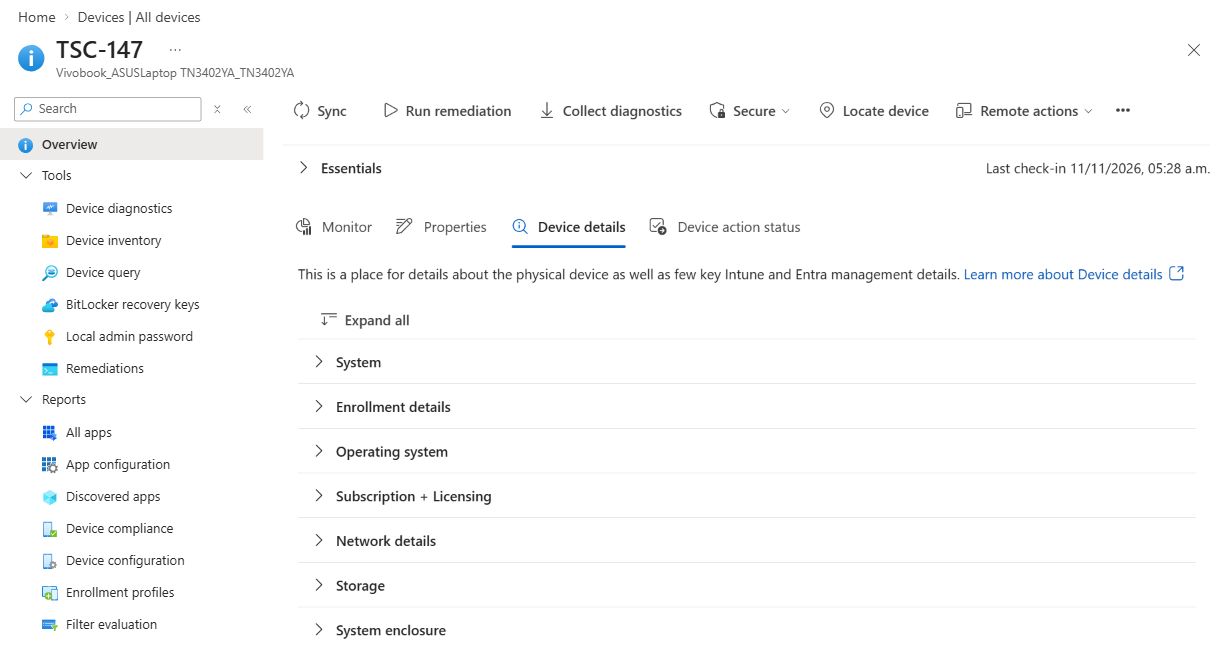
Use a connected Windows laboratory device with Windows already running, local administrative access for the read-only commands, and an authorised Intune operator. The core exercise reads device and key metadata. Successful closure means matching the correct device and full protector ID, then recording what that match establishes.
If the laptop is already at the BitLocker recovery screen
The local commands in this case require a working Windows session. For a locked device, record the recovery key ID displayed on its recovery screen and the device name, then use an authorised helpdesk session on another device to locate the corresponding record. Verify the requester’s identity and entitlement to that device before releasing a recovery password through the approved support process. Do not choose a key by date or row order. Investigate the recovery trigger and plan the appropriate post-recovery action. This is a documented incident branch, not a recovery test performed on TSC-147.
Check licensing separately from the Windows edition
The portal reports Windows Pro for TSC-147. Microsoft lists Pro as a supported edition but separately documents management entitlements for Windows Enterprise E3/E5 and Education A3/A5. The BitLocker CSP also distinguishes its licensing requirements from basic encryption enforcement. Confirm the applicable entitlement for your environment before a managed rotation; the presence of a portal button is not a licensing check. See the Microsoft configuration and CSP references below.
2. Read the local protector
On the intended laptop, open Windows PowerShell → Run as administrator. Record the time, volume state and recovery-password protector IDs. These commands select metadata rather than the 48-digit recovery password:
Get-BitLockerVolume -MountPoint $env:SystemDrive |
    Select-Object ComputerName, MountPoint, VolumeStatus,
        ProtectionStatus, EncryptionPercentage, EncryptionMethod

(Get-BitLockerVolume -MountPoint $env:SystemDrive).KeyProtector |
    Where-Object KeyProtectorType -eq 'RecoveryPassword' |
    Select-Object KeyProtectorId
For this exercise, the ready state is FullyEncrypted, ProtectionStatus: On and at least one recovery-password protector. A drive can be encrypted while protection is suspended, so record both fields. If more than one recovery protector exists, retain every ID in the comparison.
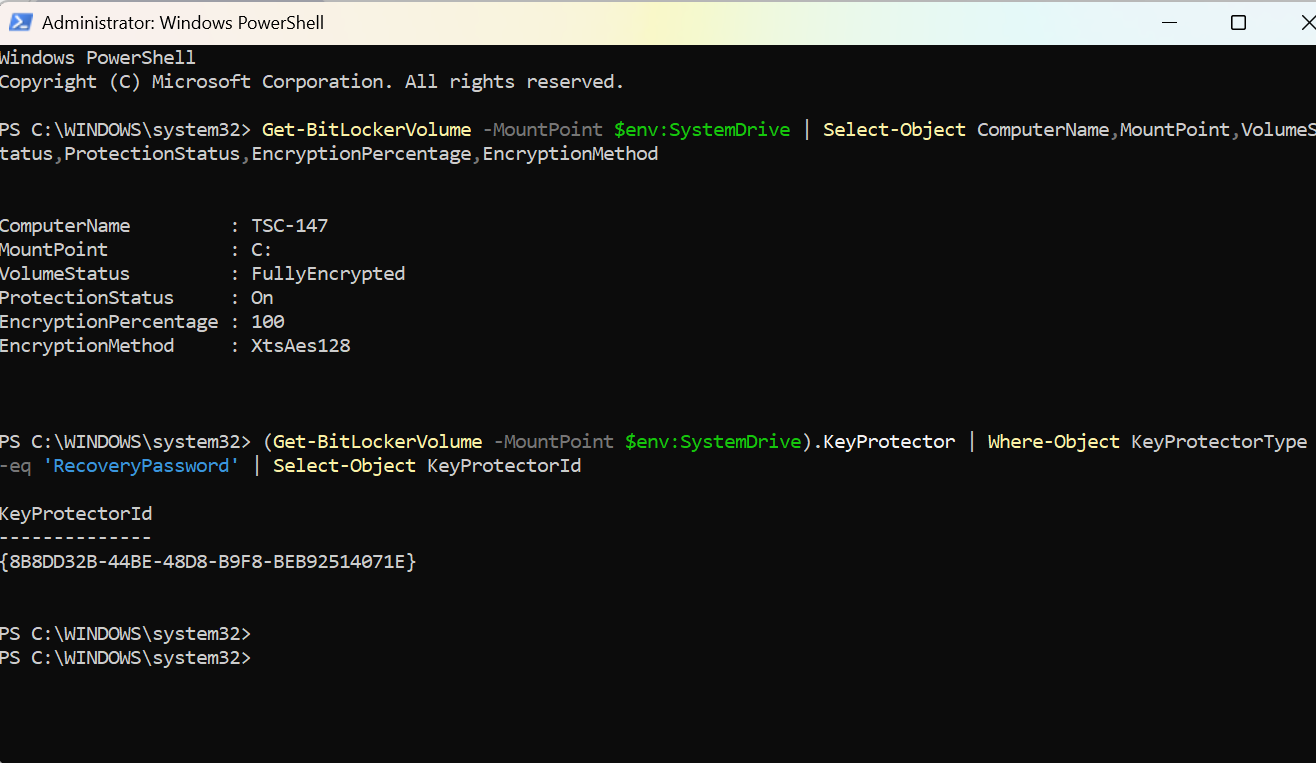
The local result is C: · FullyEncrypted · Protection On · 100% · XtsAes128. Its recovery protector is {8B8DD32B-44BE-48D8-B9F8-BEB92514071E}. This is the identifier to compare with the portal, not the recovery password.
For repeatable collection, download Get-BitLockerLabEvidence.ps1. Review it, then run it locally. It checks the expected computer name and exports only an explicit list of metadata fields. It makes no BitLocker configuration changes.
.\Get-BitLockerLabEvidence.ps1 -ExpectedComputer 'TSC-147' `
    -Phase Before -OutputPath '.\bitlocker-before.json'
If no recovery-password protector is returned, the collector records RecoveryProtectorCount: 0 and NoRecoveryPasswordProtectorObserved. A null or empty protector collection is handled explicitly. This is an observation to investigate, not proof that a backup succeeded; the collector does not create a protector.
Replace the computer name for your own pilot. Use a different output filename for a later observation; the script refuses to overwrite an existing snapshot. Its Before/After labels also support the optional rotation extension. If your execution policy prevents the script from running, use your approved script-signing process or the two interactive commands above.
3. Match it to the cloud record
In this tenant’s current Intune layout, open Devices → All devices → TSC-147 → Tools → BitLocker recovery keys. Older layouts place Recovery keys under Monitor. Compare the full local KeyProtectorId with the BitLocker Key Id for the same Entra device. Braces and letter case do not change the GUID.
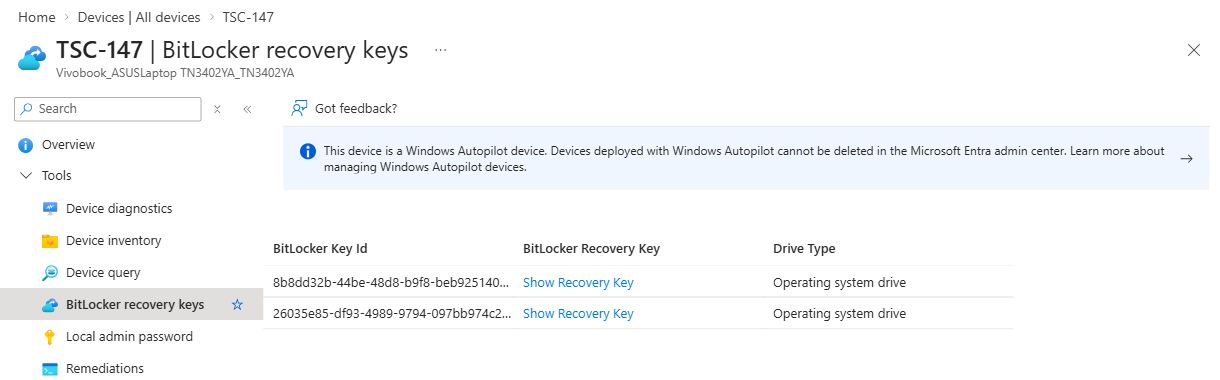
The local ID matches the complete portal record 8b8dd32b-44be-48d8-b9f8-beb92514071e recorded in the tenant baseline. The second record, beginning 26035e85, does not appear in the supplied local recovery-protector output. We can now identify the matching record by evidence, rather than its position in the list. Use the full identifier for the comparison, not the truncated text in this screenshot.
| Full cloud key ID | Comparison with local OS-drive output |
|---|---|
8b8dd32b-44be-48d8-b9f8-beb92514071e | Matches the supplied local RecoveryPassword protector ID. |
26035e85-df93-4989-9794-097bb974c281 | Not present in the supplied local ID set. |
The full identifiers above are transcribed from the laboratory’s recorded portal metadata. To repeat the comparison when the portal truncates a value, use the metadata query below. This documented alternative was not executed in this lab.
Read complete key IDs with Microsoft Graph PowerShell
Use the official Microsoft.Graph.Authentication and Microsoft.Graph.Identity.SignIns modules, installed through your approved process. The least-privileged delegated scope for this listing is BitlockerKey.ReadBasic.All. The signed-in operator must also be the applicable registered device owner or hold a supported Entra role, such as Cloud Device Administrator, Helpdesk Administrator, Security Reader or Global Reader. Use your organisation’s consent process if approval is required.
In a separate PowerShell session, replace both placeholders. Use the Microsoft Entra device ID from dsregcmd or the device properties, not the Intune managed-device ID. Confirm the tenant and account at sign-in.
Import-Module Microsoft.Graph.Authentication
Import-Module Microsoft.Graph.Identity.SignIns
$tenantId = [guid]'YOUR-TENANT-GUID'
$entraDeviceId = [guid]'YOUR-ENTRA-DEVICE-GUID'

Connect-MgGraph -TenantId $tenantId -Scopes 'BitlockerKey.ReadBasic.All' -ContextScope Process -NoWelcome
try {
    Get-MgInformationProtectionBitlockerRecoveryKey -Filter "deviceId eq '$entraDeviceId'" -All |
        Select-Object Id, DeviceId, VolumeType, CreatedDateTime |
        Format-List
} finally {
    Disconnect-MgGraph | Out-Null
}
Id is the complete cloud key identifier. Compare every local recovery-password protector with the returned IDs for that device, ignoring braces and letter case. This list operation does not return the key password property. An empty result needs investigation; a permission error is not evidence that no key exists.
A successful match establishes that a record for the local recovery protector is stored under the correct device. It does not establish that the current operator can reveal its password, or that a boot recovery was performed.
Core ticket checkpoint: once the device identity and full protector ID match, you can record the identification result. The following sections cover permissions, configuration investigation and optional recovery work; they are not additional tests required to establish that ID match.
If the matching record is missing
First check the Entra device ID and any old device objects with the same name. If the current local recovery protector truly lacks a matching cloud record, investigate the backup settings and BitLocker event logs. An authorised administrator can back up an existing recovery-password protector to Entra with BackupToAAD-BitLockerKeyProtector, specifying its exact ID.
# Only after identifying the intended RecoveryPassword protector:
BackupToAAD-BitLockerKeyProtector -MountPoint $env:SystemDrive `
    -KeyProtectorId '{FULL-VERIFIED-PROTECTOR-GUID}' | Out-Null
This command writes recovery information to Entra. It does not rotate the password. Recheck the cloud record after the operation; a command completing without an error is only one part of the verification. Do not select a protector by an assumed array position such as [1].
4. Understand recovery permissions
Keep these access checks separate when documenting a helpdesk role:
| Operation | What to verify |
|---|---|
| Find the device and key metadata | The operator can locate the correct device and recovery record within the intended scope. |
| Reveal the recovery password | Entra permission microsoft.directory/bitlockerKeys/key/read. Microsoft documents Cloud Device Administrator, Helpdesk Administrator and appropriately scoped custom roles. |
| Request rotation | Intune Remote tasks / Rotate BitLockerKeys, plus permissions to see and access the managed device. |
To test retrieval, use an already authorised recovery operator, select the matched row’s Show Recovery Key privately and then conceal it again. In Entra audit logs, look for the corresponding Read BitLocker key activity under KeyManagement; check the actor, target and time. Keep the password out of the ticket, worksheet and screenshots.
To test denied access, use a separate test operator whose effective role assignments and device ownership do not grant recovery access. Attempt the same operation and record the actual result. A missing button, an explicit denial and an empty record list are different observations. Do not grant a broad administrator role just to make this test pass.
5. Check policy and licensing prerequisites
First confirm that the device is Microsoft Entra joined or hybrid joined, rather than merely registered, and runs a supported Windows version. Review the policies that apply to it, including their per-setting results. Microsoft’s Intune guide requires these settings for the managed action:
- Client-driven recovery password rotation: enabled for the device’s join type.
- Save BitLocker recovery information to Microsoft Entra ID: enabled.
- Store recovery information in Microsoft Entra ID before enabling BitLocker: required.
Keep policy scope on the dedicated device while validating a change. A profile saved in the portal is not proof that its settings have reached Windows.
Read the join type without exporting a full device report
On the laboratory device, this read-only command selects the join-state fields and Entra device ID:
dsregcmd /status |
    Select-String '^\s*(AzureAdJoined|DomainJoined|DeviceId)\s*:'
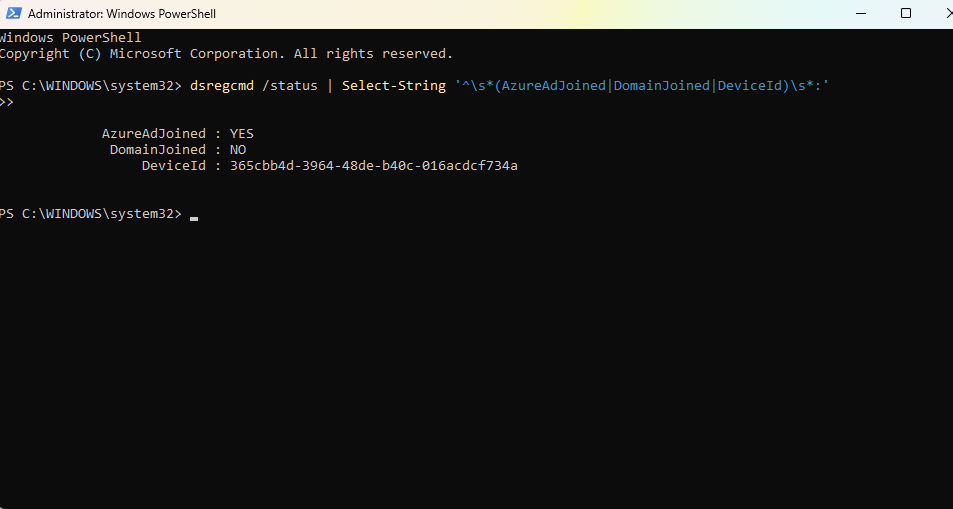
AzureAdJoined: YES with DomainJoined: NO indicates Entra join; both set to YES indicate hybrid join. Compare DeviceId with the Entra device being investigated. This check does not establish the applied BitLocker policy.
The supplied TSC-147 output shows AzureAdJoined: YES and DomainJoined: NO: this is an Entra-joined device. Its DeviceId, 365cbb4d-3964-48de-b40c-016acdcf734a, matches the Entra device ID recorded from the portal. This closes the join-state check for the same device used in the recovery-key comparison.
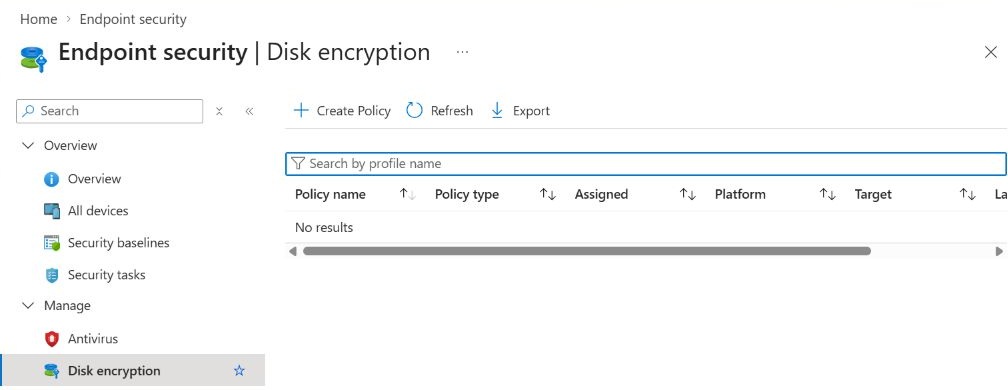
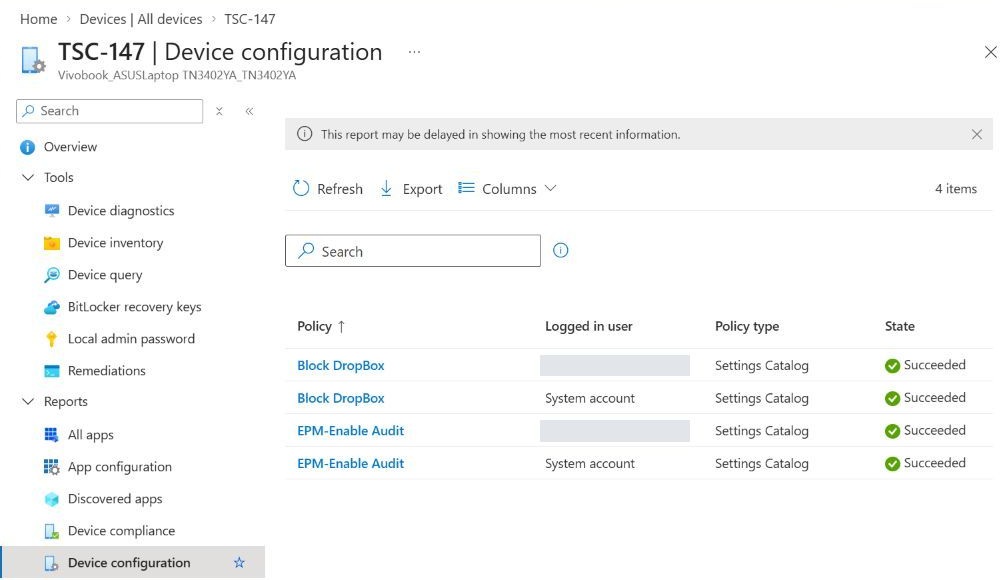
The portal recheck of TSC-147 → Device configuration returned four successful entries for two profiles: Block DropBox and EPM-Enable Audit, each reported for a user and the system account. Their detail reports showed URL blocking and elevation-reporting settings. No BitLocker profile appeared in this device report; its delay warning still applies. Stored recovery records do not identify which policy created them.
The laboratory owner confirmed that only Microsoft 365 Business Premium and Entra ID P2 are available. Microsoft’s BitLocker CSP documentation lists Windows Enterprise E3/E5 or A3/A5 entitlements for management beyond the stated RequireDeviceEncryption exception. We therefore kept this pilot to metadata inspection and did not apply a new management policy or request rotation. This licensing decision does not explain how the existing recovery records were created.
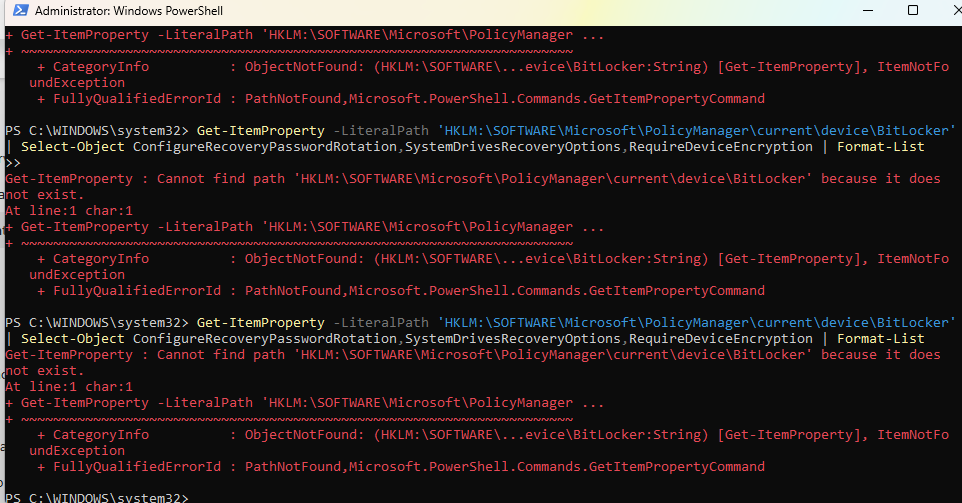
The next local check returned PathNotFound for HKLM:\SOFTWARE\Microsoft\PolicyManager\current\device\BitLocker. A subsequent Test-Path check returned False, confirming the path was still absent. The screenshot did not establish the sync time or command time. This is a missing policy-location observation, not a failed encryption or rotation result. It does not establish that BitLocker has no configuration from another source.
Continue after PathNotFound: provider, FVE and MDM evidence
The missing current\device\BitLocker path is the observation from this lab. The checks below are documented next steps; their outputs have not been collected from TSC-147.
- In Settings → Accounts → Access work or school → organisation connection → Info → Sync, synchronise and record the time. Compare the intended assignment and per-setting result in Intune.
- Inspect the provider-specific BitLocker locations and selected FVE values with the read-only commands below. A provider entry can belong to another or an older management connection; its presence alone does not identify the active policy.
- From the same Info page, select Create report → Export. Open
C:\Users\Public\Documents\MDMDiagnostics\MDMDiagHtmlReport.htmllocally and search for BitLocker. Compare the management connection and configured values with the registry and the relevant sync-time events.
$ErrorActionPreference = 'Stop'
$providerRoot = 'HKLM:\SOFTWARE\Microsoft\PolicyManager\Providers'
$providerPaths = @()
if (Test-Path -LiteralPath $providerRoot) {
    $providerPaths = @(Get-ChildItem -LiteralPath $providerRoot |
        ForEach-Object { Join-Path $_.PSPath 'default\Device\BitLocker' } |
        Where-Object { Test-Path -LiteralPath $_ })
}
if ($providerPaths.Count -eq 0) {
    'No provider BitLocker path found; policy delivery is unverified.'
}
foreach ($providerPath in $providerPaths) {
    Get-ItemProperty -LiteralPath $providerPath |
        Select-Object PSPath, RequireDeviceEncryption,
            ConfigureRecoveryPasswordRotation,
            SystemDrivesRecoveryOptions |
        Format-List
}

$fvePath = 'HKLM:\SOFTWARE\Policies\Microsoft\FVE'
if (Test-Path -LiteralPath $fvePath) {
    Get-ItemProperty -LiteralPath $fvePath |
        Select-Object PSPath, OSActiveDirectoryBackup,
            OSRequireActiveDirectoryBackup, OSRecoveryPassword,
            EncryptionMethodWithXtsOs |
        Format-List
} else {
    'FVE policy path is absent; effective policy is unverified.'
}
Missing or blank values are inconclusive. Provider values show received configuration; FVE values require comparison with that configuration and other policy sources. Neither proves that a recovery record was backed up. Decode the settings with the BitLocker CSP reference, then inspect DeviceManagement-Enterprise-Diagnostics-Provider → Admin and BitLocker-API → Management around the recorded sync. Preserve error codes and times. Keep the diagnostic report private; it can contain device, account and certificate information. Do not create registry paths to make a check pass.
If a policy change is needed, use Endpoint security → Disk encryption → Create Policy → Windows → BitLocker. Review existing policy sources first, configure only the agreed pilot settings, assign a group containing the single test device, and verify the applied values before requesting rotation. This case does not require changing the encryption algorithm, decrypting the drive or forcing a recovery boot.
Manual rotation and rotation after recovery use are different tests
The Intune remote action requests a rotation now. Client-driven rotation responds to recovery-password use. Successfully demonstrating the remote action does not demonstrate automatic rotation after a boot recovery. The worksheet records those outcomes separately.
6. Optional extension: plan a managed rotation
This is a documented procedure for a separately authorised and appropriately licensed pilot. It is outside the demonstrated key-matching exercise. The screenshot below shows only the cancelled confirmation dialog.
Open the rotation procedure and success criteria
With the local baseline saved and readiness checks complete, open Devices → All devices → TSC-147 → Overview → Secure → Rotate BitLocker keys. Read the confirmation for the named device and coordinate any restart with the operator.
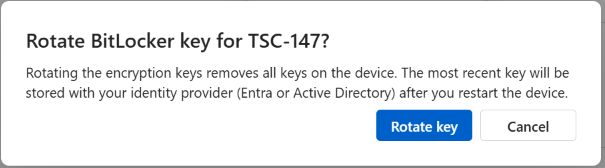
The current dialog mentions storing the latest key after a restart. Do not promise a restart-free result based on the menu label. Once the approved request is submitted, record its time and inspect Overview → Device action status. Let the device process the request; use an Intune sync or the local work-account Sync action if needed.
Repeat the local collection after processing, then refresh the same device’s recovery-key list:
.\Get-BitLockerLabEvidence.ps1 -ExpectedComputer 'TSC-147' `
-Phase After -OutputPath '.\bitlocker-after.json'- Find the new recovery-password protector ID on the OS volume.
- Confirm the baseline recovery protector is no longer active on that volume. Where multiple baseline IDs exist, account for each.
- Match the new local ID to its stored Entra record.
- Confirm local protection remains On and the volume remains encrypted.
Record the device action status alongside this comparison. If the portal lists older recovery records, check their IDs against the current local protectors before interpreting them. A historical cloud record and an active protector on the disk are not interchangeable.
7. Work through unexpected results
| Observation | Next useful check | Evidence still needed |
|---|---|---|
| Encrypted: Yes, but no matching key | Compare full device IDs, local recovery protector IDs and backup settings. | A matching cloud record for the current protector. |
| Two cloud keys | Compare both with the local ID set; do not choose by row order. | The current local match, including multiple protectors if present. |
| Key record visible, password cannot be revealed | Check the operator’s effective Entra permissions and scope. | The access outcome and audit evidence, where generated. |
| Rotation remains pending | Check connectivity, check-in time, request time and effective rotation settings. | A later device result and before/after local metadata. |
| Action completes, local ID is unchanged | Confirm the same device, volume and request; inspect the BitLocker and device-management events. | A verified local replacement, not another screenshot of the request. |
| Local ID changes, no new cloud record | Keep the device accessible and investigate backup before closing the ticket. | New local ID matched in Entra. |
Use Event Viewer → Applications and Services Logs → Microsoft → Windows → BitLocker-API → Management and DeviceManagement-Enterprise-Diagnostics-Provider → Admin for the relevant time window. Preserve event IDs, times and error codes. Inspect messages for secrets before sharing them. An absence of recent errors is not positive proof of a successful backup.
8. Close with evidence
Completed key-identification exercise
| Check | Actual observation | Status |
|---|---|---|
| Portal baseline | TSC-147: Compliant, Encrypted Yes. Initial screenshot: last check-in 05:28 Lisbon time. Later Graph inventory at 09:48 UTC: last sync 09:19:47 UTC, same reported state. | Observed |
| Cloud records | Two OS-drive key records; neither password revealed. Full recorded IDs are listed in step 3. | Observed |
| Local encryption and protection | User-supplied TSC-147 output: C:, FullyEncrypted, Protection On, 100%, XtsAes128. | Observed |
| Local protector and stored record match | Full local ID 8b8dd32b-44be-48d8-b9f8-beb92514071e matches the portal baseline record. The other stored ID is absent from the supplied local output. | Verified against baseline |
| Device join type and identity | AzureAdJoined YES, DomainJoined NO. Local DeviceId 365cbb4d-3964-48de-b40c-016acdcf734a matches the portal baseline. | Verified against baseline |
Configuration findings and optional follow-ups
These findings limit what can be claimed beyond the completed ID comparison. They do not turn an unexecuted recovery or rotation into a passed test.
| Check | Actual observation | Status |
|---|---|---|
| Local policy-path check | The current device BitLocker path returned PathNotFound, followed by Test-Path False. Sync time was not supplied. The provider/FVE/MDM follow-up was documented but not run. | Absence observed in one path |
| Effective backup/rotation policy | Disk encryption has no results; TSC-147 lists four successful entries for Block DropBox and EPM-Enable Audit. No BitLocker profile was shown in the checked views. | Effective settings not established |
| Management licensing | The owner confirms only Business Premium and Entra ID P2 are available. The management entitlement listed by the BitLocker CSP is not available for this pilot. | Rotation extension not run |
| Password retrieval, denied access and audit | Procedures provided; no retrieval, denial or read-audit test performed. | Outside demonstrated scope |
| Managed rotation and new backup | Confirmation viewed and cancelled. No request, replacement protector or post-rotation backup was tested. | Not run |
| Boot recovery / automatic rotation after use | Outside the demonstrated key-identification exercise. | Not tested |
Close the key-identification ticket with the device IDs, local observation, full matched protector ID and corresponding Entra record. For TSC-147, the local recovery protector matches 8b8dd32b-44be-48d8-b9f8-beb92514071e; the other cloud record is absent from the supplied local ID set. Record access and rotation as separate follow-ups. This closes the identity comparison, not a claim that boot recovery or password rotation was tested.
9. Microsoft references
- BitLocker in Intune: recovery-key access and rotation prerequisites
- Intune device action: BitLocker key rotation
- BitLocker operations guide: local status and protectors
- BitLocker recovery process and helpdesk permissions
- BitLocker configuration and management licensing
- BitLocker CSP: rotation request and status
- BackupToAAD-BitLockerKeyProtector reference
- List full BitLocker key IDs with Microsoft Graph: metadata and permissions
- Create and inspect the Windows MDM diagnostic report
- Interpret the device join state with dsregcmd
- Troubleshoot BitLocker policies on the client: sync, registry and MDM evidence
Documentation checked on 11 November 2026. For the previous investigation, see case 05: assignment filter evaluation.