A user forwards you an email and asks a fair question: “We have Microsoft 365 protection. Why did this reach my inbox?”
Before you make a policy stricter, find out what happened to that particular message. Was it detected and allowed by an exception? Was it considered clean at delivery? Was it released from quarantine, moved by a mailbox rule, or changed after delivery? Each explanation leads to a different fix.
This guide follows one message and one recipient from the original email to the configuration that might explain its handling. It includes a small, harmless external-mail experiment, a read-only inventory script and a route for tenants without Threat Explorer.
1. Start with the message and your available tools
Open a case with the recipient, the original sender address, subject and received time including its time zone. Preserve the original message or its headers through your approved investigation process. An ordinary inline forward creates a different message and might omit the evidence you need.
Record the Internet Message-ID. Also retain the Network Message ID and the MessageTrace ID returned by Exchange, keeping the original field labels. In the current trace interface, MessageTrace ID is also described as the Network Message ID; it matched that header in our control. Neither is the Internet Message-ID. The same message can have a different result for another recipient.
| Your starting point | Useful evidence | What it does not establish |
|---|---|---|
| Exchange Online and the original message | Message trace, headers, mailbox settings and mail flow configuration. | The full Defender investigation history. |
| Defender for Office 365 Plan 1 | Real-time detections and supported email investigation details. | Every Plan 2 capability or an All email investigation view. |
| Defender for Office 365 Plan 2 | Threat Explorer, including the All email view, and additional investigation capabilities. | Automatic access for an administrator without the required permissions. |
Check the licence and the operator's role before promising a specific screen. Use a role with the required investigation permissions rather than assigning Global Administrator just to follow the guide. Previewing or downloading message contents can require additional permissions beyond viewing metadata.
For the Exchange trace, Microsoft's documented options include Exchange Administrator or the Exchange Organization Management role group. For read-only Defender investigation, check Security Reader or, where Unified RBAC is active, Email & collaboration metadata (read). Content access is separate. The lab recipient needs access to its own Outlook settings; the inventory commands also depend on the operator's Exchange RBAC scope.
Our tenant check: selecting Explorer opened the Defender for Office 365 trial setup page. A navigation entry was therefore not evidence of usable Explorer access. The primary lab follows the Exchange and original-header route; the Defender branch below is documented separately.
2. Establish what Exchange recorded
In the Exchange admin center → Mail flow → Message trace, start a trace with a narrow time window, the exact recipient and the sender. Add the original message identifier when the interface supports it. Select the matching result, verify its identifiers and inspect its events.
Check that the query's time zone and end time include the message. Newly delivered mail can take several minutes to appear in trace results; refresh the same precise query before treating an initial empty result as a delivery failure.
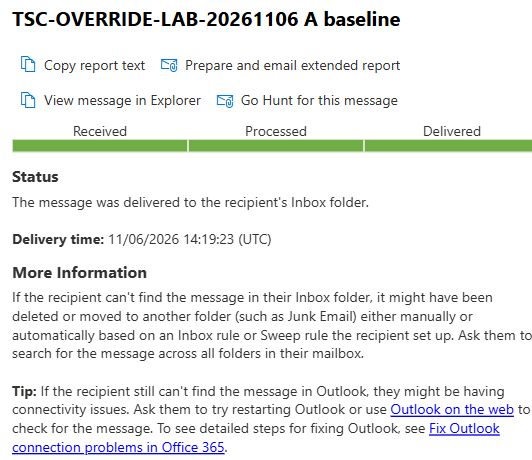
A final status of Delivered describes transport handling. It does not certify safe content or prove that the message is still in the Inbox. Record any stated folder, filtering action and rule event rather than inferring them from the final status. Compare this with what the recipient actually sees.
For a precise PowerShell lookup, use Microsoft's ExchangeOnlineManagement module version 3.7.0 or later. Import a qualifying version, connect, then confirm the loaded version and both V2 commands:
Import-Module ExchangeOnlineManagement -MinimumVersion 3.7.0 -ErrorAction Stop
Connect-ExchangeOnline -UserPrincipalName admin@contoso.com -ErrorAction Stop
Get-Module ExchangeOnlineManagement | Select-Object Name,Version
Get-Command Get-MessageTraceV2,Get-MessageTraceDetailV2 -ErrorAction Stop |
    Select-Object Name
Continue when the loaded version is at least 3.7.0 and both commands are listed. If the import fails, install or update the module through your approved process and start a fresh PowerShell session. If a command is still unavailable after connecting, check the Exchange session and your RBAC permissions. Replace the dates, recipient and message identifier below with your case record:
$start = [DateTimeOffset]::Parse('2026-11-06T13:00:00Z').UtcDateTime
$end   = [DateTimeOffset]::Parse('2026-11-06T16:00:00Z').UtcDateTime
$rows = @(Get-MessageTraceV2 `
    -StartDate $start -EndDate $end `
    -RecipientAddress 'lab@contoso.com' `
    -MessageId '<original-message-id@example.net>' `
    -ResultSize 5000)

$rows | Select-Object Received,SenderAddress,RecipientAddress,
    Subject,Status,MessageId,MessageTraceId

foreach ($row in $rows) {
    Get-MessageTraceDetailV2 `
        -MessageTraceId $row.MessageTraceId `
        -RecipientAddress $row.RecipientAddress `
        -StartDate $start -EndDate $end |
        Select-Object Date,Event,Action,Detail,Data
}
V2 can search the last 90 days, with at most 10 days in one query and up to 5,000 returned records. Output timestamps are UTC. An empty or capped result needs a narrower query and a check of permissions, identifiers and timing; it is not proof that the service never received the message.
If a summary does not identify the rule, inspect the detailed or extended report available for the case. Keep the rule identifier and event alongside the original message. A rule that exists today might differ from the version that processed yesterday's mail.
Downloadable Enhanced summary and Extended reports can take several hours to prepare. Their archived data typically excludes the most recent 24 hours. For a newly delivered message, start with the standard trace and its event details; a missing archived record does not establish that the event never happened.
3. Read the original headers
In Outlook on the web, open the original message and use its More actions → View → View message details option. Menu wording can vary. Keep the complete headers privately, then use a short, redacted extract for the case summary.
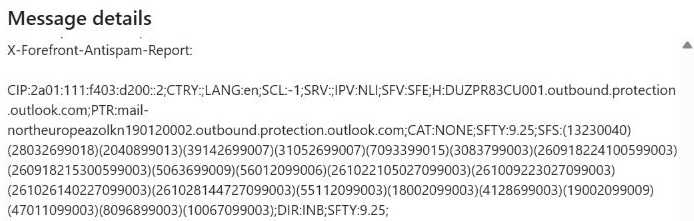
Start with Authentication-Results and X-Forefront-Antispam-Report. SPF, DKIM and DMARC concern sender authentication; a passing result does not establish that the content or sender's intentions are safe. A compromised legitimate sender can pass authentication.
| Field | Investigation use |
|---|---|
DIR | Confirm whether the message was inbound, outbound or internal. |
CAT | Identify the recorded threat category, when present. |
SFV:SFE | Investigate the recipient's Safe Senders entry. |
SFV:SKA | Investigate allowed senders or domains in the applicable anti-spam policy. |
SFV:SKN | Investigate a transport-rule filtering bypass. |
IPV:CAL or SFV:SKI | Investigate the connection filter IP Allow List. |
SFV:SKQ | Investigate quarantine release. |
Do not diagnose the result from SCL alone. Microsoft's current cloud guidance directs you to category and directionality for filtering interpretation. Correlate the relevant headers with the trace and available Defender records. Headers are clues from the processing path, not a complete explanation of every later mailbox action.
Baseline evidence: our harmless message A recorded SFV:NSPM; CAT:NONE; DIR:INB, with SPF, DKIM and DMARC passing. Exchange separately recorded Inbox delivery at 14:19:23 UTC on 6 November 2026. These are observations from the control, not a claim that a suspicious message would receive the same treatment.
4. Add Defender evidence when available
With the necessary entitlement and permissions, open Microsoft Defender → Email & collaboration → Explorer. Use the All email view to investigate delivery, narrowing by recipient, time and message identifier. In Plan 1, Real-time detections covers malicious detections at delivery; it does not provide Explorer's All email view or equivalent post-delivery coverage. A harmless control may therefore have no result there.
Check the available investigation window: Explorer and Real-time detections normally let you search back up to 30 days, compared with 90 days for message trace. An older message can therefore appear in Exchange trace without an available Explorer result. Record the dates and filters used before drawing a conclusion from an empty search.
Open the message's email entity page and compare the original and latest delivery location, detection information, applied policy and any override details. Inspect the timeline for post-delivery actions. Record the fields actually available in your tenant; an absent field is not a “no exception” verdict.
An override describes a reason that handling changed. It might represent a user allow, an administrator allow, a transport rule, a quarantine release or an intentional special-delivery configuration. Read the specific reason before deciding which owner should review it.
When the recorded verdict was clean and no override is supported by the evidence, retain that as a separate outcome. Follow the approved submission and incident process for a suspected missed detection. Do not invent an allowlist explanation to make the investigation fit this guide.
5. Find the matching exception
Review the control suggested by the message first, then check adjacent controls if the evidence remains incomplete. Record the exact matching entry, scope, owner, purpose and expiry. A list entry without a match to the message is a finding to assess, not its proven cause.
| Control | Where to inspect | Question to answer |
|---|---|---|
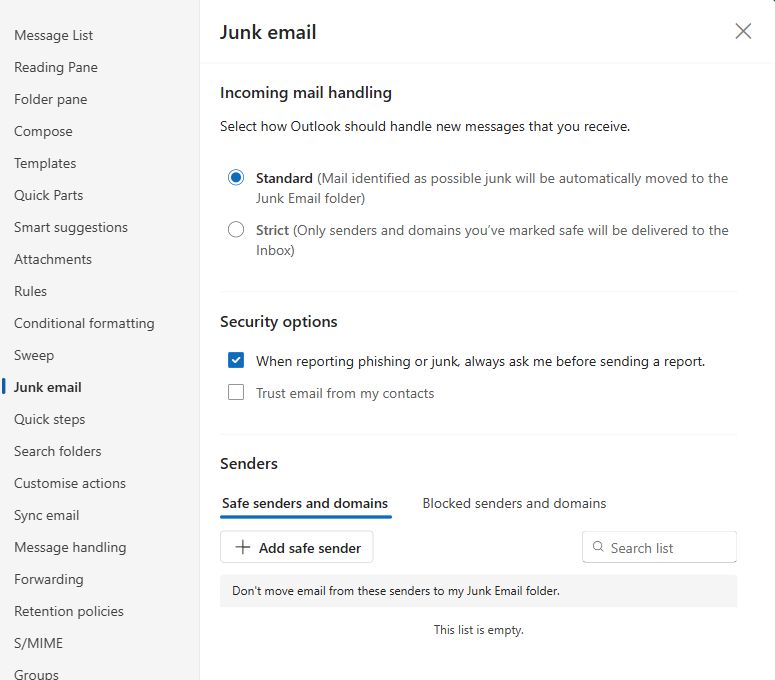
| Mailbox Safe Senders | Recipient's Outlook settings → Email → Junk email; or Exchange PowerShell. | Does the exact address or domain match? Was it present at delivery? |
| Anti-spam allow entries | Defender → Email & collaboration → Policies & rules → Threat policies → Anti-spam. | Which inbound policy actually applies to this recipient? |
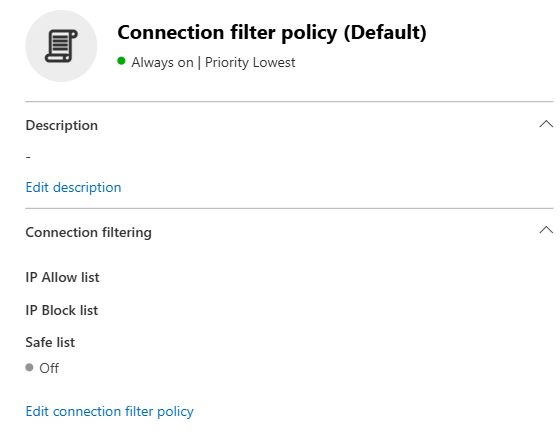
| Connection filter | The same Anti-spam page → Connection filter policy. | Does the connecting IP match an allowed range? |
| Tenant Allow/Block List | Threat policies → Tenant Allow/Block Lists. | Which entity type, action, scope and expiry apply? |
| Transport rule | Exchange admin center → Mail flow → Rules. | Do conditions, exceptions, mode and processing order support a match? |
| Advanced delivery or gateway routing | Threat policies → Advanced delivery / Enhanced filtering; Exchange connectors. | Is a special mailbox, simulation or upstream mail path involved? |
Policy precedence matters. An enabled custom anti-spam policy is not necessarily the recipient's effective policy. Check preset assignments, exclusions and rule scope before editing an allow entry in the wrong policy.
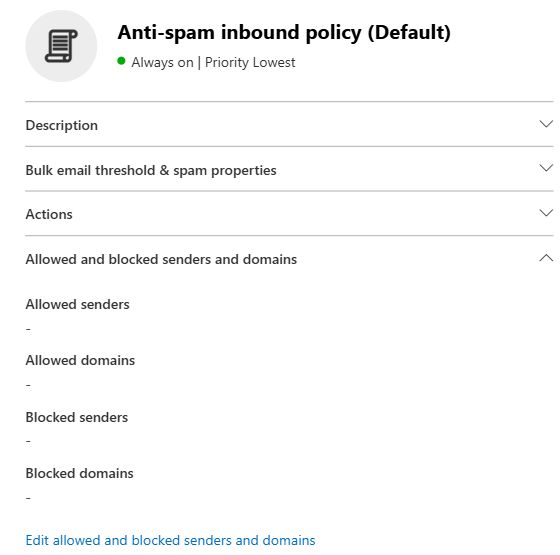
An address and a domain are different Safe Senders cases. When the applicable anti-spam action is to move a message to Junk Email, both entry types can affect delivery. When the action is quarantine, domain entries are not honoured. An individual sender address can still affect delivery, subject to protection precedence, including malware, high-confidence phishing and relevant Tenant Allow/Block List blocks. Check the detected category and the applicable action before attributing delivery to an entry. The lab below uses only one exact sender address.
Keep the different allow mechanisms separate. Administrator submissions and Advanced delivery have their own documented handling and exceptions; they should not be treated as interchangeable fixes.
Microsoft recommends using the Tenant Allow/Block List for appropriate allow scenarios and discourages broad anti-spam allowed-domain lists. For a false positive, investigate and submit through the approved process rather than allowing an entire commonly used domain.
A cloud-specific trap: the Enabled property
Get-MailboxJunkEmailConfiguration -Identity 'lab@contoso.com' |
    Format-List Enabled,TrustedListsOnly,ContactsTrusted,
        TrustedSendersAndDomains,BlockedSendersAndDomains
Do not use Set-MailboxJunkEmailConfiguration -Enabled $false as a way to neutralise Safe Senders in Exchange Online. Microsoft explicitly states that this parameter has no effect on mail flow in cloud mailboxes; the safe and blocked lists continue to work. Review the actual entries instead.
Download the read-only email override inventory script and usage notes. It collects one mailbox's junk settings and selected tenant policy settings, reports failed or unavailable queries separately, and lists the remaining manual checks. The JSON output is private investigation material. A successful export is not proof of effective assignment or of a message's handling.
6. Run a narrow control experiment
The lab uses an owned external mailbox, one Exchange Online lab recipient and three new plain-text messages. Each carries a unique run marker and stage in its subject. The body contains only a synthetic test statement, with no links, attachments or customer content.
Subject A: YOUR-LAB-RUN A baseline
Subject B: YOUR-LAB-RUN B safe sender
Subject C: YOUR-LAB-RUN C restored

Body: SYNTHETIC EMAIL INVESTIGATION LAB.
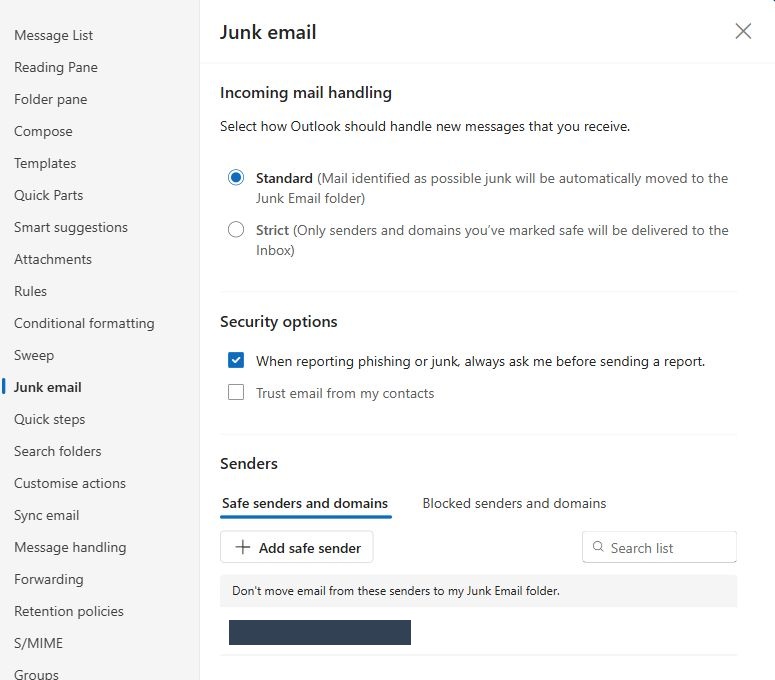
Replace YOUR-LAB-RUN with a unique marker and send each stage as a new message, not a reply. In Outlook settings, adding the address with OK and selecting Save are separate actions in the interface used here. Complete both before sending B.
The purpose is to see whether a recorded user allow can be connected to message processing. A benign message cannot prove that real phishing, malware or a high-confidence verdict would be delivered. Success for this experiment means traceable evidence and a verified return to the original settings.
- Record the original state. Inspect Safe Senders and Blocked Senders, contact trust and the incoming-mail mode. If the proposed sender is already allowed, choose another owned test address; do not remove a production entry to manufacture a baseline.
- Stage A: baseline. Send a fresh external message. Save its identifiers, trace result, original headers and observed folder.
- Stage B: one temporary entry. Under the approved lab change, add only the exact external address to that recipient's Safe Senders list. Verify the saved entry, then send a new message. Compare the processing evidence with A. A saved setting alone does not prove that B used it.
- Stage C: restore. Remove only the entry created for B, verify the original state and send a third new message. Compare the evidence again. Never reuse the already-delivered B message as a cleanup test.
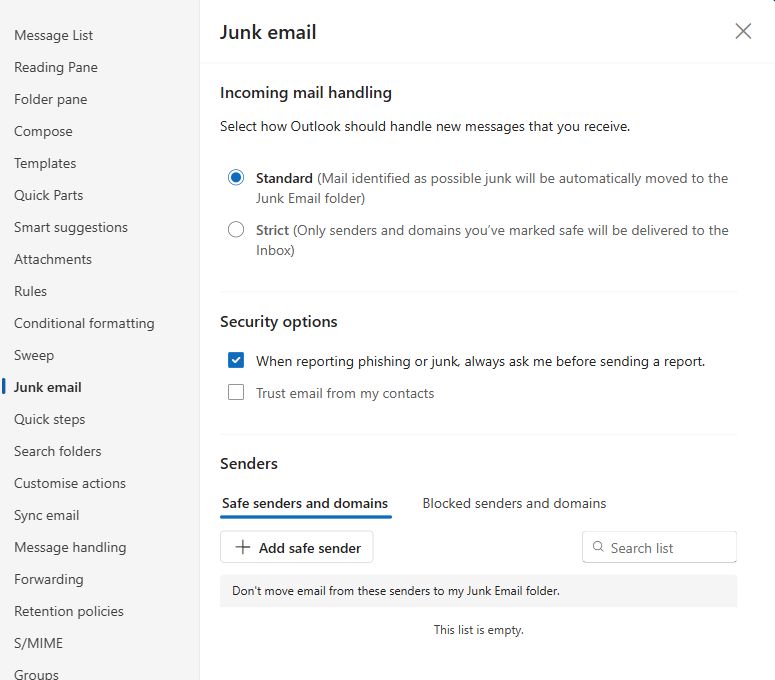
What changed in our mailbox
All three messages reached the Inbox. The useful difference was in their processing evidence: A recorded SFV:NSPM; B recorded SFV:SFE; C returned to SFV:NSPM after the temporary entry was removed. All three retained CAT:NONE and DIR:INB, and all passed SPF, DKIM and DMARC. B also recorded SCL −1, but the specific Safe Senders clue is SFV:SFE.
| Stage | Safe Senders entry | Observed SFV | Exchange Inbox delivery, UTC |
|---|---|---|---|
| A — baseline | Absent | NSPM | 14:19:23 |
| B — temporary allow | Exact address present | SFE | 14:56:25 |
| C — fresh control after cleanup | Removed and verified | NSPM | 15:09:59 |
All delivery times above are from 6 November 2026. Each Exchange trace was joined to its own original message identifiers. The temporary entry was removed, saved and checked by reopening the settings before C was sent. Its fresh headers and trace completed the return-to-baseline check.
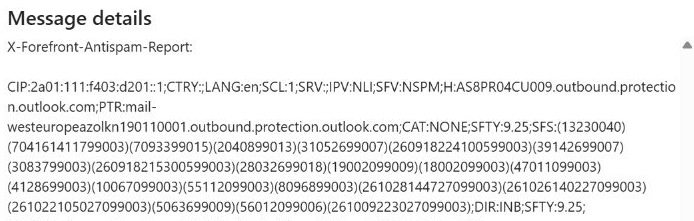
If your comparison does not show the expected header or override, investigate scope, timing and the processing route. Inbox delivery alone will not distinguish the stages: in this lab all three messages arrived, while their filtering evidence changed.
7. Correct the cause and verify the result
Separate the incident response from configuration cleanup. If the message is genuinely malicious, preserve evidence and follow your approved process to contain affected messages, users and sessions. A clean configuration does not recall an email already delivered or undo an action someone took.
For an unnecessary exception, record the business owner and original value, make the smallest approved change, and test new messages. Include a legitimate business control so that “the suspect message stopped arriving” is not your only success criterion.
- User allow: remove the specific unjustified entry and explain the impact to the mailbox owner.
- Policy or rule exception: verify recipient scope and preserve rollback details before changing it.
- Gateway bypass: review the architecture, connector trust and Enhanced Filtering guidance with the mail-flow owner.
- Quarantine release: investigate the release and permissions rather than assuming an allowlist was responsible.
- No supported override: treat the detection or mailbox-handling question on its own evidence.
Keep a record containing the message and recipient, observed handling, supporting fields, matching configuration, change, new test identifiers and rollback result. This makes the next review faster and gives another administrator something they can verify.
8. Review what the evidence establishes
| Check | Status | Evidence and limit |
|---|---|---|
| Baseline mailbox configuration | Observed | Safe Senders and Blocked Senders empty; Standard mode; contact trust off. |
| A: benign external control | Observed | Inbox; SPF, DKIM and DMARC pass; SFV:NSPM; CAT:NONE; DIR:INB. |
| A: Exchange trace correlation | Verified | Inbox delivery at 14:19:23 UTC on 6 November 2026. Original Message ID and trace identifier match the retained header record. |
| B: temporary exact-address allow | Verified | SFV:SFE; CAT:NONE; DIR:INB; SPF/DKIM/DMARC pass. Trace confirms Inbox delivery at 14:56:25 UTC, matched by original identifiers. |
| C: cleanup and fresh control | Verified | Entry removed and original settings reopened. Fresh C returned to SFV:NSPM with CAT:NONE and DIR:INB; trace confirms Inbox delivery at 15:09:59 UTC. |
| Threat Explorer | Unavailable in this session | The menu led to a trial setup page; no trial was activated. |
| Download script | Local checks passed | Empty, failed and unavailable queries, 1,201 mock rules and wildcard rejection. Not run against this tenant. |
| Live-phishing detection or bypass | Outside lab scope | Only harmless synthetic mail is used. |
The useful outcome is an explanation you can support: what happened to this message, which evidence supports that conclusion and what the retest changed. “The tenant has an allowlist” and “this message was allowed by that entry” are different findings.
For the surrounding controls, continue with the DMARC audit guide, Standard, Strict and custom protection, and mail flow rule troubleshooting. If account compromise is involved, use the separate session-revocation validation guide.
Microsoft references
- Email threat landscape: Q3 2026 trends and insights — current threat context.
- Microsoft Defender for Office 365 overview — investigation capabilities and plans.
- Threat Explorer and Real-time detections — scope, retention and investigation permissions.
- Message trace in the Exchange admin center — portal workflow and permissions.
- Get-MessageTraceV2 and Get-MessageTraceDetailV2 — current trace commands and limits.
- Anti-spam message headers — authentication and filtering fields.
- The email entity page — message investigation details.
- Understand overrides — interpretation of message overrides.
- Order and precedence of email protection — policy and override precedence.
- Create sender allowlists — mechanisms, preference and cautions.
- Configure junk email settings on cloud mailboxes — Safe Senders and the Enabled-property limitation.
- Get-MailboxJunkEmailConfiguration — mailbox inventory.